HP G5 Dock
Enhance your workspace and streamline your daily routine with the HP G5 Dock. Designed to support seamless connectivity and efficient organization, the HP G5 Dock offers a practical solution for managing multiple devices and peripherals. Whether you're setting up a home office or upgrading your professional environment, discover options that help you stay productive and connected. Explore the range of HP G5 Dock choices to find the perfect fit for your setup.
Sort
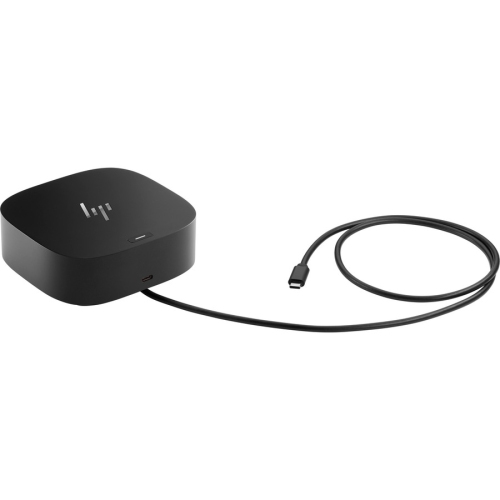
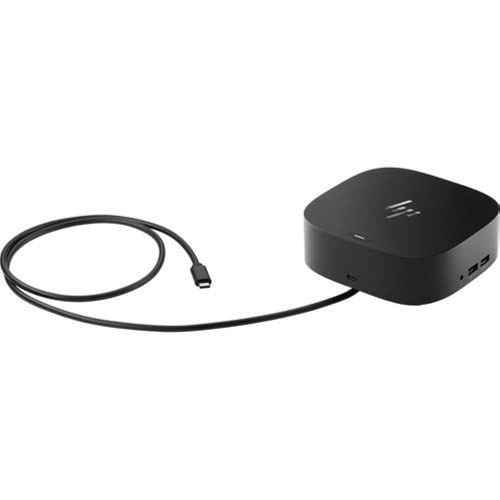
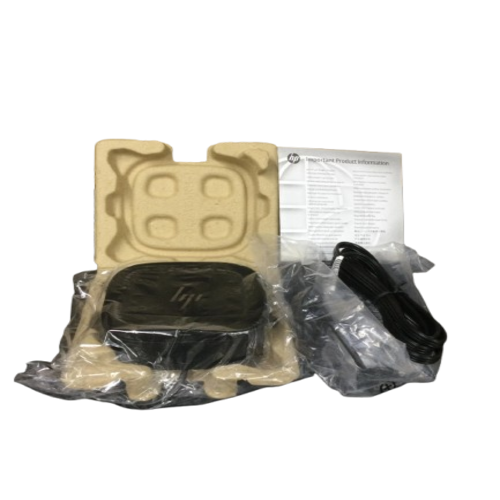
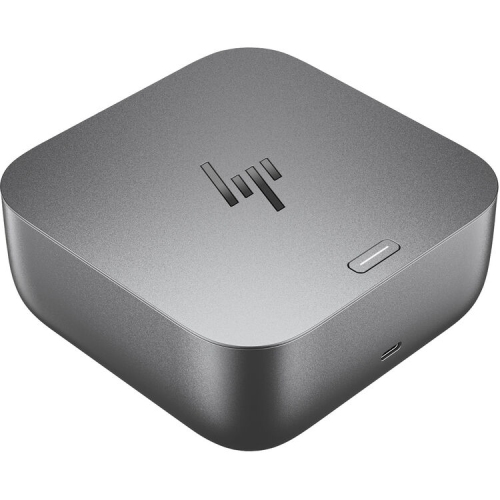
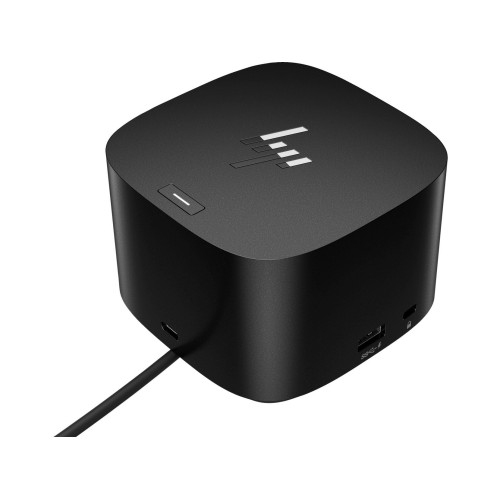

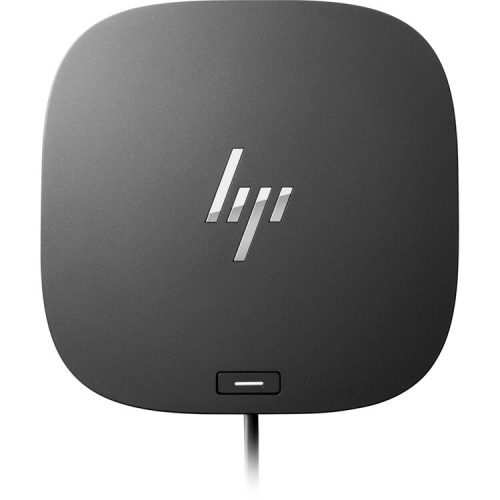
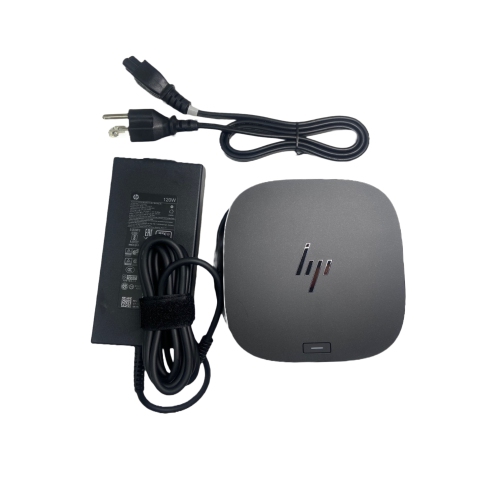
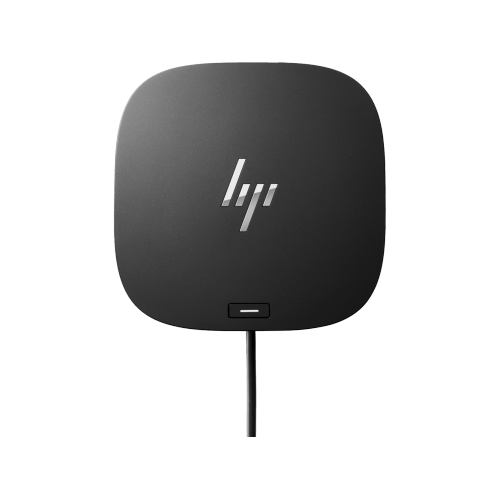
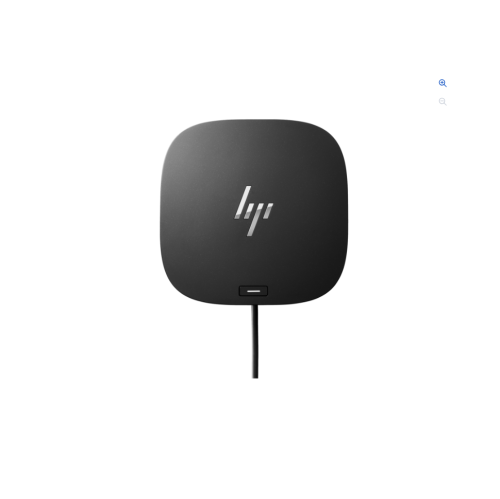
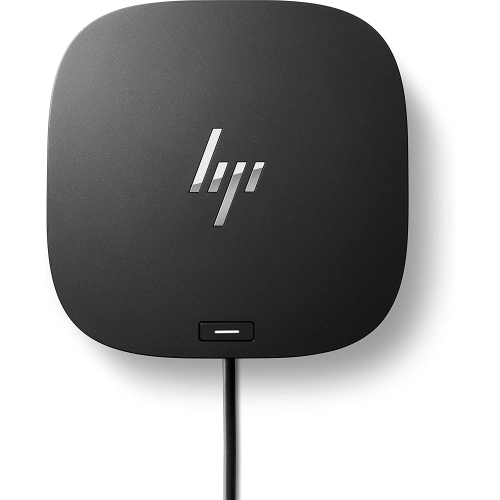
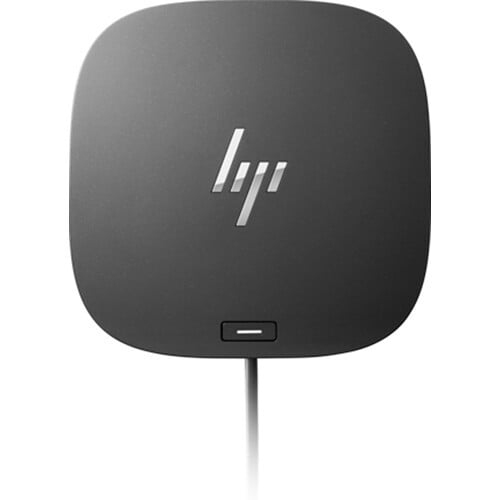
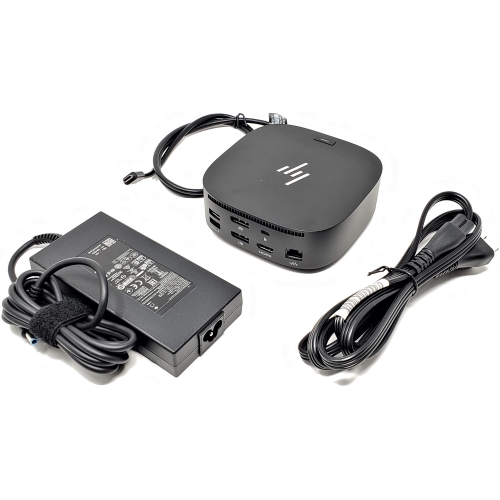
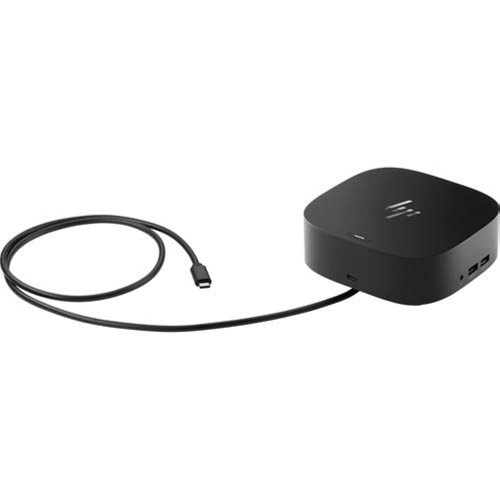
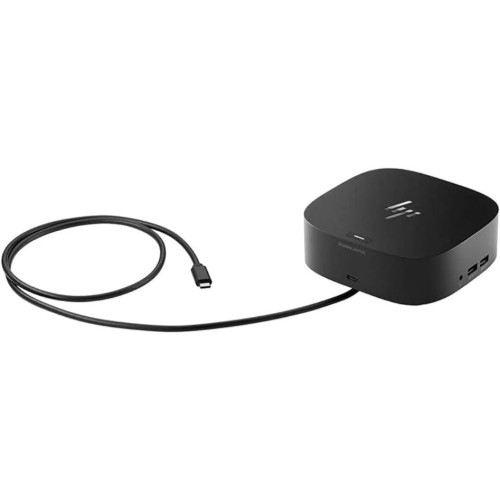
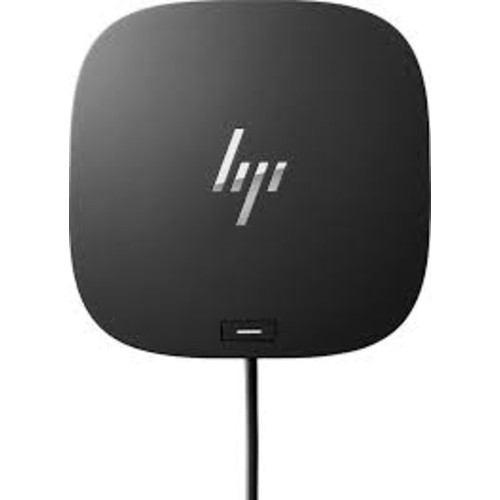
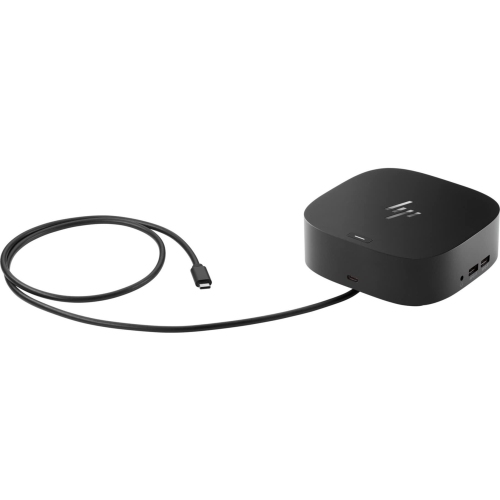
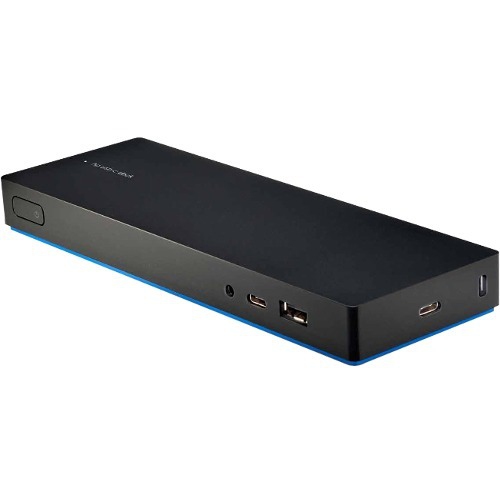
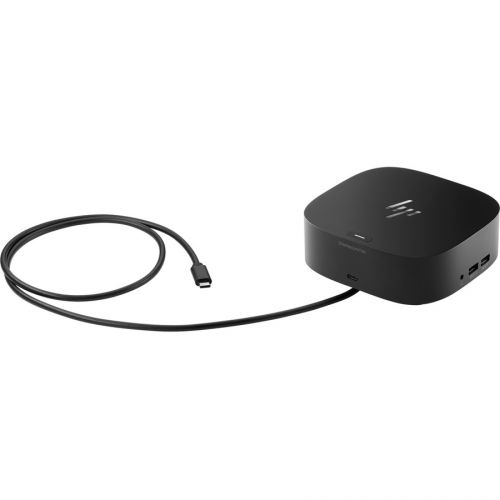
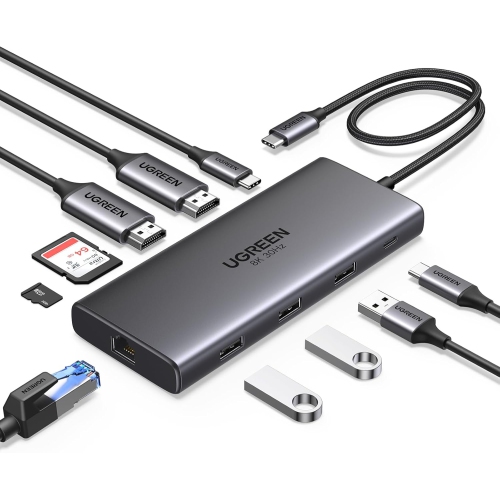
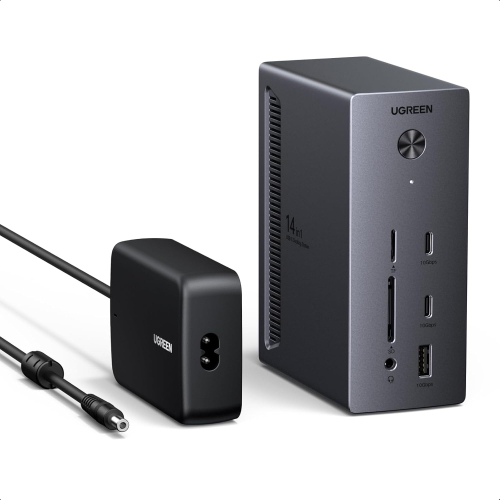
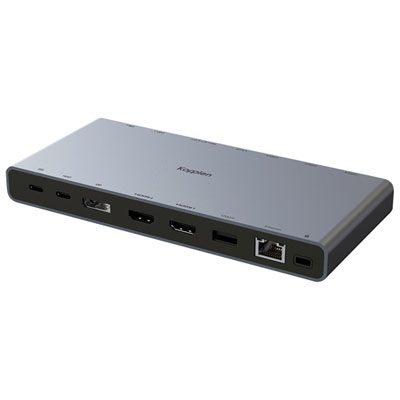
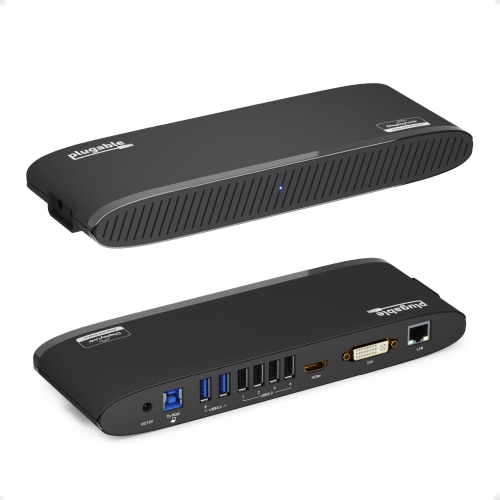
A desk that stays ready while your laptop travels
A USB-C docking station connects a compatible laptop to monitors, USB accessories, and a wired network through a single laptop connection, with charging supported when the dock and computer are designed for it. It gives a portable computer a more permanent place at a desk without making the computer itself any less portable. A keyboard, mouse, webcam, and external display can remain connected to the dock while the laptop travels between a meeting room, a home office, and a shared workspace. Returning to the desk then involves connecting the laptop to an arrangement that is already in place, rather than reaching behind a monitor for several separate cables. The HP USB-C Dock collection is relevant to this kind of setup, where the connection between a laptop and its desktop accessories matters as much as the number of ports. Docking stations are particularly useful for laptops with a limited selection of built-in connections, although a matching connector alone does not establish full compatibility. USB-C describes the connector shape; the functions supported through that connector depend on the computer and the dock. Video output, charging, and data transfer each have their own requirements. A suitable dock can support a workspace used for spreadsheets, online meetings, research, or general office tasks, but it does not add processing power or turn an unsupported laptop port into a video output. That distinction matters when moving from a simple accessory connection to a full desktop arrangement. Someone working with a large document beside a reference screen has different display needs from someone using one monitor for email and video calls. The most practical setup reflects those everyday tasks, leaving enough accessible connections for the accessories that get used regularly without filling the desk with unnecessary adapters. A dock also creates a consistent place for equipment that otherwise tends to move around, such as a headset receiver or a cable used to transfer files.
Display support is one of the most important differences between docking arrangements. The number of video connectors on a dock does not necessarily equal the number of independent screens a laptop can run. Supported monitor combinations depend on the laptop’s graphics capabilities, operating system, connection technology, and the resolution and refresh rate of each display. A pair of high-resolution monitors can place greater demands on the connection than a single screen used for documents. Extended displays, where each screen shows different content, also require different support from mirroring the same image across multiple screens. USB-C video commonly relies on DisplayPort Alternate Mode, while some docking technologies use software-based display connections that may require drivers. These approaches are not interchangeable, and behaviour can differ between operating systems. HDMI and DisplayPort connections should also suit the inputs on the monitors, since an adapter does not automatically preserve every resolution or refresh-rate option. Charging deserves the same attention. USB Power Delivery can allow a compatible dock to power a laptop through the USB-C connection, but the power reaching the computer may be lower than the rating printed on the dock’s power adapter. Some power is needed to operate the dock and its attached devices. A laptop with higher power requirements may charge slowly, display a power warning, or still need its own charger during demanding work. USB ports, meanwhile, serve different purposes even when they look alike. Data-transfer capability, accessory charging, and video support are separate features. For an external drive, the supported data speed matters; for a keyboard or mouse, a dependable connection is usually more important than a high headline transfer rate. A wired Ethernet connection can be useful for large file transfers and video calls when a network cable is available at the desk, though actual performance still depends on the network and internet service. Audio connections and accessible front-facing ports can further reduce the need to reach around the laptop during a busy working day.
Physical design makes a noticeable difference once a dock becomes part of the daily routine. A compact housing can sit beside a monitor stand, while a longer or wider design may need a dedicated space where connected cables will not pull it towards the edge of the desk. Port placement affects how comfortably everything fits: rear connections can keep permanent monitor and network cables together, while more accessible ports suit a removable drive or headset. The laptop cable needs enough reach for the intended position without stretching across a writing area or putting sideways pressure on the computer’s socket. Housing materials, reinforced cable entry points, and non-slip feet can all contribute to a dock that feels stable with several cables attached. Durability also depends on handling. Supporting the connector when unplugging it, rather than pulling on the cable, reduces strain on the connection. A clear space around the housing allows heat to disperse, and a soft, dry cloth is generally suitable for removing surface dust, subject to the manufacturer’s care directions. Drinks, tightly packed storage spaces, and bent cables are best kept away from powered desktop equipment. In a shared office, a docking station can make a desk easier to use across compatible laptops, although workplace security policies, software requirements, and charging needs still apply. At home, it can help a student move between focused study and online classes, or let a remote worker use a full-size keyboard and monitor without giving up the convenience of a portable computer. It can also be a useful gift for someone whose desk already has several accessories, provided the laptop model and connection requirements are known. The lasting value comes from a good match between the computer, the displays, and the way the space is used. With those pieces aligned, a docking station makes the desk feel settled: the monitor is positioned properly, the keyboard has room, and the laptop can come and go without disturbing the rest of the workspace.
Top selling and popular products
-
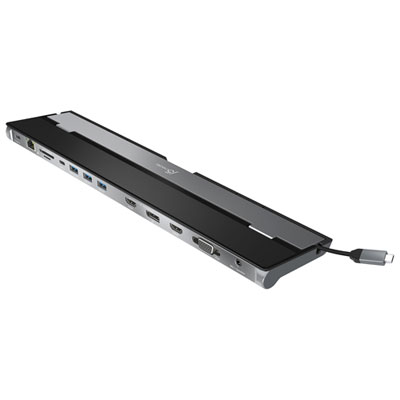 Your price for this item is $129.99
-
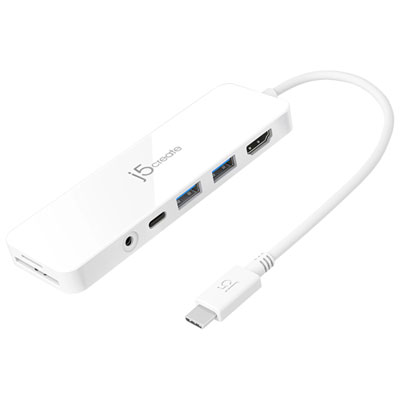 Your price for this item is $59.99
-
 Your price for this item is $44.99
-
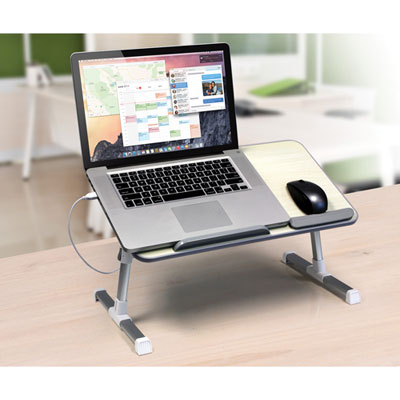 Your price for this item is $59.99
-
 Your price for this item is $96.61
-
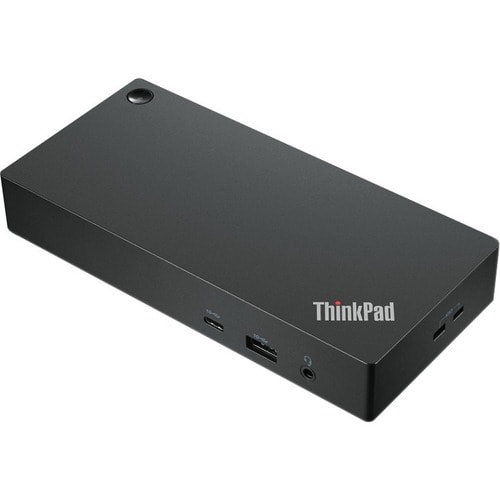 Your price for this item is $179.99
-
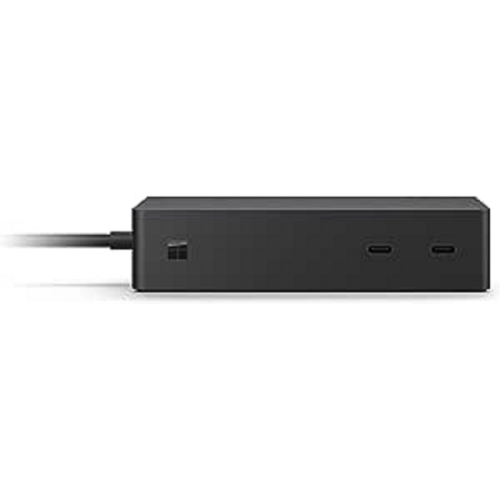 Your price for this item is $209.99
-
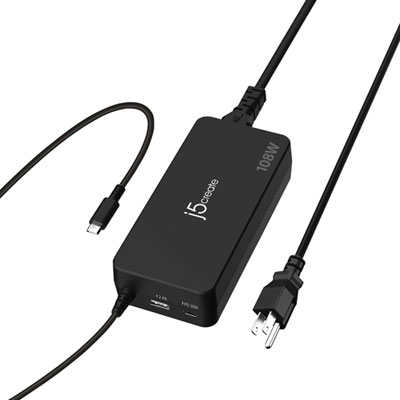 Your price for this item is $59.99
Discover more categories related to HP G5 Dock

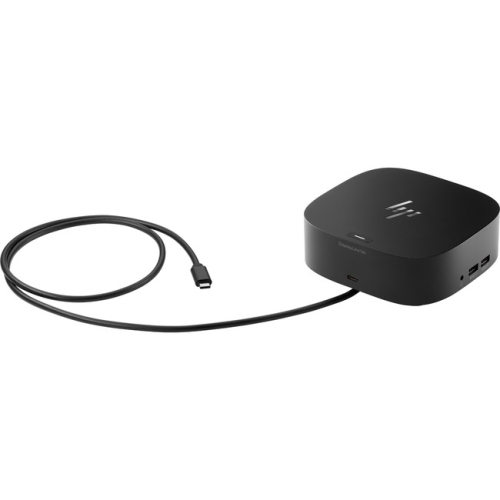
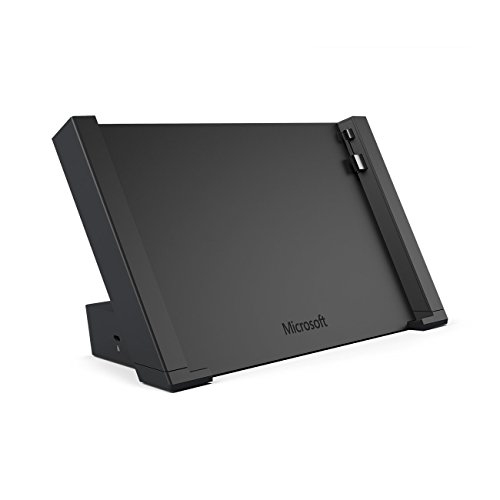
Top Collections:
Best Black Friday Deals This Year, Best Black Friday Deals On Electronics, Kindle Devices, Dyson Airwrap, Best Cameras for Sports Photography, Best Budget Office Chairs, Canon G7X Cameras, PS5 Pro Consoles, Best Black Friday Deals On Apple Products, XBOX One S Consoles
Some products may be subject to Environmental Handling Fees
(EHF) depending on your province.
Learn more about EHFs.