Laptops for Photo Editing Under $1000
Finding the perfect laptop for photo editing under $1000 doesn't have to be a daunting task. Whether you're a professional photographer or a hobbyist looking to enhance your images, there's a range of laptops that offer the performance and reliability you need without breaking the bank. With advancements in technology, these budget-friendly options can handle demanding software, ensuring your creative projects run smoothly. Dive into a world of vibrant displays, efficient processing power, and ample storage—all designed to bring your photos to life while keeping your budget intact.
Sort
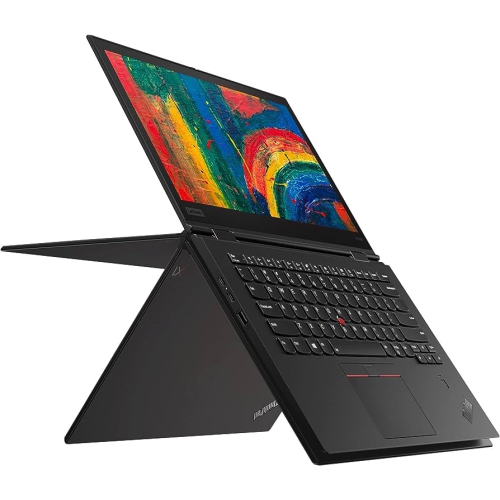
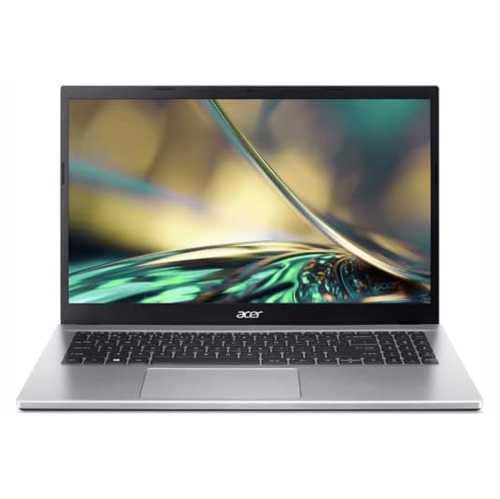
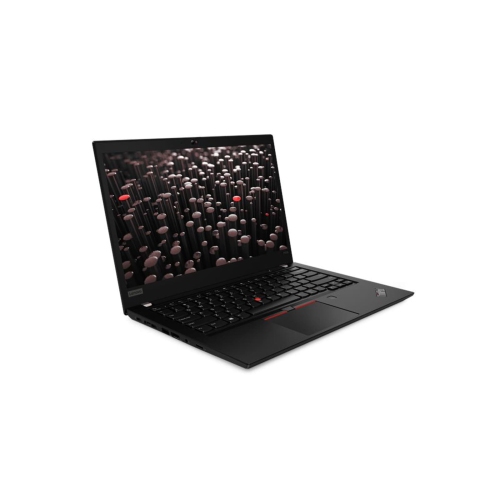
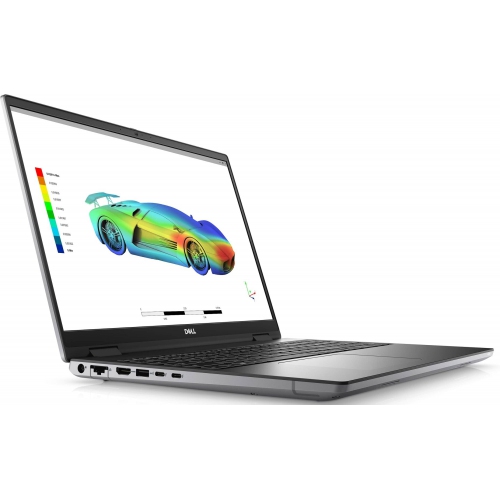
A sharp screen is only part of the picture
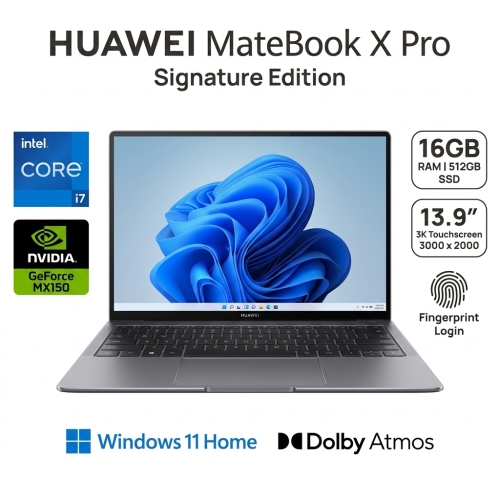
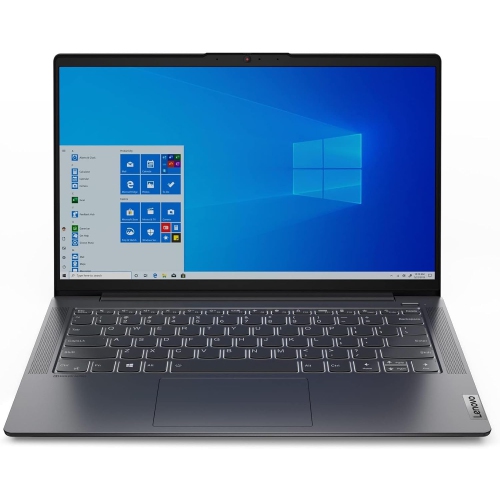
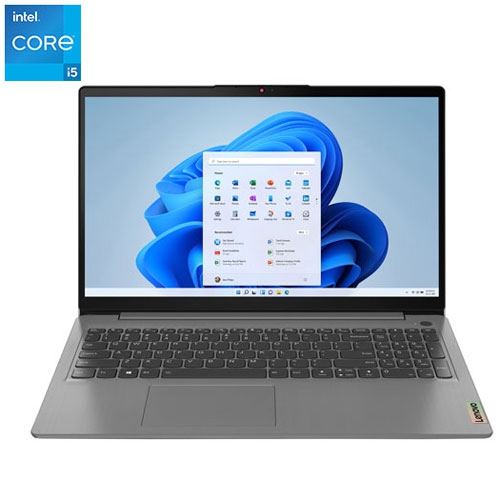
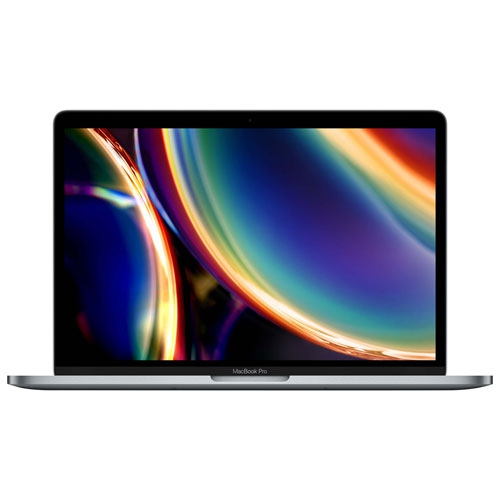
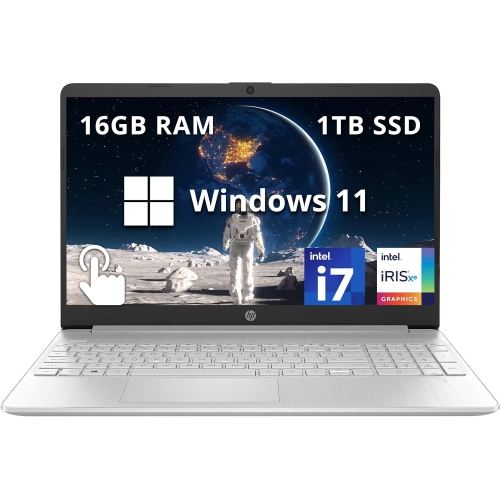
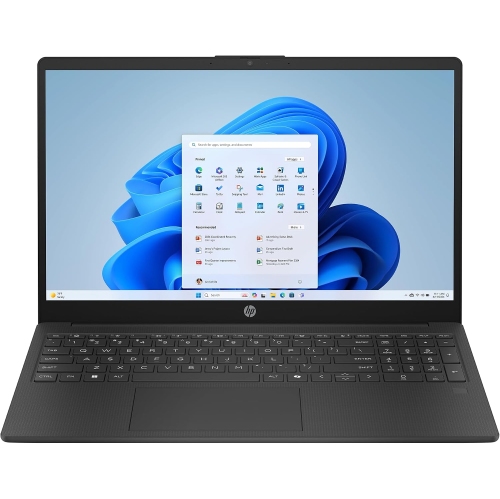
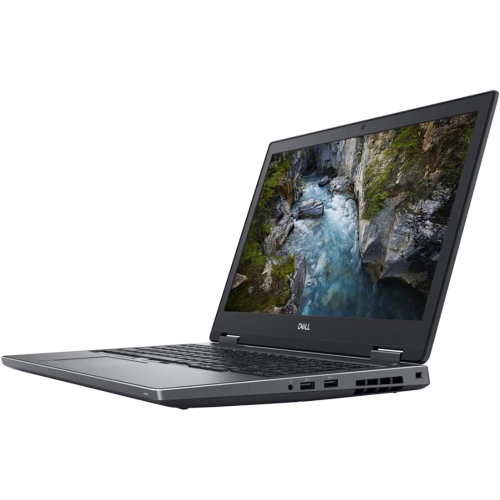
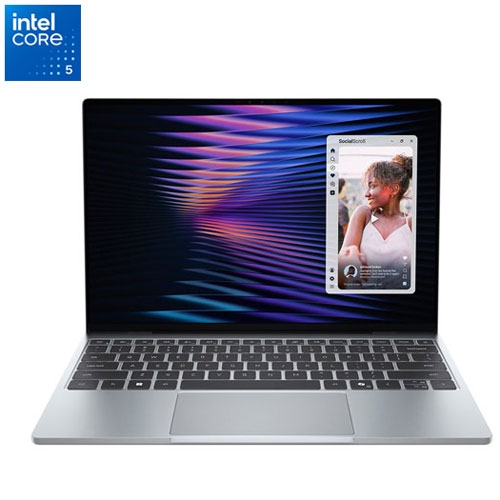
For everyday photo editing, a modern multi-core processor, 16GB of RAM, solid-state storage, and a display with reliable colour reproduction make a practical combination. Together, these features support tasks such as sorting a camera card full of images, adjusting exposure, straightening horizons, and preparing finished photos for sharing or printing. The screen deserves particular attention because it shapes every editing decision, from the warmth of skin tones to the detail visible in a dark jacket. A display covering close to 100% of the sRGB colour space is a useful target for photos intended for websites, social media, and many everyday printing workflows. Screen resolution and colour coverage describe different qualities: a sharp image does not necessarily mean that colours are accurate. Full HD resolution provides a practical starting point, while a higher-resolution panel can make fine detail and interface text look clearer. An IPS-type panel generally offers consistent viewing angles, helping an image retain its appearance when the screen is tilted or viewed slightly off-centre. A matte finish can reduce distracting reflections, although brightness and the position of nearby lighting also affect visibility. Screen size changes how comfortably an editing workspace fits together. A 14-inch laptop is easier to carry between a desk and a photography class, while a 15-inch or 16-inch screen leaves more room for a large image preview, adjustment controls, and a strip of thumbnails. A taller screen shape can also provide useful vertical space when working on portraits. For colour-sensitive work, display calibration can help improve consistency, though it cannot add colours that the panel cannot reproduce. An external monitor offers another way to create a larger editing workspace, provided the laptop supports the monitor’s resolution and connection. These display characteristics matter whether the photos show family gatherings, handmade jewellery, travel scenes, or images for a growing portfolio.
Processing power, memory, and storage determine how smoothly those editing sessions unfold. A capable multi-core processor helps with importing images, generating previews, applying adjustments, and exporting batches of finished files. Processor age and design matter alongside the number of cores, so a familiar-looking specification alone does not tell the whole performance story. For many everyday workflows, 16GB of RAM provides useful room for an editing application, a browser, and supporting tools to run together. Working with large RAW files, stitched panoramas, or documents containing many layers can make 32GB worthwhile. RAW files retain more capture information than a typical camera-generated JPEG, giving the editor greater flexibility, but they also place heavier demands on memory and storage. A solid-state drive helps applications open promptly and makes browsing a local photo library more responsive. A 512GB SSD is a practical starting point, although the space needed grows quickly when original files, previews, edited copies, and other personal documents share the same drive. External storage can hold completed projects, while a separate backup protects against losing the only copy of an important shoot. Moving files to an external drive is not, by itself, a backup if the originals are then deleted from the laptop. Graphics requirements depend on the application and the work involved. Modern integrated graphics can handle many standard adjustments, while a dedicated graphics processor may benefit supported effects, accelerated tools, and demanding image-processing tasks. Some automated noise-reduction and enlargement features have specific hardware requirements, making application compatibility worth confirming before settling on a configuration. Cooling also influences performance during longer exports: a thin laptop may behave differently during sustained work than during a brief adjustment. Upgrade options vary, too. Some laptops have replaceable memory or storage, while others use fixed memory, making the original configuration especially important for anyone planning to keep the computer through several years of developing skills and larger projects. The most useful balance supports the actual workload rather than emphasizing a single impressive number.
Everyday design details help a photo-editing laptop fit the way it will be used. A photographer who carries a camera bag to classes or client visits may value low weight and a compact charger, while someone editing mainly at a desk may prefer a larger screen and a full-size keyboard. Metal and well-built plastic housings can both serve regular use; hinge stability, keyboard flex, and the strength of the area around the ports are useful signs of construction quality. A responsive trackpad makes selecting images and moving around a canvas easier, though an external mouse can offer more comfortable control during detailed retouching. Connections deserve attention because a typical workflow may involve a memory card, an external drive, and a monitor at the same time. A built-in card reader can simplify imports when it matches the camera’s card format. USB-C ports differ in capability, so charging, video output, and data-transfer support should be confirmed rather than assumed from the connector’s shape. Battery-life claims also need context: exporting images and running intensive effects generally use more power than light browsing. For a broader comparison of screen sizes and configurations, explore the Laptops for Photo Editing collection. Whatever the setup, straightforward care helps protect the equipment. A padded sleeve reduces scuffs during transport, clear ventilation openings help maintain airflow, and a soft microfibre cloth is suitable for routine screen care when used according to the manufacturer’s directions. Liquid cleaner should never be sprayed directly onto the display. Keeping drinks away from the keyboard and using a firm work surface are sensible habits during long editing sessions. Photography students, family archivists, hobbyists, and small-business owners may all use these laptops differently, but each benefits from dependable performance and a clear view of their images. Whether the task is restoring a scanned family portrait or preparing product photos for an online shop, the right combination leaves more attention for the photograph itself.
Processing power, memory, and storage determine how smoothly those editing sessions unfold. A capable multi-core processor helps with importing images, generating previews, applying adjustments, and exporting batches of finished files. Processor age and design matter alongside the number of cores, so a familiar-looking specification alone does not tell the whole performance story. For many everyday workflows, 16GB of RAM provides useful room for an editing application, a browser, and supporting tools to run together. Working with large RAW files, stitched panoramas, or documents containing many layers can make 32GB worthwhile. RAW files retain more capture information than a typical camera-generated JPEG, giving the editor greater flexibility, but they also place heavier demands on memory and storage. A solid-state drive helps applications open promptly and makes browsing a local photo library more responsive. A 512GB SSD is a practical starting point, although the space needed grows quickly when original files, previews, edited copies, and other personal documents share the same drive. External storage can hold completed projects, while a separate backup protects against losing the only copy of an important shoot. Moving files to an external drive is not, by itself, a backup if the originals are then deleted from the laptop. Graphics requirements depend on the application and the work involved. Modern integrated graphics can handle many standard adjustments, while a dedicated graphics processor may benefit supported effects, accelerated tools, and demanding image-processing tasks. Some automated noise-reduction and enlargement features have specific hardware requirements, making application compatibility worth confirming before settling on a configuration. Cooling also influences performance during longer exports: a thin laptop may behave differently during sustained work than during a brief adjustment. Upgrade options vary, too. Some laptops have replaceable memory or storage, while others use fixed memory, making the original configuration especially important for anyone planning to keep the computer through several years of developing skills and larger projects. The most useful balance supports the actual workload rather than emphasizing a single impressive number.
Everyday design details help a photo-editing laptop fit the way it will be used. A photographer who carries a camera bag to classes or client visits may value low weight and a compact charger, while someone editing mainly at a desk may prefer a larger screen and a full-size keyboard. Metal and well-built plastic housings can both serve regular use; hinge stability, keyboard flex, and the strength of the area around the ports are useful signs of construction quality. A responsive trackpad makes selecting images and moving around a canvas easier, though an external mouse can offer more comfortable control during detailed retouching. Connections deserve attention because a typical workflow may involve a memory card, an external drive, and a monitor at the same time. A built-in card reader can simplify imports when it matches the camera’s card format. USB-C ports differ in capability, so charging, video output, and data-transfer support should be confirmed rather than assumed from the connector’s shape. Battery-life claims also need context: exporting images and running intensive effects generally use more power than light browsing. For a broader comparison of screen sizes and configurations, explore the Laptops for Photo Editing collection. Whatever the setup, straightforward care helps protect the equipment. A padded sleeve reduces scuffs during transport, clear ventilation openings help maintain airflow, and a soft microfibre cloth is suitable for routine screen care when used according to the manufacturer’s directions. Liquid cleaner should never be sprayed directly onto the display. Keeping drinks away from the keyboard and using a firm work surface are sensible habits during long editing sessions. Photography students, family archivists, hobbyists, and small-business owners may all use these laptops differently, but each benefits from dependable performance and a clear view of their images. Whether the task is restoring a scanned family portrait or preparing product photos for an online shop, the right combination leaves more attention for the photograph itself.
Top selling and popular products
-
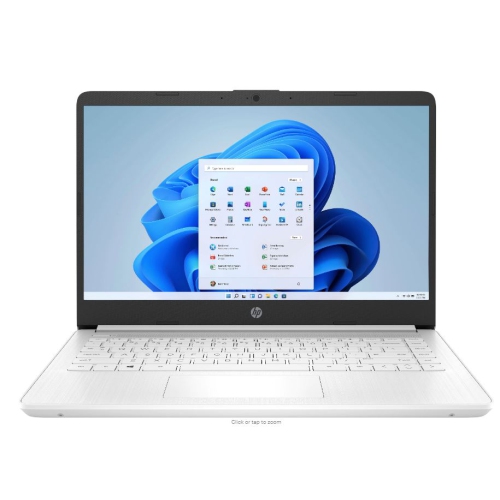 Your price for this item is $449
-
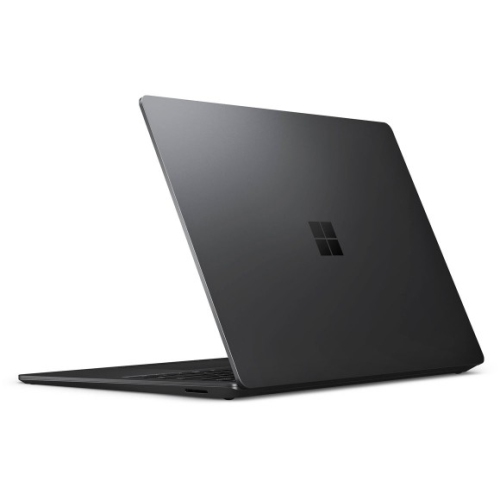 Your price for this item is $3099
-
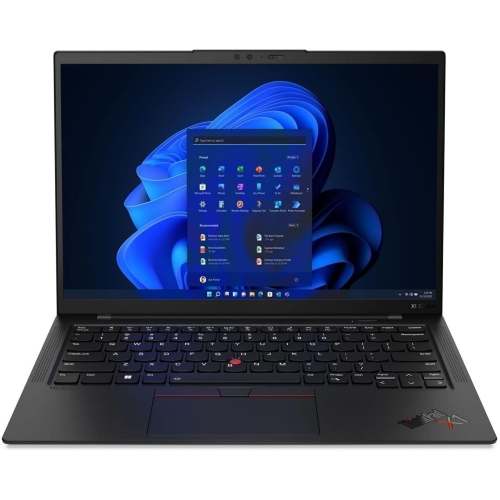 Your price for this item is $449.99
-
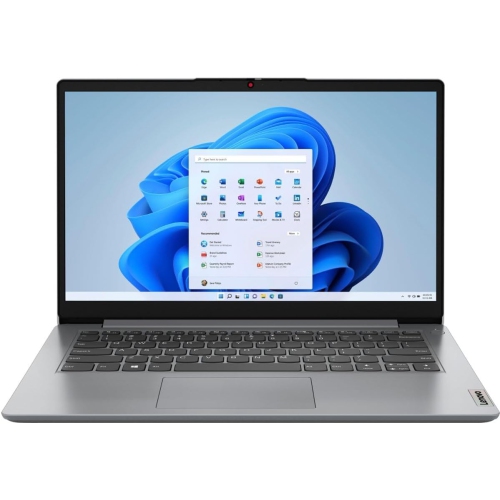 Your price for this item is $664.05
-
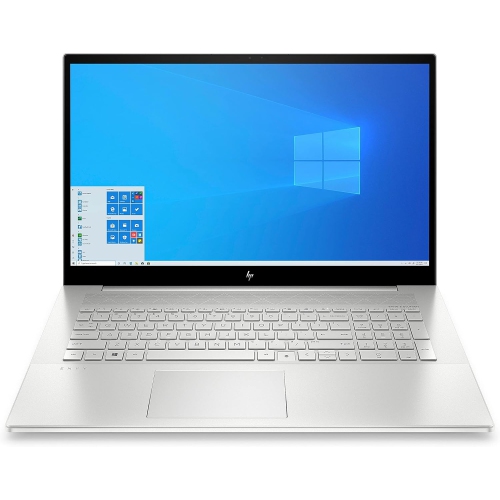 Your price for this item is $869.99
-
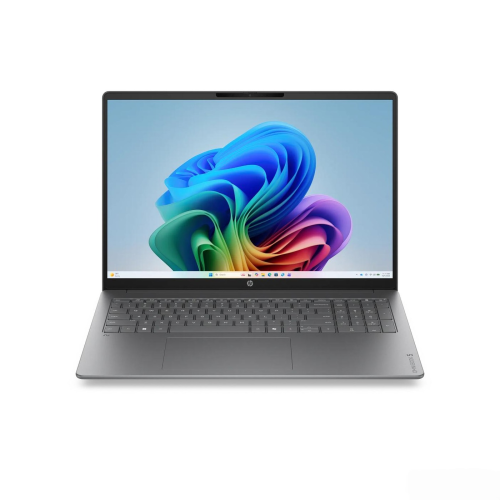 Your price for this item is $2960.48
-
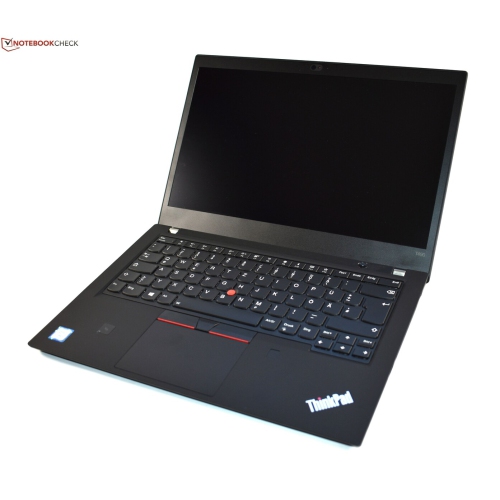 Your price for this item is $489.7
-
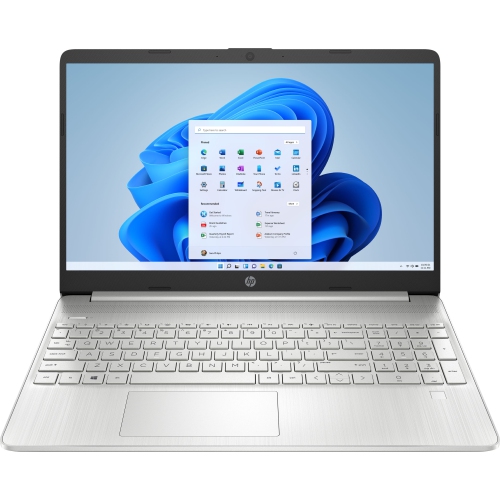 Your price for this item is $829
Discover more categories related to Laptops for Photo Editing Under $1000
Top Collections:
Pokemon Centers, Best Black Friday Deals This Year, Best Black Friday Deals On Electronics, Kindle Devices, Best Budget Office Chairs, Best Black Friday Deals On Apple Products, Best Cameras for Sports Photography, Pokémon 30th Celebration Cards, Dyson Airwrap, Canon G7X Cameras
Some products may be subject to Environmental Handling Fees
(EHF) depending on your province.
Learn more about EHFs.