Lenovo M70Q
Discover the versatility and performance of the Lenovo M70Q, designed to meet your computing needs at home or in the office. With its compact form factor and reliable functionality, the Lenovo M70Q offers a seamless experience for work, study, and entertainment. Explore a range of configurations to find the perfect fit for your daily tasks and enjoy dependable technology that adapts to your lifestyle.
Sort


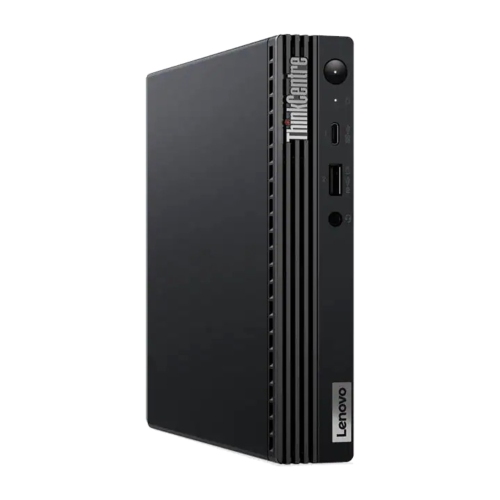
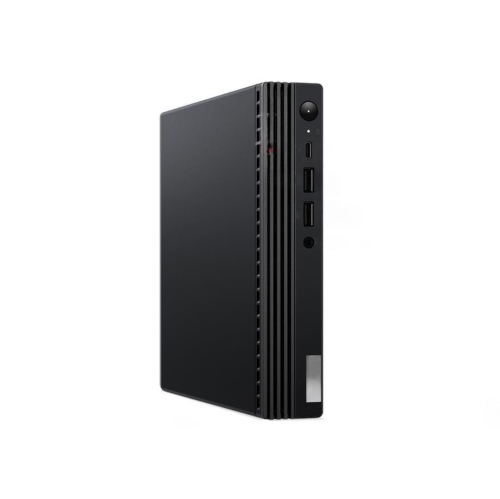
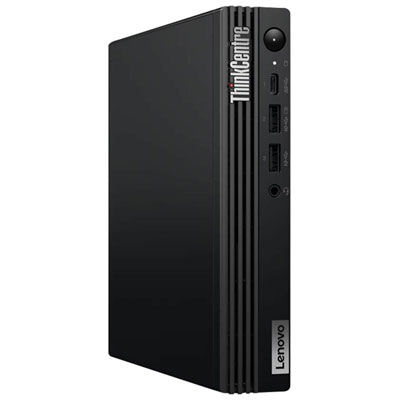


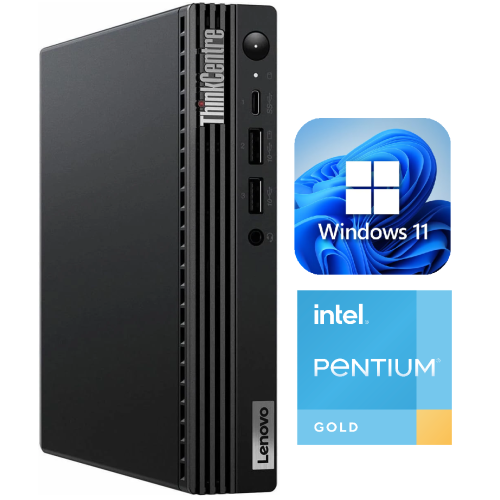
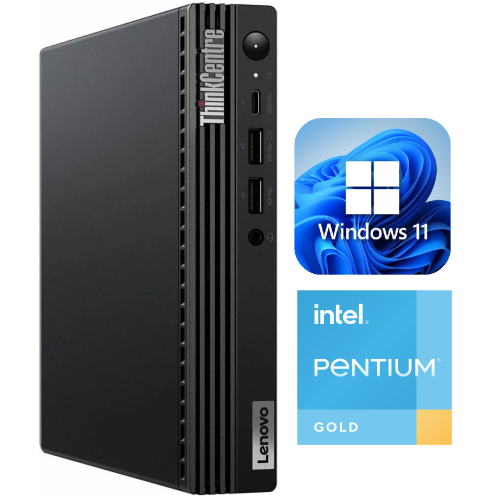

Everyday office computing without the full-size tower
An ultra-compact business desktop brings everyday computing into a small chassis, often around one litre in volume, rather than a full-size tower. This format suits workspaces where the computer needs to stay out of the way without giving up the familiarity of a desktop setup. On a home office desk, it leaves more room for a keyboard, notebook and paperwork; at a reception counter, it can keep the work surface clear for serving customers. Unlike an all-in-one computer, a separate compact desktop allows the monitor and computer to be chosen or replaced independently. It also works with a full-size keyboard and mouse, making it practical for long stretches of typing, spreadsheet work or administrative tasks. Students, remote workers and small-business teams may find this balance of size and everyday capability especially useful. The physical fit involves more than the case dimensions, however. An external power adapter, connected cables and access to the power button all need space. Some configurations support vertical stands or compatible mounting brackets, including arrangements behind a monitor, but mounting hardware and screen compatibility should be checked separately. A computer tucked behind a display still needs unobstructed ventilation and enough clearance to connect or remove cables. Compact business chassis commonly combine metal panels with moulded plastic sections, balancing protection for internal components with accessible controls and ports. Surface finishes can show scuffs from repeated moves, while connectors benefit from cables that are supported rather than pulled tightly around the edge of a desk. A secure position away from foot traffic and accidental spills helps protect the setup during daily use. For a shared workstation, keeping frequently used connections within reach can matter as much as hiding the computer itself. The most comfortable arrangement is usually one where the small chassis disappears into the workspace without making a headset, USB drive or power switch difficult to reach.
Performance in a tiny desktop depends on its processor generation, memory, storage and cooling design, not simply its compact appearance. Similar-looking cases can contain substantially different hardware, so the exact configuration matters when matching a computer to its intended workload. Email, browser-based business tools, document editing and video meetings have different demands from large spreadsheets, software development or working with high-resolution media. Memory becomes particularly important when several applications stay open together: a video call, a busy browser and a spreadsheet can place more pressure on a system than any one of those tasks alone. A solid-state drive supports responsive startup and file access, while capacity determines how much room remains for applications, downloaded documents and local project files. For someone who mainly works in cloud-based tools, local storage needs may be modest; a user keeping large photo libraries or project folders on the computer may need considerably more space. Internal expansion varies by generation and chassis layout, and a small case should not be assumed to accept the same drives or add-in cards as a tower. Integrated graphics are often suitable for office applications, video playback and everyday display use, but demanding gaming, complex 3D work and intensive video effects can call for a different class of hardware. Display connections also deserve close attention. The number of monitors supported, their resolution and refresh rate depend on the graphics hardware and the available outputs. A connector that physically fits does not, by itself, confirm every display feature. Adapters may be needed when connecting an existing screen, and some adapters work in only one direction. USB connections serve equally practical needs, from a webcam and headset to a printer or external drive. USB-C capabilities vary, so charging, video output and data speed should not be assumed from the connector shape. Wired Ethernet can provide a straightforward office connection, while Wi-Fi and Bluetooth support depend on the configuration.
A compact desktop becomes most useful when its hardware, software and workspace are considered together. For a home office, that may mean a clear webcam picture, dependable network access and enough memory to keep a meeting running smoothly while documents remain open. At a shared service counter, accessible USB ports and compatibility with existing peripherals may take priority. In a study area, a separate monitor positioned at a comfortable height can make reading and writing easier without requiring a large computer case beside it. Related compact business-desktop options, including the Lenovo M920Q range, are best compared by their actual configurations rather than their similar dimensions. Operating system compatibility is another important distinction, particularly when a workplace relies on specific applications, security settings or remote-management tools. Support for a particular operating system version should be confirmed against the processor and other hardware requirements rather than inferred from the desktop’s appearance. Hardware security features, where included, work alongside sensible account permissions, software updates and regular backups; they do not replace those everyday practices. For previously used computers, documented testing, cosmetic condition, included accessories and warranty terms help establish what to expect. The correct power adapter is particularly important, since an external adapter is part of the complete setup rather than an optional convenience. Routine care is straightforward: keep ventilation openings clear, remove dust according to the manufacturer’s directions and avoid spraying cleaning liquid directly onto the case or ports. Shut down and unplug the computer before cleaning, and follow the service documentation before opening the chassis. Although some compact business desktops offer accessible memory or storage, upgrade options and procedures differ. Adequate airflow, a stable mounting position and gently routed cables all support reliable daily use. Paired with suitable peripherals and hardware matched to the workload, a tiny desktop can provide a tidy, capable foundation for work or study without occupying the space of a traditional tower.
Performance in a tiny desktop depends on its processor generation, memory, storage and cooling design, not simply its compact appearance. Similar-looking cases can contain substantially different hardware, so the exact configuration matters when matching a computer to its intended workload. Email, browser-based business tools, document editing and video meetings have different demands from large spreadsheets, software development or working with high-resolution media. Memory becomes particularly important when several applications stay open together: a video call, a busy browser and a spreadsheet can place more pressure on a system than any one of those tasks alone. A solid-state drive supports responsive startup and file access, while capacity determines how much room remains for applications, downloaded documents and local project files. For someone who mainly works in cloud-based tools, local storage needs may be modest; a user keeping large photo libraries or project folders on the computer may need considerably more space. Internal expansion varies by generation and chassis layout, and a small case should not be assumed to accept the same drives or add-in cards as a tower. Integrated graphics are often suitable for office applications, video playback and everyday display use, but demanding gaming, complex 3D work and intensive video effects can call for a different class of hardware. Display connections also deserve close attention. The number of monitors supported, their resolution and refresh rate depend on the graphics hardware and the available outputs. A connector that physically fits does not, by itself, confirm every display feature. Adapters may be needed when connecting an existing screen, and some adapters work in only one direction. USB connections serve equally practical needs, from a webcam and headset to a printer or external drive. USB-C capabilities vary, so charging, video output and data speed should not be assumed from the connector shape. Wired Ethernet can provide a straightforward office connection, while Wi-Fi and Bluetooth support depend on the configuration.
A compact desktop becomes most useful when its hardware, software and workspace are considered together. For a home office, that may mean a clear webcam picture, dependable network access and enough memory to keep a meeting running smoothly while documents remain open. At a shared service counter, accessible USB ports and compatibility with existing peripherals may take priority. In a study area, a separate monitor positioned at a comfortable height can make reading and writing easier without requiring a large computer case beside it. Related compact business-desktop options, including the Lenovo M920Q range, are best compared by their actual configurations rather than their similar dimensions. Operating system compatibility is another important distinction, particularly when a workplace relies on specific applications, security settings or remote-management tools. Support for a particular operating system version should be confirmed against the processor and other hardware requirements rather than inferred from the desktop’s appearance. Hardware security features, where included, work alongside sensible account permissions, software updates and regular backups; they do not replace those everyday practices. For previously used computers, documented testing, cosmetic condition, included accessories and warranty terms help establish what to expect. The correct power adapter is particularly important, since an external adapter is part of the complete setup rather than an optional convenience. Routine care is straightforward: keep ventilation openings clear, remove dust according to the manufacturer’s directions and avoid spraying cleaning liquid directly onto the case or ports. Shut down and unplug the computer before cleaning, and follow the service documentation before opening the chassis. Although some compact business desktops offer accessible memory or storage, upgrade options and procedures differ. Adequate airflow, a stable mounting position and gently routed cables all support reliable daily use. Paired with suitable peripherals and hardware matched to the workload, a tiny desktop can provide a tidy, capable foundation for work or study without occupying the space of a traditional tower.
Top selling and popular products
-
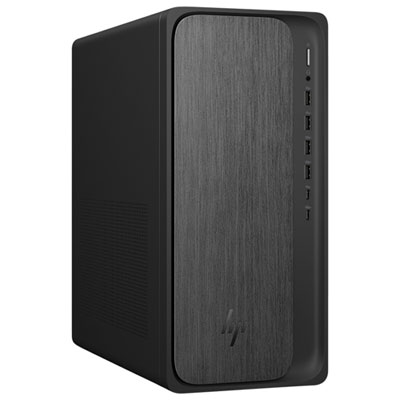 Your price for this item is $1399.99
-
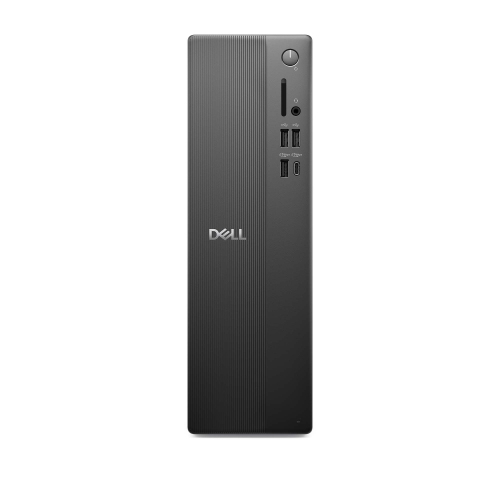 Your price for this item is $1629.79
-
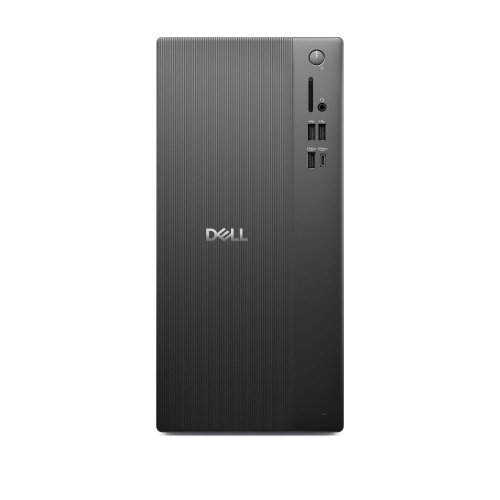 Your price for this item is $1459.79
-
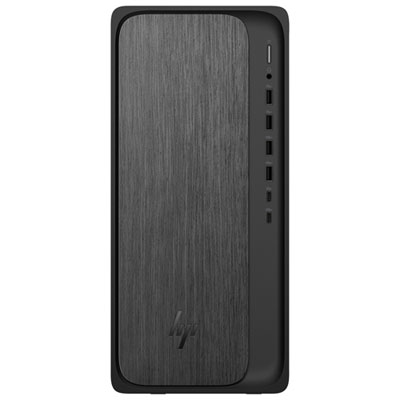 Your price for this item is $2299.99
-
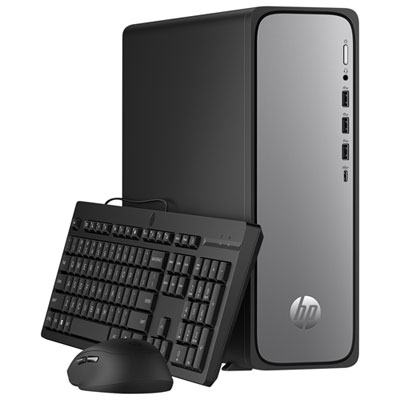 Your price for this item is $1469.99
-
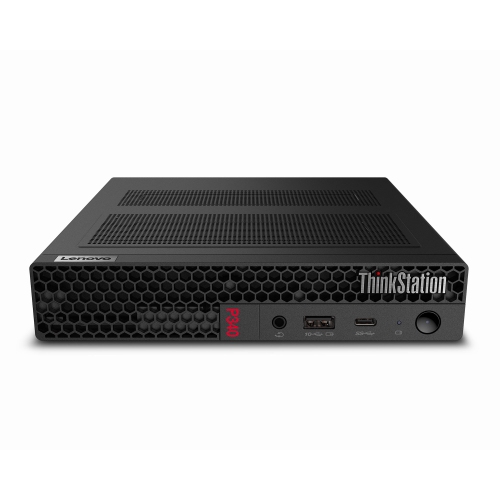 Your price for this item is $699.79
-
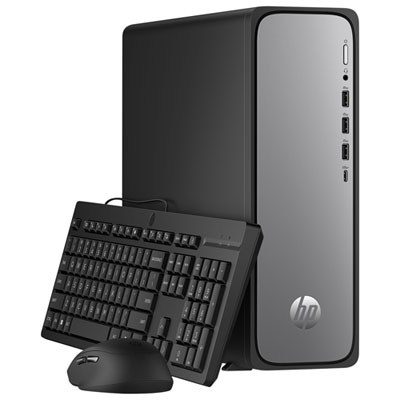 Your price for this item is $1759.99
-
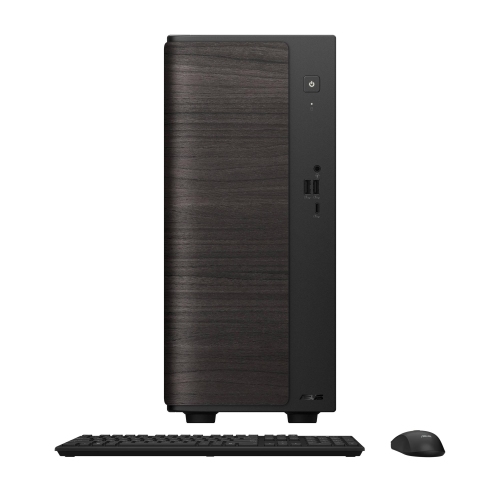 Your price for this item is $3149
Discover more categories related to Lenovo M70Q
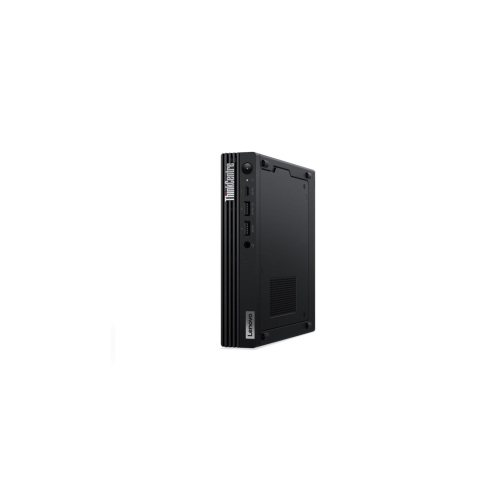


Top Collections:
Pokemon Centers, Best Black Friday Deals This Year, Best Black Friday Deals On Electronics, Kindle Devices, Best Budget Office Chairs, Best Black Friday Deals On Apple Products, Best Cameras for Sports Photography, Pokémon 30th Celebration Cards, Dyson Airwrap, Canon G7X Cameras
Some products may be subject to Environmental Handling Fees
(EHF) depending on your province.
Learn more about EHFs.