Lexar SSD 1TB
Upgrade your storage solution with the Lexar SSD 1TB, designed to provide ample space for all your important files, games, and applications. Whether you’re looking to boost your computer’s performance or simply need reliable storage for work and entertainment, the Lexar SSD 1TB offers a dependable option. Its sleek design makes it easy to install in desktops or laptops, helping you keep your digital life organized and efficient. Discover how the Lexar SSD 1TB can enhance your computing experience with fast, reliable storage.
Sort
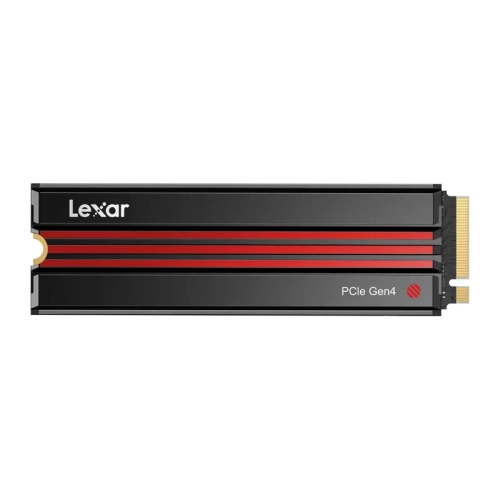
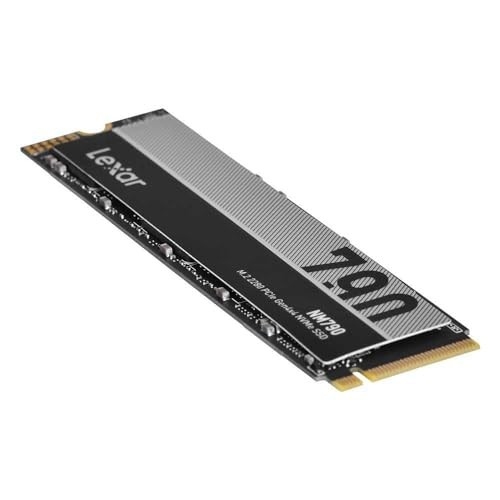
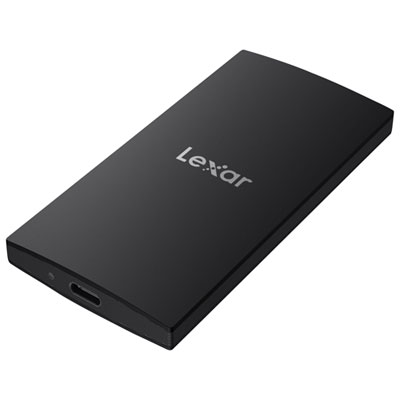
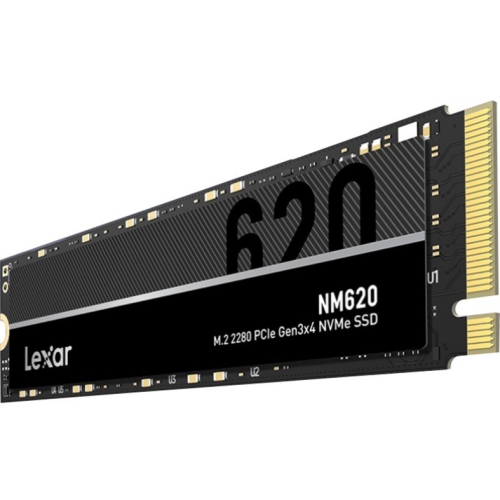
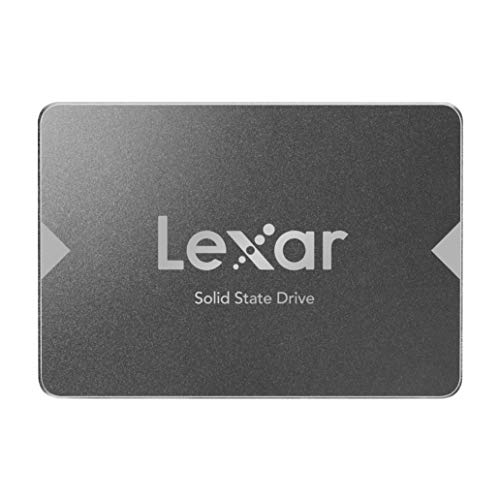
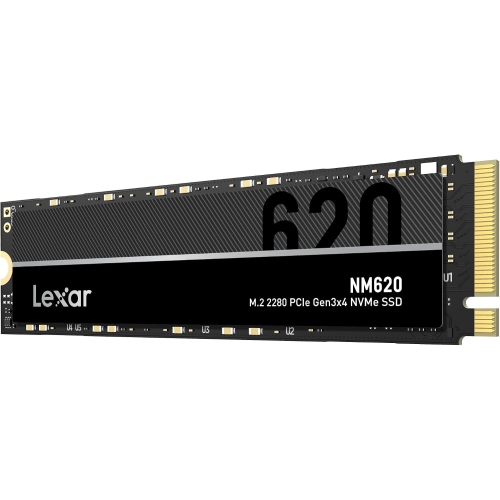
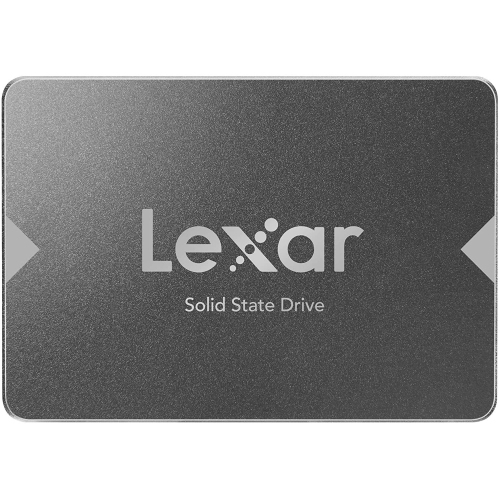
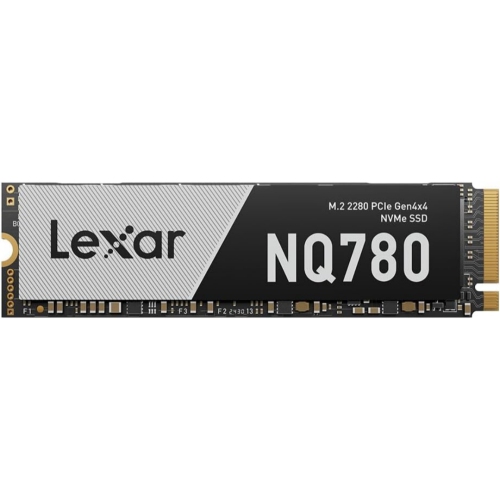
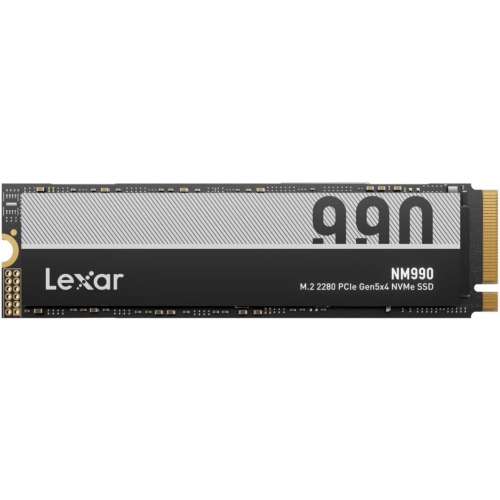
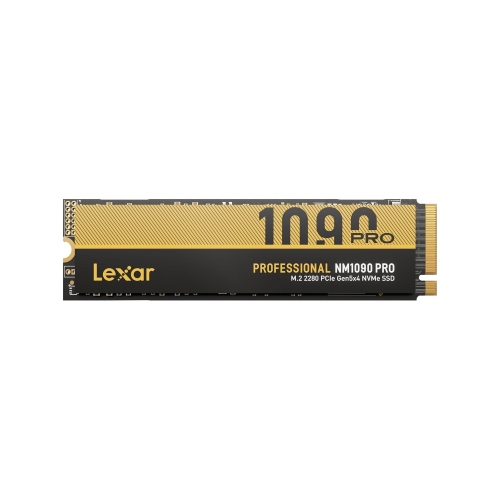
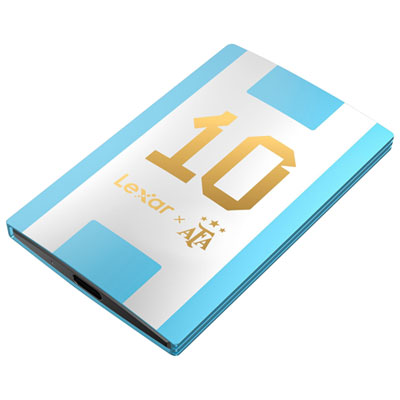
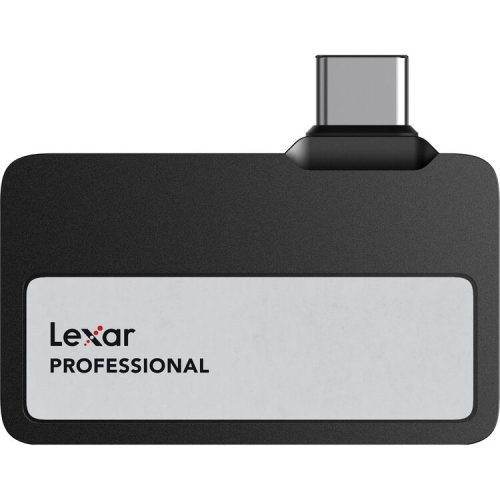
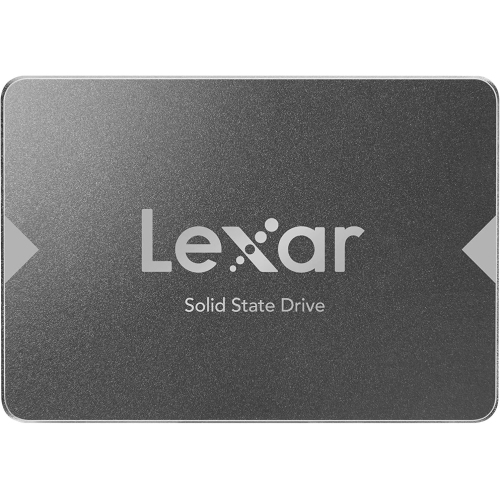
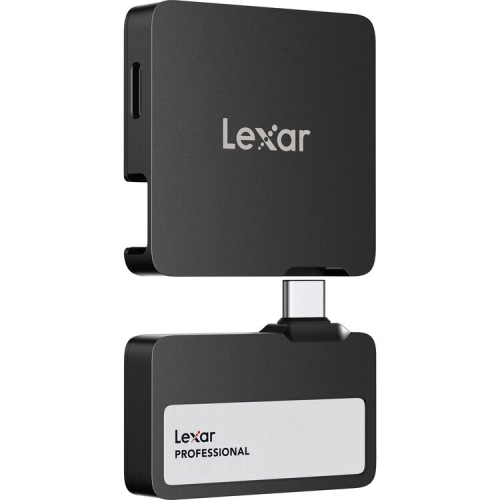
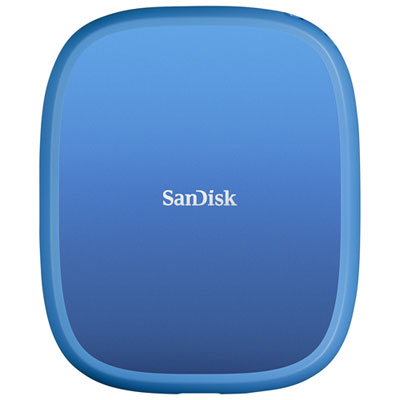
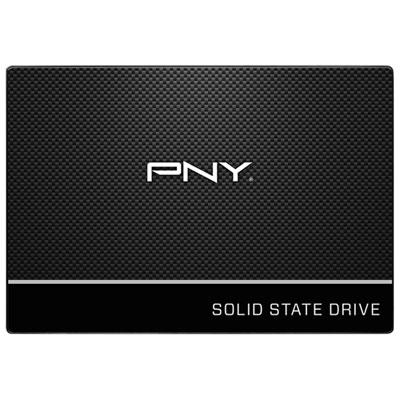
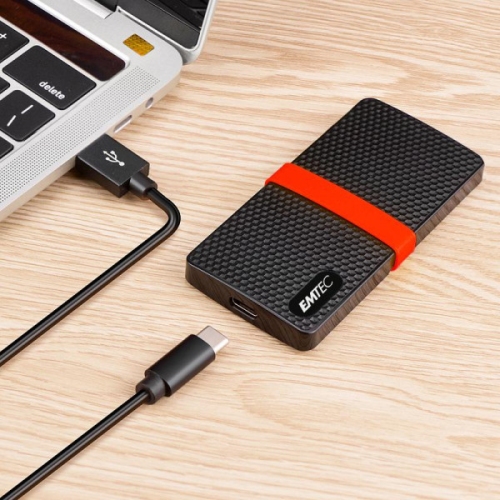
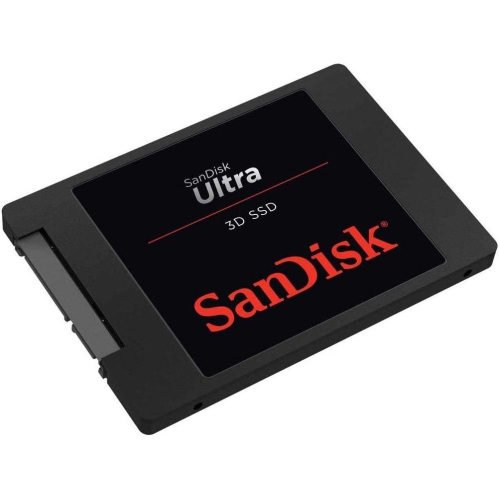
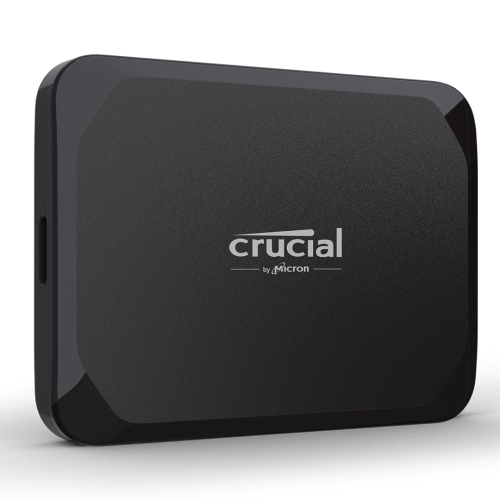
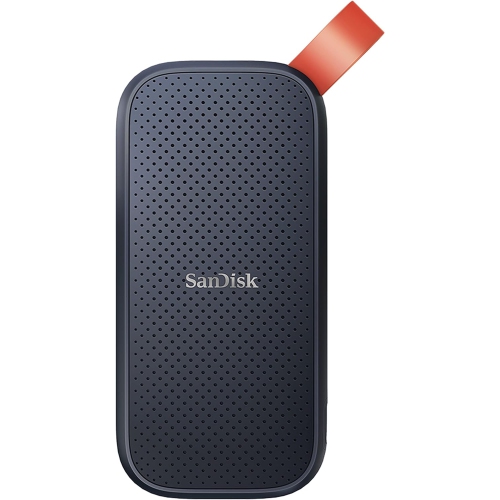
The right SSD fit goes beyond storage capacity
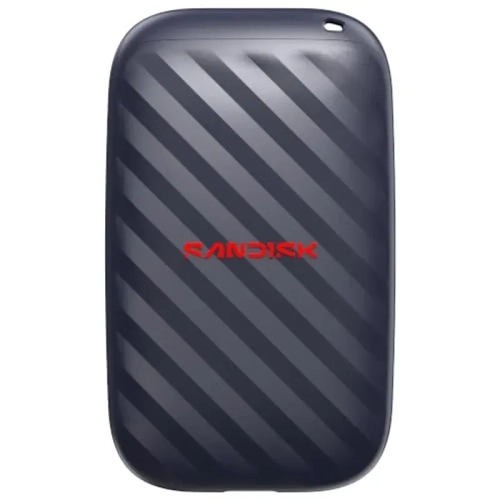
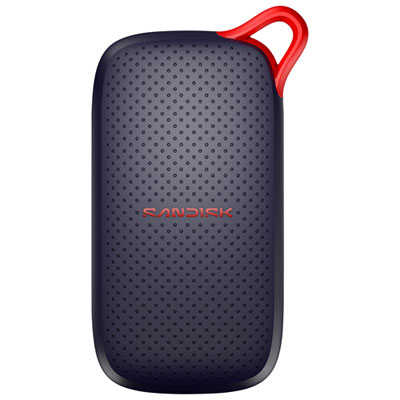
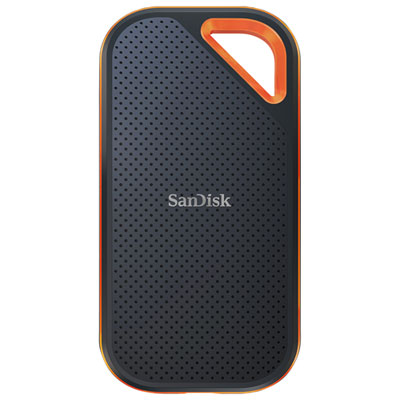
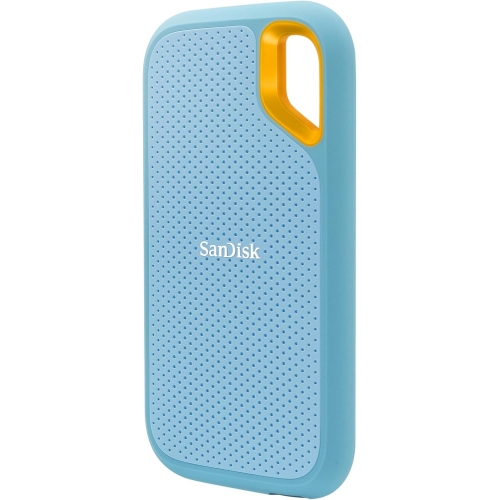
A 1TB solid-state drive (SSD) offers room for everyday files, applications, games, and creative projects in a compact storage format with no moving mechanical parts. Internal SSDs become part of a compatible computer’s storage system, while portable external SSDs connect by cable and can move between supported devices. Both formats use flash memory, but they serve different needs: an internal drive can replace a computer’s main drive or add storage, whereas an external drive is useful for carrying projects, transferring files, and keeping a separate backup. For someone whose laptop is crowded with photos and applications, additional storage can make organizing files less of a juggling act. For a gamer, it can mean keeping more games installed without repeatedly clearing space for a large update. Students may use the capacity for coursework, recorded lectures, and design files, while photographers and video editors can keep active projects together instead of spreading them across several smaller drives. Actual storage needs depend heavily on file size; text documents occupy far less space than high-resolution footage or modern game installations. A nominal 1TB represents one trillion bytes, although the capacity displayed by a computer can be lower because operating systems may report storage units differently and some space is used for formatting and system functions. Leaving some free space also gives applications, updates, and temporary files room to work. When comparing Lexar 1TB storage, the connection type and intended role matter just as much as capacity. A fast drive cannot solve every computer slowdown, but replacing a mechanical hard drive with a compatible SSD can shorten startup times, improve application loading, and make everyday file access feel more responsive. An SSD added alongside an existing drive offers a different benefit: more room for the files and software that need to stay close at hand. Keeping working files on fast storage and a separate backup elsewhere can also make a busy desktop easier to manage.
For internal storage, physical fit and electrical compatibility are separate considerations. A 2.5-inch SATA SSD typically uses SATA data and power connections in a desktop, or fits into a compatible laptop drive bay. Its slim enclosure must match the space and mounting arrangement inside the computer. An M.2 SSD is a narrow circuit board that installs directly into a suitable motherboard slot, but the M.2 shape alone does not establish compatibility. Some M.2 drives use SATA, while others use NVMe over PCIe, and the computer must support the drive’s interface. Length matters too: a common M.2 2280 size measures 22 mm wide by 80 mm long, so the slot, mounting point, and surrounding clearance all need to accommodate it. NVMe drives can provide substantially higher transfer speeds than SATA drives when paired with compatible hardware, particularly when moving large files. The supported PCIe generation and lane configuration can limit performance, however, so a drive’s advertised maximum speed is not a promise of the same result in every computer. A heatsink may be useful or required for certain installations, but its height must fit under a laptop cover or within the intended expansion space. Console storage has its own interface, performance, and dimensional requirements, which should be confirmed for the exact system. Portable SSDs involve a different compatibility check: the connector, USB standard, cable, and host device all affect the connection. A USB-C port describes the connector’s shape, not a guaranteed transfer rate, and a slower cable or port can hold back an otherwise fast drive. For example, someone copying a large folder of video clips may notice the difference between compatible high-speed connections more readily than someone opening a few documents. Moving between computers may also require a file system that both operating systems support. Formatting can resolve some compatibility needs, but it erases existing contents, making a separate copy of important files essential beforehand. Device documentation is especially useful when storage must work with a phone, tablet, camera, or gaming system.
Day-to-day performance and durability depend on more than the headline read and write figures. Sequential speeds describe transfers involving large, continuous blocks of data, while responsiveness with many small files depends on other aspects of drive performance and the computer itself. A folder containing thousands of photos can behave differently from a single video file of the same total size. Long transfers may also slow after a drive’s fast write cache fills, and heavy workloads can generate enough heat for the drive to reduce speed temporarily. For routine office work and occasional file transfers, those differences may be less noticeable than they are during frequent footage imports or large project exports. Anyone writing substantial amounts of data should also consider the stated endurance rating and warranty terms, since capacity alone does not describe a drive’s expected write workload. Physical construction deserves attention as well. An internal drive sits protected inside the computer, while a portable drive’s enclosure, connector, cable, and carrying habits affect how well it stands up to regular travel. Metal and plastic housings can differ in weight and feel, but neither material by itself proves drop resistance or protection against liquids; those claims need a stated rating. A padded compartment helps keep a portable drive from knocking against other equipment, and avoiding strain on the cable protects the connection. During internal installation, disconnecting power and following the computer manufacturer’s handling instructions helps protect exposed components. For an external drive, allowing transfers to finish and using the operating system’s eject function before unplugging can reduce the risk of interrupted writes. Important photos, school assignments, and business files still need another backup because no single drive is a complete safeguard against failure, accidental deletion, or loss. Password protection or encryption, where supported, can add protection for sensitive files. For a gift, knowing the recipient’s device, available connections, and intended use makes it easier to choose storage that fits their setup rather than simply adding capacity they cannot readily use.
Top selling and popular products
-
 Your price for this item is $374.99
-
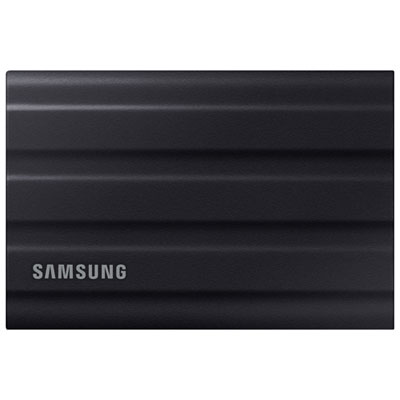 Your price for this item is $669.99
-
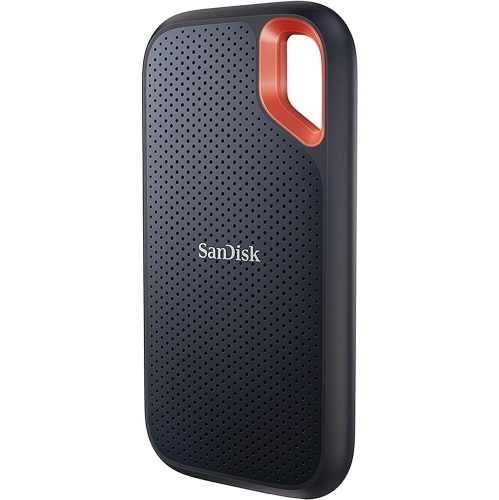 Your price for this item is $347.91
-
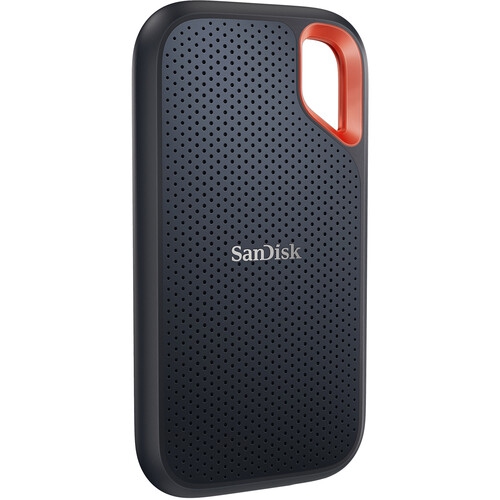 Your price for this item is $508.91
-
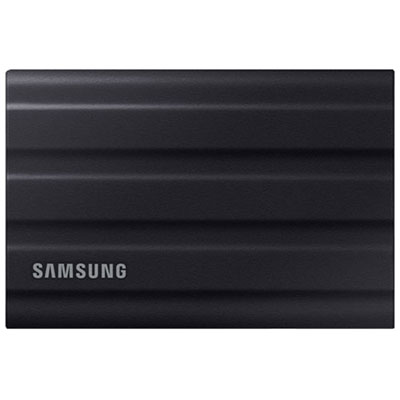 Your price for this item is $1559.95
-
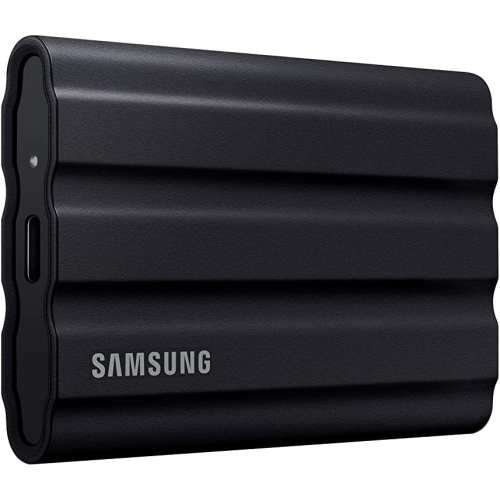 Your price for this item is $1499
-
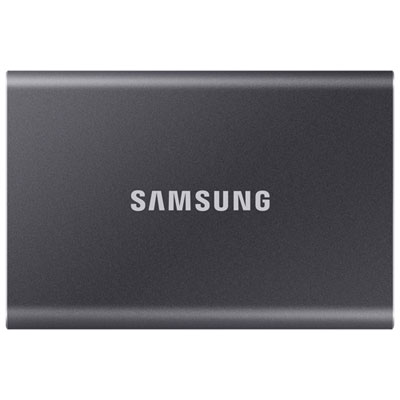 Your price for this item is $1489.97
-
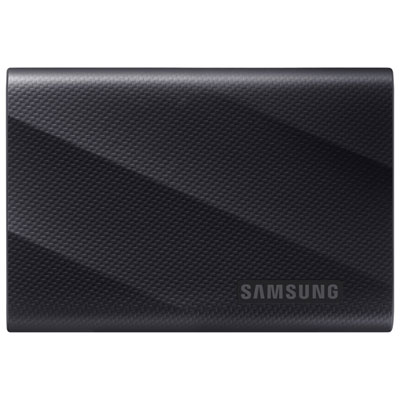 Your price for this item is $389.99
Discover more categories related to Lexar SSD 1TB
Top Collections:
Best Black Friday Deals This Year, Best Black Friday Deals On Electronics, Kindle Devices, Pokemon Centers, Best Black Friday Deals On Apple Products, Best Cameras for Sports Photography, Dyson Airwrap, Pokémon 30th Celebration Cards, Apple iPhone 17 Pro, Canon G7X Cameras
Some products may be subject to Environmental Handling Fees
(EHF) depending on your province.
Learn more about EHFs.