Logitech Cameras
Enhance your video calls, streaming sessions, and online meetings with a Logitech Camera. Designed to deliver reliable performance for both personal and professional use, these cameras offer versatile options to suit your needs. Whether you’re connecting with friends or collaborating with colleagues, you’ll find the right Logitech Camera to help you look and sound your best. Explore a wide range of models that make it easy to stay connected from anywhere.
Sort
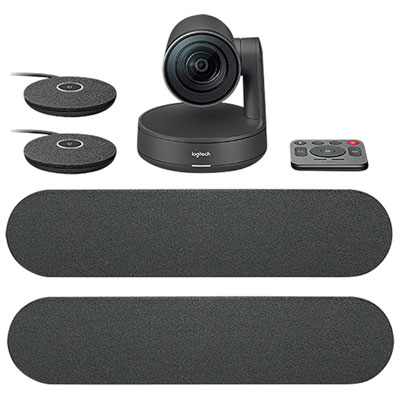
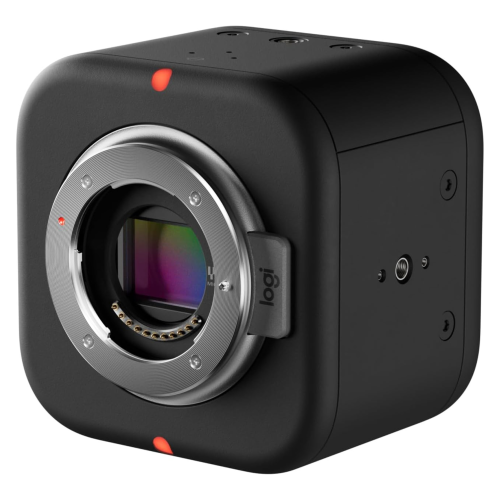
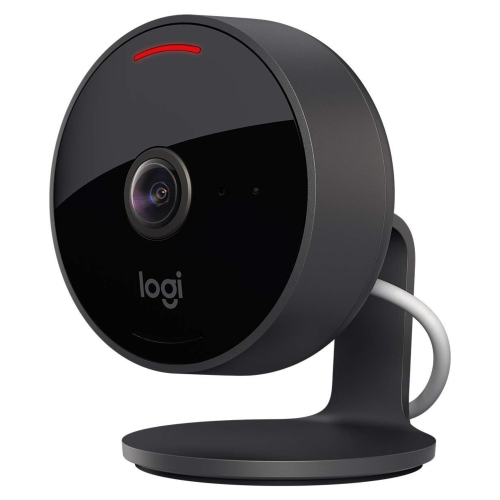
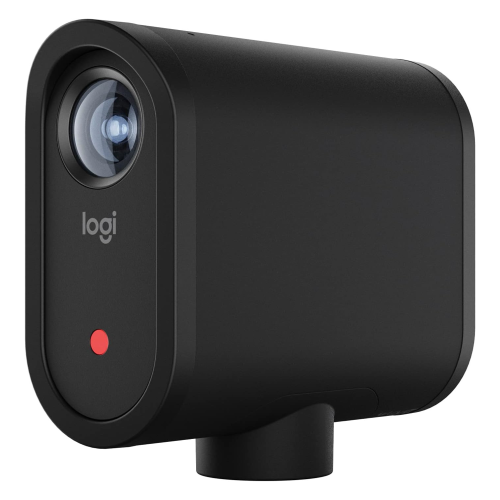
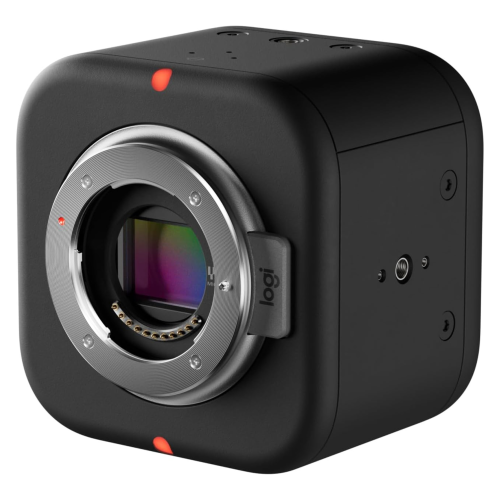
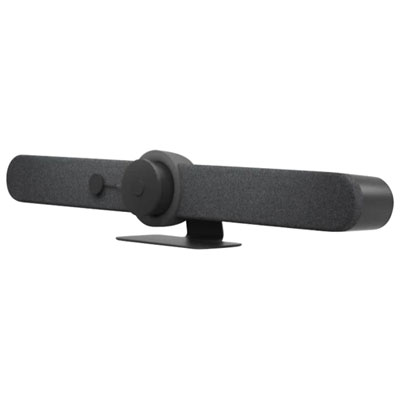
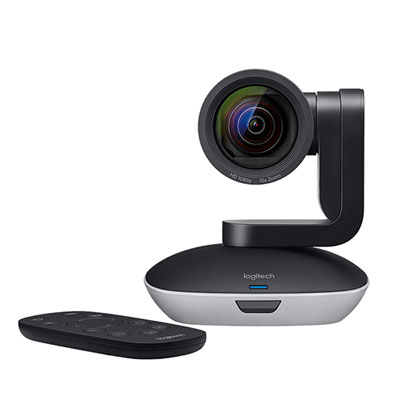
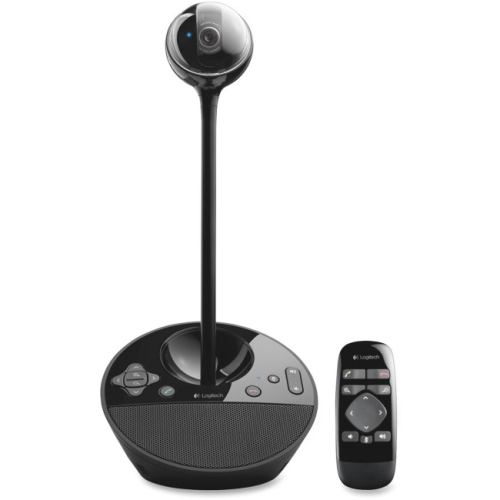


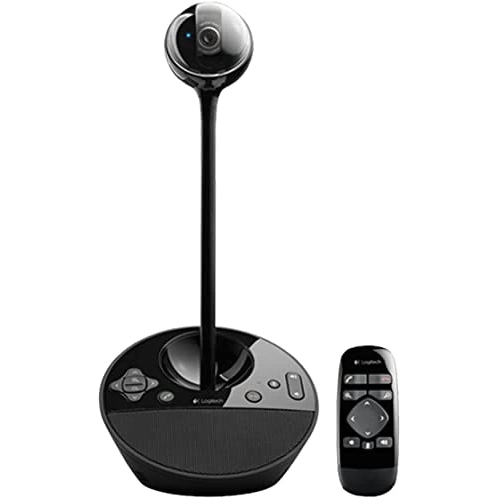
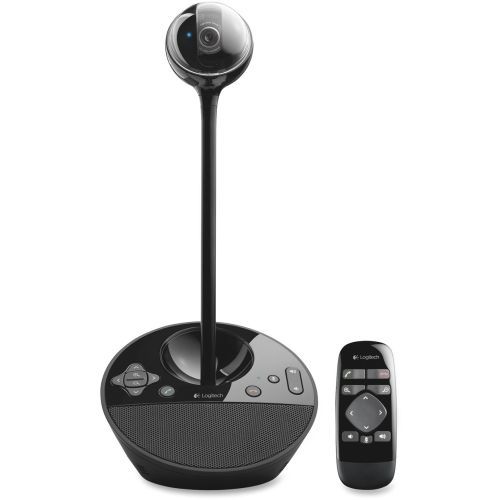
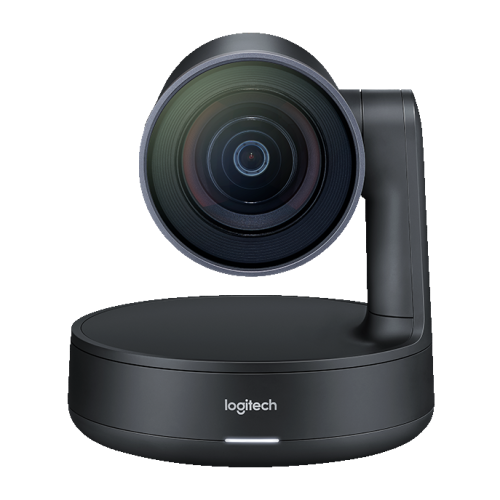
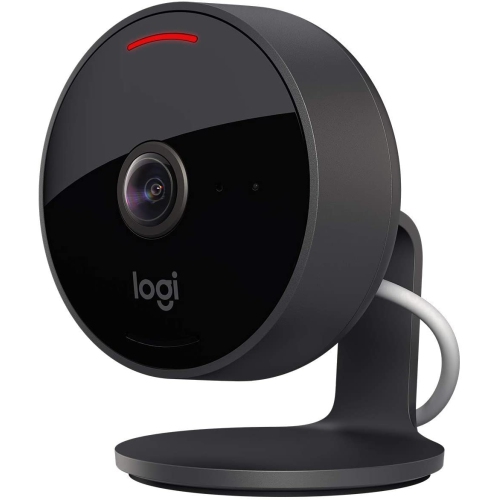
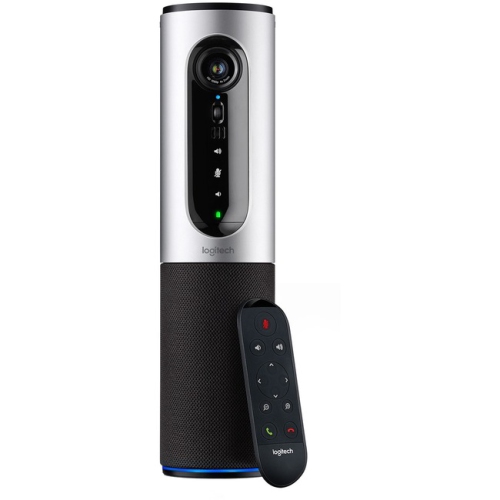
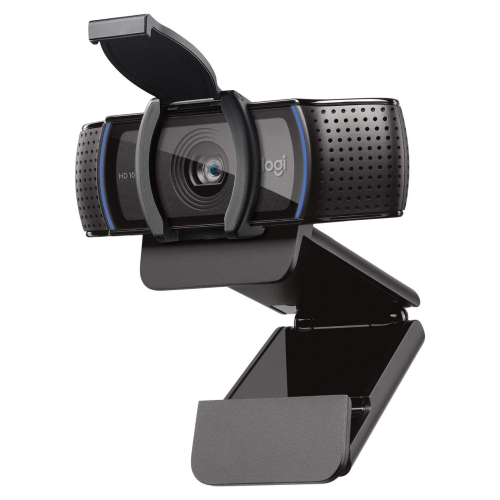
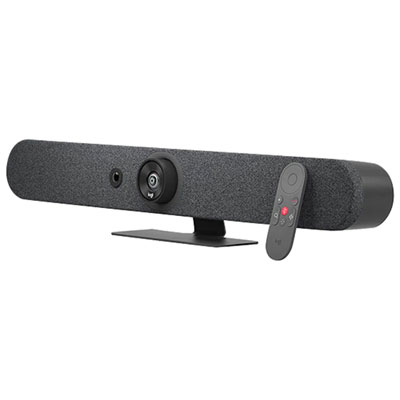
The right webcam depends on more than resolution
Webcams and video conferencing cameras bring a clearer, more flexible view to everyday conversations, remote work, online learning, and content creation. A dedicated camera can offer more control over placement and framing than a camera built into a laptop, making it easier to keep the lens at eye level while a separate screen holds meeting notes or a presentation. For one person at a desk, a compact webcam usually provides the most practical format. In a shared meeting room, a conferencing camera with a wider view and suitable group audio can help include people seated around a table. Resolution is one of the main differences between camera types: 720p can suit straightforward video calls, Full HD 1080p provides more detail for meetings and lessons, and 4K offers a higher-resolution image for compatible workflows. The resolution other people actually see also depends on the calling platform, connection quality, and software settings. Frame rate matters alongside resolution. Video at 30 frames per second is common for conversation, while supported 60-frame-per-second modes can make hand movements, demonstrations, and streaming footage appear smoother. Available combinations of resolution and frame rate vary by camera, so a higher resolution does not automatically mean a higher frame rate. Intended use helps put these specifications into context. A student joining a tutorial needs a clear view of their face and dependable compatibility, while an instructor showing a small craft project may benefit from adjustable positioning and a camera that can focus at the required distance. Someone hosting a livestream may place more value on image controls and smooth motion. For family calls, straightforward setup and comfortable framing often matter more than advanced settings. These differences make webcams useful across a range of setups, from a laptop on a dining table to a dedicated workstation with multiple displays. A camera that fits the space and the task is generally more useful than one chosen for resolution alone.
Image quality comes from a combination of resolution, lens performance, focus, exposure, and the light reaching the camera. Autofocus can help keep a face sharp when someone leans forward or holds an object towards the lens, while fixed-focus designs work best within their intended distance range. Automatic light correction can make a picture more usable when illumination is uneven, but it cannot fully replace good lighting. A desk facing a window or a softly lit wall often produces a more balanced image than a seat with a bright window directly behind it. For presentations, interviews, or recorded lessons, adjustable exposure and white balance can help keep brightness and colour consistent. These controls depend on the camera and its supported software. For workflows that call for extra image detail, a Logitech 4K Webcam can support higher-resolution capture when the connected computer, application, and selected settings allow it. That additional detail may also provide room to crop a wider image into a tighter frame, although the result depends on the software and output resolution. Field of view is another practical consideration: a narrower view concentrates attention on one person, while a wider view can include a whiteboard, a second presenter, or more of a meeting table. A wide view also reveals more of the room, which may not suit every home office. Connection requirements deserve equal attention. Many webcams connect through USB, but connector type, cable length, operating system support, and bandwidth requirements differ. A USB-C socket and a USB-A socket require the appropriate connection, and an adapter or hub must support the camera’s requirements. Basic video may work through plug-and-play setup, while features such as framing adjustments, image presets, or advanced controls may require compatible software. Calling and recording applications can also apply their own settings, so the final picture reflects the complete setup rather than the camera alone. A tidy desk arrangement leaves enough cable slack to reposition the camera without tugging on its connector.
Physical design makes a noticeable difference once a camera becomes part of a daily routine. Compact housings are often made from moulded plastic, with lens elements, hinges, clips, and other components varying by model. Lens material alone does not determine picture quality; optical design, the image sensor, and processing all contribute. For a monitor-mounted camera, the clip needs to suit the screen’s thickness and shape without pressing awkwardly against the display. A thin laptop lid, a curved monitor, and a separate tripod each present different mounting needs. Adjustable tilt and rotation can make a camera easier to position, while a compatible tripod mount offers another option when the monitor is too low or too far away. Frequent repositioning puts more wear on hinges and cables, so a stable mount and careful handling support dependable use. Built-in microphones can simplify casual calls, but microphone pickup and room acoustics affect how clearly speech reaches the listener. A quiet desk setup is different from a meeting space with several people speaking at different distances. A headset, separate microphone, or conferencing audio system may be more suitable where background noise or group conversation is a concern. Privacy features also vary: a physical shutter can cover the lens when the camera is not in use, but it does not necessarily disable the microphone. Application permissions and microphone settings remain separate considerations. Routine care is straightforward, with a clean, soft microfibre cloth helping remove dust and fingerprints from the lens area; cleaning should follow the manufacturer’s directions, without abrasive materials or liquid sprayed directly onto the device. Cables travel best loosely coiled rather than tightly bent at the connector. For students, remote workers, content creators, or relatives who regularly connect by video, a webcam can also be a thoughtful gift when it matches their computer and habits. The most useful fit accounts for where it will sit, how it will connect, and whether its controls suit the person using it, making everyday calls and recordings feel less cumbersome.
Top selling and popular products
-
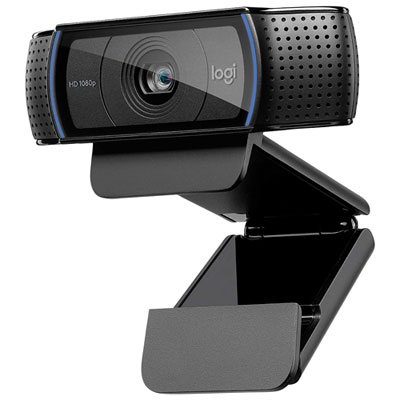 Your price for this item is $99.99
-
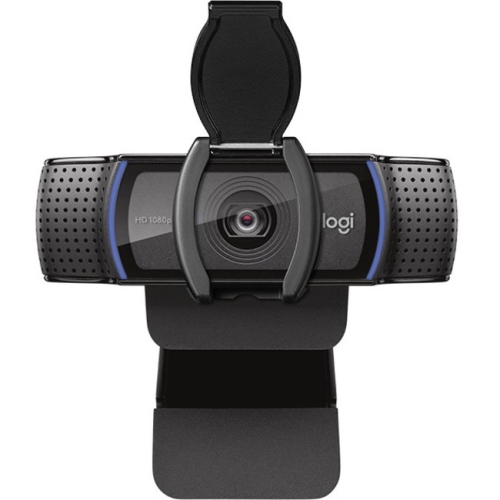 Your price for this item is $123.44
-
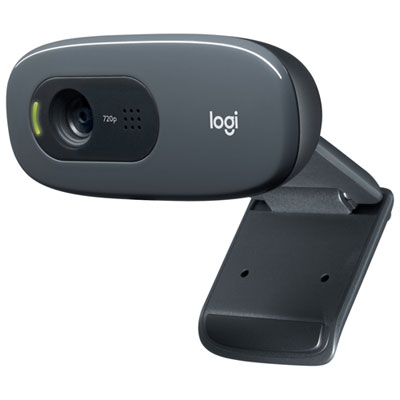 Your price for this item is $39.99
-
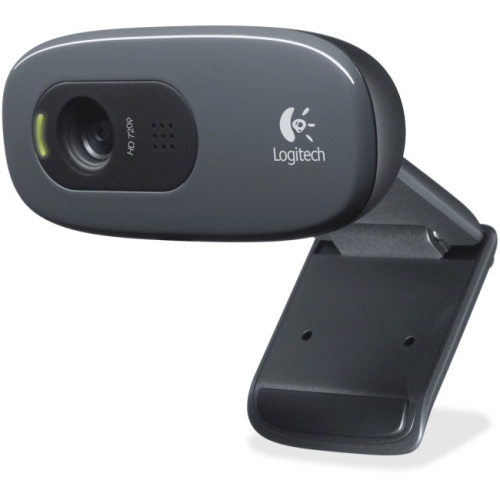 Your price for this item is $48.49
-
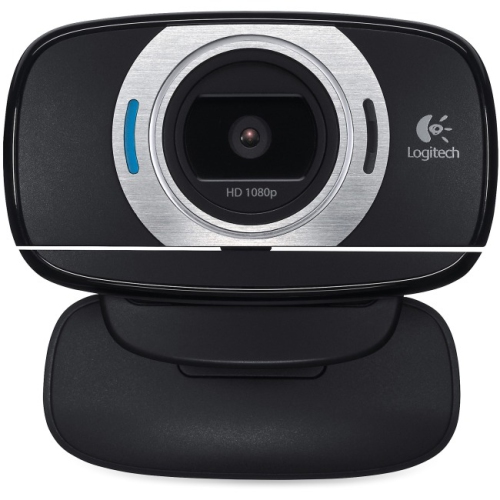 Your price for this item is $106.68
-
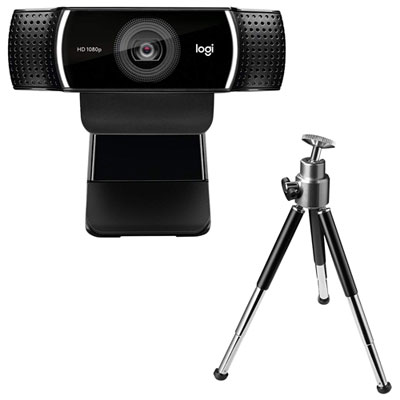 Your price for this item is $149.99
-
 Your price for this item is $130.68
-
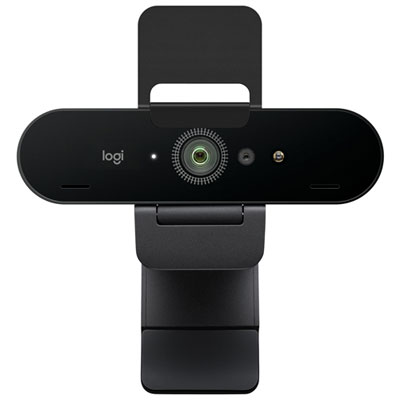 Your price for this item is $249.99
Discover more categories related to Logitech Cameras
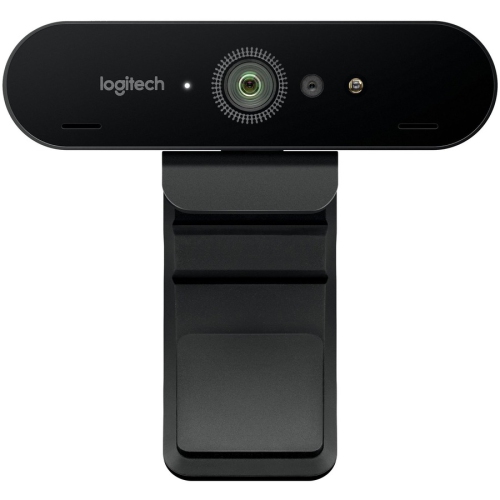

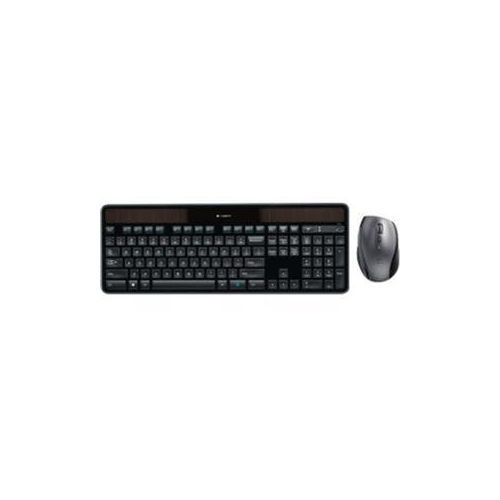
Top Collections:
Best Black Friday Deals This Year, Best Black Friday Deals On Electronics, Kindle Devices, Pokemon Centers, Best Black Friday Deals On Apple Products, Best Cameras for Sports Photography, Dyson Airwrap, Pokémon 30th Celebration Cards, Apple iPhone 17 Pro, Canon G7X Cameras
Some products may be subject to Environmental Handling Fees
(EHF) depending on your province.
Learn more about EHFs.