Logitech Conferencing Cameras
Enhance your virtual meetings and collaboration with a Logitech conferencing camera. Designed for seamless integration in a variety of workspaces, these cameras help deliver clear video communication for both professional and personal use. Whether you are connecting with colleagues or hosting virtual events, a Logitech conferencing camera offers reliable performance to support your conferencing needs. Discover options that fit your setup and elevate your online interactions with ease.
Sort
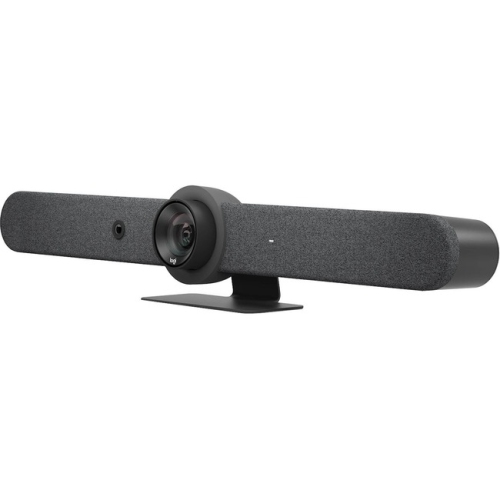
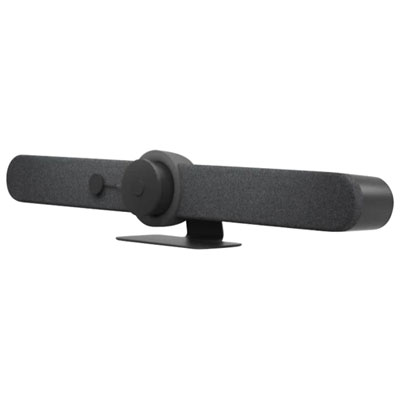
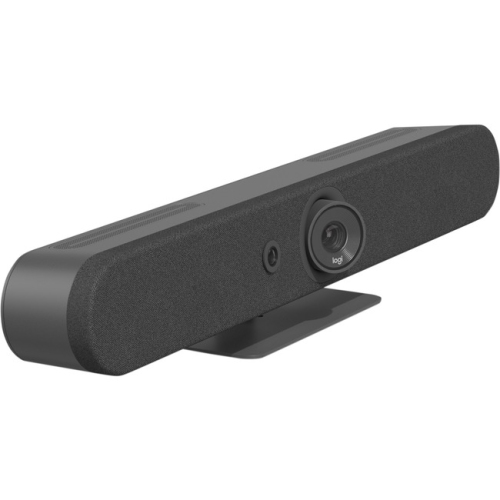
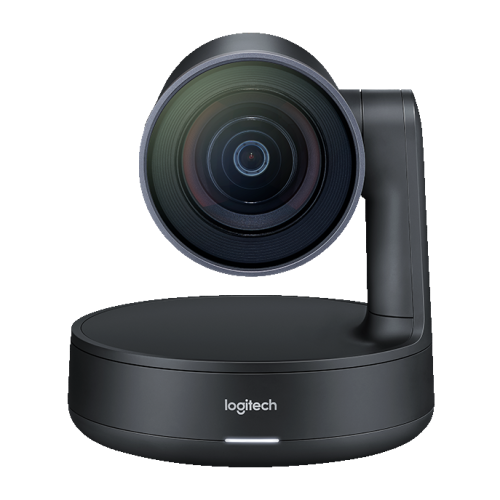
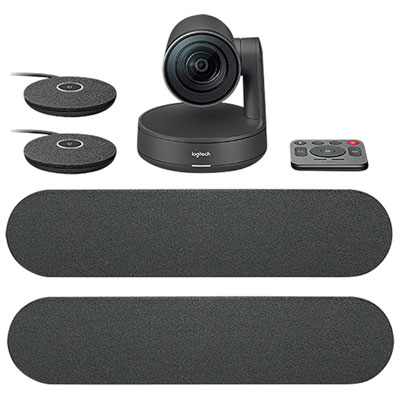
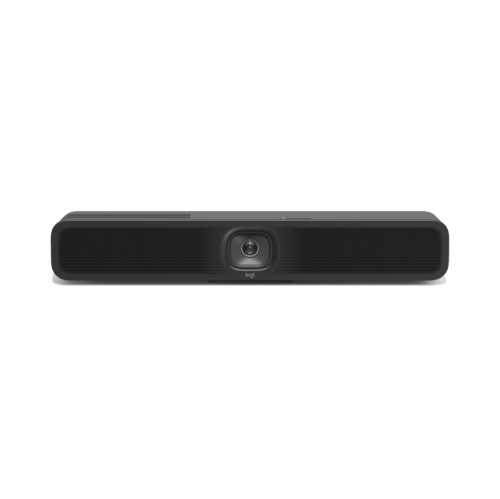
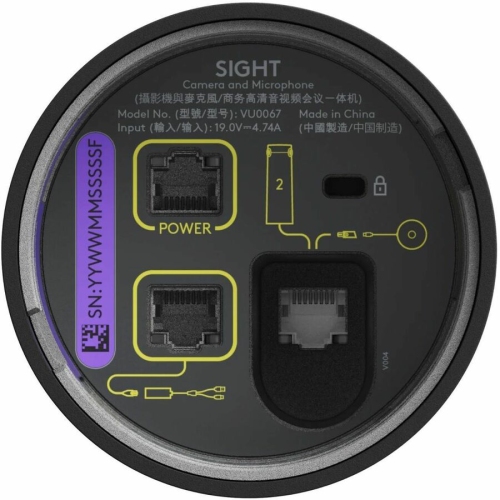
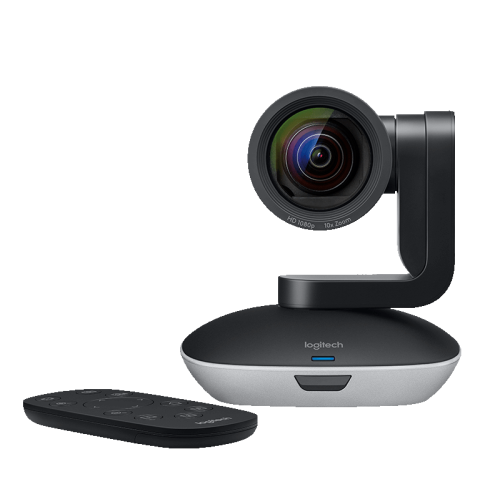
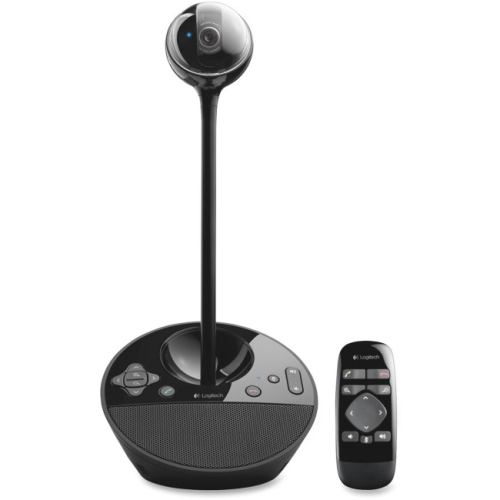
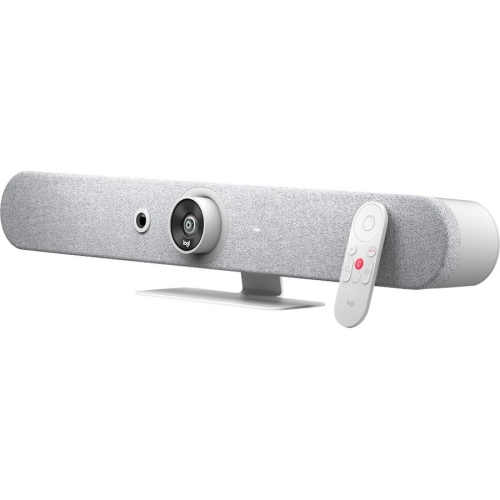
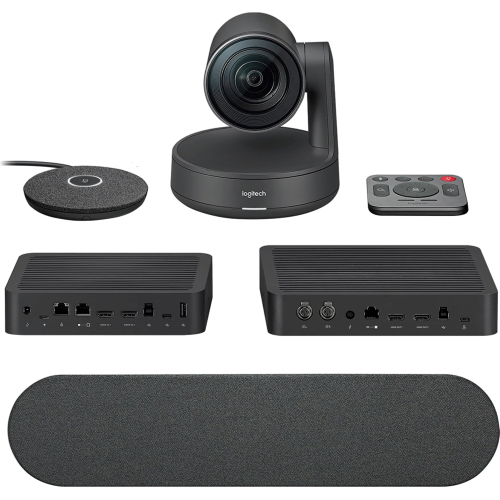
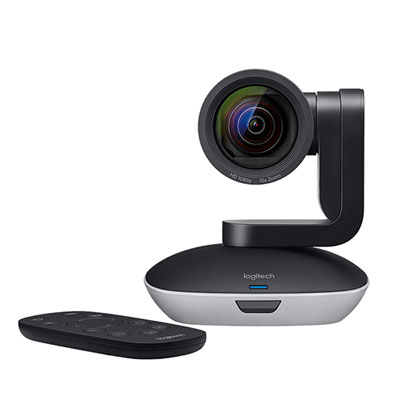
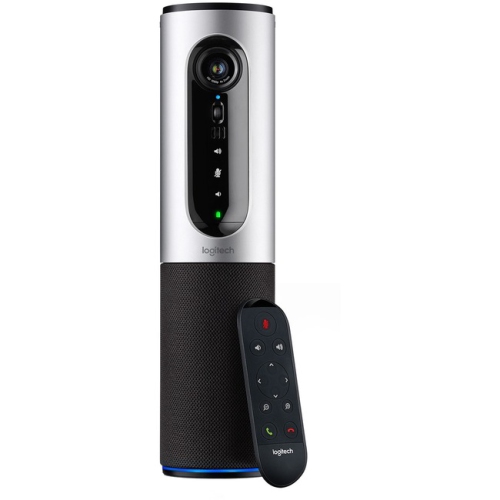
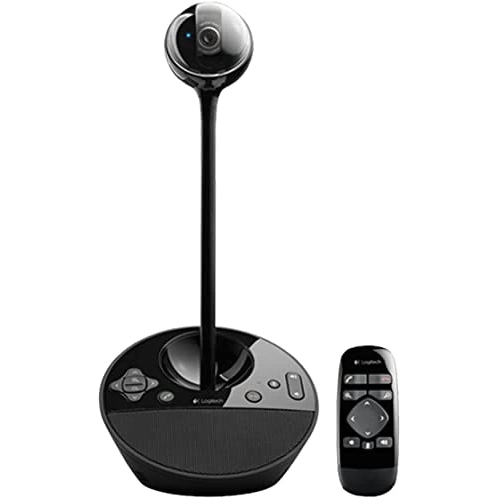
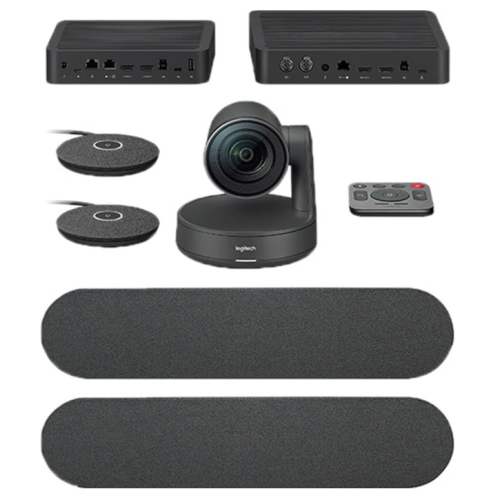
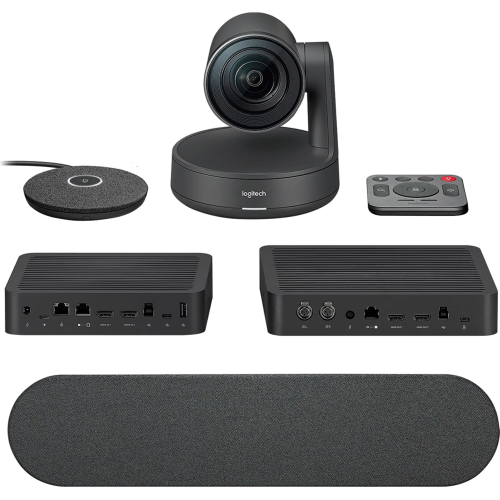

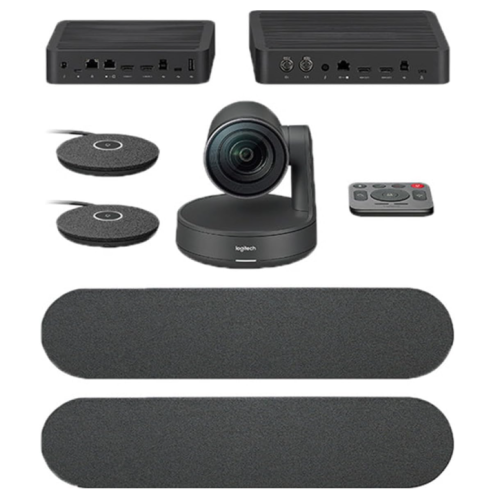
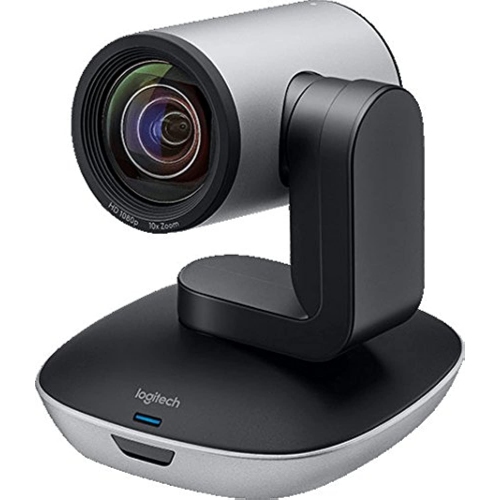

How camera framing changes from desks to boardrooms
Conferencing cameras capture video for online meetings, with designs suited to individual workstations, small meeting rooms, and larger shared spaces. While a personal webcam typically frames one person at a desk, a room-focused camera may be positioned to show several people seated around a table. That difference shapes everything from the width of the image to the mounting position and the way the camera follows a conversation. At a home office desk, a compact camera mounted near the monitor can keep a presenter visible without taking up valuable work surface space. Small meeting rooms often benefit from a wider view that includes colleagues sitting close to the screen. In a longer boardroom, optical zoom and motorized pan-and-tilt controls, where included, can help bring people at the far end of the table into view. A wide field of view is useful for group coverage, although an unnecessarily broad image can make faces appear small and include distracting areas of the room. Some models offer automatic framing that adjusts the picture as people enter, leave, or change position; others provide manual controls or saved camera positions for repeatable views. Speaker tracking, when supported, can shift attention towards the person talking, though its operation varies by camera and connected software. Remote consultations, staff training, classroom discussions, and client presentations each place slightly different demands on framing. A trainer standing beside a display needs more freedom of movement than someone attending a seated interview. A team gathered around a table needs balanced coverage rather than a close-up of a single chair. For organizations using several rooms, consistent camera placement and familiar controls can also make meetings easier to start. The distinction between personal video calls and shared-room meetings is useful when browsing Logitech Cameras for different workspaces.
Video quality depends on more than the resolution printed in a specification. Higher-resolution cameras can capture additional detail, but the image other participants see also depends on the meeting platform, supported settings, computer performance, and connection quality. A camera capable of 4K capture may still transmit at a lower resolution during a particular call. Frame rate affects how smoothly movement appears, which matters when a presenter gestures, demonstrates a task, or moves between a desk and a whiteboard. Autofocus can help keep faces clear as seating positions change, while fixed-focus designs rely on subjects remaining within their intended working range. Lens quality, exposure control, and image processing also influence whether a face looks clear rather than washed out or shadowed. In a room with a bright window behind the participants, features that balance bright and dark areas can be helpful, but thoughtful camera placement and even lighting still make a noticeable difference. Eye-level positioning generally creates a more natural conversation than a camera aimed upwards from a low shelf. Audio deserves equal attention because a sharp picture cannot compensate for speech that sounds distant or muffled. Some conferencing cameras include microphones, while others work alongside separate microphones and speakers or form part of an integrated video bar. Microphone pickup distance, room acoustics, and the number of people speaking all affect intelligibility. A small room with hard walls and a bare table may produce more reverberation than a furnished office. Echo cancellation and background-noise reduction, where supported, can improve calls, but they do not eliminate every acoustic problem. For shared spaces, the camera, microphone, and speaker arrangement works best as a coordinated setup. A distant participant should be able to see the person speaking and hear a quiet comment from the other end of the table without repeated adjustments.
Physical fit and connection requirements are just as important as picture quality when a camera becomes part of a daily workspace. Monitor clips suit many desk setups, while wall mounts, tabletop stands, and tripod-compatible fittings offer different placement options for shared rooms. Mounting accessories may be included or sold separately, and their compatibility depends on the camera. The weight of the unit, the shape of the display, and the available clearance all affect how securely it sits. A camera positioned above a meeting-room screen needs a stable support and enough room for any moving lens assembly to operate freely. Cable length also matters: a connection that comfortably reaches a nearby laptop may not reach a computer housed beneath a conference table. USB connector shape alone does not establish compatibility, since supported data standards, power requirements, operating systems, and software requirements can differ. Some room systems depend on a dedicated computer or additional hardware, while others connect directly to a compatible laptop. Where supported, software controls may provide framing adjustments, image settings, firmware updates, or device management across several rooms. Privacy features vary too, with physical shutters, lens caps, or status indicators offering different ways to understand or control camera use. Housings commonly combine moulded plastic with metal components in mounts or hinges, balancing manageable weight with support for repeated positioning. Durability depends partly on keeping cables from pulling against ports and avoiding unnecessary force on adjustable parts. For care, a soft, dry microfibre cloth is generally suitable for light dust on the housing, while lens cleaning should follow the manufacturer’s directions to protect optical surfaces and coatings. Spraying liquid directly onto a camera or forcing a motorized head by hand can cause damage. For people who move between workspaces, a protective case can help prevent scratches and keep connection cables together. In a permanent room, tidy cable routing and accessible controls help keep the setup ready for everyday conversations, presentations, and collaboration.
Top selling and popular products
-
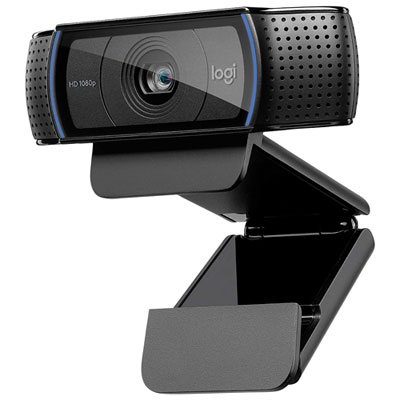 Your price for this item is $99.99
-
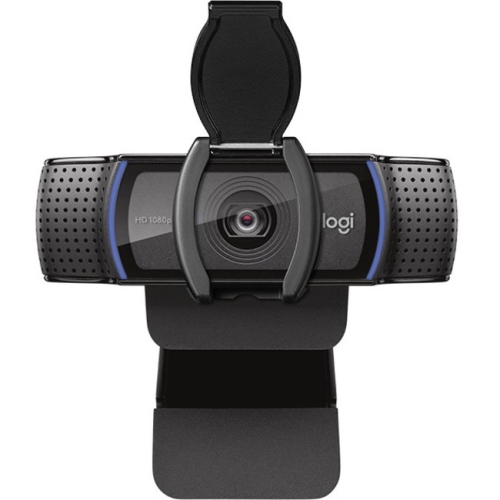 Your price for this item is $123.44
-
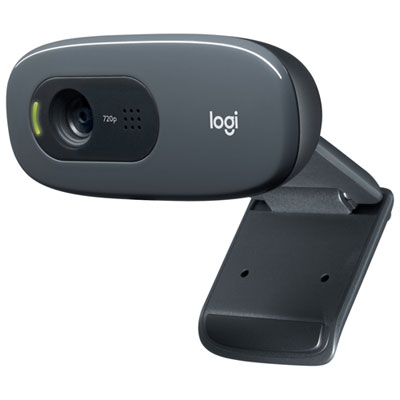 Your price for this item is $39.99
-
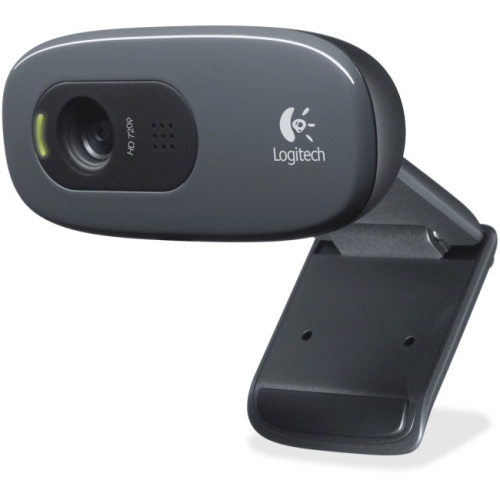 Your price for this item is $48.49
-
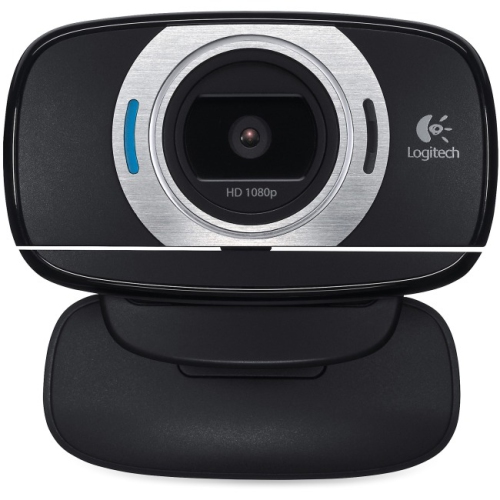 Your price for this item is $106.68
-
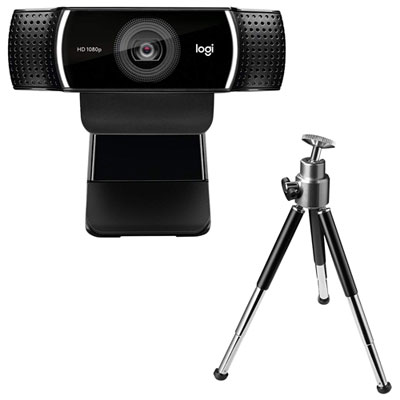 Your price for this item is $149.99
-
 Your price for this item is $130.68
-
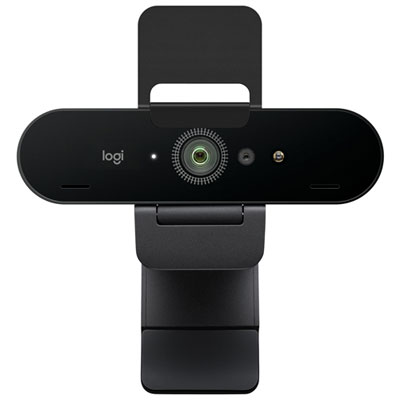 Your price for this item is $249.99
Discover more categories related to Logitech Conferencing Cameras
Top Collections:
Best Black Friday Deals This Year, Best Black Friday Deals On Electronics, Kindle Devices, Pokemon Centers, Best Black Friday Deals On Apple Products, Best Cameras for Sports Photography, Dyson Airwrap, Pokémon 30th Celebration Cards, Apple iPhone 17 Pro, Canon G7X Cameras
Some products may be subject to Environmental Handling Fees
(EHF) depending on your province.
Learn more about EHFs.