Privacy Webcam Covers
Protect your privacy and keep prying eyes at bay with our selection of privacy webcam covers. In an increasingly digital world, safeguarding your personal information has never been more important. Whether you're using a laptop, desktop, or tablet, these sleek and discreet webcam covers are designed to give you peace of mind by blocking unwanted access to your camera. With easy installation and compatibility across various devices, our privacy webcam covers offer a simple yet effective solution to protect your online privacy and ensure that only those you trust can see what's happening on the other side of the screen.
Sort
![GENERIC [3 Pack] Webcam Cover Slide, Ultra 0.027 In Thin Web Camera Cover Slider Protect Privacy Security With Strong](https://multimedia.bbycastatic.ca/multimedia/products/500x500/199/19925/19925696.jpeg)
![DOLAER [3 Pack] Webcam Cover Slider for Privacy, 0.027In Ultra Thin Design Web Camera Cover Slide for Macbook, Ipad, Iphone, Laptop, Desktop, PC The camera covers work great on our cell phones, tablet, and laptops](https://multimedia.bbycastatic.ca/multimedia/products/500x500/165/16535/16535624.jpeg)
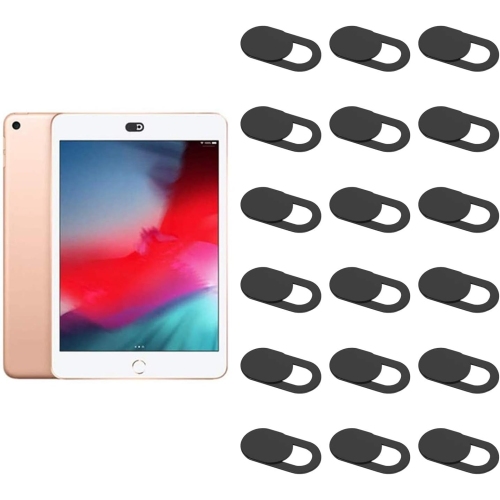
![DOLAER [8 Pack] Webcam Cover Slider for Privacy, 0.027In Ultra Thin Design Web Camera Cover Slide for Macbook, Ipad, Iphone, Laptop, Desktop, PC Works great](https://multimedia.bbycastatic.ca/multimedia/products/500x500/165/16535/16535859.jpeg)
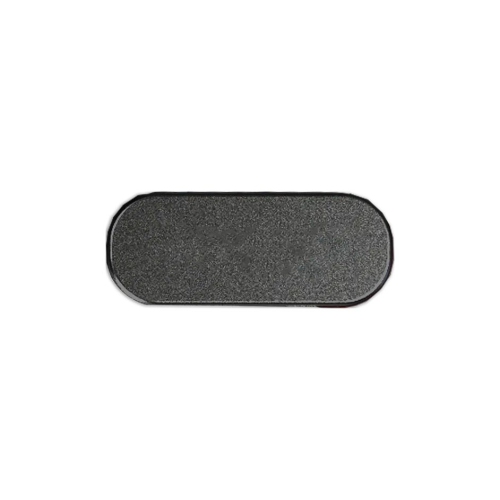
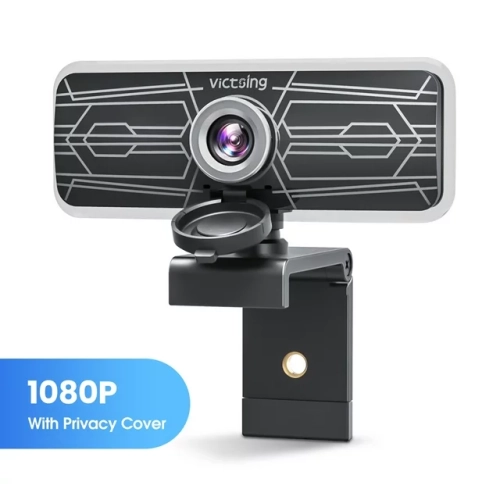
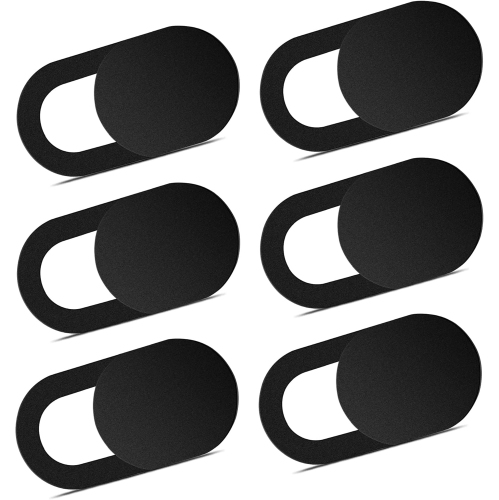
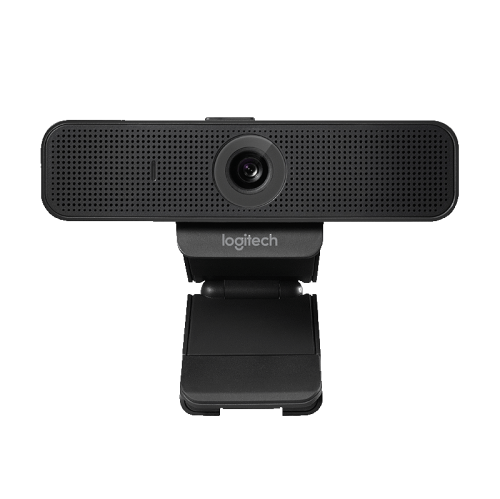
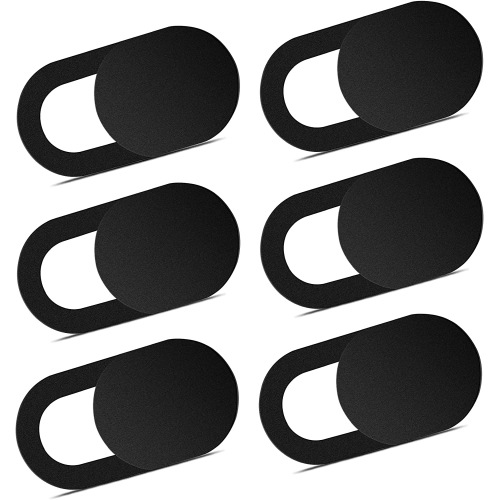
![LDAS ELECTRONICS Webcam Cover [6 Pack], 0.6MM Ultra-Thin, Metal Camera Cover Slider for Macbook Pro 13/15 Inch, Macbook Air, Laptop, Ipad, Imac](https://multimedia.bbycastatic.ca/multimedia/products/500x500/196/19661/19661185.png)
![DOLAER I [6 Pack] Webcam Cover Slider for Privacy, 0.027In Ultra Thin Design Web Camera Cover Slide for Macbook, Ipad, Iphone, Laptop, Desktop, PC](https://multimedia.bbycastatic.ca/multimedia/products/500x500/165/16579/16579758.jpeg)
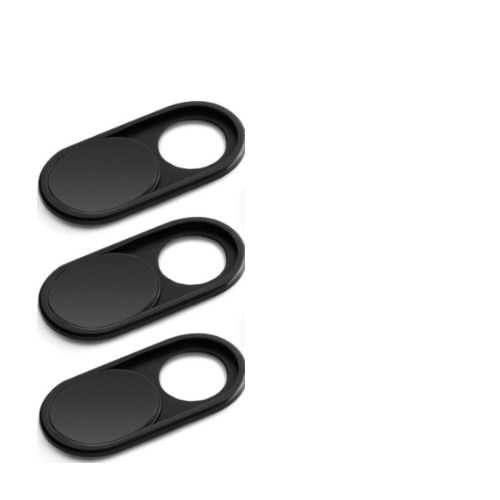
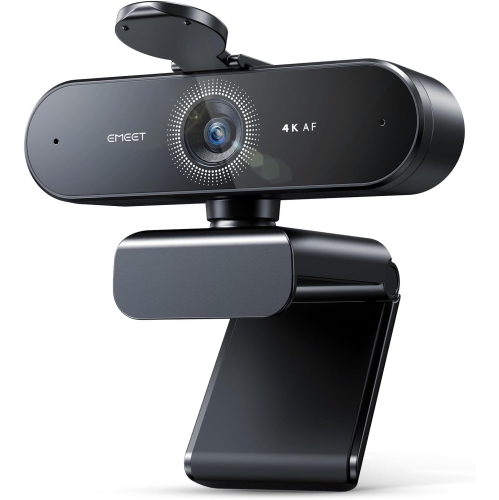
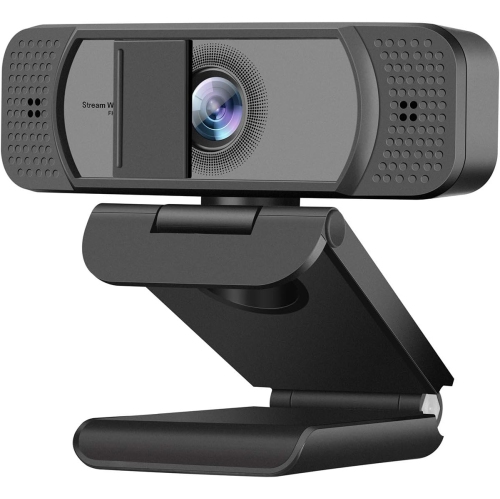
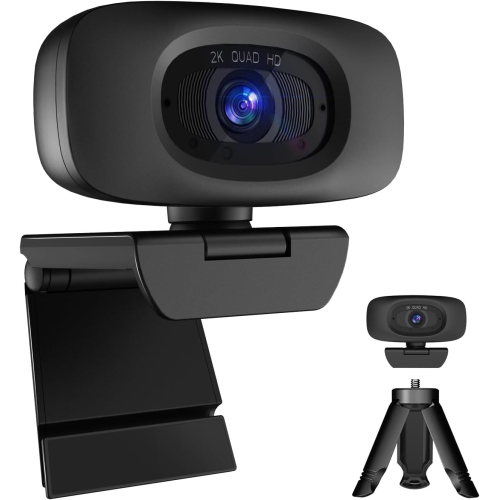
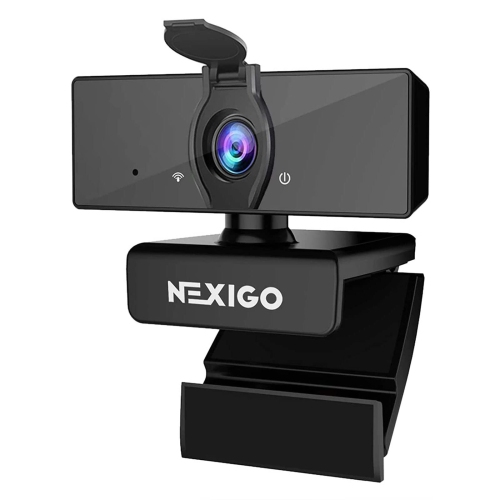
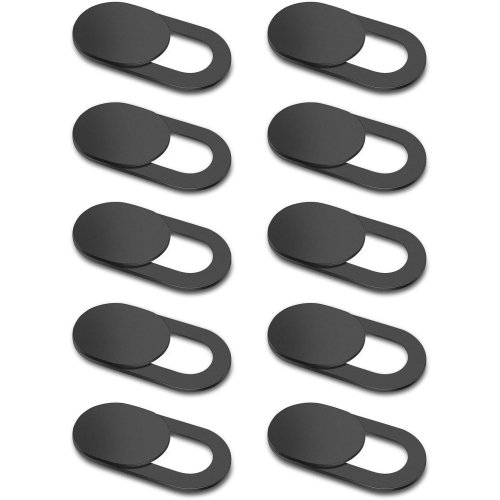
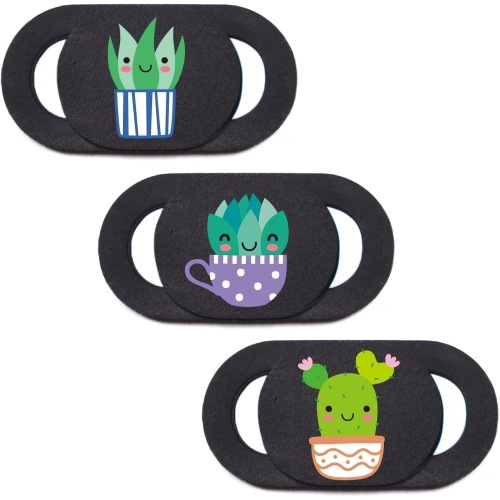
![GENERIC Webcam Cover, [2Pack] Magnetic Metal Camera Cover Slider for Laptop, Macbook Pro, All-In Desktop, Tablet](https://multimedia.bbycastatic.ca/multimedia/products/500x500/199/19925/19925749.jpeg)

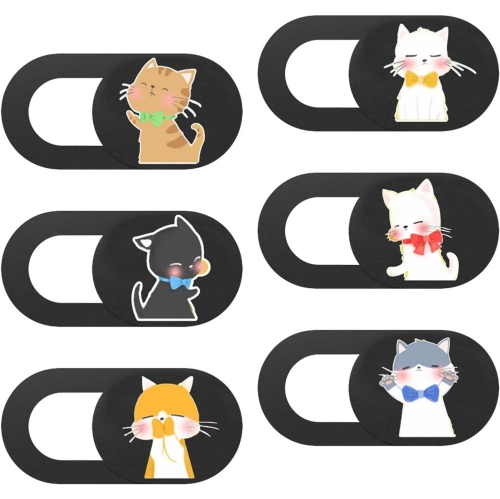
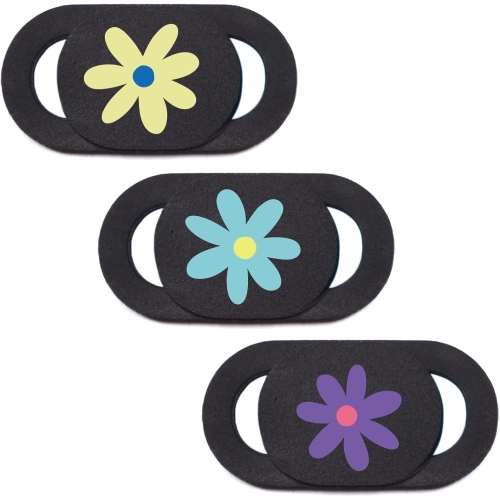
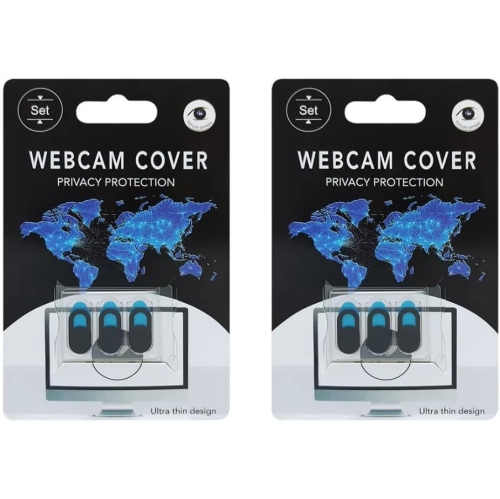
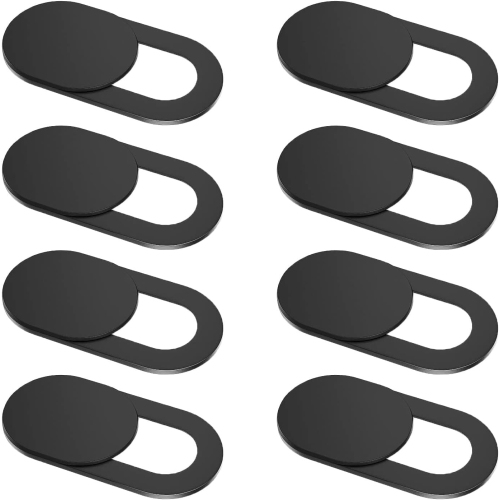
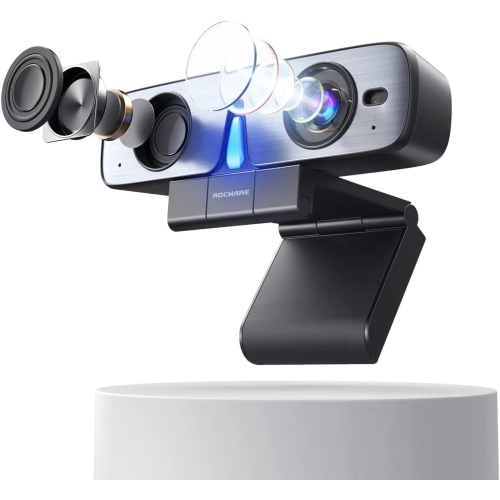
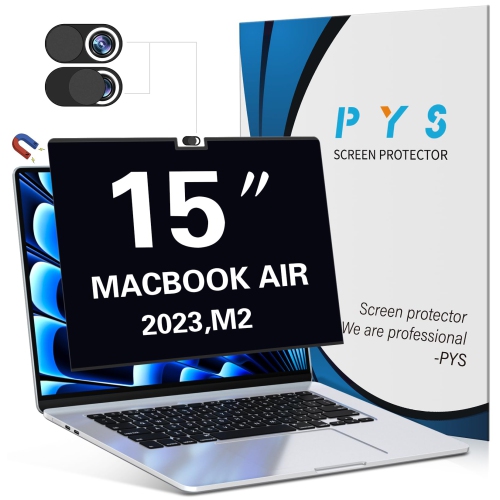
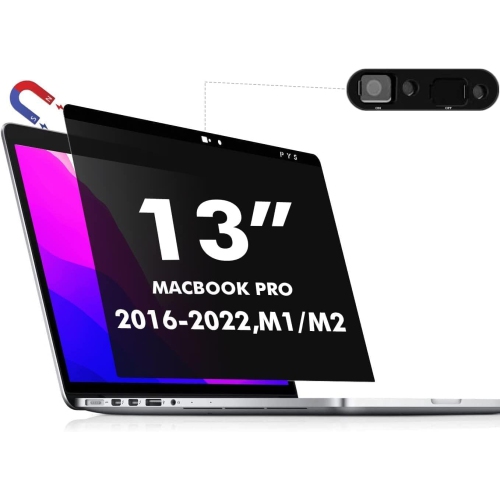
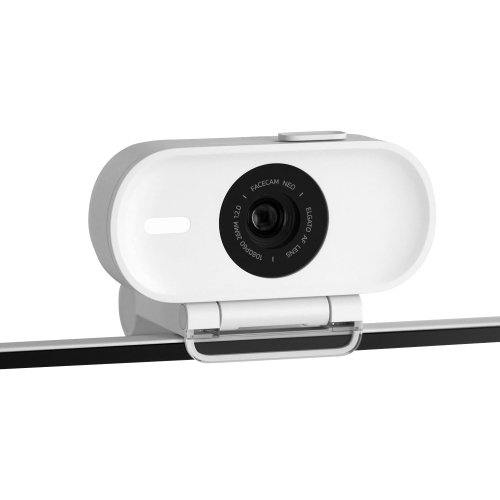
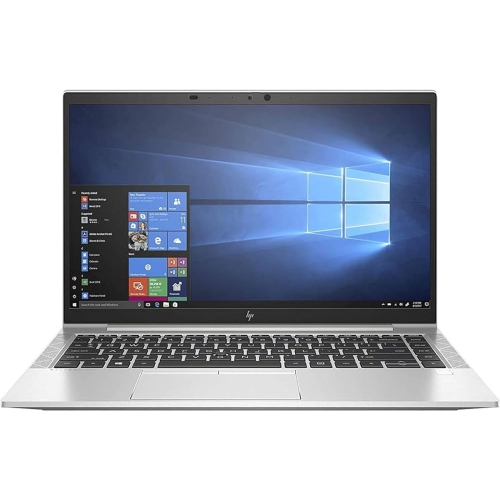
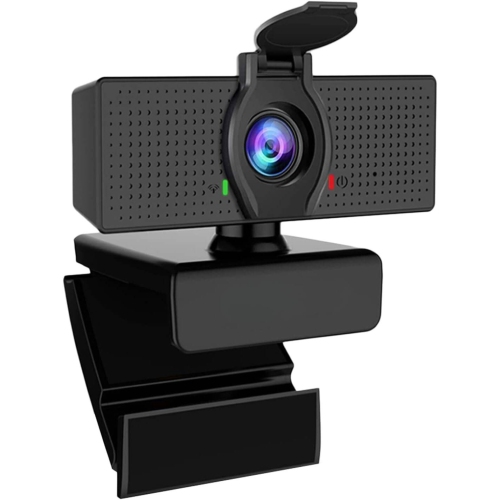
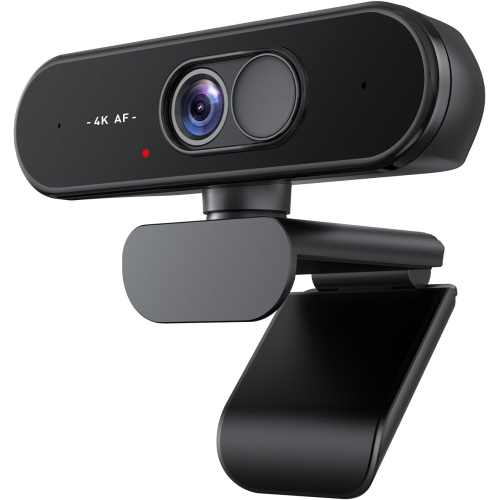

A visible physical safeguard beyond software privacy settings
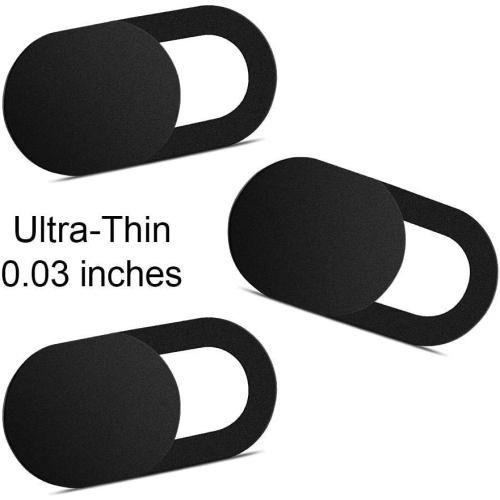
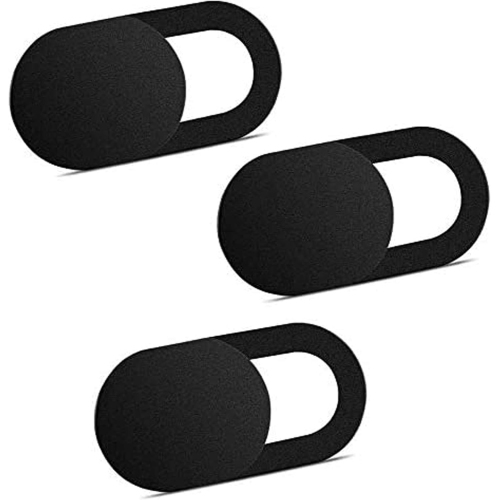
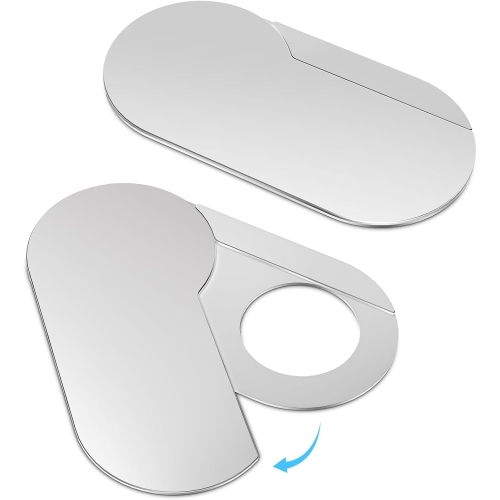
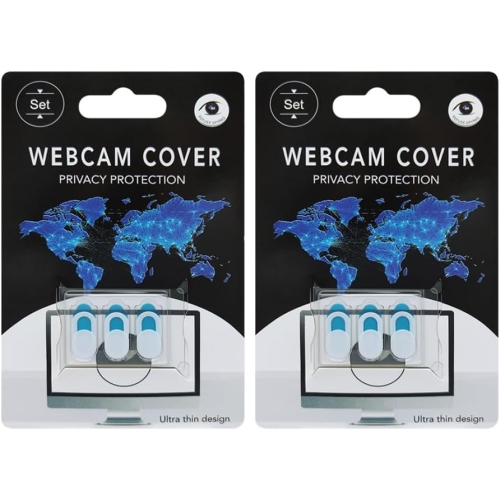
Privacy webcam covers are compact sliding shutters designed to give you a simple physical way to block the camera on a laptop, tablet, monitor, or compatible mobile device when the camera is not in use. The cover sits over the camera lens and moves between an open position for video calls and a closed position for added privacy. Many people appreciate this visible, hands-on safeguard because it does not depend entirely on software settings, app permissions, or remembering which programs have access to a camera. A closed shutter provides a clear visual reminder that the lens is covered, whether your device is resting on a desk, packed into a school bag, or positioned in a shared room. These accessories can be useful for remote workers, students, families, streamers, freelancers, and anyone who regularly joins online meetings or classes. They are also practical in homes where laptops are used in bedrooms, kitchens, living rooms, or other spaces where a camera may face more of the room than intended. A webcam cover does not replace strong passwords, device updates, antivirus protection, or careful privacy settings, and it does not block a device’s microphone. Instead, it adds a physical layer of control for the camera itself. For households with several computers, multipacks can make it easier to cover each frequently used device, while a spare cover can be kept with a travel laptop or shared with a family member. They can also make thoughtful small gifts for a student heading back to school, a relative setting up a home office, or a friend who is getting more comfortable with video conferencing. For school-related devices, shoppers can also explore Webcam Covers for School Laptop to find options suited to everyday learning and communication.
When choosing privacy webcam covers, start by checking the shape and placement of the camera on each device. Most covers are made for small, forward-facing webcams positioned along the top bezel of a laptop or monitor, but bezels vary in width and some screens have very little room around the lens. A slim design is often the most versatile choice because it is less likely to interfere with the way a laptop closes or with the position of a display. Measure or visually inspect the area around the camera before buying, especially if the screen has a narrow border, a raised frame, or sensors beside the lens. The opening in the shutter should align fully with the camera when open and cover it completely when closed. It is also important to consider the number of devices that need protection and whether you want individual covers for a home office, school computer, tablet, or spare machine. Sliding mechanisms should move smoothly without requiring excessive force, since a cover that is difficult to open may be left in one position. Look for a secure adhesive backing intended for electronics and a profile that will not catch on a laptop sleeve or protective case. Adhesive performance is affected by dust, skin oils, moisture, and textured surfaces, so preparation matters. Before installation, shut down or close the device, then gently clean the area around the camera with a soft, dry or lightly dampened cloth suitable for the screen’s material. Allow the surface to dry fully. Avoid spraying cleaner directly onto the device and take care not to touch the camera lens. Once the area is clean, position the cover carefully with its opening centred over the lens and confirm that nearby indicator lights or sensors remain unobstructed. Peel away the backing only after you are satisfied with the alignment, press the cover firmly against the bezel for several seconds, and allow the adhesive to set according to the package directions before repeatedly sliding it open and closed.
A good webcam cover should fit naturally into the way you use your devices. During a workday filled with video meetings, you can leave the shutter open while a camera is active, then close it as soon as the call ends. For online classes, it can help students see at a glance whether their camera is covered before opening a lesson or joining a group discussion. When travelling during the cooler months, a closed cover can provide reassurance when a laptop is used in a hotel room, library, café, or shared workspace, while its slim profile helps it remain attached as the computer moves between locations. At home, a cover may be especially useful for a family computer that is shared by several people or for a monitor that remains facing into a busy room. It is worth remembering that physical covers are intended for camera privacy only: they do not prevent an application from accessing the microphone, recording audio, or collecting other information. Review camera and microphone permissions on your operating system and in individual apps, and close programs that are not needed. If you replace a device, remove the old cover carefully rather than transferring it automatically, since adhesive strength can diminish after removal and reapplication. For a clean installation, lift one edge slowly with a fingernail or a suitable non-metallic tool and wipe away any remaining adhesive using a method approved for the device’s surface. With the right fit and careful placement, privacy webcam covers offer an uncomplicated daily habit: open the shutter when you choose to be seen, close it when the camera is not needed, and keep the surrounding software and device settings under regular review.
When choosing privacy webcam covers, start by checking the shape and placement of the camera on each device. Most covers are made for small, forward-facing webcams positioned along the top bezel of a laptop or monitor, but bezels vary in width and some screens have very little room around the lens. A slim design is often the most versatile choice because it is less likely to interfere with the way a laptop closes or with the position of a display. Measure or visually inspect the area around the camera before buying, especially if the screen has a narrow border, a raised frame, or sensors beside the lens. The opening in the shutter should align fully with the camera when open and cover it completely when closed. It is also important to consider the number of devices that need protection and whether you want individual covers for a home office, school computer, tablet, or spare machine. Sliding mechanisms should move smoothly without requiring excessive force, since a cover that is difficult to open may be left in one position. Look for a secure adhesive backing intended for electronics and a profile that will not catch on a laptop sleeve or protective case. Adhesive performance is affected by dust, skin oils, moisture, and textured surfaces, so preparation matters. Before installation, shut down or close the device, then gently clean the area around the camera with a soft, dry or lightly dampened cloth suitable for the screen’s material. Allow the surface to dry fully. Avoid spraying cleaner directly onto the device and take care not to touch the camera lens. Once the area is clean, position the cover carefully with its opening centred over the lens and confirm that nearby indicator lights or sensors remain unobstructed. Peel away the backing only after you are satisfied with the alignment, press the cover firmly against the bezel for several seconds, and allow the adhesive to set according to the package directions before repeatedly sliding it open and closed.
A good webcam cover should fit naturally into the way you use your devices. During a workday filled with video meetings, you can leave the shutter open while a camera is active, then close it as soon as the call ends. For online classes, it can help students see at a glance whether their camera is covered before opening a lesson or joining a group discussion. When travelling during the cooler months, a closed cover can provide reassurance when a laptop is used in a hotel room, library, café, or shared workspace, while its slim profile helps it remain attached as the computer moves between locations. At home, a cover may be especially useful for a family computer that is shared by several people or for a monitor that remains facing into a busy room. It is worth remembering that physical covers are intended for camera privacy only: they do not prevent an application from accessing the microphone, recording audio, or collecting other information. Review camera and microphone permissions on your operating system and in individual apps, and close programs that are not needed. If you replace a device, remove the old cover carefully rather than transferring it automatically, since adhesive strength can diminish after removal and reapplication. For a clean installation, lift one edge slowly with a fingernail or a suitable non-metallic tool and wipe away any remaining adhesive using a method approved for the device’s surface. With the right fit and careful placement, privacy webcam covers offer an uncomplicated daily habit: open the shutter when you choose to be seen, close it when the camera is not needed, and keep the surrounding software and device settings under regular review.
Top selling and popular products
-
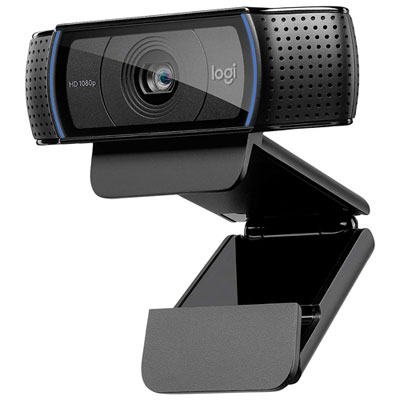 Your price for this item is $79.99
 -
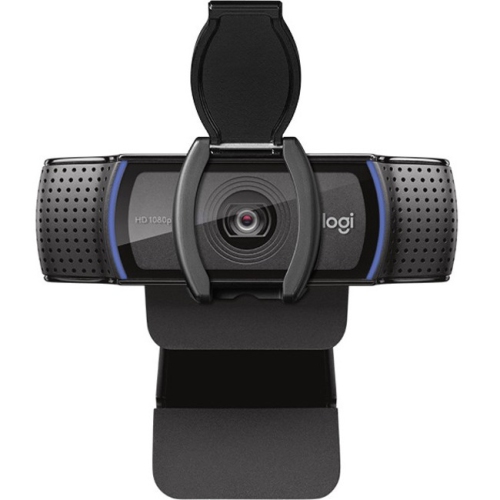 Your price for this item is $123.44
 -
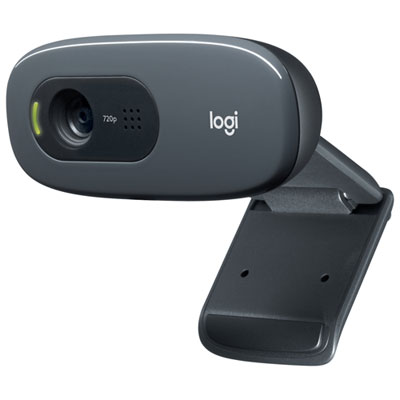 Your price for this item is $28.98
 -
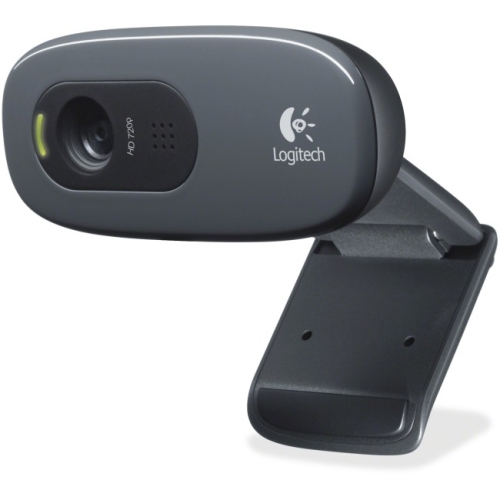 Your price for this item is $59.76
 -
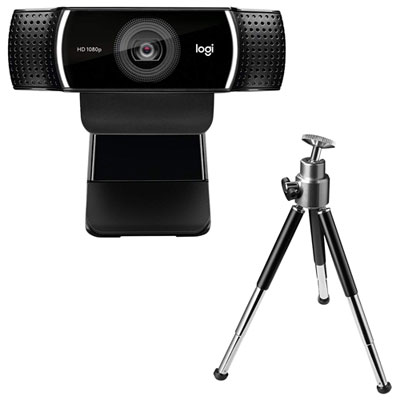 Your price for this item is $149.99
 -
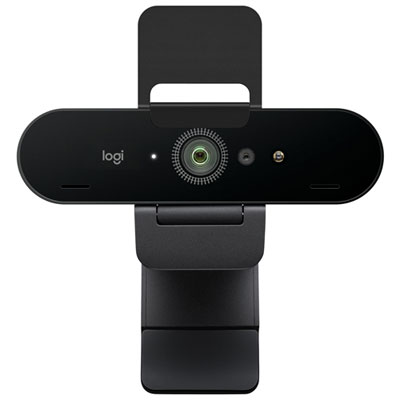 Your price for this item is $249.99
 -
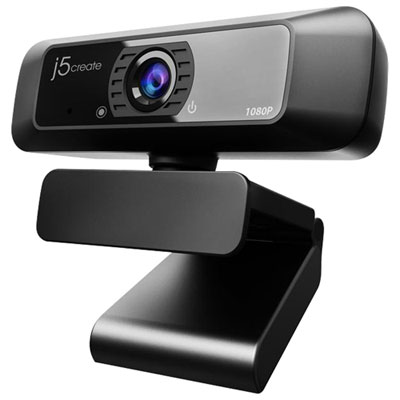 Your price for this item is $49.99
 -
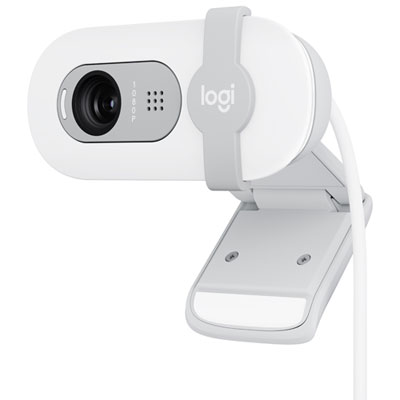 Your price for this item is $59.99
Discover more categories related to Privacy Webcam Covers
Top Collections:
Pokemon Centers, Budget 4K TVs, Kindle Devices, Canon G7X Cameras, Apple iPhones 16, iPhone 15 Apple, Laptops for Business Work, Flip Phones, Xiaomi Phones, Refurbished Apple Laptops
Some products may be subject to Environmental Handling Fees
(EHF) depending on your province.
Learn more about EHFs.