Usb 3.0 Docking Stations
Upgrade your workspace with the latest USB 3.0 docking stations. Designed to enhance connectivity and productivity, these docking stations offer seamless integration between your laptop or desktop and multiple peripherals. With lightning-fast data transfer speeds, convenient charging capabilities, and versatile display options, USB 3.0 docking stations are the perfect solution for streamlining your workflow and maximizing efficiency. Whether you're a professional seeking a clutter-free setup or a student looking to expand your computer's capabilities, explore our wide selection of USB 3.0 docking stations to find the perfect fit for your needs.
Sort
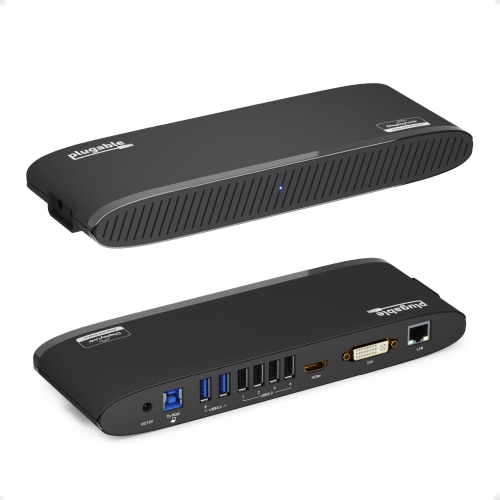
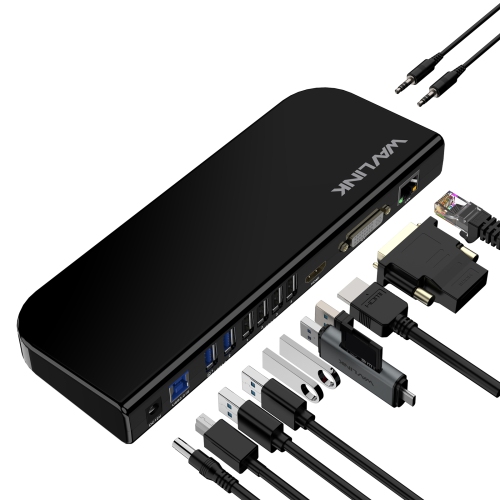
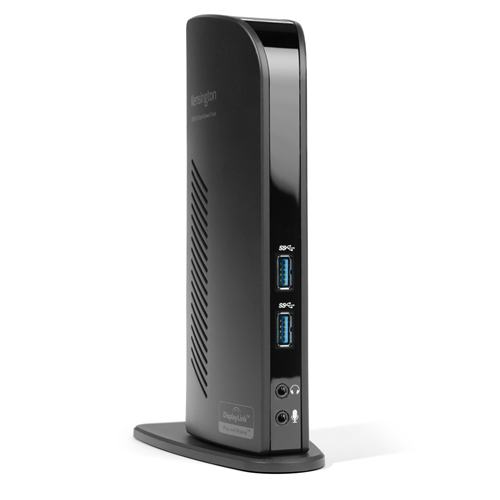
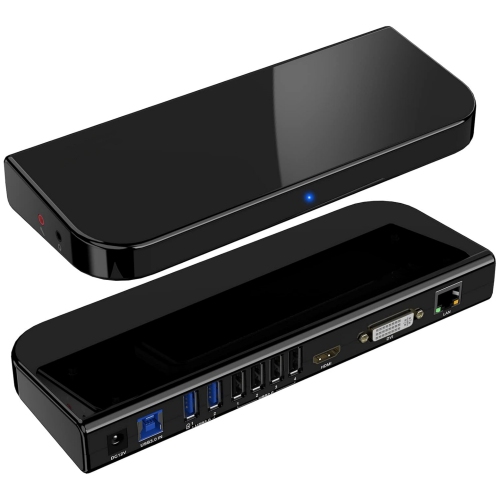
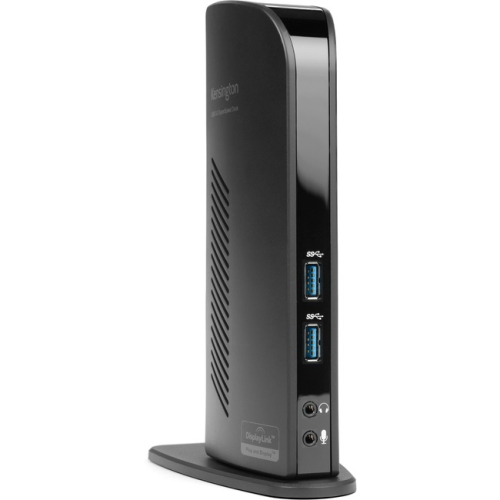
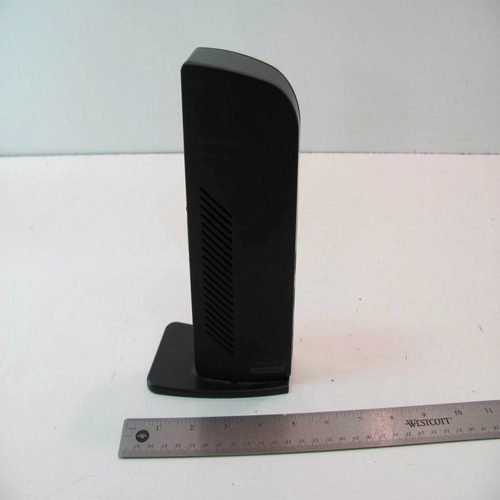
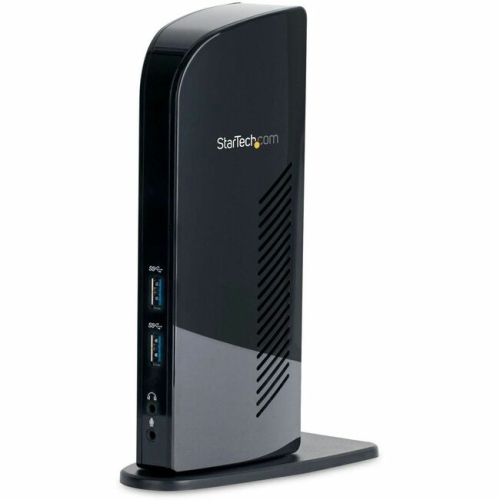

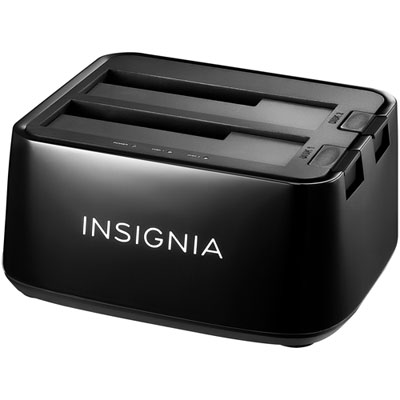
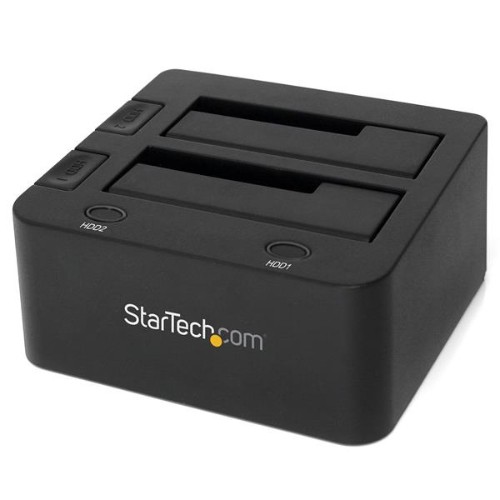
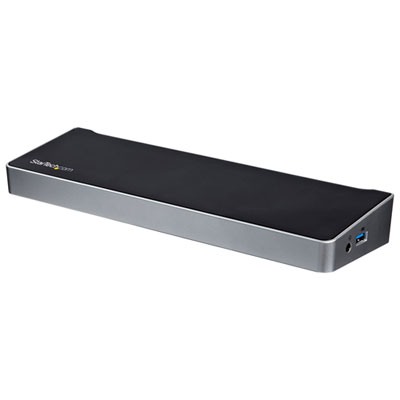
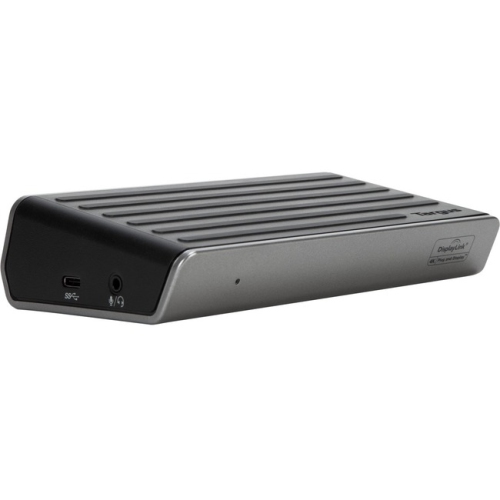
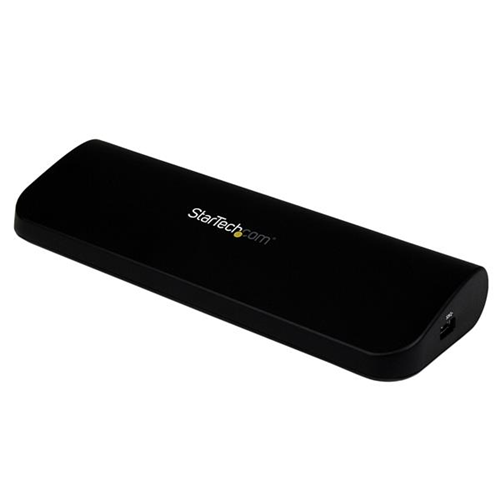
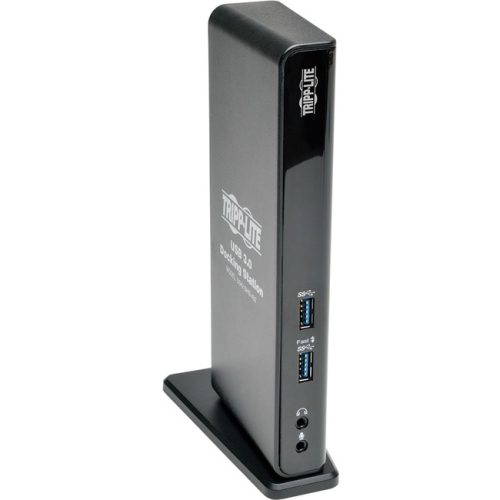
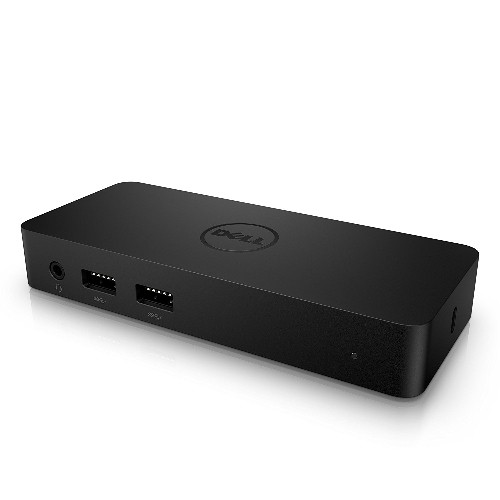
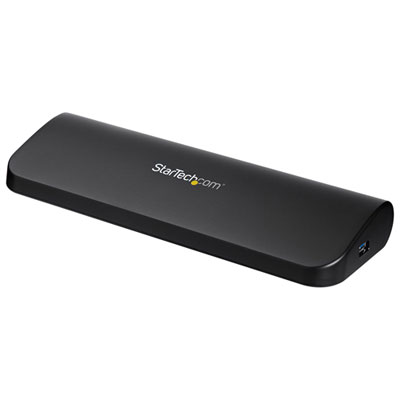
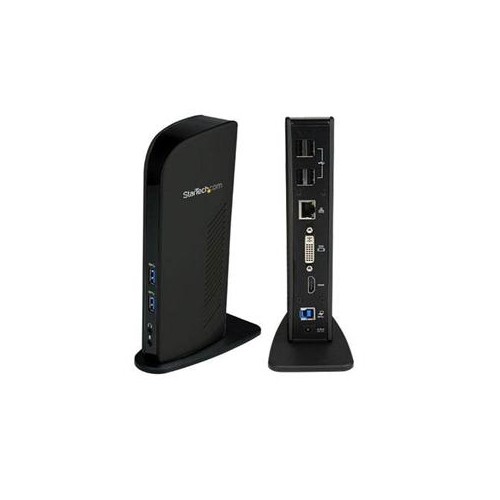
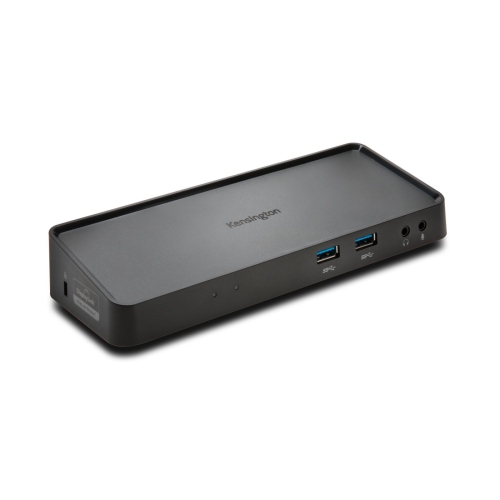

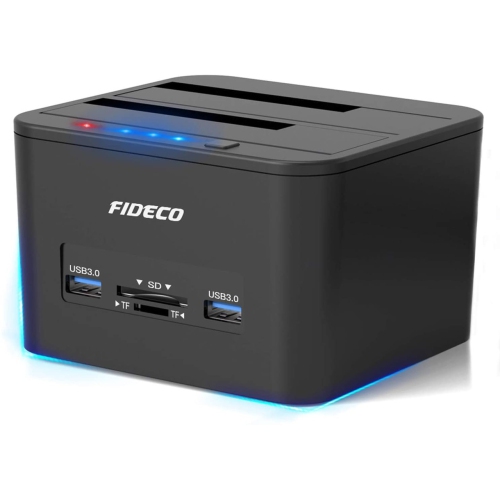

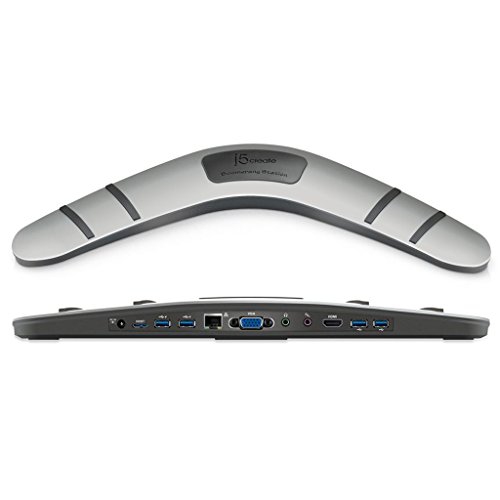
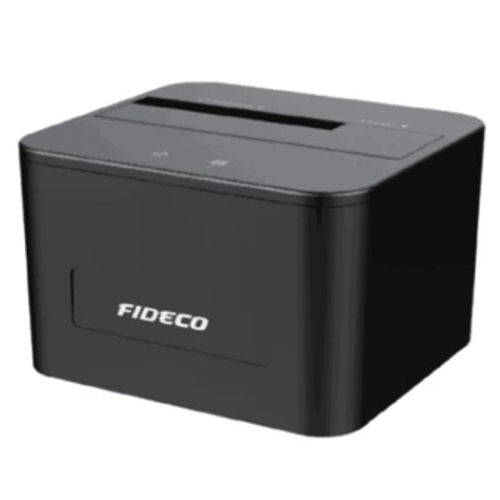


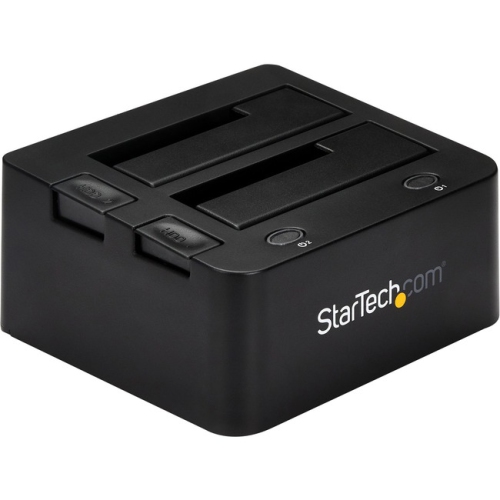
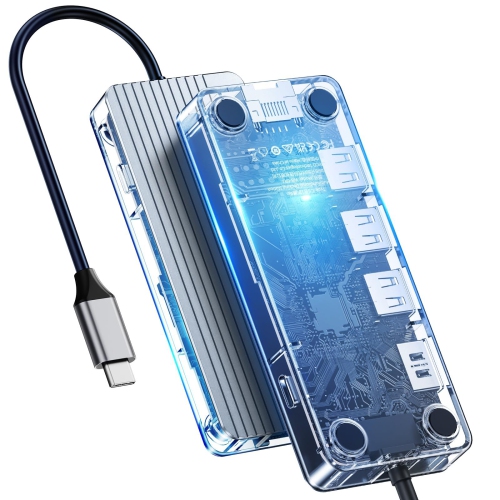
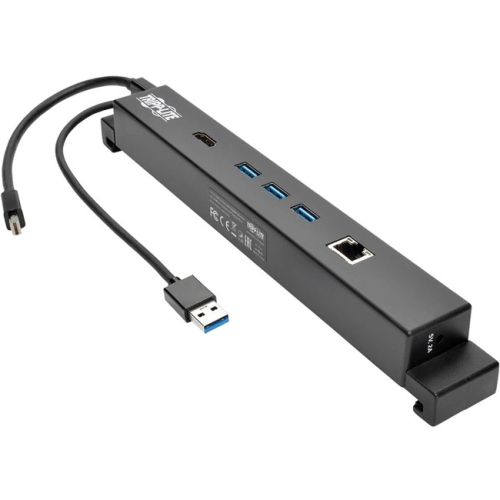
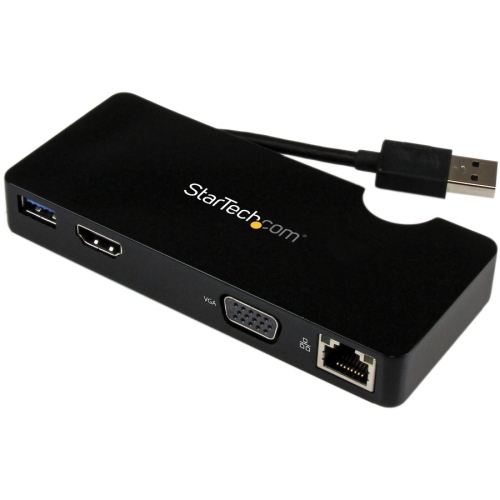
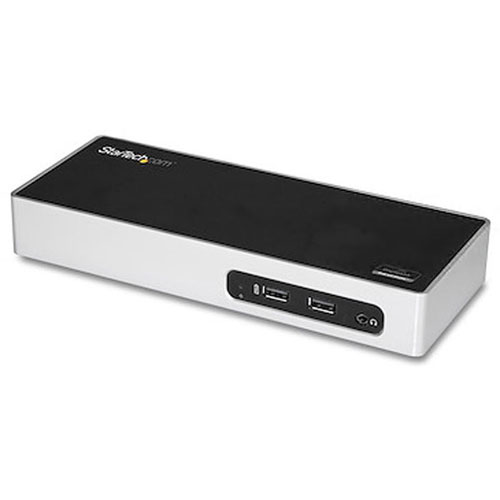
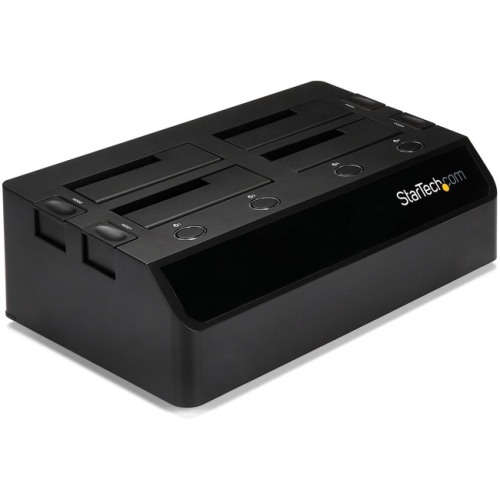
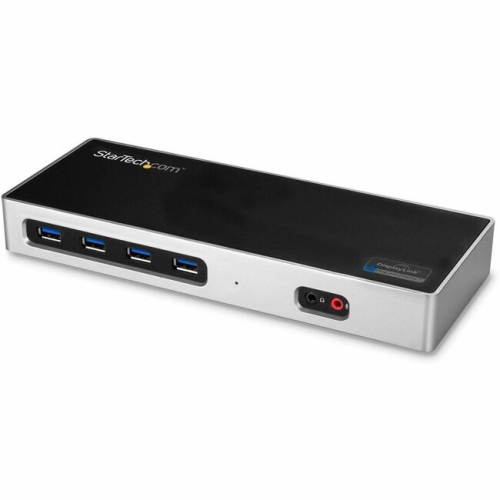
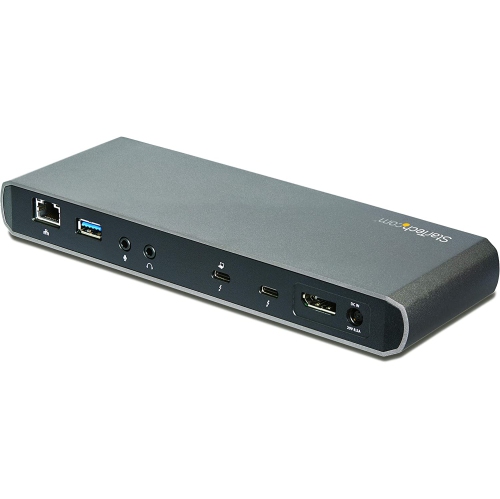
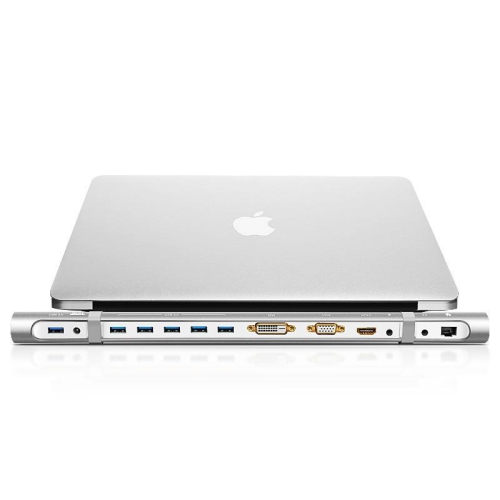
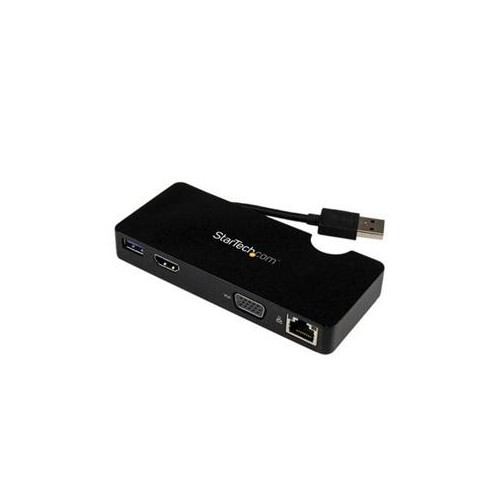
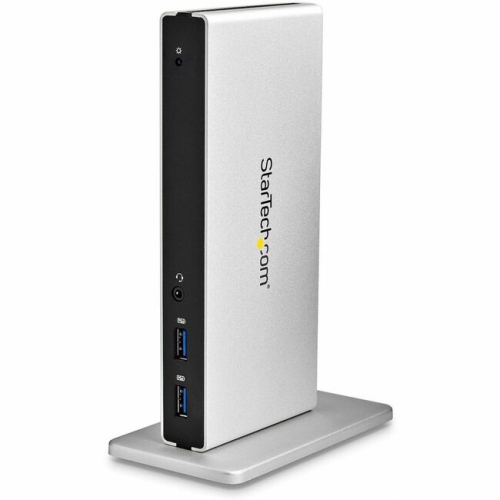

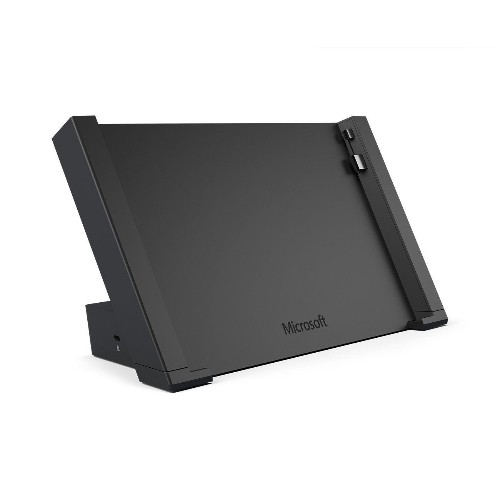
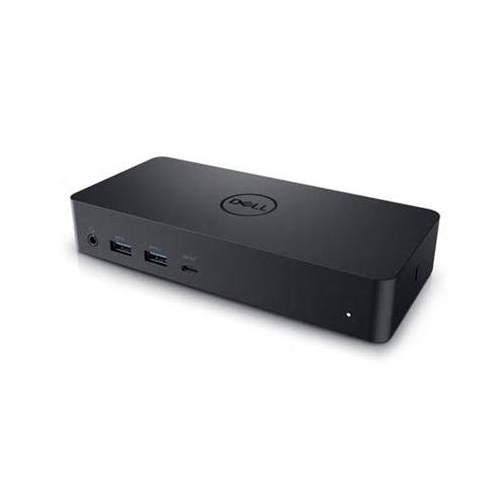
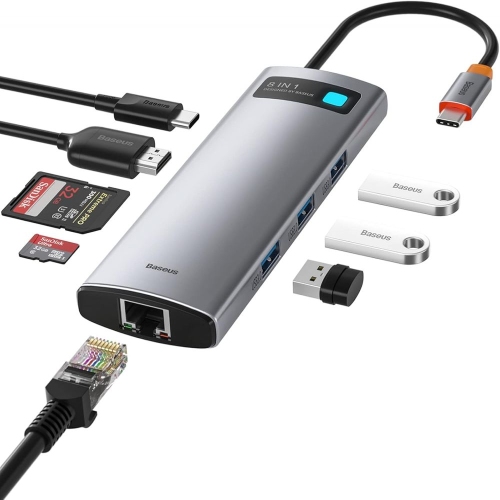
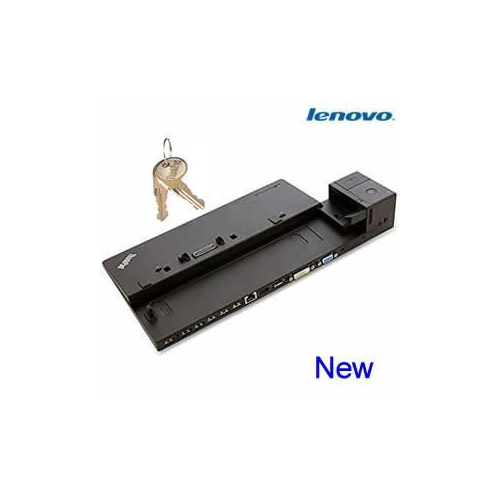
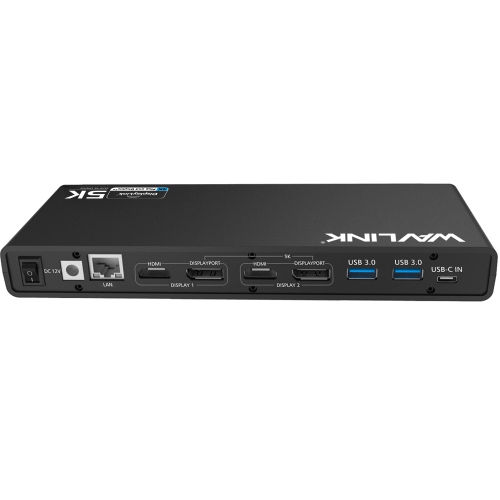
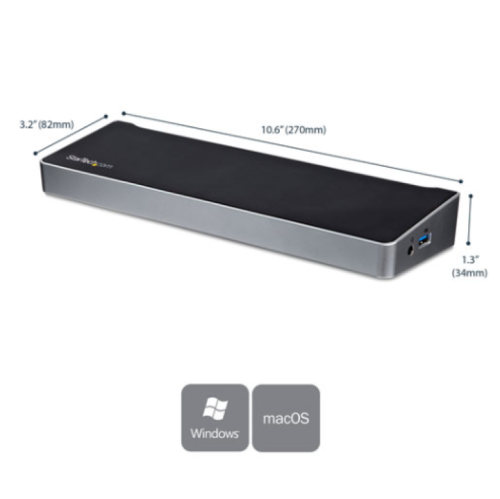
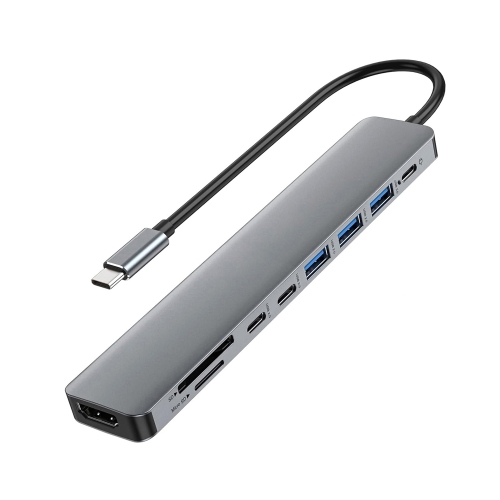
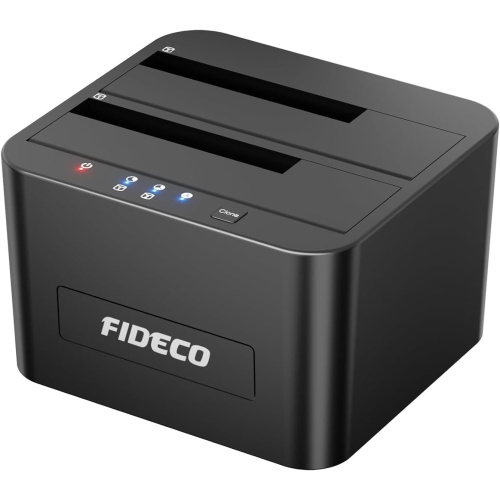
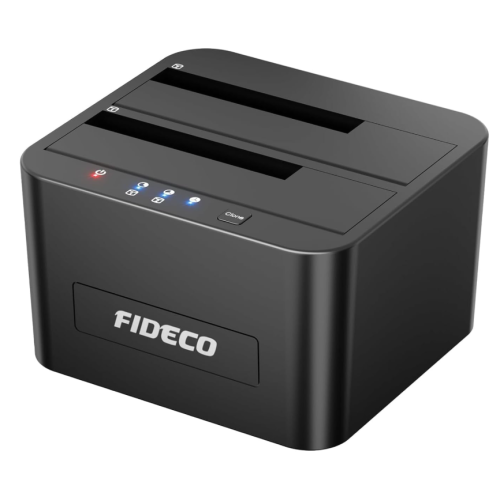
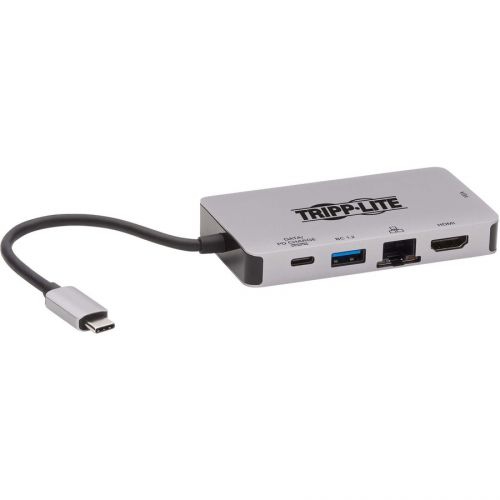

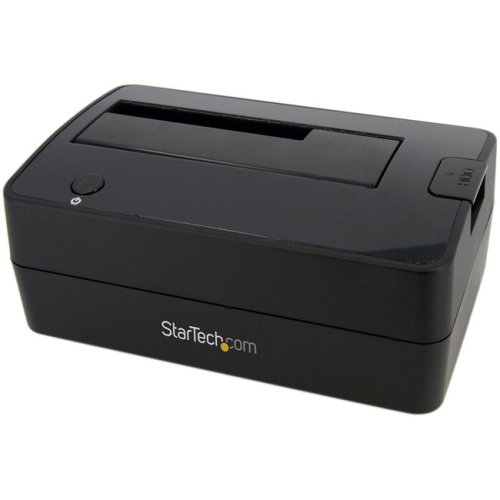
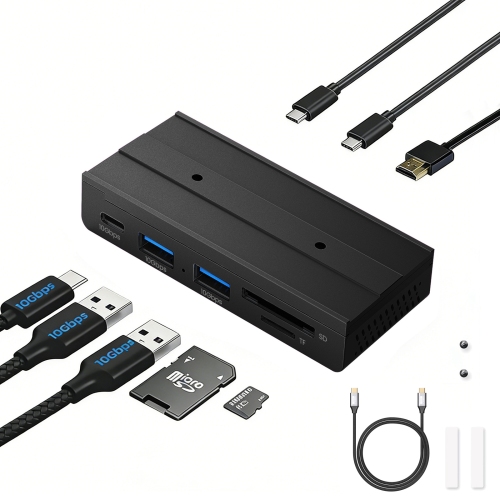
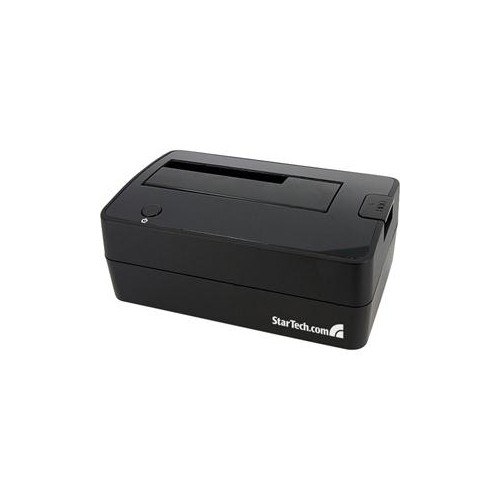
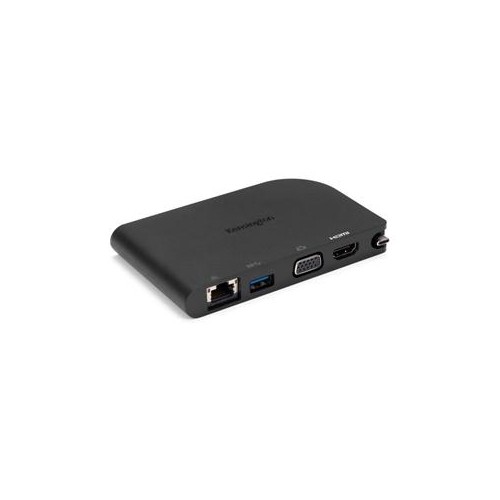
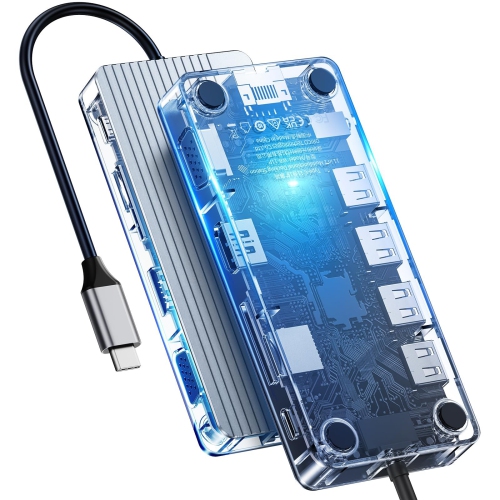
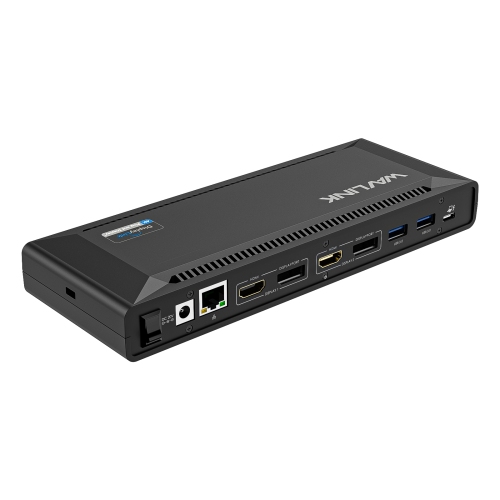
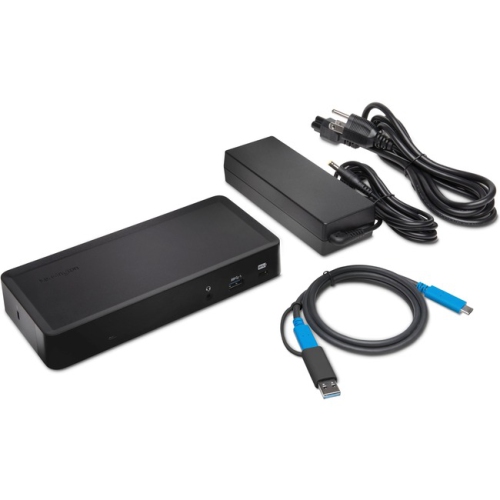
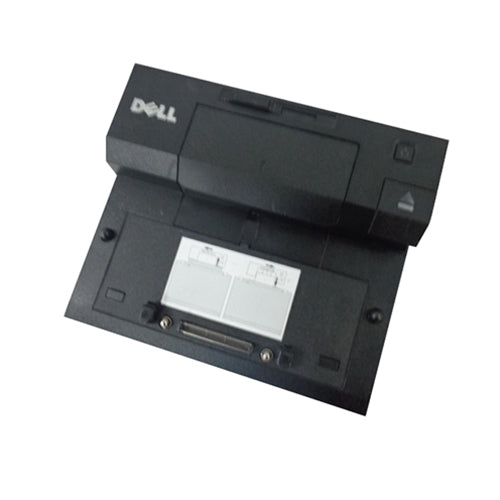
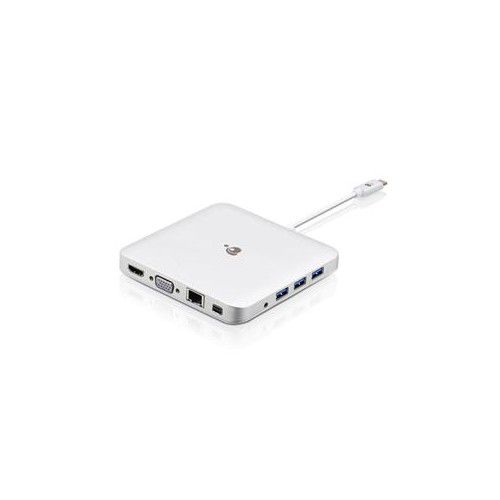
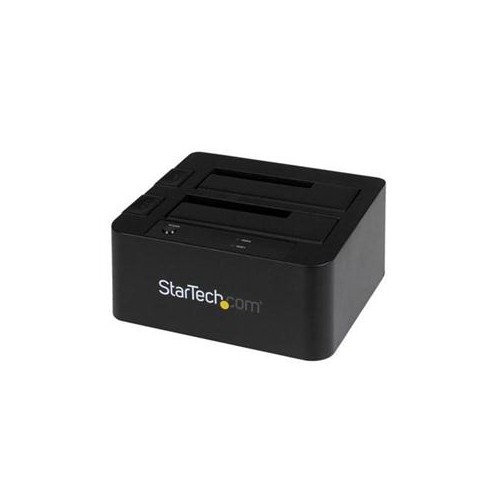
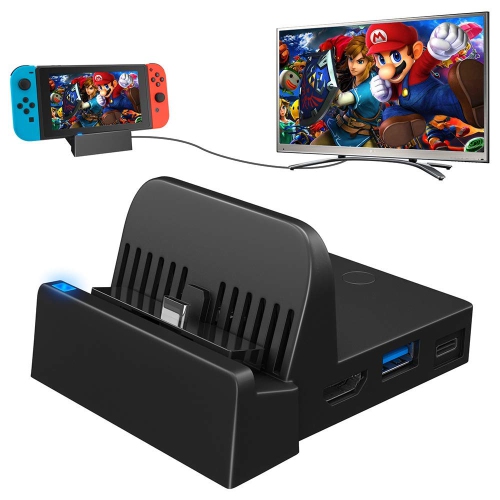
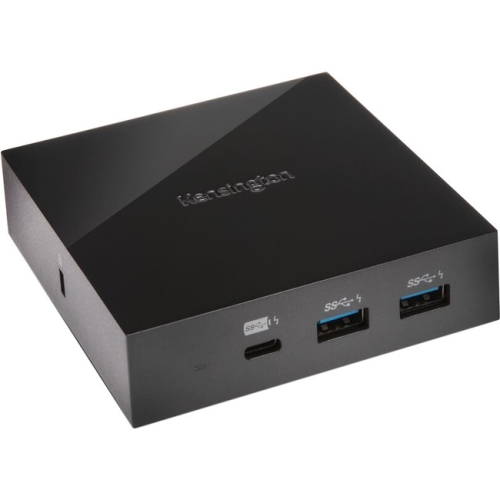
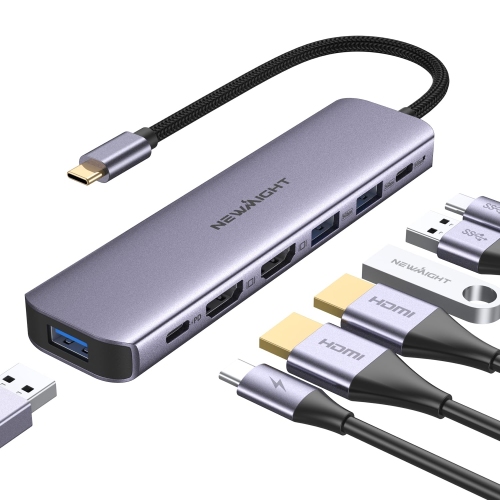
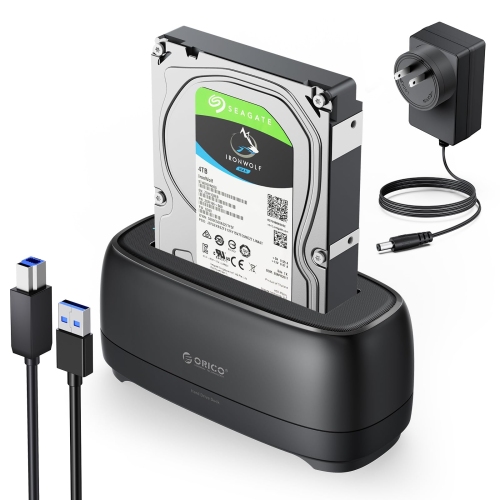

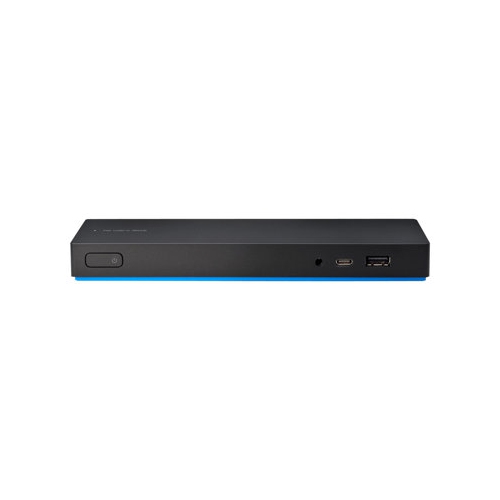

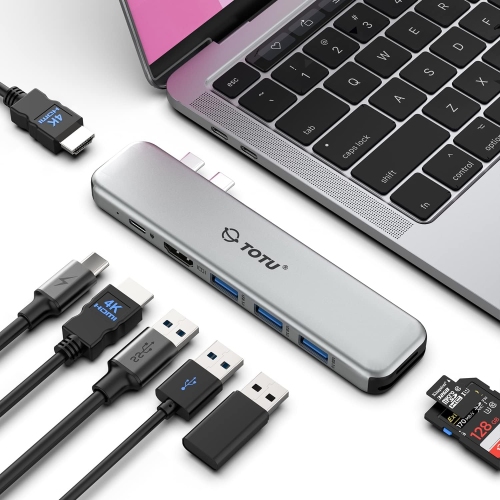
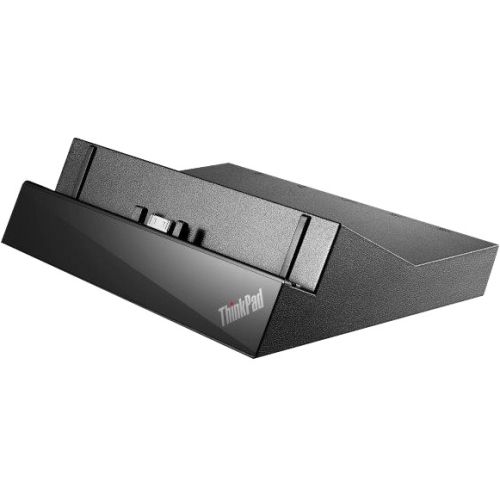
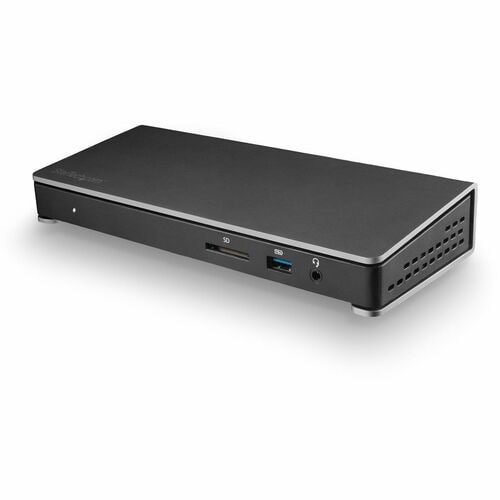
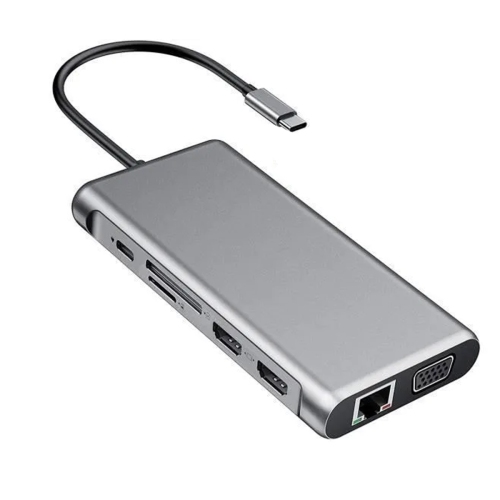
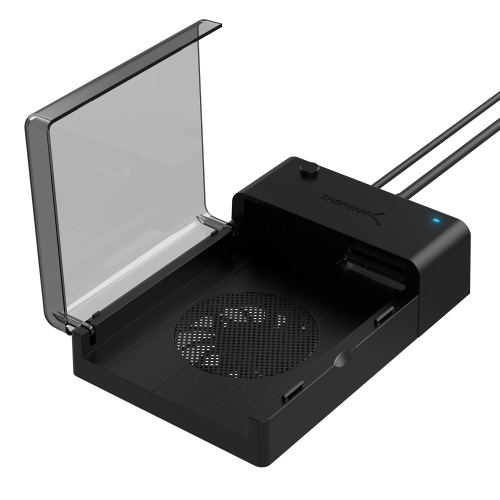
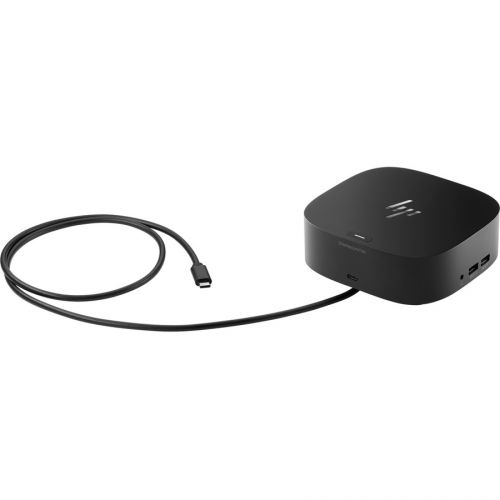
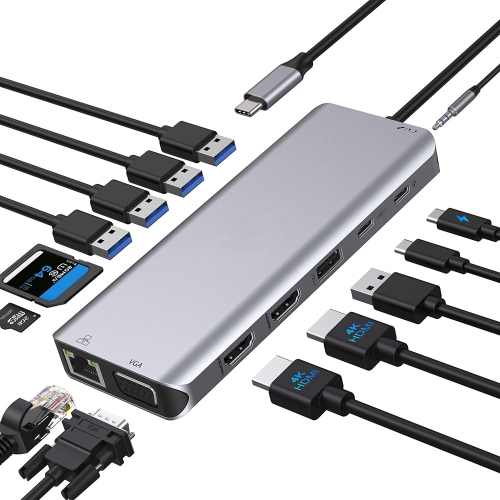

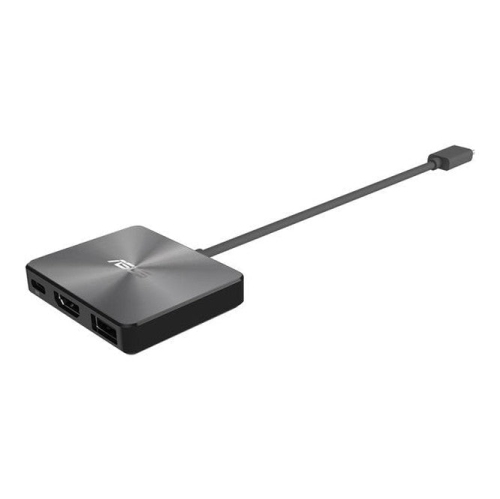
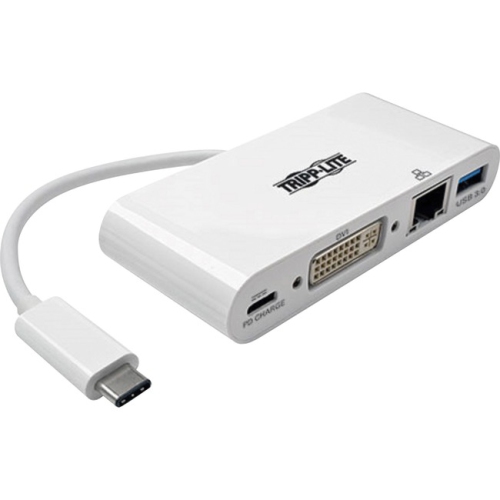
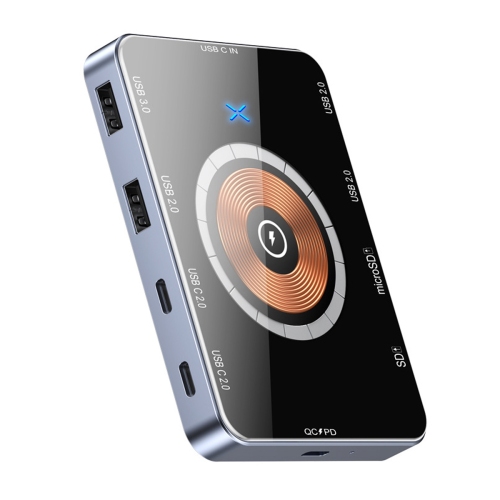
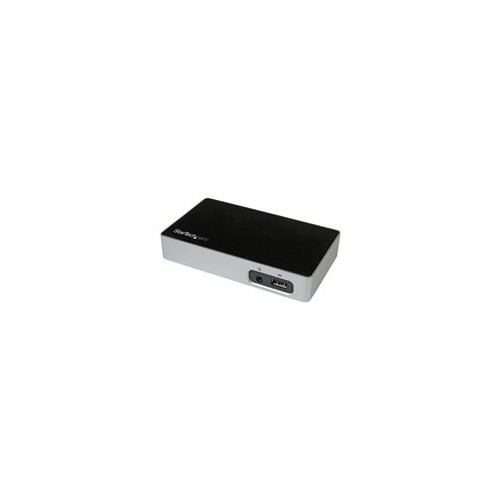
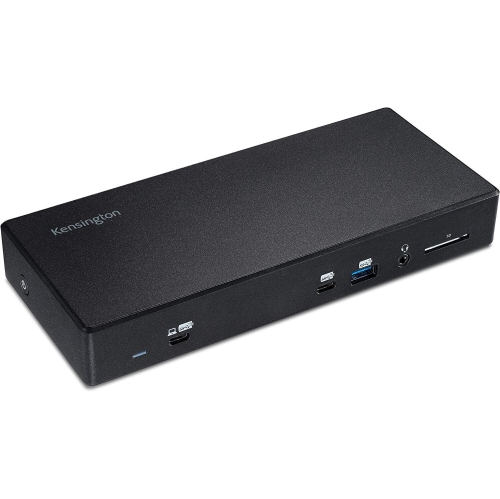
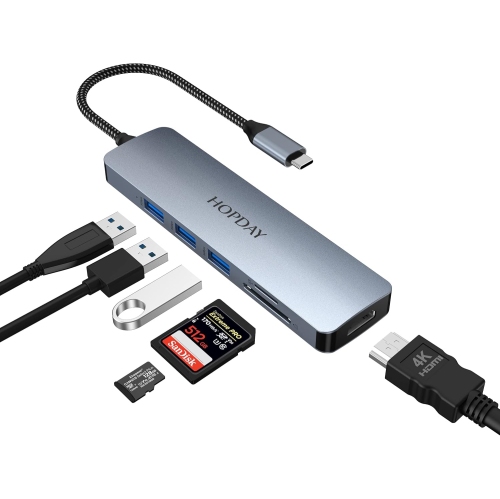
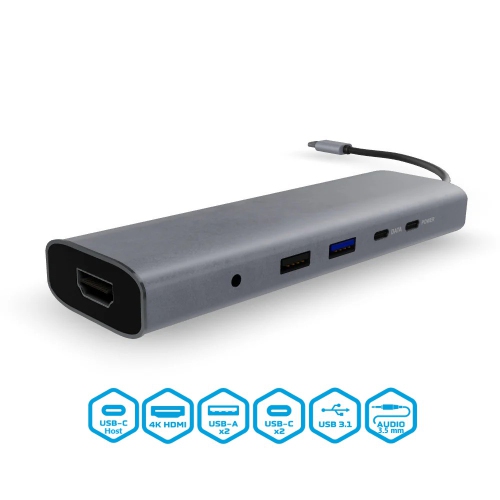
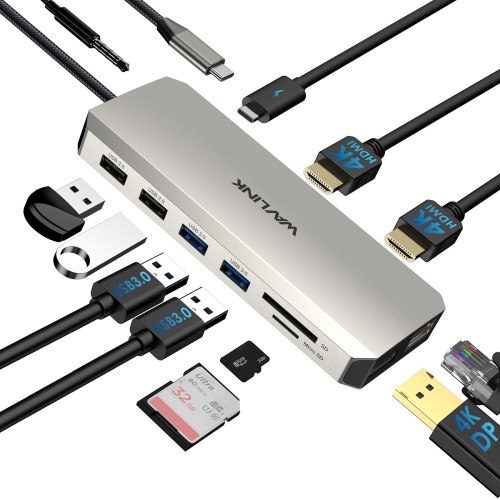
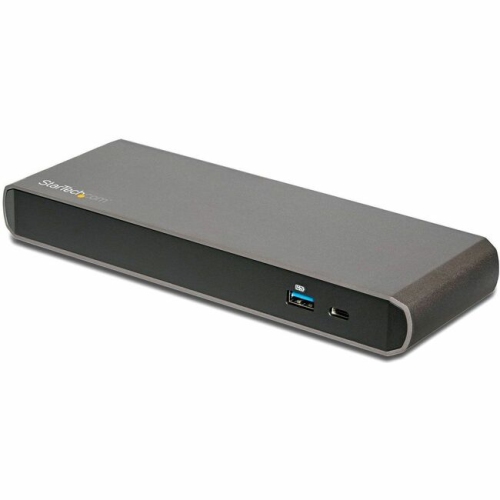
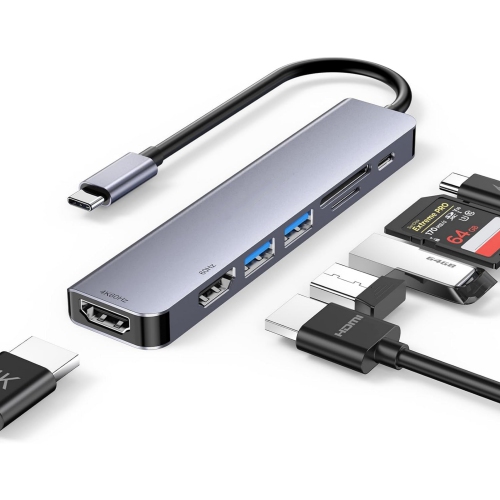
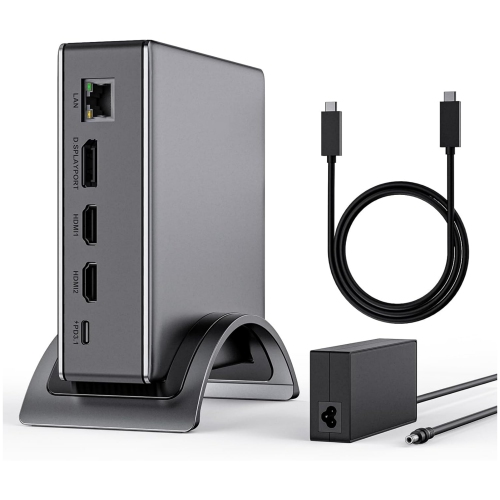
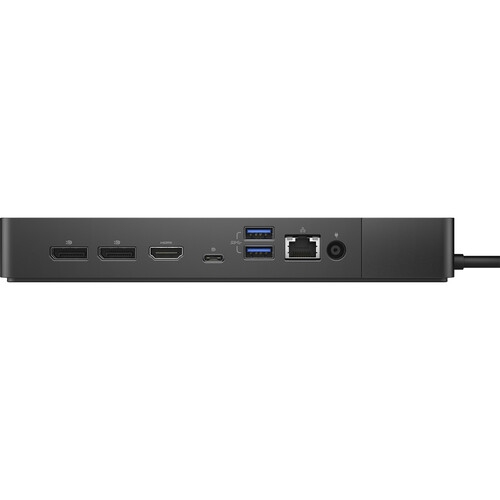
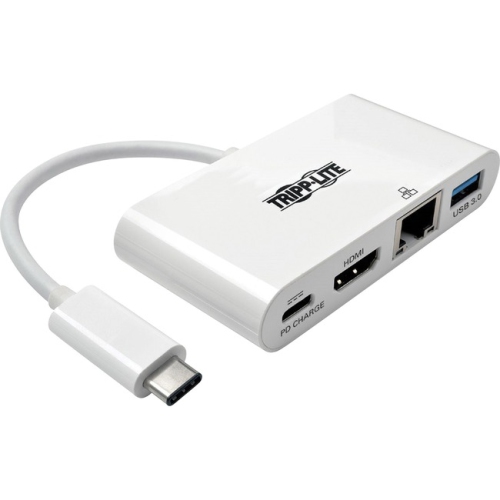
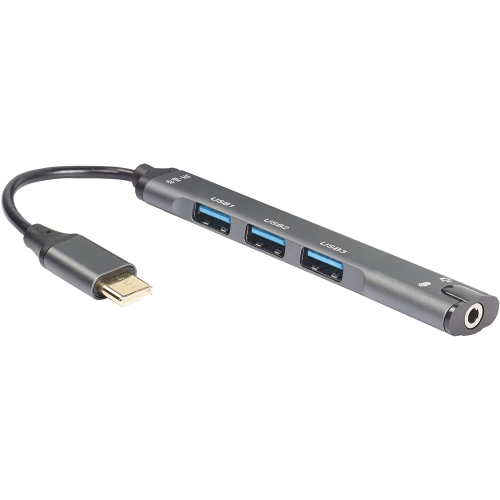
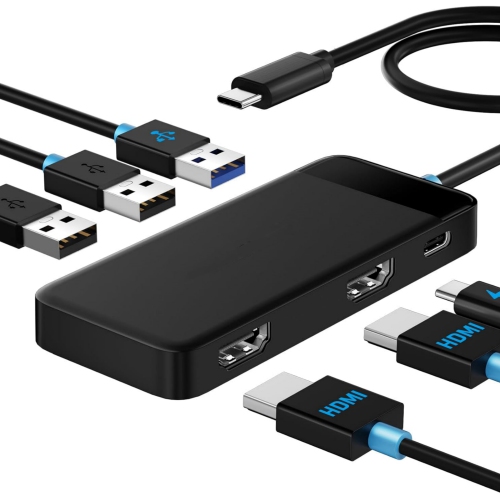
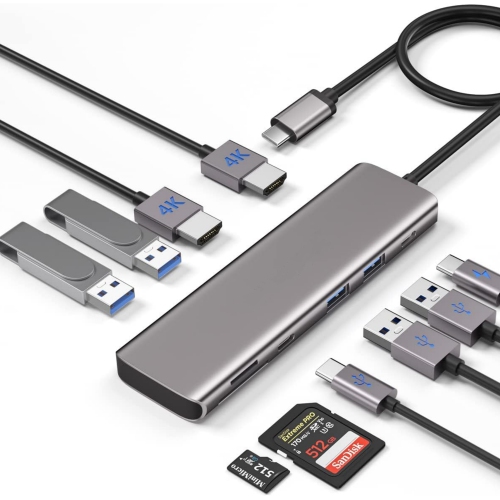
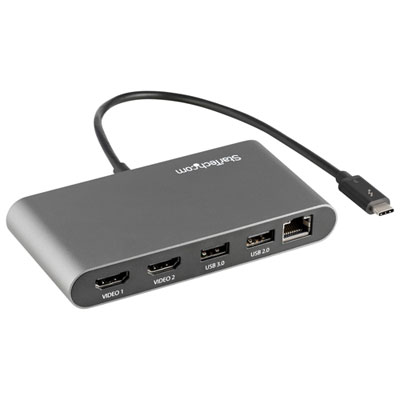

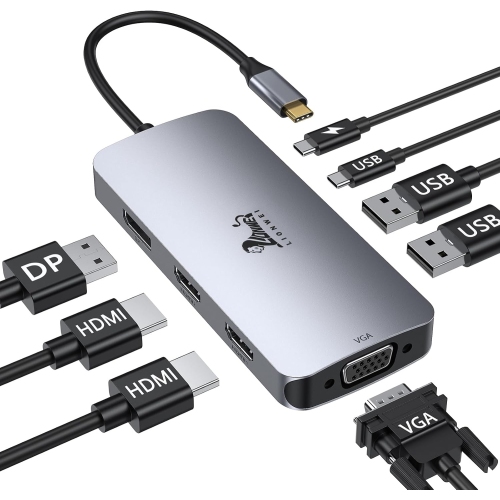
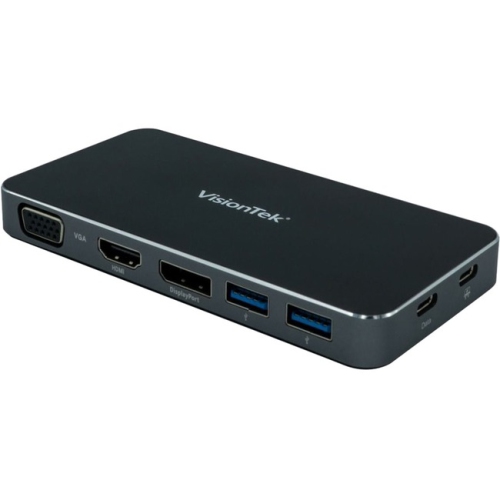
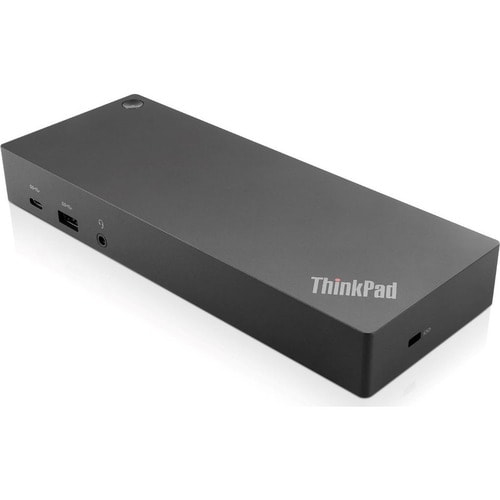
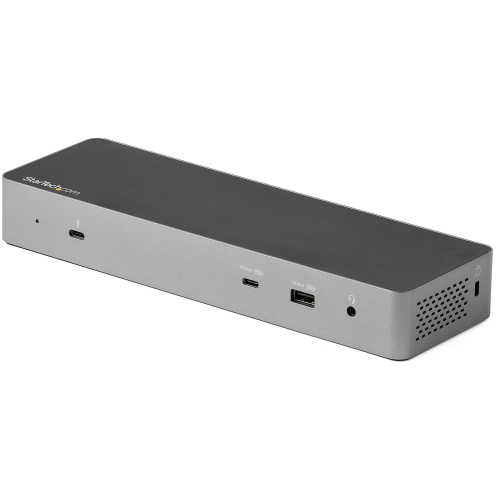
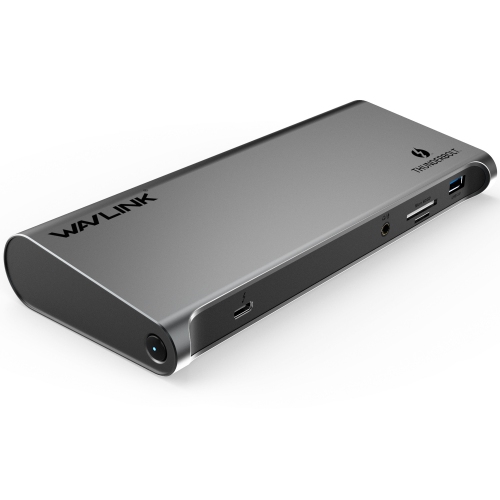
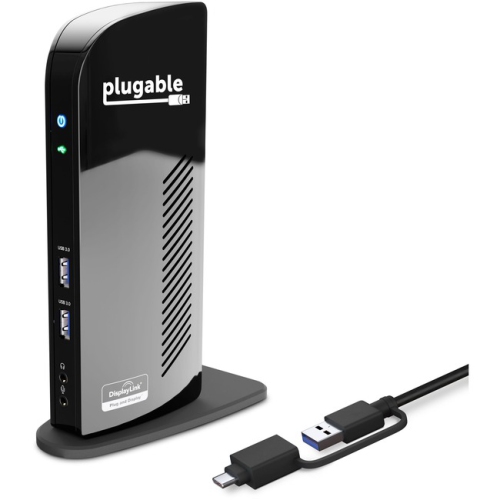
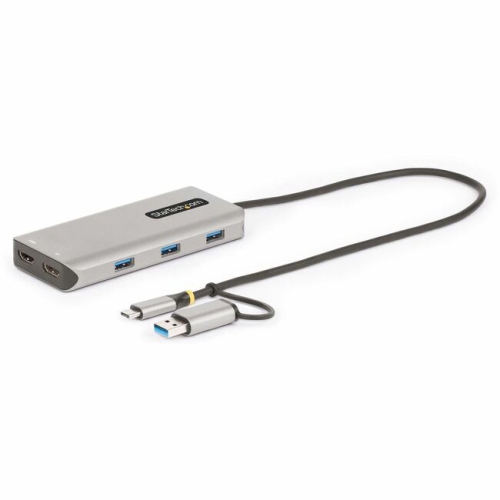
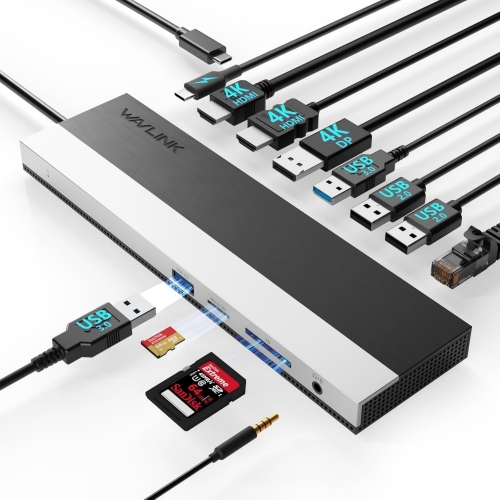
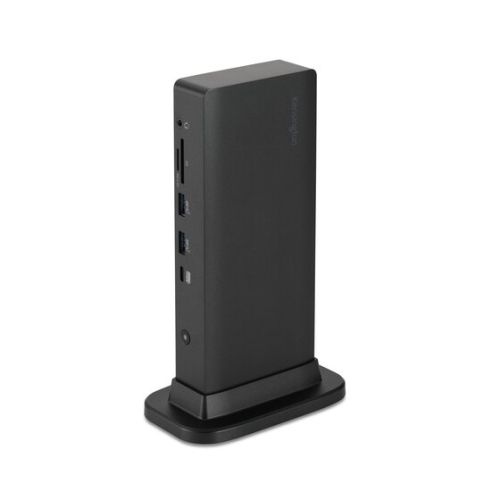
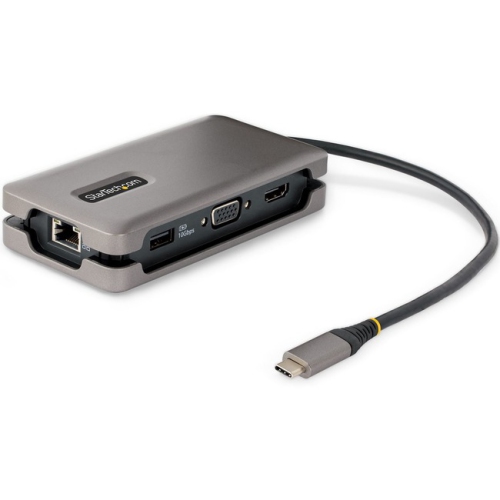
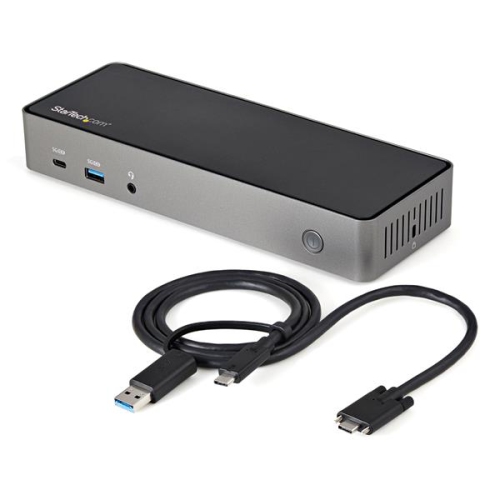
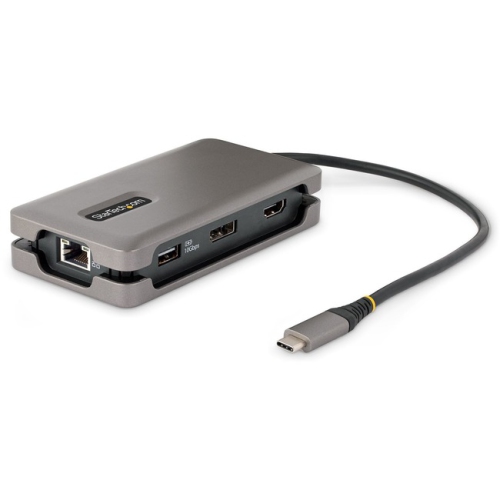
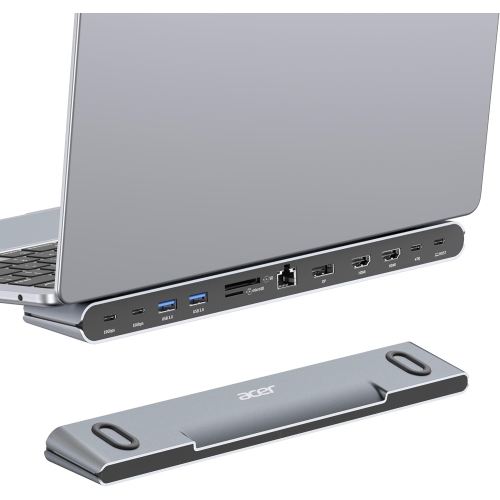
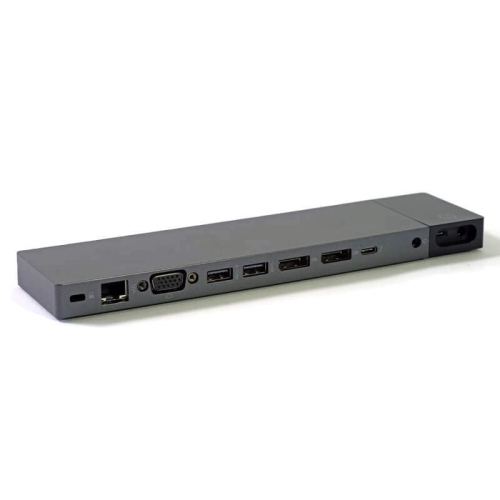
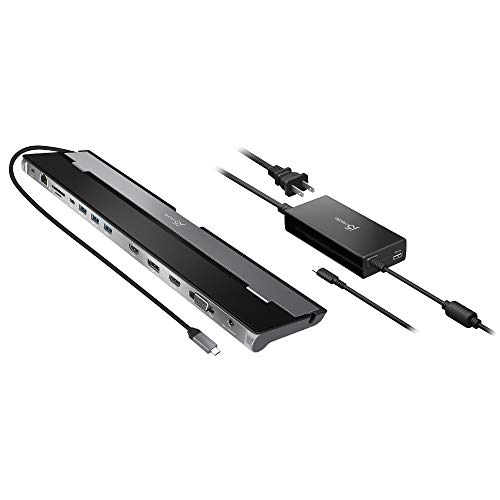
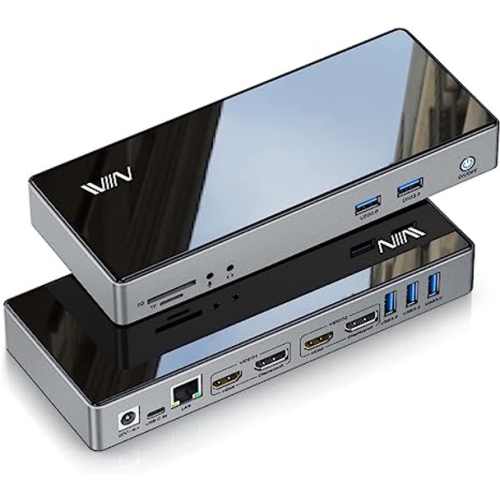
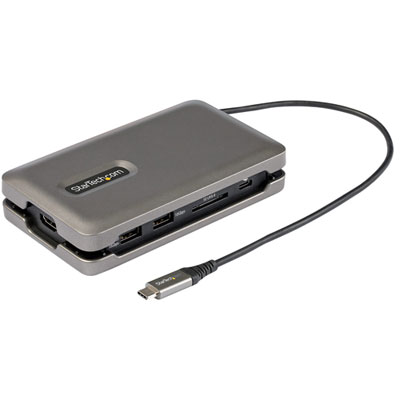
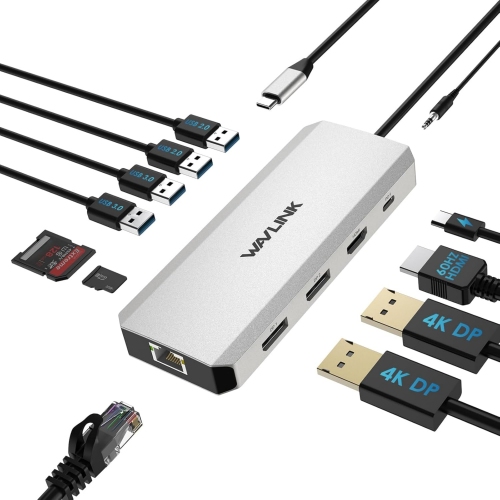
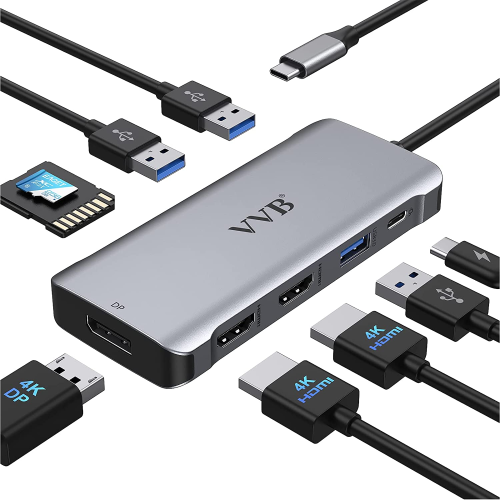
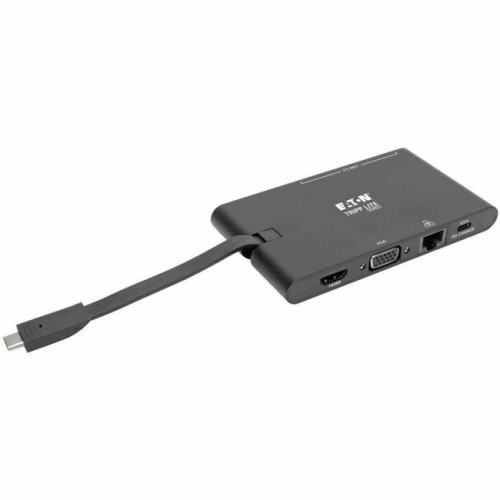
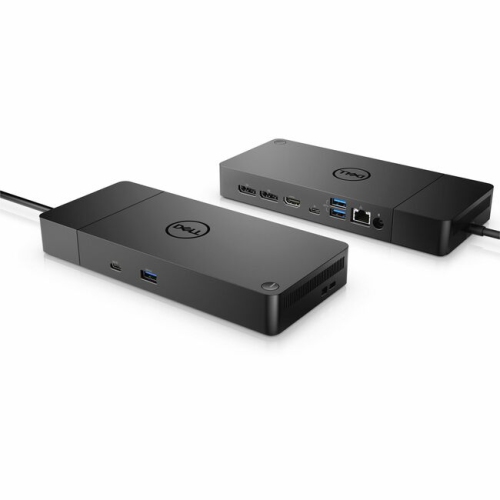
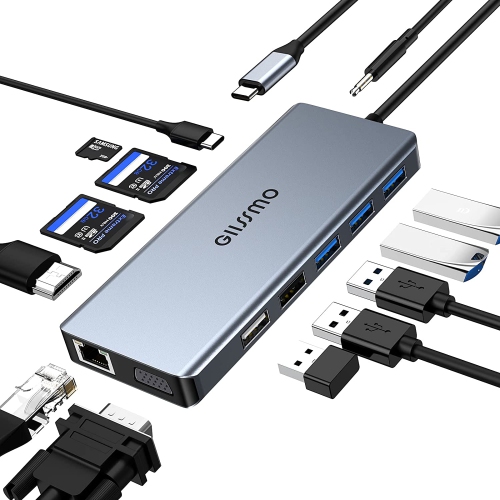
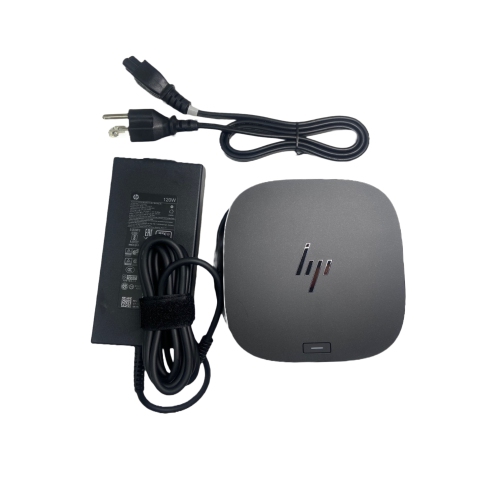
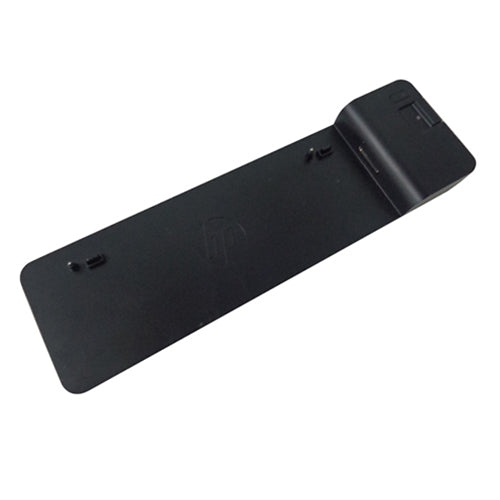

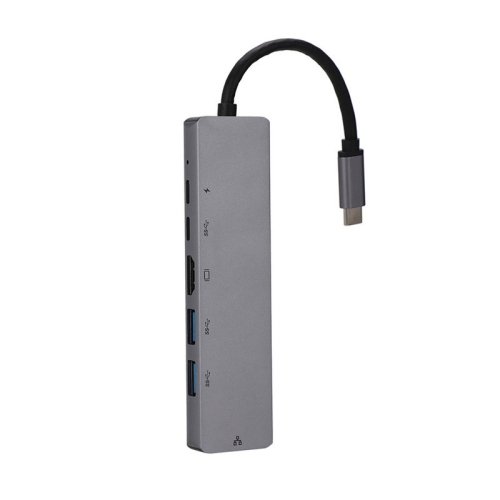
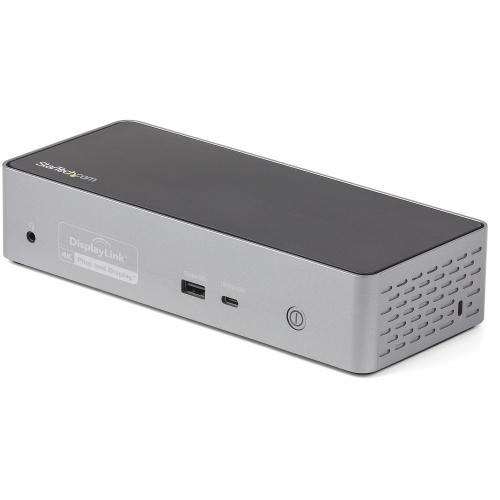
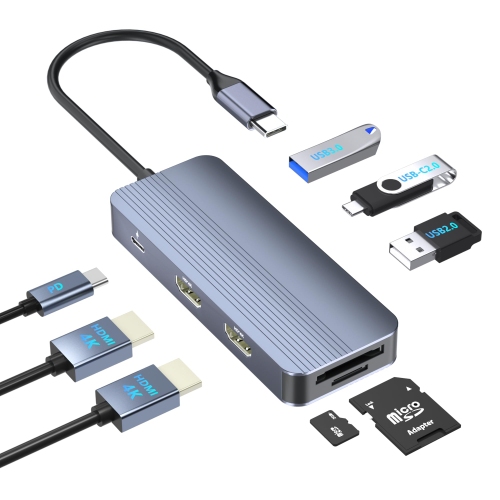
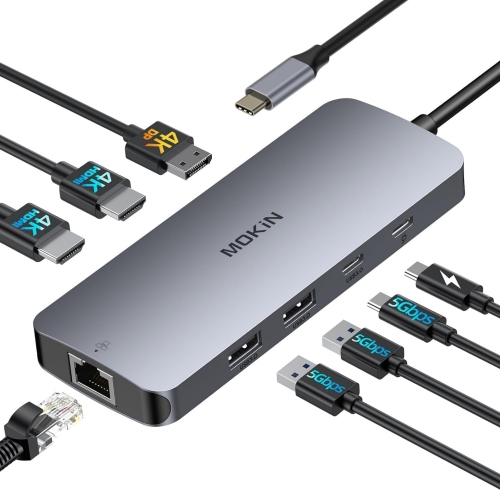
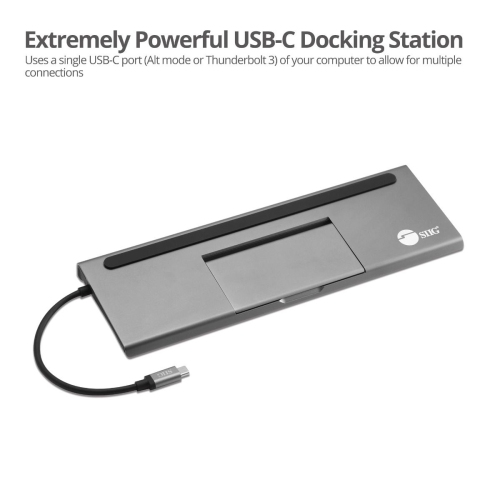
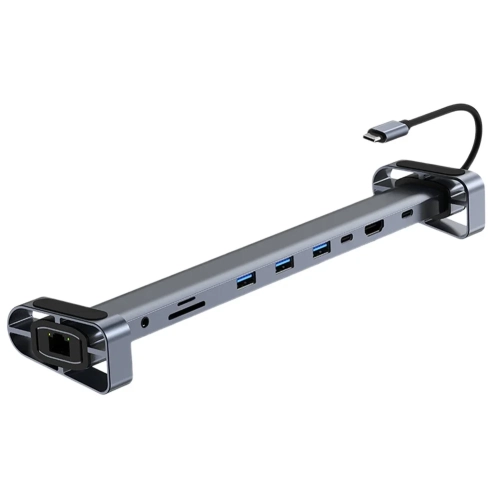
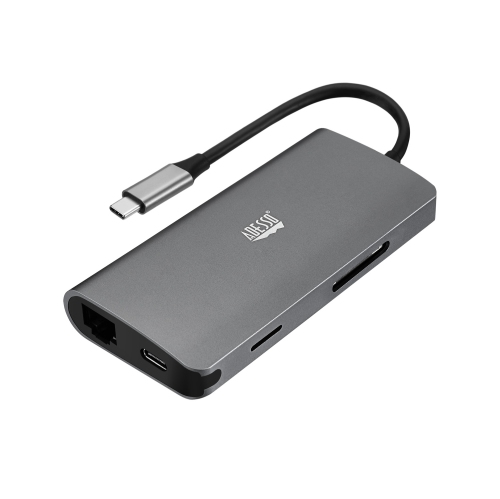

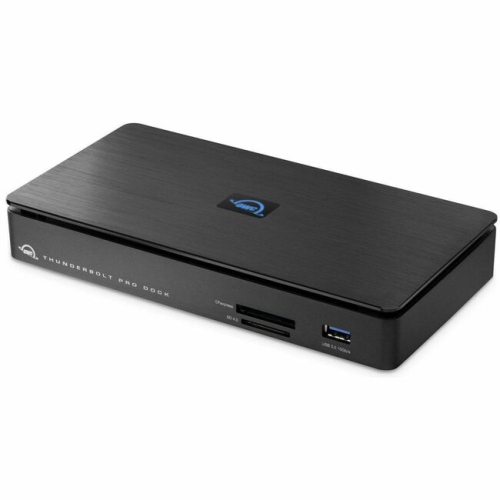
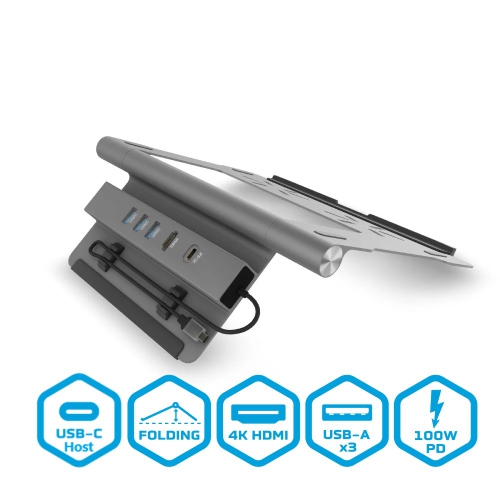
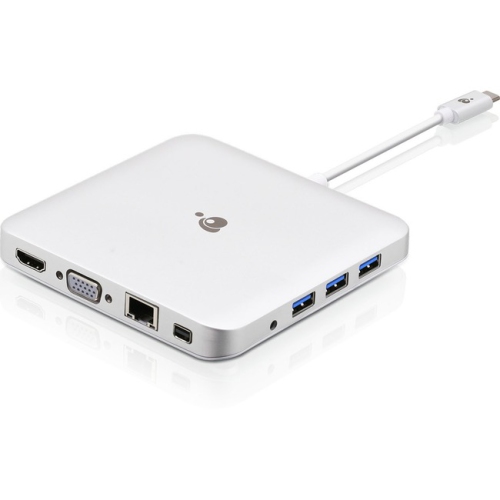

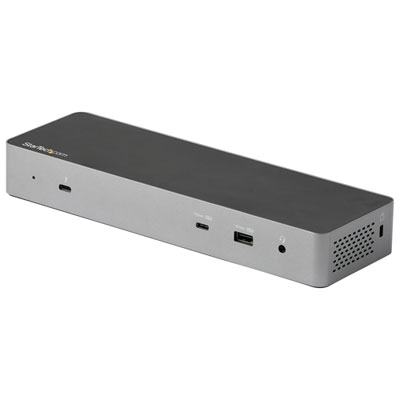
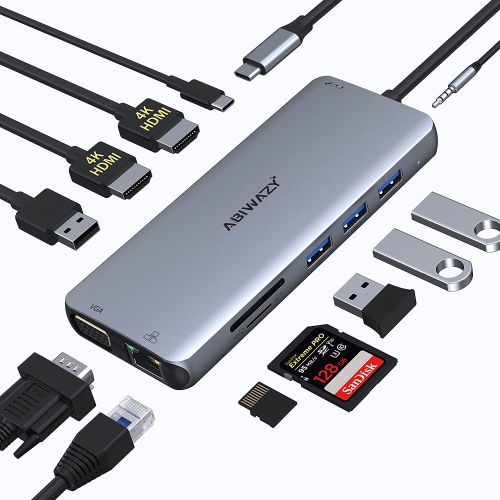
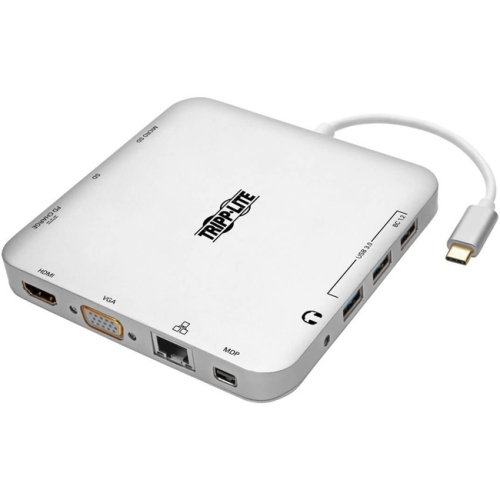
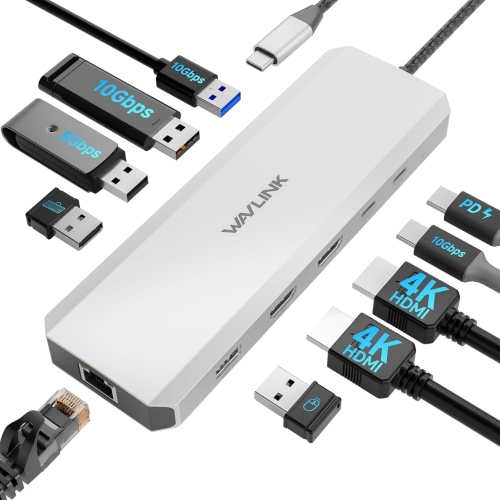
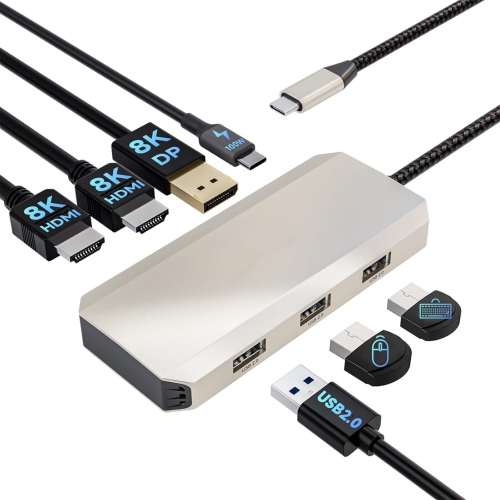
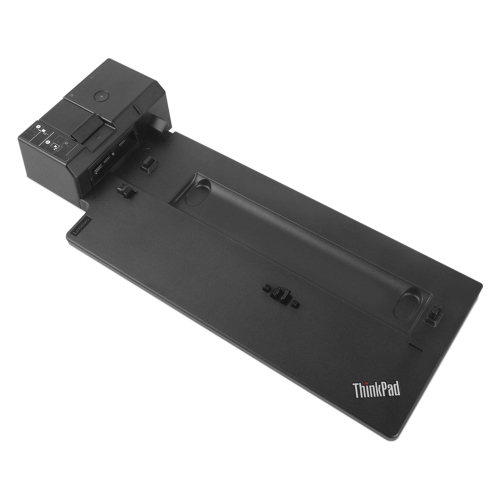
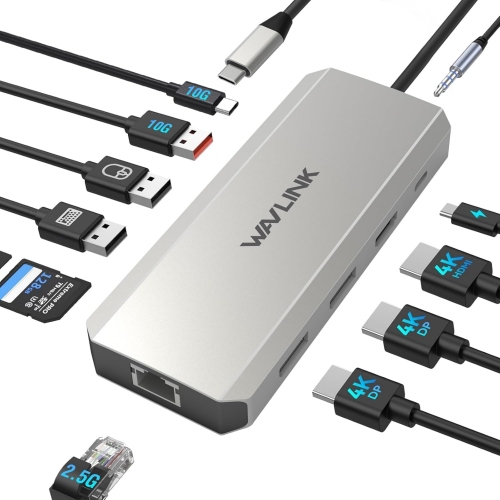
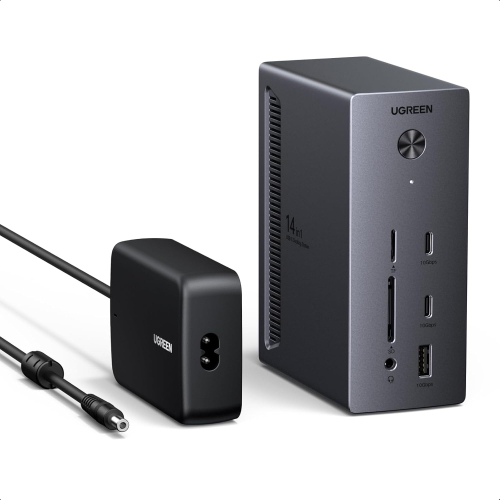
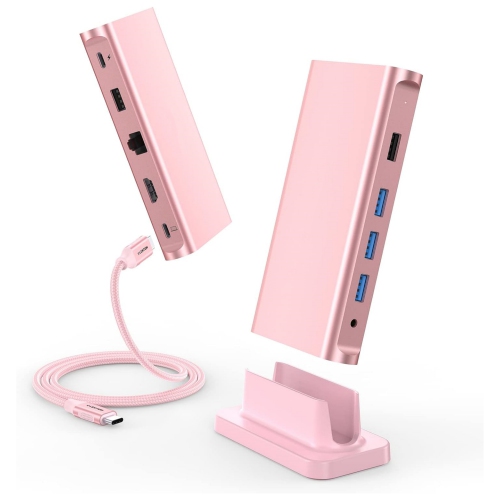
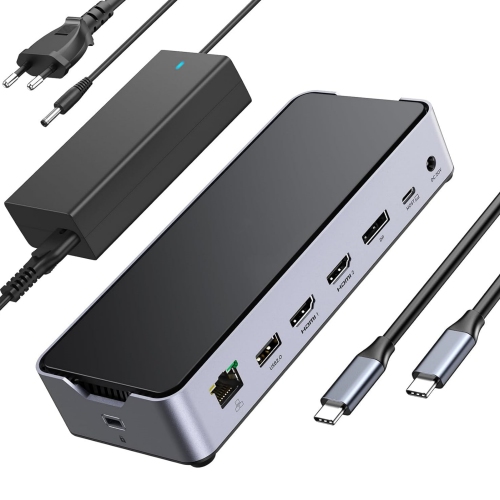
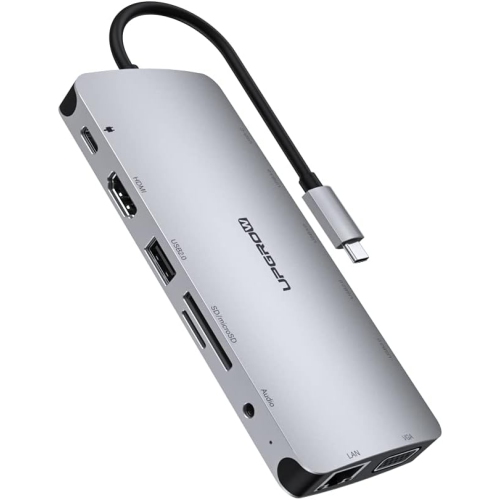
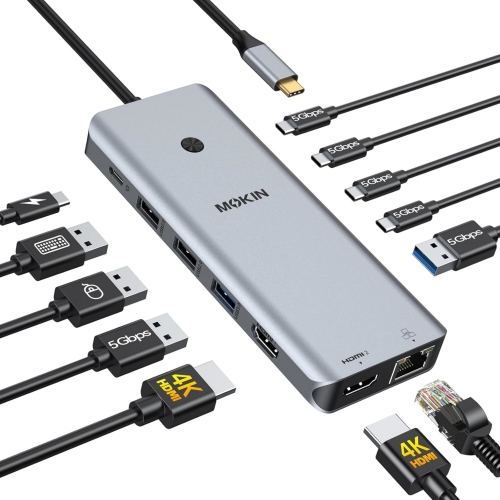
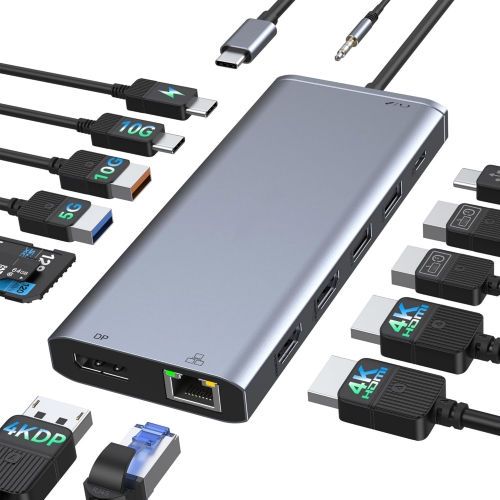
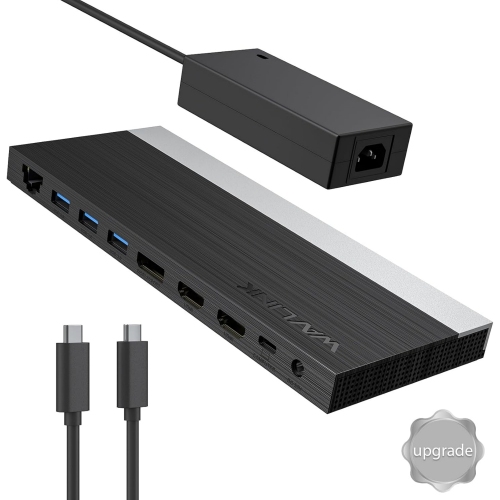
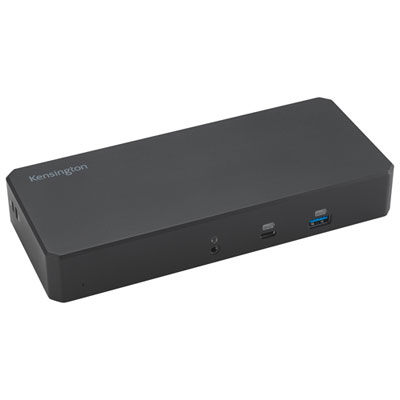
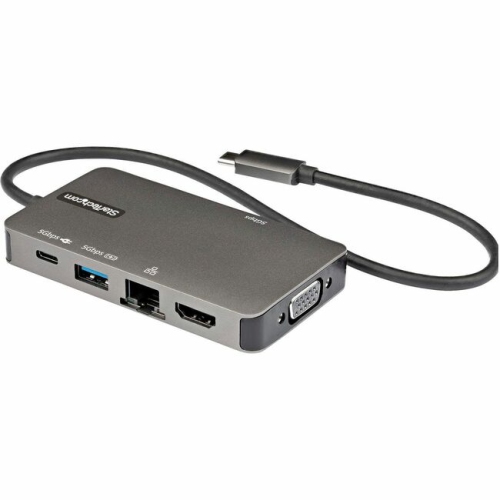
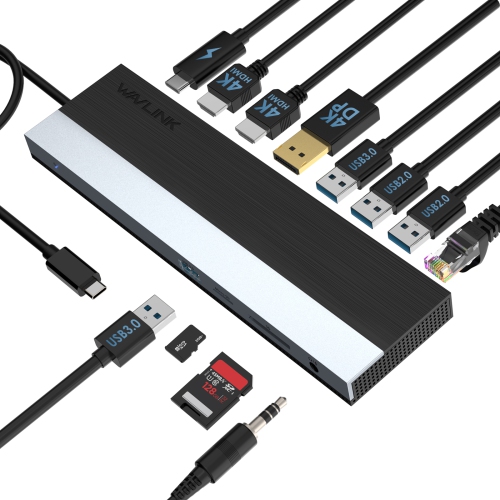
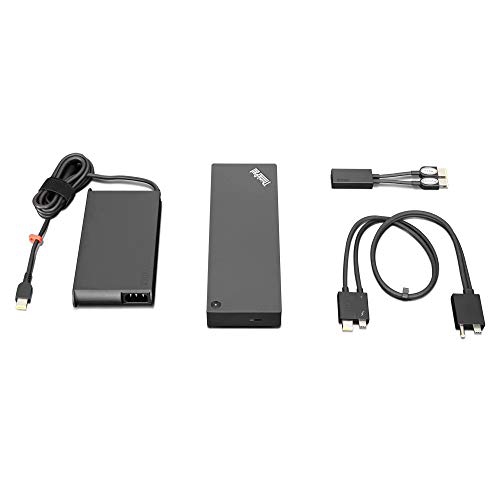
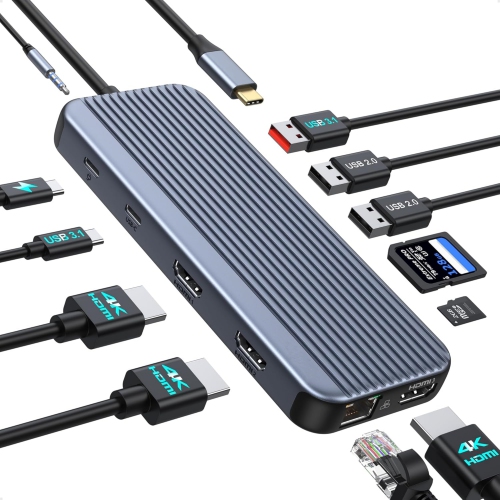


More desk connections through a single laptop cable
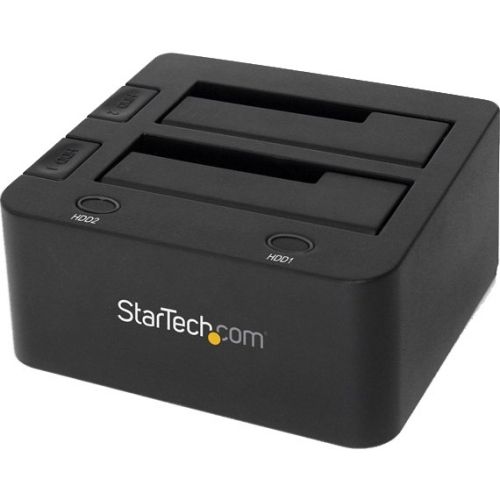
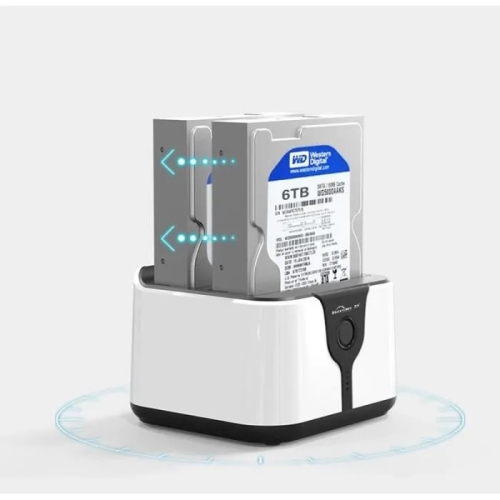
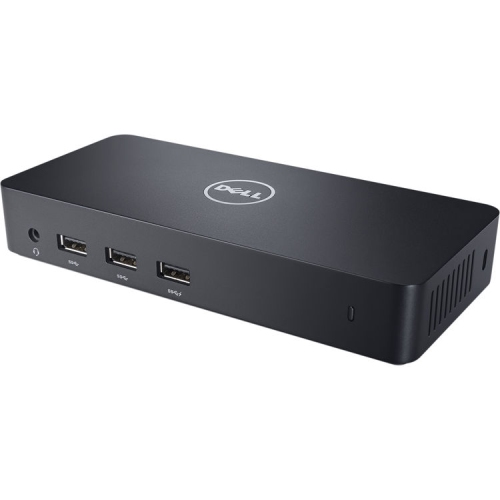
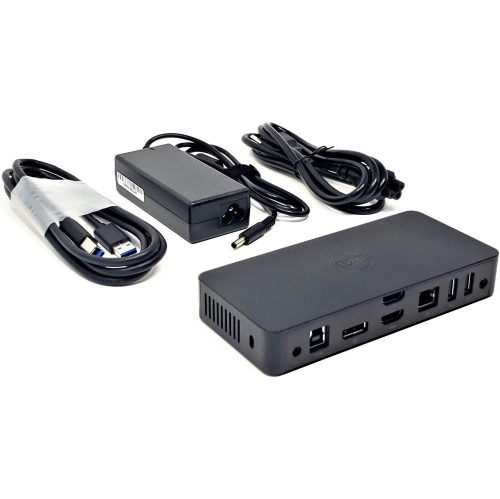
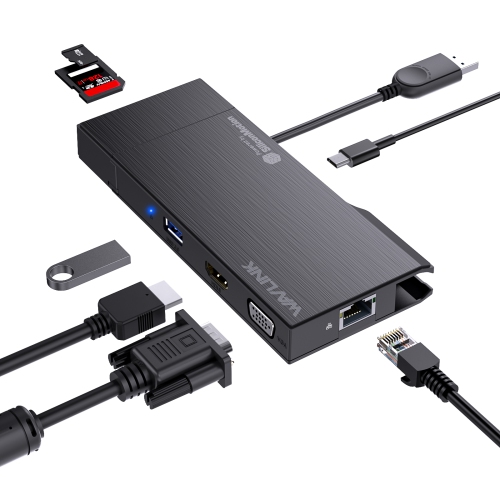
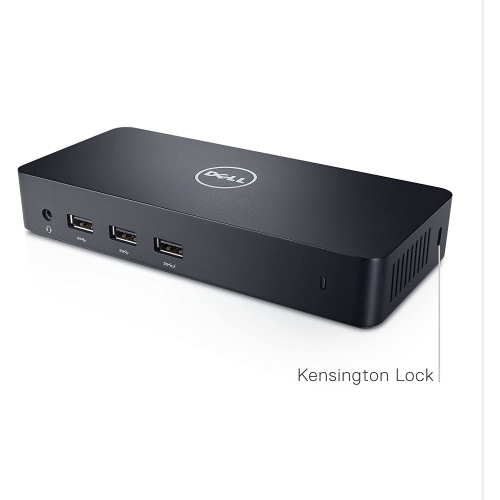
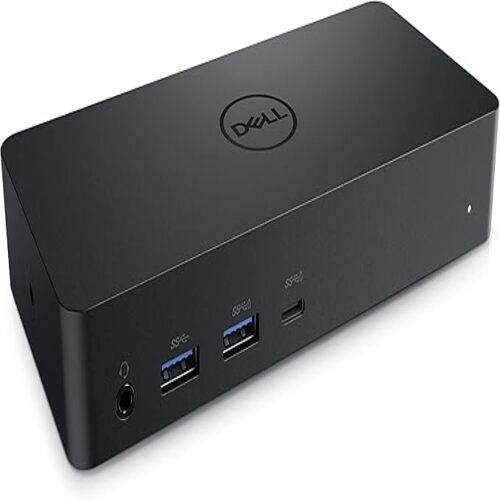
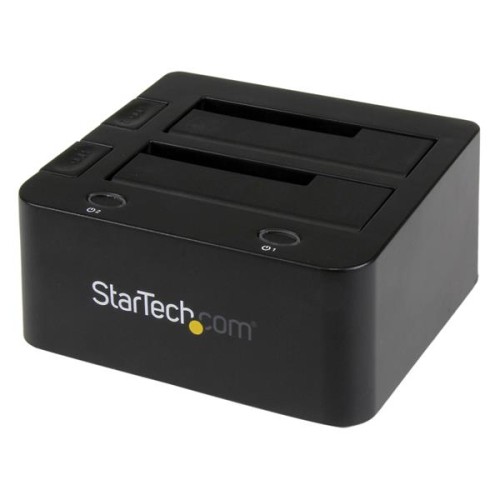
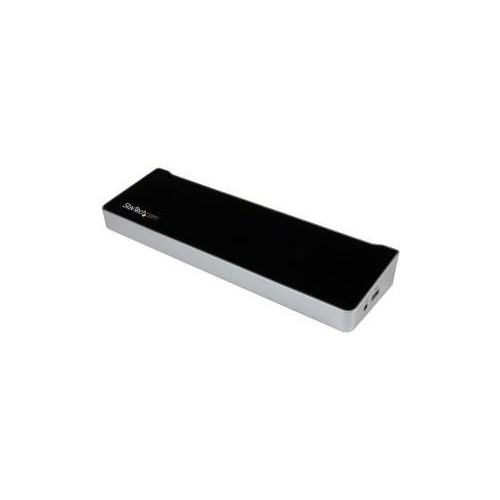
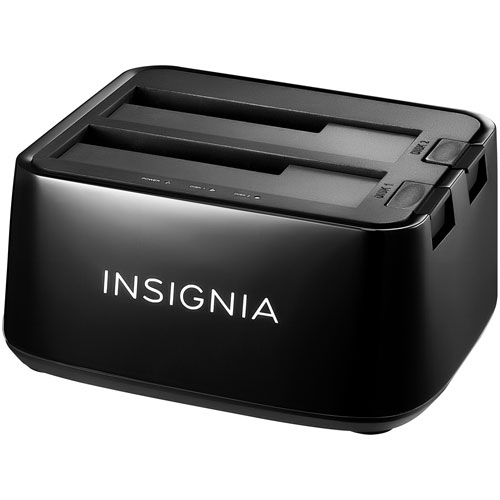
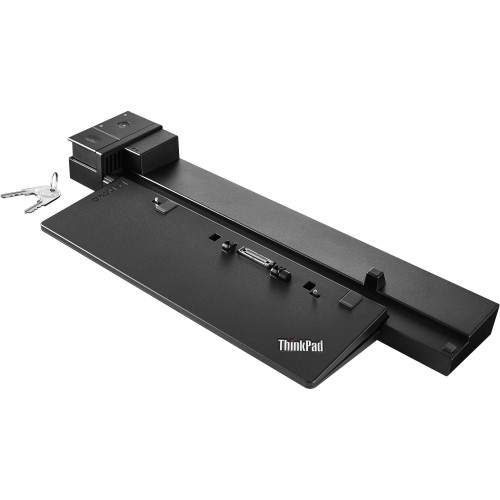
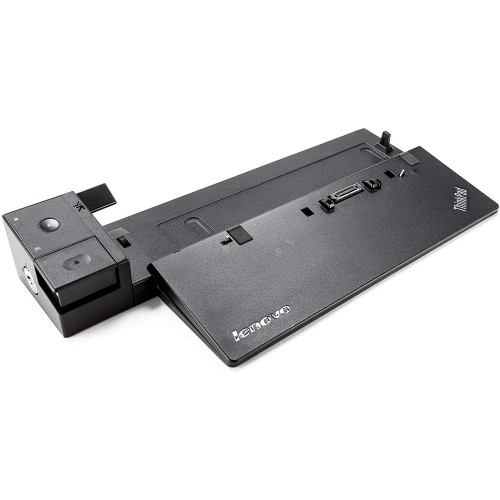
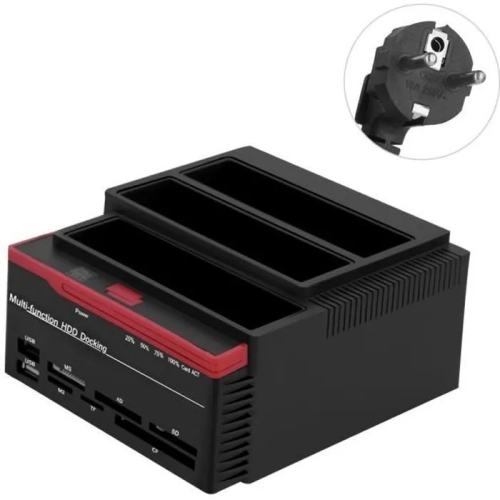
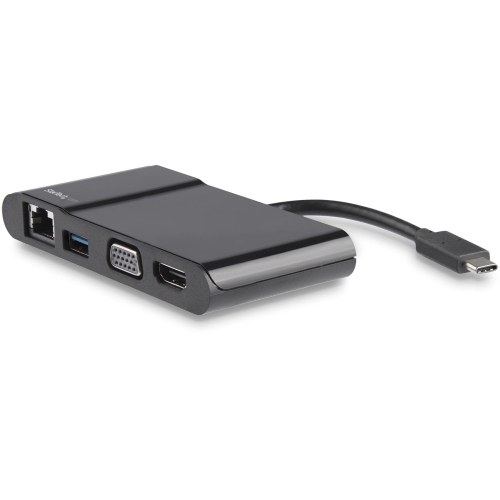
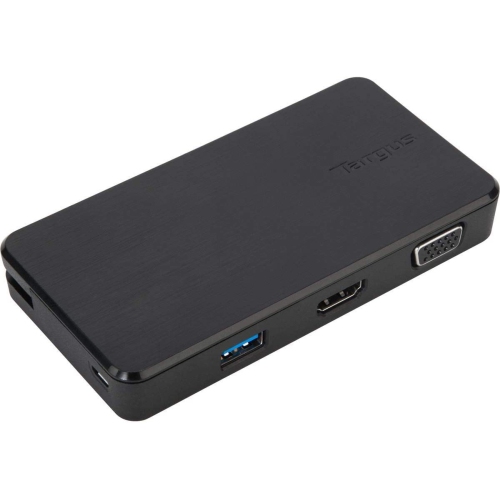
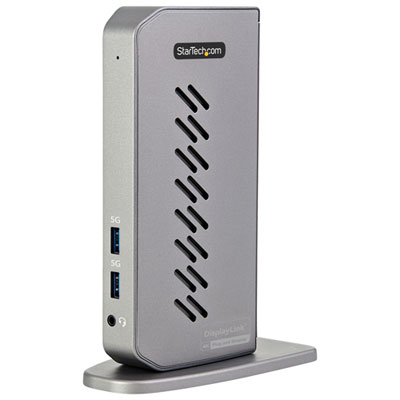
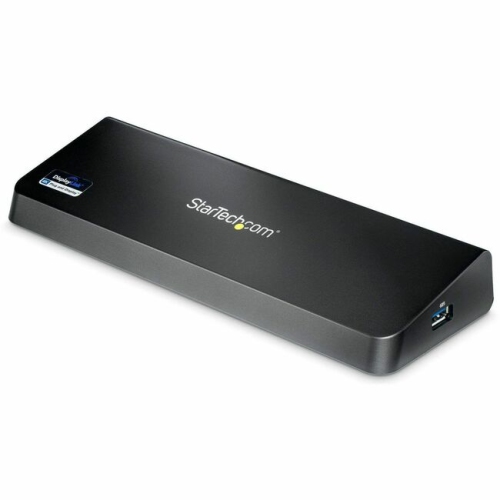
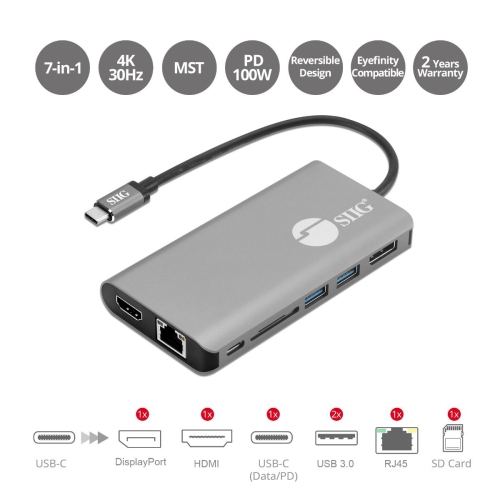
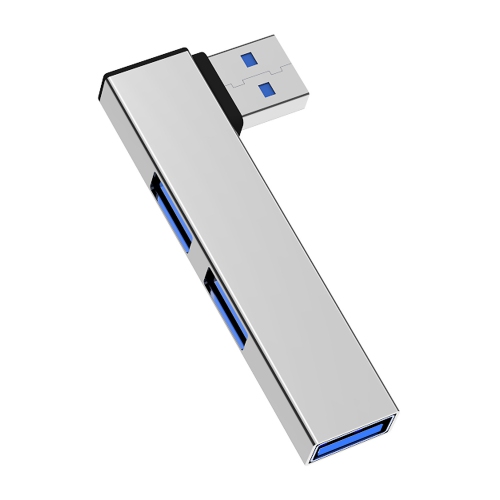
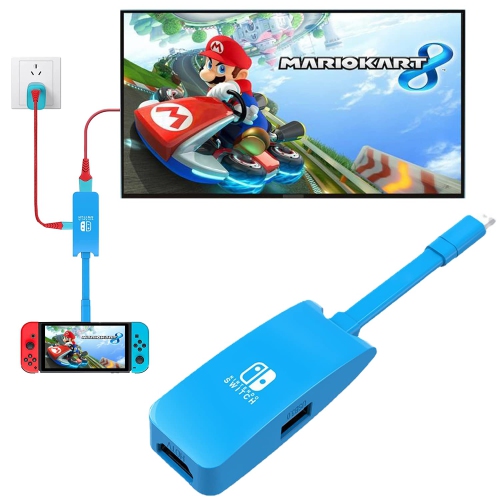
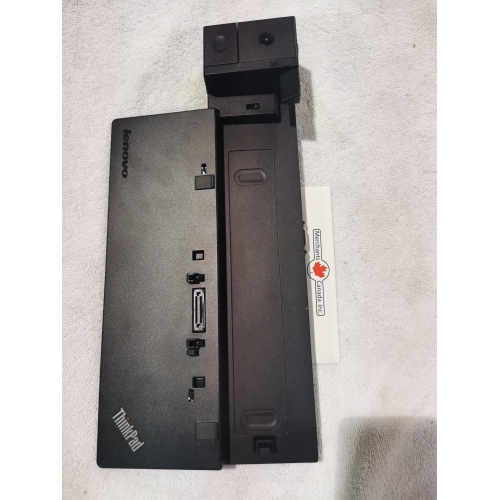
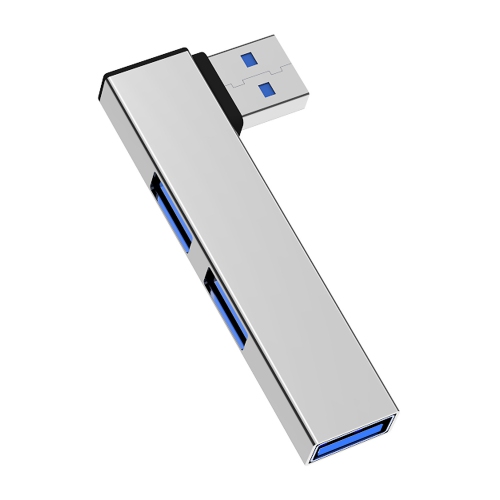
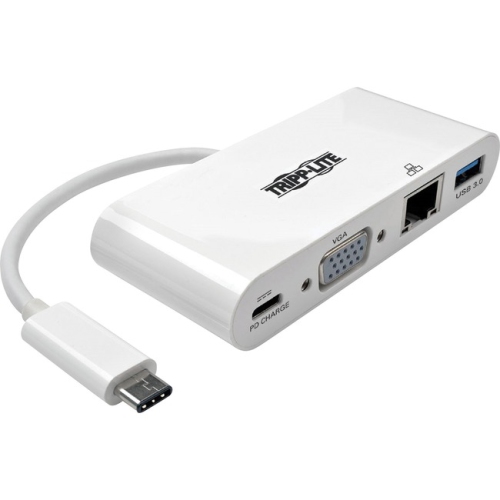
USB 3.0 docking stations expand a compatible computer connection into a desktop setup with ports for peripherals, external displays, wired networking and audio, depending on the dock’s capabilities. They are useful for laptops with limited connections, helping keep a keyboard, mouse, monitor and other accessories connected at a desk while the computer travels between locations. Instead of reaching behind a monitor or reconnecting several cables, the laptop connects to the dock through a single upstream cable. USB 3.0 supports a theoretical data transfer rate of up to 5 Gbps, with actual performance affected by the computer, connected devices and shared bandwidth. That connection may use a USB-A plug or, on compatible models, a USB-C plug, so the connector shape and supported technology both matter. A USB-C connector alone does not confirm support for laptop charging, display output or a particular transfer speed. Similarly, a USB 3.0 dock connected through USB-A generally does not charge the laptop through that connection; the computer’s own power adapter is still needed. Externally powered docks can supply power to supported peripherals and accommodate more demanding desk setups, while compact designs may offer fewer connections and different power limits. Typical port combinations include USB-A connections for a mouse or keyboard, display outputs, an Ethernet port and audio jacks, though the exact mix varies. USB ports may also have different charging capabilities, making the specifications important when a phone, portable drive or other accessory will stay attached. For computers centred on a USB-C connection, USB-C Laptop Docking Stations offer another category to consider, with charging and display support dependent on the dock and host computer. The practical distinction is whether the connections match the laptop and the equipment already on the desk. A docking station is most useful when it brings those everyday connections together without leaving an essential monitor, headset or storage device dependent on an extra adapter.
Display support is often the defining feature of a USB 3.0 docking station, particularly for work that benefits from more screen space. An external display can keep a document open beside a browser window, while a compatible dual-monitor dock can provide room for spreadsheets, reference material and video meetings without constant window switching. Support for one or two monitors is not universal, however, and the number of physical display sockets does not always equal the number of screens that can operate independently. The dock’s specifications should identify supported display combinations, resolutions and refresh rates, along with any differences between using one output and several outputs together. A maximum resolution listed for a single monitor may not apply to every screen when multiple displays are connected. HDMI and DisplayPort outputs also need to match the monitor inputs, either directly or through an appropriate supported adapter. Some docking stations create display output through USB graphics hardware and require compatible software; others depend on video capabilities supplied by the computer’s USB-C port. These approaches are not interchangeable, especially when connecting an older laptop or a computer with restricted software installation permissions. Operating system support, driver requirements and workplace security policies can therefore be just as important as the port arrangement. For office tasks, a USB graphics-based connection can make a practical setup for email, documents, presentations and general browsing. Fast-paced games, high-refresh-rate displays and some video workflows may be better served by a direct display connection, particularly where low latency or consistent motion matters. Protected video playback and specialized applications can also have compatibility restrictions. Screen sharing, sleep and wake behaviour, and display arrangement settings affect the everyday experience, too. A desk used for frequent video calls benefits from a dock that supports the intended webcam, headset and displays together, rather than one selected solely for its highest advertised resolution. Matching those capabilities to actual tasks makes the extra screen space more useful throughout a working day.
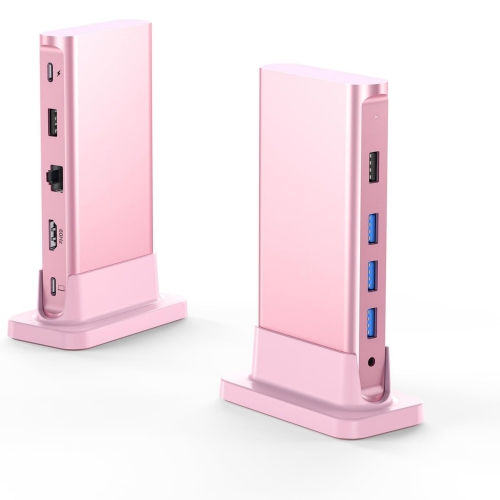
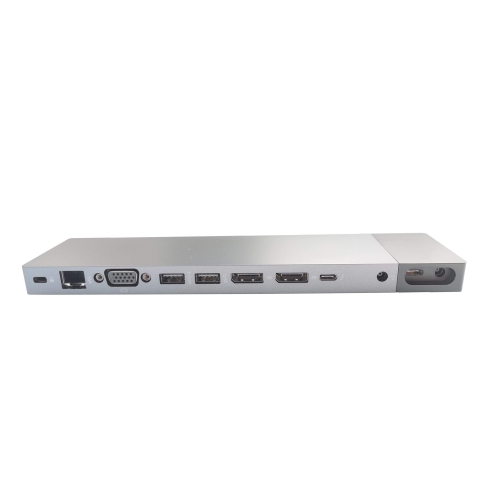
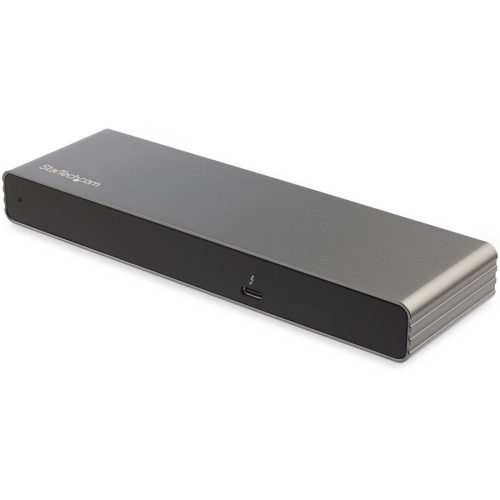
The physical design of a USB 3.0 docking station matters once it becomes part of a regularly used workspace. A vertical enclosure can leave more room beside a monitor stand, while a low-profile horizontal design may fit beneath a raised desk shelf. Neither shape is automatically better; cable clearance, ventilation and access to frequently used ports determine how comfortably it fits. Front-facing USB ports are convenient for a flash drive or temporary accessory, while rear-facing connections can keep monitor, Ethernet and keyboard cables out of the way. Cable length also affects placement, especially when the laptop sits on a stand or the dock needs to stay within reach without pulling against the computer’s port. Metal housings can feel sturdy and help disperse heat, while plastic housings are often lighter for transport. Build quality also depends on secure sockets, stable feet and cables that are not repeatedly bent at sharp angles. Ventilation openings need space around them, and a dry, soft cloth is generally suitable for removing surface dust, following the manufacturer’s care instructions. For shared desks, a clearly accessible host connection makes it easier to switch between compatible computers while leaving desk accessories attached. Students, remote workers and people using compact laptops can all benefit from that arrangement. An Ethernet connection can provide a dependable wired option where Wi-Fi reception is uneven, although network speed still depends on the dock, router, cabling and internet service. External storage, networking and USB-connected displays may share the host connection’s bandwidth, so heavy file transfers can affect other demanding tasks. Audio connections also deserve attention: a combined headset jack differs from separate microphone and headphone sockets. For a docking station given as a gift, knowing the recipient’s laptop connections, operating system and monitor setup helps avoid a mismatch. The strongest fit is a dock with the right connections, supported software and physical layout for the way its owner actually works.
Top selling and popular products
-
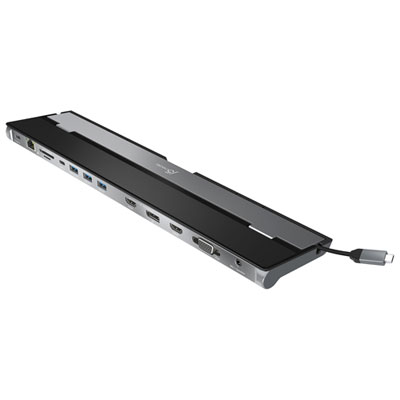 Your price for this item is $129.99
-
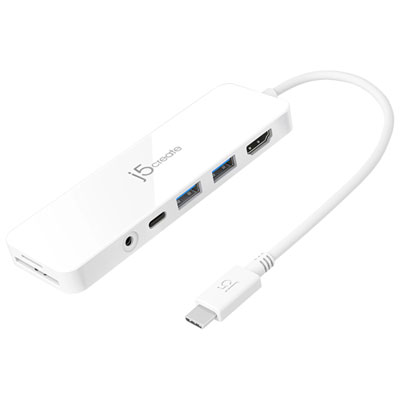 Your price for this item is $59.99
-
 Your price for this item is $44.99
-
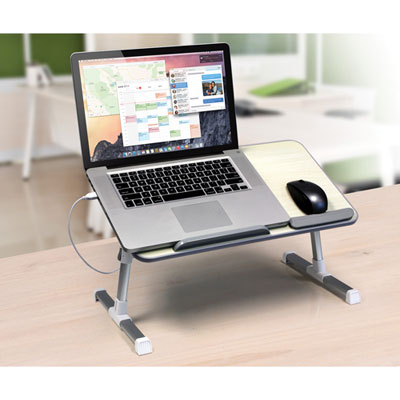 Your price for this item is $59.99
-
 Your price for this item is $96.61
-
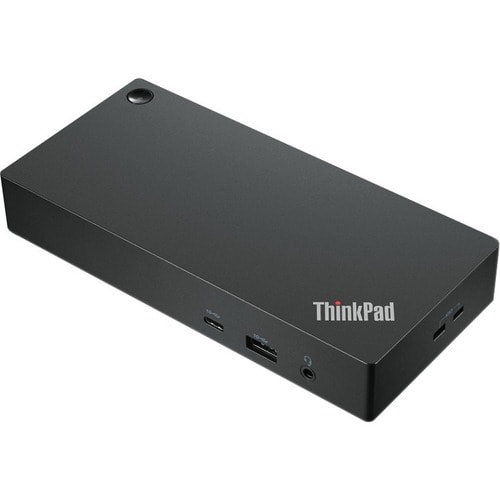 Your price for this item is $179.99
-
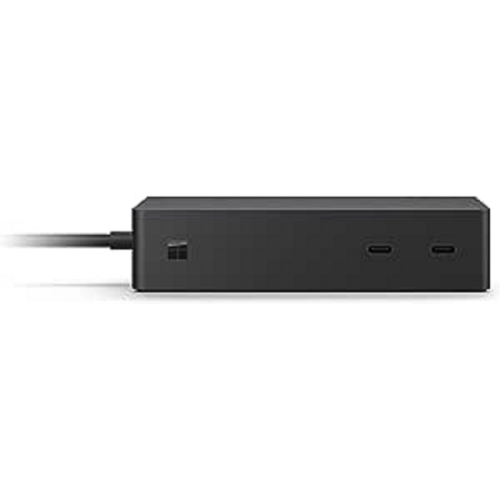 Your price for this item is $209.99
-
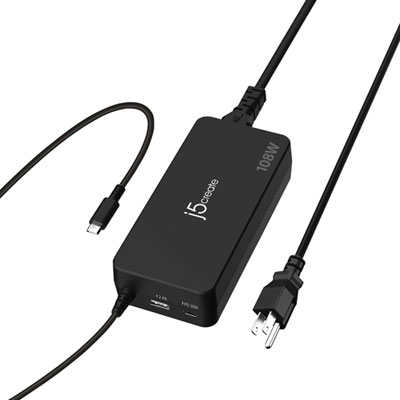 Your price for this item is $59.99
Discover more categories related to Usb 3.0 Docking Stations
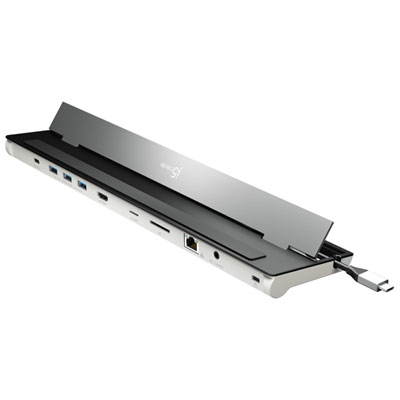
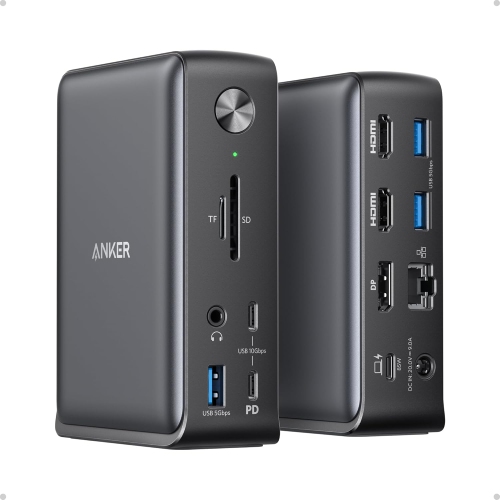
Top Collections:
Best Black Friday Deals This Year, Best Black Friday Deals On Electronics, Kindle Devices, Dyson Airwrap, Best Cameras for Sports Photography, Best Budget Office Chairs, Canon G7X Cameras, PS5 Pro Consoles, Best Black Friday Deals On Apple Products, XBOX One S Consoles
Some products may be subject to Environmental Handling Fees
(EHF) depending on your province.
Learn more about EHFs.