USB C Docking Stations for Laptops
USB C Docking Stations for Laptops offer a convenient way to expand your laptop’s connectivity and streamline your workspace. Whether you’re working from home, at the office, or on the go, these docking stations provide versatile solutions for connecting multiple devices and accessories. Find options that help you maximize productivity, keep your setup organized, and make the most of your laptop’s capabilities with USB C Docking Stations for Laptops.
Sort
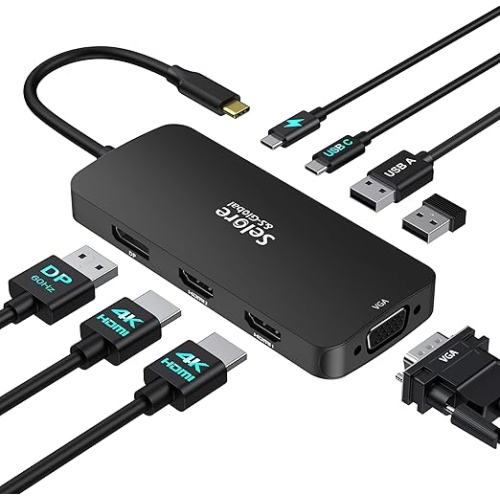
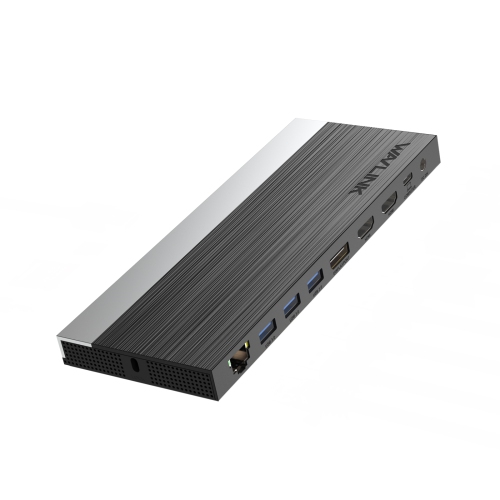
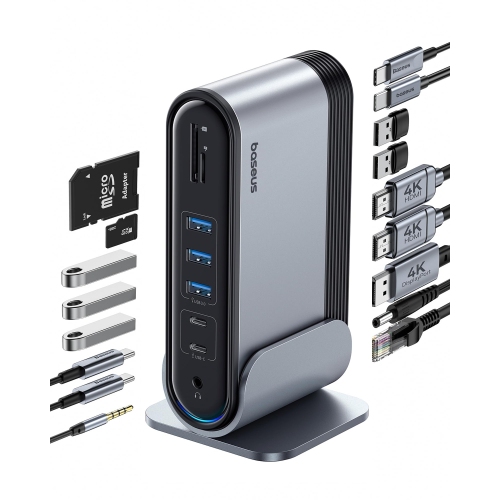
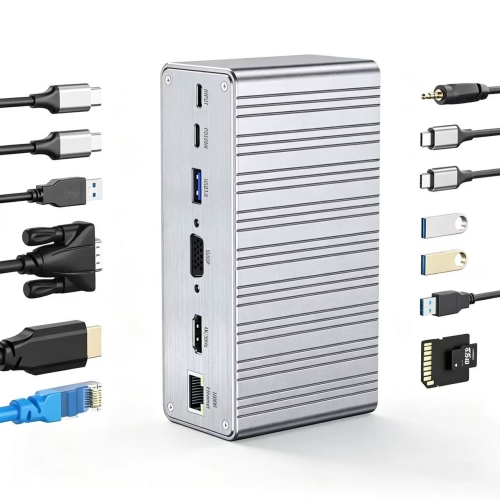
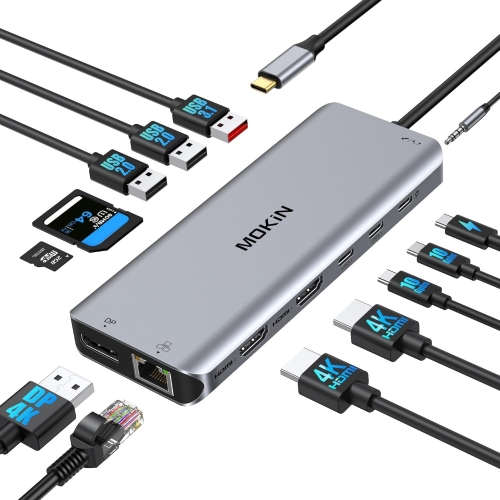
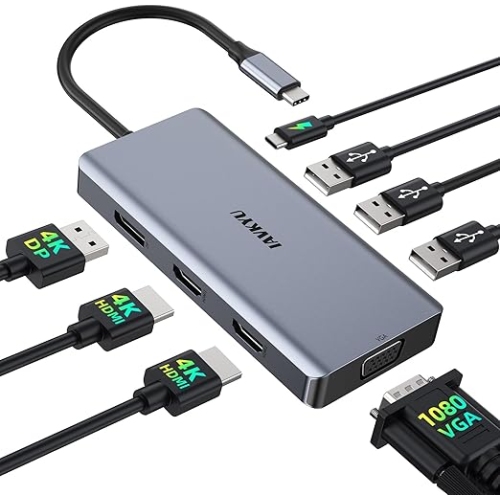
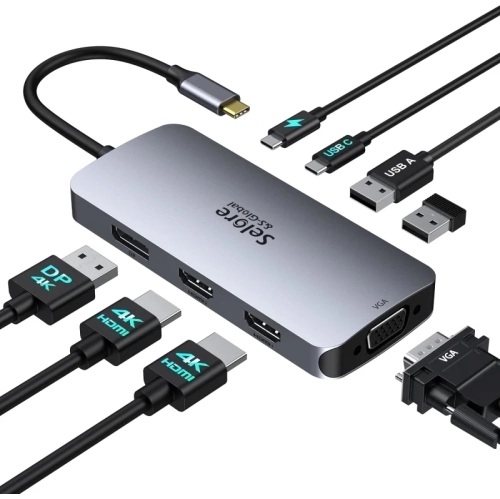
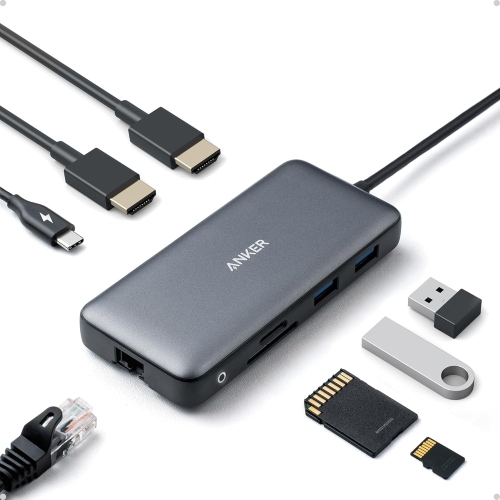
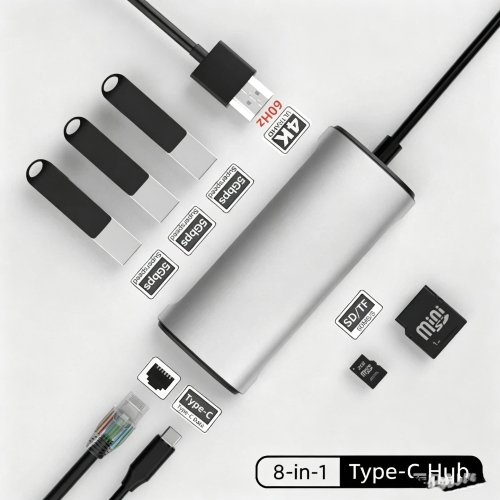
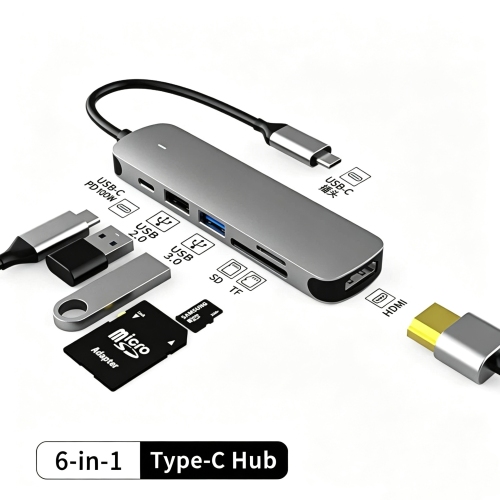
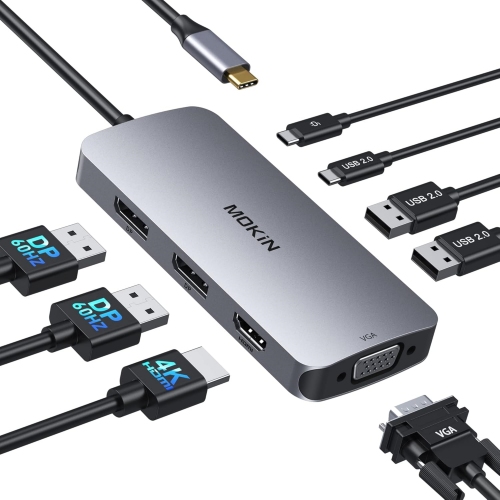
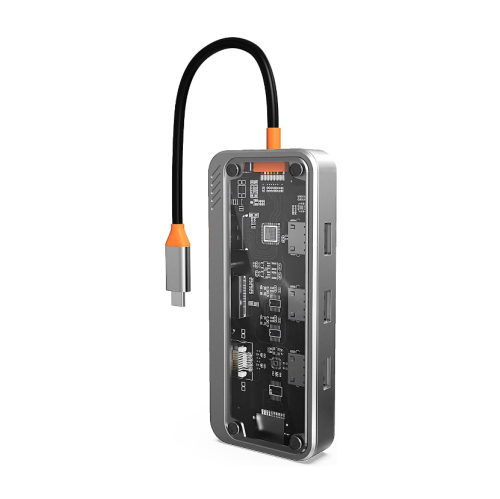
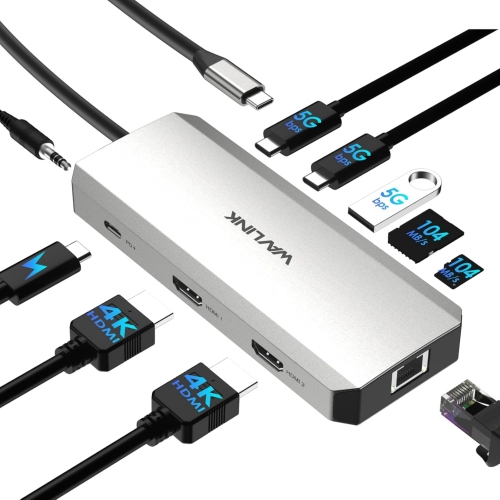
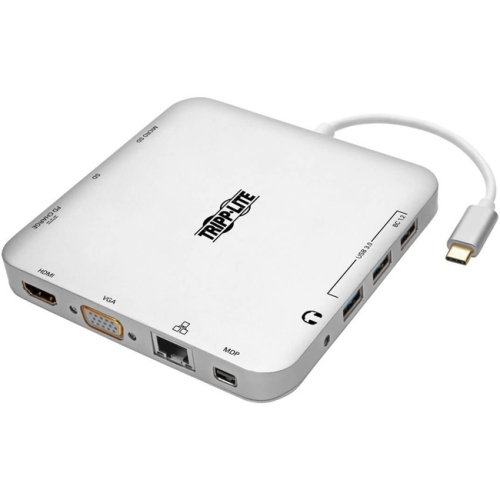
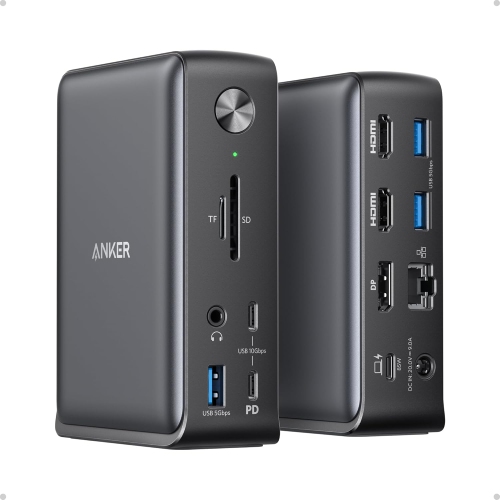
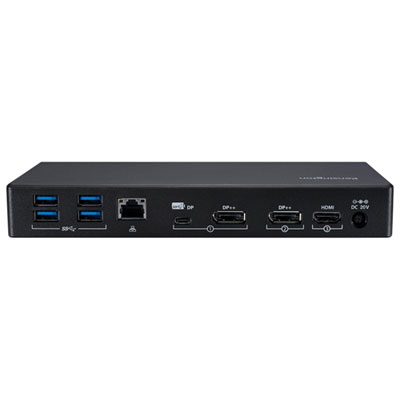
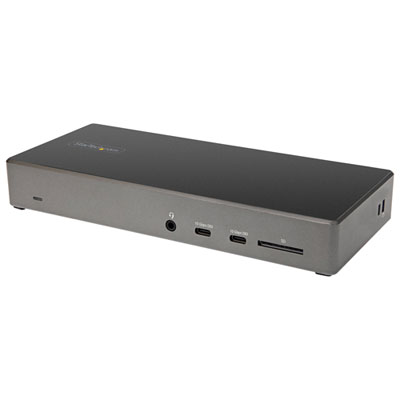
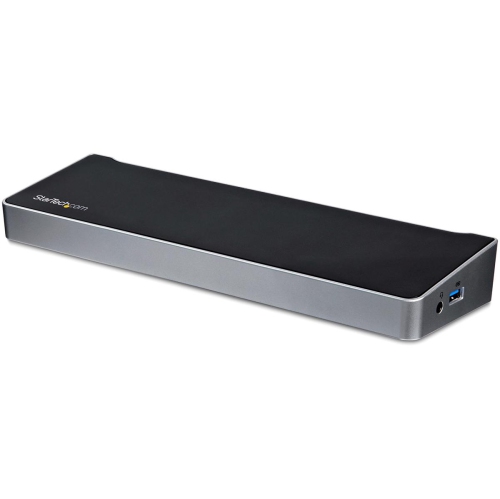
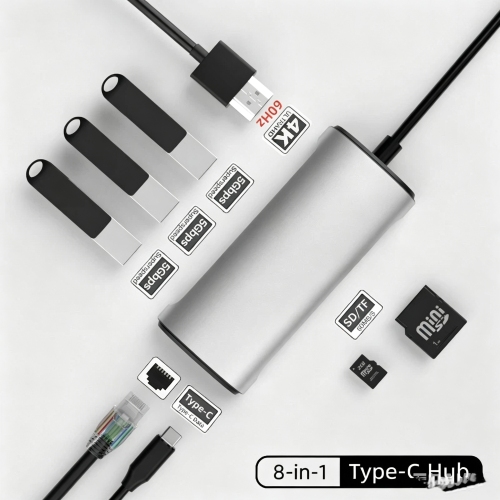
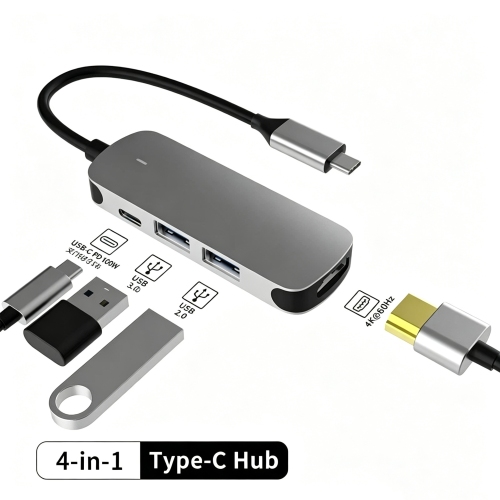
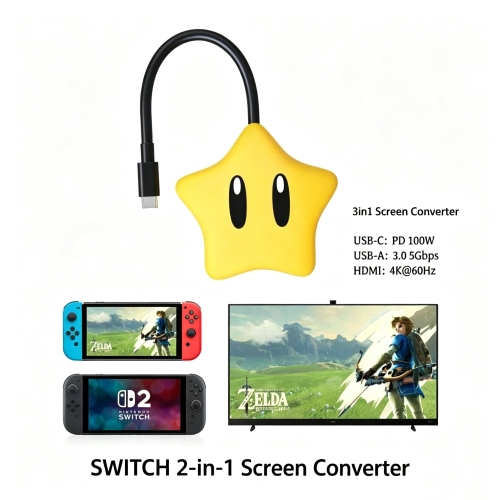
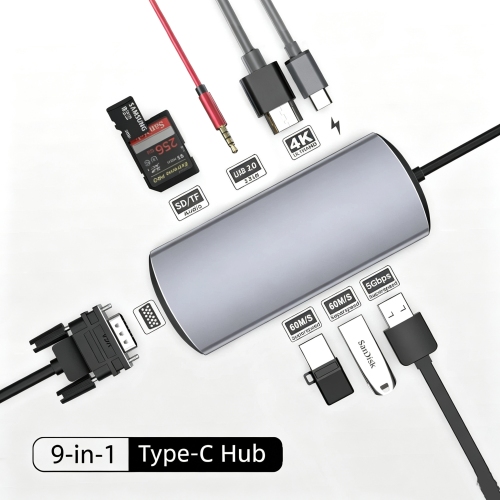
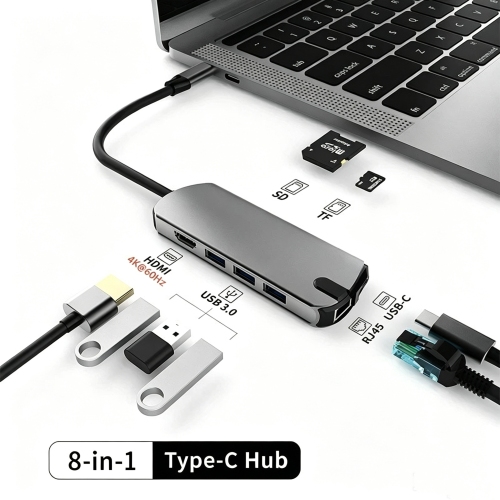
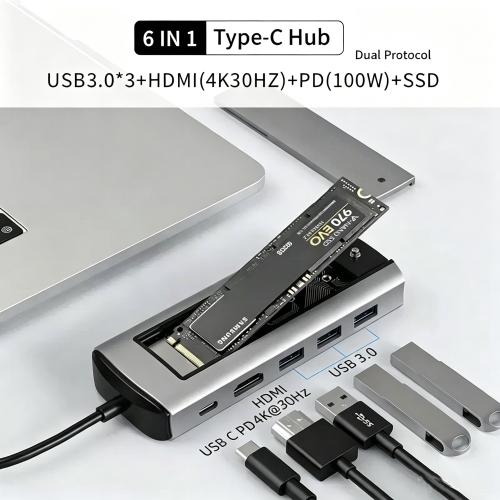
A simpler connection between your laptop and desktop essentials
USB-C docking stations for laptops expand a compatible computer’s connections through a single USB-C cable, bringing together ports for external monitors, keyboards, mice, storage drives, wired networking, and other desktop essentials. Models with USB Power Delivery can also charge a compatible laptop, allowing one connection to handle work accessories and power. That combination suits a desk where a laptop moves between meetings and focused work: the monitor, keyboard, and network cable can stay connected to the dock while the computer comes and goes. A student can return from class, connect a laptop, and spread research across a larger screen; someone working with spreadsheets can keep reference material beside an active document rather than repeatedly switching windows. The important distinction is that USB-C describes the connector, not a guarantee that every laptop port supports the same functions. Some USB-C ports handle data without supporting video output or charging, so the laptop’s specifications determine which dock features can operate. Video over a conventional USB-C connection generally requires support for a compatible display mode, while some docks use a driver-based approach instead. Operating system compatibility also matters, particularly when display features or accessory management depend on software. Charging capability deserves similar attention. A compact laptop and a high-performance workstation can have very different power requirements, and some computers still need their original power adapter for demanding workloads. The wattage supplied to the laptop can also be lower than the dock’s stated power input because the dock reserves power for its own operation and connected accessories. A matching connector alone does not establish whether a setup can charge effectively throughout the day. A well-matched docking station brings these requirements together: enough power for the intended computer, the right connection standards, and ports that serve the equipment already on the desk. It can make the transition between a portable computer and a comfortable desktop workspace much simpler, without requiring every accessory to be unplugged individually.
Display support is one of the clearest differences between USB-C laptop docks. A dock may support one external monitor, multiple independent displays, or a mirrored image, depending on its design and the connected laptop. Two video sockets do not automatically mean that two separate extended desktops will work on every computer. The laptop’s graphics capabilities, operating system, USB-C video support, and dock specifications all influence the result. Resolution and refresh rate matter together: support for a single 4K display does not necessarily mean the same dock can run two 4K displays at the same refresh rate. For everyday documents and browsing, a clear, stable picture may be the main priority. Video editing, detailed design work, and fast-moving visuals can place greater demands on the connection. HDMI and DisplayPort outputs suit different monitor inputs, while suitable cables help preserve the resolution and refresh rate supported by the complete setup. Beyond displays, port selection determines how naturally the dock fits into daily routines. USB-A connections remain useful for many keyboards, mice, printers, and headsets, while USB-C data ports can accommodate compatible external drives and newer accessories. A USB-C socket on a dock is not necessarily a video output or a laptop-charging connection; its labelled function matters. SD and microSD card readers can simplify moving photos and footage from a camera, particularly when those files need to reach an external drive. Ethernet provides a wired network connection where a suitable network socket is present, offering an alternative to Wi-Fi for large transfers, video calls, or shared office work. Actual network performance still depends on the internet service, network equipment, and supported connection speed. Audio connections can keep wired headphones or speakers within reach. These features share the dock’s connection to the computer, so several demanding tasks running together may compete for bandwidth. Copying large media files while using multiple high-resolution monitors, for example, places different demands on a dock than typing a report with a keyboard and mouse attached. The most useful port arrangement reflects those real combinations rather than simply offering the largest number of sockets.
The range of USB-C Laptop Docking Stations includes compact designs suited to a laptop bag and larger desktop formats intended to stay connected in one place. A small dock can suit shared desks, presentations, or a study space that needs to be cleared after use, while a powered desktop unit can keep a more extensive arrangement connected between sessions. Physical fit includes more than the dock’s footprint. Cable length affects whether the unit can sit beside a monitor stand without pulling against the laptop’s port, and the position of connections determines how neatly cables leave the desk. Front-facing sockets can make frequently swapped storage drives easier to reach; rear-facing connections can keep monitor and network cables out of the main work area. A vertically oriented dock may occupy less desk space, while a flat design can fit beneath a raised monitor if its ventilation remains unobstructed. Aluminum and plastic housings are common, with differences in weight, finish, and resistance to everyday scuffs. Durable construction also involves secure sockets, sound cable strain relief, and a base that stays steady when accessories are connected. An attached host cable keeps an essential connection with the dock, whereas a detachable cable can offer replacement flexibility when the manufacturer supports it. Replacement cables need to match the required data, video, and charging capabilities; a cable intended mainly for charging may not support the dock’s full functions. Routine care is straightforward: disconnect power before cleaning, use a soft, dry cloth, keep liquids away from ports, and avoid bending cables sharply or lifting the dock by its lead. For shared workspaces, clear cable routing and accessible connections make it easier for different users to settle in. For a gift, knowing the recipient’s laptop model, monitor connections, and charging requirements is more useful than choosing by appearance alone. Whether the setup supports coursework, remote collaboration, creative projects, or everyday administration, a compatible dock helps keep the desk ready for the next session.
Top selling and popular products
-
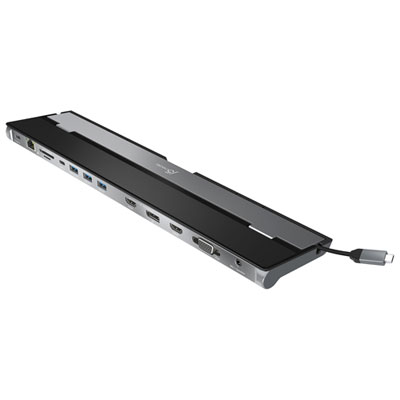 Your price for this item is $129.99
-
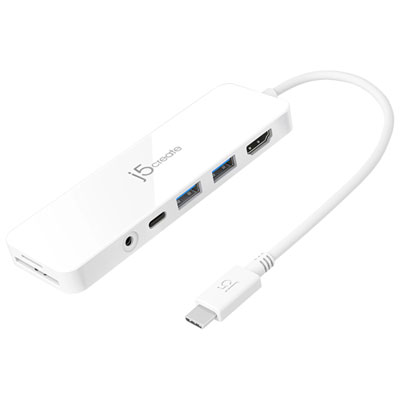 Your price for this item is $59.99
-
 Your price for this item is $44.99
-
 Your price for this item is $59.99
-
 Your price for this item is $96.61
-
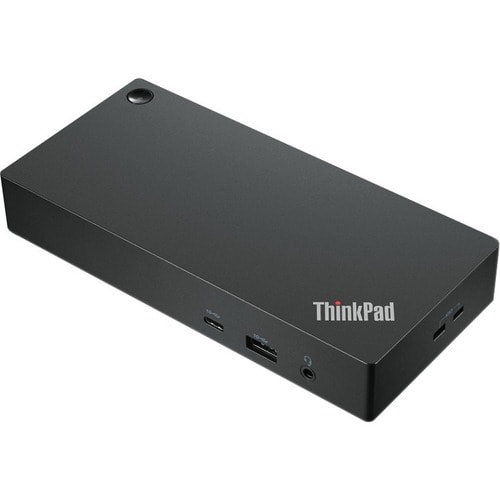 Your price for this item is $179.99
-
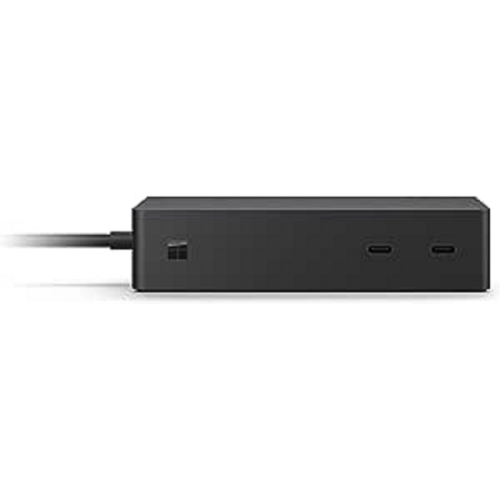 Your price for this item is $209.99
-
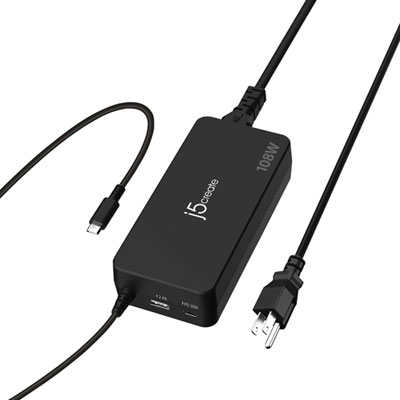 Your price for this item is $59.99
Discover more categories related to USB C Docking Stations for Laptops
Top Collections:
Best Black Friday Deals This Year, Best Black Friday Deals On Electronics, Kindle Devices, Dyson Airwrap, Best Cameras for Sports Photography, Best Budget Office Chairs, Canon G7X Cameras, PS5 Pro Consoles, Best Black Friday Deals On Apple Products, XBOX One S Consoles
Some products may be subject to Environmental Handling Fees
(EHF) depending on your province.
Learn more about EHFs.