Virtual Meeting Laptops
Virtual meeting laptops are essential for staying connected and productive in today’s digital world. Whether you’re joining video conferences, collaborating with colleagues, or attending online classes, the right laptop helps ensure smooth communication and reliable performance. Explore a wide selection of virtual meeting laptops designed to support your remote work, learning, and team collaboration needs. Find options that suit your workspace and budget, so you can participate in every virtual meeting with confidence.
Sort
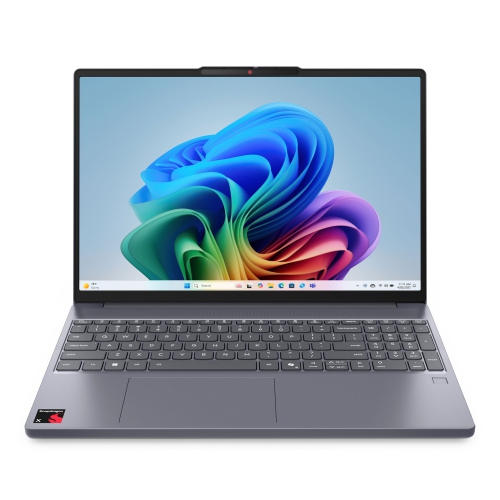
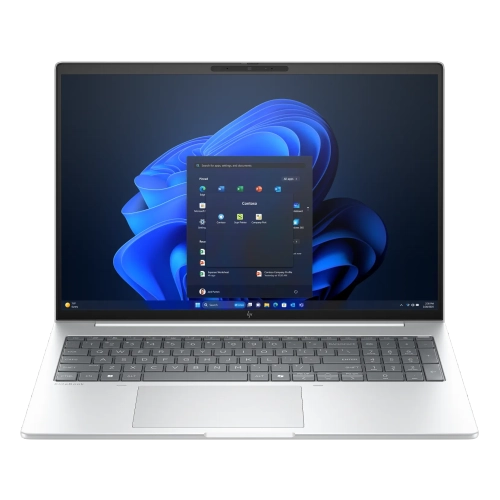
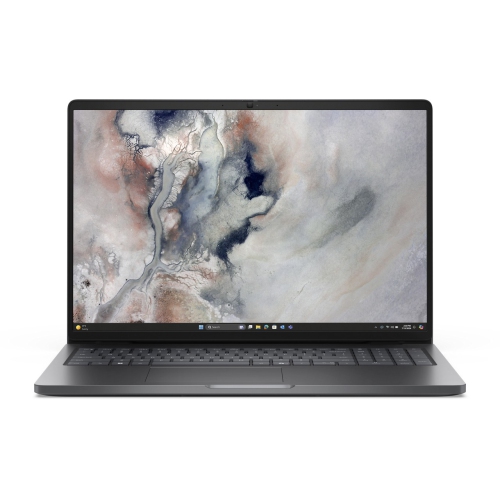

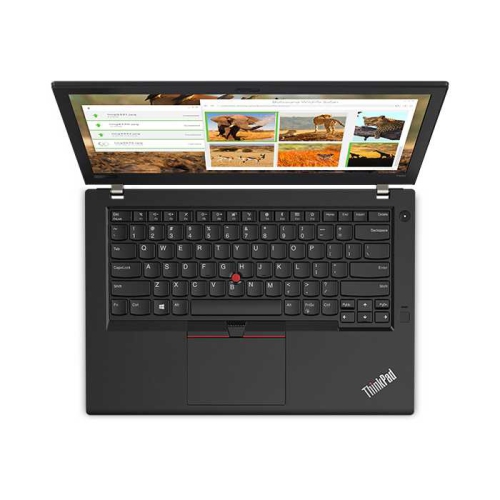


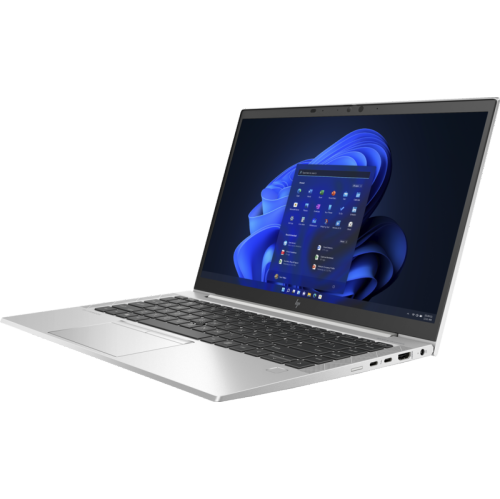

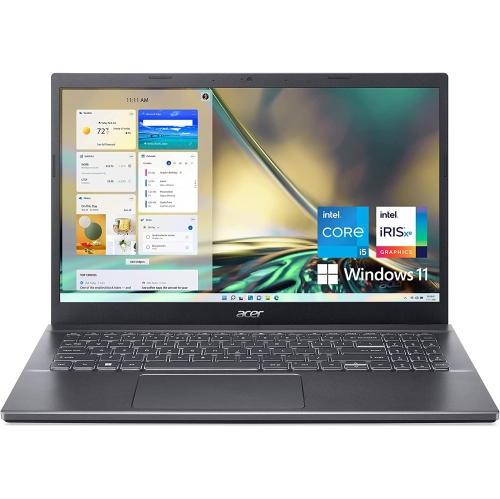
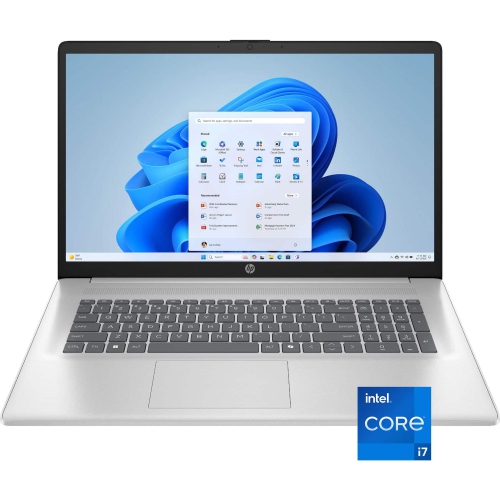

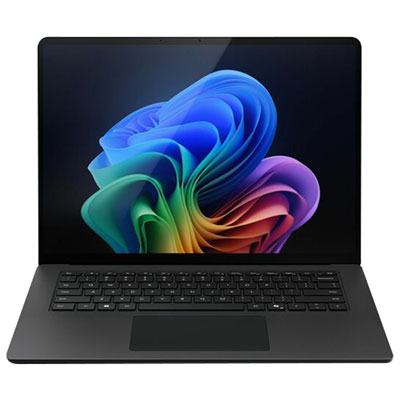
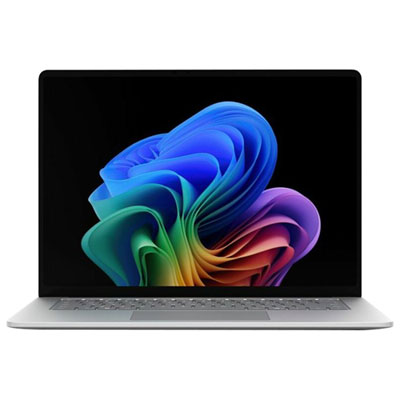
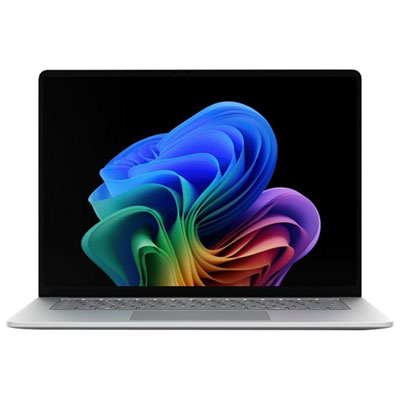
Better video calls take more than a sharp webcam
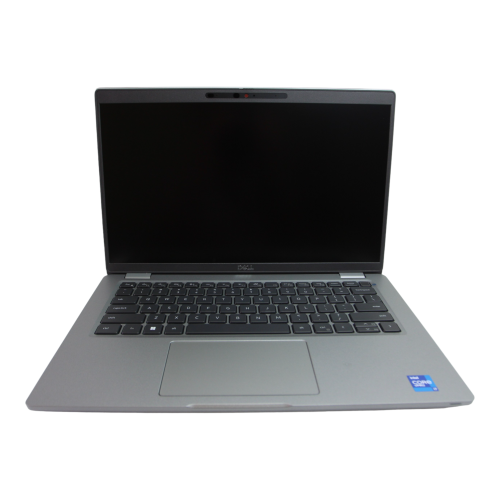
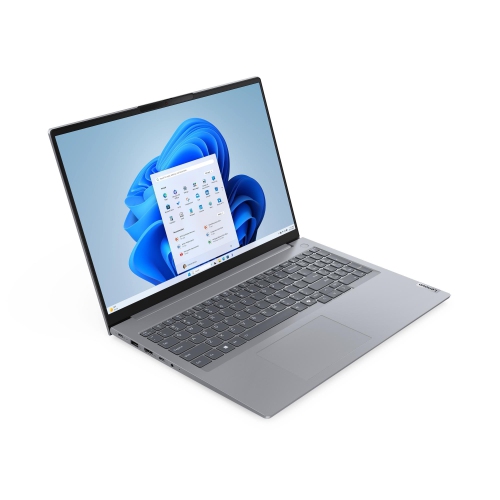
A good laptop for virtual meetings combines a clear webcam, microphones that pick up speech without making every keystroke sound loud, and enough processing power to share a screen while other apps are open. A 1080p webcam can show more detail than a 720p camera, but resolution is only part of the picture. A camera that handles uneven lighting well can keep a face visible when a bright window is off to one side, and the meeting app may reduce video quality if the connection slows down. Automatic framing can help keep a presenter in view when they lean over to consult notes, while a fixed view may feel steadier for someone who mostly stays seated. Camera placement matters, too: a lens at the top of the display gives a more natural angle than one below it, especially when the laptop sits on a low desk. For audio, multiple built-in microphones and background noise suppression can help separate a voice from keyboard taps or nearby conversation. Strong speakers make group discussions easier to follow in a quiet room, but a headset can be more useful at a shared desk, where keeping the conversation private matters as much as hearing it clearly. A physical camera shutter is handy between calls, and a dedicated microphone mute button with a visible indicator makes it easy to check whether the mic is live without hunting for the controls in the meeting window. The Video Conferencing Laptops selection offers a closer look at laptops with built-in features for these everyday situations. The priorities differ depending on the call: a tutor who often holds a page up to the camera may value sharp focus, while a project lead switching between a spreadsheet and a group discussion may get more out of clear audio and extra room on the display.
Screen size and performance shape how comfortably a laptop fits into a day of calls. A 13- or 14-inch laptop is easier to carry between rooms or set down on a narrow work surface. A 15- or 16-inch display gives chat, captions and shared documents more room, which is particularly noticeable when a meeting window needs to stay visible alongside notes. A taller 16:10 screen can show more rows in a spreadsheet or more lines in a document without scrolling, and a matte finish can cut distracting reflections from overhead lights. Think about the keyboard and touchpad as well: comfortable keys help when taking notes through a long training session, and a responsive touchpad makes it easier to move between windows at a desk that has no room for a mouse. For group calls with screen sharing, a modern mid-range processor and 16 GB of memory are a practical fit for typical office or school use. More memory can help if a video call regularly runs alongside demanding design software, large spreadsheets or several other work apps. A stable connection matters just as much as processing power. Wi-Fi 6 can help on a busy network with compatible equipment, but it cannot make up for a weak signal in the room where calls happen. For a fixed desk setup, wired Ethernet is another option if the laptop has the port or supports a compatible adapter. It is also worth checking what individual USB-C ports support: some carry video to an external monitor and accept charging, while others handle data only. That distinction matters when a laptop needs to stay plugged in during a presentation while also driving a monitor. For calls away from a plug, treat general battery estimates as a starting point rather than an estimate for video meetings. Running the camera, keeping the display bright and sharing a screen can drain the battery faster than reading or typing offline.
Build and care matter most once a laptop settles into a routine. An aluminum chassis can feel rigid when carried between meeting rooms, while a well-built plastic chassis can keep weight down. Material alone does not determine durability: a firm hinge helps the display stay at a useful camera angle, and a lid that resists flex is reassuring on a laptop that spends a lot of time in a bag. A padded sleeve helps protect the finish from keys and chargers. Before closing the lid, check for anything left on the keyboard, especially a pen or an earbud that could press into the display. On a desk, keeping the vents clear gives the laptop room to cool during longer calls and can help limit the fan noise the microphone picks up. A stand can bring the camera closer to eye level at a permanent desk, although a separate keyboard and mouse make typing more comfortable if the laptop sits high. A clean microfibre cloth can lift fingerprints from the webcam and display; follow the manufacturer’s cleaning directions and avoid spraying liquid directly onto either surface. For someone who splits the day between home and the office, the combined weight of the laptop and charger may matter more than a slightly larger display. A student moving between lectures and online seminars may want enough battery life to get through back-to-back sessions away from an outlet. As a gift for a graduate starting a job with remote onboarding, or for a relative who uses video calls to stay in touch, a comfortable screen and easy-to-find camera and mute controls may be more useful than extra processing power. In each case, the best fit comes down to what happens around the call: whether the laptop stays on a stand, travels in a backpack, or needs to show the conversation and the work side by side.
Top selling and popular products
-
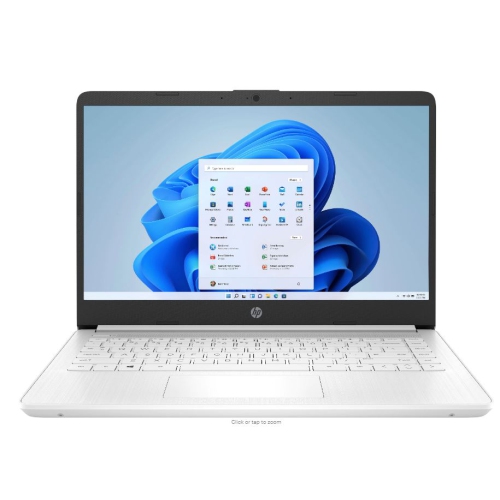 Your price for this item is $449
-
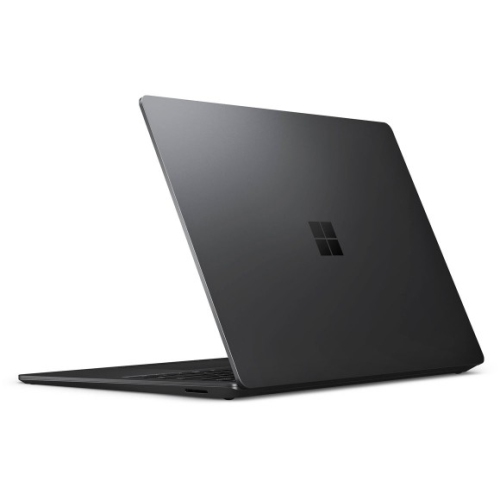 Your price for this item is $3099
-
 Your price for this item is $1800.68
-
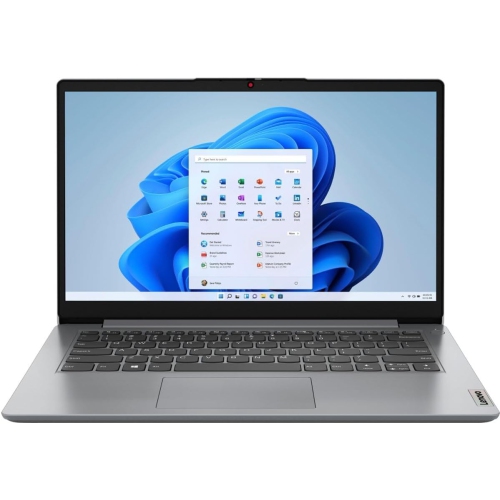 Your price for this item is $664.05
-
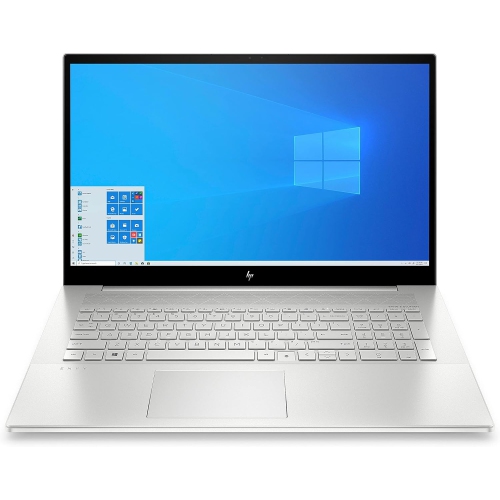 Your price for this item is $869.99
-
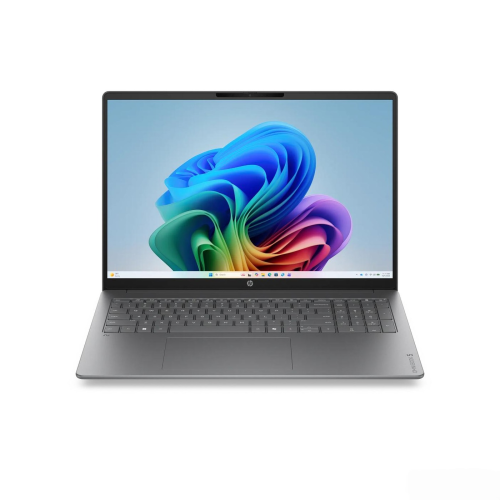 Your price for this item is $2960.48
-
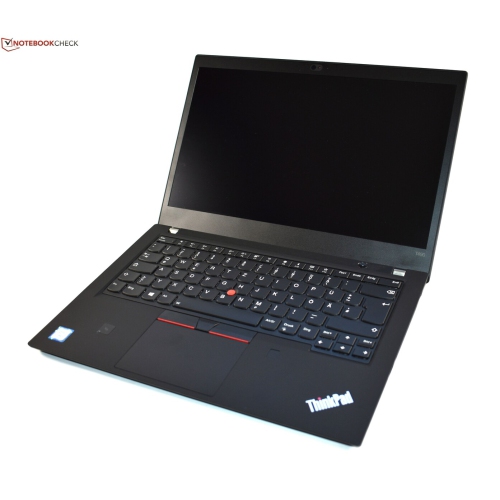 Your price for this item is $499.68
-
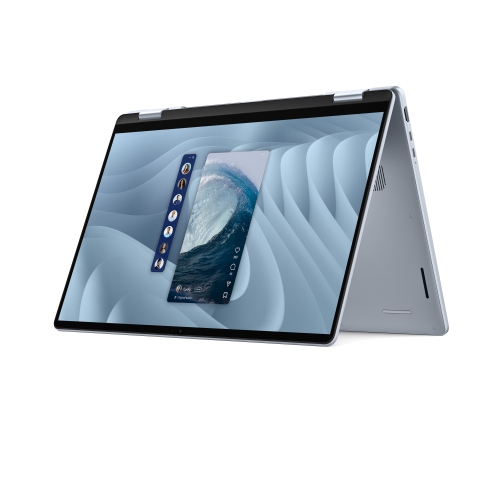 Your price for this item is $1951.79
Discover more categories related to Virtual Meeting Laptops
Top Collections:
Best Black Friday Deals This Year, Best Black Friday Deals On Electronics, Kindle Devices, Pokemon Centers, Best Black Friday Deals On Apple Products, Best Cameras for Sports Photography, Dyson Airwrap, Pokémon 30th Celebration Cards, Apple iPhone 17 Pro, Canon G7X Cameras
Some products may be subject to Environmental Handling Fees
(EHF) depending on your province.
Learn more about EHFs.