WD My Books
Explore reliable storage solutions with WD My Book, designed to help you organize and protect your digital files with ease. Whether you're looking to back up important documents, store cherished photos, or expand your media library, WD My Book offers the capacity and convenience you need. Find the right option to fit your lifestyle and keep your data accessible whenever you need it.
Sort
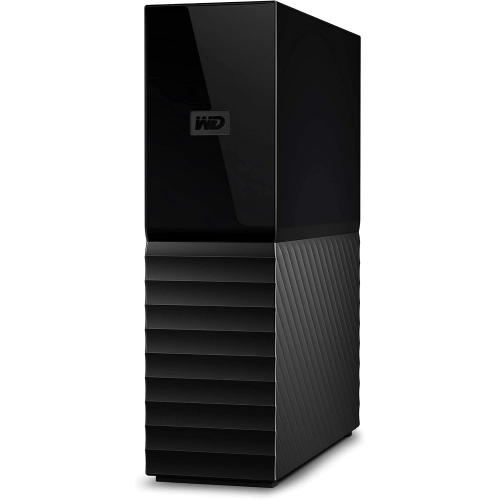
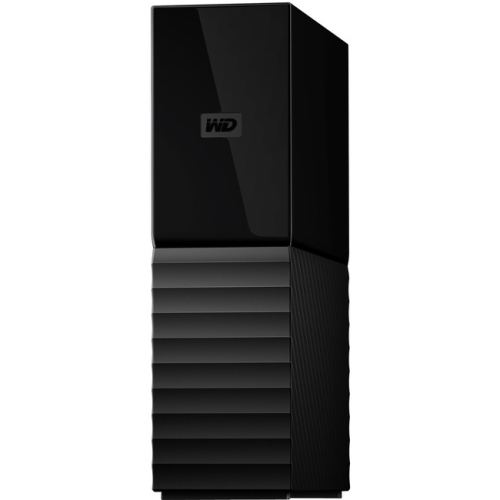
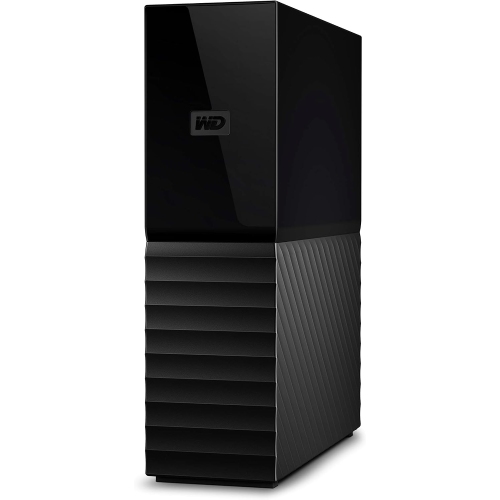
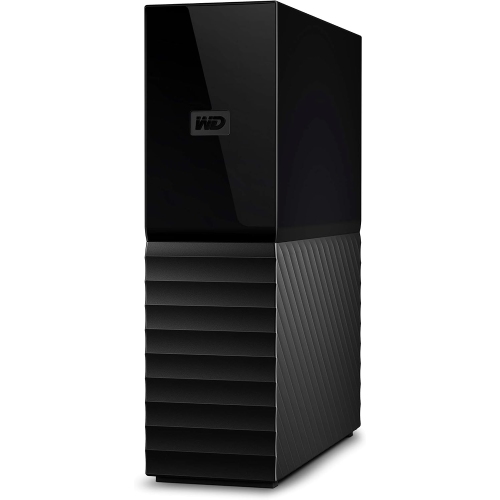
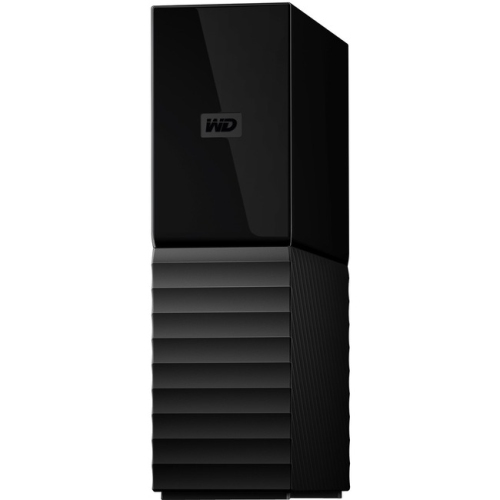
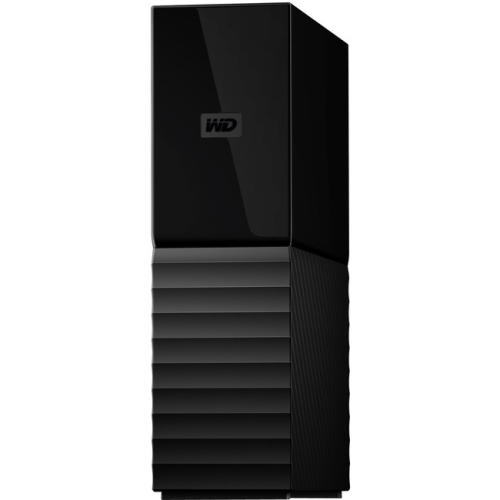
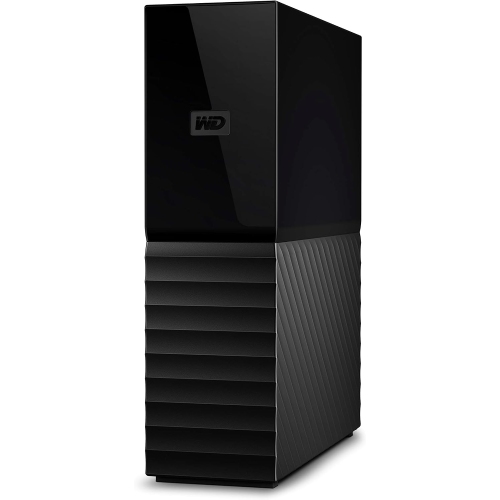
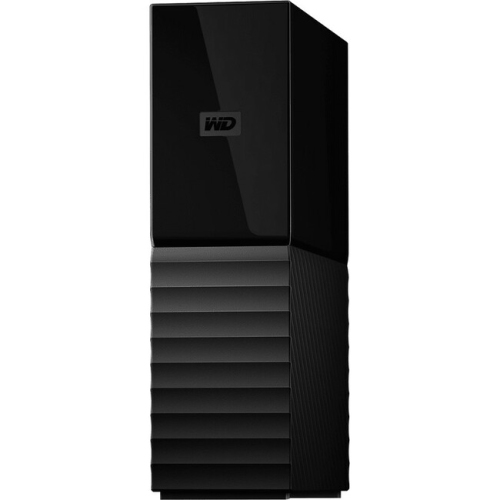
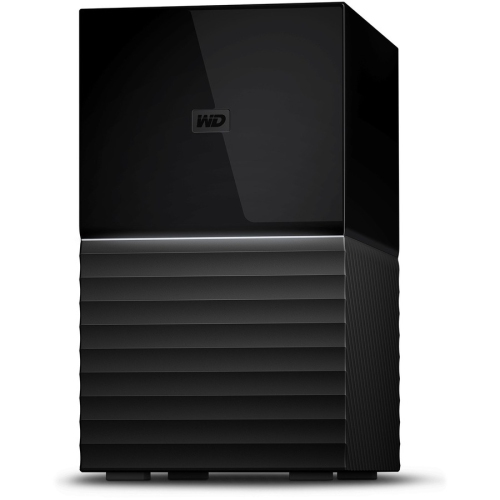
A desktop home for your growing file library
Desktop external hard drives are high-capacity storage devices designed to stay in one place and hold large file libraries, archives, and computer backups. They connect to a computer through a data cable and typically use a separate power adapter, making them well suited to a home office, study, or dedicated workspace rather than a daily commute. Their appeal is straightforward: they give growing collections of photos, videos, documents, and other files a home outside a computer’s internal drive. A family might use one to gather years of holiday photos and scanned keepsakes, while a photographer might keep completed shoots close at hand without filling a laptop. For someone working with large media folders, desktop storage can also provide space for original footage, exported projects, and older work that still needs to be accessible. Capacity is best understood in relation to the files being stored. Text documents take relatively little room, while high-resolution images, video recordings, and full computer backups can occupy much more. Keeping several versions of changing files adds to that total, so useful capacity includes room for both an existing collection and future additions. The capacity shown by a computer may differ from the number on the packaging because operating systems can calculate storage differently, and formatting uses some space. Traditional hard drives use spinning magnetic disks, so they are generally better suited to spacious storage and routine backups than to tasks demanding the quickest possible response. Solid-state storage may be a better match for frequent travel or demanding work performed directly from an external drive. For a desk-based setup, however, a hard drive offers a practical place for substantial libraries that do not need to travel. It can be particularly useful alongside a laptop with limited internal storage, allowing everyday applications and active documents to remain on the computer while larger collections sit nearby.
Compatibility shapes how comfortably a desktop drive fits into an existing routine. The connection on the drive, the ports on the computer, and the supplied cable all matter; a connector that physically fits does not by itself establish the speed of the connection. Transfers are limited by the slowest part of the path, including the drive mechanism, cable, computer port, and any hub in between. A folder containing thousands of small files can also take longer to copy than one large file of the same total size. These differences are worth allowing for when moving a photo library or making an initial full backup. Desktop drives also need space for their power connection, so a position near the computer and an accessible outlet helps keep cables tidy and reduces accidental tugging. File-system compatibility is another consideration, especially in a household that uses both Windows and macOS. Some formats work well with one operating system but have restrictions on another, while a shared format may not support every feature required by particular backup software. Reformatting can change compatibility, but it erases existing files, making a separate copy essential before any change. Automatic backup functions, password protection, and hardware-based encryption vary by device and software package rather than being universal features of external storage. Password protection should not be assumed to mean that stored files are encrypted, and recovery options deserve attention wherever access depends on a password or recovery key. A single desktop drive is also different from network storage: connecting it to one computer does not automatically make its files accessible throughout a household. For additional storage options, shoppers can explore Western Digital Pro alongside their desktop storage needs. The most useful setup is one that matches the computer, the types of files involved, and the way those files will be accessed over time.
Physical design matters because a desktop hard drive is likely to become a lasting part of the workspace. A rigid outer enclosure protects the internal mechanism, while the base, orientation, and ventilation openings influence where it can sit comfortably. An upright housing can occupy a small patch of desk space, but it still needs a stable surface and enough clearance for airflow and cable connections. Appearance may help a drive blend into an office, though stability and practical placement matter more than a finish that matches the furniture. Hard drives contain moving parts and can produce a soft hum or occasional clicking during normal activity; sound levels vary, and a quiet recording area may call for thoughtful positioning. They should not be moved or knocked while operating, and cables should remain clear of chair wheels, busy walkways, and desk edges. Care is generally simple: follow the manufacturer’s cleaning directions, keep ventilation openings free of dust, and avoid applying liquid directly to the enclosure. Properly ejecting the drive before disconnecting it helps prevent interrupted writes, while leaving it connected during scheduled backups allows those tasks to finish. Durability also means planning for the files, not just caring for the casing. Moving the only copy of a treasured photo collection onto an external drive frees space but does not create a backup. Important files benefit from multiple copies, with one kept separately from the main computer and desktop drive. Periodically opening saved files and checking backup results helps confirm that the stored material remains usable. This makes desktop storage a thoughtful practical gift for a keen photographer, a student with a growing project archive, or a relative organizing family records, provided the connections and software suit their computer. Its lasting value comes from making large collections easier to keep organized and accessible, with a backup routine that continues after the first transfer.
Compatibility shapes how comfortably a desktop drive fits into an existing routine. The connection on the drive, the ports on the computer, and the supplied cable all matter; a connector that physically fits does not by itself establish the speed of the connection. Transfers are limited by the slowest part of the path, including the drive mechanism, cable, computer port, and any hub in between. A folder containing thousands of small files can also take longer to copy than one large file of the same total size. These differences are worth allowing for when moving a photo library or making an initial full backup. Desktop drives also need space for their power connection, so a position near the computer and an accessible outlet helps keep cables tidy and reduces accidental tugging. File-system compatibility is another consideration, especially in a household that uses both Windows and macOS. Some formats work well with one operating system but have restrictions on another, while a shared format may not support every feature required by particular backup software. Reformatting can change compatibility, but it erases existing files, making a separate copy essential before any change. Automatic backup functions, password protection, and hardware-based encryption vary by device and software package rather than being universal features of external storage. Password protection should not be assumed to mean that stored files are encrypted, and recovery options deserve attention wherever access depends on a password or recovery key. A single desktop drive is also different from network storage: connecting it to one computer does not automatically make its files accessible throughout a household. For additional storage options, shoppers can explore Western Digital Pro alongside their desktop storage needs. The most useful setup is one that matches the computer, the types of files involved, and the way those files will be accessed over time.
Physical design matters because a desktop hard drive is likely to become a lasting part of the workspace. A rigid outer enclosure protects the internal mechanism, while the base, orientation, and ventilation openings influence where it can sit comfortably. An upright housing can occupy a small patch of desk space, but it still needs a stable surface and enough clearance for airflow and cable connections. Appearance may help a drive blend into an office, though stability and practical placement matter more than a finish that matches the furniture. Hard drives contain moving parts and can produce a soft hum or occasional clicking during normal activity; sound levels vary, and a quiet recording area may call for thoughtful positioning. They should not be moved or knocked while operating, and cables should remain clear of chair wheels, busy walkways, and desk edges. Care is generally simple: follow the manufacturer’s cleaning directions, keep ventilation openings free of dust, and avoid applying liquid directly to the enclosure. Properly ejecting the drive before disconnecting it helps prevent interrupted writes, while leaving it connected during scheduled backups allows those tasks to finish. Durability also means planning for the files, not just caring for the casing. Moving the only copy of a treasured photo collection onto an external drive frees space but does not create a backup. Important files benefit from multiple copies, with one kept separately from the main computer and desktop drive. Periodically opening saved files and checking backup results helps confirm that the stored material remains usable. This makes desktop storage a thoughtful practical gift for a keen photographer, a student with a growing project archive, or a relative organizing family records, provided the connections and software suit their computer. Its lasting value comes from making large collections easier to keep organized and accessible, with a backup routine that continues after the first transfer.
Top selling and popular products
-
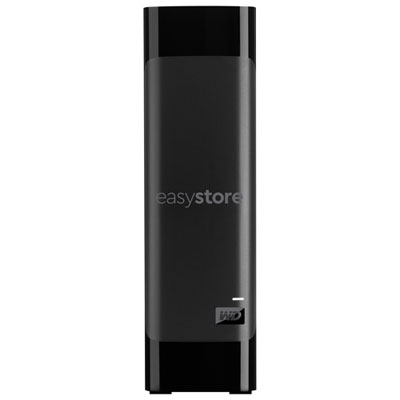 Your price for this item is $539.99
-
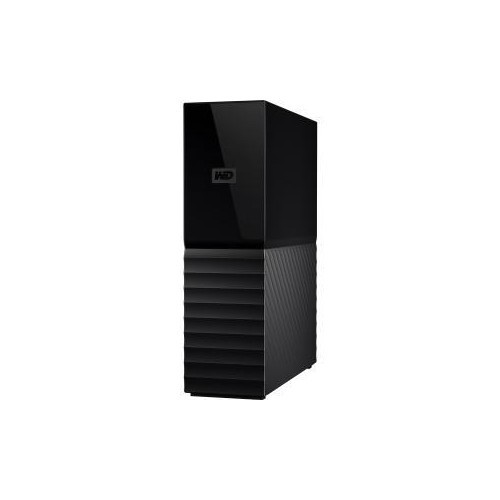 Your price for this item is $611.68
-
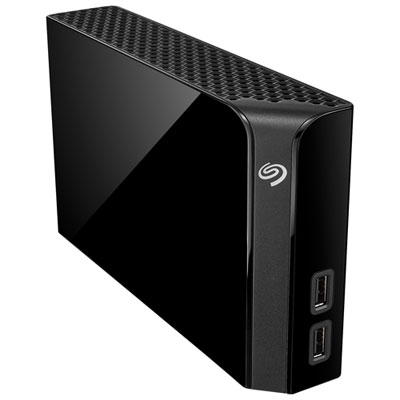 Your price for this item is $279.99
-
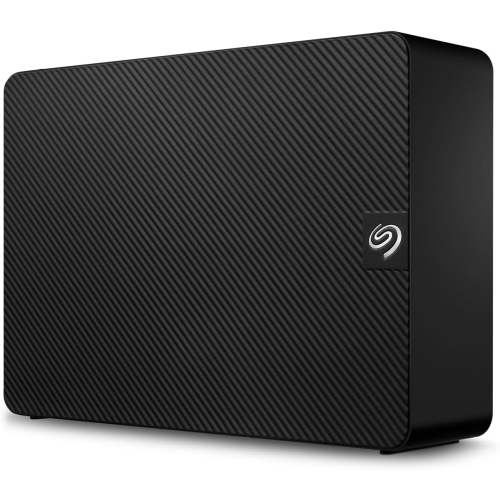 Your price for this item is $884.99
-
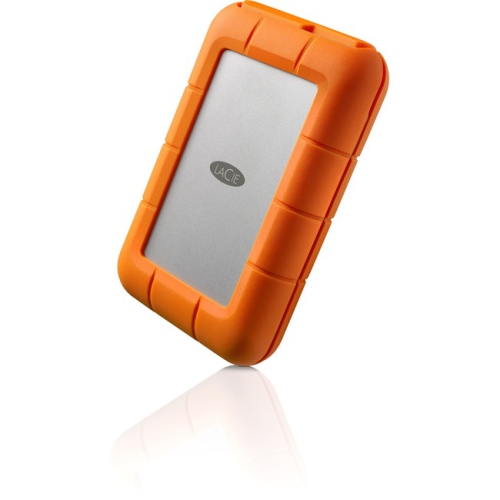 Your price for this item is $247.49
-
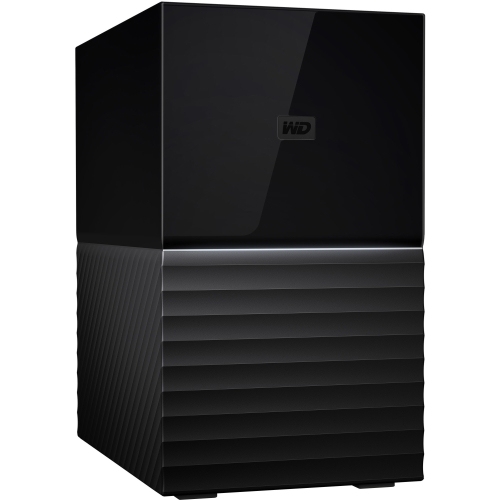 Your price for this item is $1621.68
-
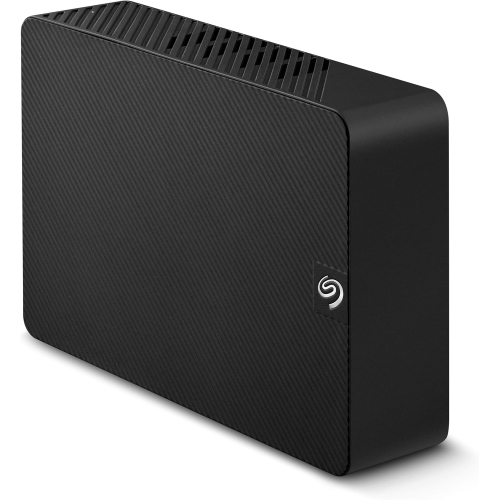 Your price for this item is $1194.99
-
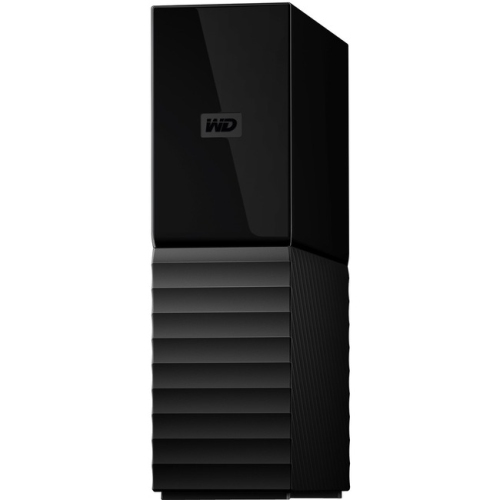 Your price for this item is $711.81
Discover more categories related to WD My Books
Top Collections:
Pokemon Centers, Best Budget Office Chairs, Kindle Devices, Best Cameras for Sports Photography, Pokémon 30th Celebration Cards, Best Laptops for Writers, Canon G7X Cameras, iPhone 15 Apple, Best Cell Phones Under $300, Apple iPhones 16
Some products may be subject to Environmental Handling Fees
(EHF) depending on your province.
Learn more about EHFs.