HDMI Cables for Laptop
An HDMI cable is the standard for connecting a computer to a monitor, TV, or projector. These cables are designed to carry high-definition video and audio signals between devices. If you're looking for an HDMI cable to connect your laptop to the other device with an HDMI input, there are plenty of options.
Sort

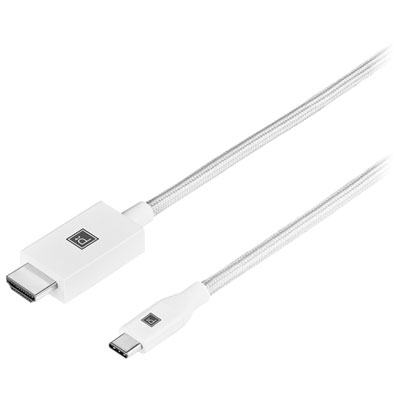
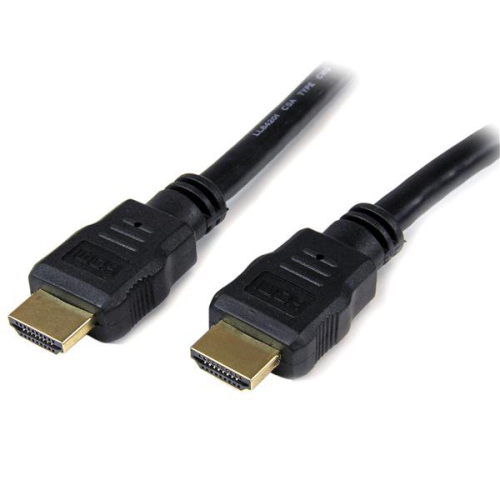
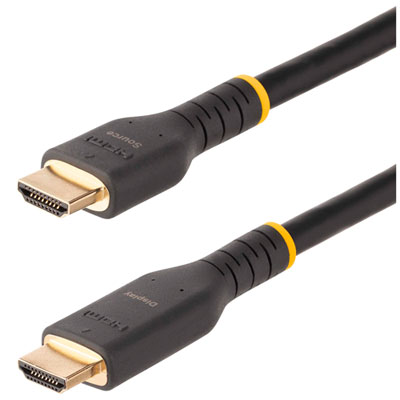
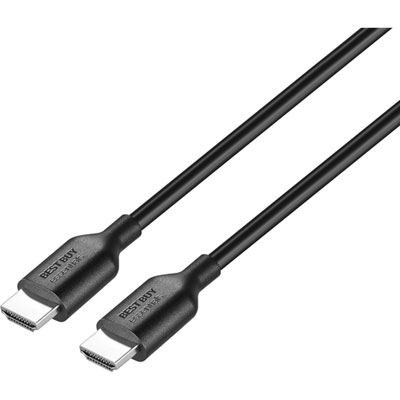
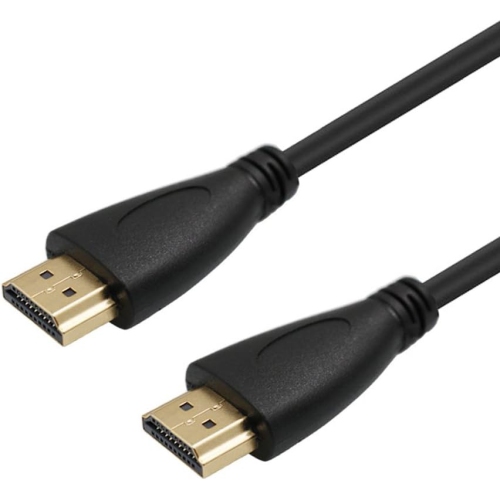
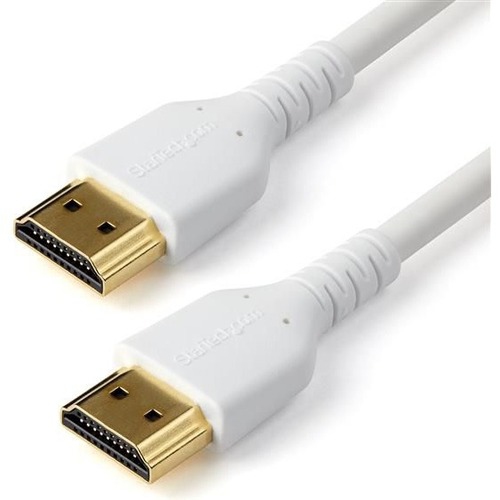
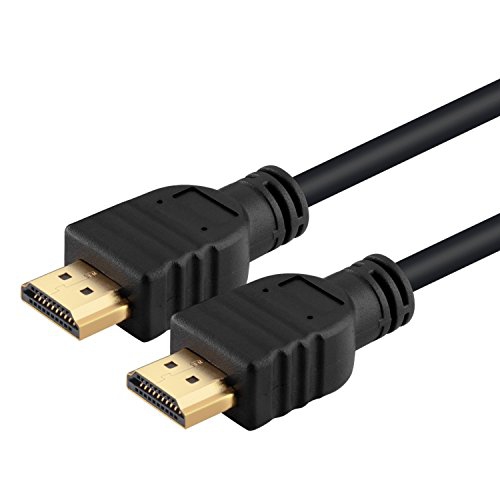
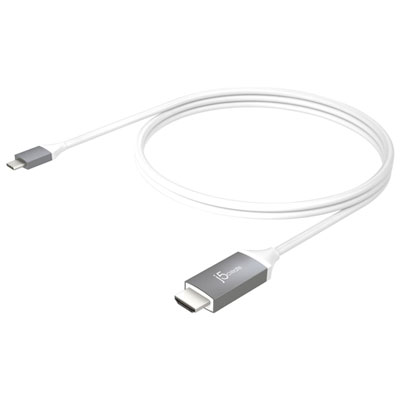
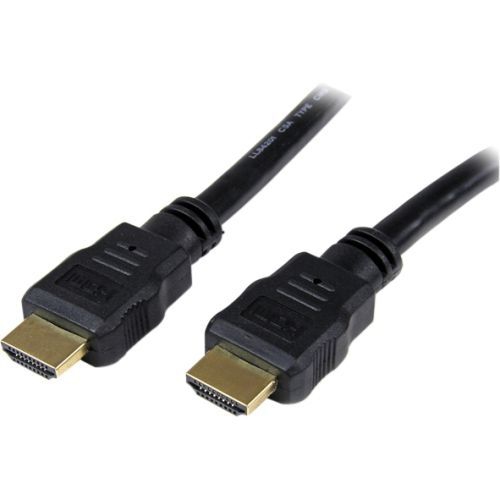
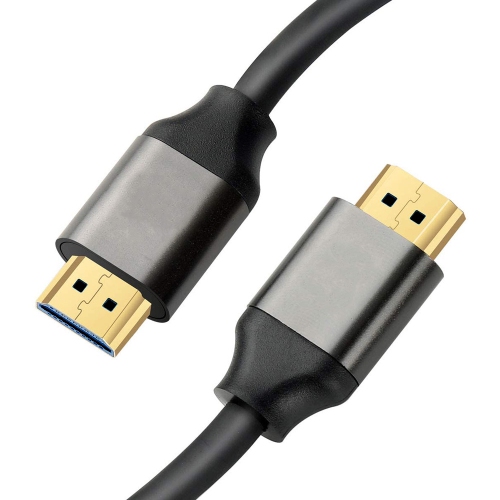
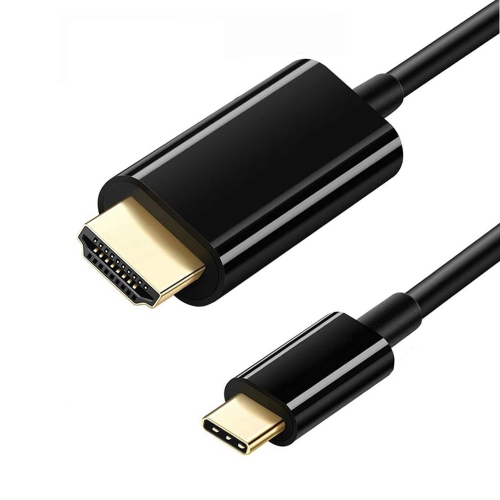
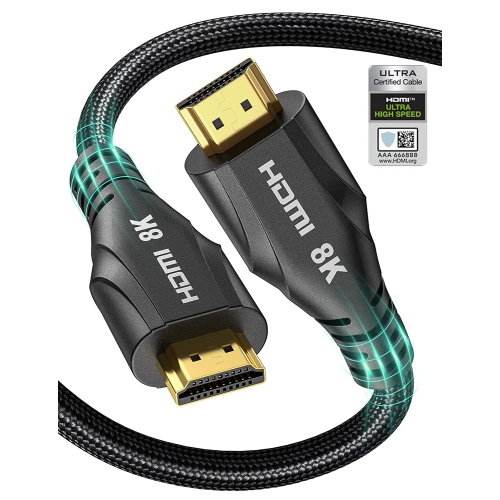
![YELLOW-PRICE USB C to HDMI Adapter 4K60Hz Cable [Thunderbolt 3 Compatible]+HDMI 2.0 HD Cable](https://multimedia.bbycastatic.ca/multimedia/products/500x500/166/16600/16600781.jpeg)
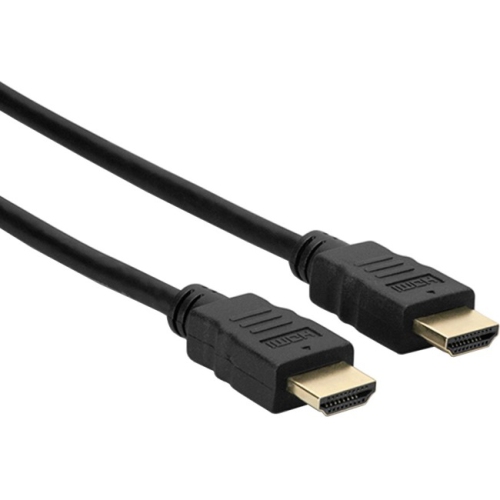
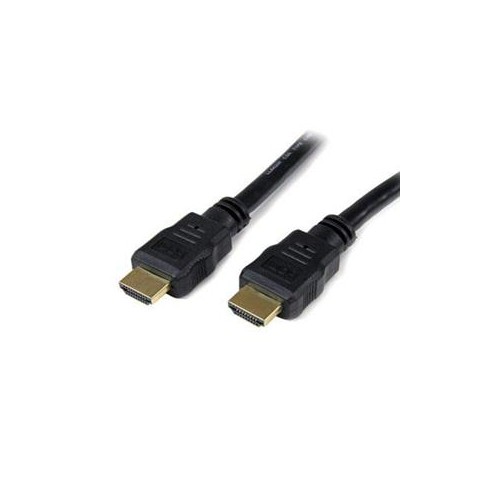


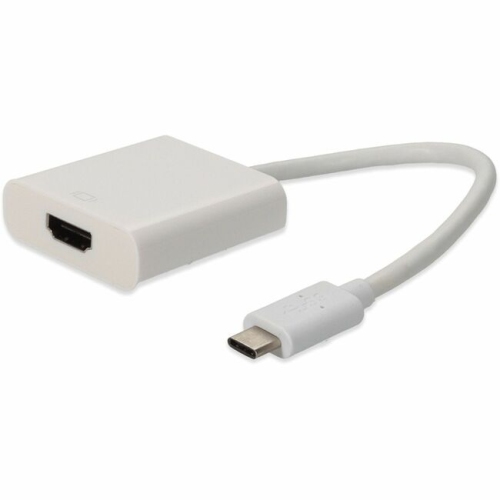
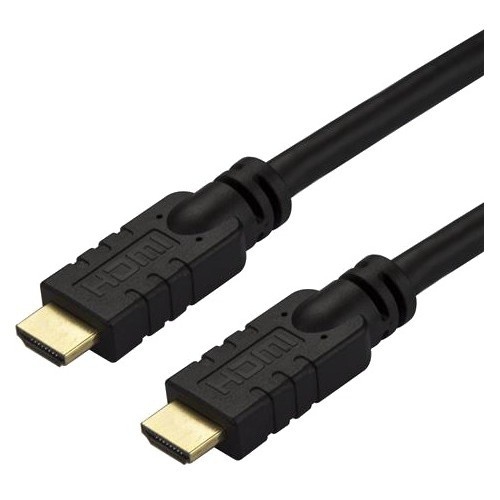
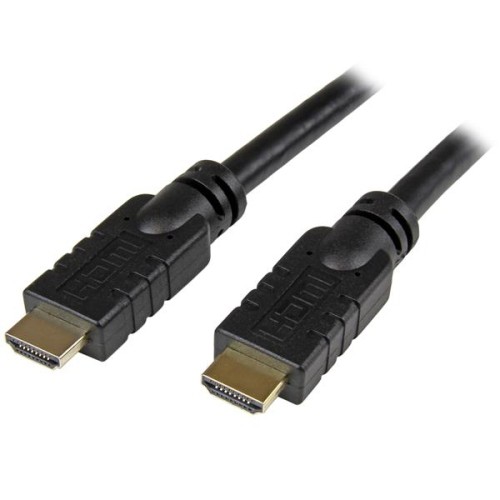


![YELLOW-PRICE USB C to HDMI Adapter 4K60Hz Cable [Thunderbolt 3 Compatible]+HDMI 2.0 HD Cable](https://multimedia.bbycastatic.ca/multimedia/products/500x500/166/16600/16600790.jpeg)
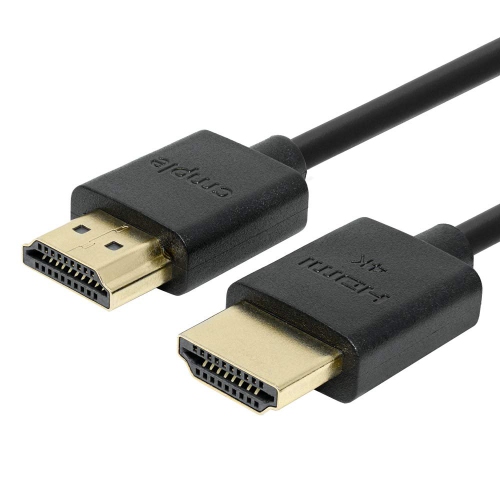
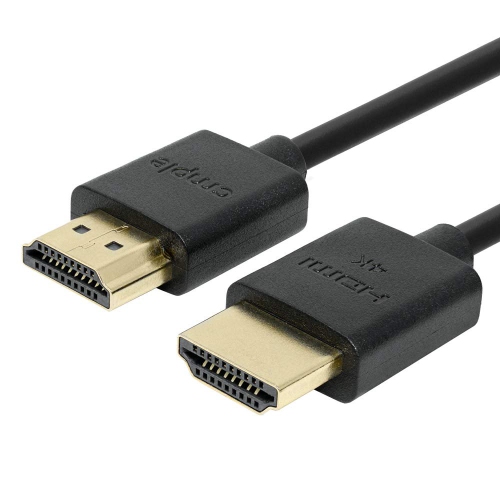

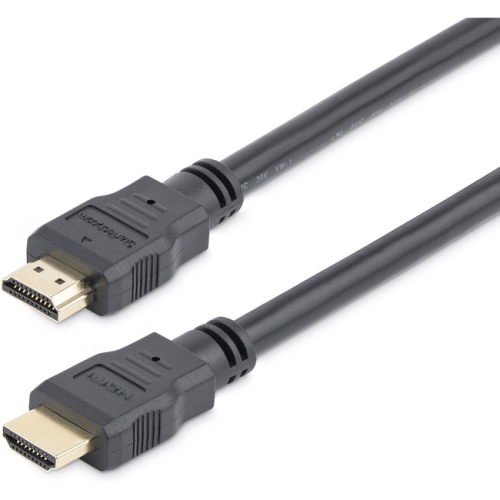
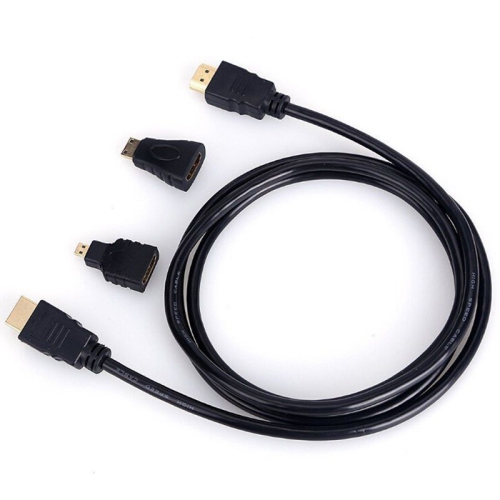
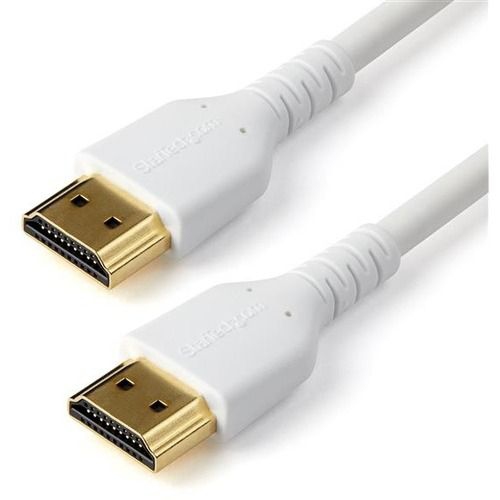
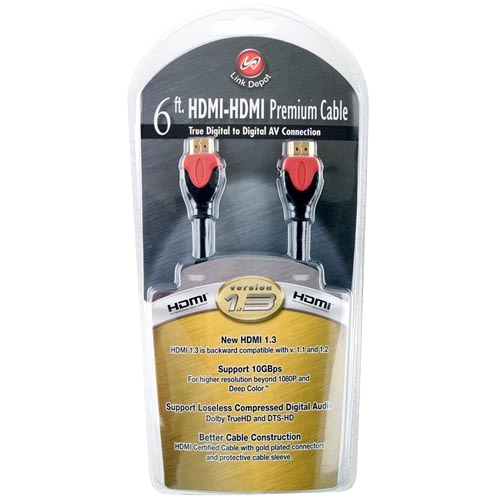

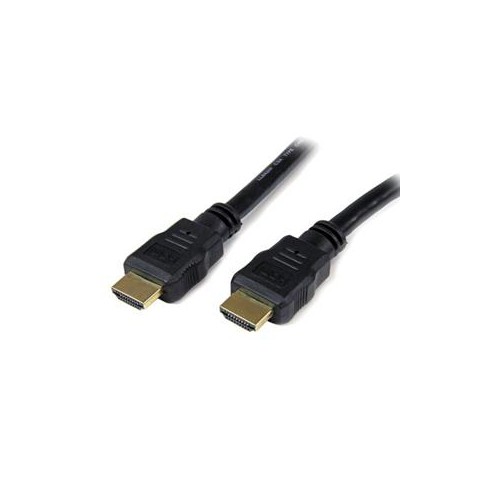
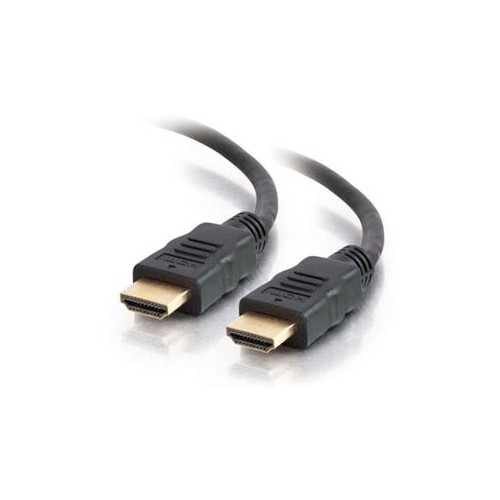
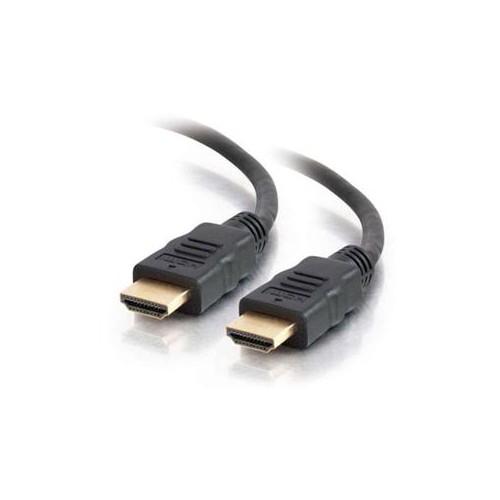
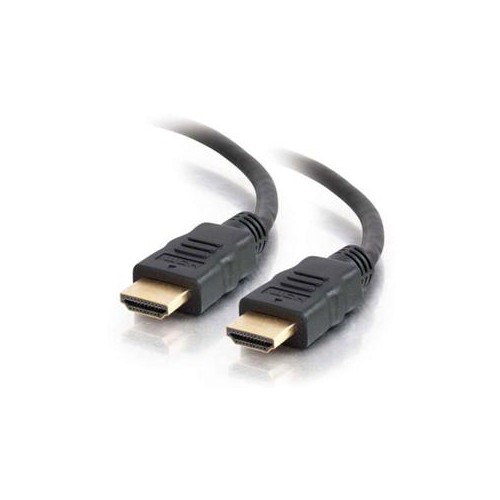
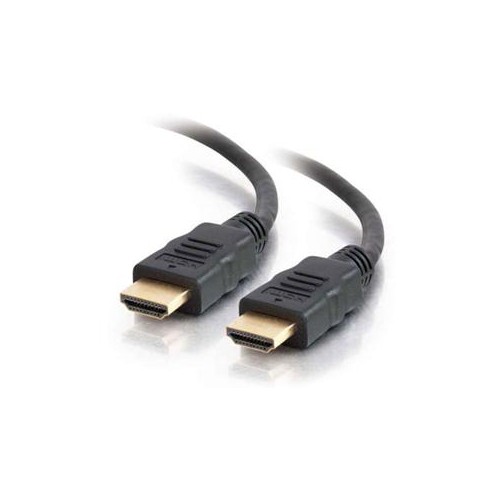
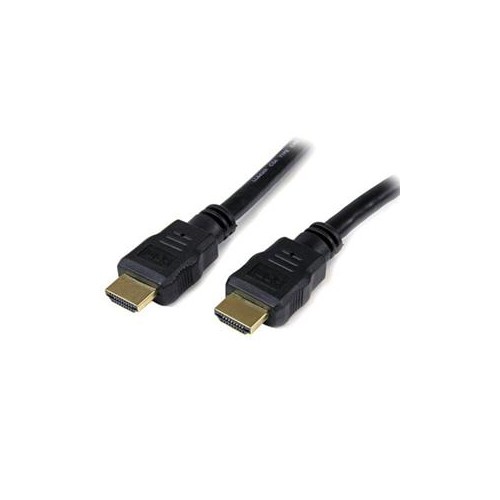
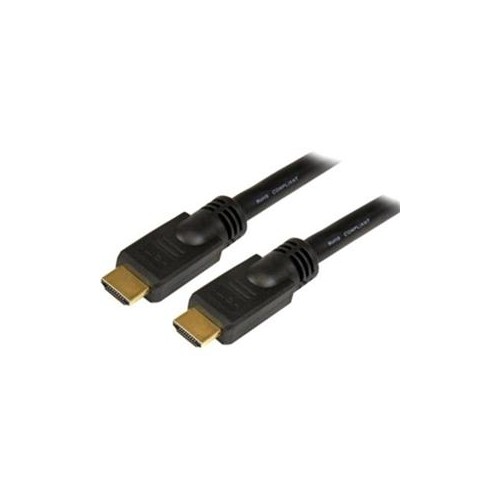
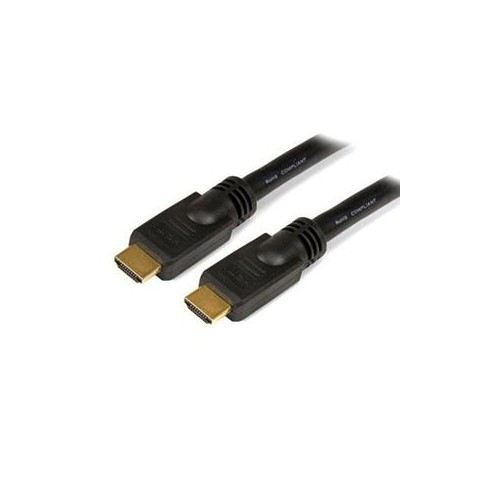
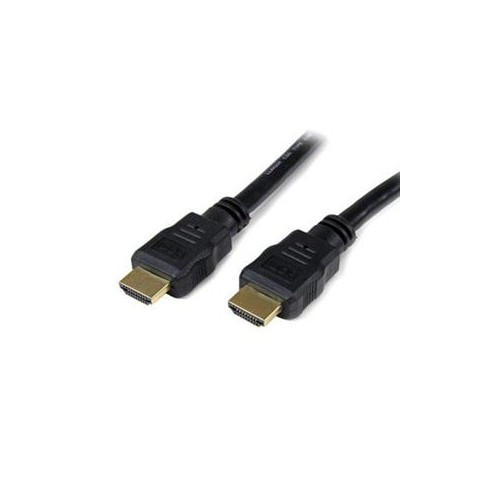
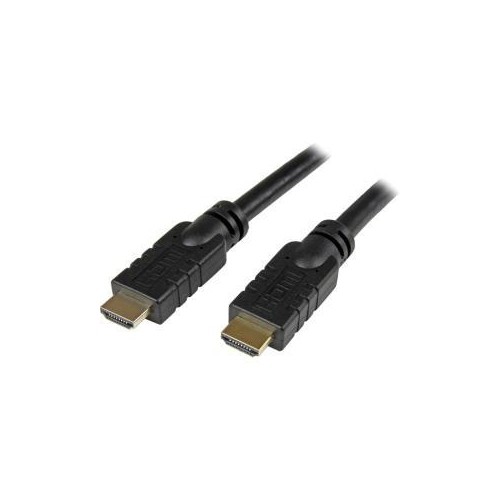
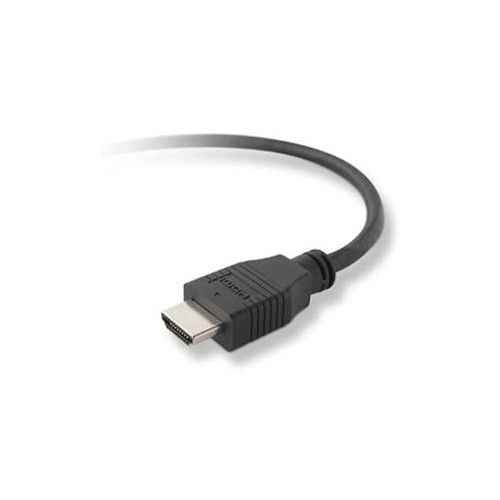
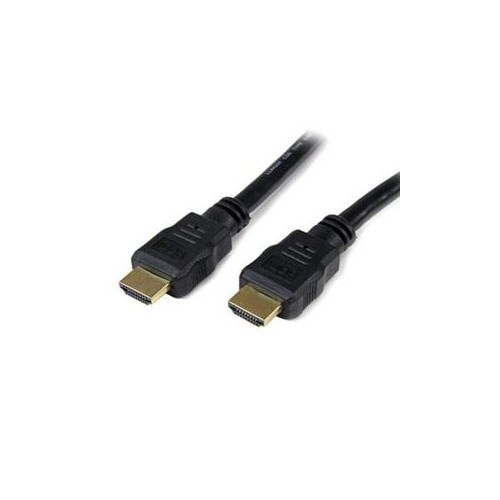
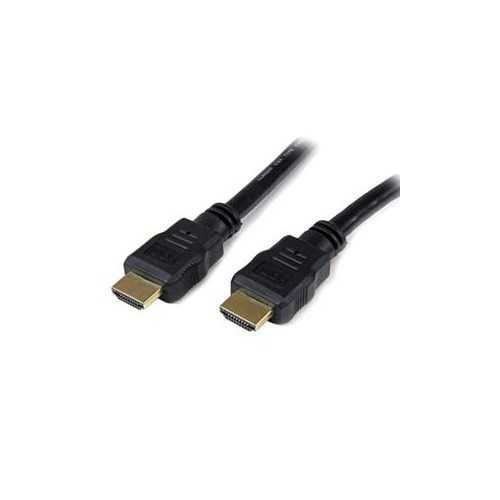
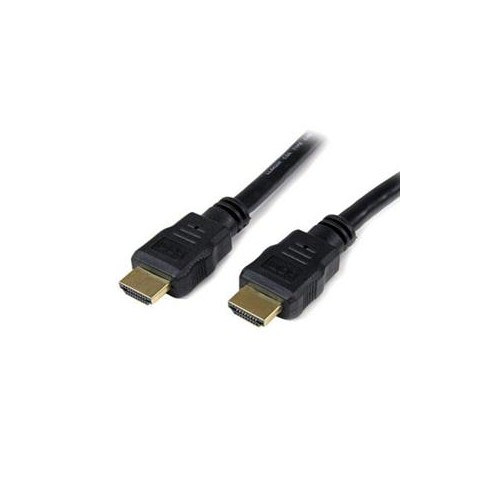
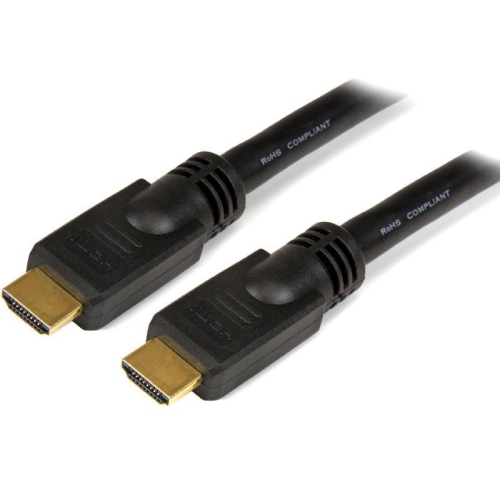
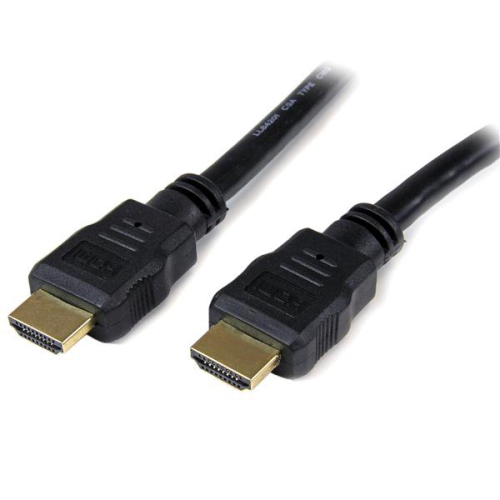
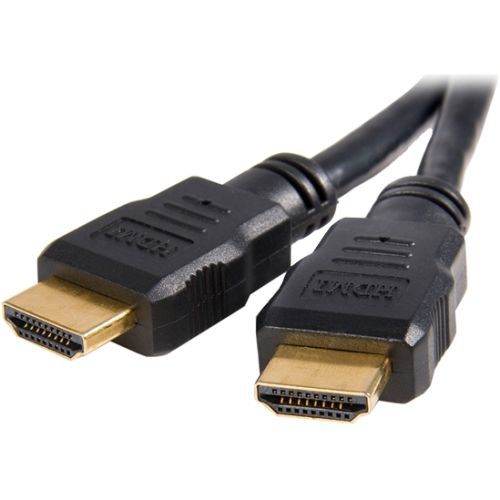
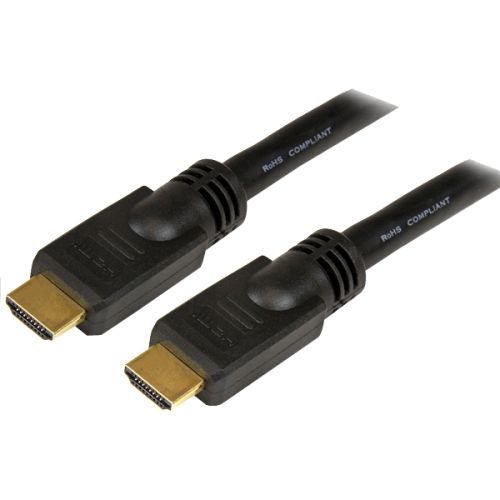

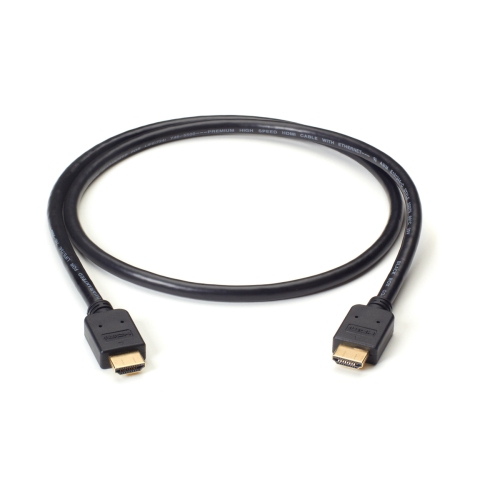
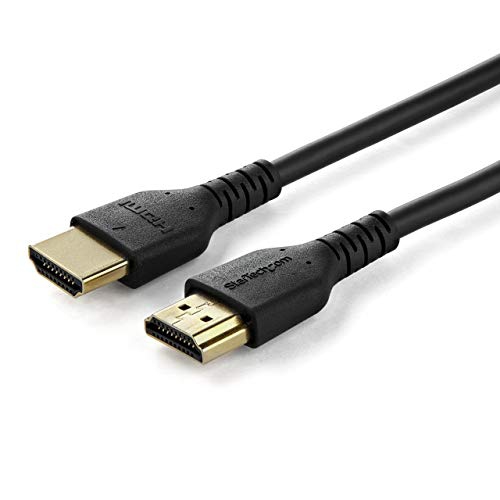

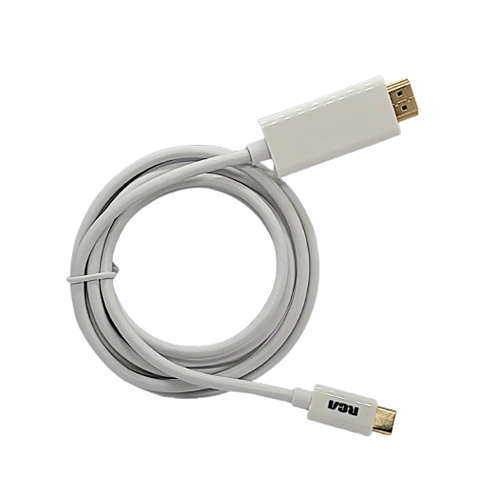
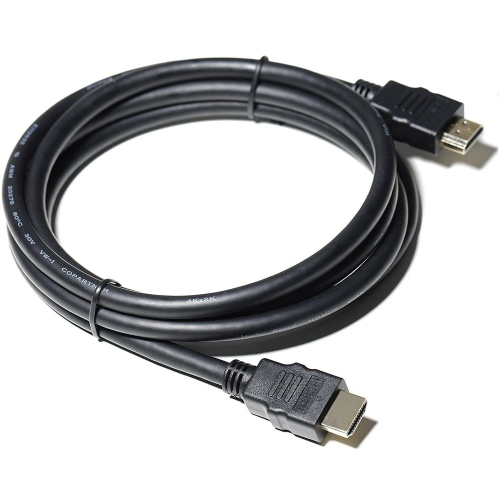
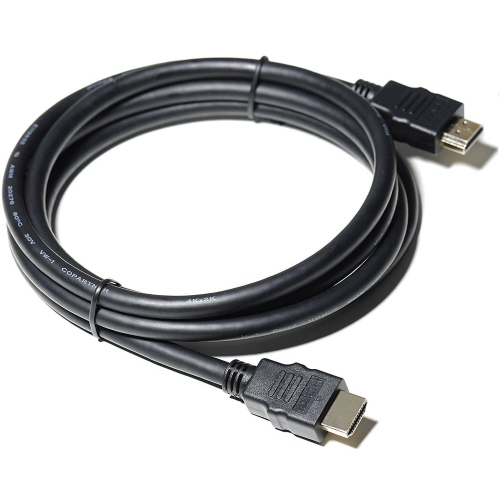
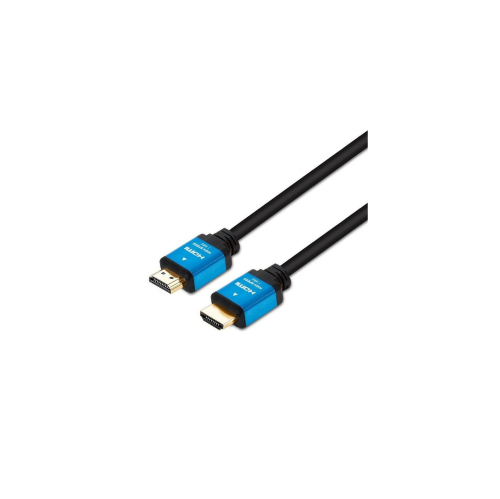
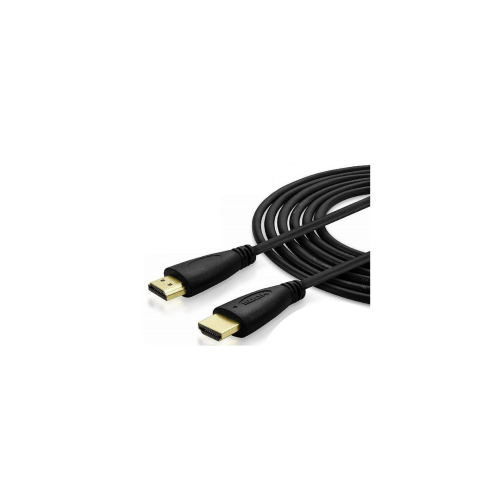

![YELLOW-PRICE USB C to HDMI Adapter 4K60Hz Cable [Thunderbolt 3 Compatible]+HDMI 2.0 HD Cable](https://multimedia.bbycastatic.ca/multimedia/products/500x500/166/16600/16600783.jpeg)
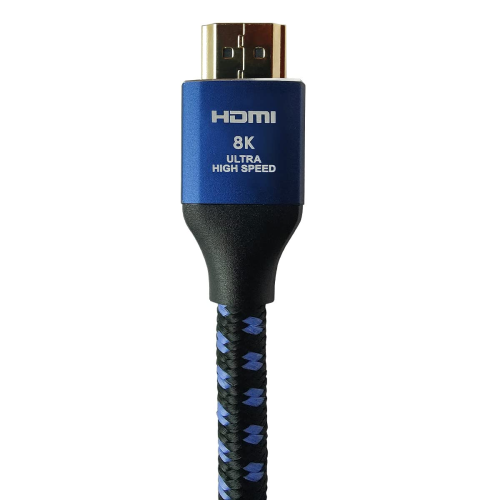
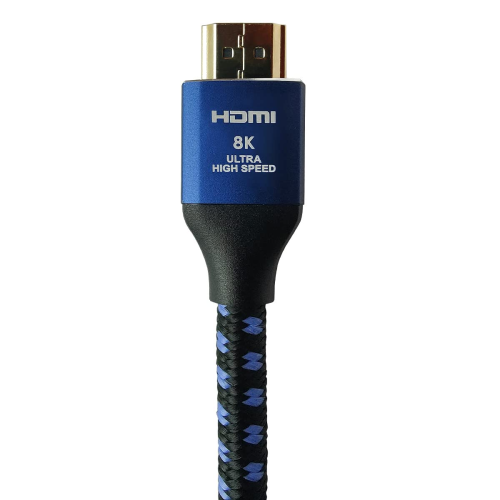
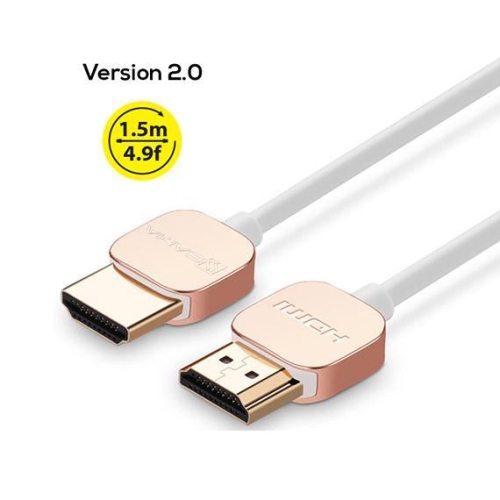
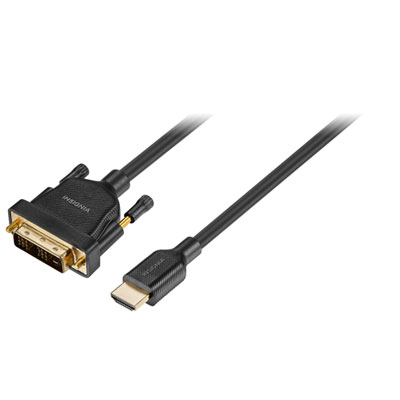
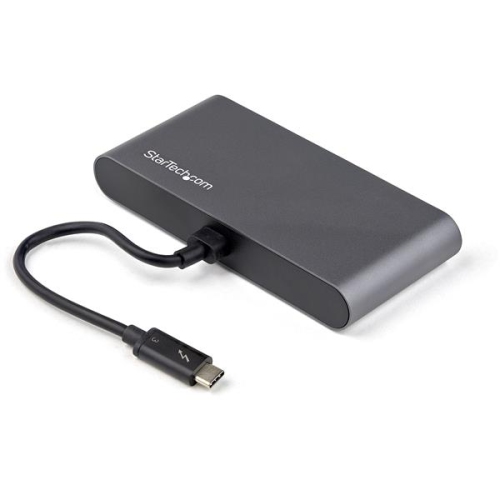
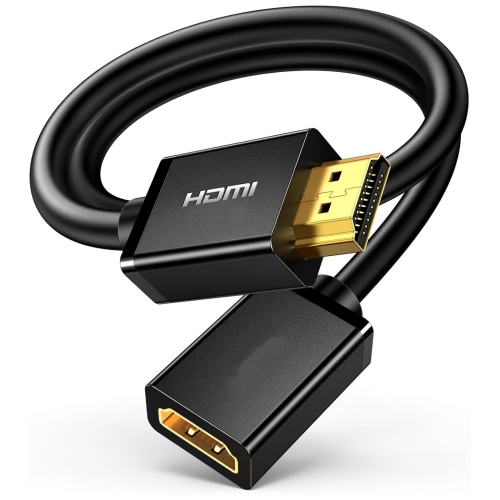
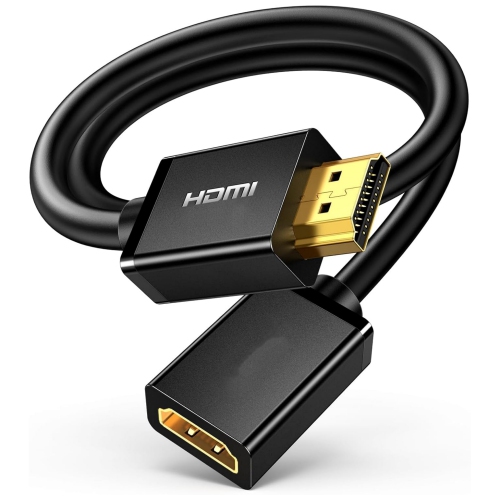
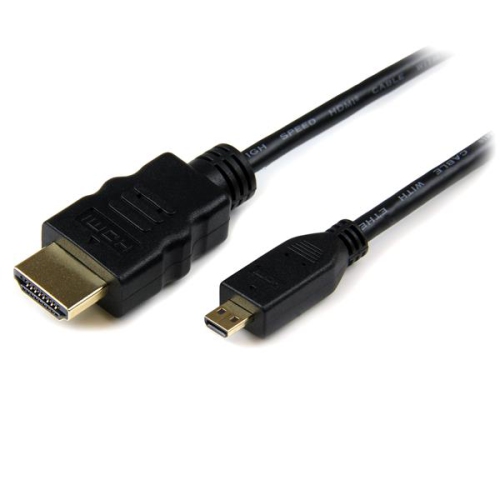
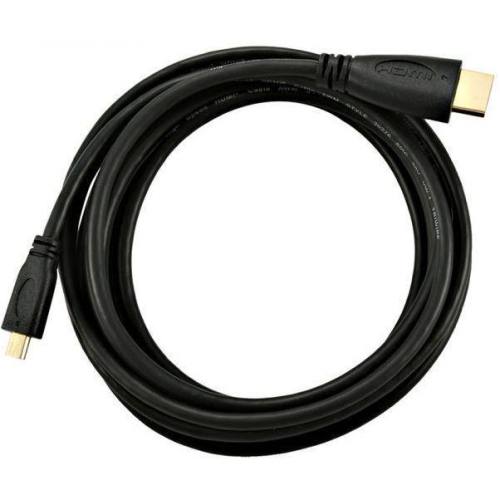
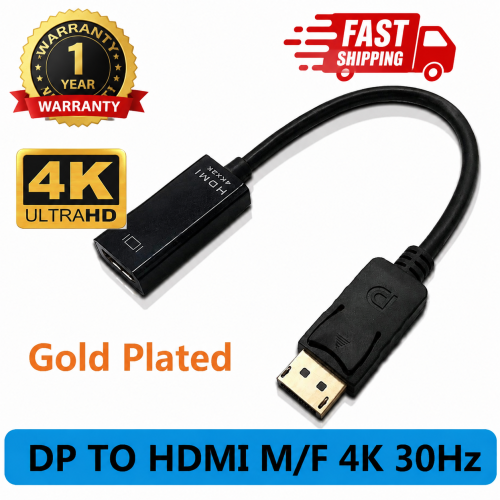
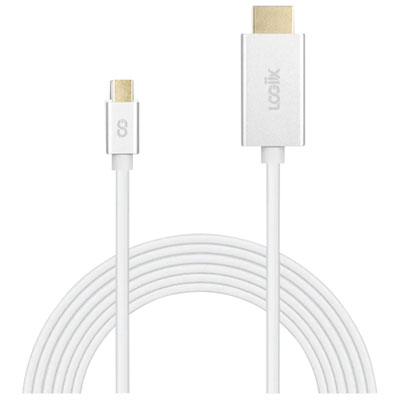
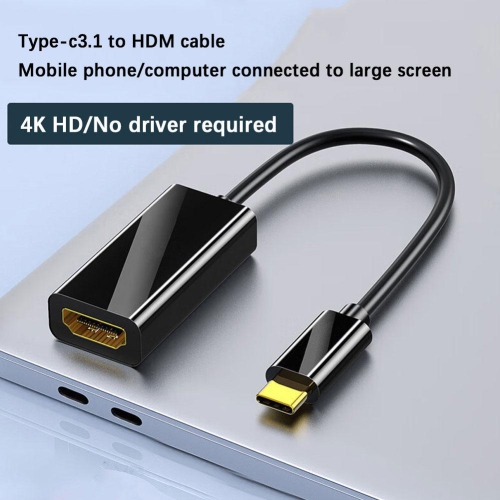
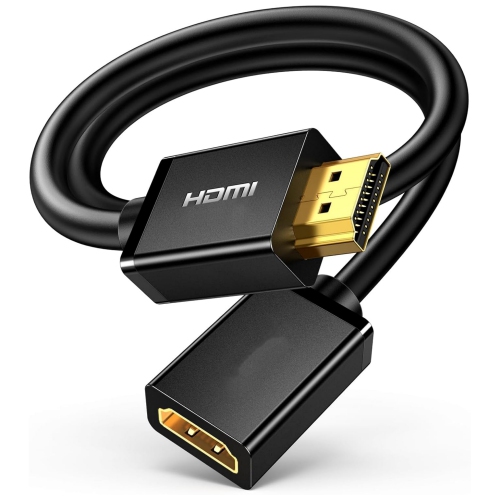
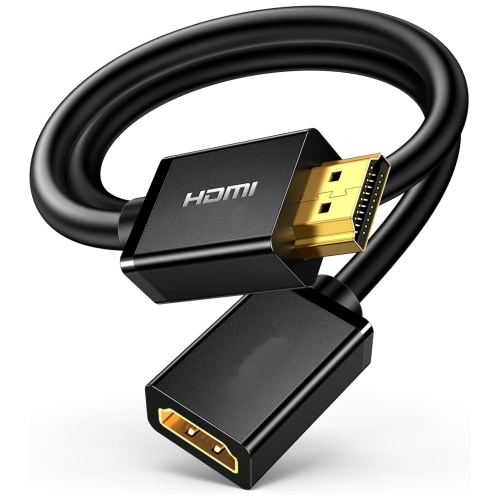
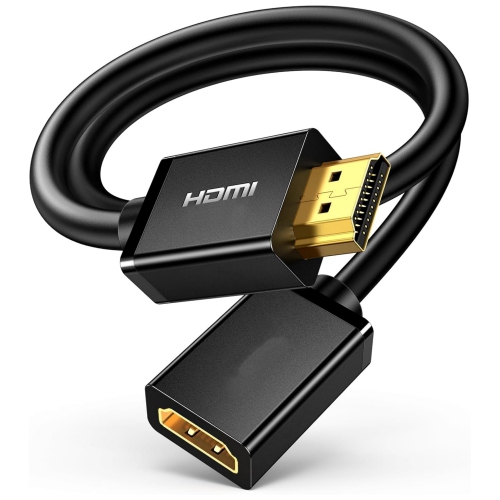
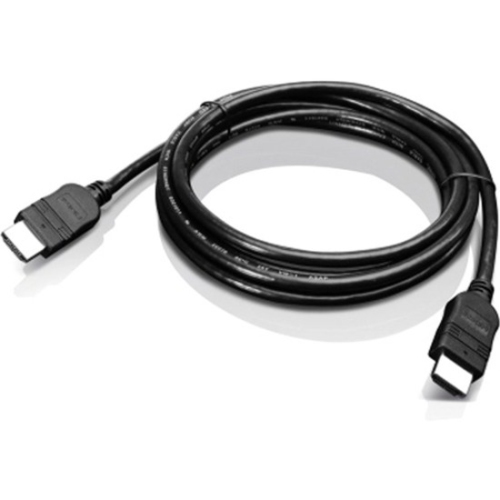
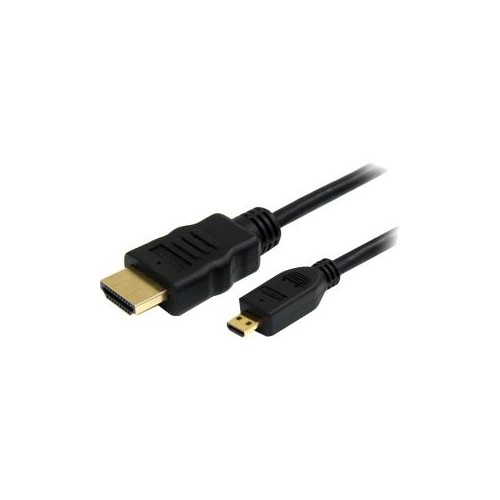
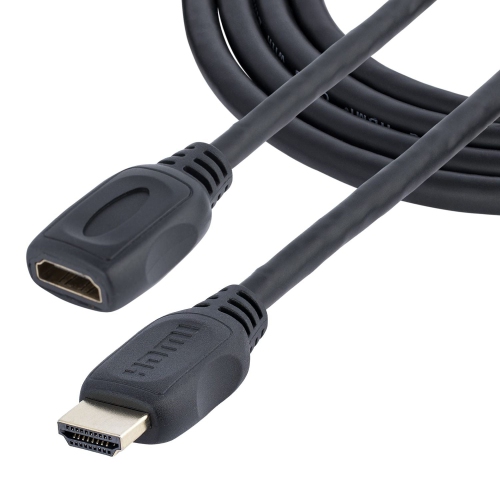
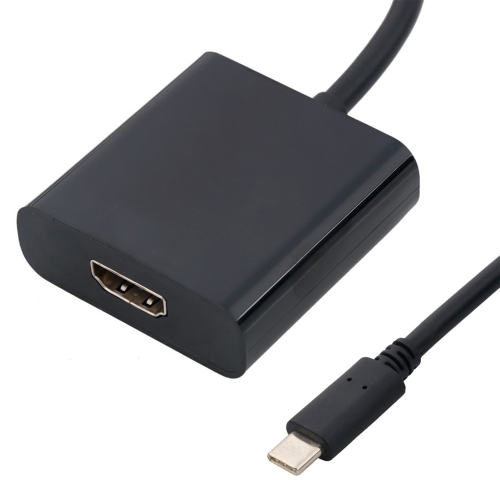

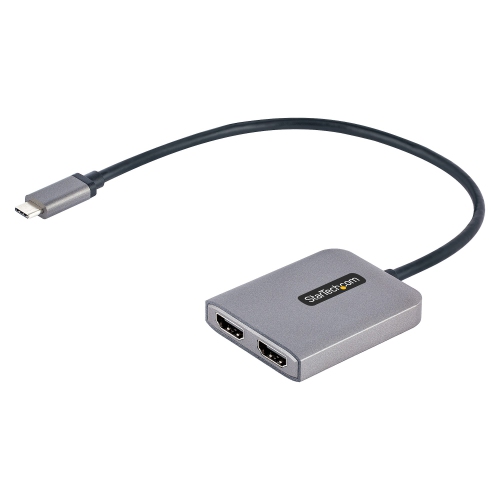
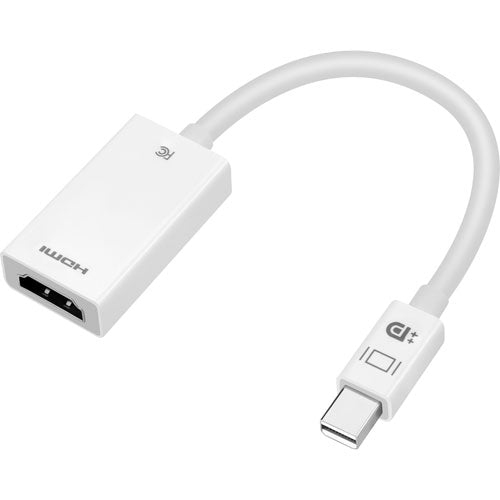
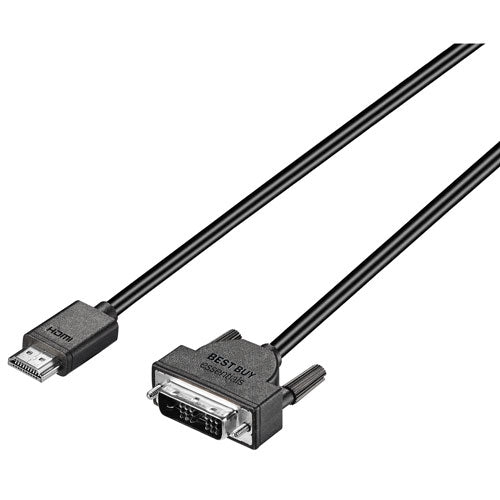
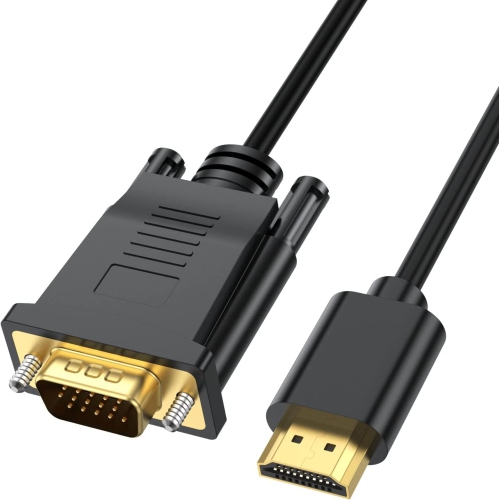
Laptop connections depend on matching ports and display capabilities
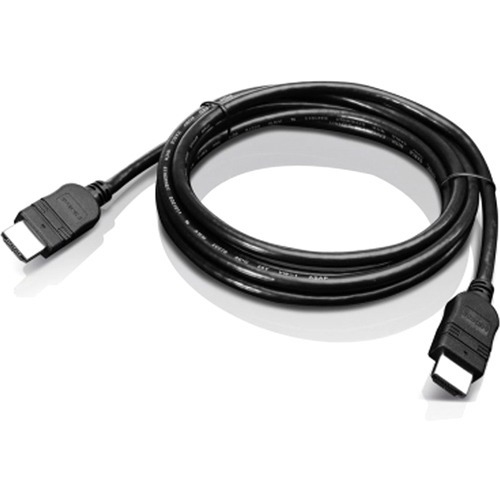
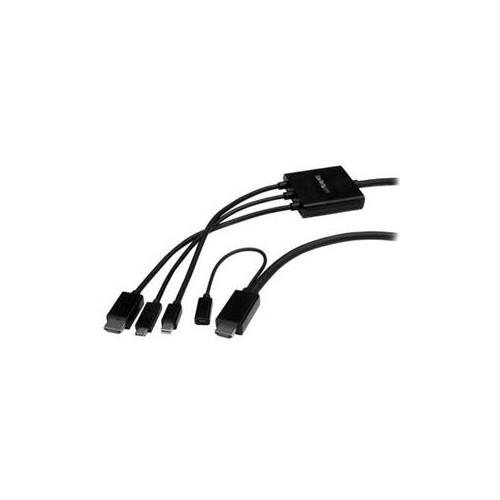
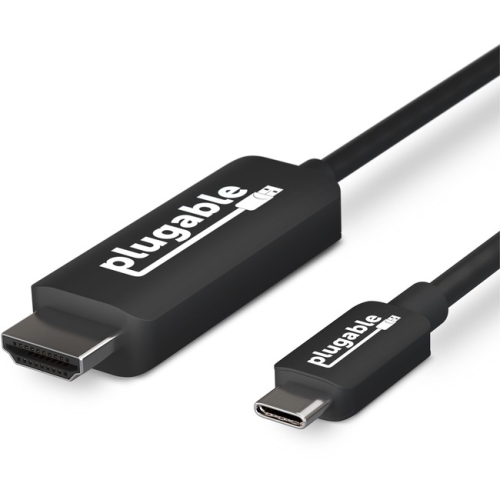
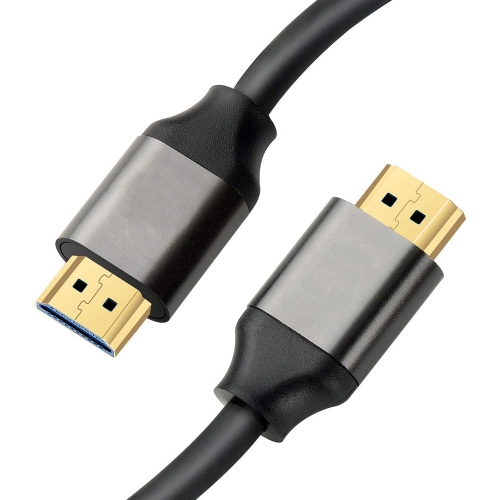
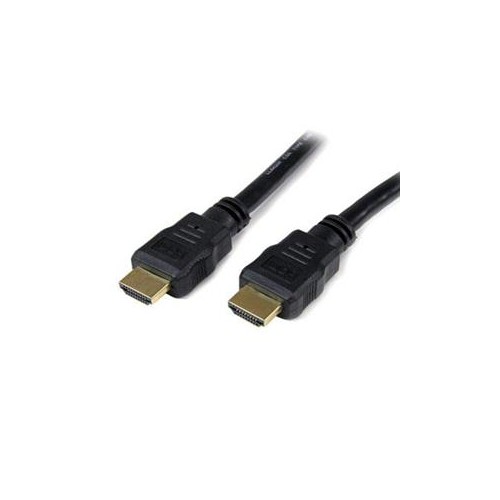
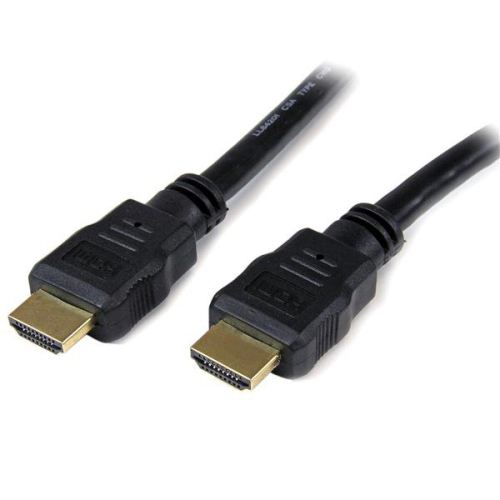
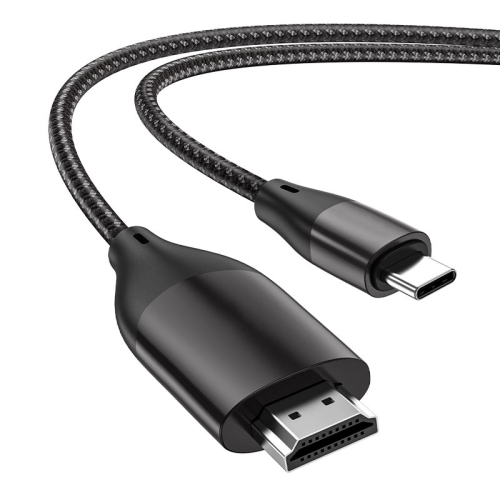
HDMI cables for laptops provide a straightforward way to send video and audio from a laptop to a larger screen, including a monitor, television, projector, or classroom display. They are useful for extending your desktop while working, mirroring a presentation, watching films, reviewing photos, playing games, or creating a more comfortable study setup at home. Before choosing a cable, look closely at the ports on both devices. Many laptops and displays use a standard, full-size HDMI port with a recognisable wide, tapered shape. When both the laptop and display have this same port, a standard HDMI-to-HDMI cable is generally the simplest choice. Some compact laptops use mini-HDMI, which is smaller than the regular port, while many thin modern laptops rely on USB-C for video output. A USB-C port does not automatically guarantee HDMI connectivity; the laptop must support video output through that port, and you may need a USB-C to HDMI cable or a USB-C hub with an HDMI connection. If your laptop has USB-C, check its specifications for DisplayPort Alt Mode, Thunderbolt compatibility, or another form of supported video output before buying. For users who are unsure which connection they have, comparing the shape of the port with the symbols and specifications in the laptop manual can help prevent ordering an incompatible cable. A cable cannot change every type of connection on its own, so matching the connector at each end is the most important first step.
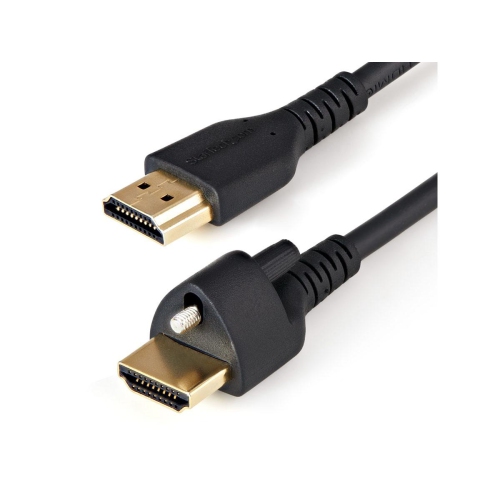
Resolution and refresh rate are the next key considerations when selecting an HDMI cable for a laptop. Everyday tasks such as browsing, word processing, video calls, and streaming usually work well with a widely compatible HDMI cable, but higher-resolution displays and gaming monitors may require greater bandwidth. HDMI 2.0-compatible cables can support 4K video at up to 60Hz in suitable setups, making them a practical choice for many home offices, entertainment areas, and study spaces. Newer HDMI standards can support higher refresh rates, enhanced gaming features, and increased bandwidth, provided that the laptop, cable, and display all support those capabilities. The final result is limited by the least capable part of the connection, so pairing a high-specification cable with a laptop that only outputs a lower resolution will not increase the laptop’s native video performance. Likewise, a laptop that can produce 4K video may need an appropriate display and compatible settings to deliver it. Consider the cable length carefully as well. A short cable can keep a desk tidy when a laptop sits directly beside a monitor, while a longer cable is convenient when connecting to a television across a room or a projector mounted farther away. Avoid buying substantially more length than needed, since extra cable can become tangled around chargers and desk accessories. Flexible, slim designs can be easier to route through a compact workspace, while a sturdier jacket may be helpful for a cable that is connected and disconnected frequently. Once connected, select the correct HDMI input on the display and use the laptop’s display settings to choose between duplicating the screen, extending the desktop, or showing the picture on the external display only. Audio normally travels through the same HDMI connection when the laptop and display support it, although the computer’s sound-output settings may need to be adjusted.
An HDMI cable for a laptop can be useful for students, remote workers, presenters, travellers, and anyone who wants a larger viewing area without replacing their computer. A student may connect a laptop to a monitor for research and note-taking, or to a television for reviewing slides with classmates during the cooler months when more activities move indoors. A remote worker can use a second screen for a video meeting, spreadsheet, or reference documents, reducing the need to switch constantly between windows. Presenters can connect to a classroom projector or meeting-room display, while photographers and video editors may prefer a larger screen for examining fine details. Gamers may also use a laptop with a compatible monitor or television, but should pay particular attention to resolution, refresh rate, and the features supported by the laptop’s graphics hardware. These cables can make practical gifts for students setting up a residence room, family members creating a home office, or anyone moving into a new space with a television and laptop. For a USB-C-only laptop, an adapter may be the more suitable solution than a direct HDMI cable. Explore HDMI Adapters For Student Laptops when the laptop’s available ports do not match the display’s HDMI input. Before purchasing, confirm the laptop model, identify the output port, check the display’s input, and review the resolution and refresh-rate requirements. A little attention to these details helps ensure the cable fits securely, carries the expected picture and sound, and suits the way the laptop will be used at a desk, beside a television, or on the move.
Resolution and refresh rate are the next key considerations when selecting an HDMI cable for a laptop. Everyday tasks such as browsing, word processing, video calls, and streaming usually work well with a widely compatible HDMI cable, but higher-resolution displays and gaming monitors may require greater bandwidth. HDMI 2.0-compatible cables can support 4K video at up to 60Hz in suitable setups, making them a practical choice for many home offices, entertainment areas, and study spaces. Newer HDMI standards can support higher refresh rates, enhanced gaming features, and increased bandwidth, provided that the laptop, cable, and display all support those capabilities. The final result is limited by the least capable part of the connection, so pairing a high-specification cable with a laptop that only outputs a lower resolution will not increase the laptop’s native video performance. Likewise, a laptop that can produce 4K video may need an appropriate display and compatible settings to deliver it. Consider the cable length carefully as well. A short cable can keep a desk tidy when a laptop sits directly beside a monitor, while a longer cable is convenient when connecting to a television across a room or a projector mounted farther away. Avoid buying substantially more length than needed, since extra cable can become tangled around chargers and desk accessories. Flexible, slim designs can be easier to route through a compact workspace, while a sturdier jacket may be helpful for a cable that is connected and disconnected frequently. Once connected, select the correct HDMI input on the display and use the laptop’s display settings to choose between duplicating the screen, extending the desktop, or showing the picture on the external display only. Audio normally travels through the same HDMI connection when the laptop and display support it, although the computer’s sound-output settings may need to be adjusted.
An HDMI cable for a laptop can be useful for students, remote workers, presenters, travellers, and anyone who wants a larger viewing area without replacing their computer. A student may connect a laptop to a monitor for research and note-taking, or to a television for reviewing slides with classmates during the cooler months when more activities move indoors. A remote worker can use a second screen for a video meeting, spreadsheet, or reference documents, reducing the need to switch constantly between windows. Presenters can connect to a classroom projector or meeting-room display, while photographers and video editors may prefer a larger screen for examining fine details. Gamers may also use a laptop with a compatible monitor or television, but should pay particular attention to resolution, refresh rate, and the features supported by the laptop’s graphics hardware. These cables can make practical gifts for students setting up a residence room, family members creating a home office, or anyone moving into a new space with a television and laptop. For a USB-C-only laptop, an adapter may be the more suitable solution than a direct HDMI cable. Explore HDMI Adapters For Student Laptops when the laptop’s available ports do not match the display’s HDMI input. Before purchasing, confirm the laptop model, identify the output port, check the display’s input, and review the resolution and refresh-rate requirements. A little attention to these details helps ensure the cable fits securely, carries the expected picture and sound, and suits the way the laptop will be used at a desk, beside a television, or on the move.
Top selling and popular products
-
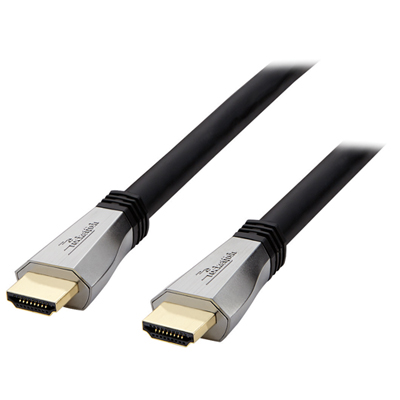 Your price for this item is $119.99
 -
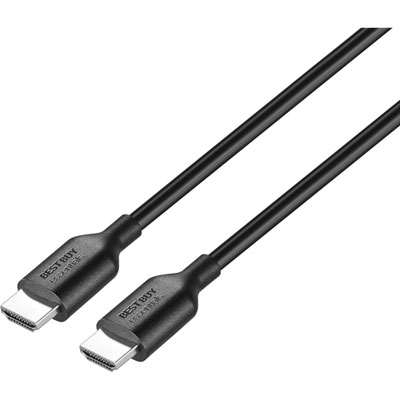 Your price for this item is $9.99
 -
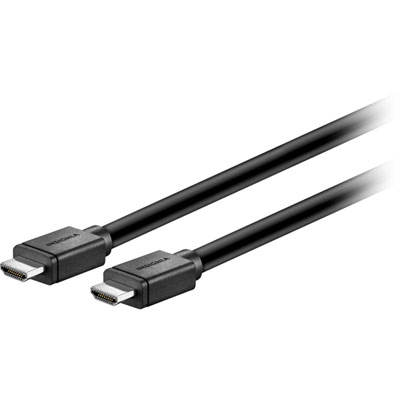 Your price for this item is $129.99
 -
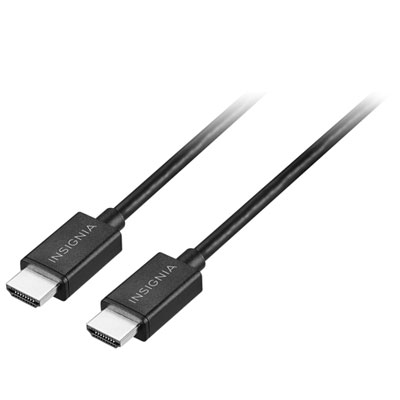 Your price for this item is $19.99
 -
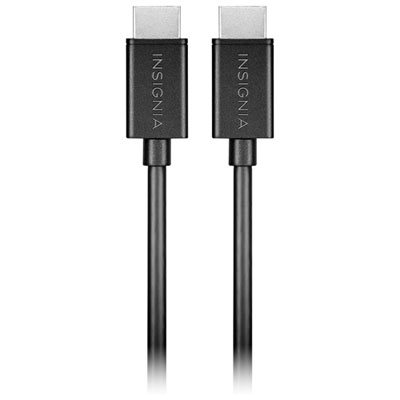 Your price for this item is $29.99
 -
![BDA / POWER A HDMI Cable Ps5 10 Ft [Power A]](https://multimedia.bbycastatic.ca/multimedia/products/500x500/176/17616/17616431.jpeg) Your price for this item is $59.99
Your price for this item is $59.99 -
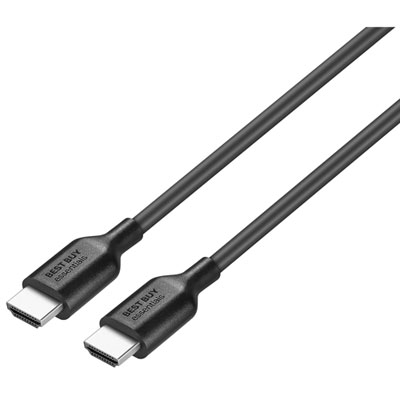 Your price for this item is $19.99
 -
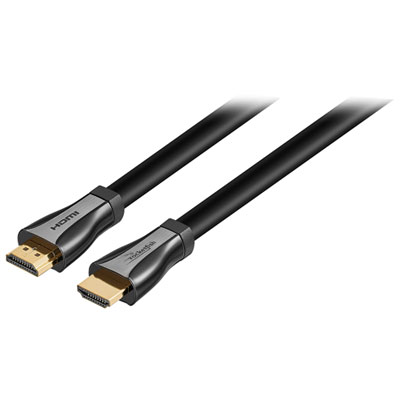 Your price for this item is $119.99
Discover more categories related to HDMI Cables for Laptop
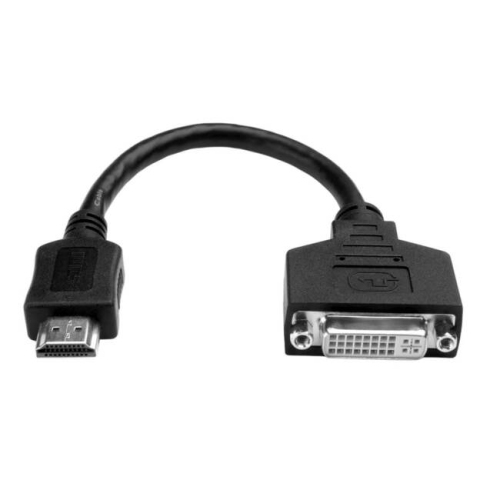
Top Collections:
Pokemon Centers, Kindle Devices, Best Budget Office Chairs, Apple iPhones 16, Best Laptops for Writers, iPhone 15 Apple, Canon G7X Cameras, Refurbished Apple Laptops, Alarm Clock, Motorola Razr Phones
Some products may be subject to Environmental Handling Fees
(EHF) depending on your province.
Learn more about EHFs.