Chromebook for Kids
Looking for a reliable and fun way to introduce your child to the world of technology? Our chromebooks for kids are designed with young learners in mind, offering a blend of educational content, entertainment options, and user-friendly features. With a focus on durability, safety, and interactive tools, these chromebooks provide a secure environment for children to explore, learn, and play. Whether it's for homework assignments, creative projects, or simply enjoying multimedia content, these devices are the perfect companion for young minds eager to dive into the digital realm.
Sort
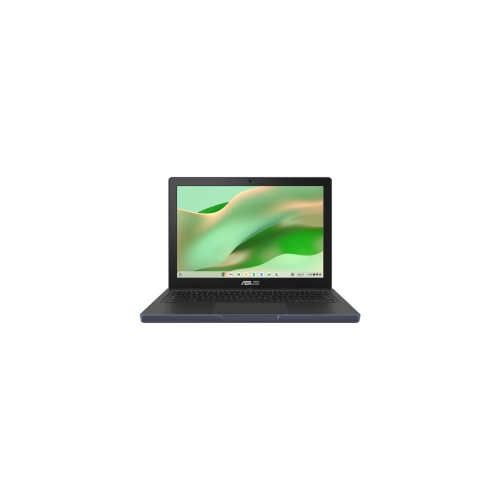
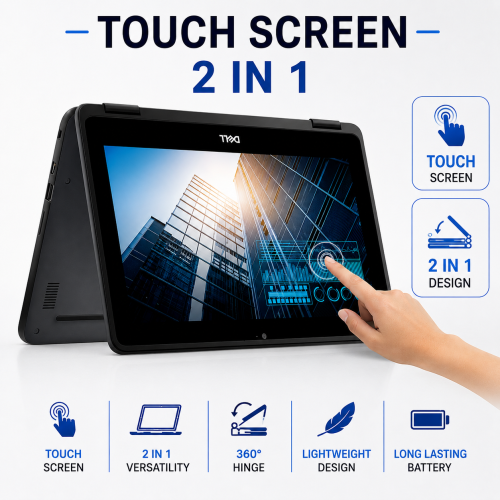
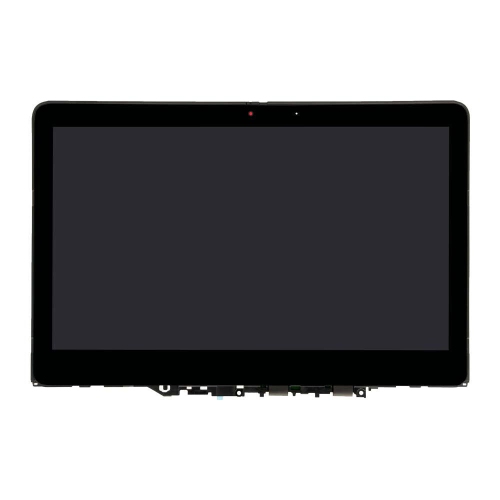
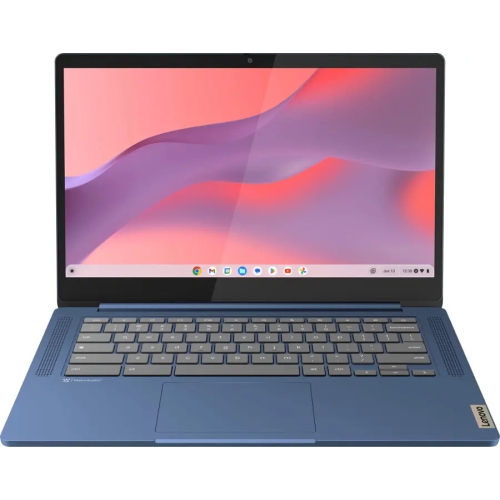
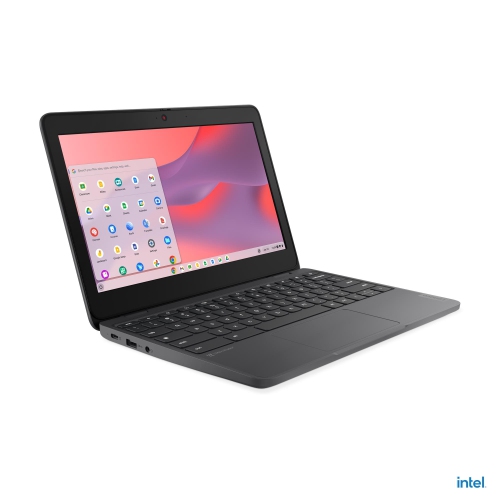
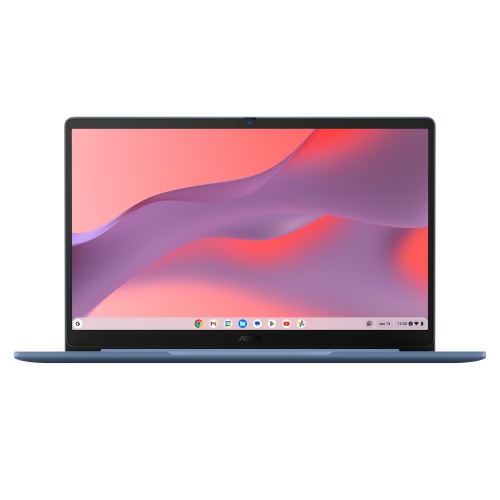
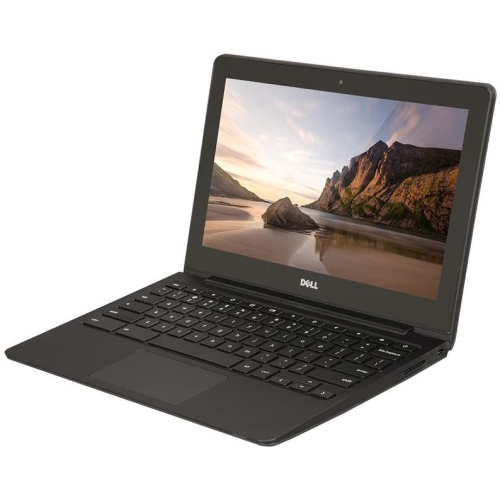
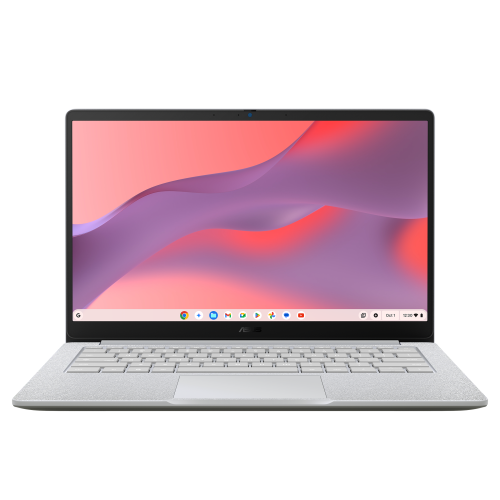
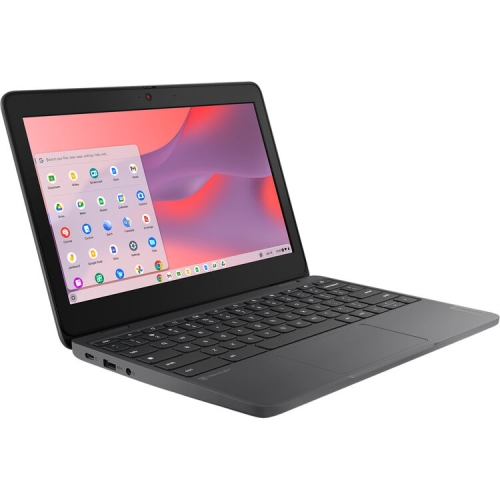
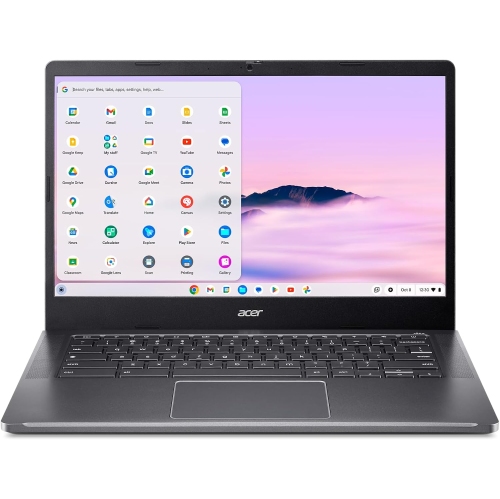
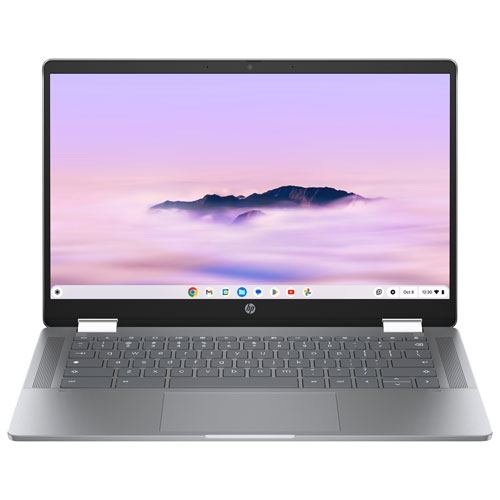
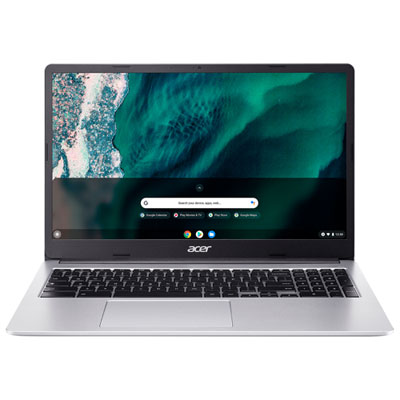
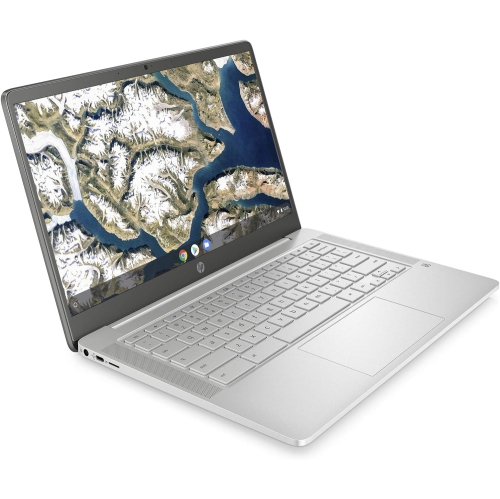
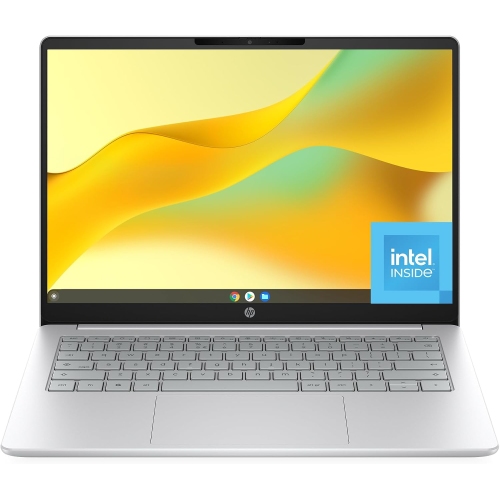
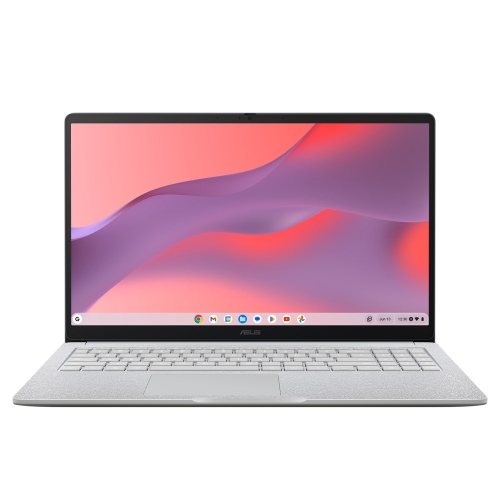
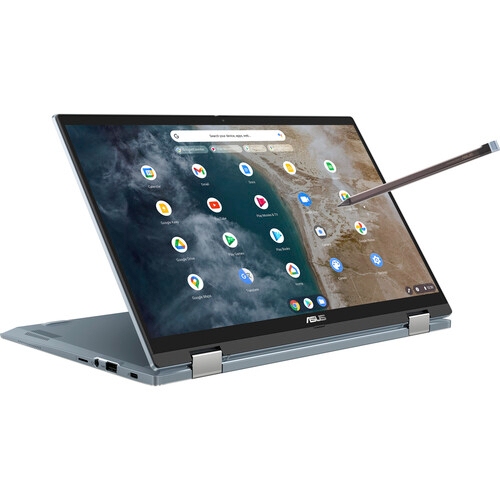
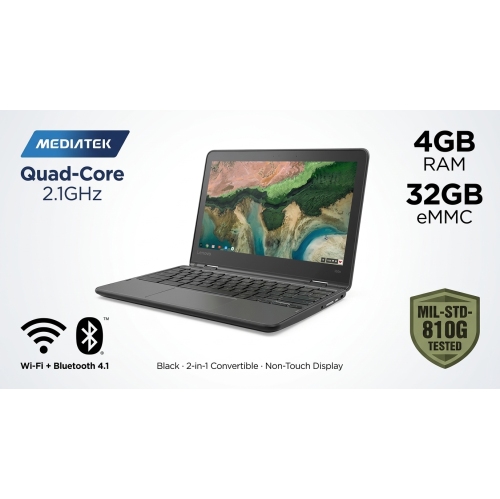
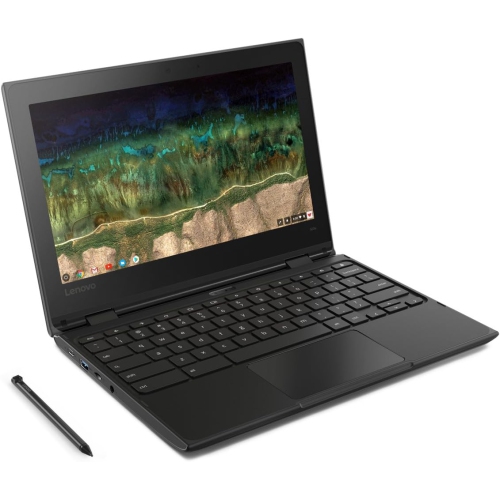
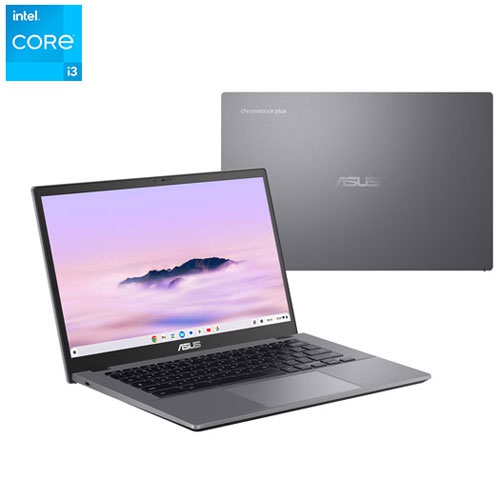
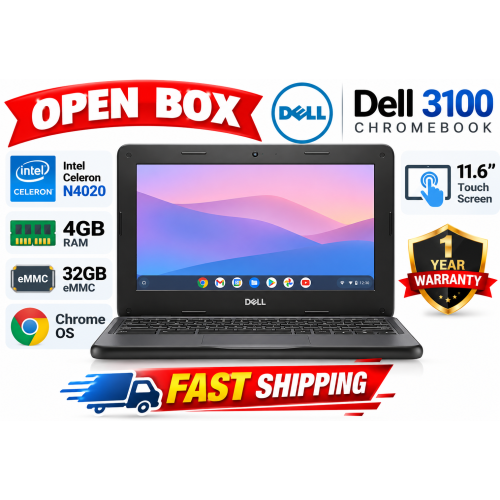

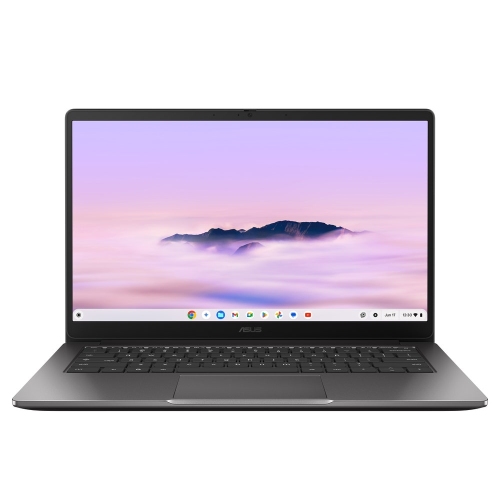
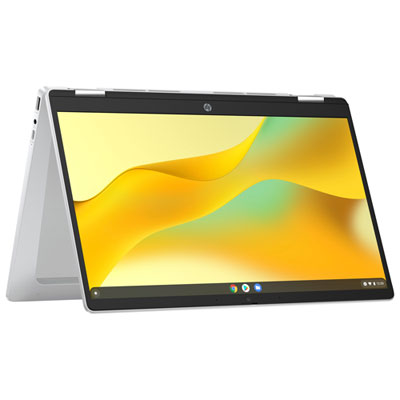
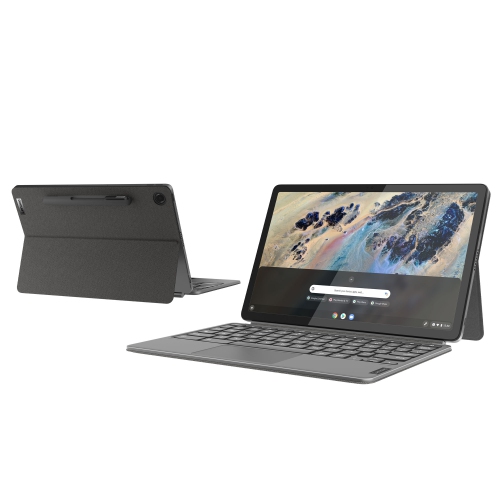
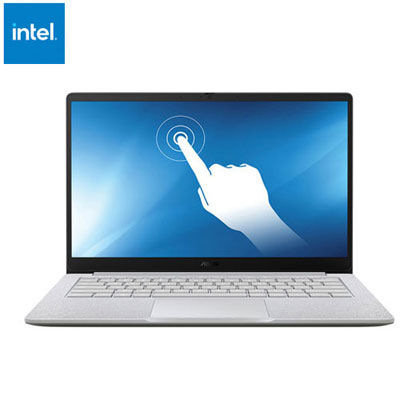
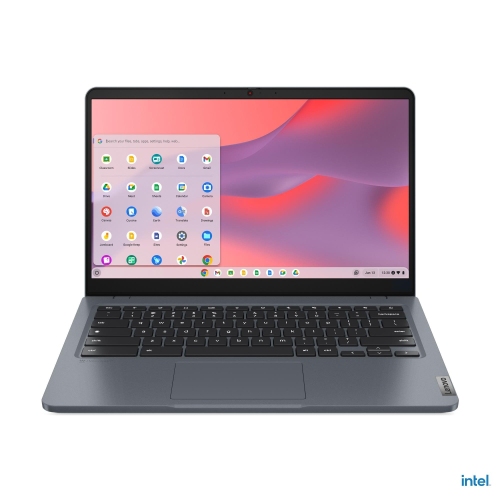
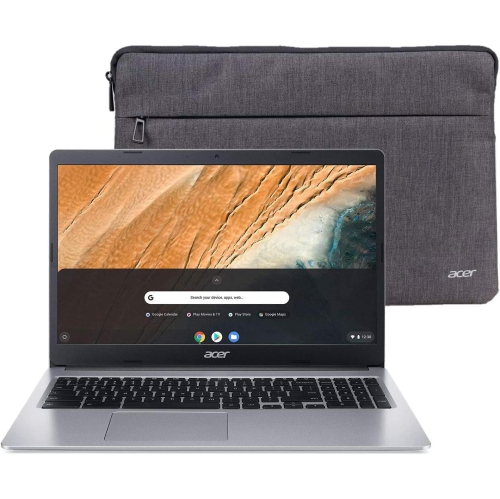
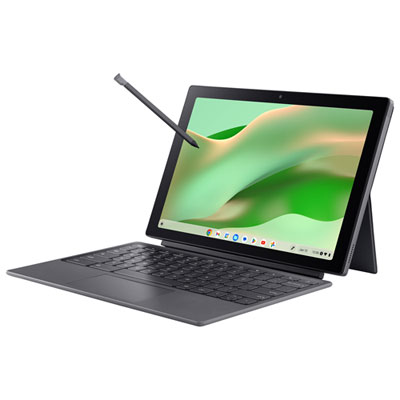
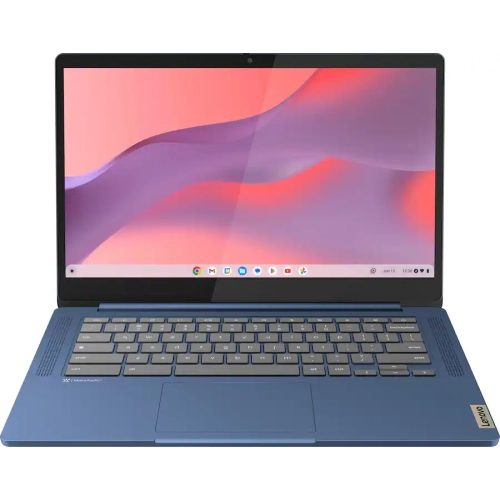
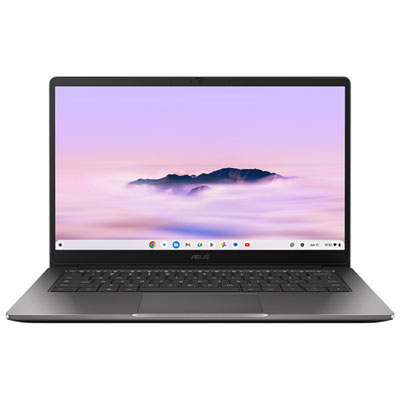
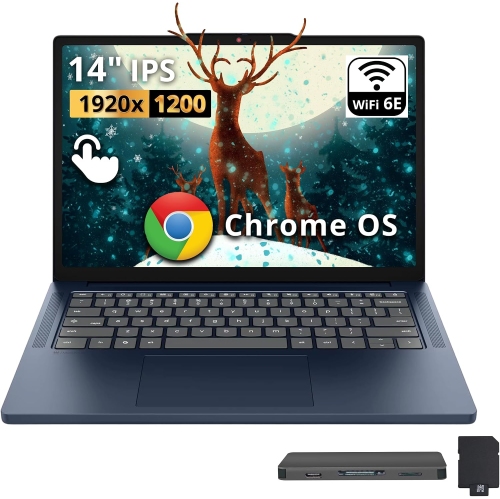
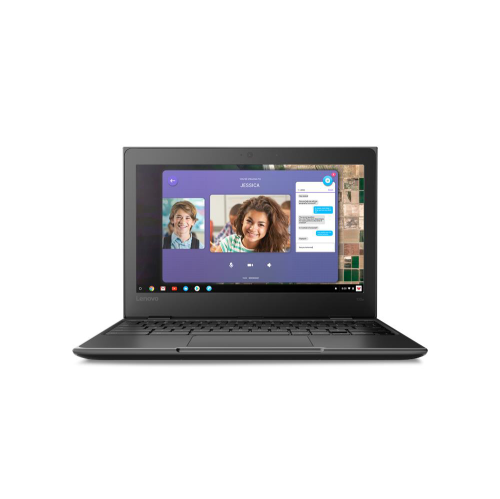
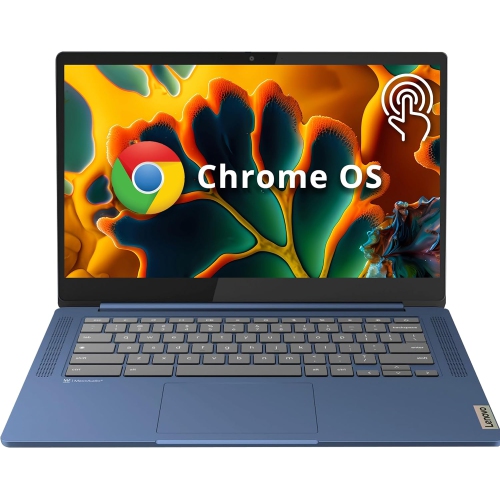

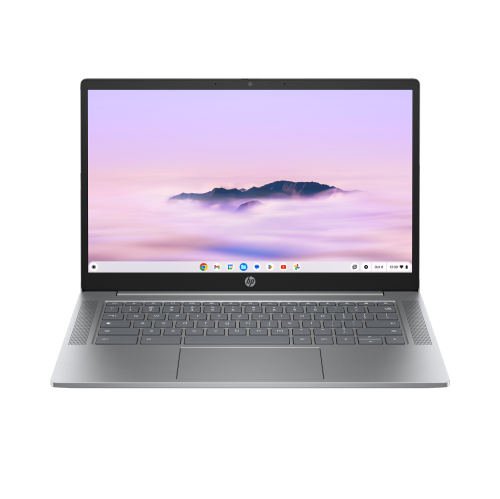
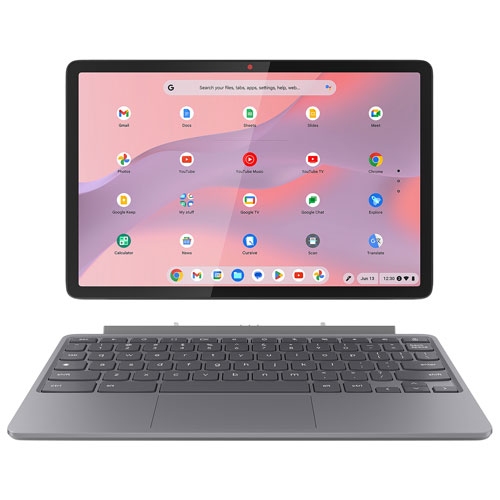
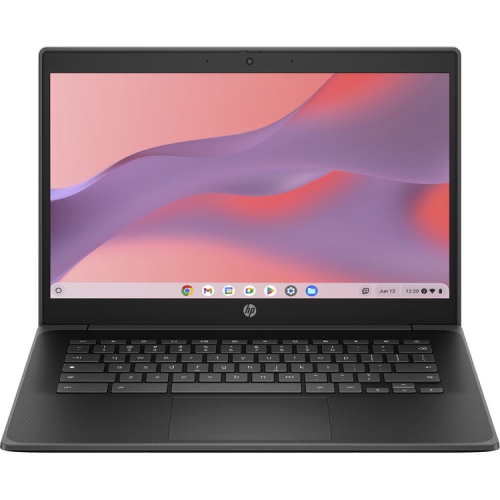
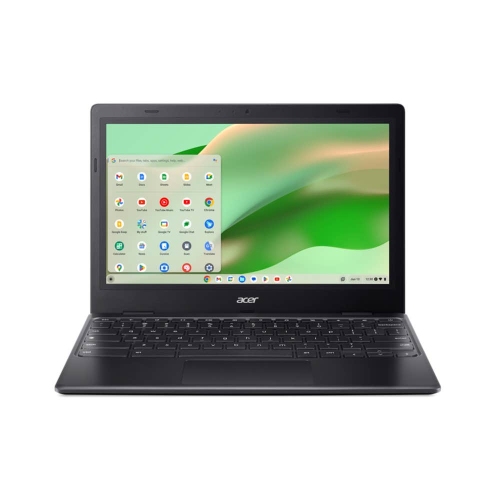
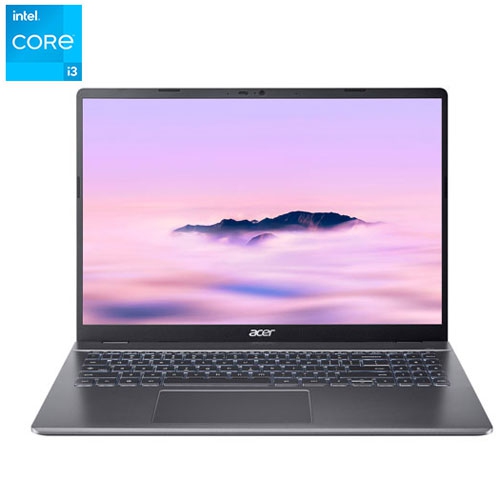
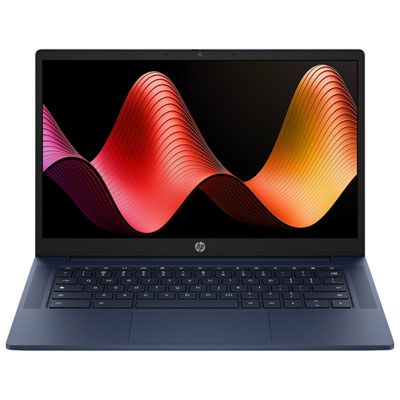
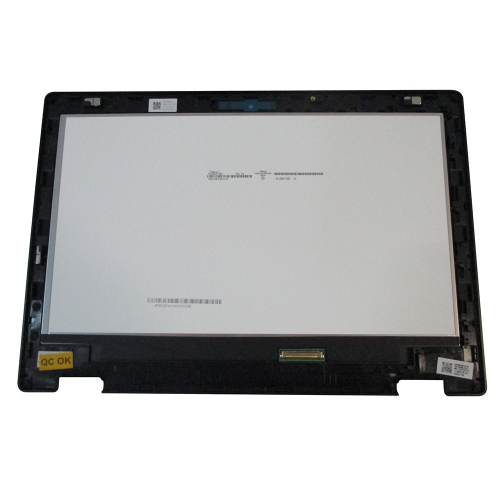
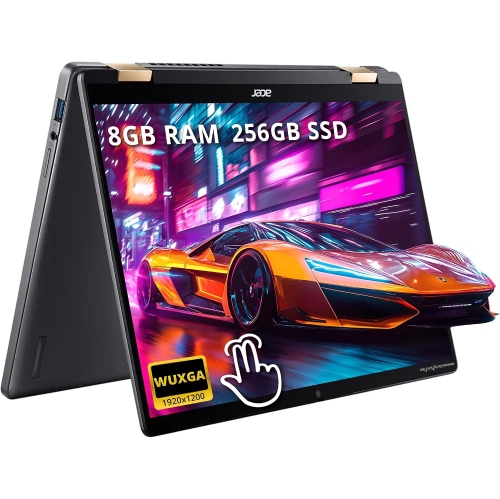
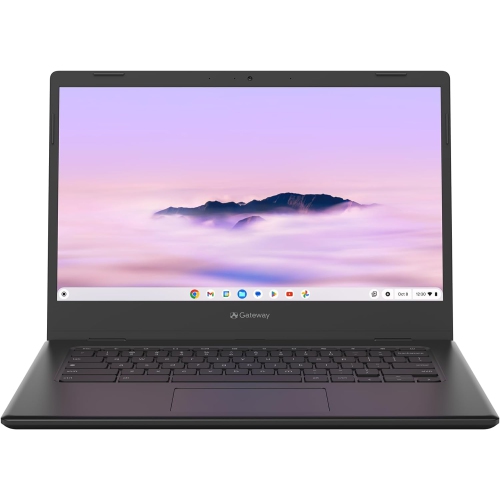
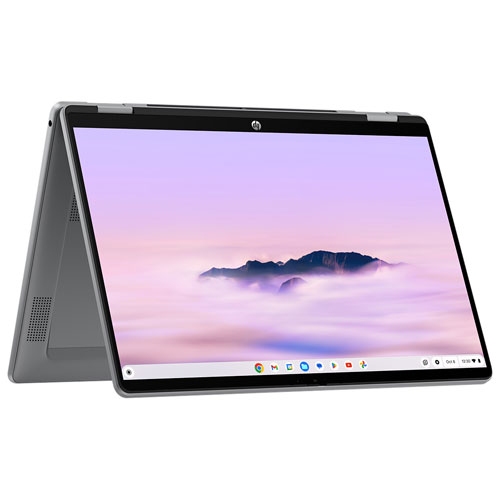
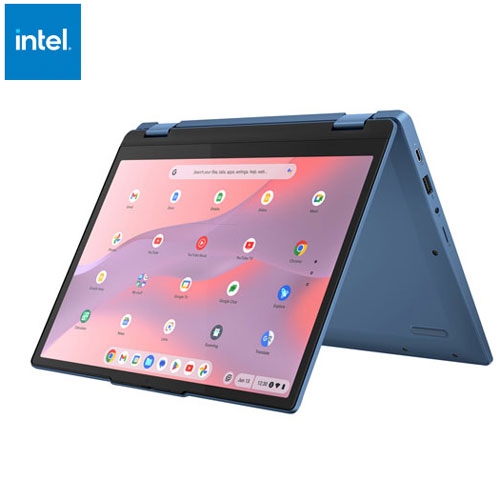
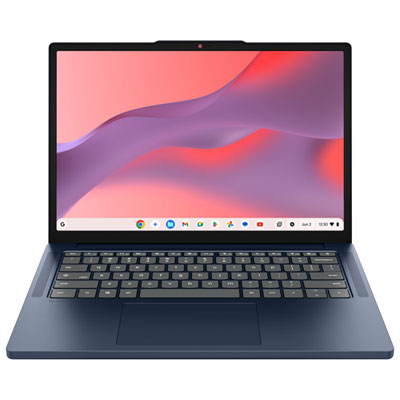
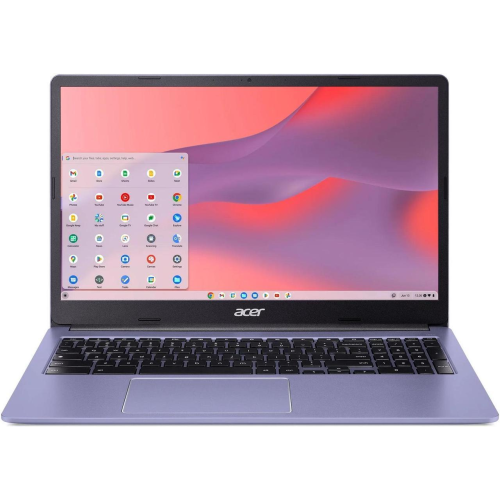

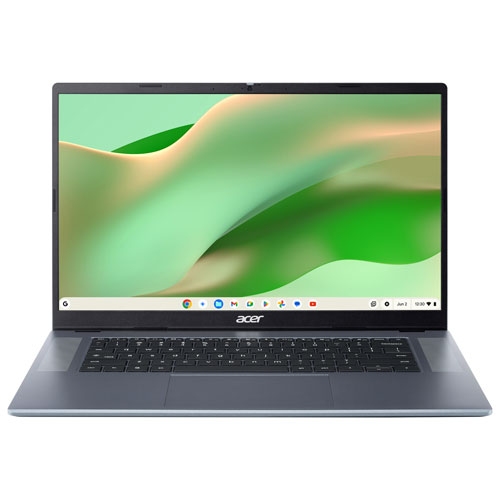
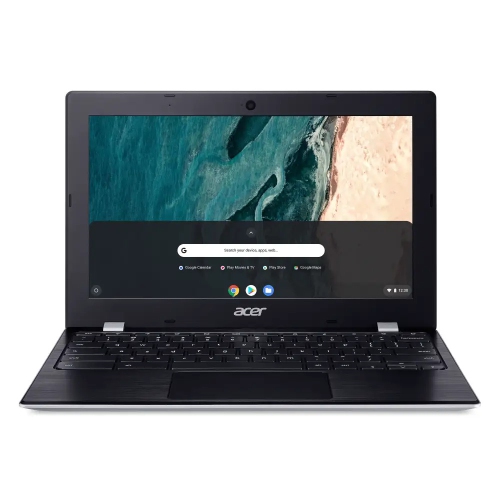
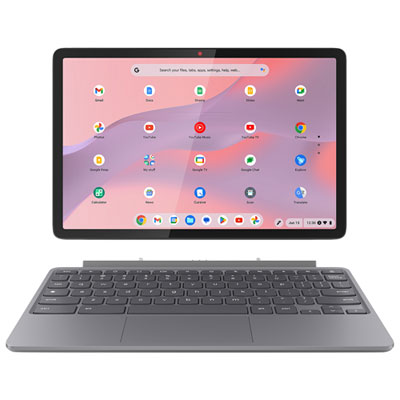
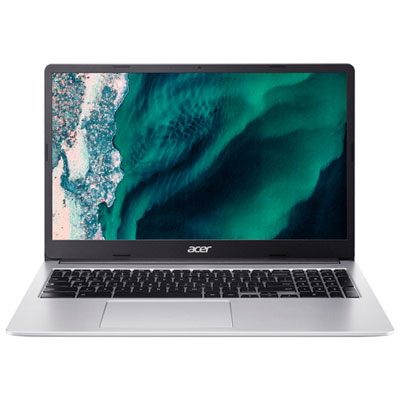
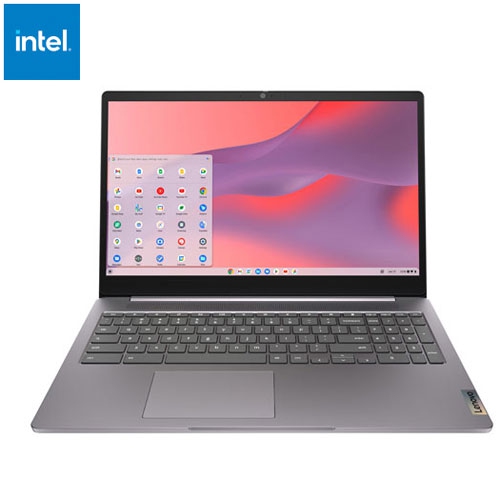
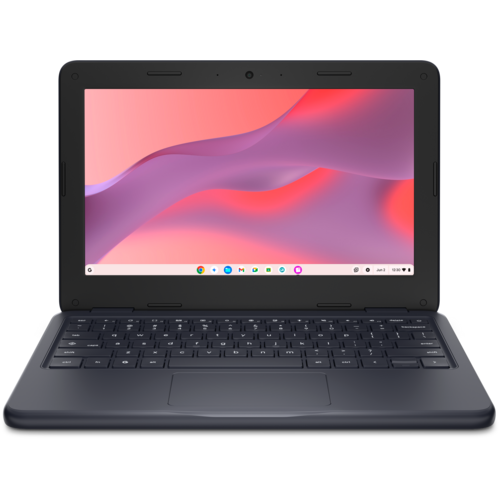
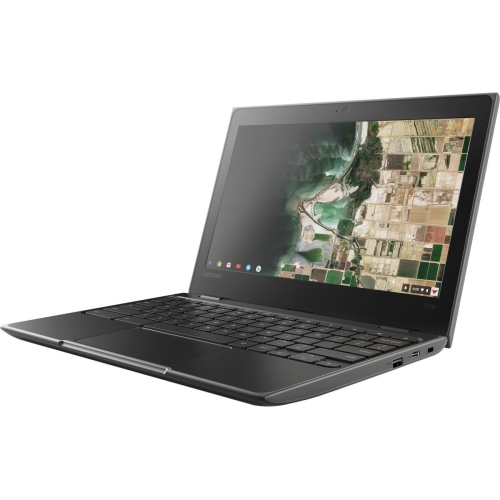
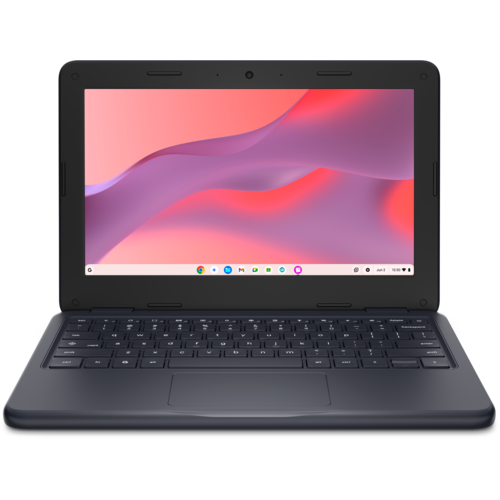
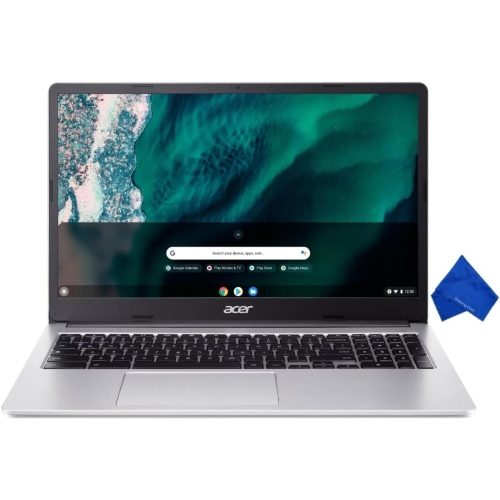
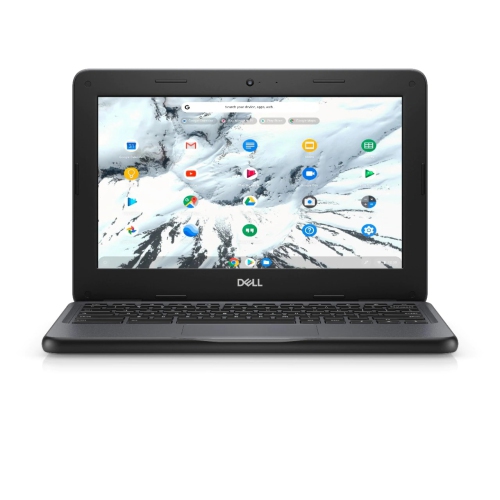
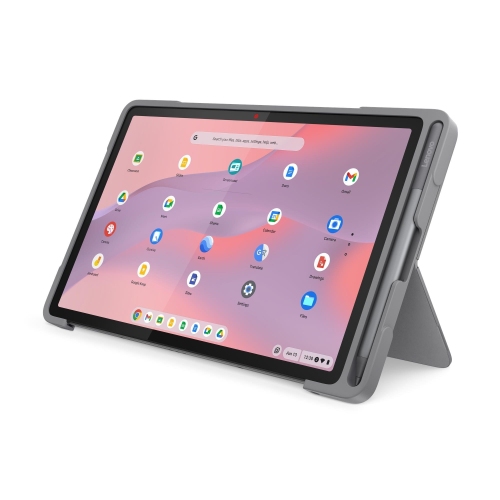
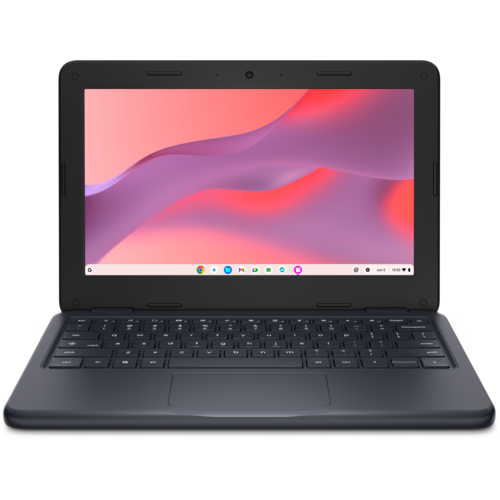
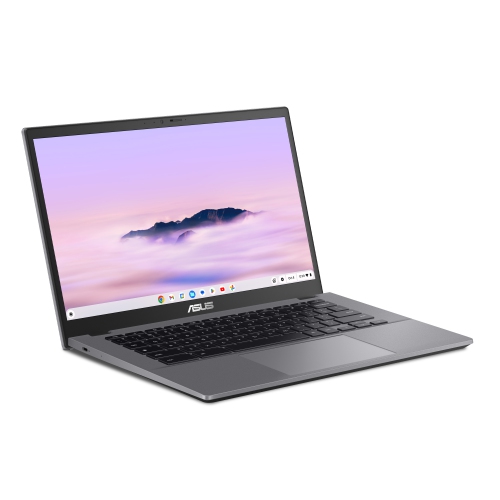
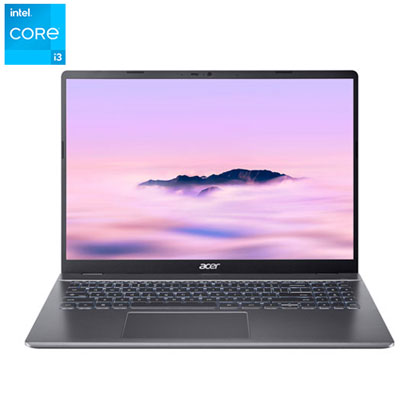
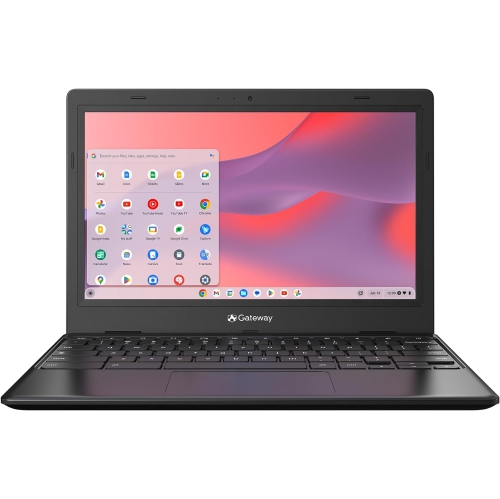
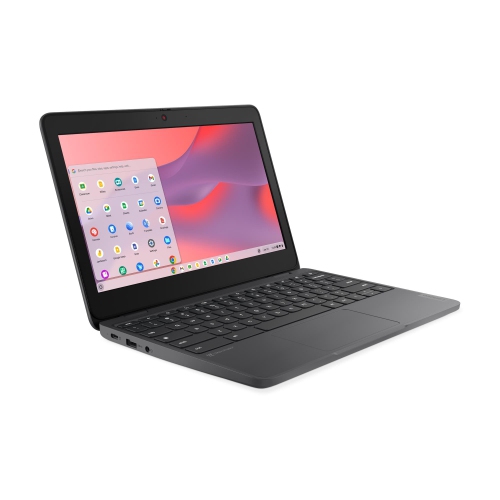
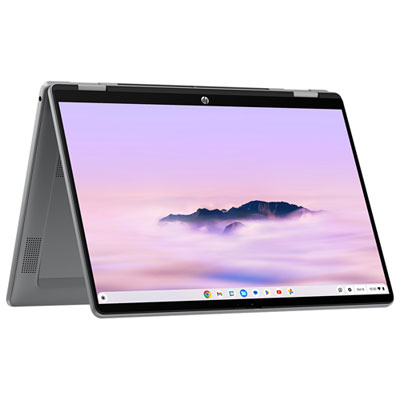
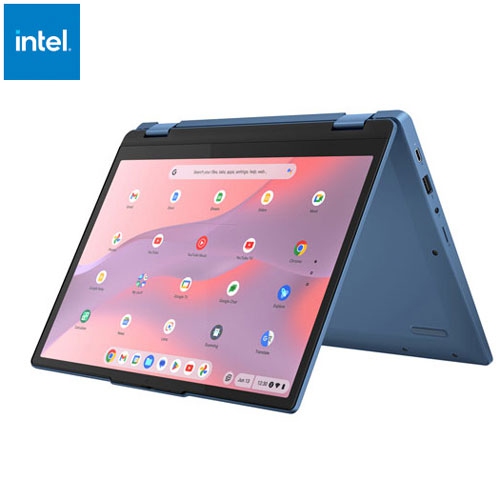
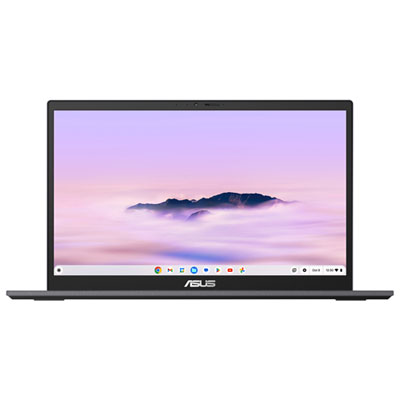
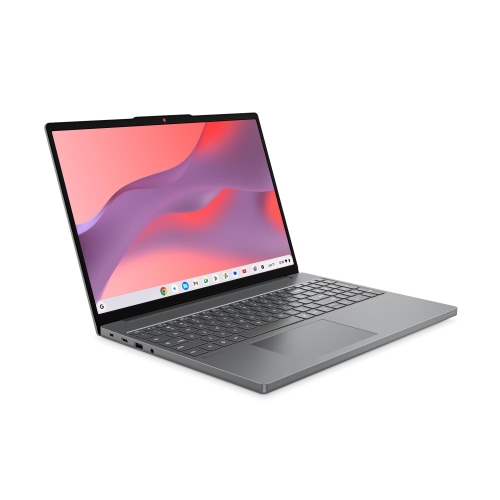
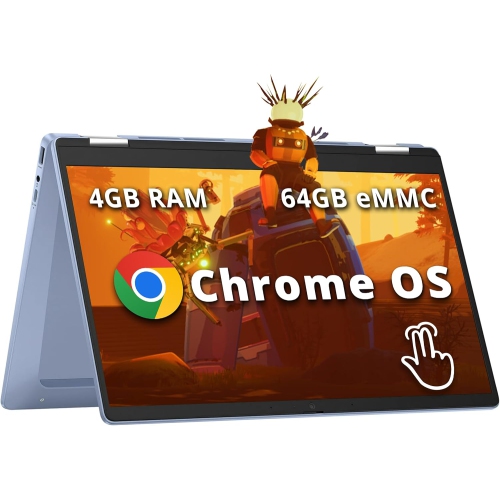
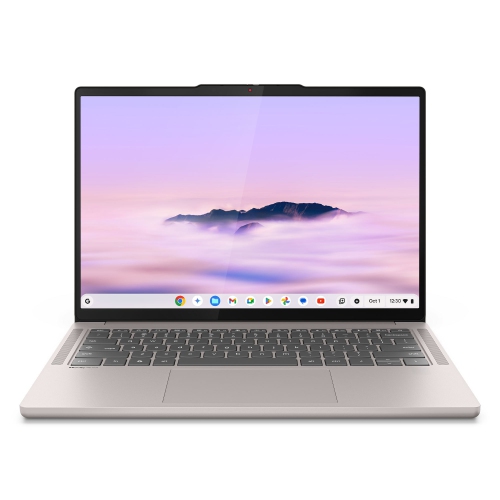
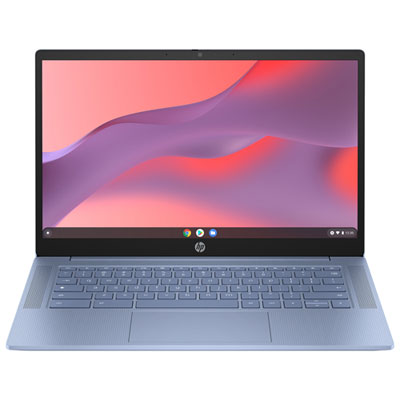
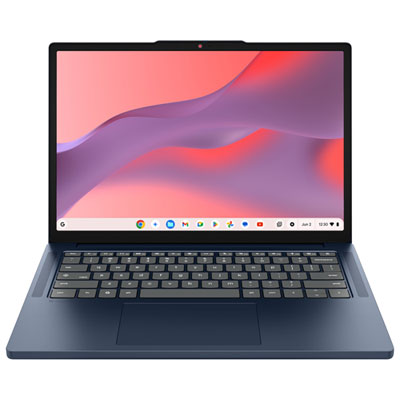
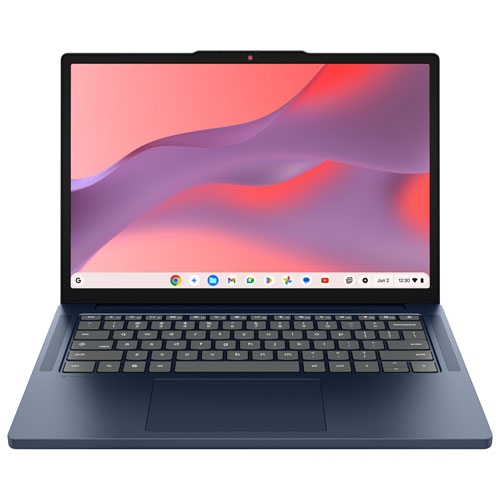
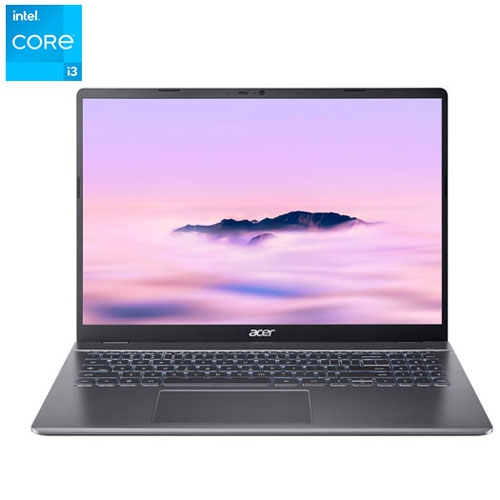
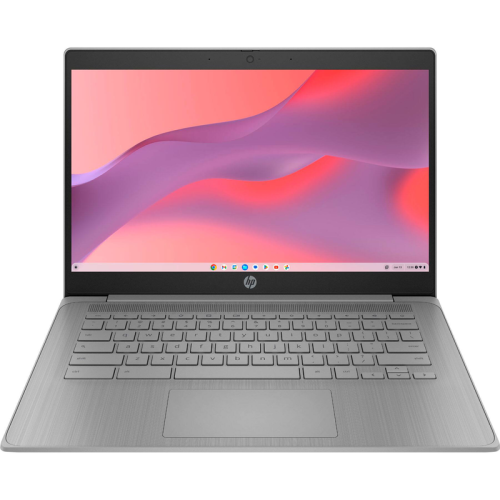
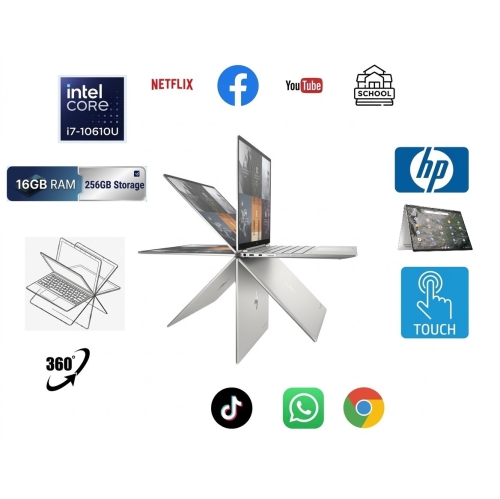
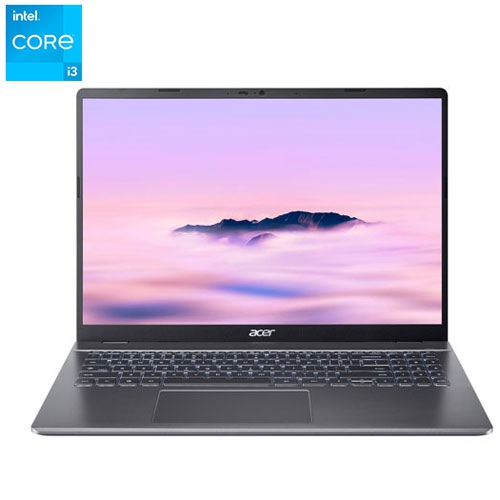
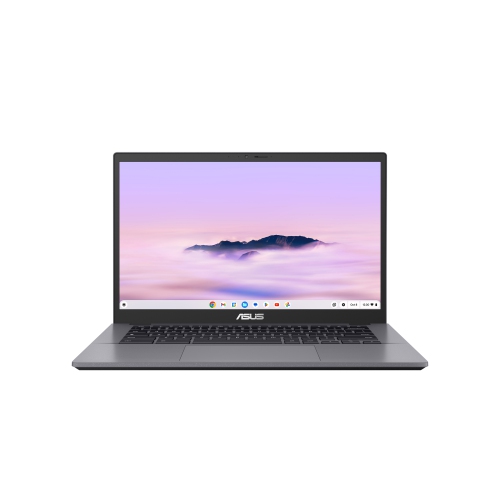
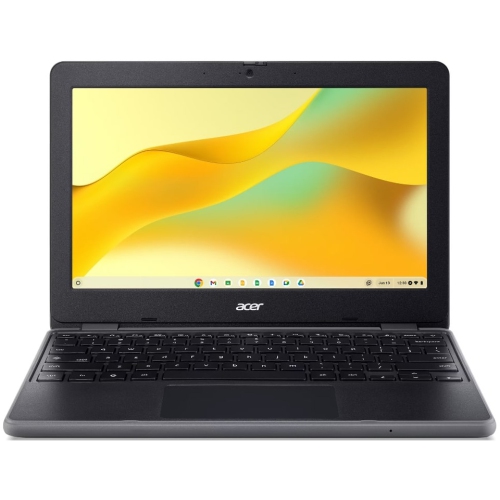
The right laptop fit goes beyond screen size
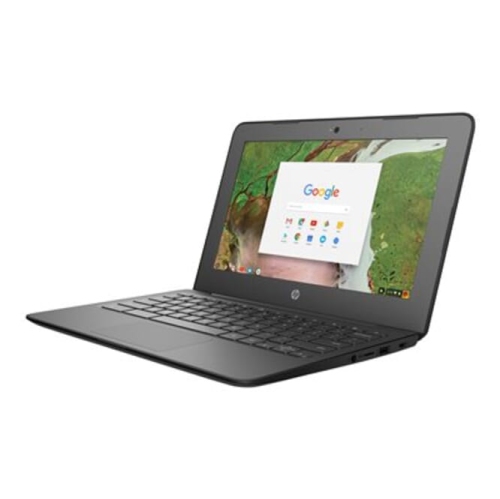
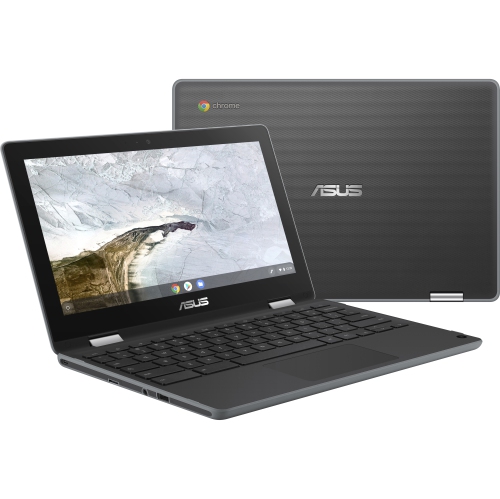
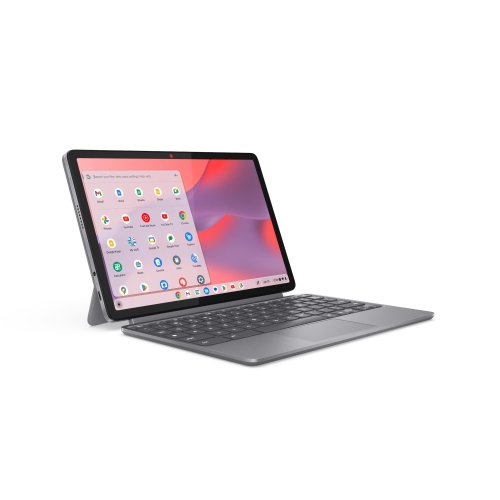
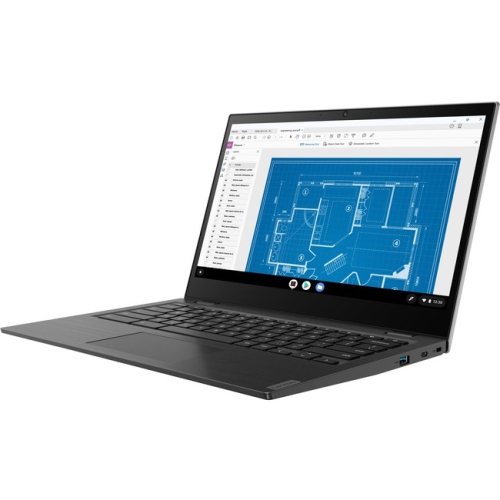
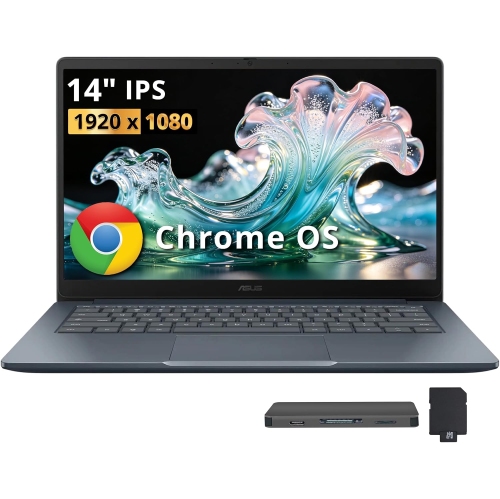
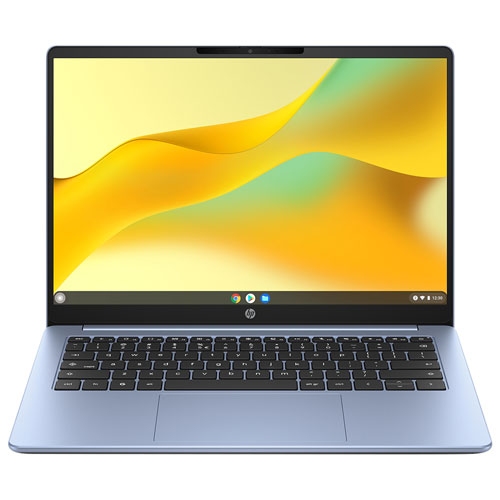
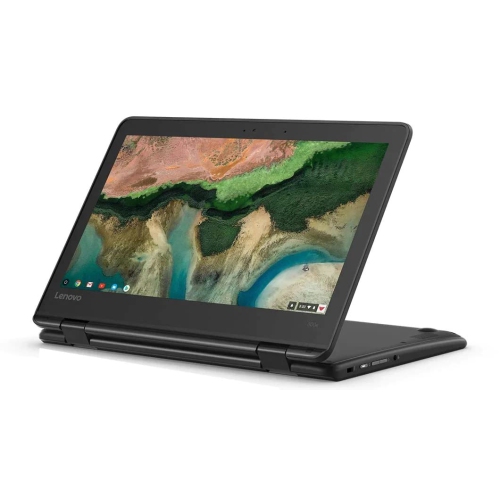
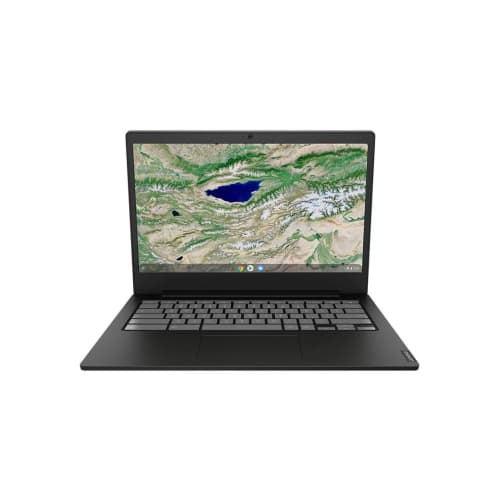
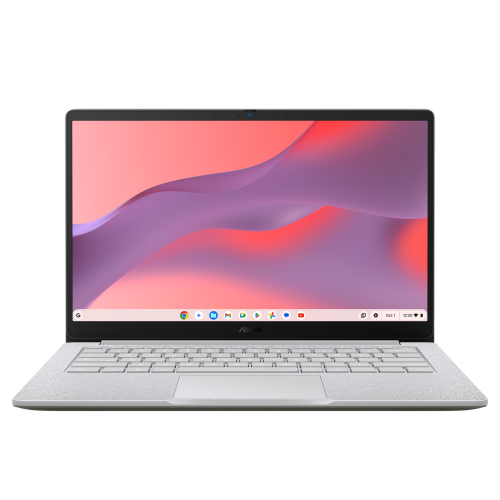
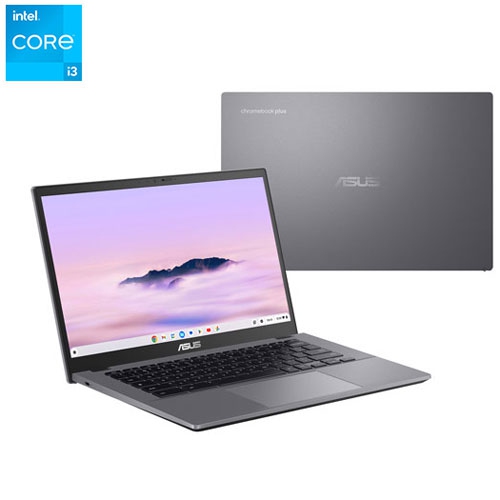
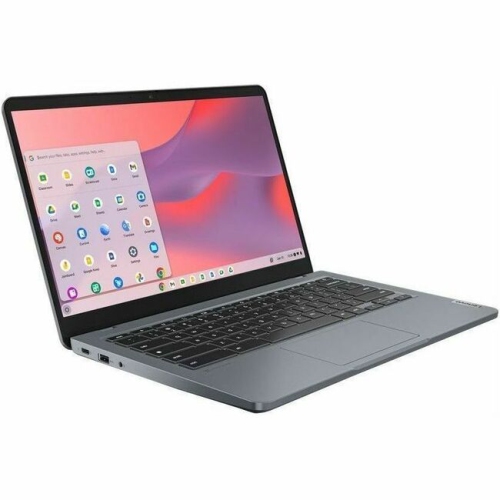
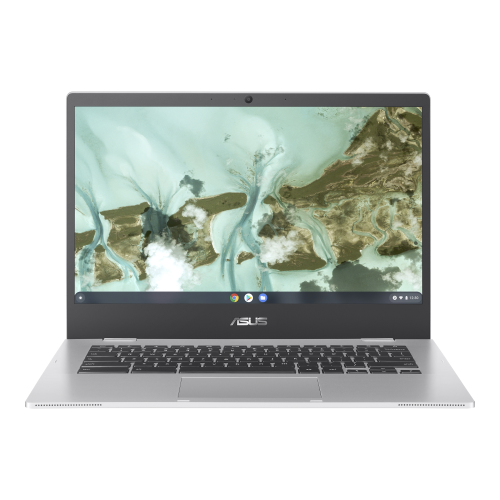
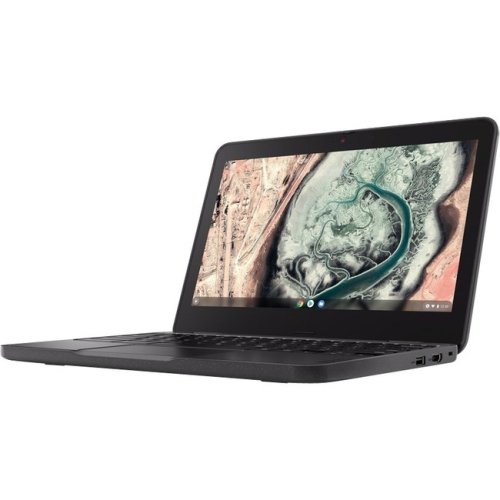
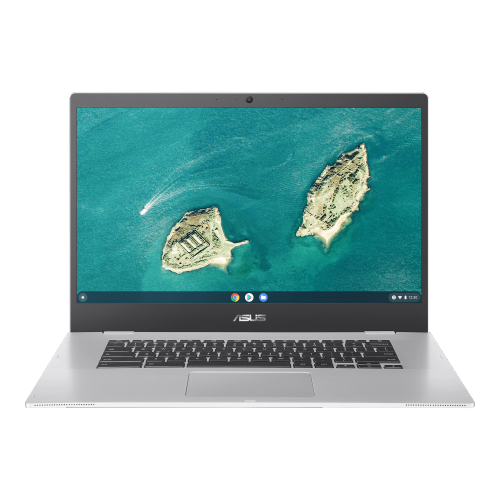
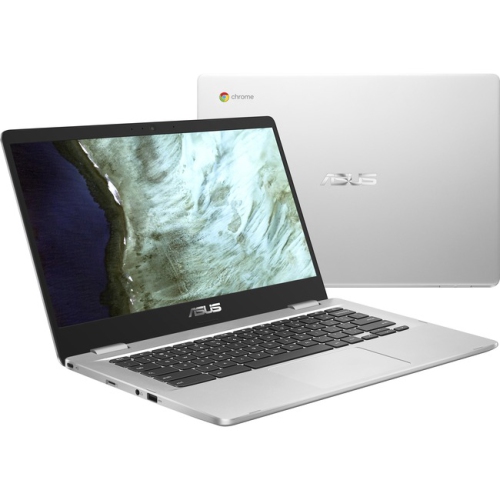
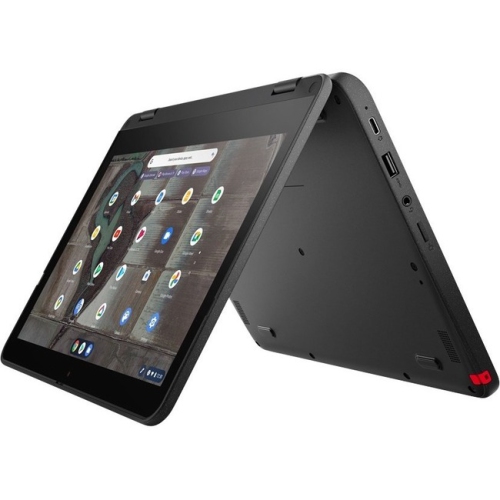
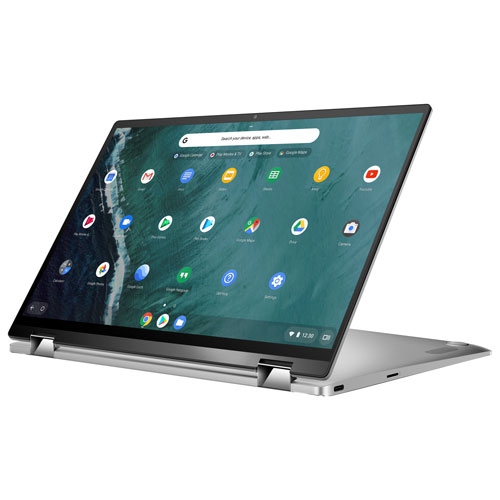
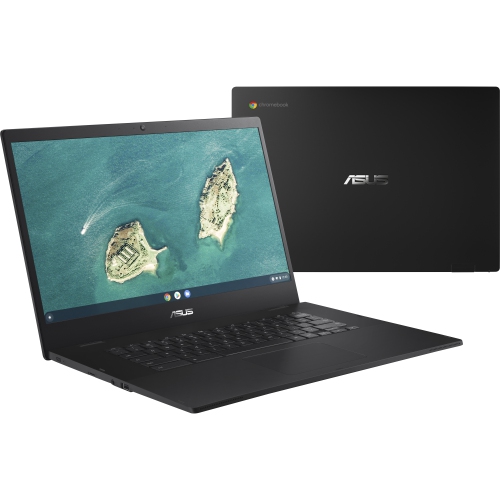
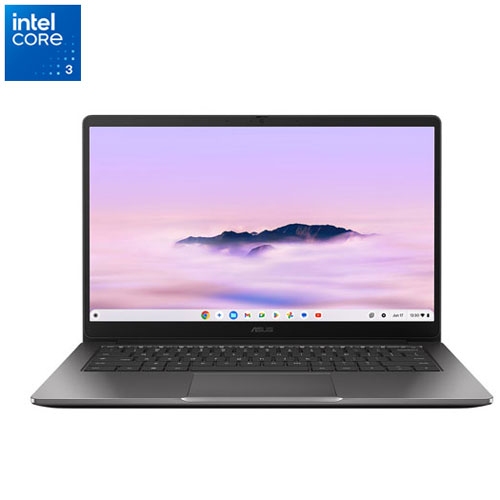
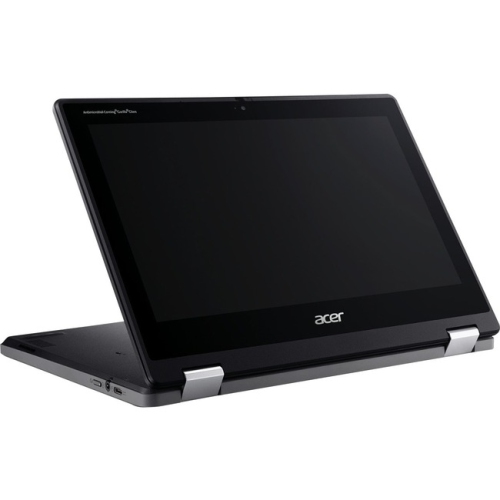
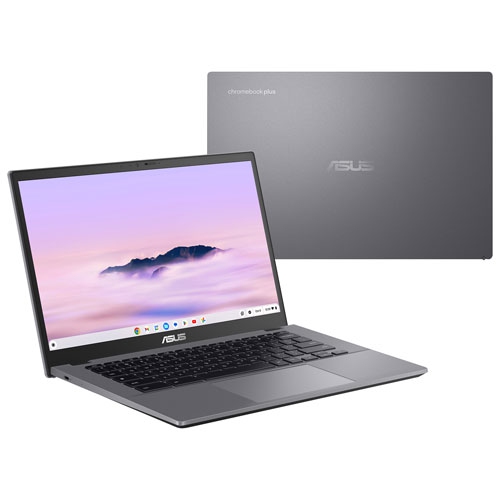
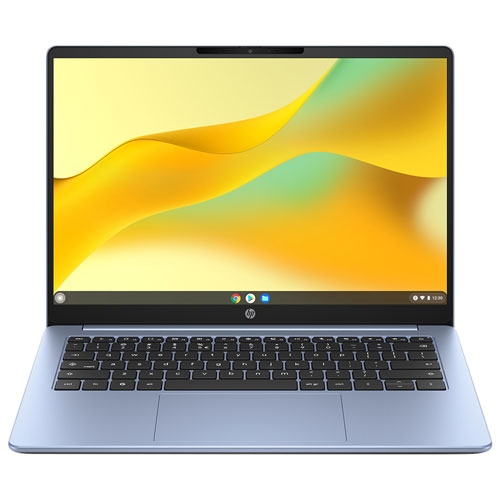
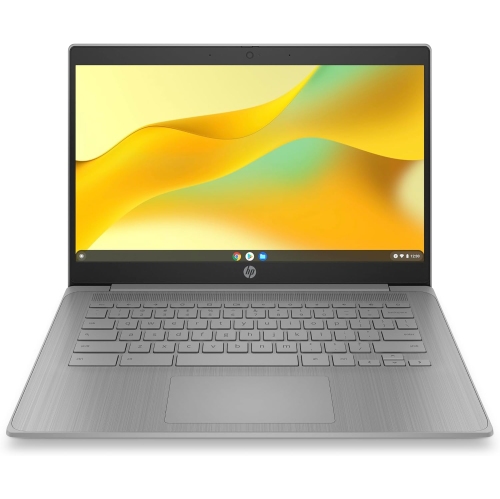
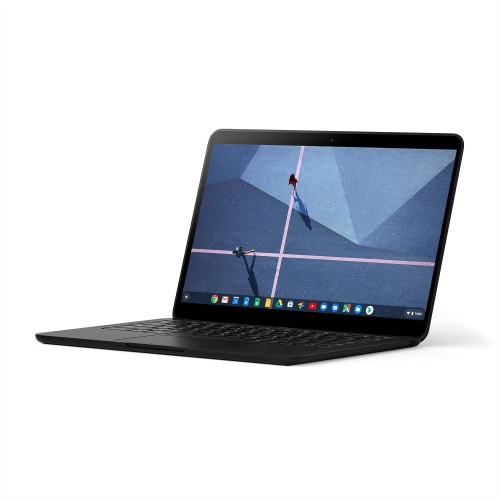
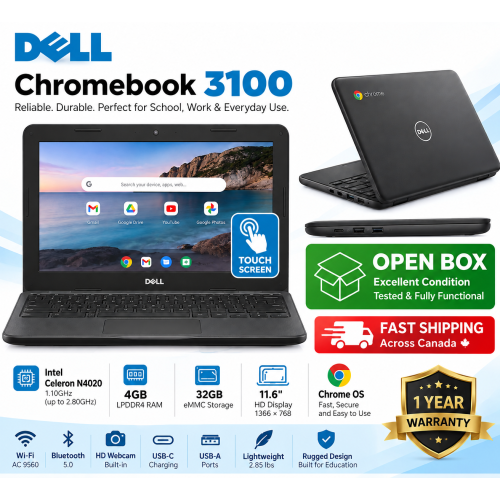
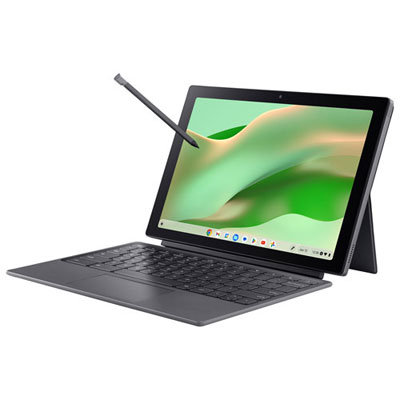
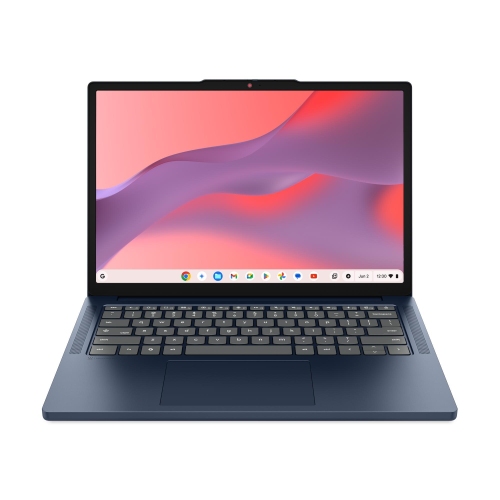
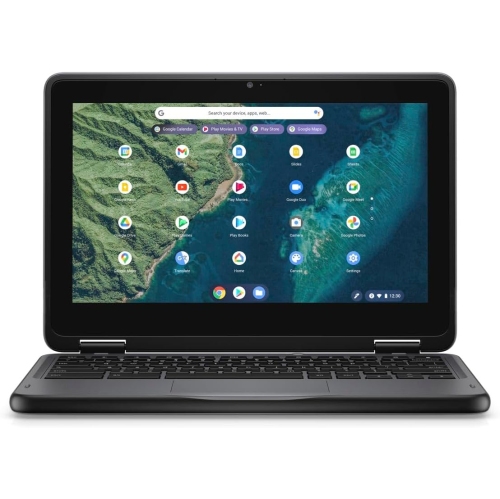
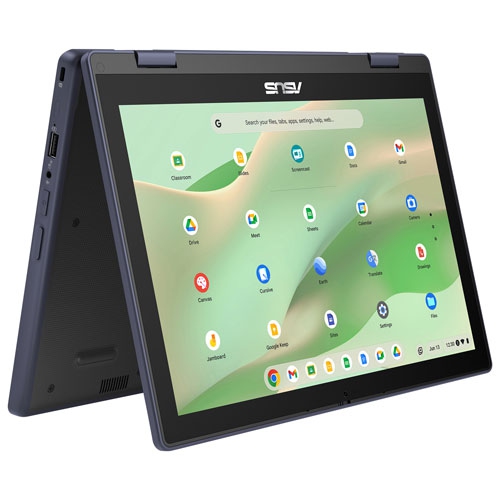
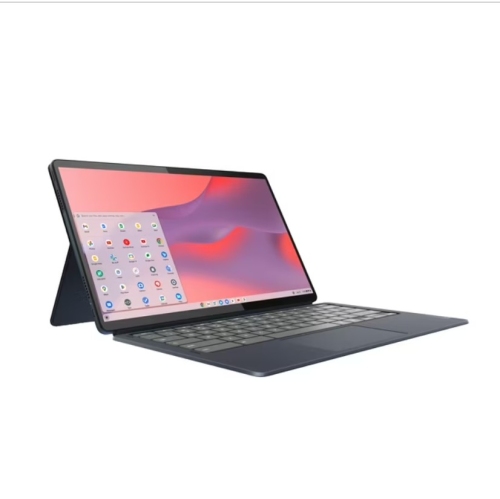
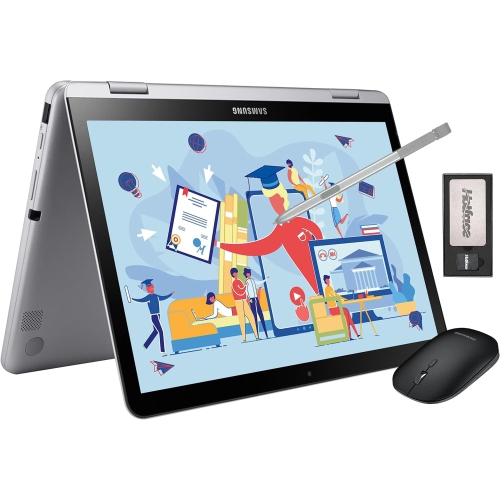
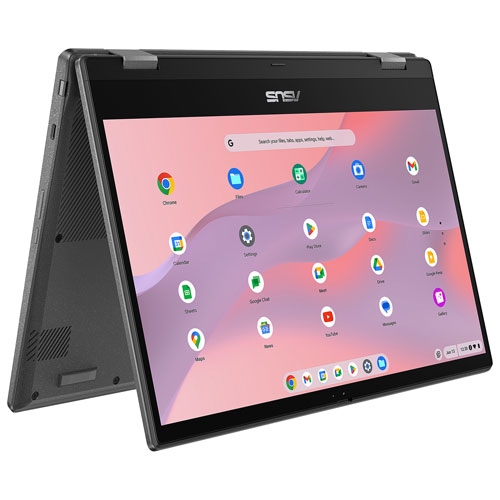
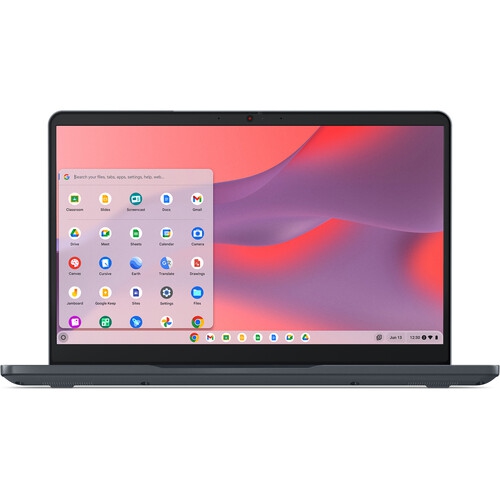
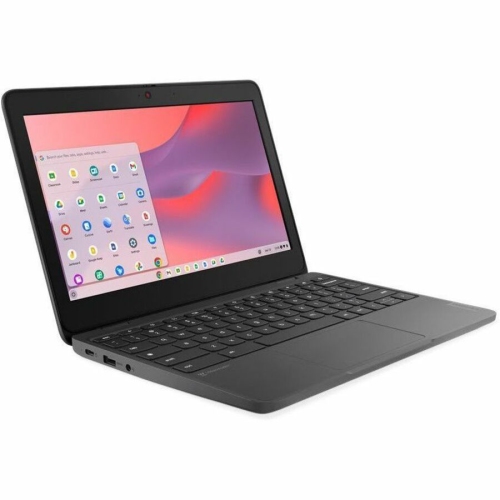
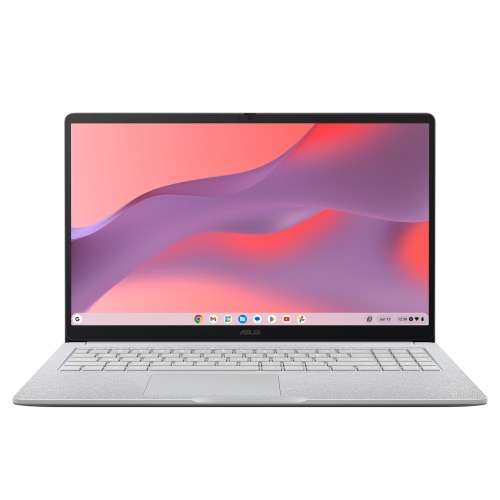
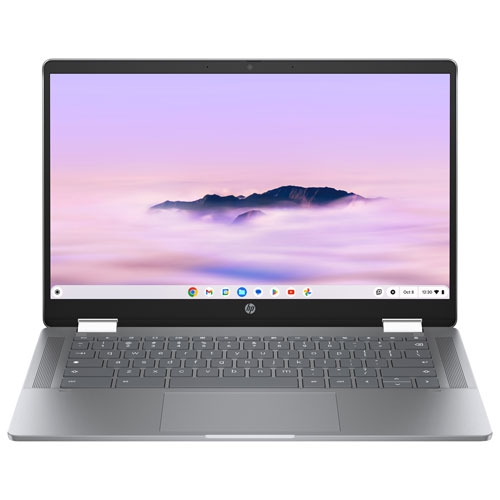
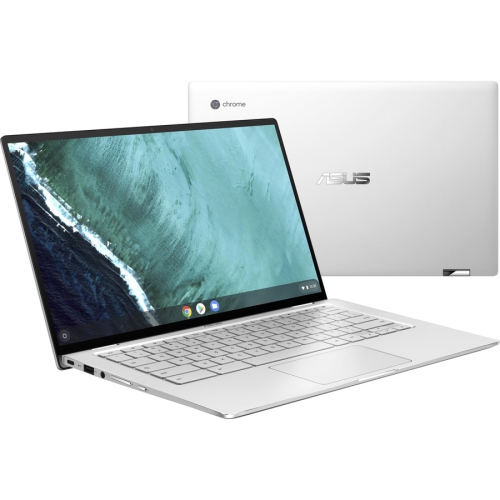
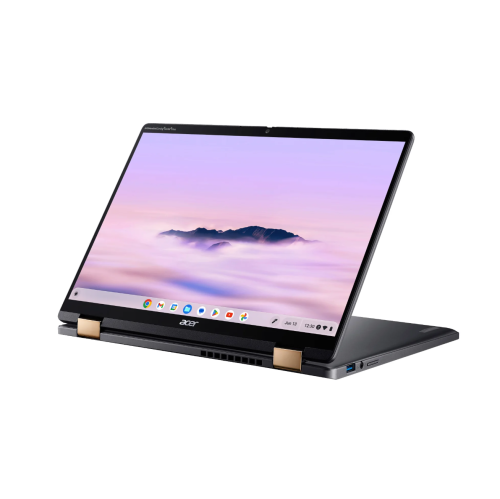
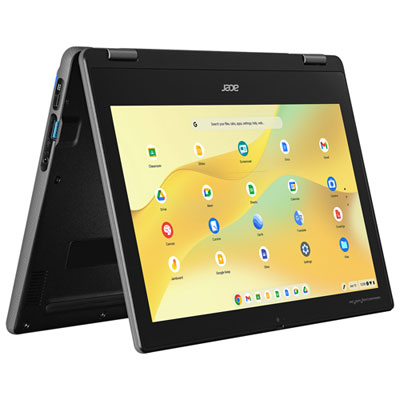
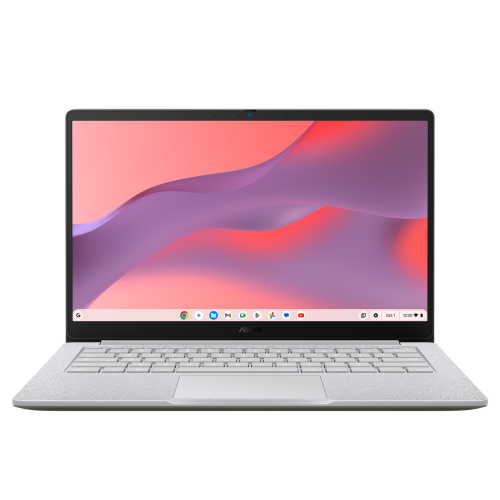
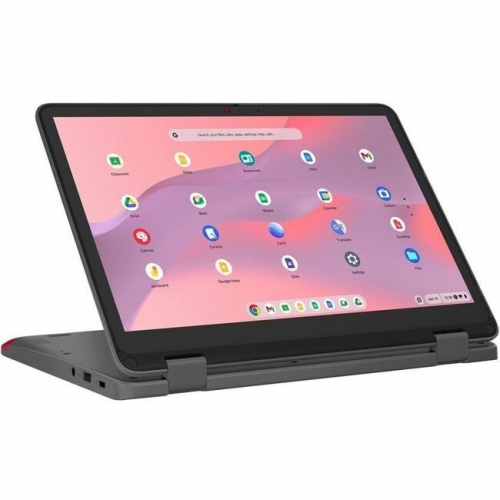
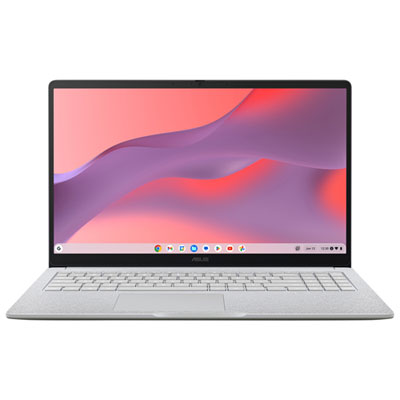
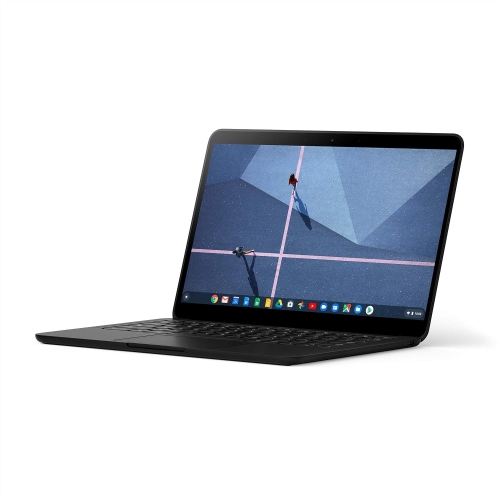
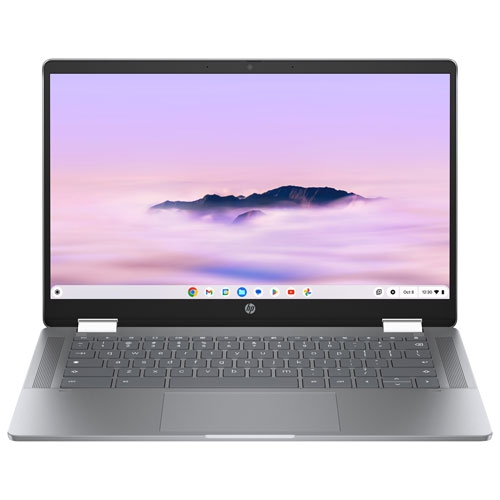
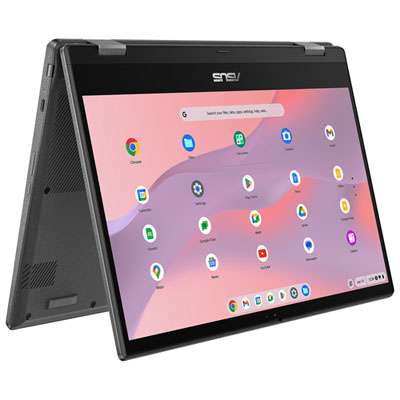
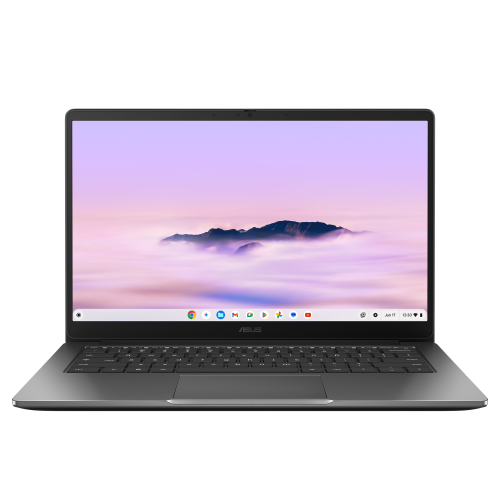
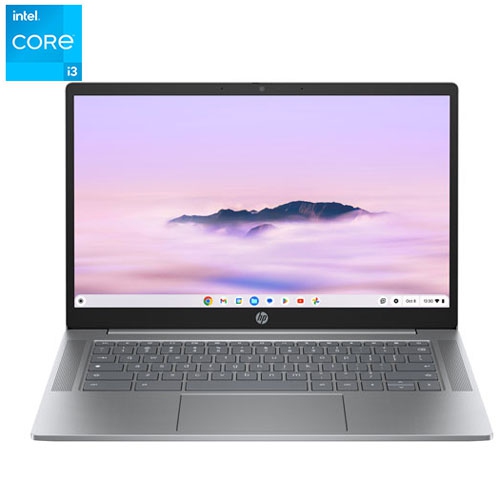
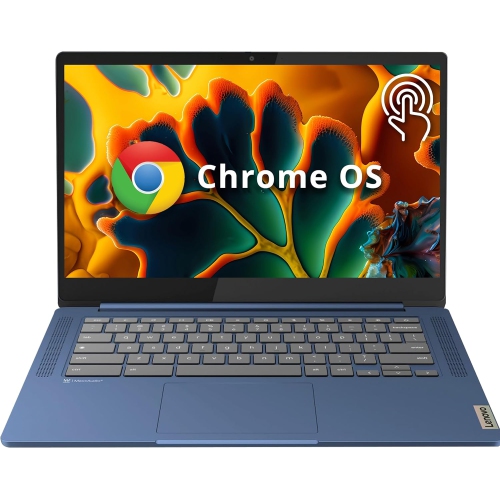
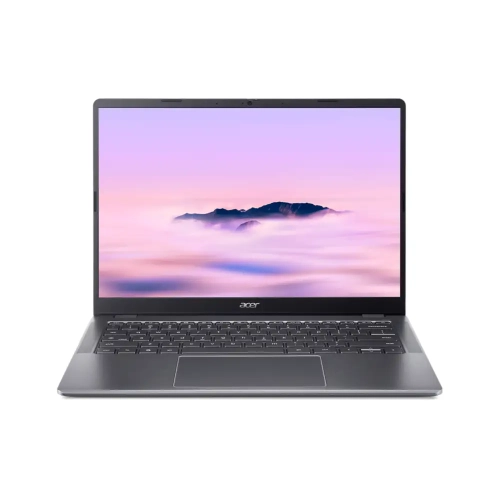
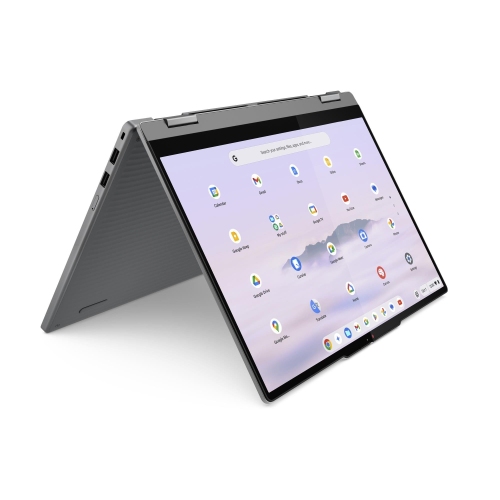
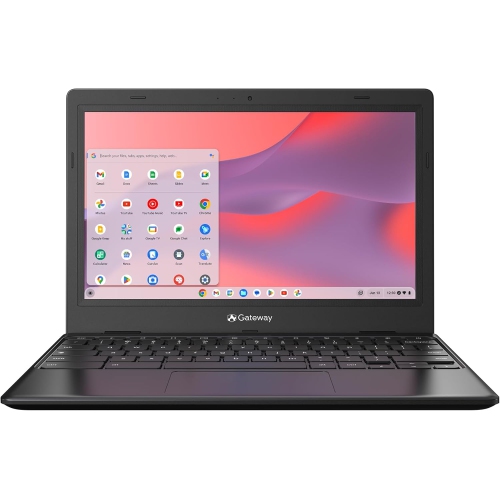
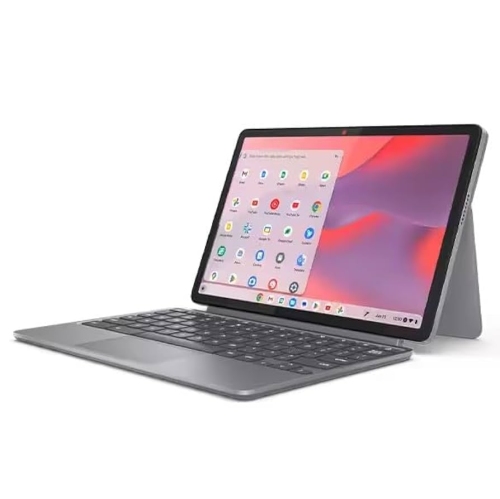
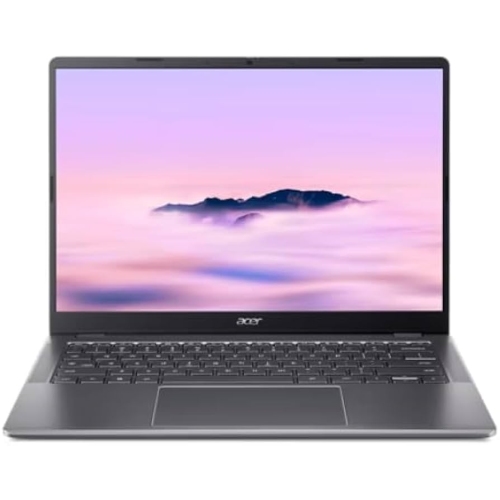
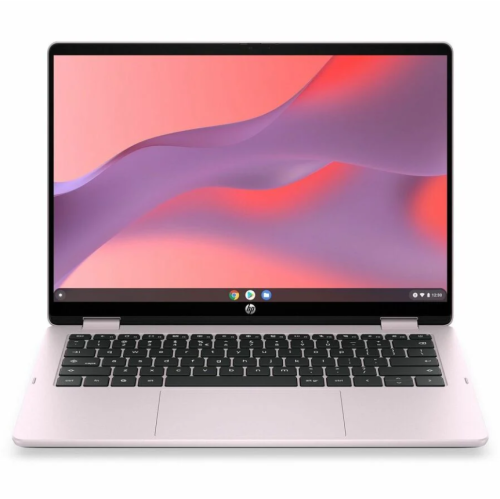
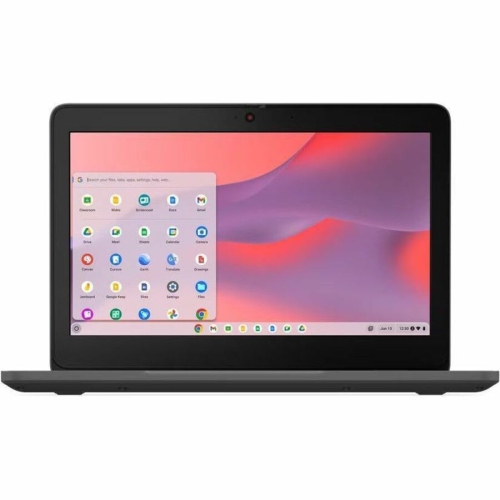
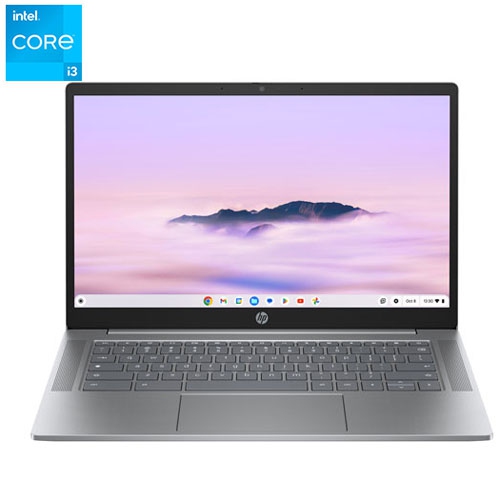
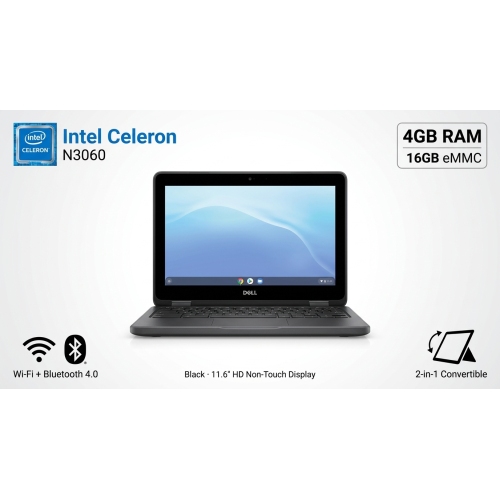
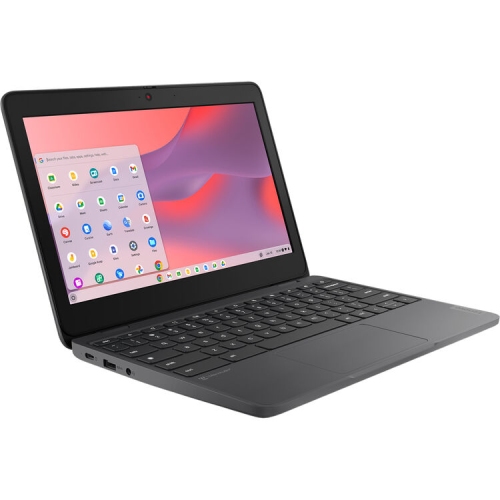
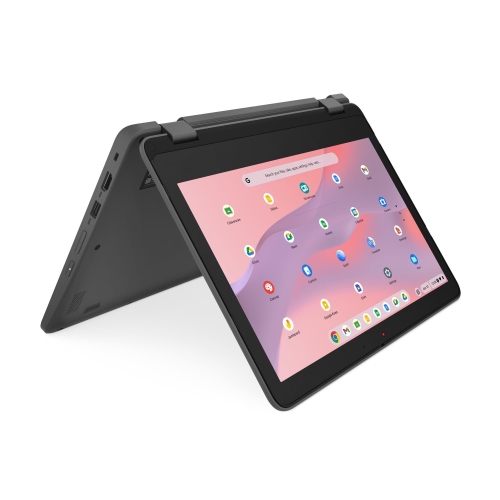
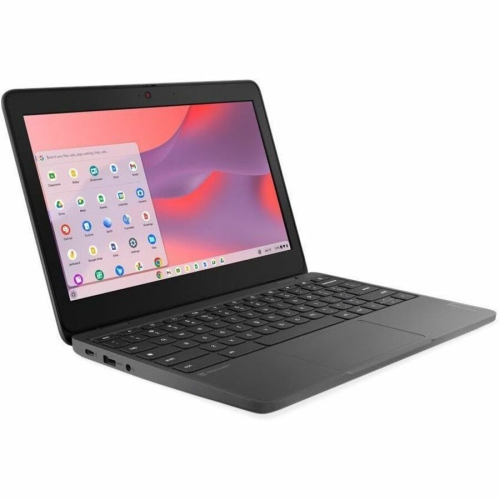
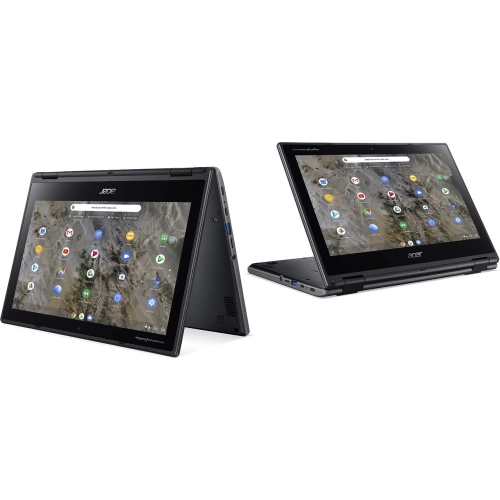
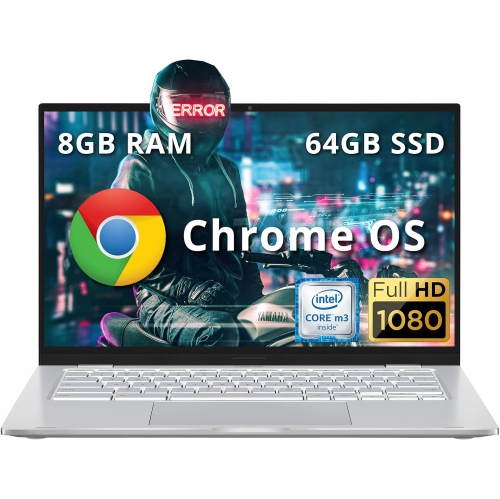
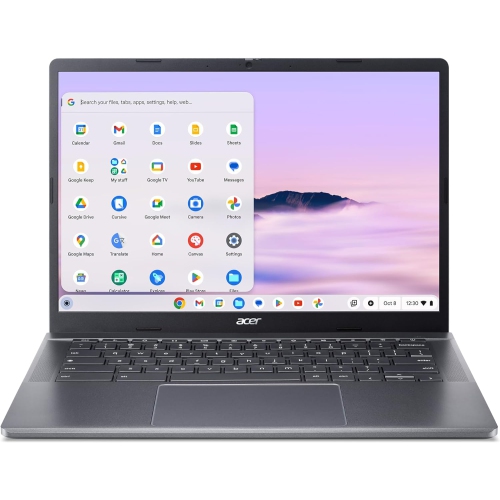
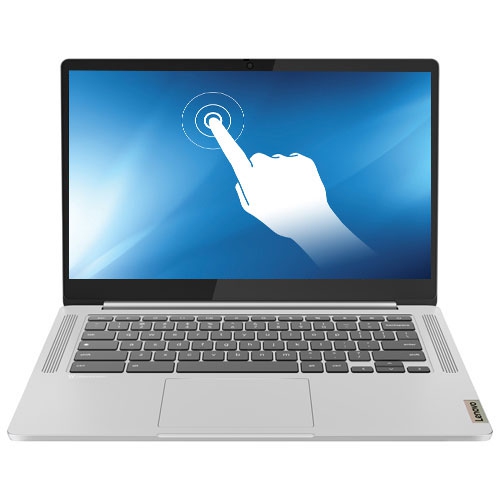
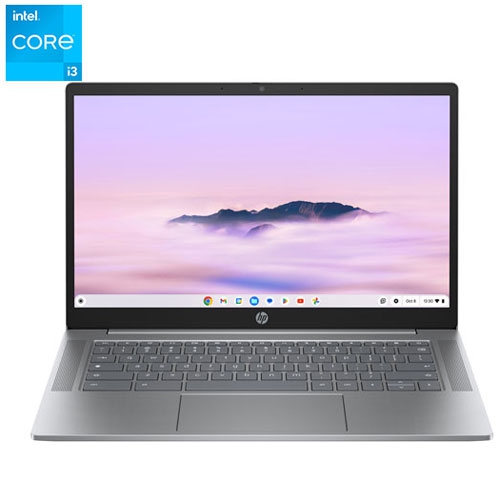
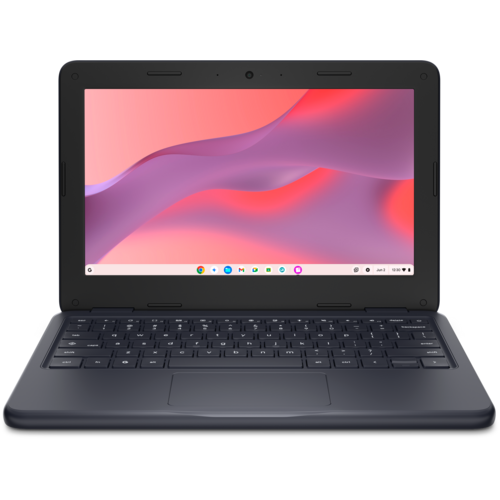
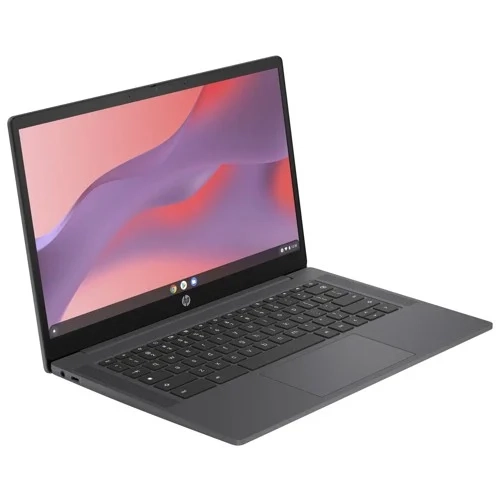
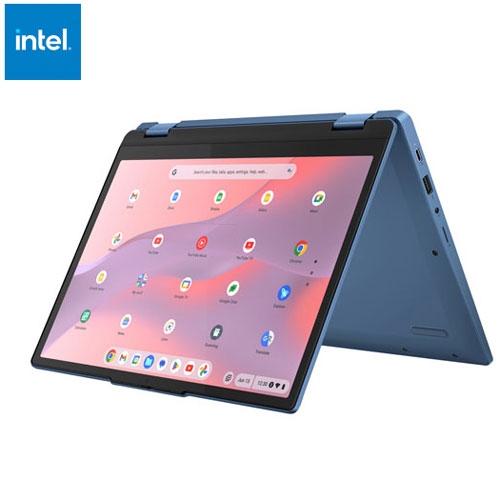
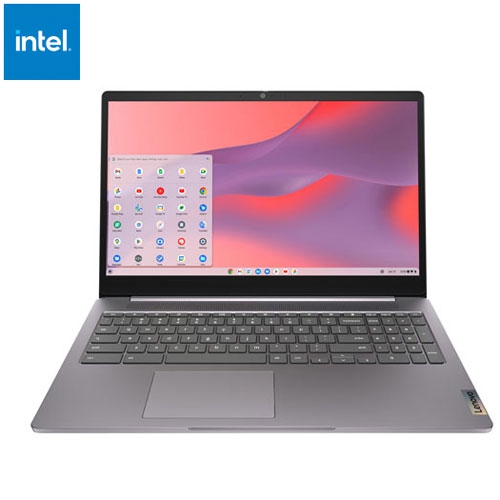
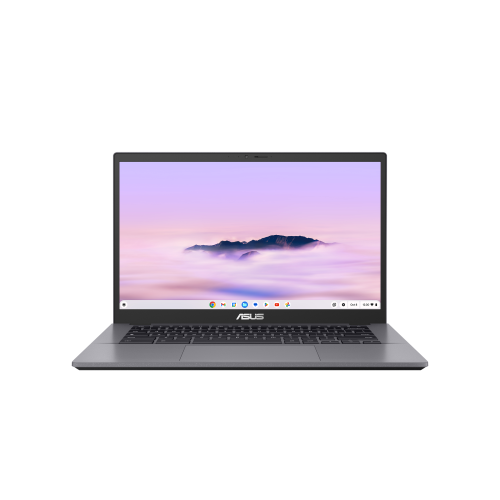
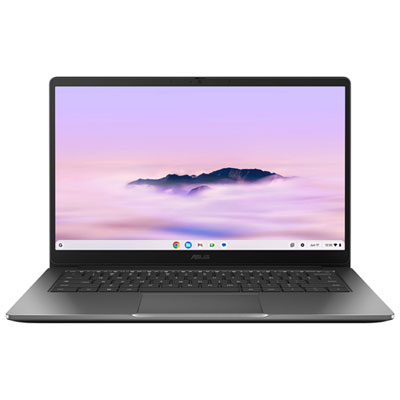
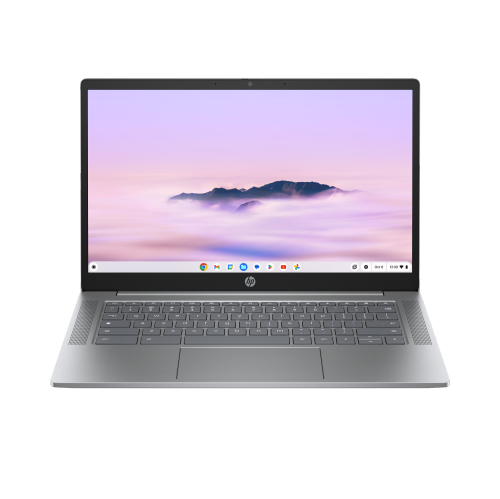
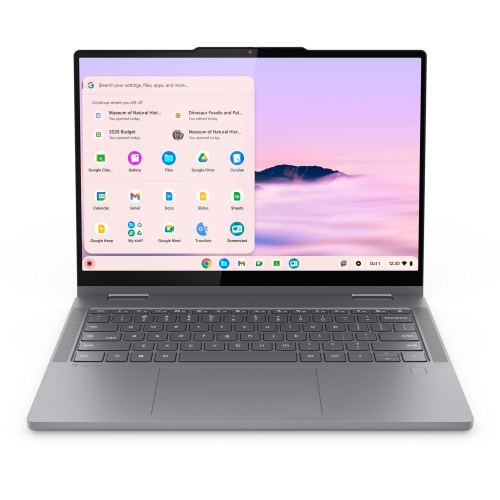
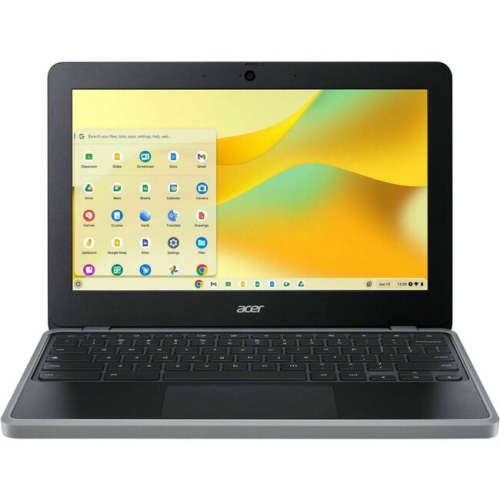
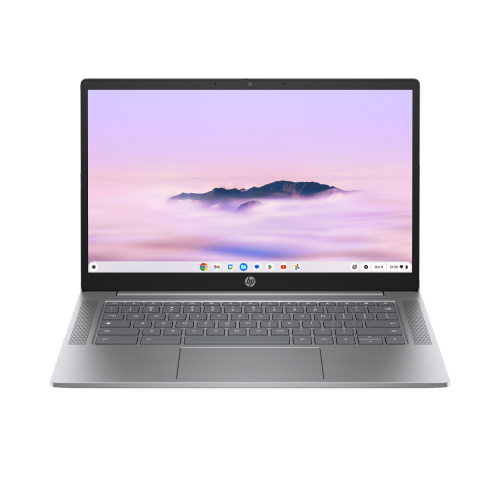
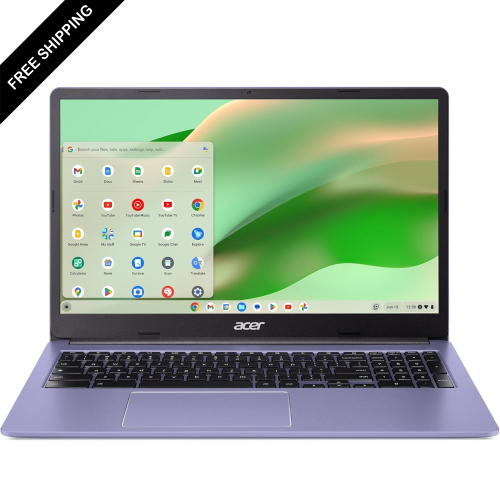
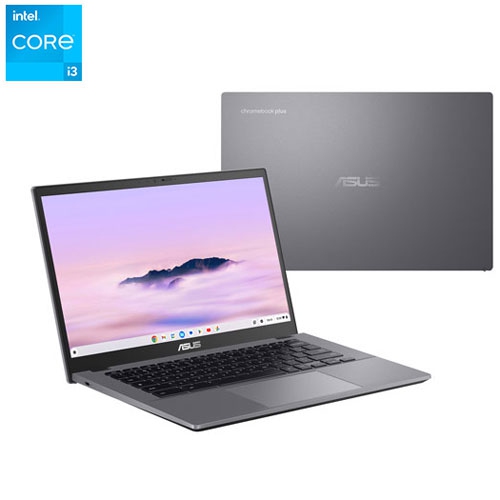
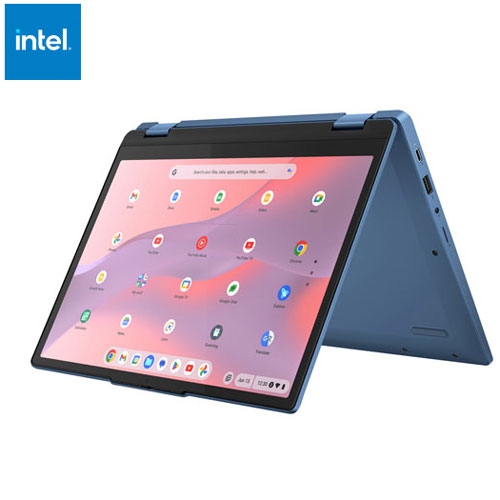
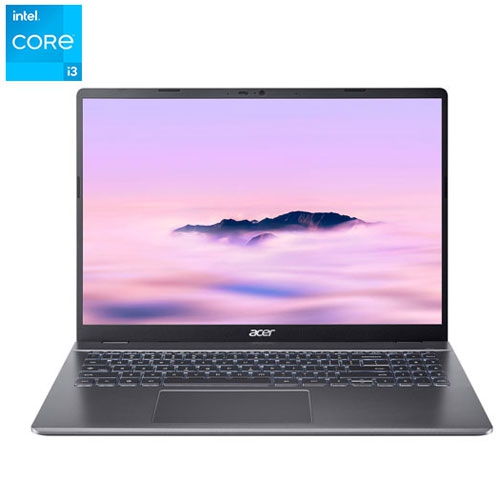
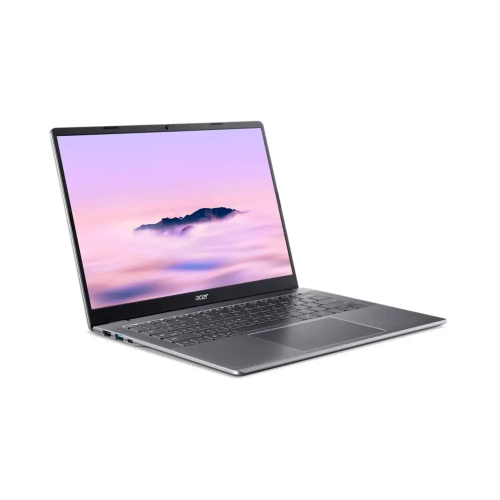
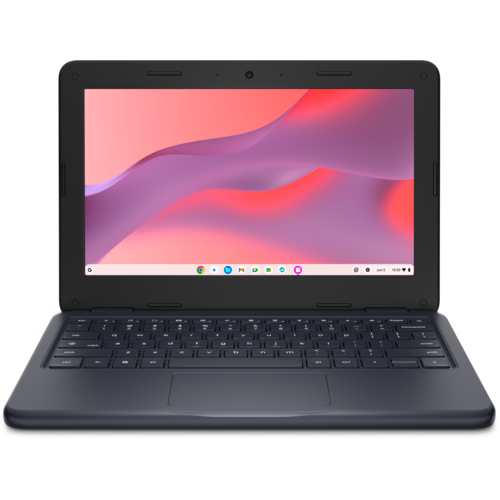
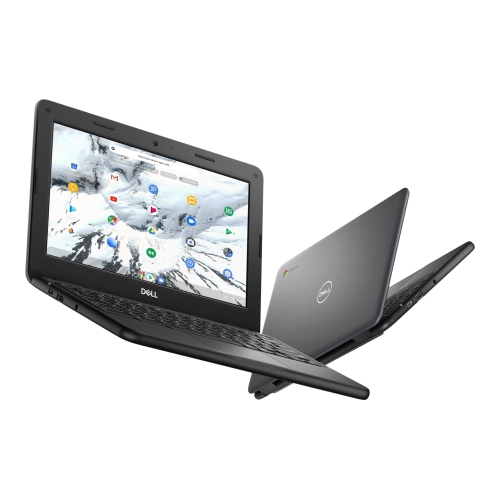
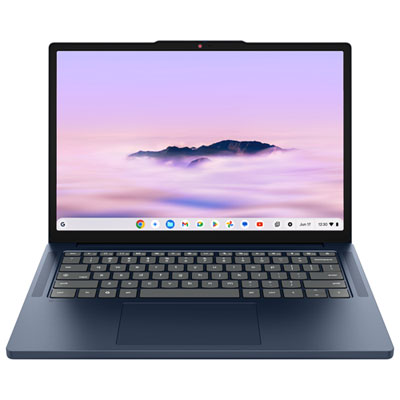
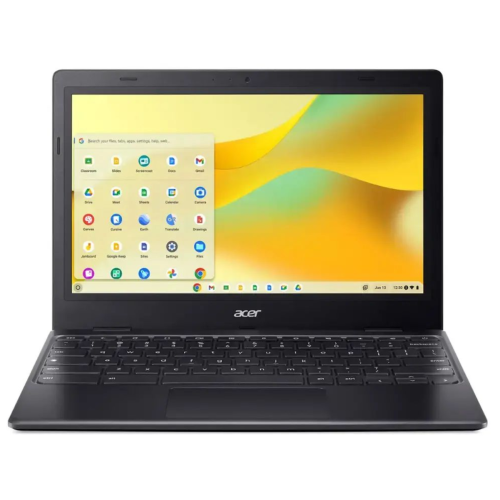
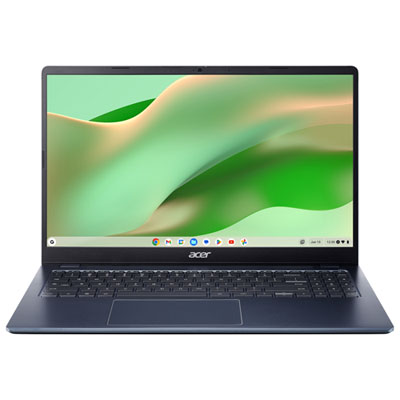
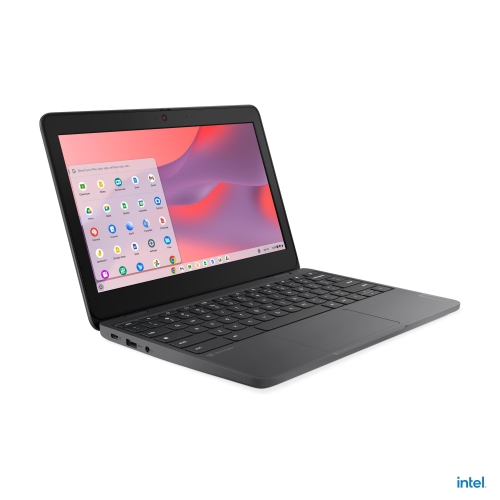
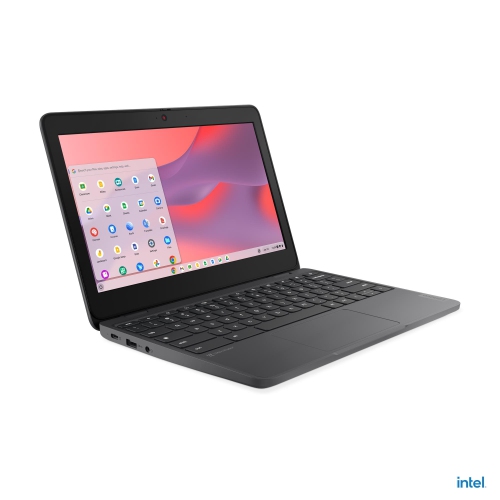
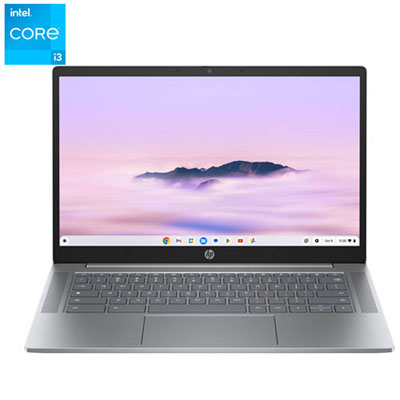
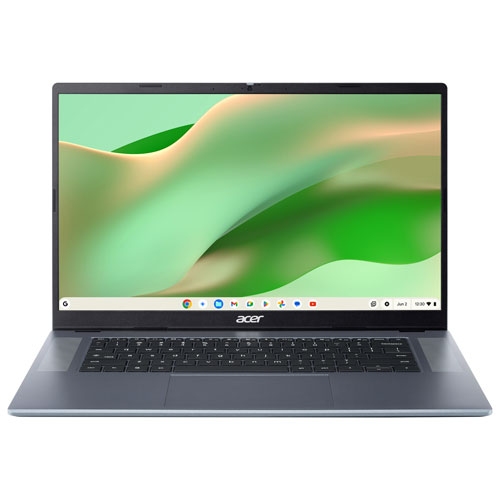
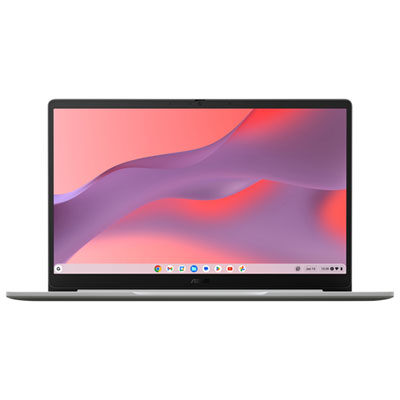
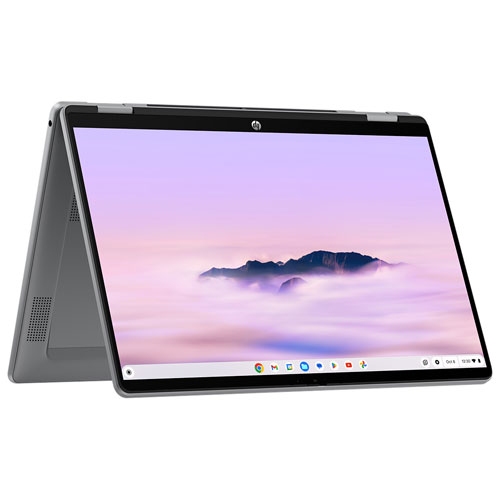
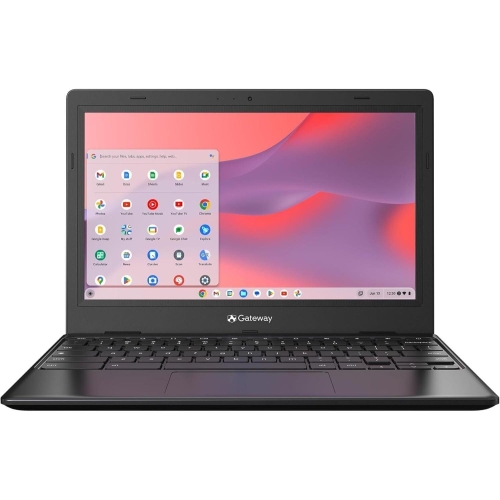
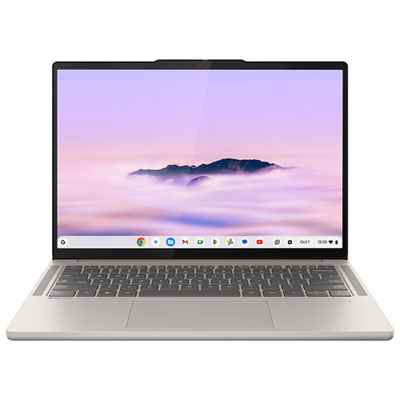
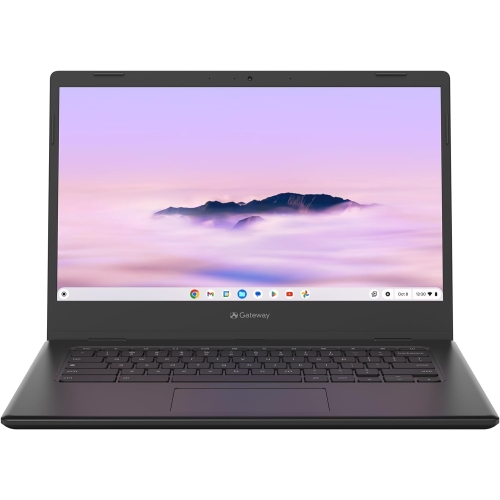
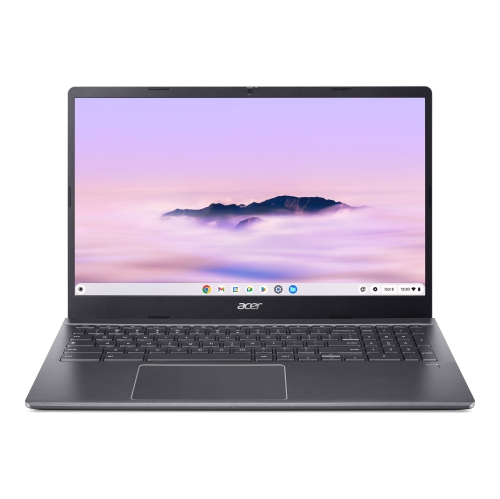
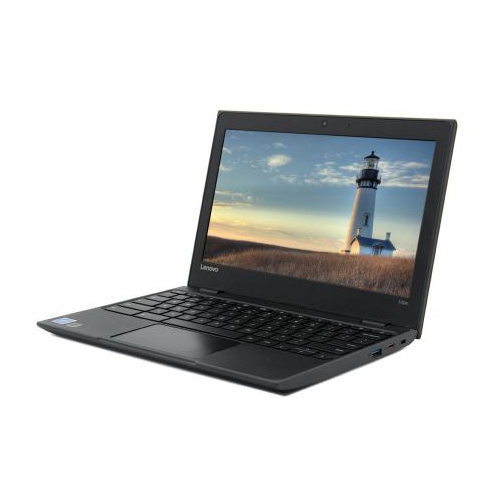
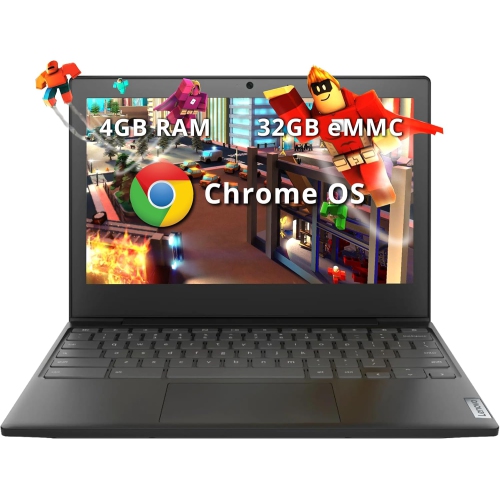
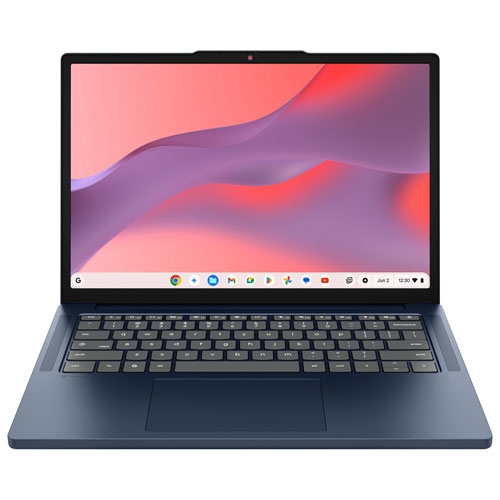
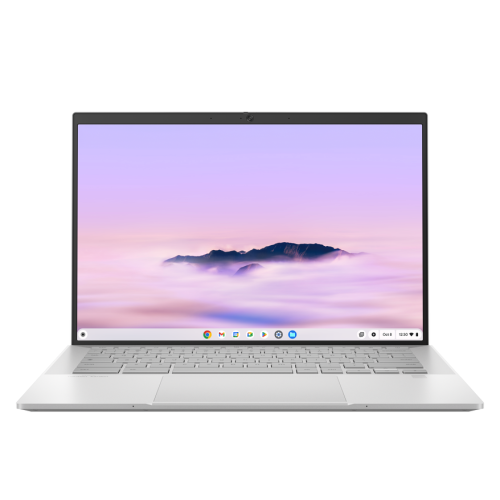
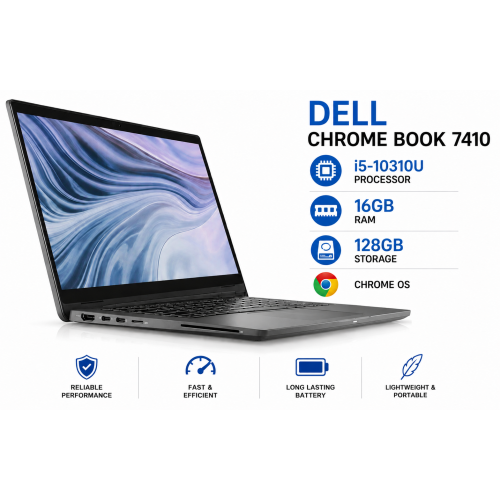
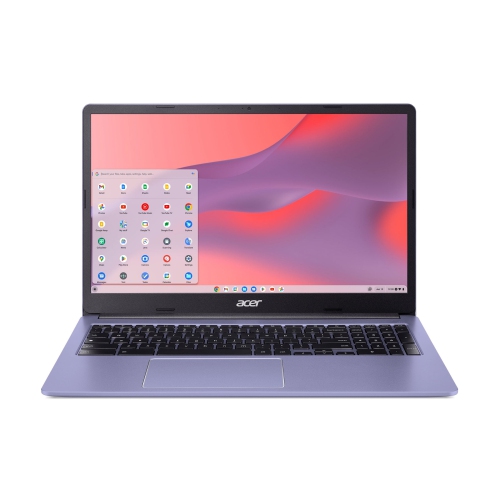
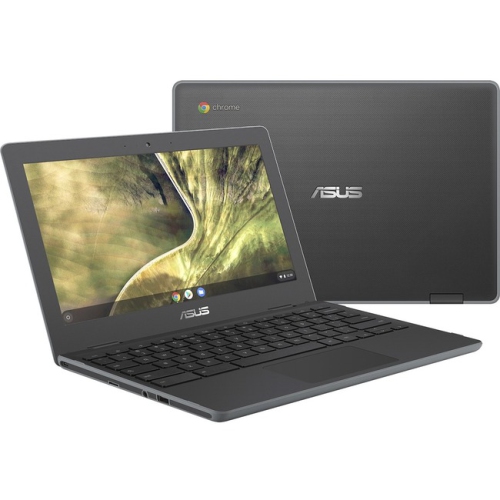
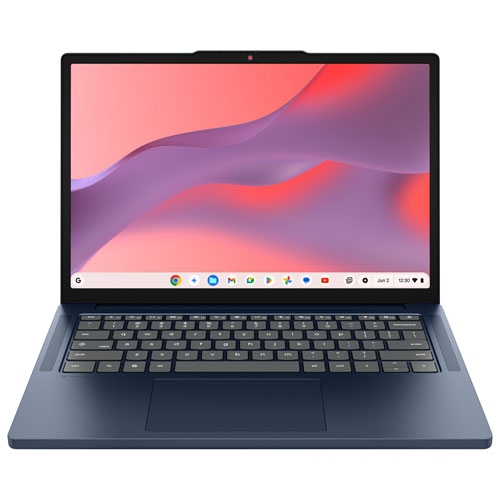
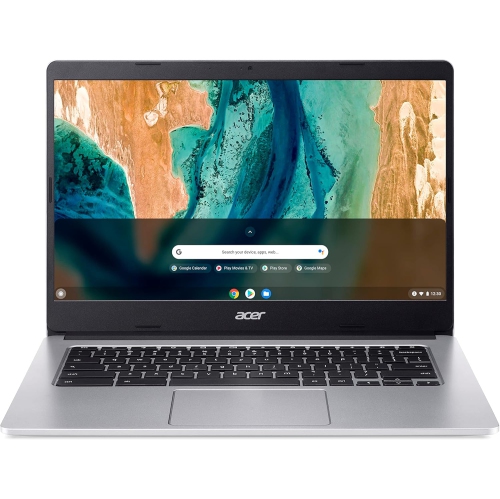
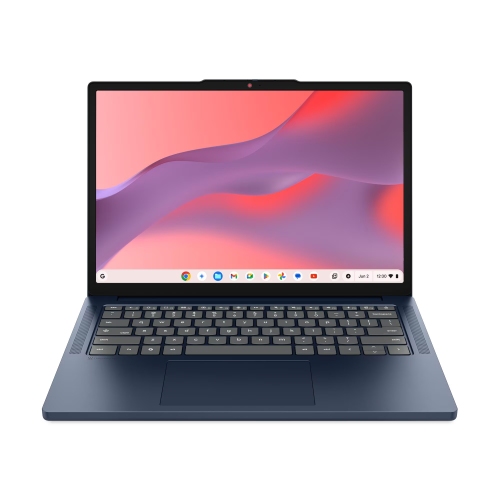
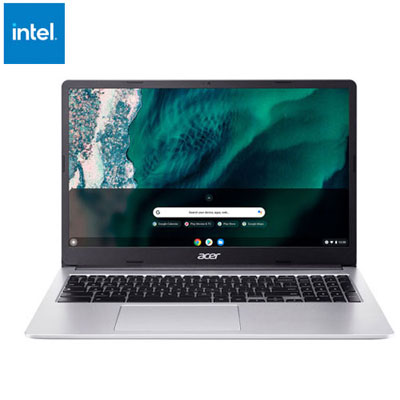
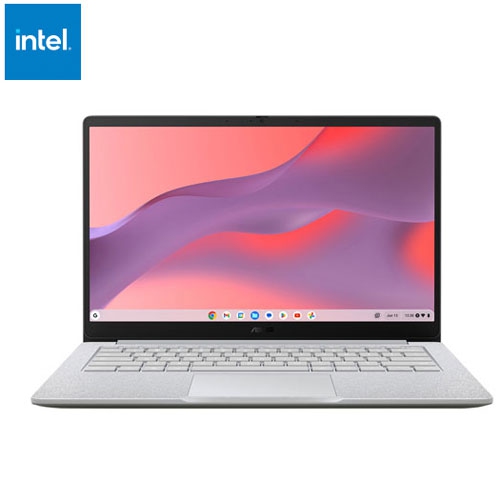
A Chromebook for kids gives young learners a laptop for writing assignments, reading, research, video lessons, and creative projects, with an emphasis on browser-based tools and straightforward everyday use. The most useful features are a comfortable keyboard, a clear display, dependable battery life, and a build suited to being carried between home and school. For a child practising spelling at the kitchen table, a compact laptop can leave room for a workbook and pencil case; for an older student comparing sources while drafting a report, a larger screen can make side-by-side windows easier to read. An 11-inch or 12-inch display generally supports a smaller footprint, while a 14-inch or larger display provides more room for text, diagrams, and presentations. Overall weight matters just as much as screen size when a device travels in a backpack, particularly for younger children. A traditional clamshell design provides a familiar keyboard-and-screen layout, while a convertible Chromebook with a touchscreen can fold into different positions for reading, drawing, or watching an assigned lesson. Touch input may feel intuitive to children accustomed to tapping and swiping, although a comfortable keyboard and responsive touchpad remain important for developing typing skills. Stylus support varies, so drawing or handwriting activities depend on whether the device accepts a compatible pen rather than simply having a touchscreen. Display resolution, brightness, and glare handling also affect how comfortably a child can read small text or follow detailed illustrations. A screen that is easy to view from a normal seated position helps avoid leaning forward over the keyboard. Built-in cameras, microphones, and speakers support calls with teachers or classmates, while a compatible headset can make spoken instructions easier to hear in a shared room. For families exploring a first personal laptop or a gift for a child taking on more independent schoolwork, the right fit comes from matching these everyday features to the child’s age, school requirements, and likely activities rather than choosing by appearance alone.
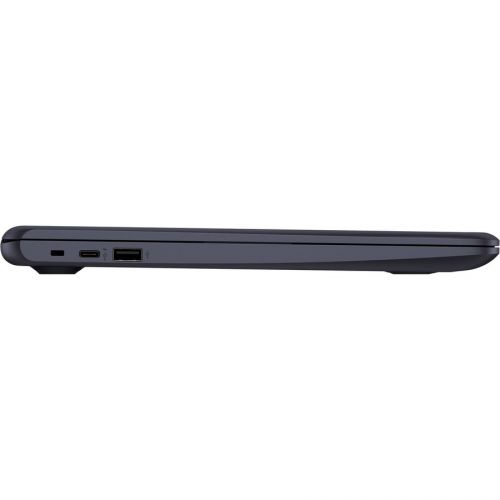
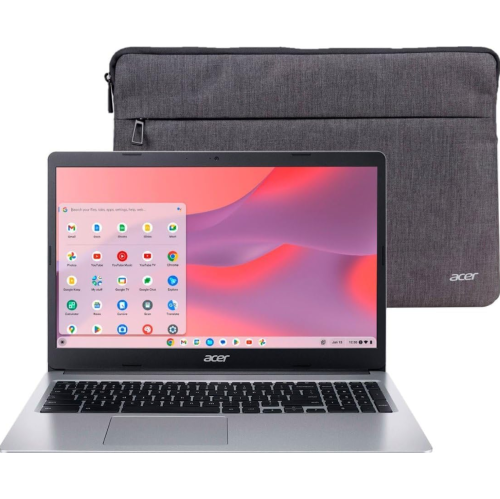
Durability is especially important for a laptop that moves from a desk to a backpack and back again. Chromebook housings may use plastic, metal, or a combination of materials, but the outer finish alone does not establish how well a device handles knocks. Reinforced corners, a sturdy hinge, and a well-supported keyboard deck are useful details to consider, along with any manufacturer-stated durability testing. A spill-resistant keyboard, where specified, may offer limited protection against small accidents, but it does not make the whole computer waterproof. A padded sleeve helps separate the laptop from book corners, loose pencils, and other objects in a school bag, and a properly fitted case should leave vents and ports unobstructed. Carrying the device closed, keeping drinks away from the keyboard, and avoiding pressure on the lid can help protect the screen and hinge. For routine care, power the laptop off and follow the manufacturer’s cleaning directions, using a soft, lint-free cloth and keeping liquid out of openings. Fit also extends to the workspace: a stable surface, enough room for the forearms, and a screen positioned for comfortable viewing make longer assignments more manageable. Battery life deserves attention when charging opportunities are limited, although advertised estimates vary with screen brightness, video calls, wireless use, and the number of open applications. A child who spends much of the day streaming lessons may get different results from one mainly typing documents. Charging connections matter too; supported USB-C charging can be convenient, but a charger must meet the laptop’s power requirements. Ports for headphones, a mouse, an external display, or storage can reduce the need for adapters, depending on the child’s setup. Reliable Wi-Fi supports online lessons and shared documents, while some downloaded files and compatible applications can be used offline after preparation. Offline access is not universal, so it is worth confirming which school tasks will still work without an internet connection, particularly when homework happens away from home.
Performance and software compatibility shape how well a Chromebook for kids fits into daily learning. Basic writing, browsing, and classroom activities generally place fewer demands on a laptop than frequent video calls combined with multiple documents and browser tabs. Memory helps the device keep several tasks active, while the processor influences responsiveness during more demanding work. Local storage holds downloads, applications, and offline files; cloud storage can make documents accessible across supported devices, but it depends on account settings, storage limits, and connectivity. A Chromebook is centred on web-based computing, and it should not be assumed to run every program designed for other laptop operating systems. Support for downloadable applications and games differs by device and may also be restricted on school-managed accounts. Confirming a school’s required websites, assessment tools, file formats, and accessibility needs helps prevent frustration when an assignment depends on a particular feature. Families comparing classroom-focused options can also explore Chromebook for Schools for a related selection. Another important consideration is the device’s published automatic update expiration date, which indicates the support timeline for operating system and security updates. That timeline is tied to the model rather than simply the date of purchase, making it relevant when a laptop is intended to last through several school years. Automatic updates help maintain protection, but they do not replace sensible account security or adult involvement. Parental supervision features may support screen-time limits, application approvals, and content settings, depending on the child’s account, age, and device configuration. School administrators may control separate settings for managed accounts, so home and classroom access can differ on the same laptop. Separate user profiles can help keep family members’ files and settings apart, while accessibility options such as magnification, text-to-speech, and dictation may make tasks easier for individual learners. Together, a suitable screen, manageable size, practical durability, compatible learning tools, and a clear support timeline create a more useful everyday device, whether a child is sounding out a first typed sentence or organizing a multi-page class project.
Durability is especially important for a laptop that moves from a desk to a backpack and back again. Chromebook housings may use plastic, metal, or a combination of materials, but the outer finish alone does not establish how well a device handles knocks. Reinforced corners, a sturdy hinge, and a well-supported keyboard deck are useful details to consider, along with any manufacturer-stated durability testing. A spill-resistant keyboard, where specified, may offer limited protection against small accidents, but it does not make the whole computer waterproof. A padded sleeve helps separate the laptop from book corners, loose pencils, and other objects in a school bag, and a properly fitted case should leave vents and ports unobstructed. Carrying the device closed, keeping drinks away from the keyboard, and avoiding pressure on the lid can help protect the screen and hinge. For routine care, power the laptop off and follow the manufacturer’s cleaning directions, using a soft, lint-free cloth and keeping liquid out of openings. Fit also extends to the workspace: a stable surface, enough room for the forearms, and a screen positioned for comfortable viewing make longer assignments more manageable. Battery life deserves attention when charging opportunities are limited, although advertised estimates vary with screen brightness, video calls, wireless use, and the number of open applications. A child who spends much of the day streaming lessons may get different results from one mainly typing documents. Charging connections matter too; supported USB-C charging can be convenient, but a charger must meet the laptop’s power requirements. Ports for headphones, a mouse, an external display, or storage can reduce the need for adapters, depending on the child’s setup. Reliable Wi-Fi supports online lessons and shared documents, while some downloaded files and compatible applications can be used offline after preparation. Offline access is not universal, so it is worth confirming which school tasks will still work without an internet connection, particularly when homework happens away from home.
Performance and software compatibility shape how well a Chromebook for kids fits into daily learning. Basic writing, browsing, and classroom activities generally place fewer demands on a laptop than frequent video calls combined with multiple documents and browser tabs. Memory helps the device keep several tasks active, while the processor influences responsiveness during more demanding work. Local storage holds downloads, applications, and offline files; cloud storage can make documents accessible across supported devices, but it depends on account settings, storage limits, and connectivity. A Chromebook is centred on web-based computing, and it should not be assumed to run every program designed for other laptop operating systems. Support for downloadable applications and games differs by device and may also be restricted on school-managed accounts. Confirming a school’s required websites, assessment tools, file formats, and accessibility needs helps prevent frustration when an assignment depends on a particular feature. Families comparing classroom-focused options can also explore Chromebook for Schools for a related selection. Another important consideration is the device’s published automatic update expiration date, which indicates the support timeline for operating system and security updates. That timeline is tied to the model rather than simply the date of purchase, making it relevant when a laptop is intended to last through several school years. Automatic updates help maintain protection, but they do not replace sensible account security or adult involvement. Parental supervision features may support screen-time limits, application approvals, and content settings, depending on the child’s account, age, and device configuration. School administrators may control separate settings for managed accounts, so home and classroom access can differ on the same laptop. Separate user profiles can help keep family members’ files and settings apart, while accessibility options such as magnification, text-to-speech, and dictation may make tasks easier for individual learners. Together, a suitable screen, manageable size, practical durability, compatible learning tools, and a clear support timeline create a more useful everyday device, whether a child is sounding out a first typed sentence or organizing a multi-page class project.
Top selling and popular products
-
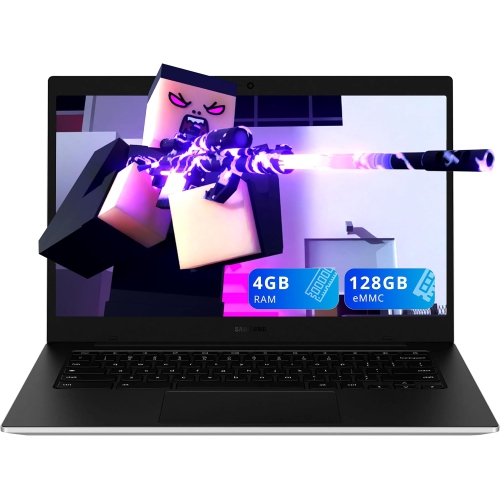 Your price for this item is $299.99
 -
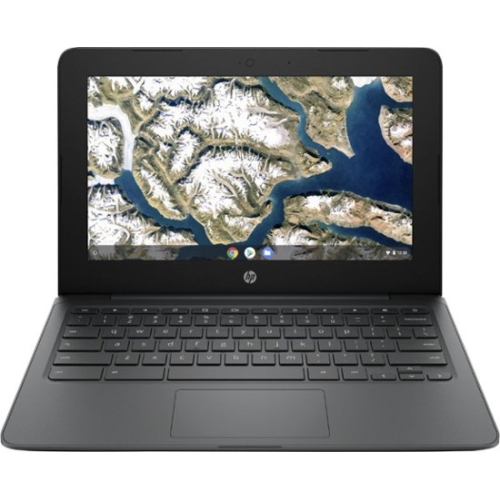 Your price for this item is $199.99
 -
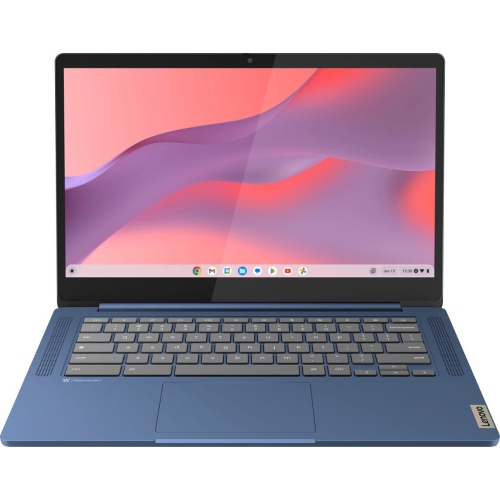 Your price for this item is $449
 -
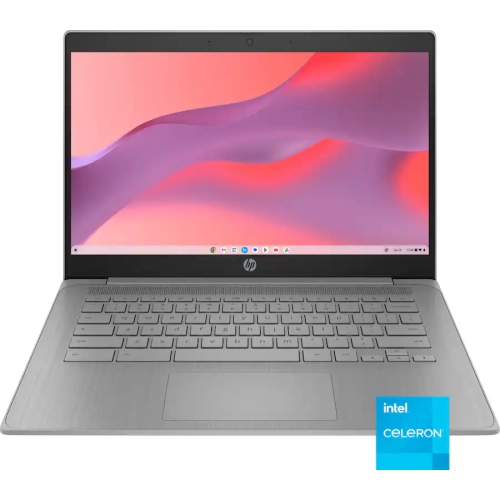 Your price for this item is $406.99
 -
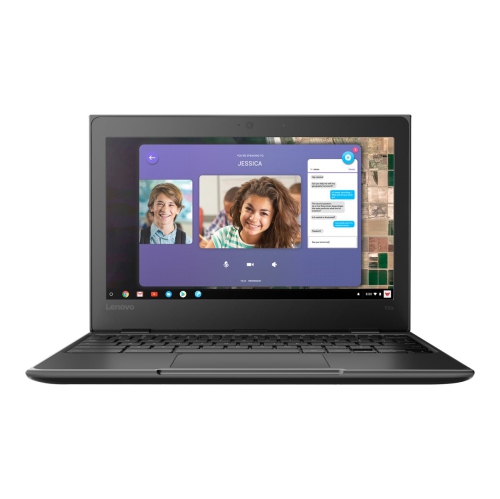 Your price for this item is $499.99
 -
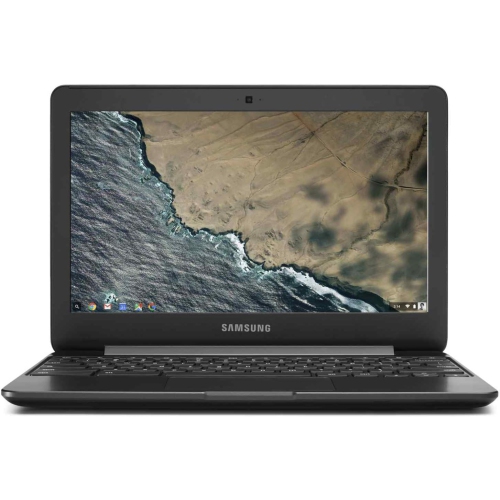 Your price for this item is $248
 -
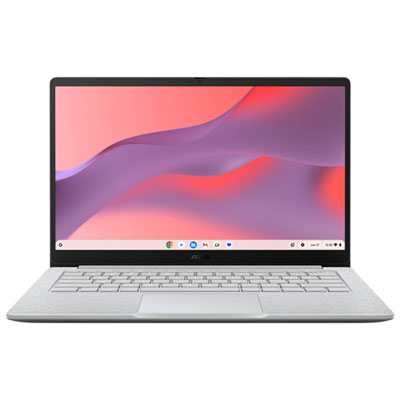 Your price for this item is $369.99
 -
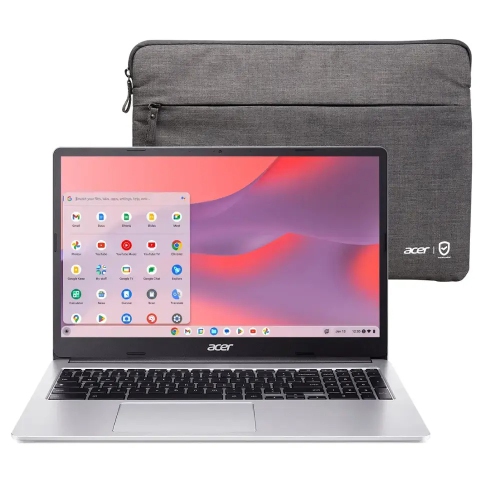 Your price for this item is $349.99
Discover more categories related to Chromebook for Kids
Top Collections:
Pokemon Centers, Best Cameras for Sports Photography, Kindle Devices, Samsung Galaxy Phones, Canon G7X Cameras, Pokémon 30th Celebration Cards, Refurbished Apple Laptops, iPhone 15 Apple, Laptops for Students, Budget Smartphones
Some products may be subject to Environmental Handling Fees
(EHF) depending on your province.
Learn more about EHFs.