Articulating Monitor Arms
Enhance your workspace with the ultimate ergonomic solution - articulating monitor arms. Designed to maximize comfort and productivity, these innovative accessories allow you to effortlessly adjust the height, tilt, and rotation of your computer screens. Say goodbye to neck strain and eye fatigue as you create a customized setup that perfectly suits your needs. Whether you're a professional looking for a more efficient workflow or a gaming enthusiast seeking an immersive experience, our selection of High Quality Monitor Arms offer unparalleled flexibility and functionality. Upgrade your workstation today and discover a whole new level of comfort and convenience.
Sort
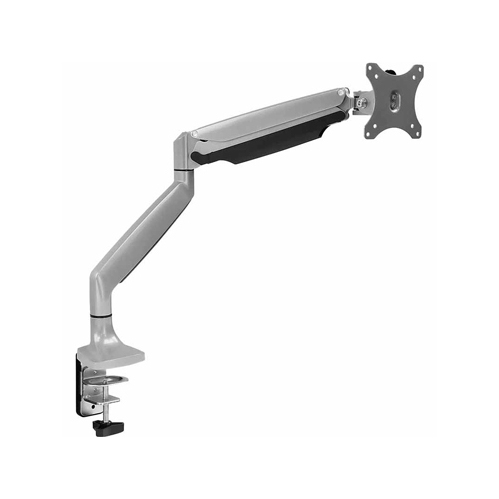
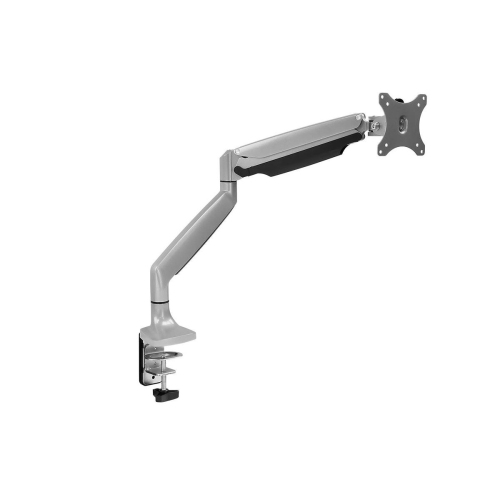
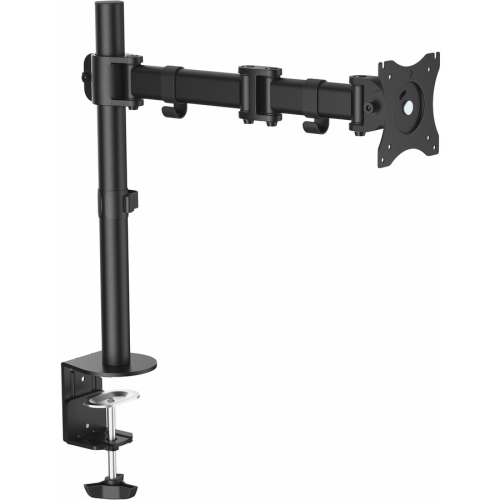
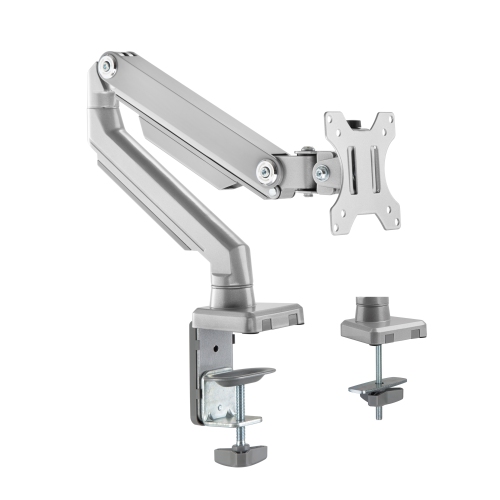
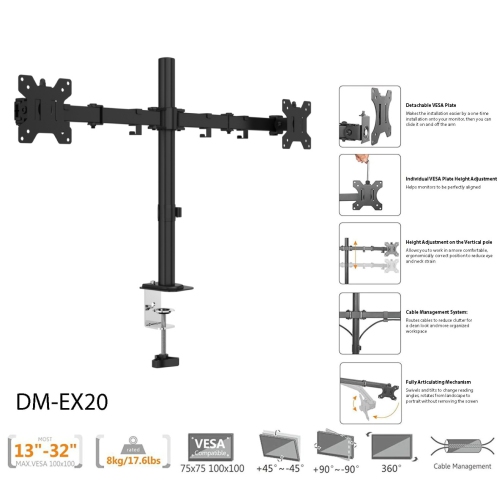
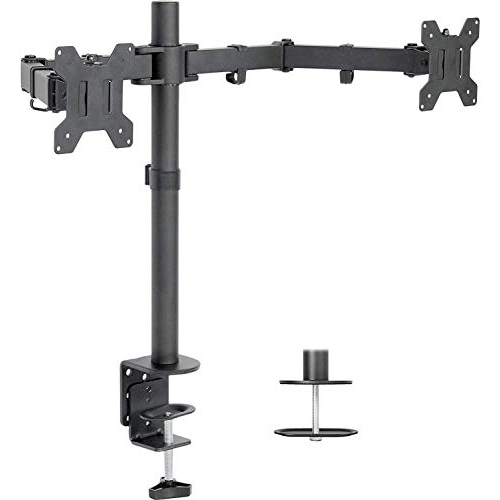

![AMER MOUNTS Single Articulating Spring Monitor Arm [Arctic Edition] for 17"-34" Monitors 9Kg Max Screen Weight - Clamp And Grommet Base Mount](https://multimedia.bbycastatic.ca/multimedia/products/500x500/160/16025/16025825.jpeg)


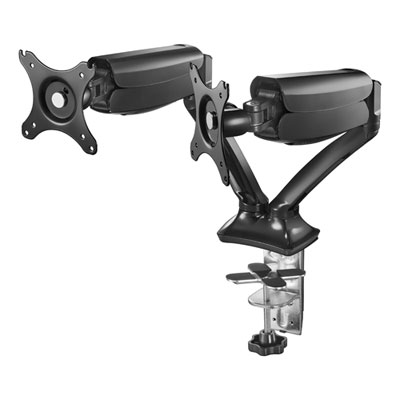
![AMER MOUNTS Dual Articulating Spring Monitor Arm [Arctic Edition] for 17"-32" Monitors 9Kg Max Weight Per Screen - Clamp And Grommet Base Mount But this one worked really great](https://multimedia.bbycastatic.ca/multimedia/products/500x500/160/16039/16039938.jpeg)
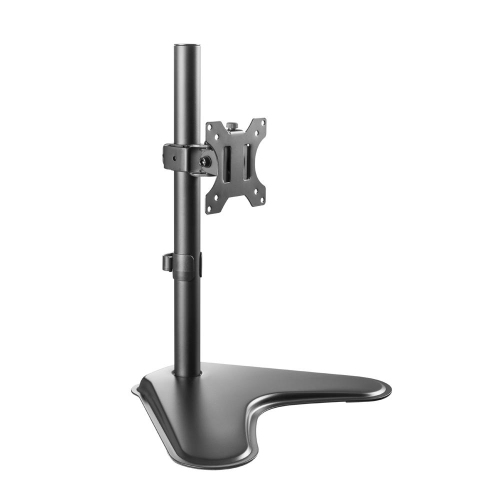
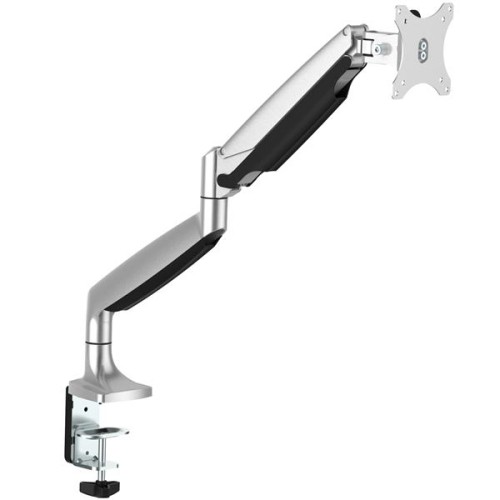
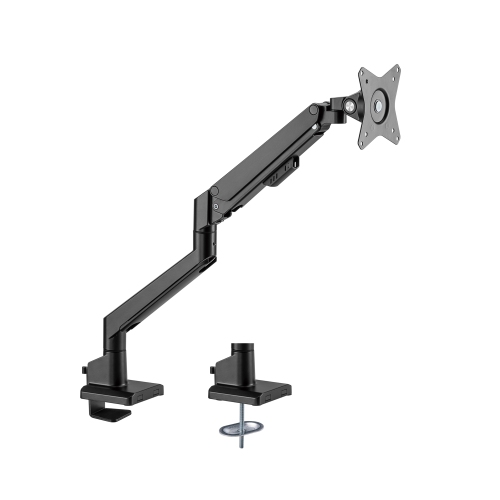
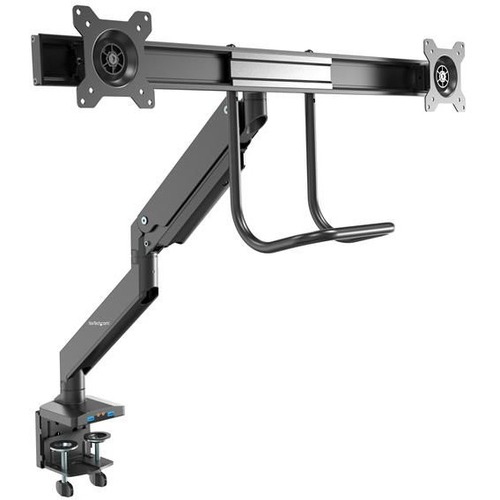
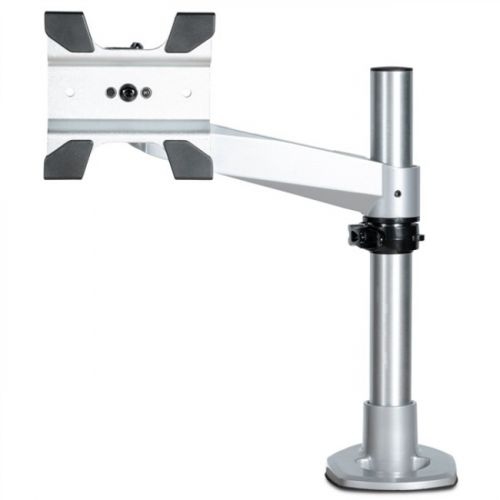
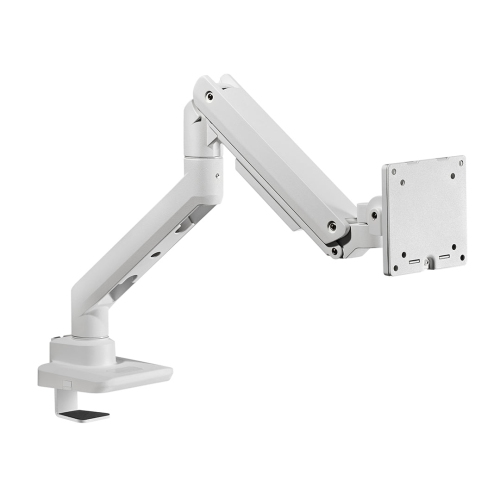
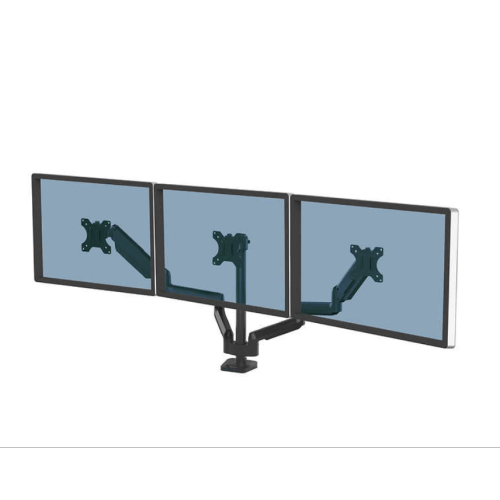
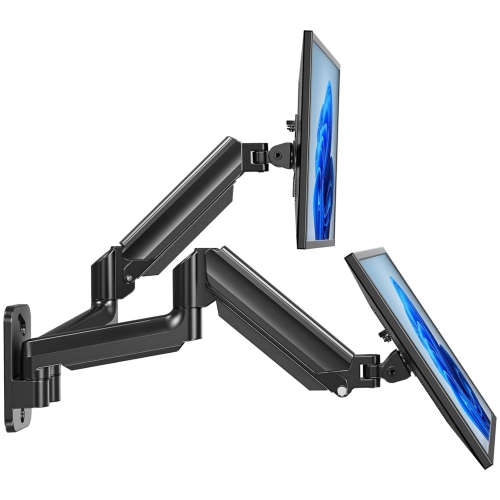
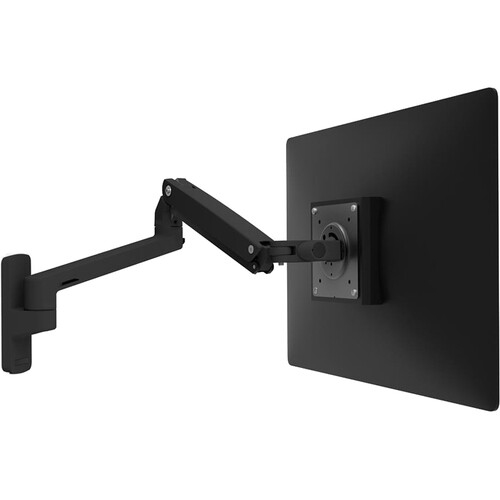
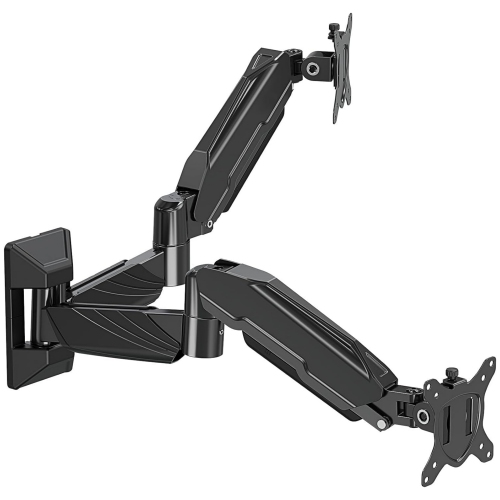
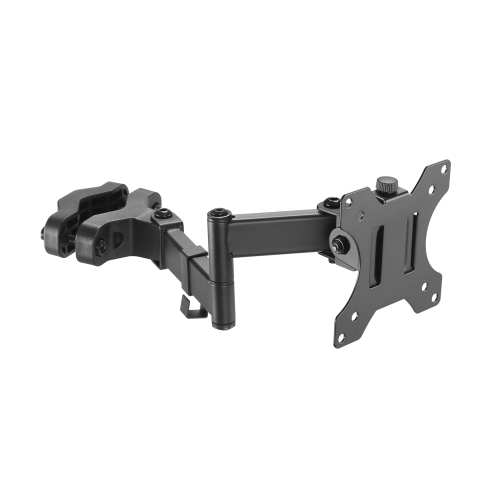
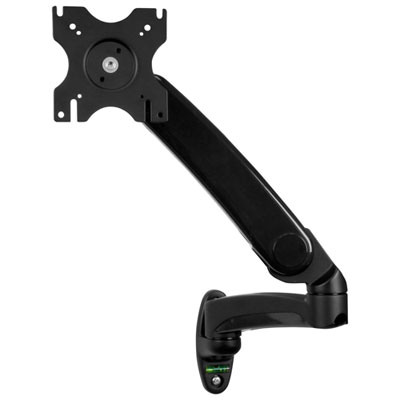
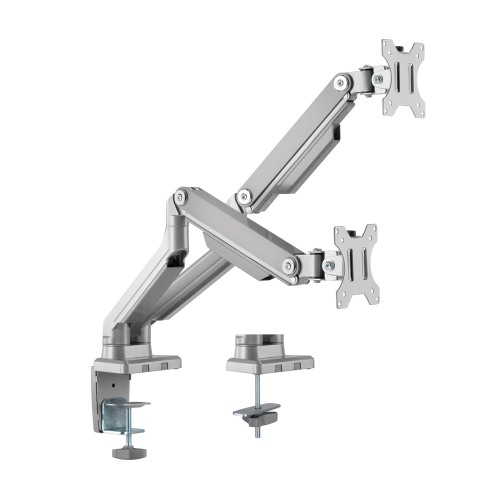
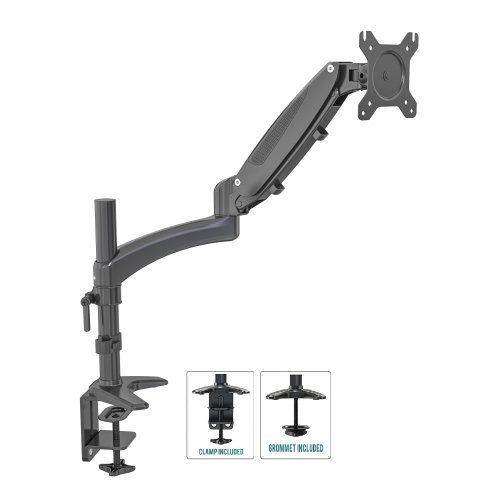
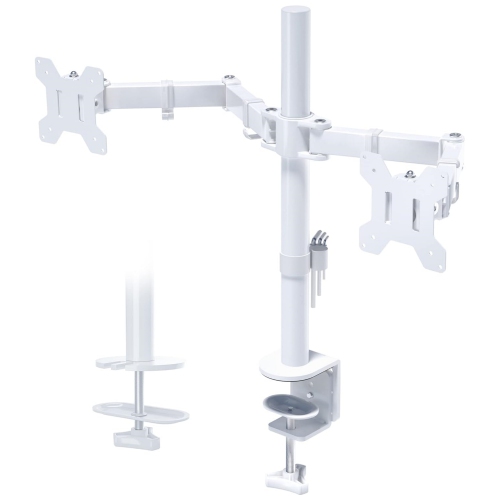
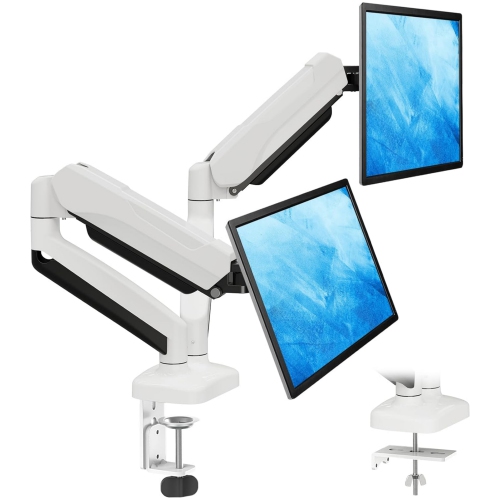
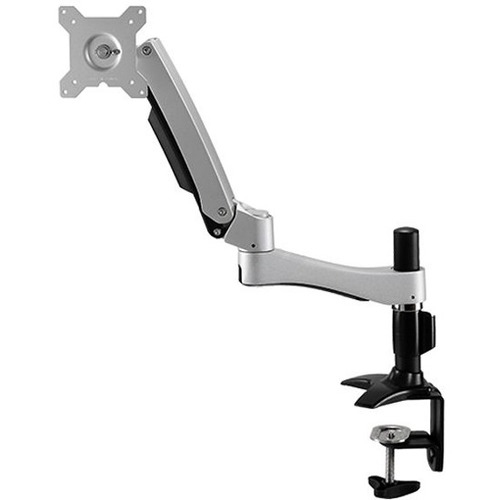

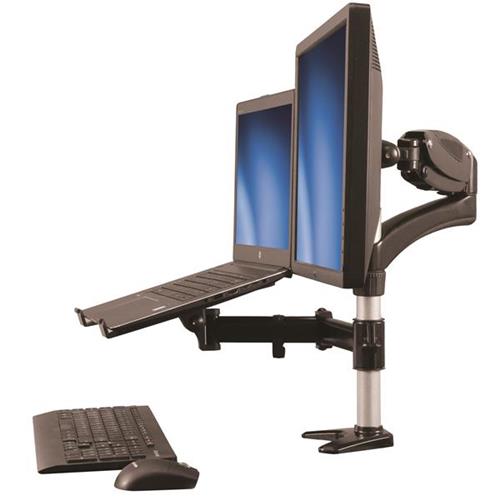
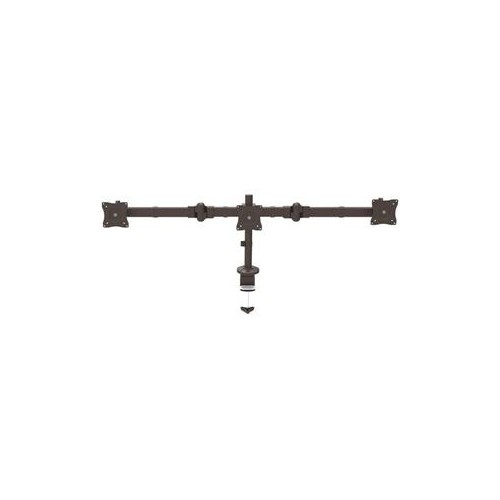
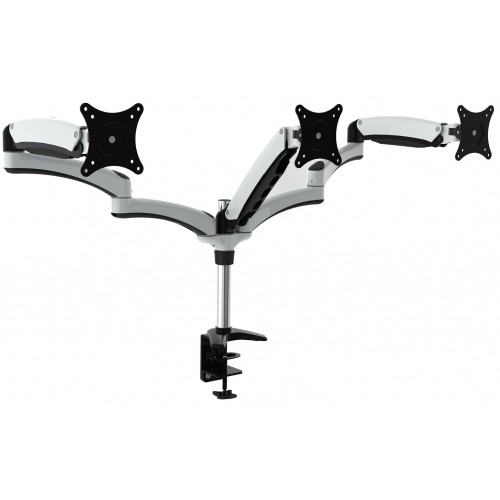
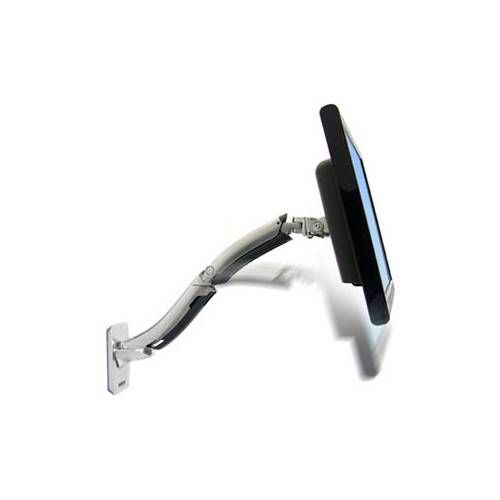
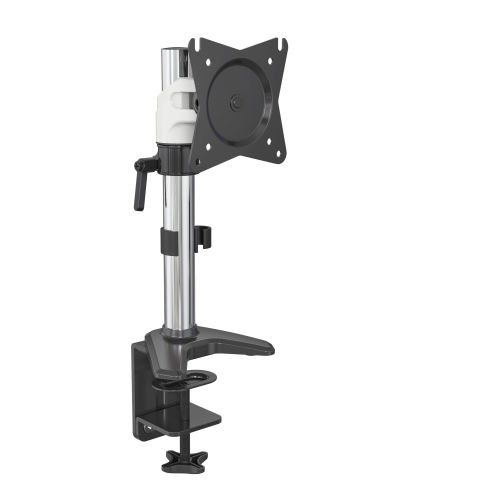
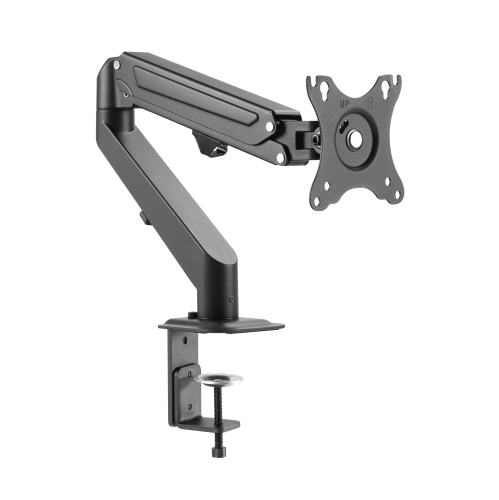
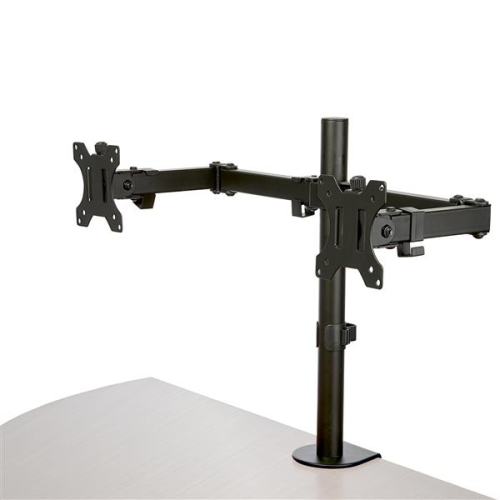
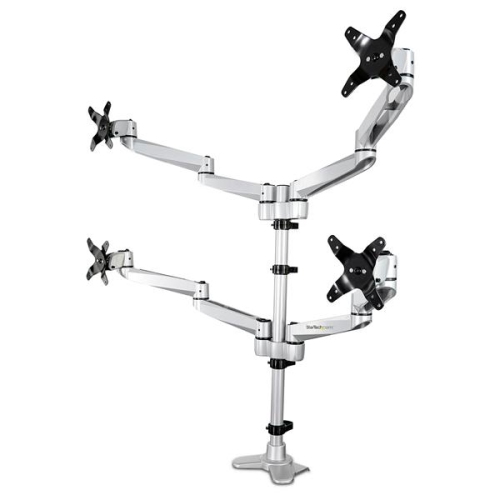
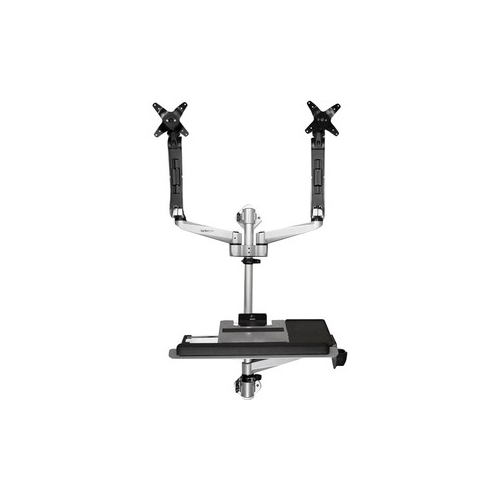
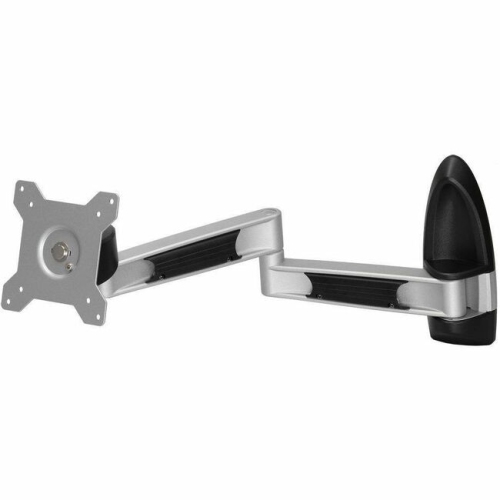
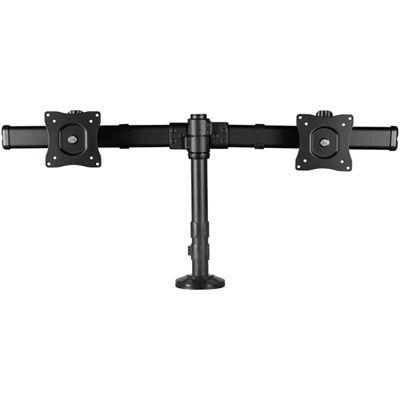
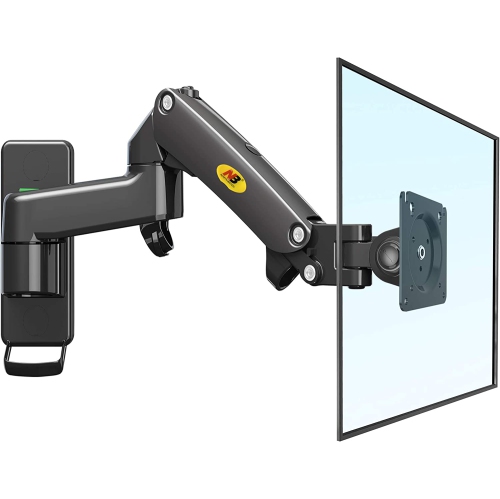
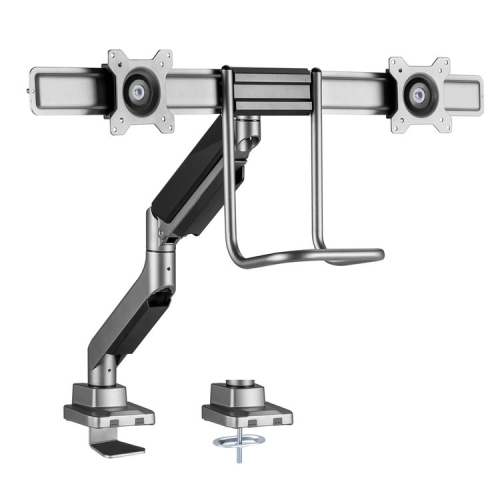
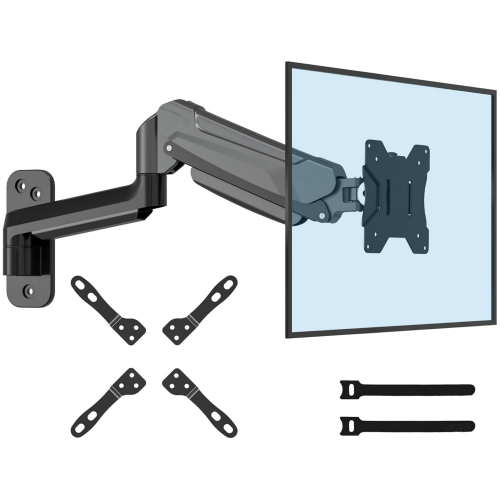
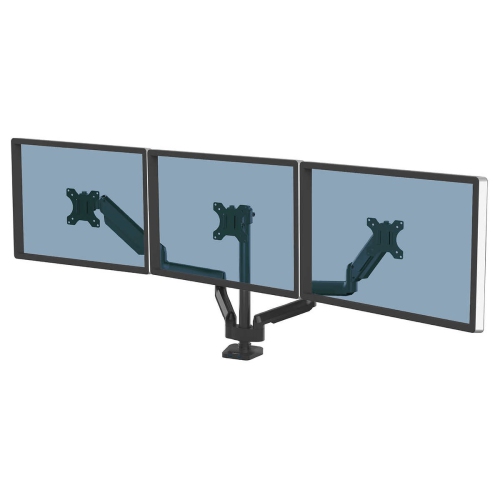
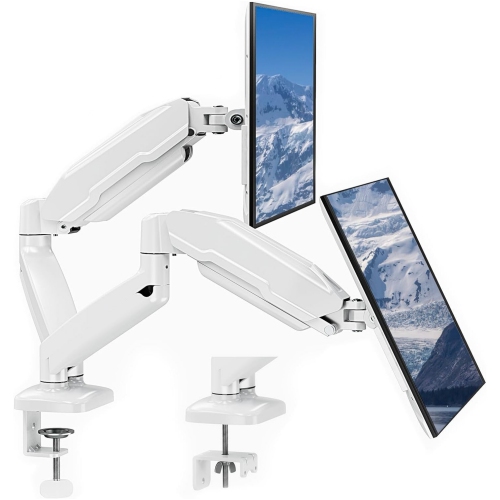
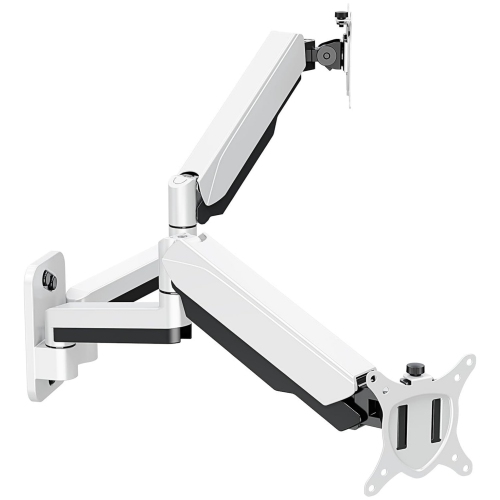
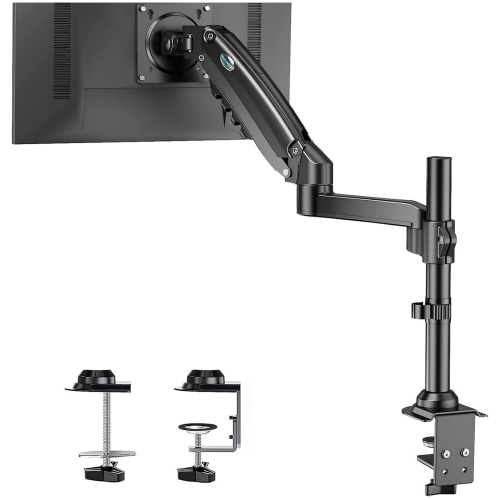
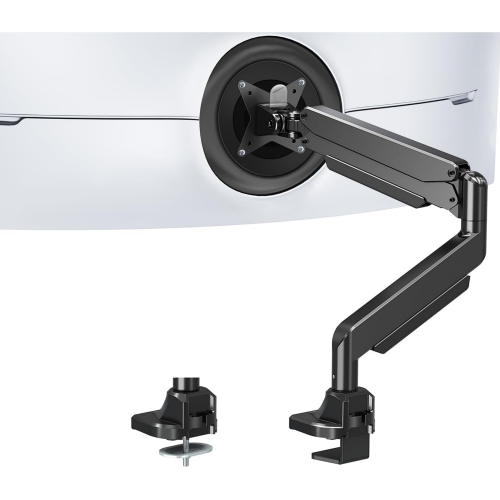
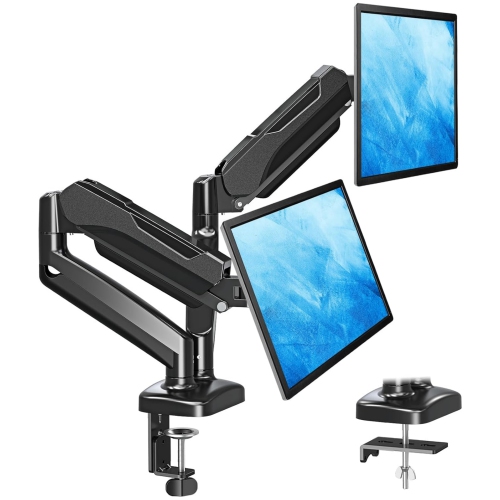
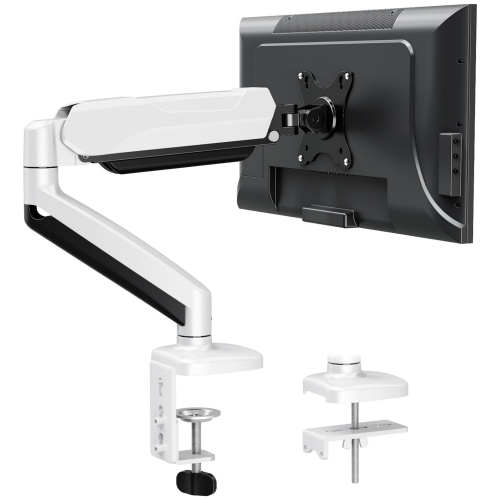

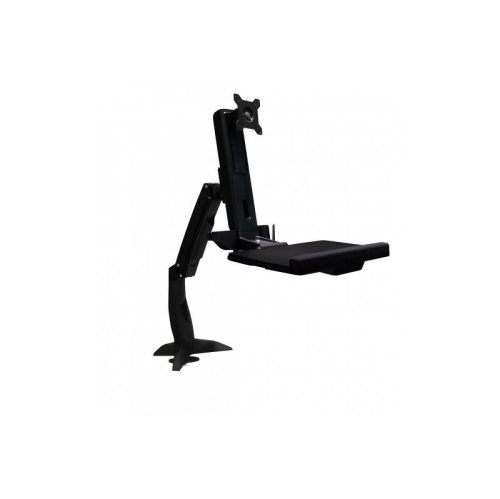
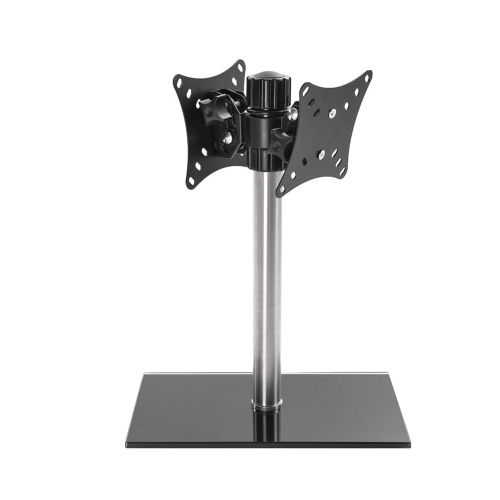
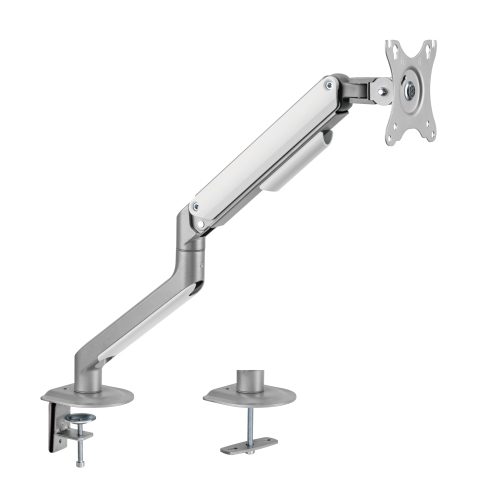
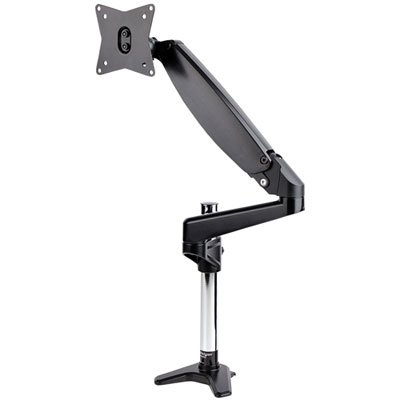
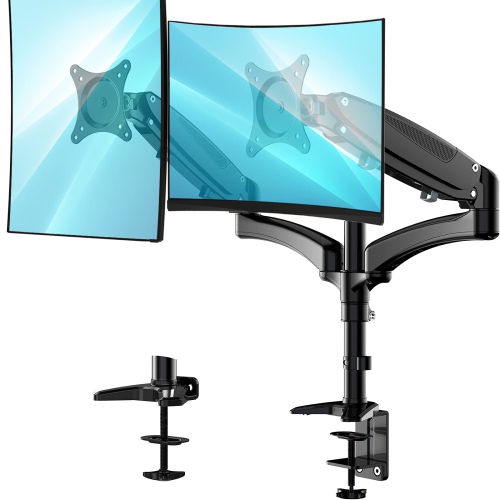

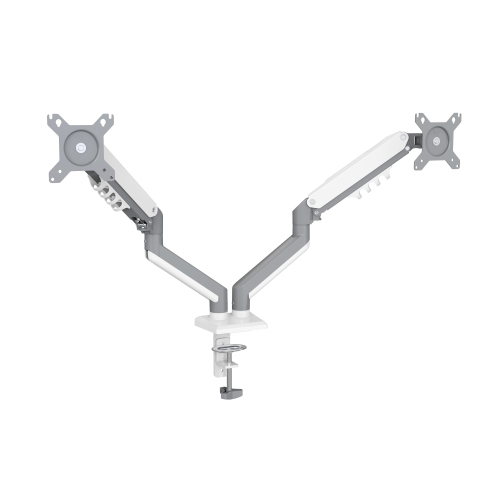
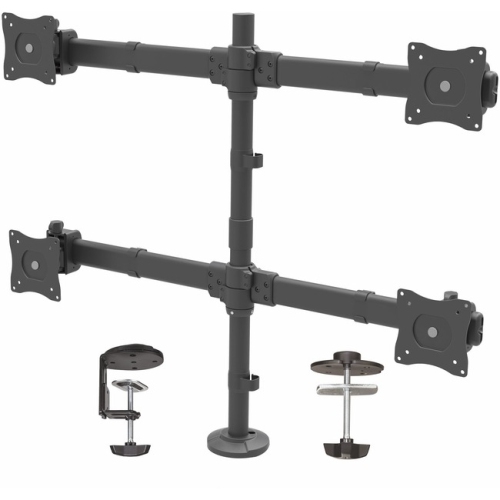
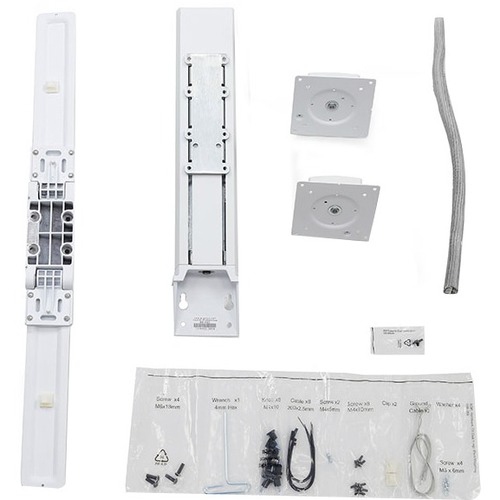
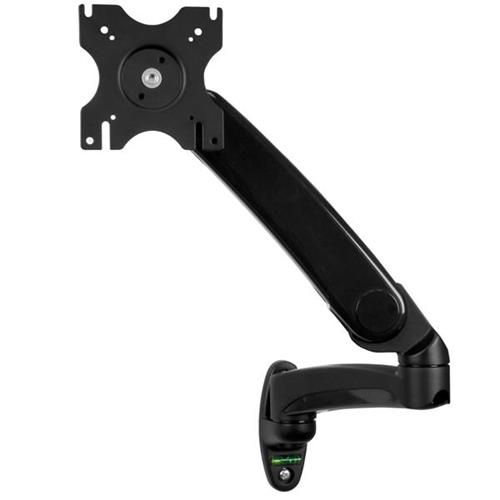
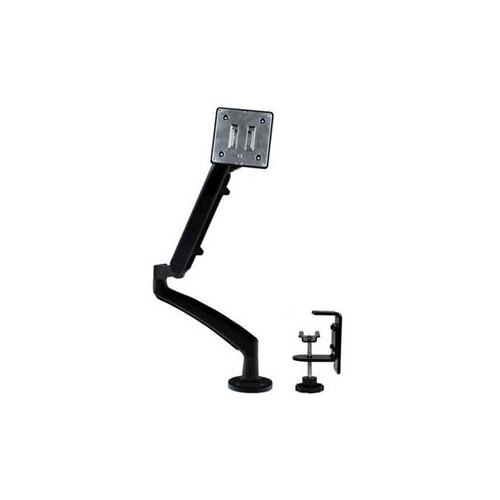
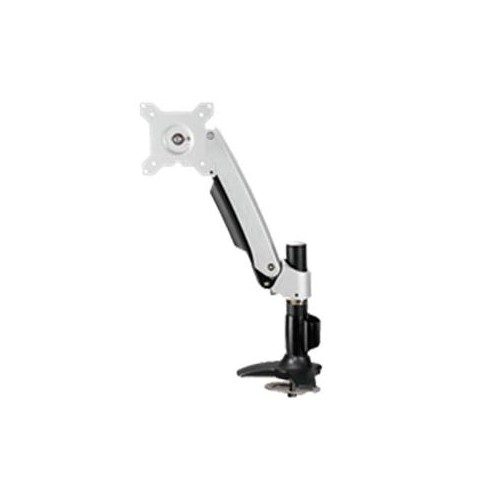
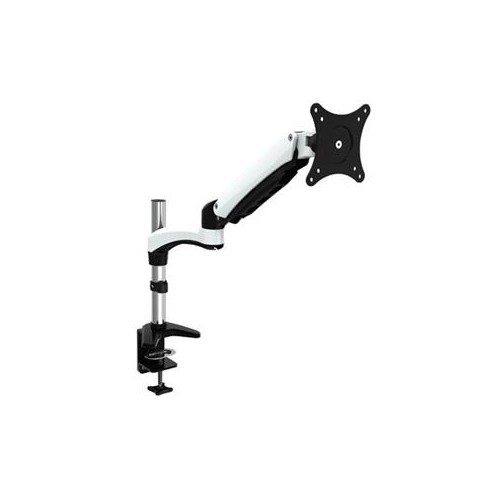
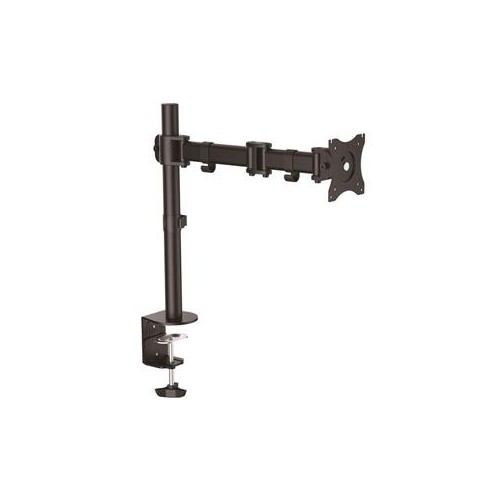

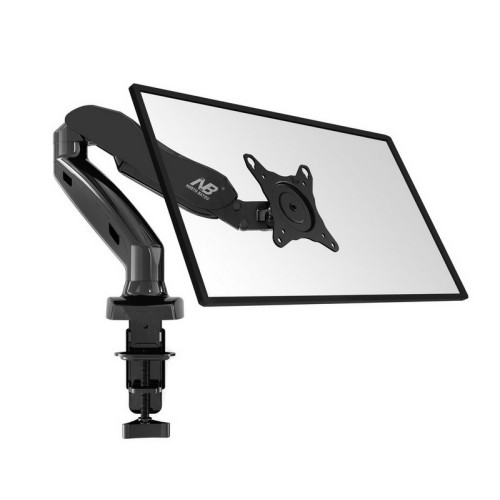

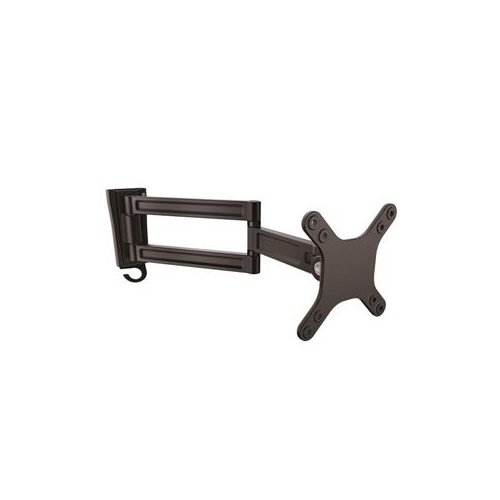
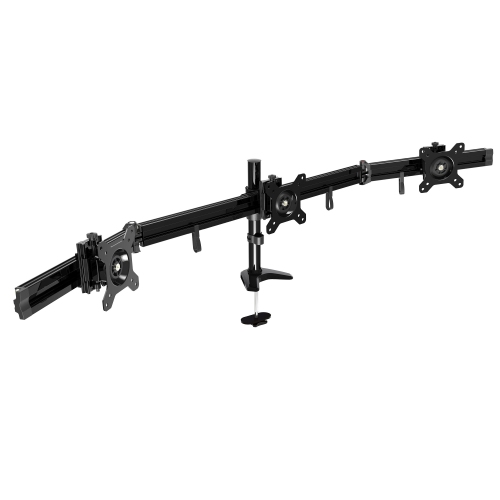
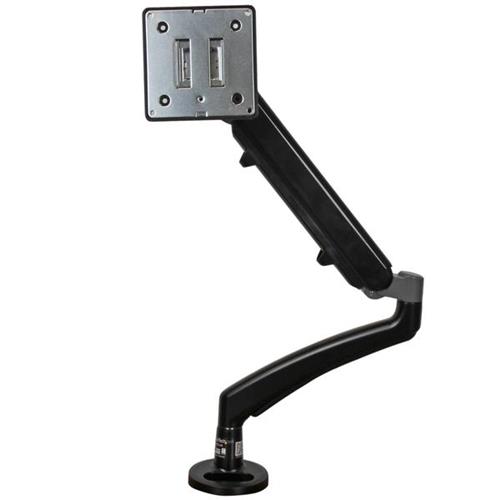
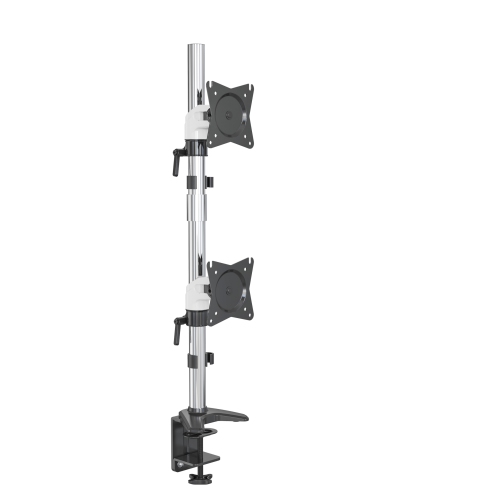
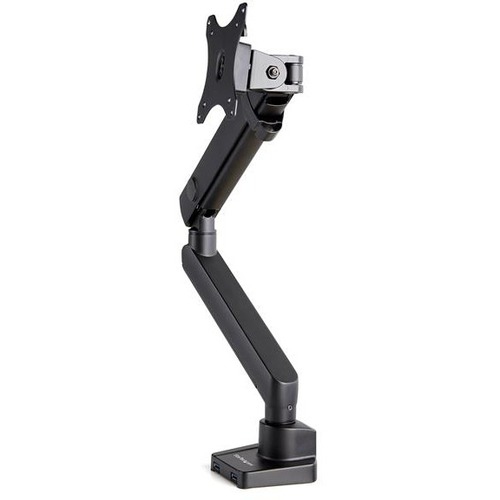
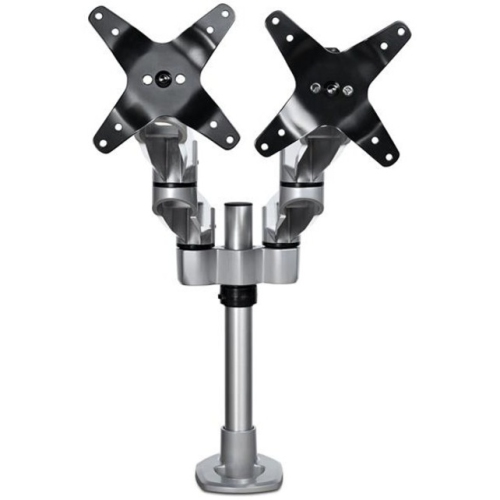
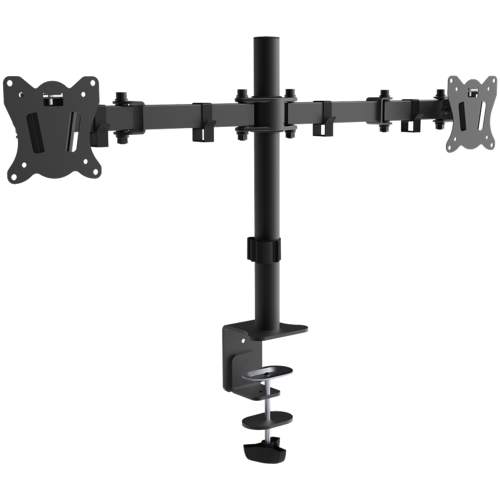
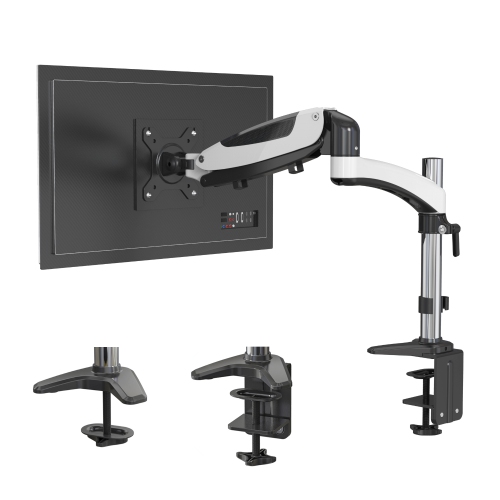
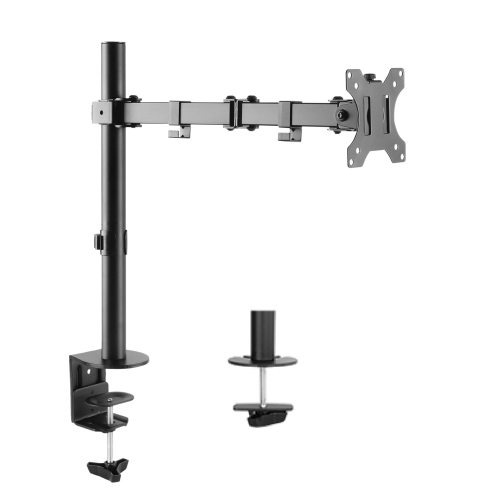
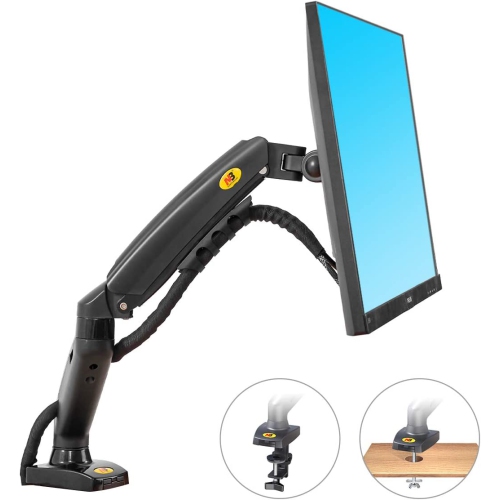
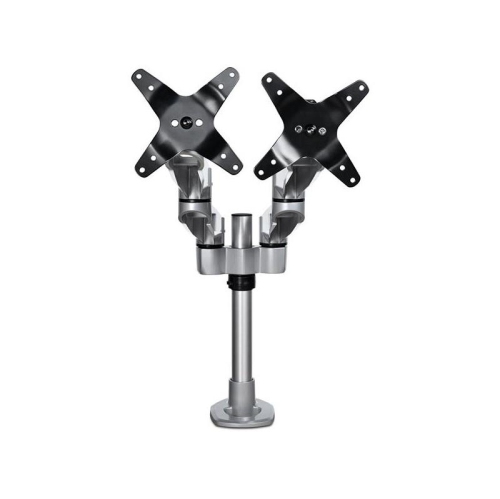
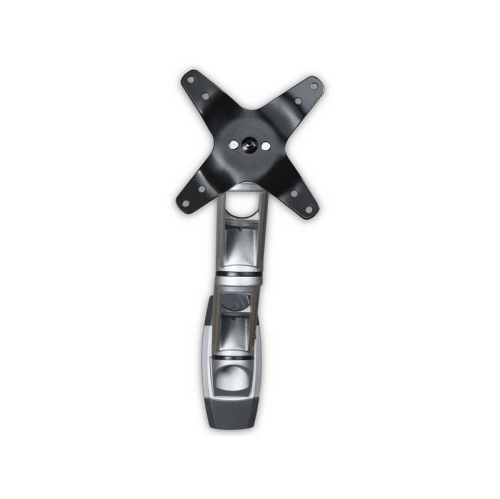
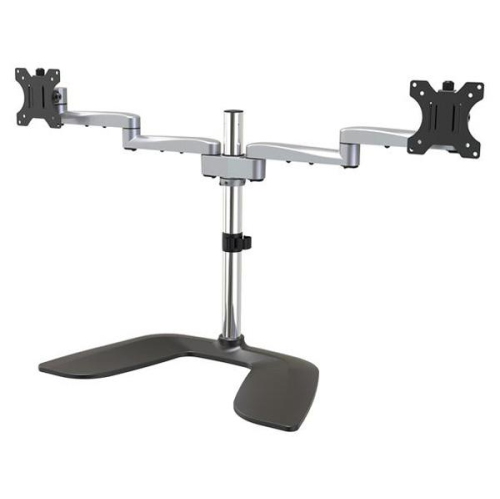
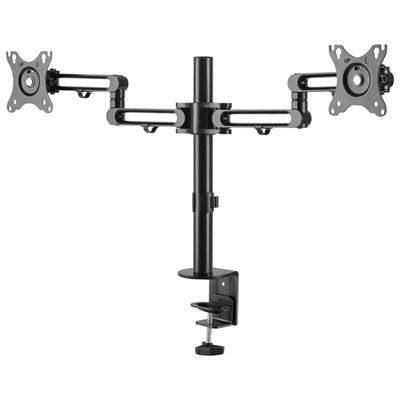
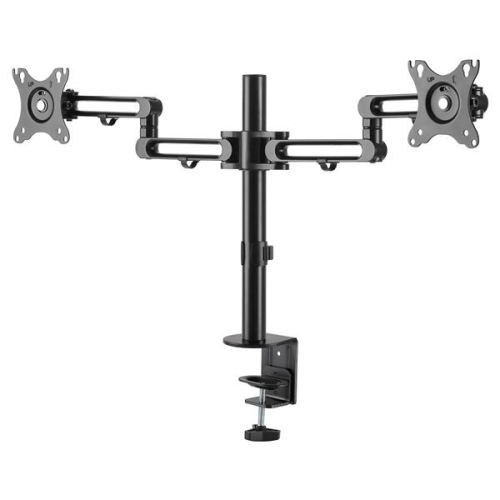
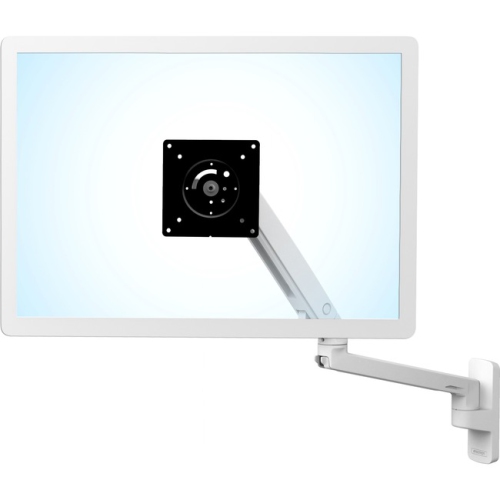
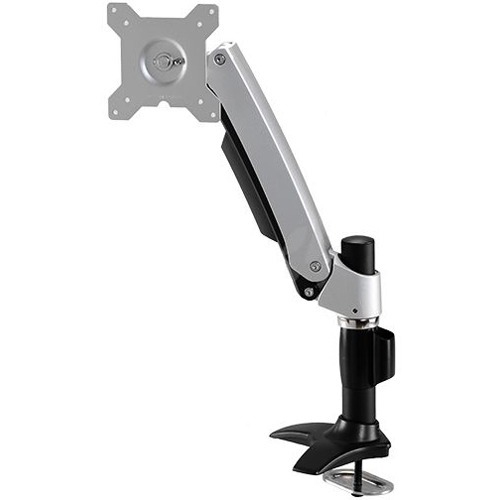
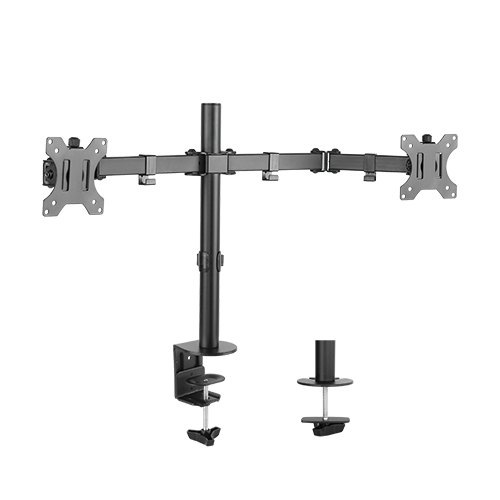
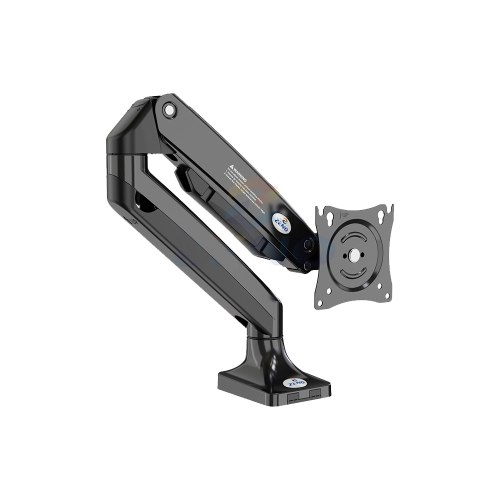
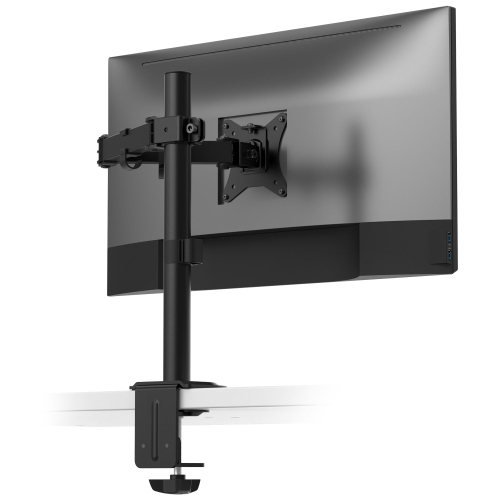
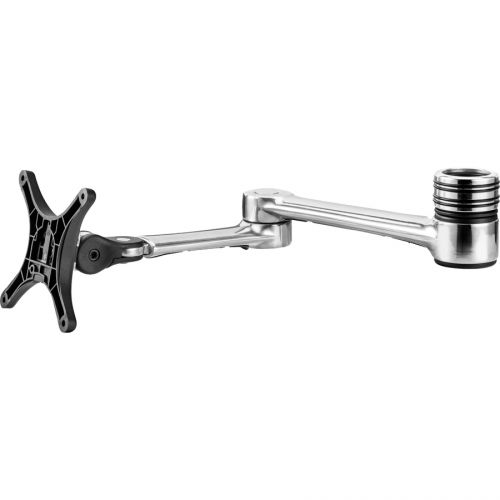
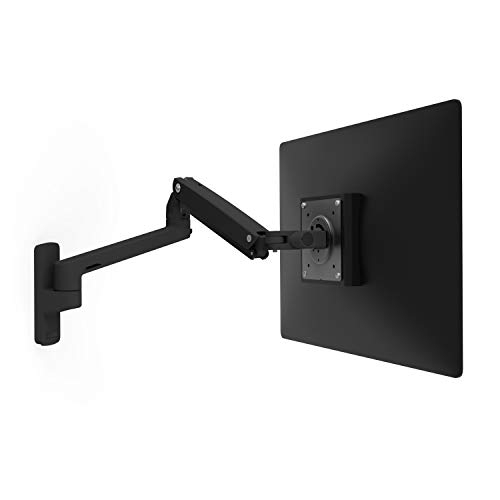
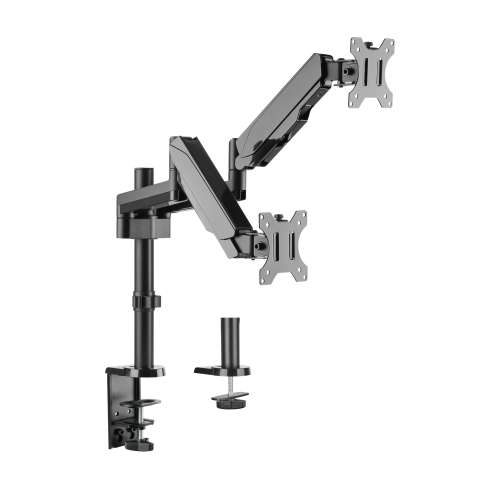
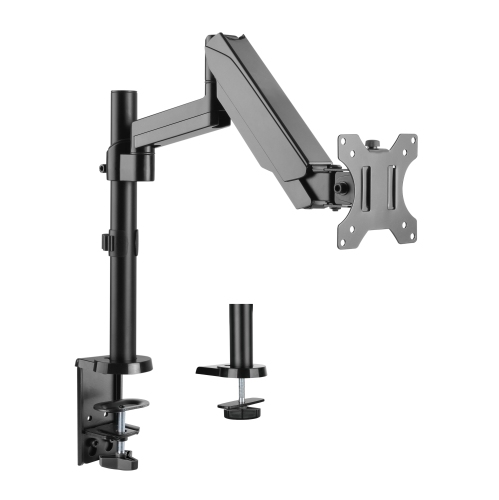
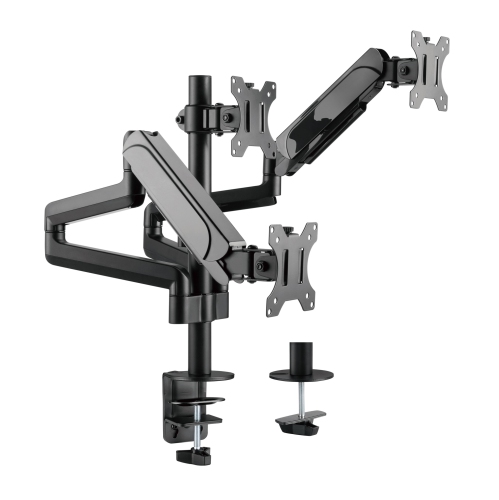
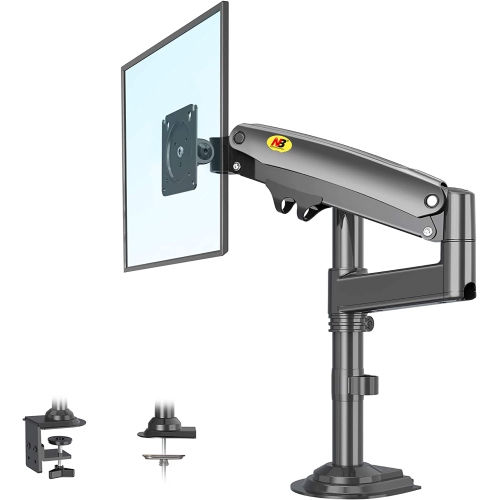
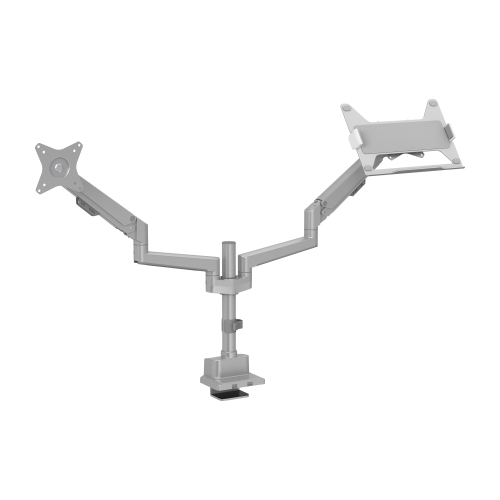

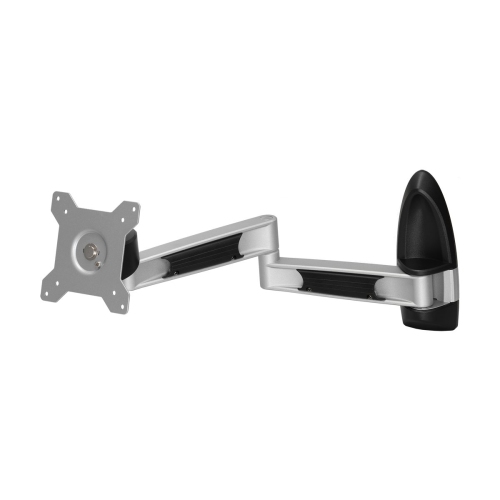
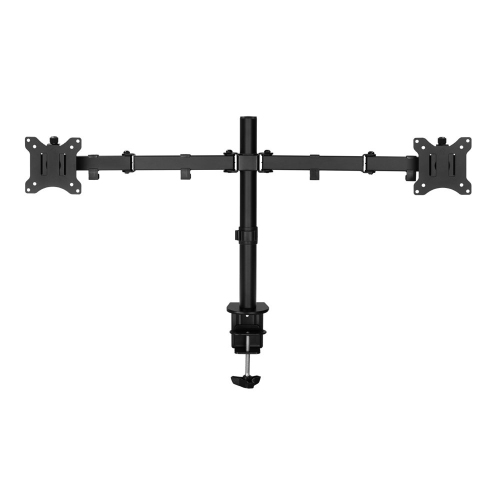

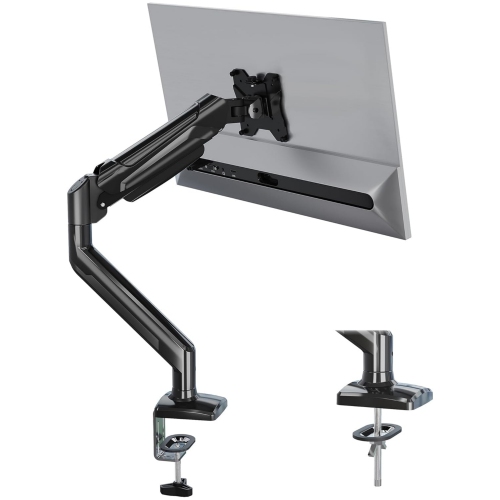
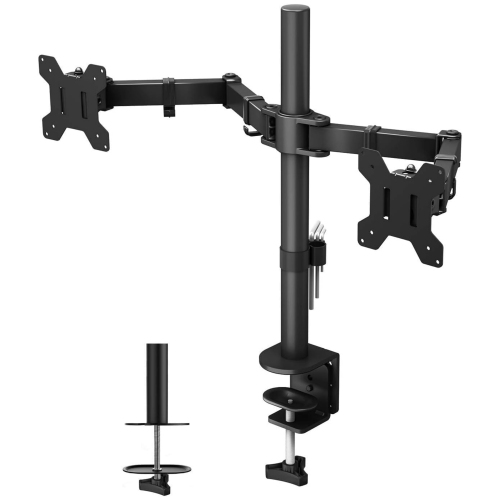
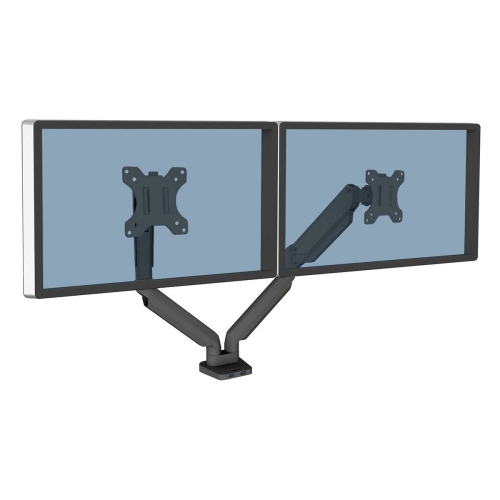

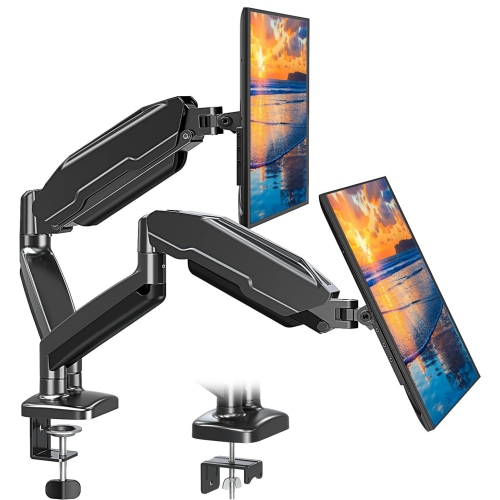
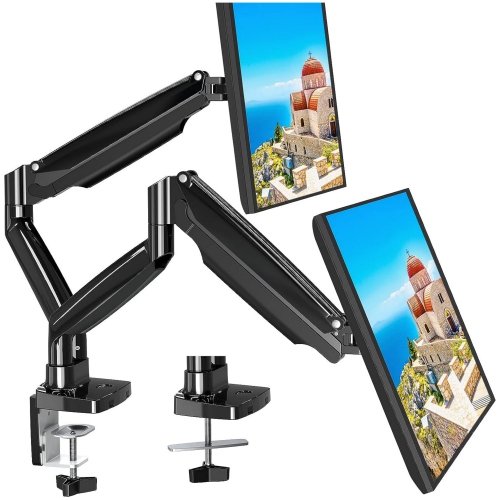
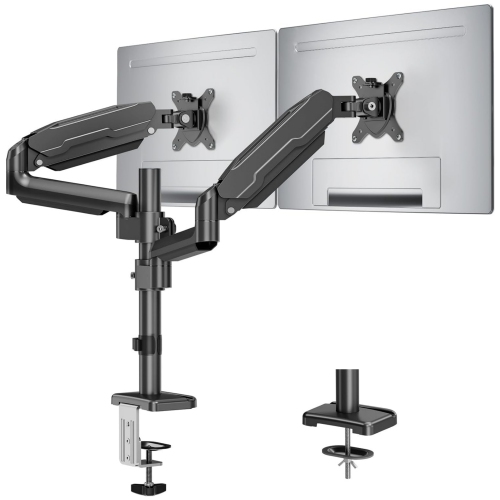
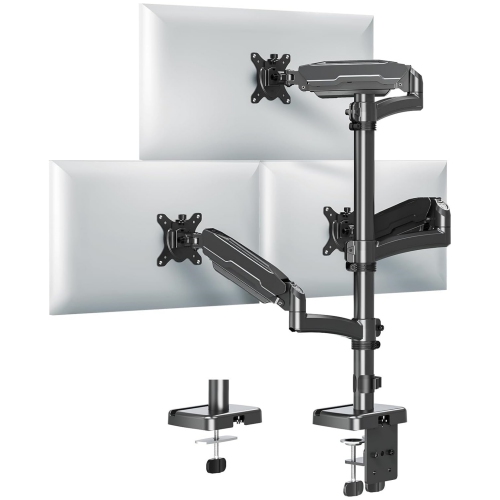
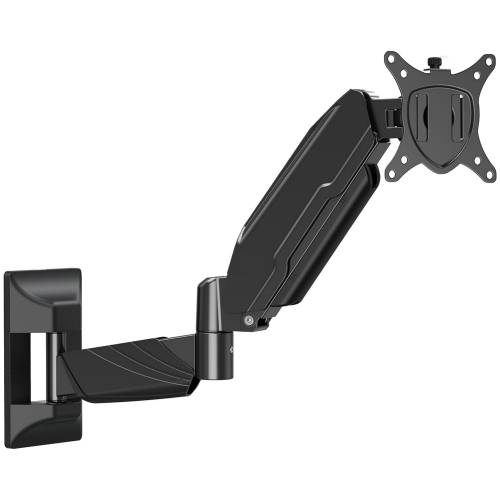
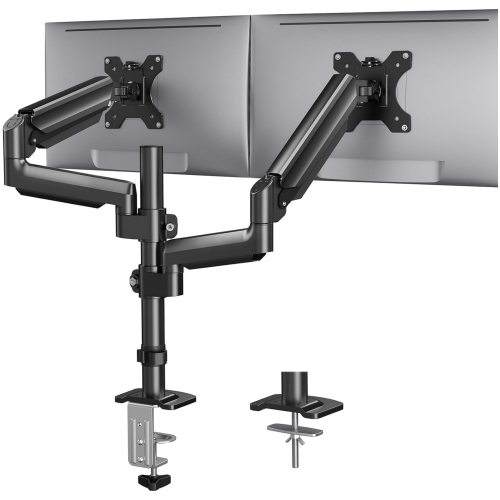
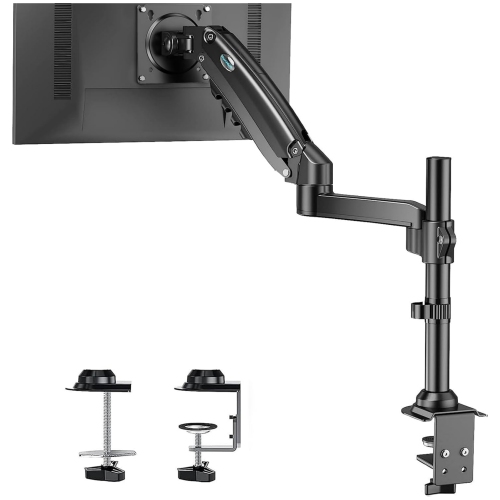
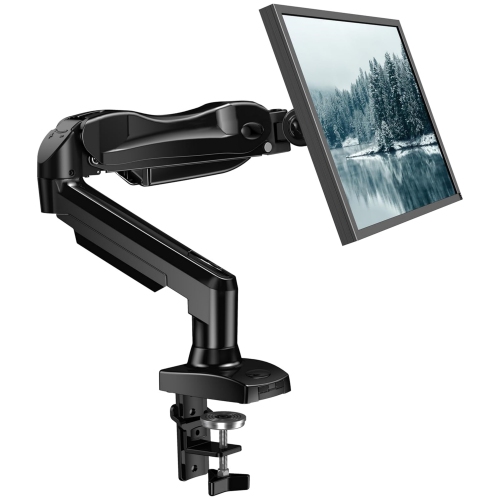
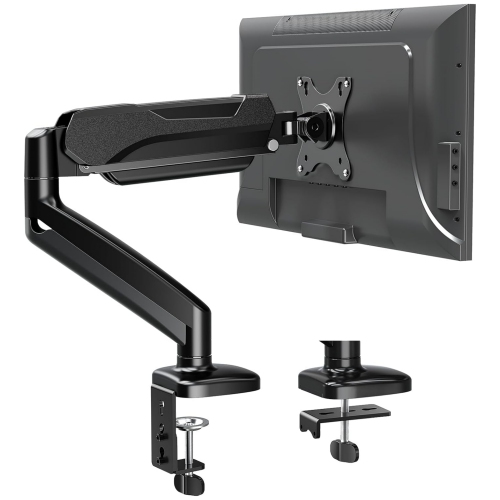
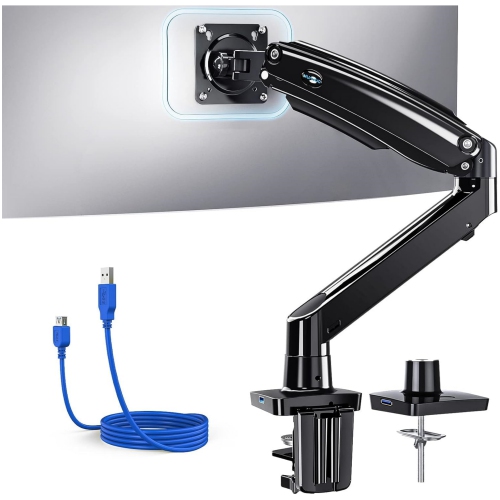
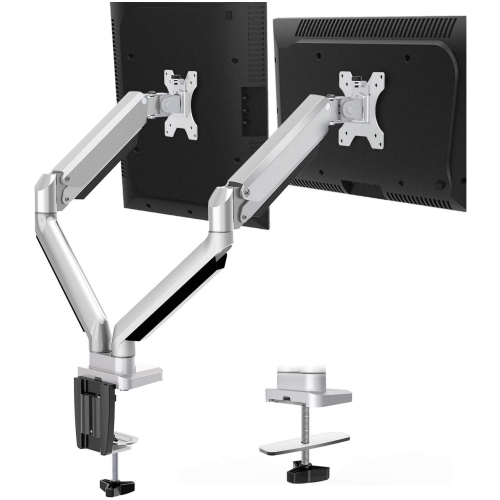

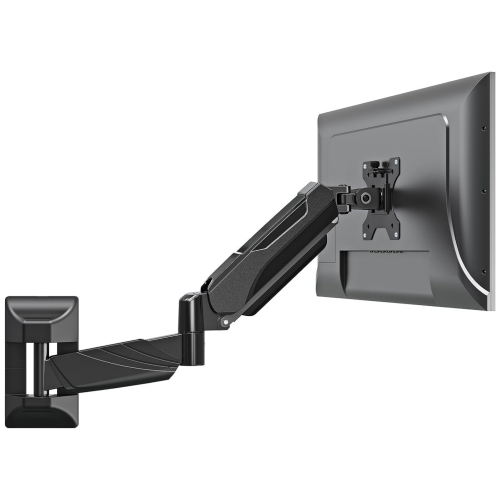
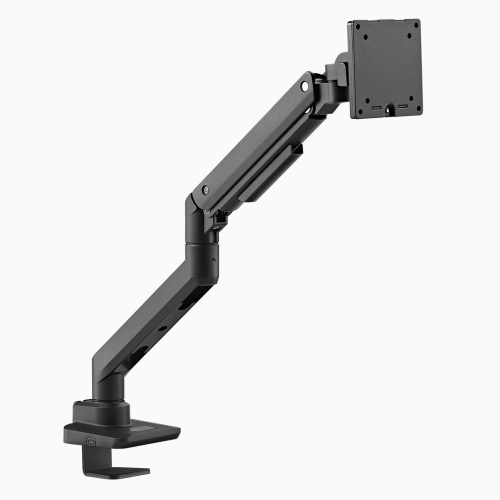
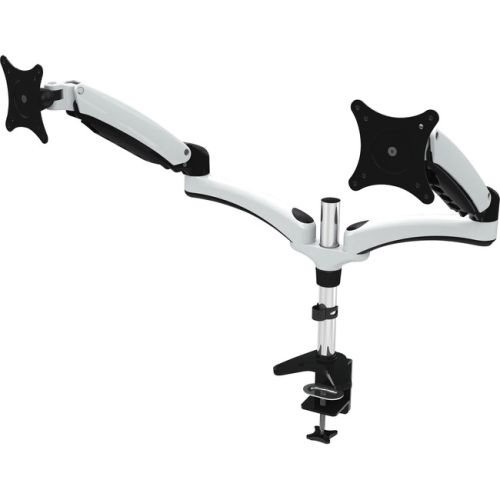
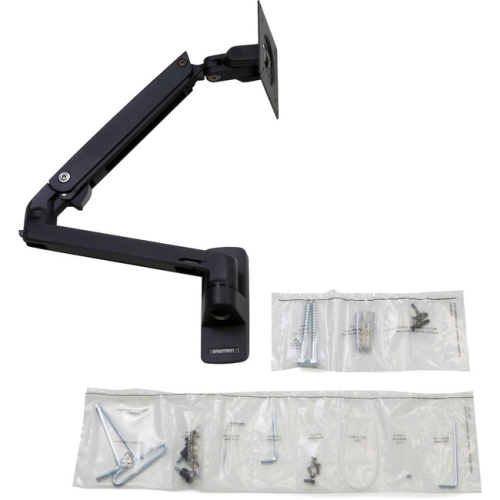
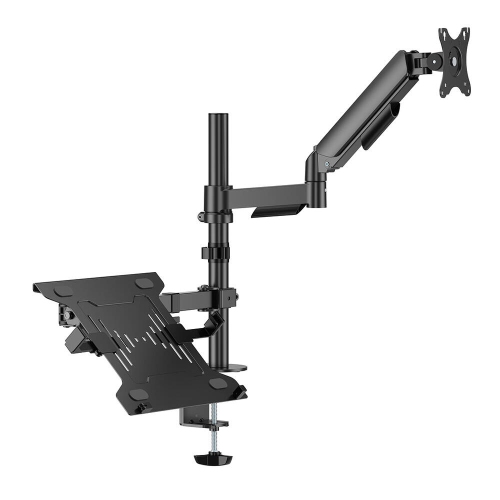
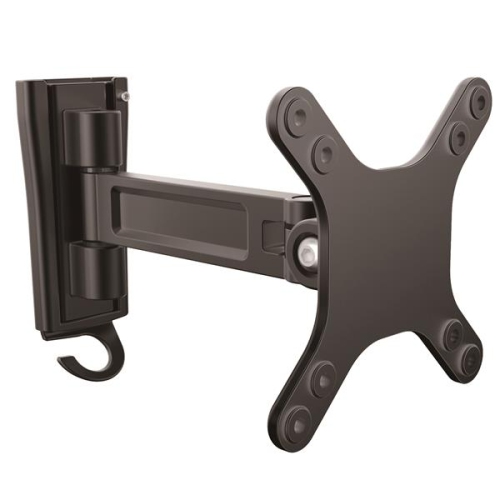
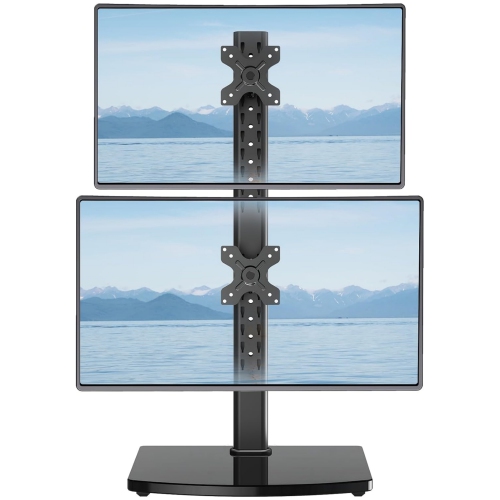
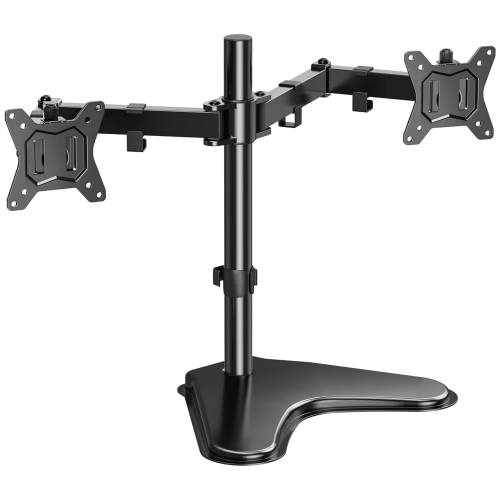
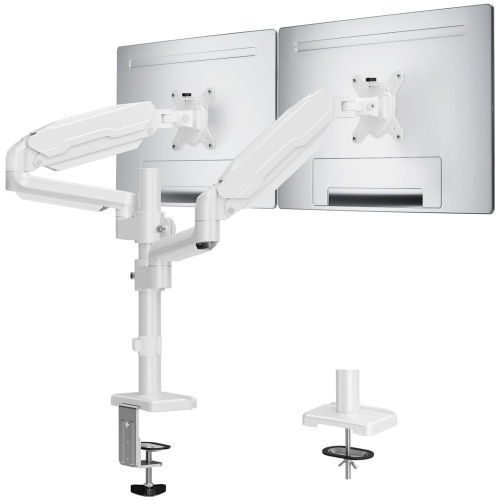
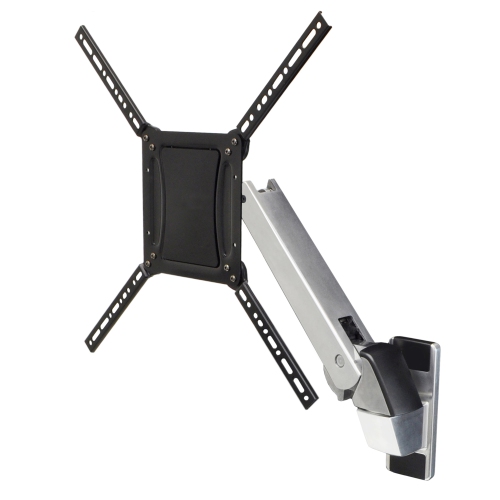
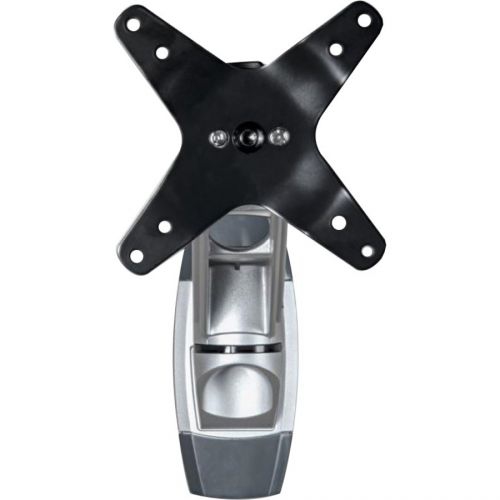

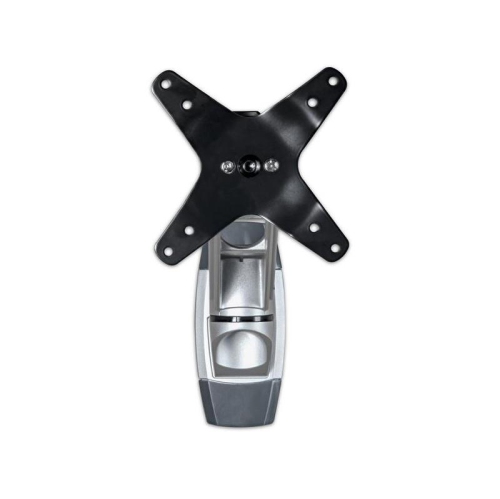
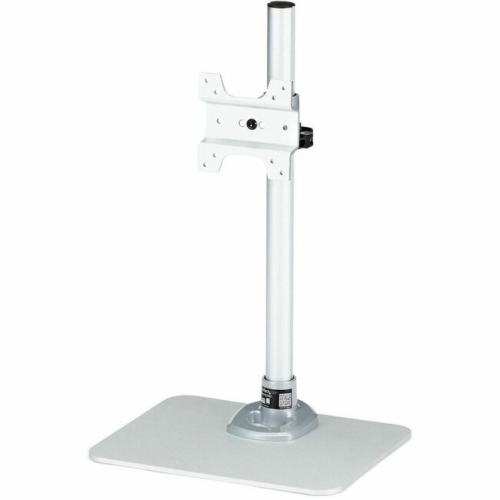
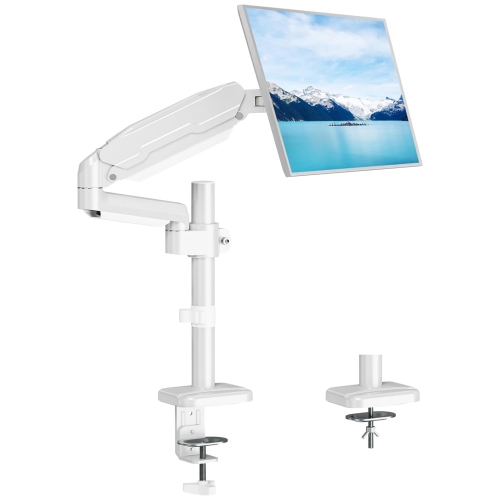

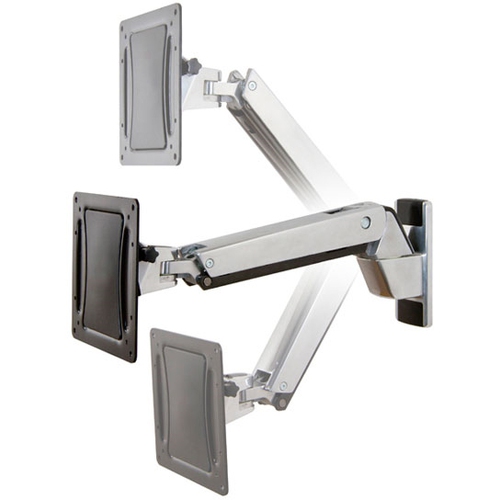
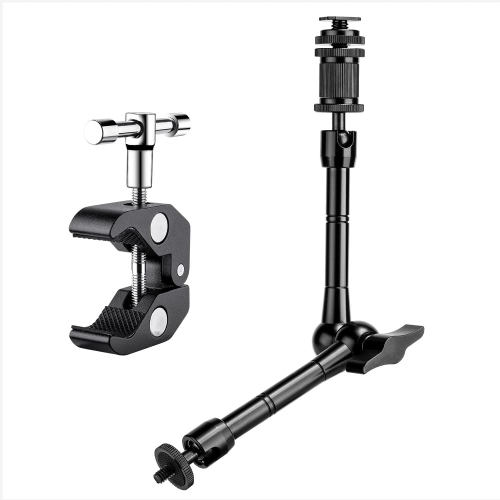
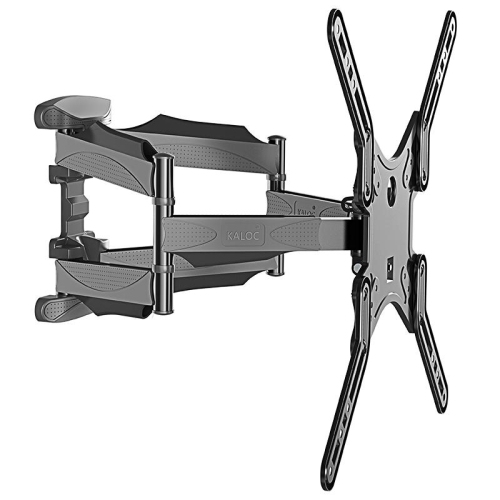


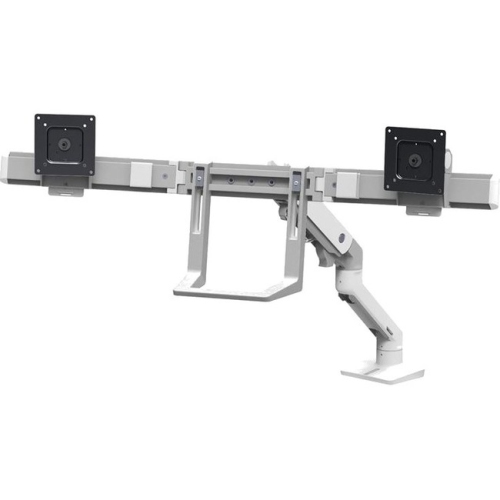
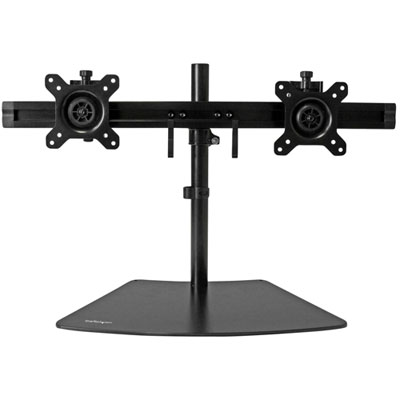
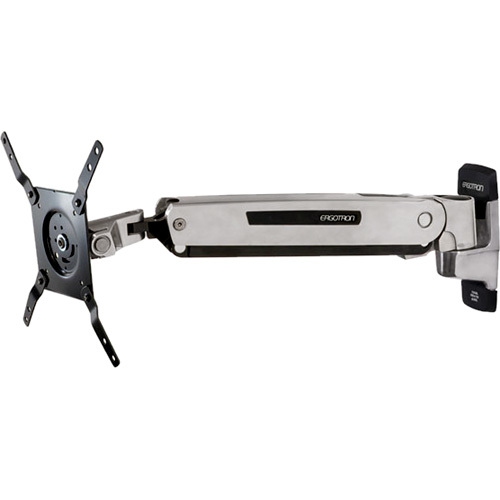
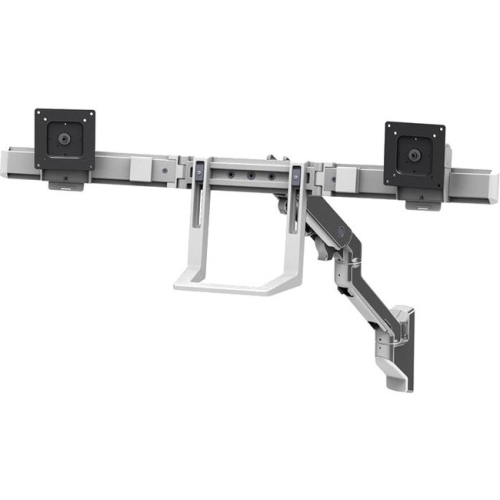
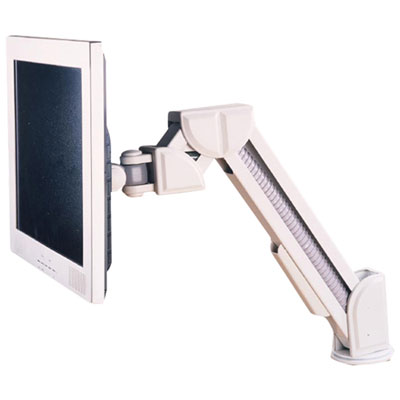
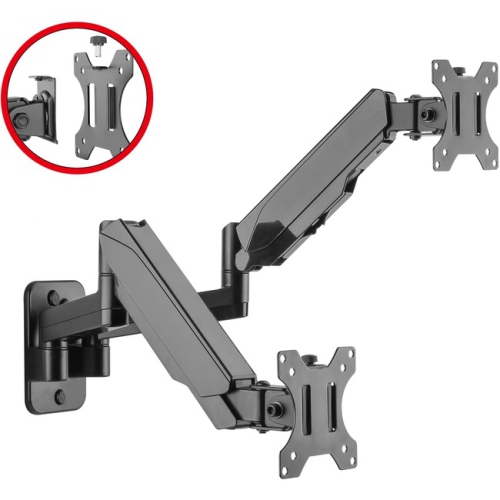
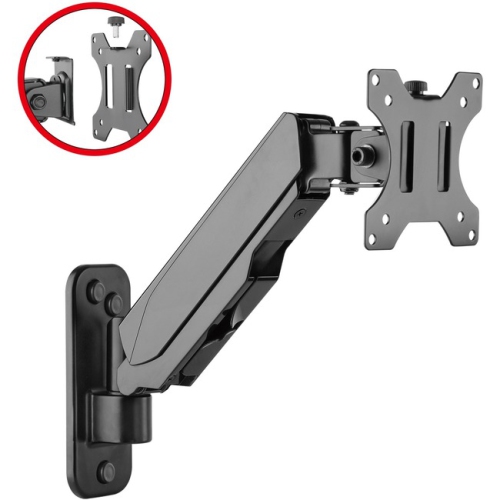
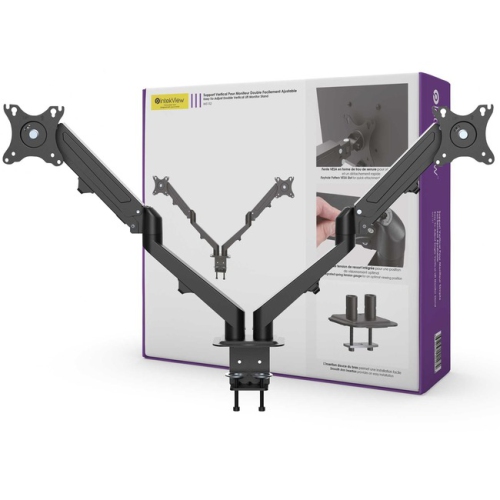
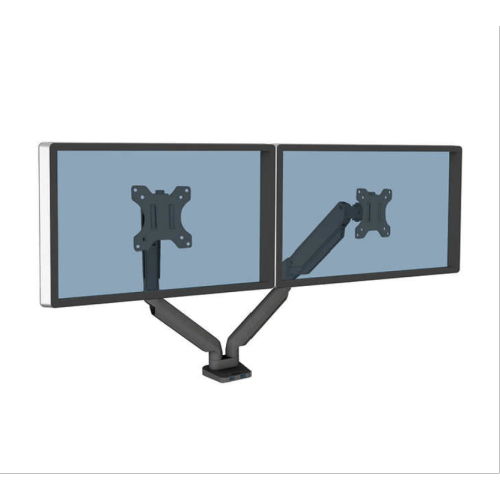
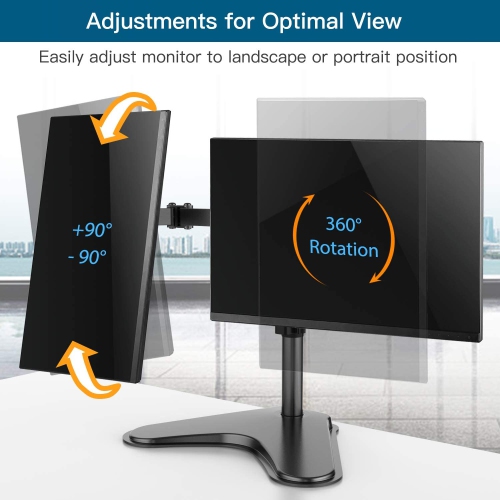
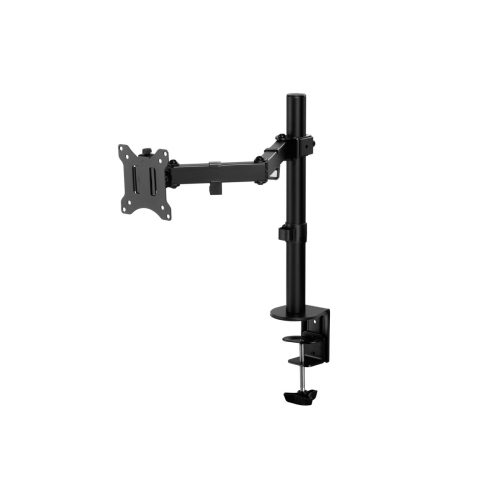
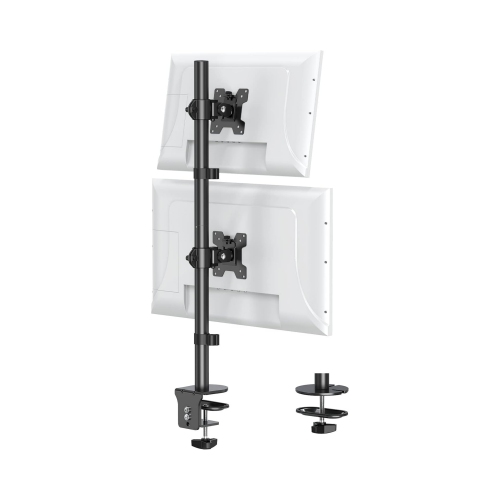

Flexible screen positioning for a more comfortable workstation
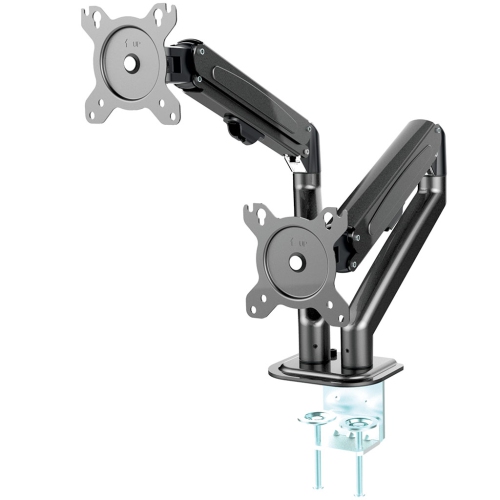
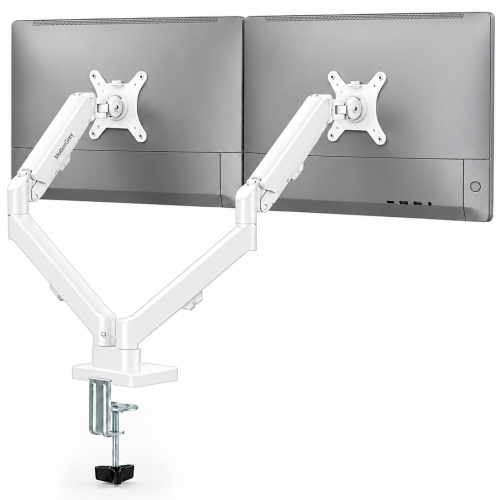
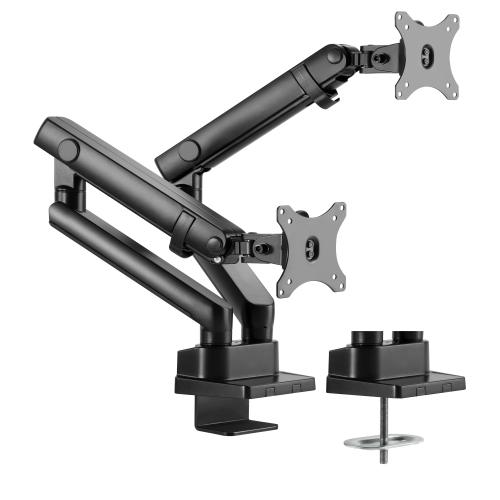
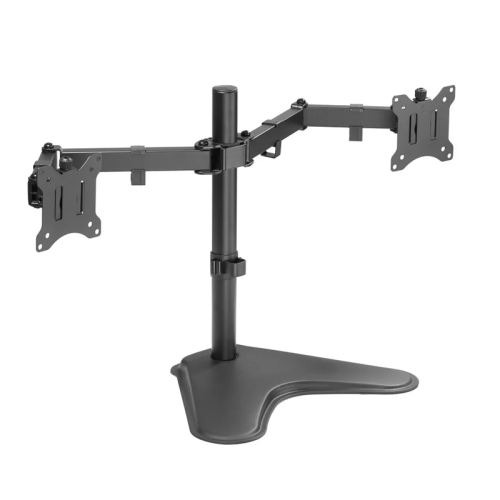
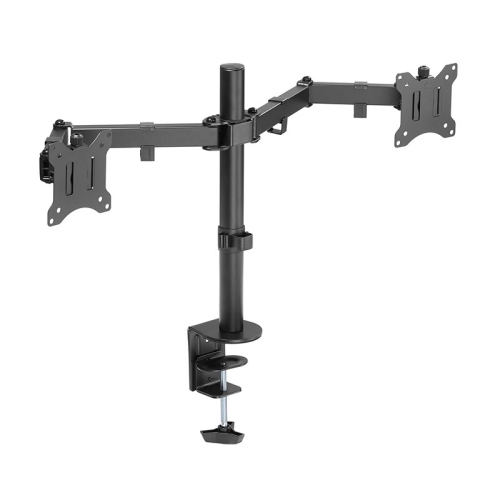
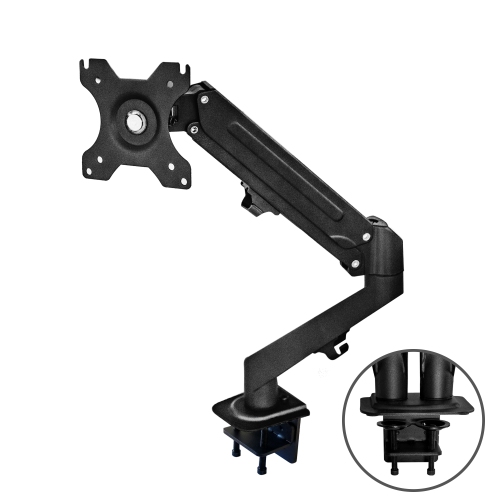
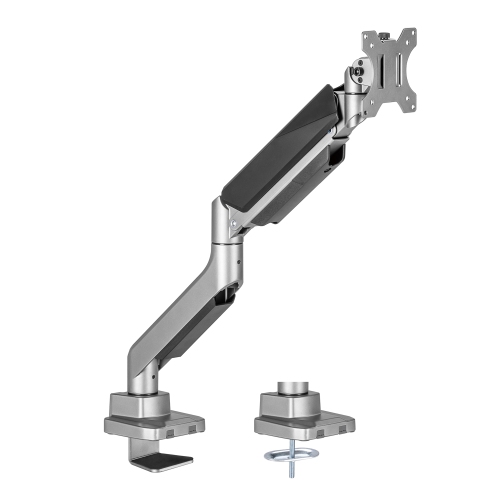
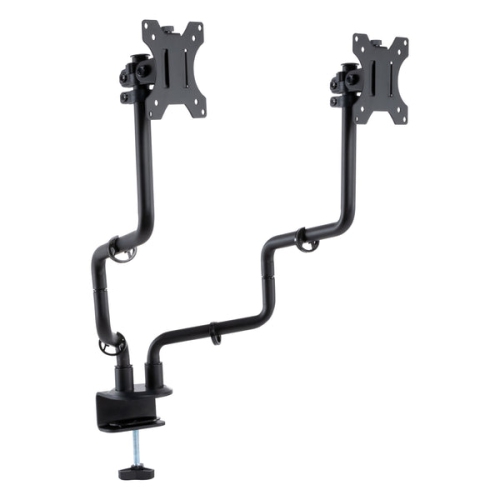
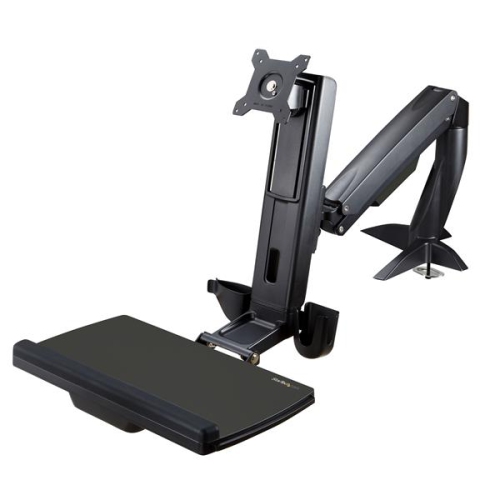
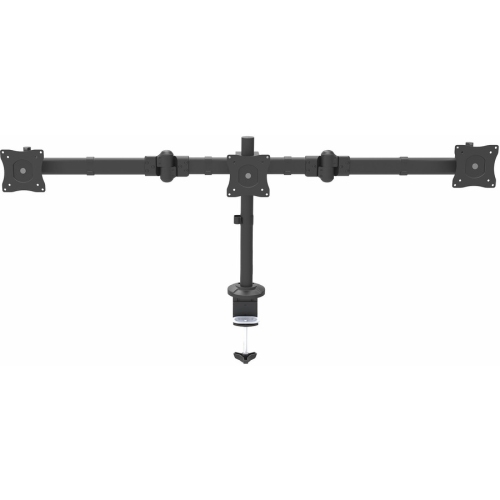
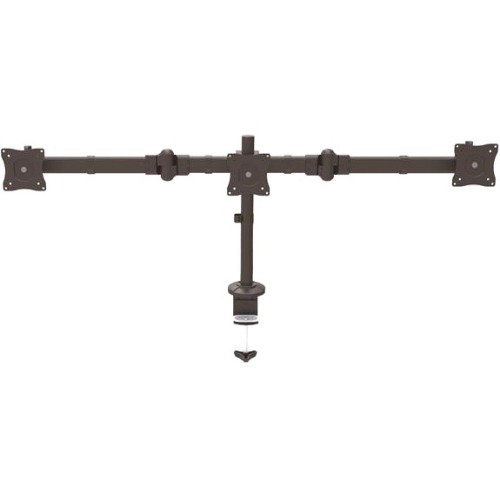
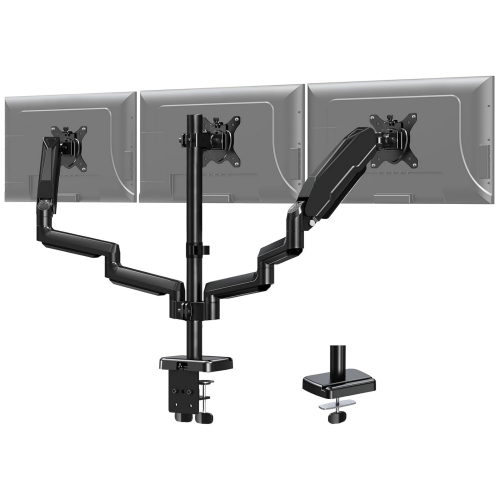
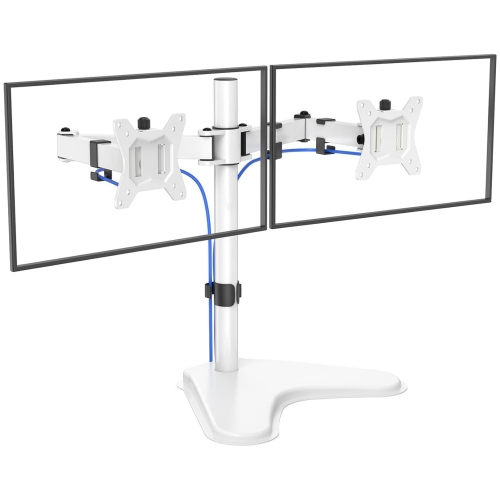
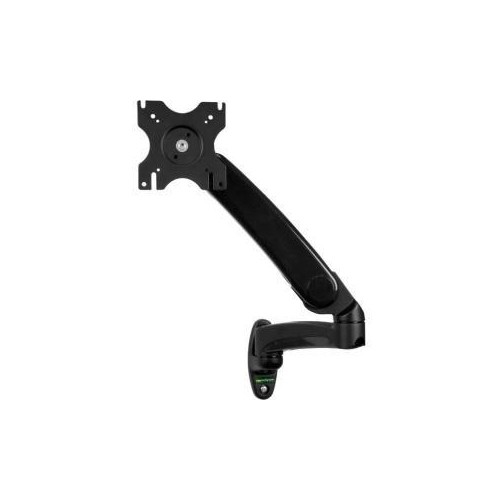
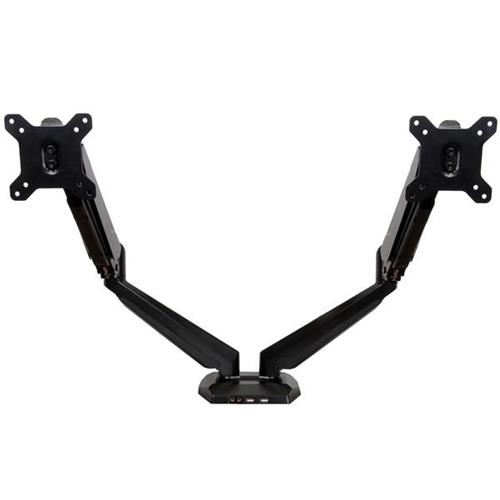
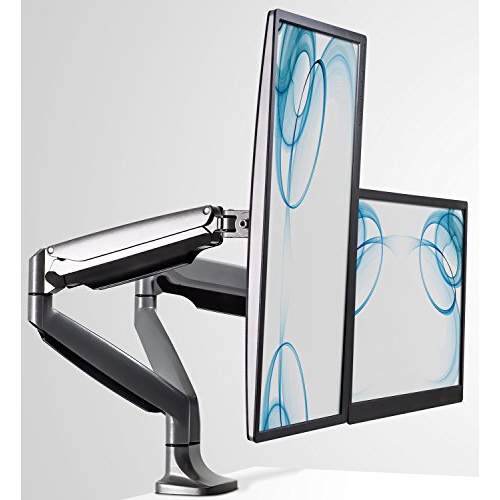
Articulating monitor arms are a practical way to create a more comfortable, flexible workstation while keeping valuable desk space clear. Unlike a traditional monitor stand, an articulating arm lets you raise or lower the screen, tilt it forward or back, swivel it from side to side, and often rotate it from landscape to portrait orientation. This range of movement can make a noticeable difference during long workdays, study sessions, gaming, photo editing, coding, or video calls. A screen positioned at the right height can help you keep your head more upright instead of leaning forward, while the ability to pull the display closer can make small text easier to read without crowding the rest of your workspace. The extra room below the monitor is also useful for a keyboard, notebook, drawing tablet, speakers, or a cup of coffee. Articulating monitor arms are available in single-, dual-, and triple-monitor designs, making them suitable for everything from a simple home office to a demanding multi-screen setup. A single arm can give one display a clean, uncluttered position, while a dual arm can place two screens side by side for comparing documents, monitoring communication tools, or keeping reference material open while working. A triple arm may appeal to users who manage complex workflows, financial dashboards, creative applications, streaming controls, or large amounts of information at once. They can also be a thoughtful gift for someone setting up a new office, upgrading a gaming desk, returning to school, or spending more time at a computer during the cooler months.
Compatibility is the most important place to start when choosing an articulating monitor arm. Check the monitor’s weight without its original stand and compare it with the arm’s supported weight range. It is generally wise to avoid operating right at the maximum capacity, particularly when the screen will be repositioned frequently. The mounting pattern on the back of the display matters as well. Many monitors use VESA mounting holes measuring 75 x 75 mm or 100 x 100 mm, but it is worth confirming the exact specification in the monitor manual before making a purchase. Some displays have a recessed mounting area, an unusually shaped rear panel, or a stand that must be removed before the mounting plate can be attached. Screen size is another consideration: an arm may support the weight of a large display but still have limitations around its recommended width, depth, or range of motion. For a multi-monitor setup, consider the combined weight, the size of each screen, and how closely the displays need to sit together. Mechanical spring arms are often a straightforward choice for lighter or more budget-conscious setups, while gas spring arms are designed to provide smoother, easier one-handed adjustments. If several people share the same workstation, or if a monitor needs to move between sitting and standing positions throughout the day, smooth adjustment can be especially convenient. A High Quality Monitor Arm should feel stable when the screen is in position, with joints that hold their placement rather than drifting or sagging.
Before installation, take a close look at the desk and the space behind it. Most articulating monitor arms attach with a clamp that grips the rear edge of a desk, while some support a grommet installation through an existing cable hole or a drilled opening. Measure the desk thickness to ensure the clamp can accommodate it, and leave enough clearance behind the desk for the clamp, hinges, and the arm when it is fully extended. A desk pushed tightly against a wall may limit how far the monitor can move, so even a small gap can make positioning easier. The surface should be sturdy enough to support the combined weight of the arm and display without excessive flexing; lightweight or fragile surfaces may not be suitable for every mounting style. Remember to allow slack in the monitor’s power and display cables so the arm can move without pulling on the connections. Many arms include cable clips or channels to guide wires along the joints, helping the desk look neater and reducing the chance of cables catching as the screen is adjusted. After mounting, position the monitor so the top edge is approximately at or slightly below eye level, then adjust the distance and tilt until the image is clear without glare. For two or three monitors, keep the primary screen directly in front of you and angle secondary screens inward rather than twisting your neck repeatedly. Portrait orientation can be helpful for long documents, coding, reading, and web pages, while landscape orientation remains useful for video, spreadsheets, and general computing. With the correct VESA fit, weight capacity, mounting method, desk clearance, and number of arms, an articulating monitor arm can turn an ordinary desk into a more adaptable space that feels comfortable from the first morning email to the final evening match.
Compatibility is the most important place to start when choosing an articulating monitor arm. Check the monitor’s weight without its original stand and compare it with the arm’s supported weight range. It is generally wise to avoid operating right at the maximum capacity, particularly when the screen will be repositioned frequently. The mounting pattern on the back of the display matters as well. Many monitors use VESA mounting holes measuring 75 x 75 mm or 100 x 100 mm, but it is worth confirming the exact specification in the monitor manual before making a purchase. Some displays have a recessed mounting area, an unusually shaped rear panel, or a stand that must be removed before the mounting plate can be attached. Screen size is another consideration: an arm may support the weight of a large display but still have limitations around its recommended width, depth, or range of motion. For a multi-monitor setup, consider the combined weight, the size of each screen, and how closely the displays need to sit together. Mechanical spring arms are often a straightforward choice for lighter or more budget-conscious setups, while gas spring arms are designed to provide smoother, easier one-handed adjustments. If several people share the same workstation, or if a monitor needs to move between sitting and standing positions throughout the day, smooth adjustment can be especially convenient. A High Quality Monitor Arm should feel stable when the screen is in position, with joints that hold their placement rather than drifting or sagging.
Before installation, take a close look at the desk and the space behind it. Most articulating monitor arms attach with a clamp that grips the rear edge of a desk, while some support a grommet installation through an existing cable hole or a drilled opening. Measure the desk thickness to ensure the clamp can accommodate it, and leave enough clearance behind the desk for the clamp, hinges, and the arm when it is fully extended. A desk pushed tightly against a wall may limit how far the monitor can move, so even a small gap can make positioning easier. The surface should be sturdy enough to support the combined weight of the arm and display without excessive flexing; lightweight or fragile surfaces may not be suitable for every mounting style. Remember to allow slack in the monitor’s power and display cables so the arm can move without pulling on the connections. Many arms include cable clips or channels to guide wires along the joints, helping the desk look neater and reducing the chance of cables catching as the screen is adjusted. After mounting, position the monitor so the top edge is approximately at or slightly below eye level, then adjust the distance and tilt until the image is clear without glare. For two or three monitors, keep the primary screen directly in front of you and angle secondary screens inward rather than twisting your neck repeatedly. Portrait orientation can be helpful for long documents, coding, reading, and web pages, while landscape orientation remains useful for video, spreadsheets, and general computing. With the correct VESA fit, weight capacity, mounting method, desk clearance, and number of arms, an articulating monitor arm can turn an ordinary desk into a more adaptable space that feels comfortable from the first morning email to the final evening match.
Top selling and popular products
-
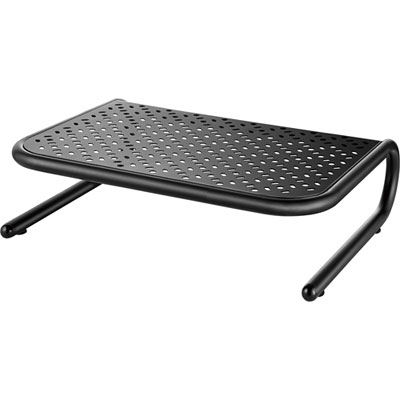 Your price for this item is $34.95
 -
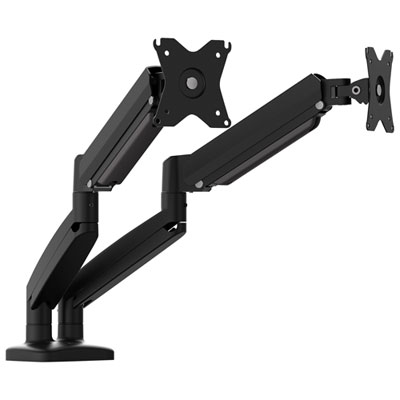 Your price for this item is $129.99
 -
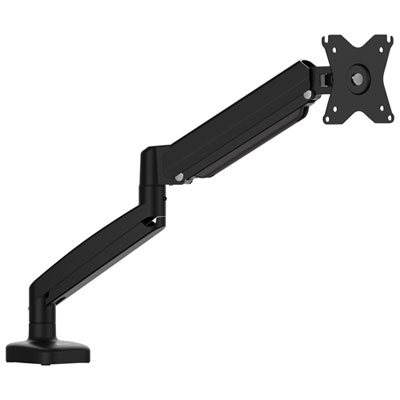 Your price for this item is $69.99
 -
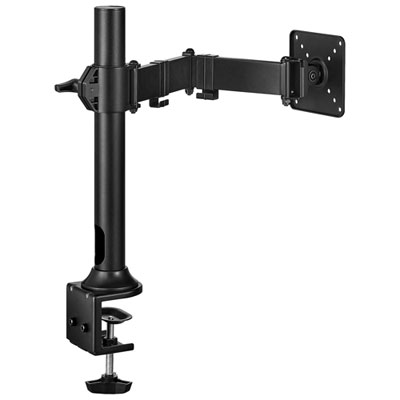 Your price for this item is $69.99
 -
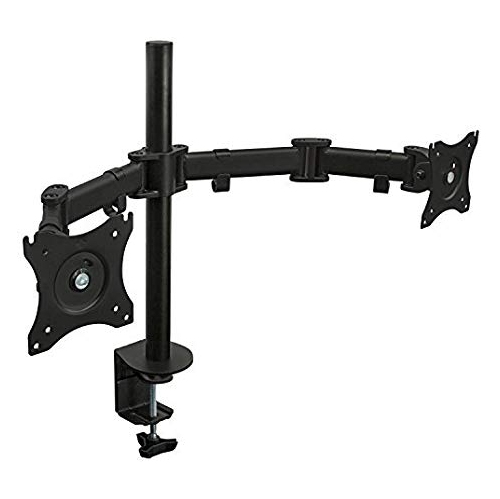 Your price for this item is $124
 -
 Your price for this item is $26.99
 -
 Your price for this item is $254.68
 -
 Your price for this item is $300
Discover more categories related to Articulating Monitor Arms
Top Collections:
Pokemon Centers, Best Budget Office Chairs, Budget 4K TVs, Kindle Devices, Best Laptops for Writers, Canon G7X Cameras, Apple iPhones 16, iPhone 15 Apple, Laptops for Business Work, Xiaomi Phones
Some products may be subject to Environmental Handling Fees
(EHF) depending on your province.
Learn more about EHFs.