Business And Home Office Tablets
Boost productivity and stay connected with business and home office tablets designed to fit your work style. Whether you’re managing projects, joining virtual meetings, or organizing your daily tasks, these tablets offer the versatility needed for both professional and personal use. Explore a variety of options to find the perfect balance between performance and portability for your workspace. Discover how business and home office tablets can help streamline your workflow and support your goals, no matter where you work.
Sort

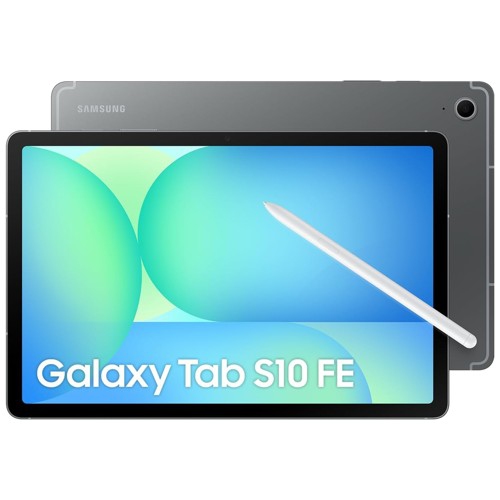
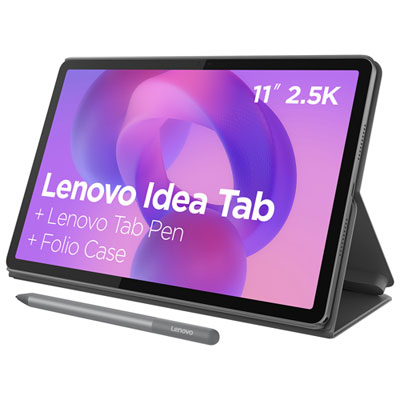
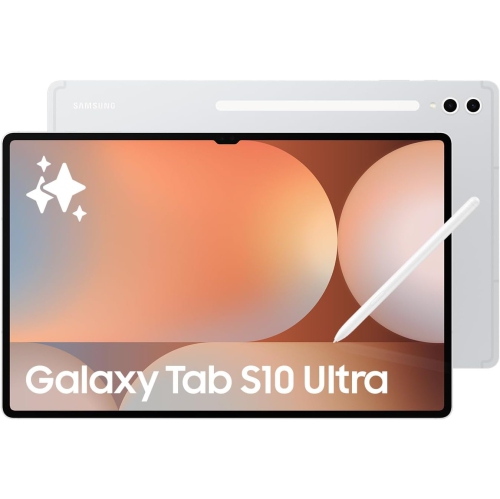
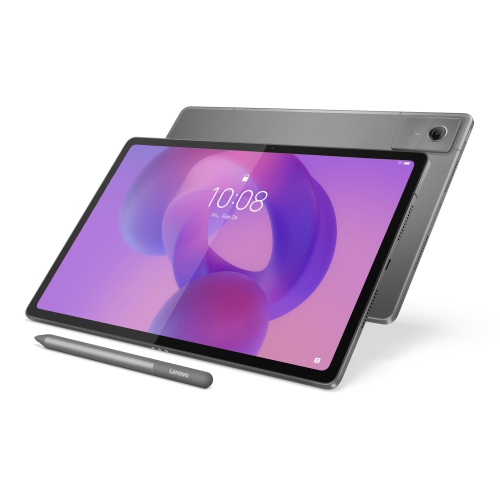
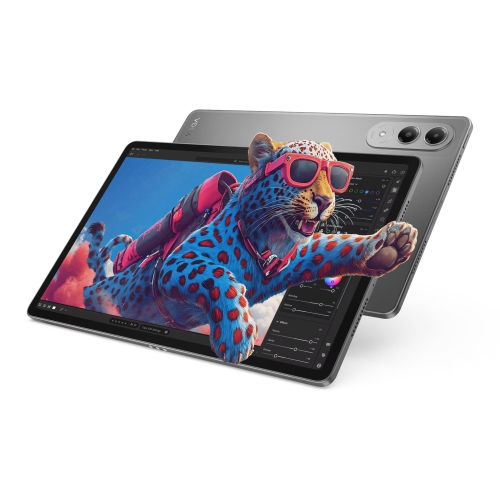
Why software compatibility matters when choosing a work tablet
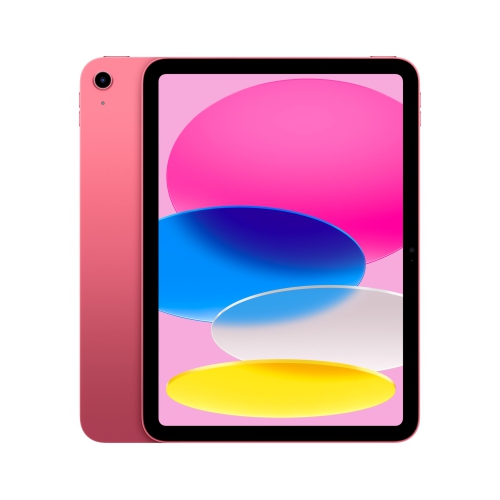
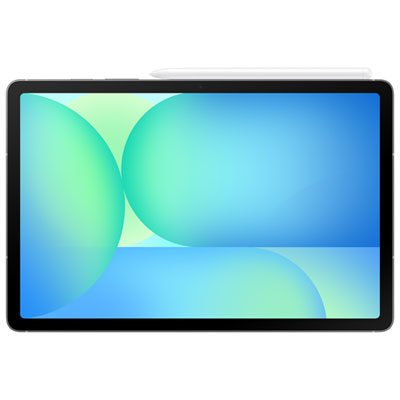
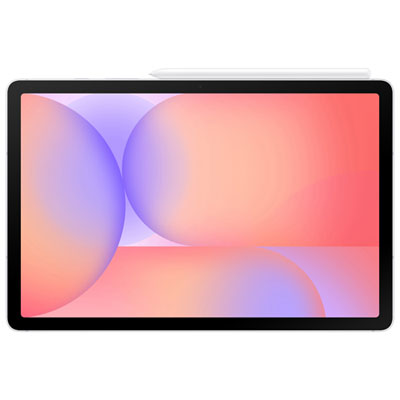
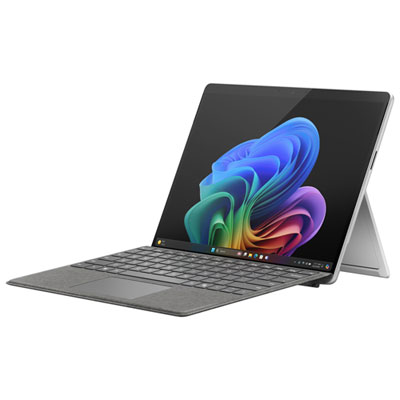
Business and home office tablets combine a portable touchscreen with the processing power, keyboard support and software compatibility needed for everyday work. They can serve as a main device for email, documents and online meetings, or as a companion to a desktop computer for handwritten notes, presentations and reviewing files away from a desk. The right fit depends less on a single specification than on how closely the tablet matches the work involved. A consultant moving between appointments may value a light design and reliable mobile connectivity, while someone managing spreadsheets from a home office may place more importance on a larger display, precise cursor control and support for an external monitor. Software compatibility is particularly important: a mobile app, a browser-based service and a full desktop program may share a name without offering the same features. Advanced spreadsheet tools, specialized accounting programs, document formatting and workplace sign-in requirements can differ between versions. Tablets with a desktop operating system may support a broader range of traditional programs, while mobile operating systems often emphasize touch controls and streamlined apps. Neither approach suits every workflow. For work involving several open documents, frequent app switching or large files, processor capability and memory help determine how responsive the device feels. Storage needs also vary. Downloaded presentations, recorded meetings and image-heavy reports take up space, especially when files must remain accessible without an internet connection. Cloud storage can make documents easier to share across devices, but it does not remove the need to consider offline access, synchronization and organizational rules for handling work files. A useful business tablet fits into existing routines without requiring awkward workarounds, whether that means opening a client’s document with its formatting intact, adding comments to a proposal or moving smoothly from a video call to meeting notes. For shared household use, separate user profiles, where supported, can also help keep work documents distinct from personal apps and files.
Display size and input options shape how comfortable a tablet is over a full working day. A smaller screen is easier to carry through a busy schedule or hold while reading, while a larger screen gives documents, spreadsheets and side-by-side apps more room. Resolution affects the clarity of fine text, and screen brightness and reflections can influence comfort near a window or under overhead lighting. For long stretches of writing, a compatible keyboard can make the difference between occasional replies and comfortable document work. Key spacing, shortcut support and the stability of the stand matter, particularly when the device rests on a shallow desk or a lap rather than a broad table. A trackpad or mouse can make selecting spreadsheet cells and editing detailed layouts more precise, although support varies by operating system and app. Pen input is useful for signing documents, marking up drawings and capturing handwritten notes; pressure sensitivity and palm rejection are relevant for people who sketch or annotate frequently. Keyboard covers, pens and other accessories may be separate, and their compatibility depends on the tablet’s exact size, connectors and supported features. The same attention to fit applies to protective cases: camera openings, buttons, speakers and charging ports should remain accessible. Metal housings can feel sturdy, while the glass display still benefits from protection against knocks and scratches. A well-fitting case with raised edges can help reduce everyday wear, but added protection also increases the weight carried between rooms or appointments. For a permanent home office setup, a stable stand can raise the screen closer to eye level, with a separate keyboard positioned comfortably on the work surface. Keeping the display clean with a soft, lint-free cloth and following the manufacturer’s cleaning directions helps preserve visibility and finish. Liquids, abrasive cleaners and pressure against the screen can damage components or coatings, so a tablet carried alongside chargers and stationery benefits from a dedicated compartment or sleeve.
Connectivity, battery life and security round out a practical tablet workspace. Wi-Fi supports everyday internet access, but connection quality also depends on the router, distance and local network conditions. A tablet with cellular capability can be useful for client visits or working away from a trusted network, though service requires a compatible plan and coverage. Ports and docking support deserve attention when the workday includes an external display, wired headset, storage drive or other peripherals. A connector’s shape alone does not establish its charging speed, data transfer capability or display support, and some setups require a compatible adapter or powered dock. Battery estimates are best treated as a reference rather than a promise for every workload: video meetings, high screen brightness, demanding programs and mobile data use can affect runtime. Charging compatibility and the ability to power the device during desk work matter as much as how long it lasts between charges. For frequent calls, camera placement, microphone clarity and speaker performance influence how naturally conversations flow, especially when a keyboard holds the tablet in landscape orientation. Privacy and account protection are equally relevant for freelancers, small business owners and employees handling workplace information. Features such as device encryption, biometric sign-in and automatic locking can help protect access when supported and properly configured. Workplace-managed devices may also need specific security updates, remote management tools or approved methods for accessing company files. Regular backups and a clear separation between personal and work accounts help make a portable setup easier to manage. Tablets for Home Office Productivity can suit routines ranging from invoicing at the kitchen table to reviewing presentations in a dedicated study. For a self-employed professional, a remote employee or someone starting a small business, the most useful choice supports the actual tasks at hand, stays comfortable to use and works with the accessories and services already part of the day.
Display size and input options shape how comfortable a tablet is over a full working day. A smaller screen is easier to carry through a busy schedule or hold while reading, while a larger screen gives documents, spreadsheets and side-by-side apps more room. Resolution affects the clarity of fine text, and screen brightness and reflections can influence comfort near a window or under overhead lighting. For long stretches of writing, a compatible keyboard can make the difference between occasional replies and comfortable document work. Key spacing, shortcut support and the stability of the stand matter, particularly when the device rests on a shallow desk or a lap rather than a broad table. A trackpad or mouse can make selecting spreadsheet cells and editing detailed layouts more precise, although support varies by operating system and app. Pen input is useful for signing documents, marking up drawings and capturing handwritten notes; pressure sensitivity and palm rejection are relevant for people who sketch or annotate frequently. Keyboard covers, pens and other accessories may be separate, and their compatibility depends on the tablet’s exact size, connectors and supported features. The same attention to fit applies to protective cases: camera openings, buttons, speakers and charging ports should remain accessible. Metal housings can feel sturdy, while the glass display still benefits from protection against knocks and scratches. A well-fitting case with raised edges can help reduce everyday wear, but added protection also increases the weight carried between rooms or appointments. For a permanent home office setup, a stable stand can raise the screen closer to eye level, with a separate keyboard positioned comfortably on the work surface. Keeping the display clean with a soft, lint-free cloth and following the manufacturer’s cleaning directions helps preserve visibility and finish. Liquids, abrasive cleaners and pressure against the screen can damage components or coatings, so a tablet carried alongside chargers and stationery benefits from a dedicated compartment or sleeve.
Connectivity, battery life and security round out a practical tablet workspace. Wi-Fi supports everyday internet access, but connection quality also depends on the router, distance and local network conditions. A tablet with cellular capability can be useful for client visits or working away from a trusted network, though service requires a compatible plan and coverage. Ports and docking support deserve attention when the workday includes an external display, wired headset, storage drive or other peripherals. A connector’s shape alone does not establish its charging speed, data transfer capability or display support, and some setups require a compatible adapter or powered dock. Battery estimates are best treated as a reference rather than a promise for every workload: video meetings, high screen brightness, demanding programs and mobile data use can affect runtime. Charging compatibility and the ability to power the device during desk work matter as much as how long it lasts between charges. For frequent calls, camera placement, microphone clarity and speaker performance influence how naturally conversations flow, especially when a keyboard holds the tablet in landscape orientation. Privacy and account protection are equally relevant for freelancers, small business owners and employees handling workplace information. Features such as device encryption, biometric sign-in and automatic locking can help protect access when supported and properly configured. Workplace-managed devices may also need specific security updates, remote management tools or approved methods for accessing company files. Regular backups and a clear separation between personal and work accounts help make a portable setup easier to manage. Tablets for Home Office Productivity can suit routines ranging from invoicing at the kitchen table to reviewing presentations in a dedicated study. For a self-employed professional, a remote employee or someone starting a small business, the most useful choice supports the actual tasks at hand, stays comfortable to use and works with the accessories and services already part of the day.
Top selling and popular products
-
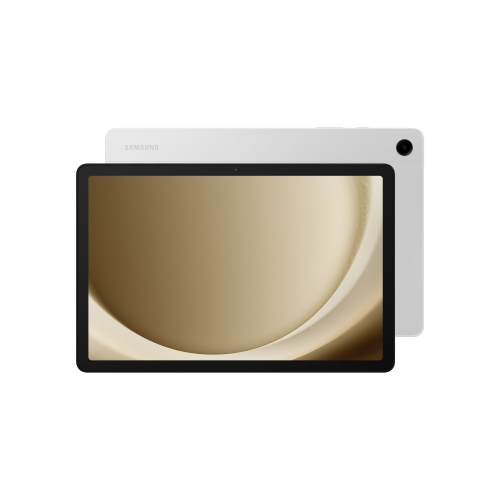 Your price for this item is $499.99
-
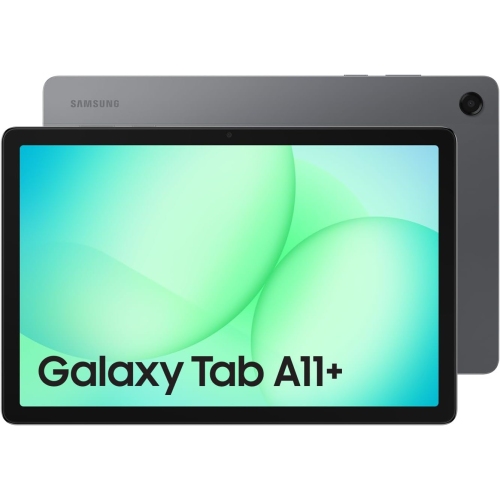 Your price for this item is $363.99
-
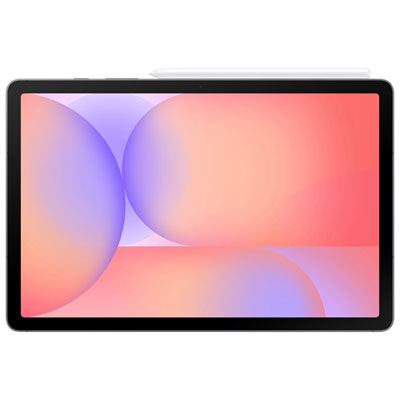 Your price for this item is $579.99
-
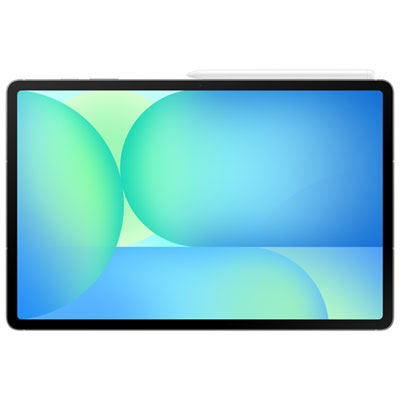 Your price for this item is $979.99
-
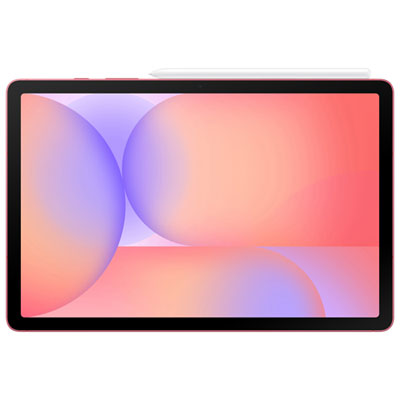 Your price for this item is $579.99
-
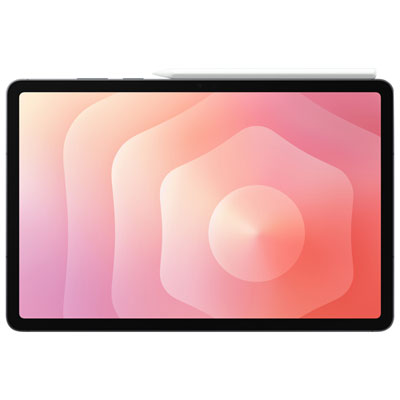 Your price for this item is $1399.99
-
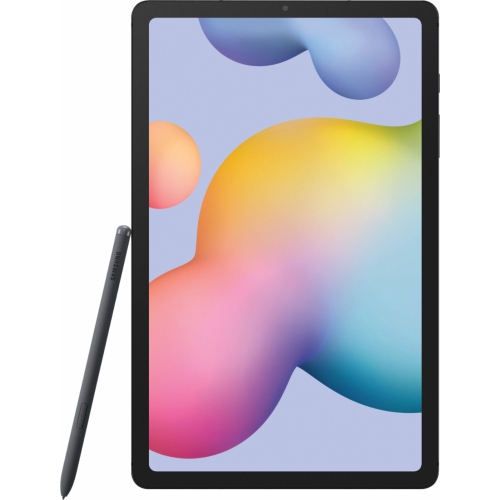 Your price for this item is $699.99
-
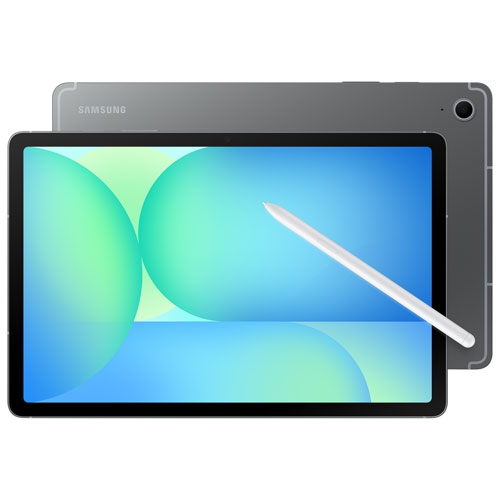 Your price for this item is $624.95
Discover more categories related to Business And Home Office Tablets
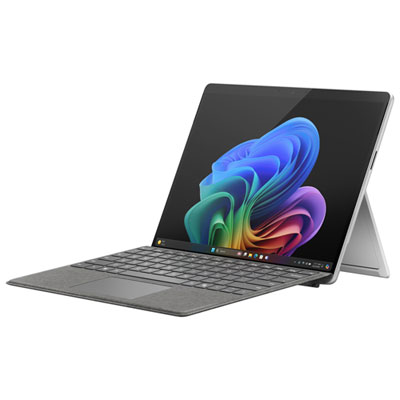
Top Collections:
Pokemon Centers, Pokémon 30th Celebration Cards, Best Budget Office Chairs, Kindle Devices, Best Cameras for Sports Photography, Canon G7X Cameras, Best Black Friday Deals On Electronics, Best Laptops for Writers, iPhone 15 Apple, Jackery Power Stations
Some products may be subject to Environmental Handling Fees
(EHF) depending on your province.
Learn more about EHFs.