Home Office Tablets
Home office tablets offer a convenient and versatile solution for staying productive in any workspace. Designed to keep up with your daily tasks, these devices are ideal for managing projects, attending virtual meetings, or handling emails from the comfort of your home. With a range of options to suit different preferences and needs, home office tablets make it easy to streamline your workflow and stay connected throughout the day. Explore the selection to find the perfect fit for your home office setup.
Sort



When a tablet can complement or replace your computer
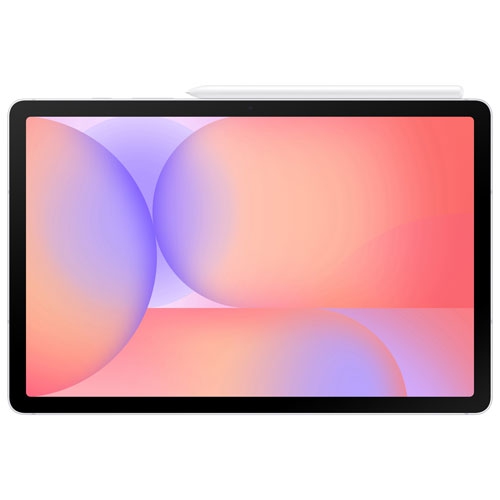
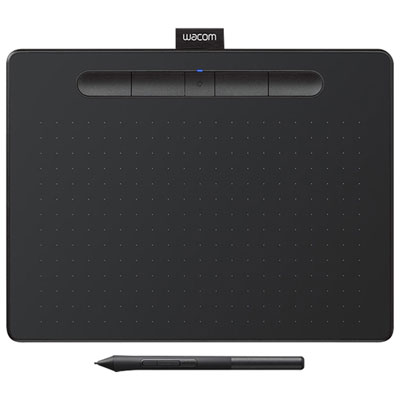
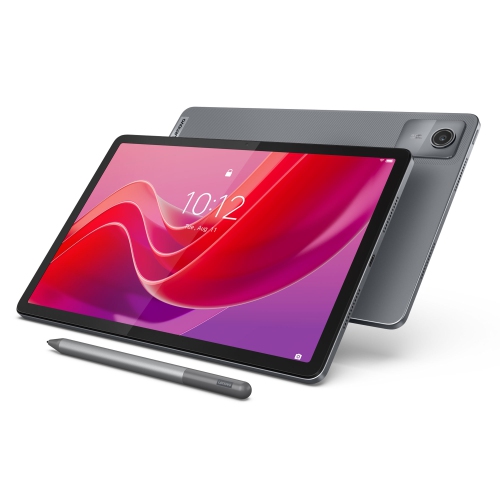
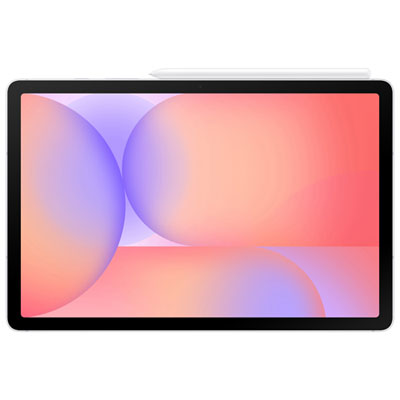
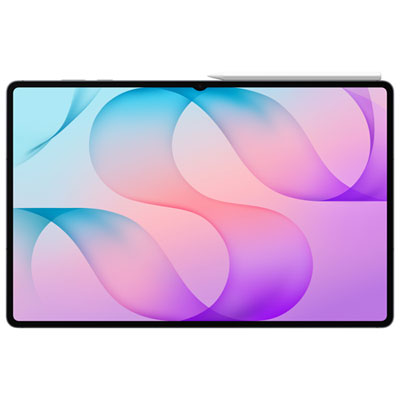
Home office tablets bring everyday work into a compact, flexible format, with touchscreens that suit email, document review, video meetings, scheduling, and handwritten notes. The best fit depends on the software a person uses, how much typing their work involves, and whether the tablet will serve as a main device or a companion to a computer. For someone who spends most of the day in browser-based tools, a tablet can provide a straightforward workspace for managing appointments, updating shared documents, and responding to clients. A role built around complex spreadsheets, specialized desktop applications, or several programs running side by side may call for a tablet that supplements a computer rather than replaces it. Operating system compatibility is especially important: a familiar application name does not always mean its tablet version includes every desktop feature. Support for spreadsheet functions, document formatting, file sharing, and workplace sign-in requirements can make a meaningful difference in daily use. Screen-sharing capabilities and access to shared folders also matter when collaborating with colleagues. Memory affects how comfortably a device handles several open applications, while storage capacity determines how much room is available for downloaded files, presentations, photos, and offline work. Cloud storage can make documents accessible across devices, although local copies remain useful when an internet connection is interrupted. For consultants, tutors, small-business owners, and remote employees, these details shape whether a tablet feels like a useful work surface or an extra device to manage. A tablet can also take on a distinct supporting role: displaying reference material beside a computer, holding meeting notes, or showing a marked-up document while the main screen remains clear for writing. That separation can be particularly helpful during a call, when switching repeatedly between meeting controls and reference files would otherwise interrupt the conversation. The strongest match is a device whose everyday capabilities fit the work, rather than one chosen solely for its screen size or appearance.
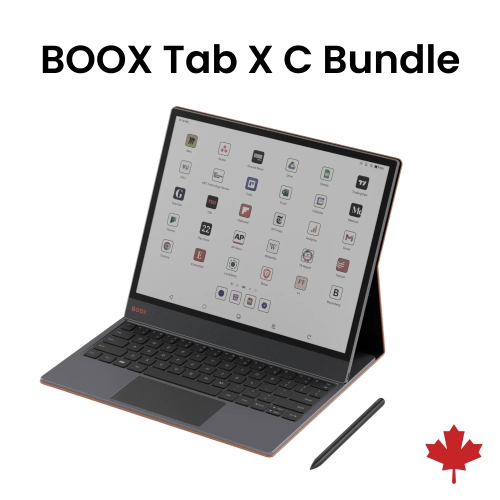
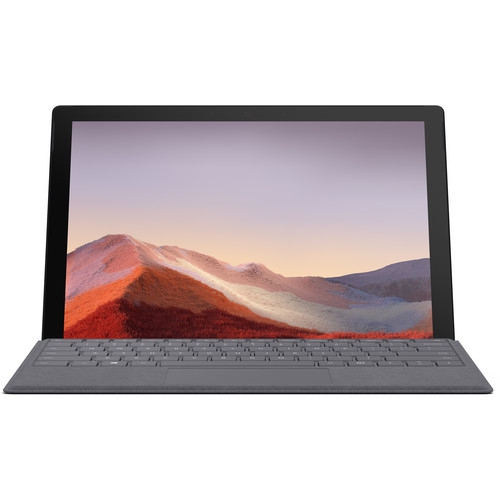
The physical design of a home office tablet influences comfort just as much as its software. A larger display gives documents, slide decks, and split-screen applications more room, while a smaller, lighter tablet is easier to hold when reading a report or moving between workspaces. Display resolution affects the clarity of fine text, and screen brightness and reflections can influence where a tablet sits comfortably on a desk. People who review photographs, illustrations, or visual layouts may also value consistent colour reproduction. For frequent typing, a compatible keyboard can turn a touchscreen device into a more practical station for email and longer documents. Key spacing, layout, palm support, and the stability of an attached case all affect how that setup feels through a working session. A trackpad or mouse may make selecting spreadsheet cells and editing text more precise, provided the tablet and applications support those controls. Stylus compatibility is another distinction: an active pen can be useful for signing documents, annotating plans, sketching ideas, or taking handwritten meeting notes, but pen features and charging methods differ. A stable stand helps position the screen for calls and keeps it from lying flat beside a keyboard. For longer sessions, raising the display and using a separate keyboard can allow a more comfortable arrangement than typing directly on the screen. Camera placement matters, too, particularly when a tablet is used horizontally for video meetings. Clear microphones, suitable speakers, and headset compatibility help support conversations without requiring everyone nearby to hear the call. Materials contribute to the overall feel and durability of the device. Metal housings can feel rigid, while textured cases can improve grip and protect corners from everyday bumps. Glass screens still need careful handling, and a case should fit the exact tablet dimensions without covering microphones, cameras, charging ports, or ventilation openings. A secure fit is especially useful when a tablet is regularly propped up, carried, or passed between colleagues.
Connectivity and upkeep round out the practical differences between home office tablets. Reliable Wi-Fi supports shared documents and video calls, while cellular capability can offer another connection option on compatible devices with an appropriate service plan. For work that moves beyond a fixed desk, portable office tablets bring attention to carrying weight, battery life, and the ease of packing a keyboard or charger alongside the screen. Battery performance varies with display brightness, video meetings, connected accessories, and the applications in use, so a device’s suitability depends on the actual workload rather than a single battery estimate. Charging connections and accessory support deserve similar attention. A port that accepts a charging cable does not necessarily support an external monitor, and external display behaviour can vary by operating system and application. Hubs, storage devices, keyboards, and headsets need compatible connections, while some accessories require additional power. These distinctions become noticeable when a tablet is expected to connect to an established desk setup. Privacy and account management are equally relevant for work at home. Passcodes, supported biometric sign-in, timely software updates, and separate work accounts can help protect documents and messages, especially on a device used around other household members. Employer-managed applications or security requirements may also determine which tablets suit a particular role. Routine care helps keep a frequently handled device pleasant to use: a soft, lint-free cloth removes fingerprints, and cleaning methods should follow the manufacturer’s directions rather than expose screens or openings to excess moisture. A fitted cover and a separate compartment in a work bag can reduce contact with keys, cables, and other objects that might scratch the surface. Keeping files organized and maintaining backups also makes it easier to move between tasks without searching through scattered downloads. Whether used for client appointments, administrative work, creative notes, or a dedicated meeting screen, a well-matched tablet earns its place through comfortable handling, dependable access to essential tools, and a setup that suits the working day.
The physical design of a home office tablet influences comfort just as much as its software. A larger display gives documents, slide decks, and split-screen applications more room, while a smaller, lighter tablet is easier to hold when reading a report or moving between workspaces. Display resolution affects the clarity of fine text, and screen brightness and reflections can influence where a tablet sits comfortably on a desk. People who review photographs, illustrations, or visual layouts may also value consistent colour reproduction. For frequent typing, a compatible keyboard can turn a touchscreen device into a more practical station for email and longer documents. Key spacing, layout, palm support, and the stability of an attached case all affect how that setup feels through a working session. A trackpad or mouse may make selecting spreadsheet cells and editing text more precise, provided the tablet and applications support those controls. Stylus compatibility is another distinction: an active pen can be useful for signing documents, annotating plans, sketching ideas, or taking handwritten meeting notes, but pen features and charging methods differ. A stable stand helps position the screen for calls and keeps it from lying flat beside a keyboard. For longer sessions, raising the display and using a separate keyboard can allow a more comfortable arrangement than typing directly on the screen. Camera placement matters, too, particularly when a tablet is used horizontally for video meetings. Clear microphones, suitable speakers, and headset compatibility help support conversations without requiring everyone nearby to hear the call. Materials contribute to the overall feel and durability of the device. Metal housings can feel rigid, while textured cases can improve grip and protect corners from everyday bumps. Glass screens still need careful handling, and a case should fit the exact tablet dimensions without covering microphones, cameras, charging ports, or ventilation openings. A secure fit is especially useful when a tablet is regularly propped up, carried, or passed between colleagues.
Connectivity and upkeep round out the practical differences between home office tablets. Reliable Wi-Fi supports shared documents and video calls, while cellular capability can offer another connection option on compatible devices with an appropriate service plan. For work that moves beyond a fixed desk, portable office tablets bring attention to carrying weight, battery life, and the ease of packing a keyboard or charger alongside the screen. Battery performance varies with display brightness, video meetings, connected accessories, and the applications in use, so a device’s suitability depends on the actual workload rather than a single battery estimate. Charging connections and accessory support deserve similar attention. A port that accepts a charging cable does not necessarily support an external monitor, and external display behaviour can vary by operating system and application. Hubs, storage devices, keyboards, and headsets need compatible connections, while some accessories require additional power. These distinctions become noticeable when a tablet is expected to connect to an established desk setup. Privacy and account management are equally relevant for work at home. Passcodes, supported biometric sign-in, timely software updates, and separate work accounts can help protect documents and messages, especially on a device used around other household members. Employer-managed applications or security requirements may also determine which tablets suit a particular role. Routine care helps keep a frequently handled device pleasant to use: a soft, lint-free cloth removes fingerprints, and cleaning methods should follow the manufacturer’s directions rather than expose screens or openings to excess moisture. A fitted cover and a separate compartment in a work bag can reduce contact with keys, cables, and other objects that might scratch the surface. Keeping files organized and maintaining backups also makes it easier to move between tasks without searching through scattered downloads. Whether used for client appointments, administrative work, creative notes, or a dedicated meeting screen, a well-matched tablet earns its place through comfortable handling, dependable access to essential tools, and a setup that suits the working day.
Top selling and popular products
-
 Your price for this item is $499.99
-
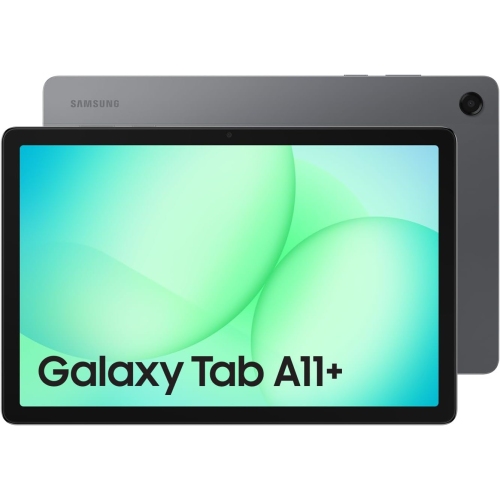 Your price for this item is $363.99
-
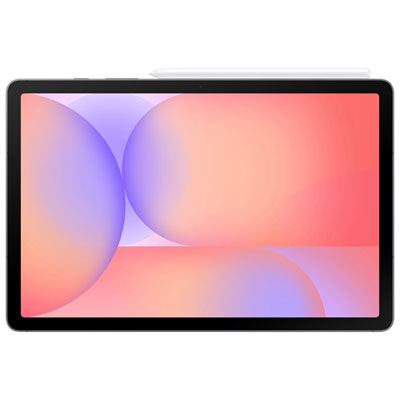 Your price for this item is $579.99
-
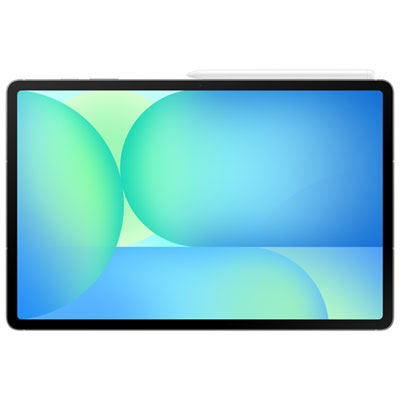 Your price for this item is $979.99
-
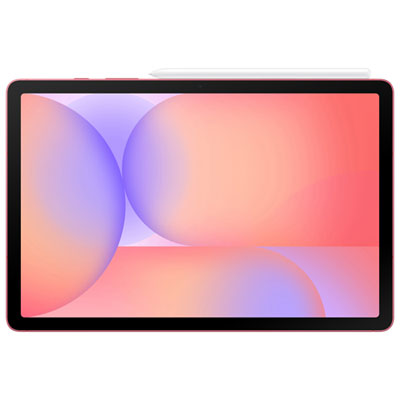 Your price for this item is $579.99
-
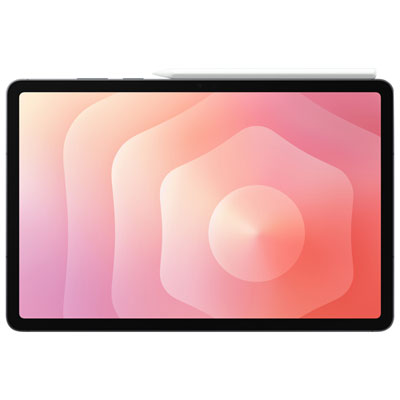 Your price for this item is $1399.99
-
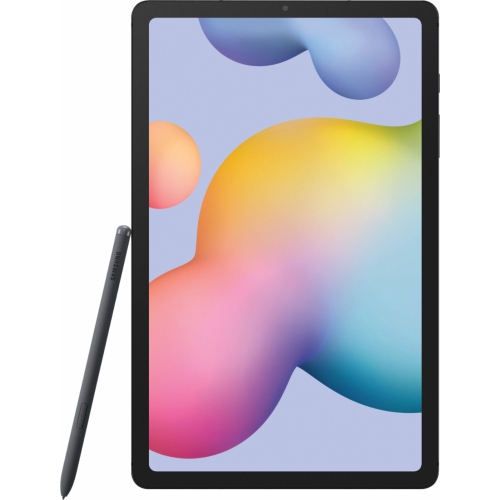 Your price for this item is $699.99
-
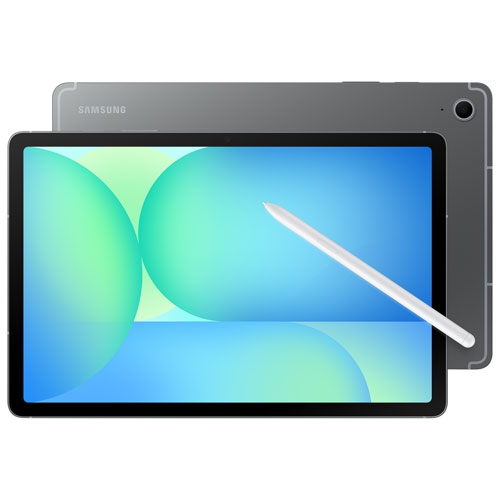 Your price for this item is $624.95
Discover more categories related to Home Office Tablets
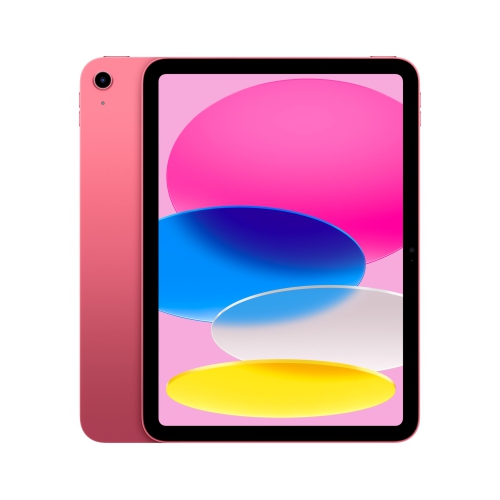
Top Collections:
Pokemon Centers, Pokémon 30th Celebration Cards, Best Budget Office Chairs, Kindle Devices, Best Cameras for Sports Photography, Canon G7X Cameras, Best Black Friday Deals On Electronics, Best Laptops for Writers, iPhone 15 Apple, Jackery Power Stations
Some products may be subject to Environmental Handling Fees
(EHF) depending on your province.
Learn more about EHFs.