Drawing Tablets for Mac
Explore the perfect tools to elevate your creativity with a drawing tablet for Mac. Whether you're an artist, designer, or student, these versatile devices offer seamless compatibility with your Mac setup, making it easy to sketch, illustrate, or edit photos. Discover options that cater to various skill levels and preferences, ensuring you find the right drawing tablet for Mac to suit your workflow and artistic vision. Find models designed to provide a smooth and intuitive experience for digital art, graphic design, and more.
Sort
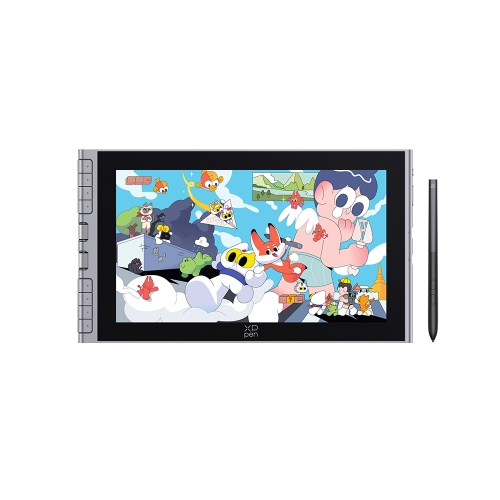
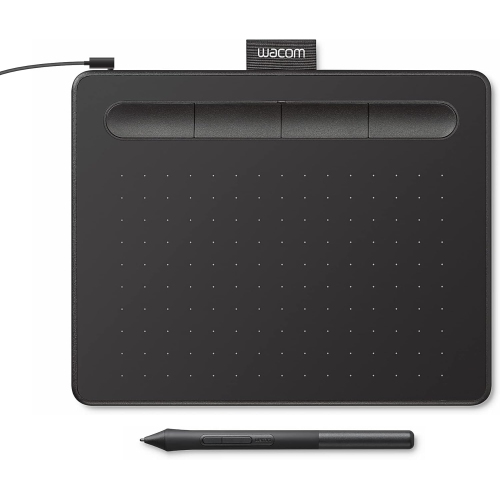
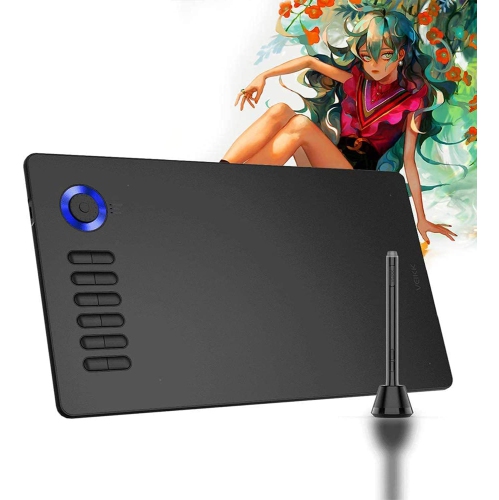
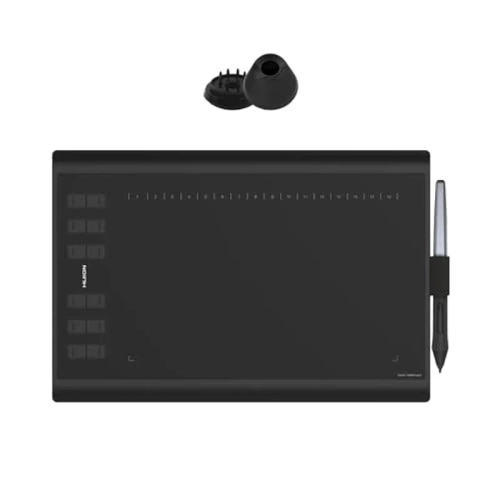
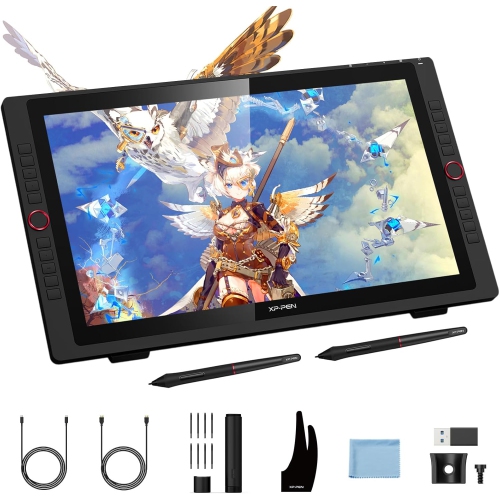
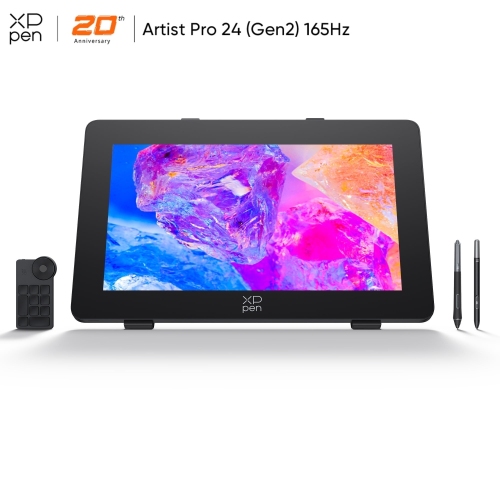
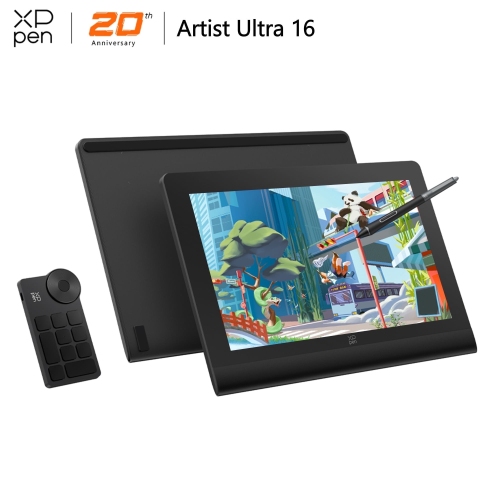
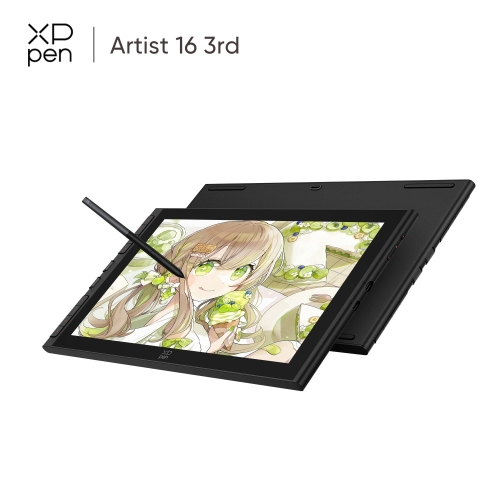
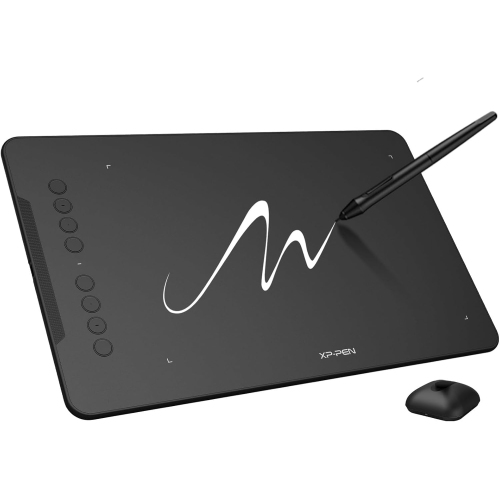
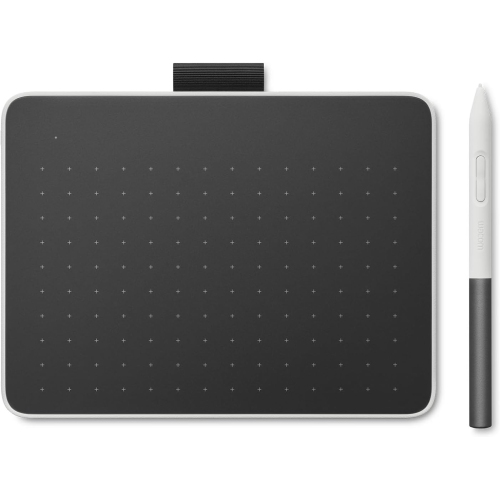
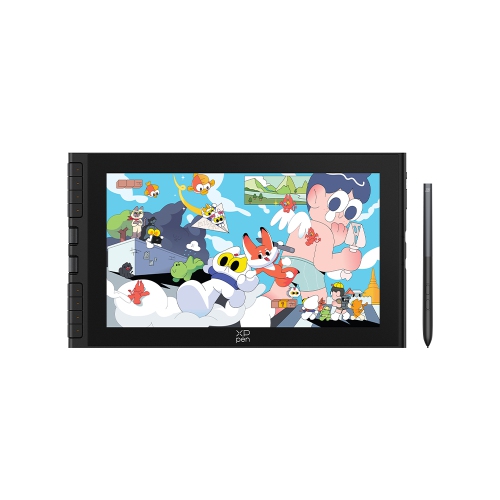
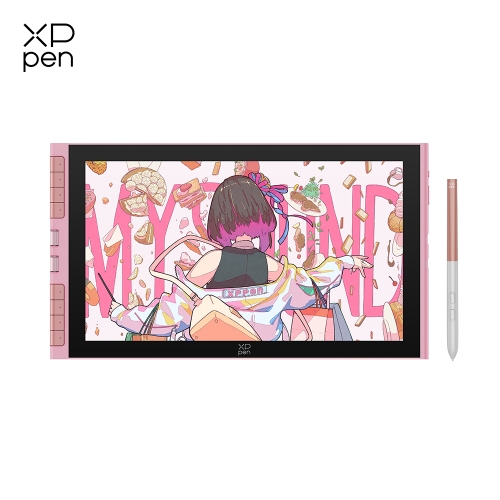
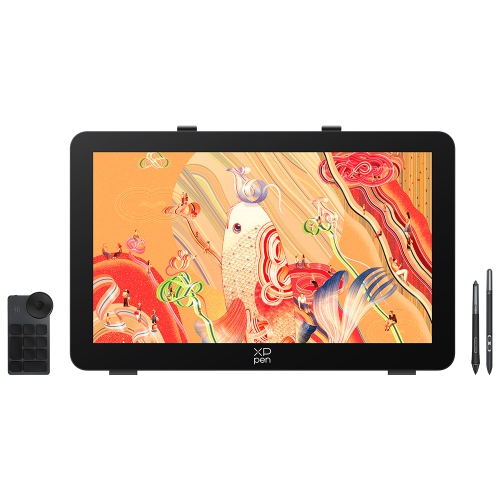
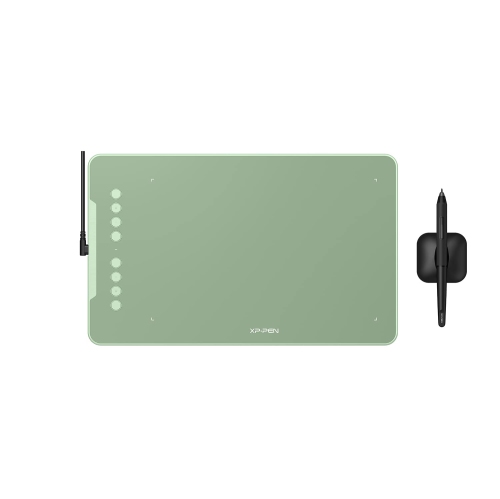
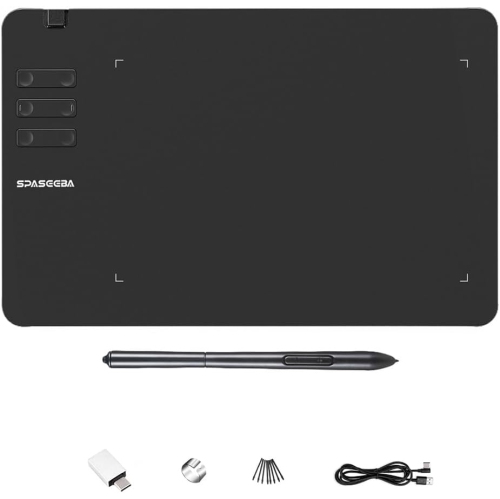
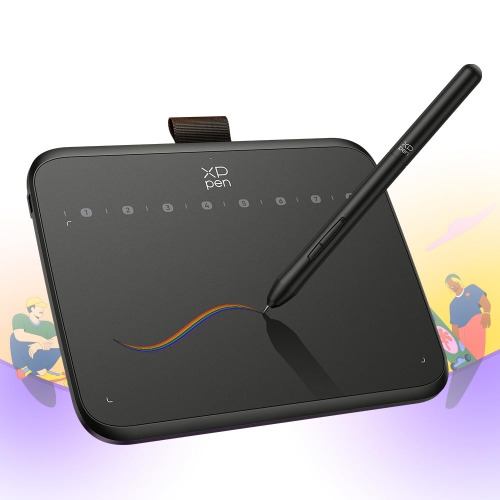
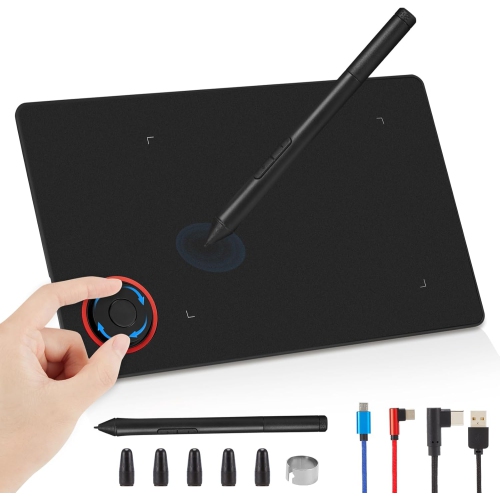
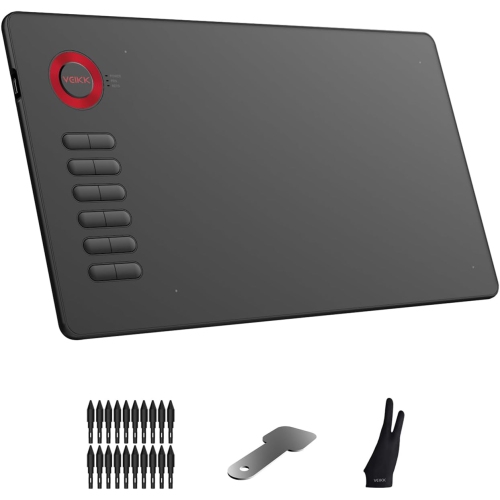
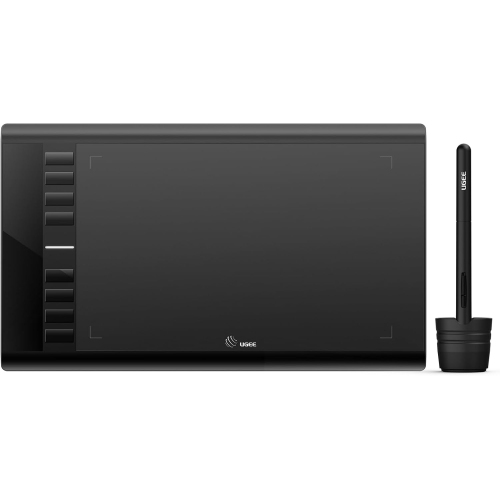
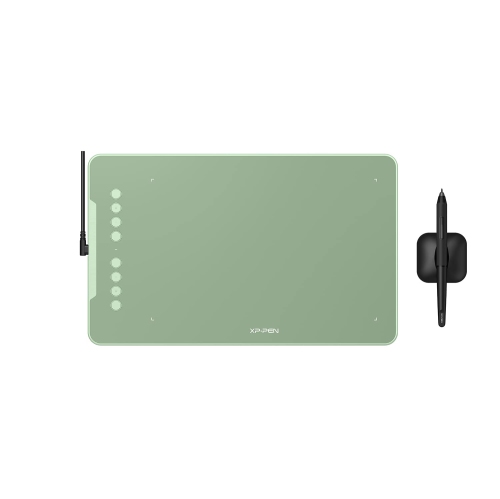
What changes when you draw directly on a screen
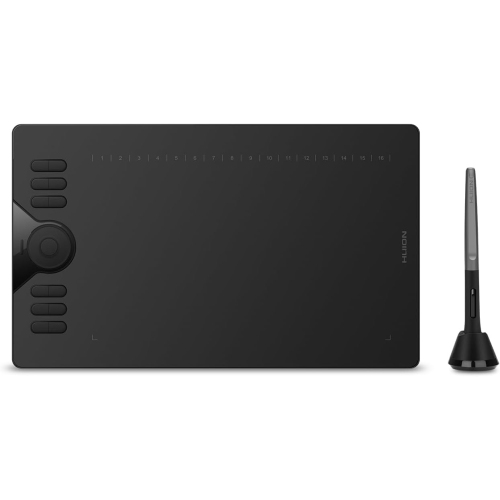
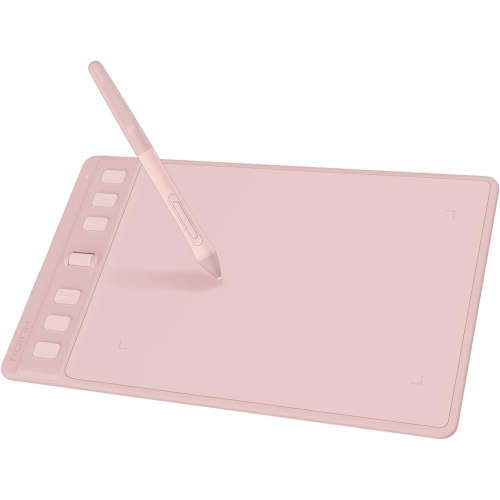
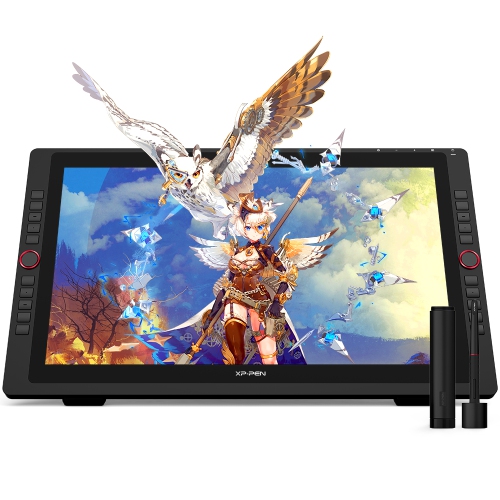
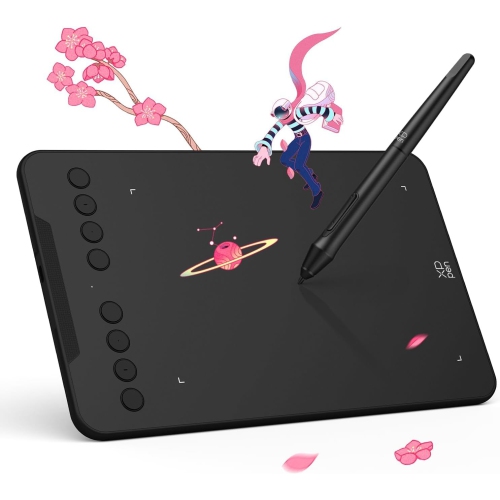
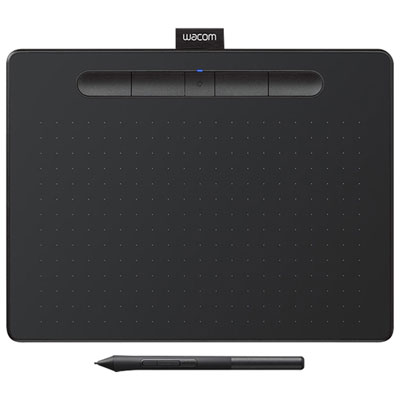
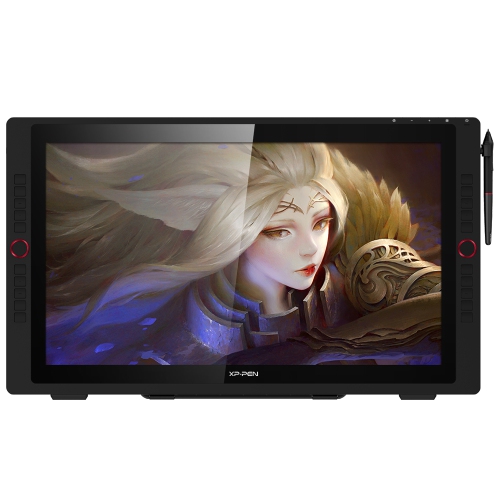
Drawing tablets for Mac come in two main types: screenless pen tablets and pen displays with built-in screens. A screenless pen tablet uses a stylus on a flat pad to control the cursor on the Mac screen. The drawing hand can rest beside the keyboard while the artist looks straight ahead, much like working with a mouse, but each point on the tablet’s active area typically maps to a corresponding point on the screen. That takes some getting used to when tracing a curve or joining two lines, but it leaves the monitor unobstructed for tasks such as retouching a photo or working on a layout. A pen display shows the canvas under the stylus, so the artist can see the tip meet a line as it would on paper. That direct view can feel familiar when sketching faces, inking comics or lettering by hand. Most dedicated pen displays still rely on the Mac to run the drawing software. With either type, the active drawing area and the size of the whole device tell different stories. For a screenless tablet, a smaller active area suits short, wrist-led movements, while a larger area gives illustrators room to sweep from the elbow when drawing a long contour. On a pen display, the canvas shares screen space with layers, brushes and toolbars, so the usable drawing space can feel smaller than the display size suggests. The outer dimensions determine whether the tablet fits alongside a keyboard or fits into a laptop bag. A pen display also needs room for its stand and cable connections. On a shallow desktop, a low stand angle can provide a comfortable place to rest the forearm but leave little space for the keyboard; a steeper angle takes up less depth but may feel less steady for detailed pen work. A screenless tablet, by contrast, can often sit in the same spot as a mouse and slide aside when not in use.
Mac compatibility depends on the tablet’s driver, the version of macOS and how the tablet connects. Some screenless models connect by USB, while others also support Bluetooth, which can free up a port on a laptop. A pen display typically needs a video signal as well as a data connection for the stylus. Depending on the setup, a single USB-C cable can handle both, or separate connections may be needed for video, data and power. A matching plug alone doesn’t guarantee that the Mac port or cable supports video. Driver support matters even when the hardware connects: the stylus may move the cursor, but features such as pressure sensitivity, shortcut buttons or screen mapping may depend on the driver and the drawing app. Pressure sensitivity lets a compatible brush respond to a light or heavy touch. For someone who works with fine ink lines, how easily a stroke starts under light pressure can matter more than the number of pressure levels listed. Tilt support, where the stylus and software both allow it, can make a pencil brush shade with the side of the tip instead of leaving a narrow line. Customizable buttons are useful for commands an artist reaches for repeatedly, such as undo, zoom or switching to the eraser. Their placement matters as much as their number: buttons within reach of the non-drawing hand are easier to use without breaking the rhythm of a stroke. For left-handed artists, a layout that can be reversed can keep the buttons accessible and the cable clear of the drawing arm. With more than one monitor, screen mapping can keep the pen on the display that holds the canvas instead of stretching a small drawing area across the entire desktop.
Surface feel is one of the biggest differences a person notices when moving from paper to a drawing tablet. A lightly textured pad or matte display gives the nib some grip, which can help slow a stroke at the end of a curve. Smoother glass lets the pen glide with less drag, a feel some artists prefer for long, continuous lines. Texture can wear nibs more quickly, especially with a firm grip or a heavy hand, so replaceable tips are worth considering for regular use. A worn nib with a rough edge can change the feel of a stroke and may mark the surface. A soft cloth used according to the manufacturer’s care directions helps remove dust and grit before they get dragged under the nib. For a tablet that moves between a classroom, studio and home, a protective sleeve can keep the drawing surface away from keys and other hard objects. A pen holder or pouch also gives the stylus a place to go when it’s not in use. On a shared work surface, a non-slip base or a steady stand can keep the tablet from shifting when a hand rests on its edge. The right fit often comes down to what someone makes: a photography student may use a compact pad mainly to paint precise masks, while an animation student may spend hours sketching poses and prefer a larger surface for broad gestures. As a gift, a drawing tablet suits someone who already sketches, edits photos or designs on a Mac, especially when the recipient’s software and connection setup are known. For someone who wants to sketch away from the computer as well, the Apple Drawing Tablets collection is a related option. A standalone tablet can run its own drawing apps, but using one as a pen display for a Mac is a different setup that depends on support across the tablet, stylus and computer.
Top selling and popular products
-
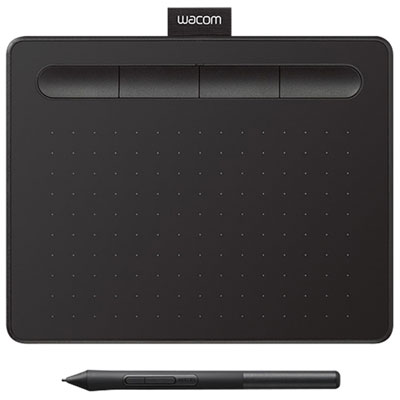 Your price for this item is $89.99
-
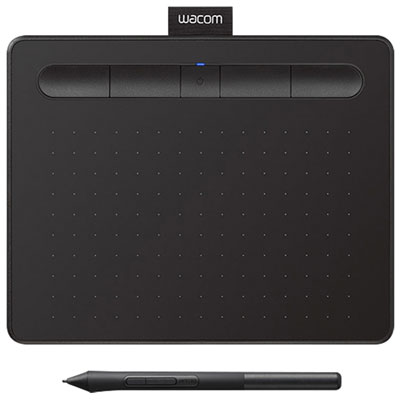 Your price for this item is $139.99
-
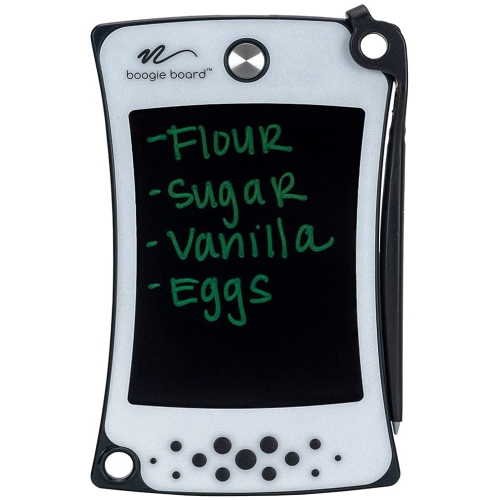 Your price for this item is $21.97
-
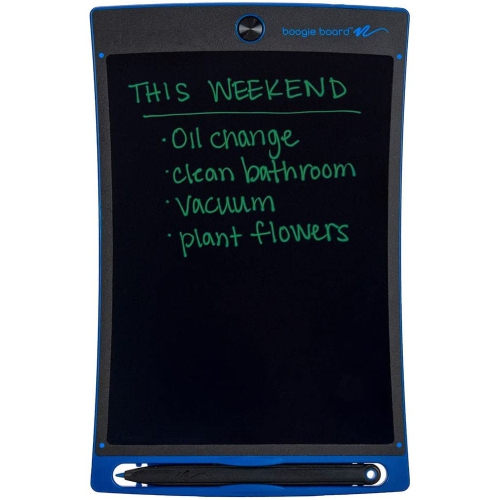 Your price for this item is $39.97
-
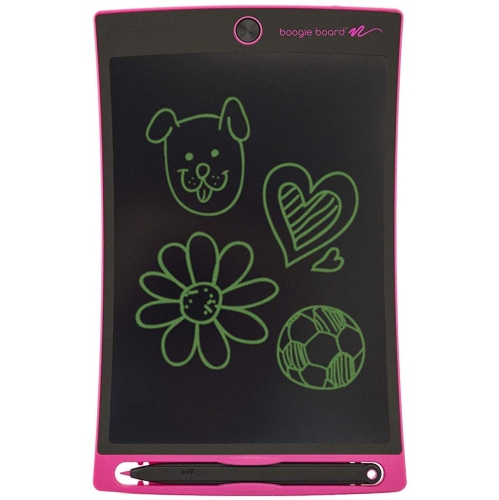 Your price for this item is $39.97
-
 Your price for this item is $319.99
-
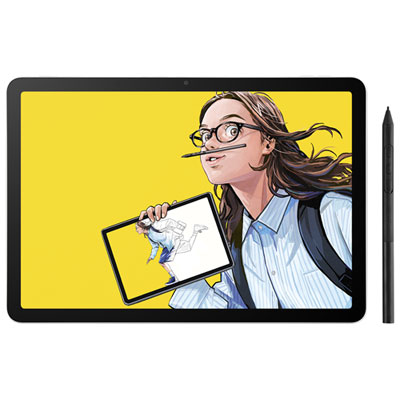 Your price for this item is $699.99
-
 Your price for this item is $2118.68
Discover more categories related to Drawing Tablets for Mac

Top Collections:
Best Black Friday Deals This Year, Best Black Friday Deals On Electronics, Kindle Devices, Pokemon Centers, Best Black Friday Deals On Apple Products, Best Cameras for Sports Photography, Dyson Airwrap, Pokémon 30th Celebration Cards, Apple iPhone 17 Pro, Canon G7X Cameras
Some products may be subject to Environmental Handling Fees
(EHF) depending on your province.
Learn more about EHFs.