Home Office Computing Devices
Transform your workspace with home office computing devices designed to help you stay connected and productive. From compact setups for small spaces to advanced options for multitasking, there’s a solution for every work style. Explore a wide range of choices tailored to meet the demands of remote work, virtual meetings, and daily tasks. Find the perfect home office computing devices to create an efficient and comfortable environment that supports your goals.
Sort







How your workspace and workload shape your computer choice
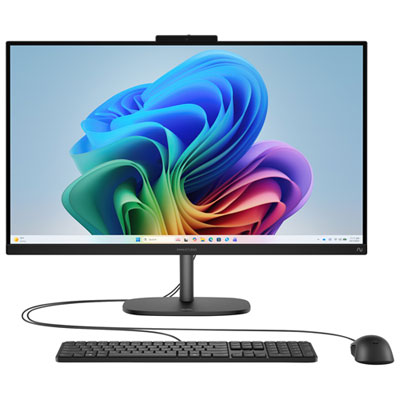
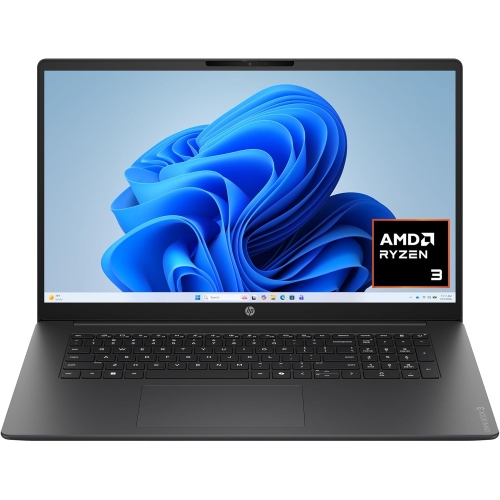
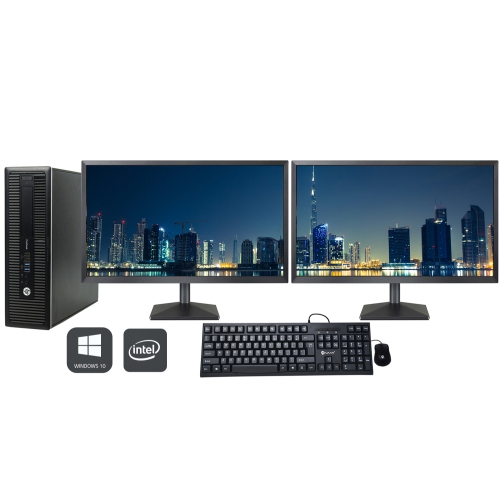
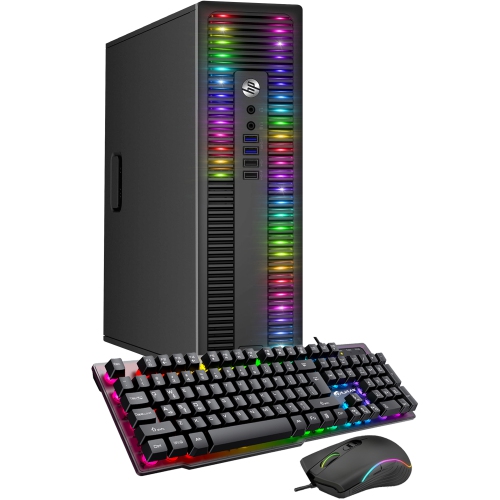
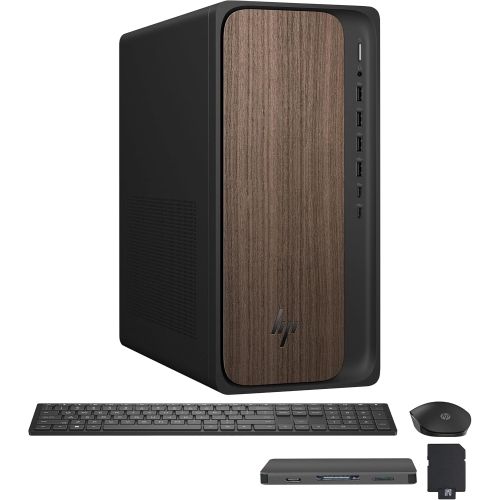
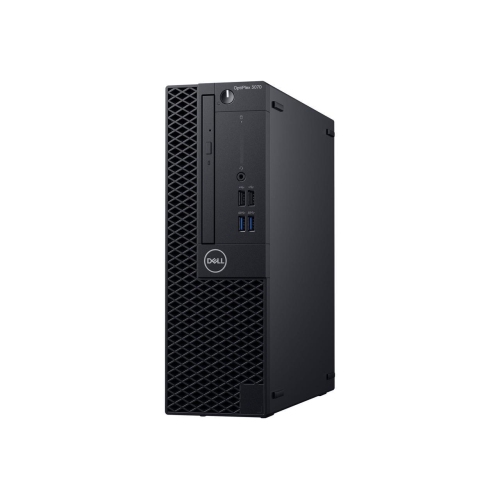
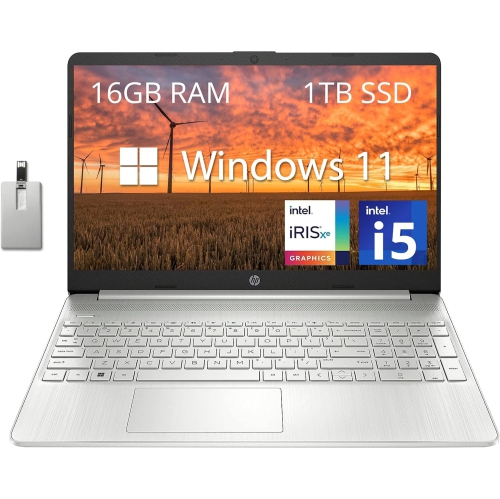
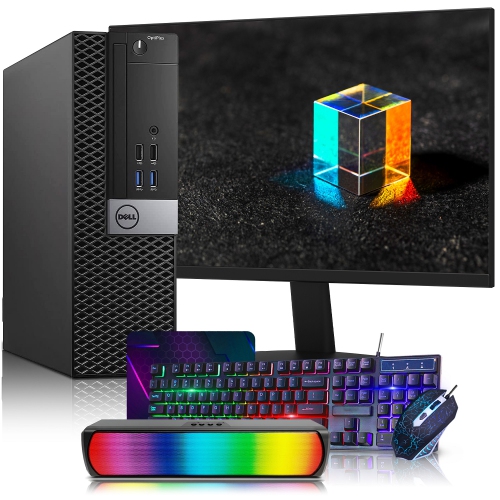
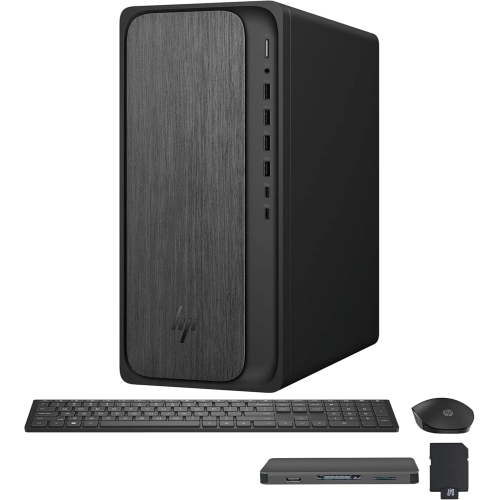
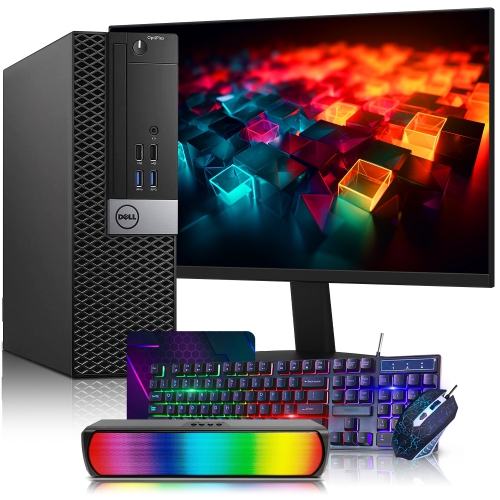
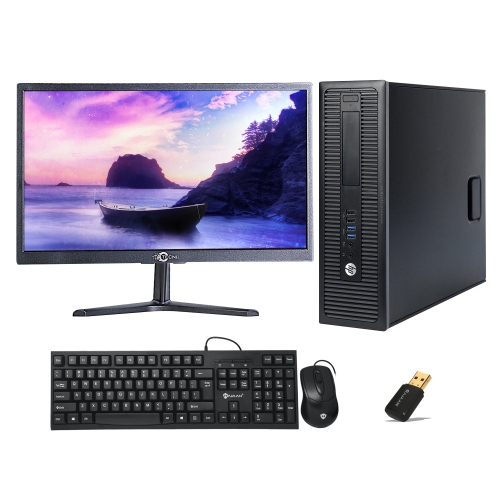
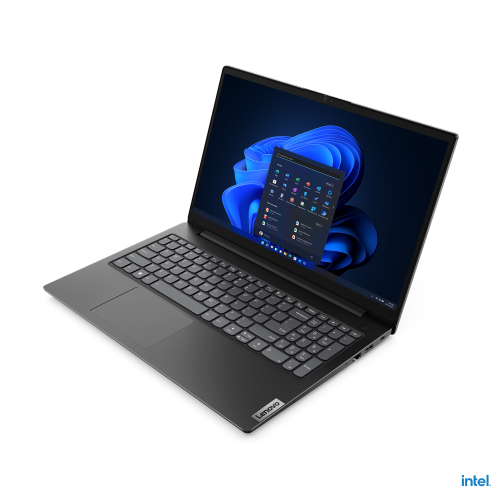
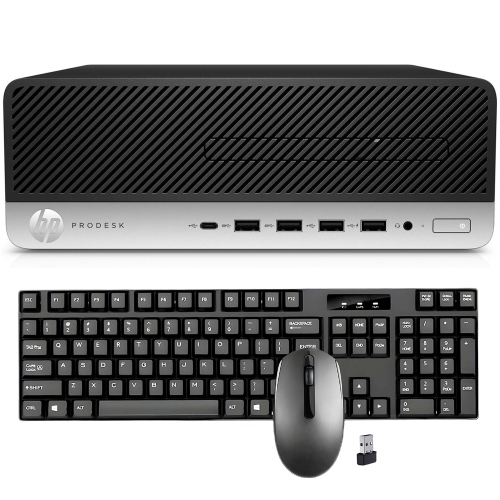
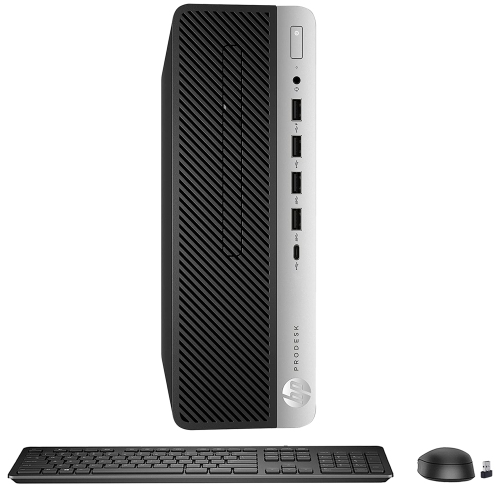
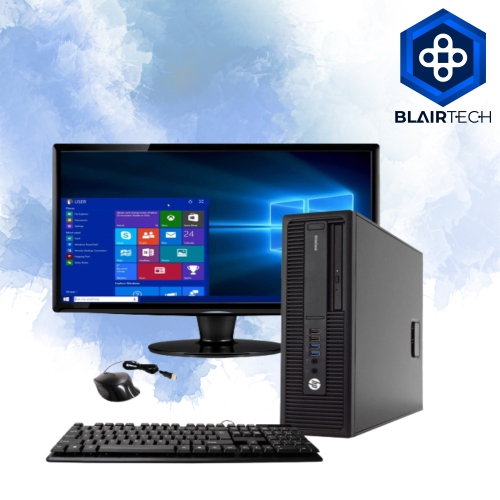
Home office computing devices include laptops, desktop computers, mini PCs and all-in-one computers, with each format suited to a different combination of workspace, mobility and workload. A laptop keeps the screen, keyboard and battery together, making it practical for someone who works at a desk most days but also carries their computer to meetings or another room. Connected to a separate monitor and keyboard, it can support a more permanent workstation without giving up portability. Desktop towers suit dedicated offices, particularly when demanding software, several displays or room for future upgrades are priorities. Many towers offer access to memory and storage components, although upgrade options depend on the design. Mini PCs take up less desk space and can be useful for email, documents, browser-based applications and video calls; some support mounting behind a compatible monitor. An all-in-one computer combines the display and computing hardware in one enclosure, reducing the number of separate components on a shared desk or compact work surface. Screen size, stand depth and cable clearance all affect how comfortably a computer fits. A large display may make spreadsheets easier to read, but its footprint still needs to leave room for a keyboard, mouse and paperwork. Laptop weight and charger size matter more for frequent travel, while hinge construction and chassis rigidity can influence how a portable computer handles repeated opening and carrying. Aluminium and plastic housings are both common, and durability depends on construction as well as material. For a household member starting remote work or a student setting up a study area, the most useful computer is one that supports their actual applications and fits the space where it will be used. Tablets can complement this setup for reading and handwritten notes, but laptop and desktop computers are generally better suited to workflows that depend on desktop software, extensive typing or several connected accessories.
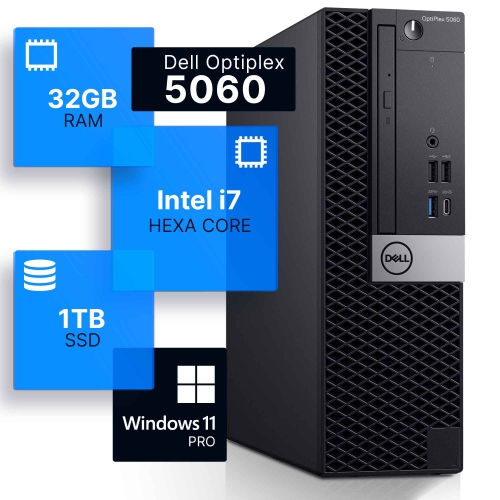
Performance requirements depend less on a job title than on what stays open throughout the working day. Email, word processing and a few browser tabs place different demands on a computer than a video meeting running alongside a large spreadsheet, accounting software and multiple shared documents. The processor handles instructions and calculations, while memory, or RAM, holds information that active applications need. An entry-level configuration with 8GB of RAM can handle lighter office use, but 16GB provides more room for everyday multitasking. Larger datasets, virtual machines and demanding creative applications may benefit from 32GB or more, depending on the software. Processor generation, core configuration and cooling design also matter; a name or clock speed alone does not provide a complete picture of performance. A solid-state drive, or SSD, helps with system startup, application loading and file access. A 256GB SSD may suit work centred on online services and modest document storage, while 512GB provides additional space for applications and local files. Large photo libraries, video projects and other substantial files can make 1TB or more useful. Storage capacity should account for the operating system, installed applications and future files, not just the documents being moved from an older computer. Integrated graphics are often sufficient for office applications and video playback, while some design, rendering and video-editing workloads benefit from dedicated graphics hardware. Software requirements remain important: operating system compatibility, supported versions and any employer requirements can determine whether a device fits the job. For someone reviewing plans on one screen while answering messages on another, support for multiple external displays can be just as valuable as additional processing power. The number of supported screens, their resolution and the available display connections all need to work together. During long calls or concentrated writing, fan noise can also affect comfort, particularly when the computer sits close to the microphone or shares a room with another person.
Connections and everyday usability help turn a capable computer into a practical home workstation. USB ports accommodate keyboards, mice, storage drives and other peripherals, while HDMI or DisplayPort connections may support external monitors. USB-C capabilities vary by device: a port may support data transfer without supporting charging or video output, so connector shape alone does not establish compatibility. A compatible dock can simplify a laptop setup by bringing several connections together, although its power delivery and display support must match the computer. Reliable Wi-Fi is useful where a wired connection is impractical, while Ethernet can provide a consistent connection for calls and large file transfers. Network performance also depends on the internet service, router placement and other activity in the home. A clear webcam, a suitable microphone and headphones can make conversations easier to follow without requiring a separate room. For households sharing a desk, a compatible keyboard, video and mouse switch can allow two computers to use the same peripherals, with support varying by connection type and display requirements. The broader Home Office Equipment setup also shapes daily comfort: monitor height, keyboard position and room for mouse movement matter during long stretches of typing. Keeping vents clear helps the cooling system function as intended, and laptops need a firm surface rather than bedding or cushions that can block airflow. Screens and housings should be cleaned according to the manufacturer’s directions, with liquids kept away from openings. A protective sleeve can reduce scuffs during transport, while careful cable placement limits strain on ports. Regular software updates, strong sign-in protection and separate backups help protect work beyond the physical device. A surge protector addresses certain electrical spikes, whereas a suitably rated uninterruptible power supply can provide temporary battery power to save work and shut down during an outage. Together, appropriate performance, compatible connections and straightforward care support a home office computer that remains useful as projects and routines develop.
Performance requirements depend less on a job title than on what stays open throughout the working day. Email, word processing and a few browser tabs place different demands on a computer than a video meeting running alongside a large spreadsheet, accounting software and multiple shared documents. The processor handles instructions and calculations, while memory, or RAM, holds information that active applications need. An entry-level configuration with 8GB of RAM can handle lighter office use, but 16GB provides more room for everyday multitasking. Larger datasets, virtual machines and demanding creative applications may benefit from 32GB or more, depending on the software. Processor generation, core configuration and cooling design also matter; a name or clock speed alone does not provide a complete picture of performance. A solid-state drive, or SSD, helps with system startup, application loading and file access. A 256GB SSD may suit work centred on online services and modest document storage, while 512GB provides additional space for applications and local files. Large photo libraries, video projects and other substantial files can make 1TB or more useful. Storage capacity should account for the operating system, installed applications and future files, not just the documents being moved from an older computer. Integrated graphics are often sufficient for office applications and video playback, while some design, rendering and video-editing workloads benefit from dedicated graphics hardware. Software requirements remain important: operating system compatibility, supported versions and any employer requirements can determine whether a device fits the job. For someone reviewing plans on one screen while answering messages on another, support for multiple external displays can be just as valuable as additional processing power. The number of supported screens, their resolution and the available display connections all need to work together. During long calls or concentrated writing, fan noise can also affect comfort, particularly when the computer sits close to the microphone or shares a room with another person.
Connections and everyday usability help turn a capable computer into a practical home workstation. USB ports accommodate keyboards, mice, storage drives and other peripherals, while HDMI or DisplayPort connections may support external monitors. USB-C capabilities vary by device: a port may support data transfer without supporting charging or video output, so connector shape alone does not establish compatibility. A compatible dock can simplify a laptop setup by bringing several connections together, although its power delivery and display support must match the computer. Reliable Wi-Fi is useful where a wired connection is impractical, while Ethernet can provide a consistent connection for calls and large file transfers. Network performance also depends on the internet service, router placement and other activity in the home. A clear webcam, a suitable microphone and headphones can make conversations easier to follow without requiring a separate room. For households sharing a desk, a compatible keyboard, video and mouse switch can allow two computers to use the same peripherals, with support varying by connection type and display requirements. The broader Home Office Equipment setup also shapes daily comfort: monitor height, keyboard position and room for mouse movement matter during long stretches of typing. Keeping vents clear helps the cooling system function as intended, and laptops need a firm surface rather than bedding or cushions that can block airflow. Screens and housings should be cleaned according to the manufacturer’s directions, with liquids kept away from openings. A protective sleeve can reduce scuffs during transport, while careful cable placement limits strain on ports. Regular software updates, strong sign-in protection and separate backups help protect work beyond the physical device. A surge protector addresses certain electrical spikes, whereas a suitably rated uninterruptible power supply can provide temporary battery power to save work and shut down during an outage. Together, appropriate performance, compatible connections and straightforward care support a home office computer that remains useful as projects and routines develop.
Top selling and popular products
-
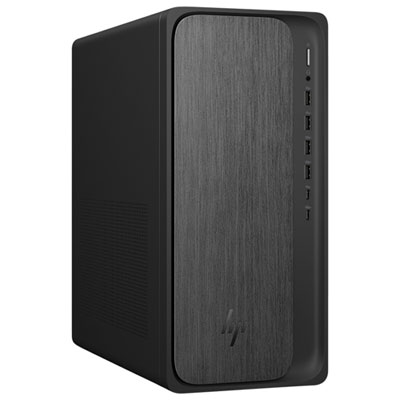 Your price for this item is $1999.99
-
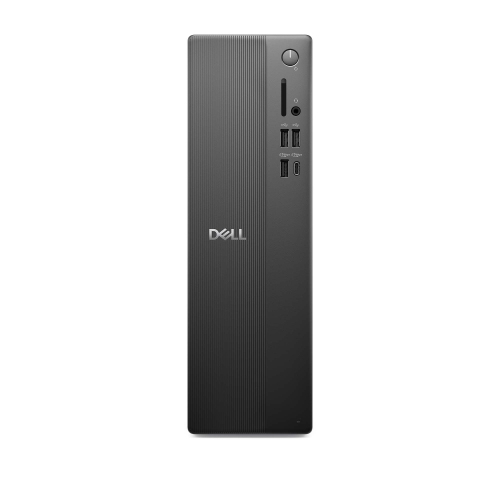 Your price for this item is $1629.79
-
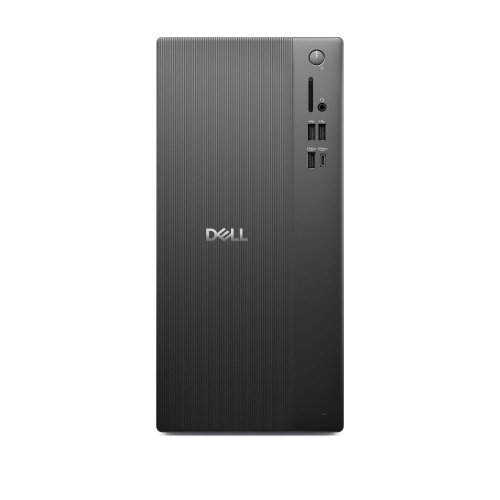 Your price for this item is $1459.79
-
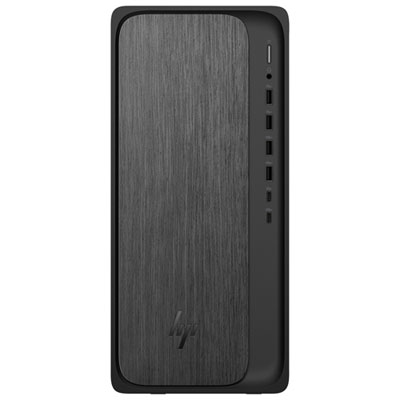 Your price for this item is $1399.99
-
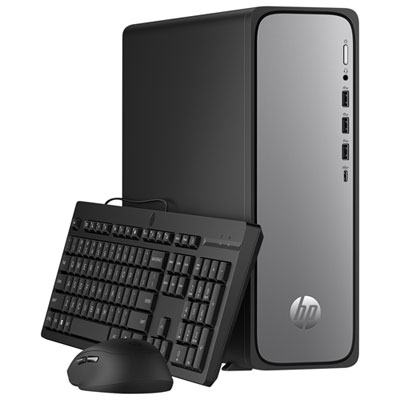 Your price for this item is $649.99
-
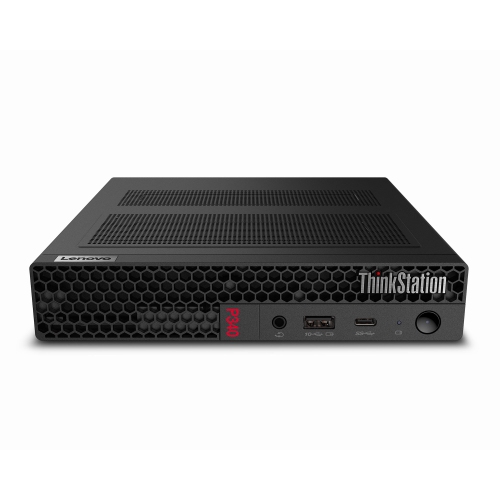 Your price for this item is $699.79
-
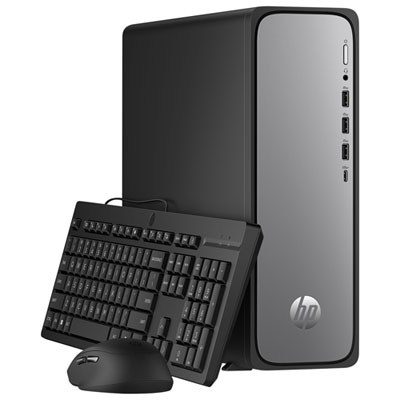 Your price for this item is $1759.99
-
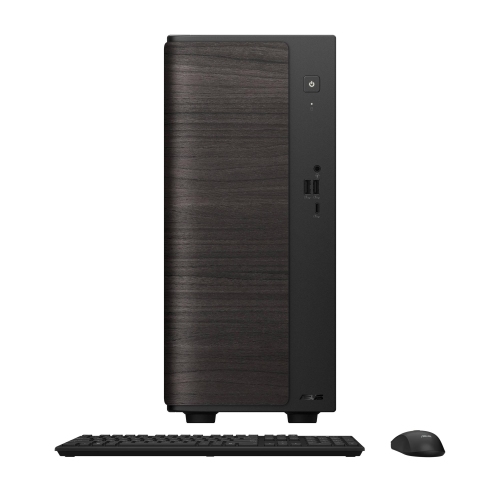 Your price for this item is $3149
Discover more categories related to Home Office Computing Devices
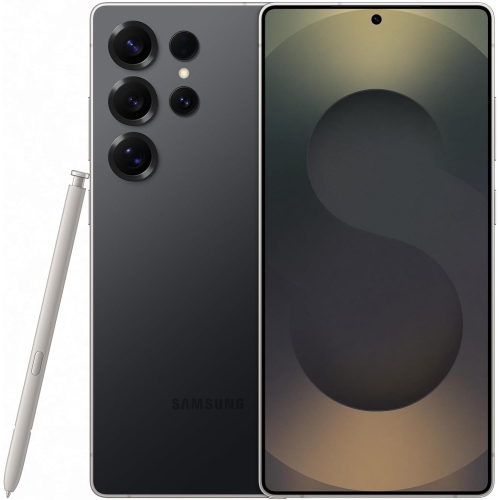
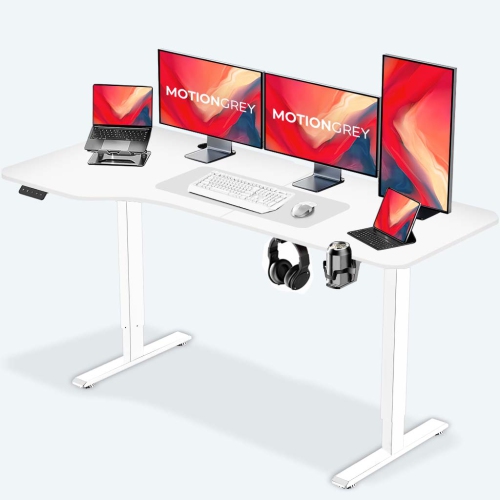
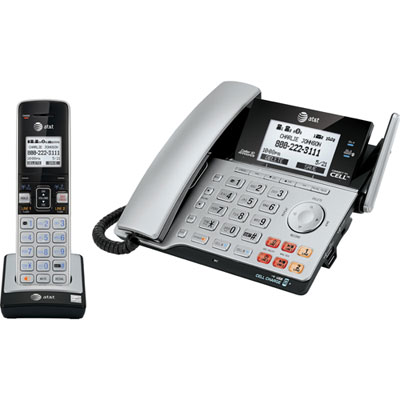
Top Collections:
Pokemon Centers, Pokémon 30th Celebration Cards, Best Budget Office Chairs, Kindle Devices, Best Cameras for Sports Photography, Canon G7X Cameras, Best Black Friday Deals On Electronics, Best Laptops for Writers, iPhone 15 Apple, Jackery Power Stations
Some products may be subject to Environmental Handling Fees
(EHF) depending on your province.
Learn more about EHFs.