Home Office Mobile Devices
Transform your workspace with home office mobile devices designed to keep you connected and productive from anywhere. Whether you’re managing tasks, joining virtual meetings, or staying in touch with colleagues, the right devices can make all the difference. Explore a wide selection of options tailored to support your workflow and help you achieve more throughout your day. Find the perfect fit for your home office setup and experience greater flexibility and convenience with home office mobile devices.
Sort
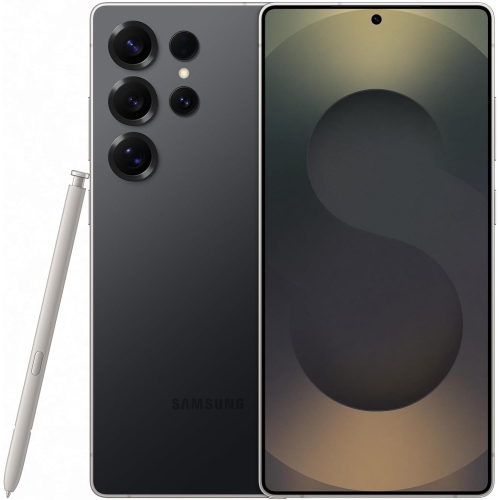
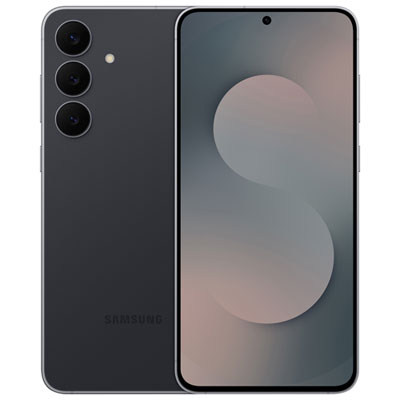
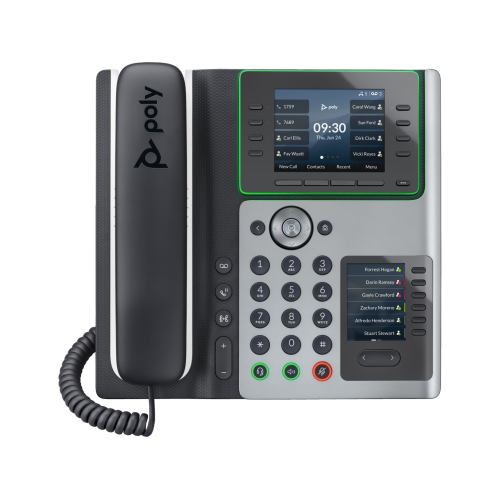
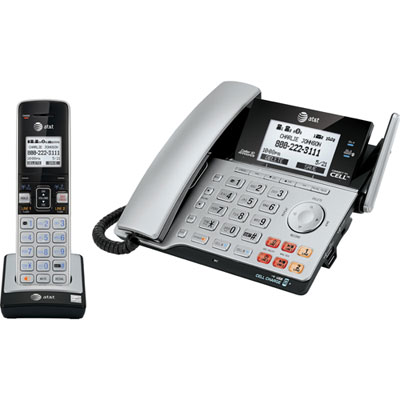






How portable devices work together beyond your desk
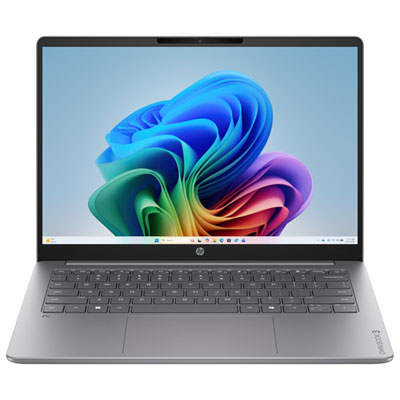
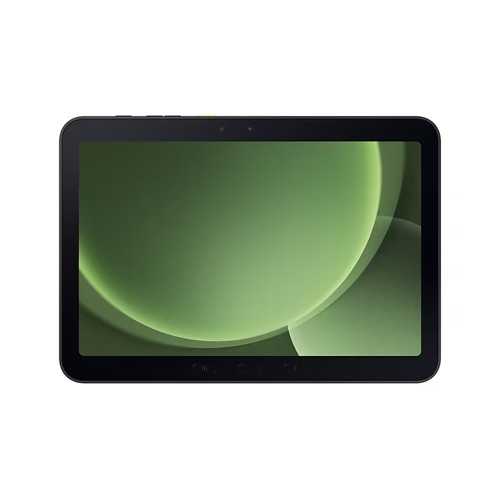
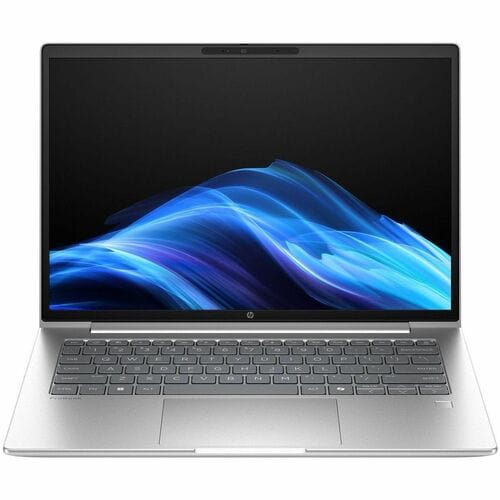
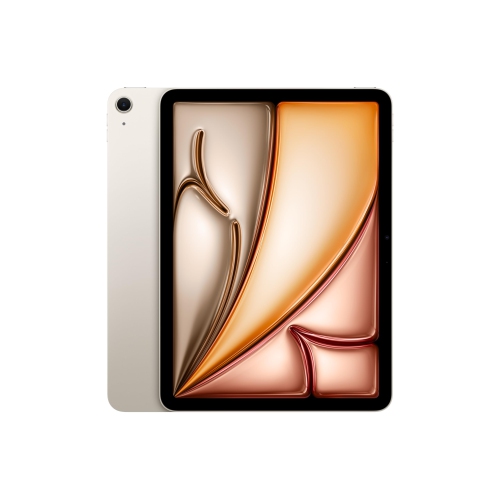
Home office mobile devices are portable tools, including smartphones, tablets, and lightweight laptops, that support communication, document access, and everyday work beyond a fixed desk. Smartphones keep calls, messages, calendars, and authentication tools close at hand, while tablets provide more room for reading reports, reviewing presentations, and making notes. Lightweight laptops suit tasks that depend on a full desktop operating system, extensive typing, or several applications running together. For remote employees, freelancers, small-business owners, and students sharing a workspace, these devices can serve different roles rather than simply replacing one another. A phone might handle a client call while a tablet displays meeting notes, leaving a computer free for the main project. Screen size, weight, and software compatibility shape how comfortable that arrangement feels throughout the day. A smaller device is easier to hold for quick checks, whereas a larger display gives spreadsheets, diagrams, and side-by-side documents more breathing room. Clear text, adjustable brightness, and a screen finish that manages reflections can make extended reading more comfortable, especially beside a window or under overhead lighting. For tablet-based workflows, Home Office iPads can support document reading, video calls, and handwritten notes with compatible accessories and apps. The exact experience depends on the software and accessory support of the device. Mobile versions of business applications may not include every feature found in their desktop counterparts, so tasks such as advanced spreadsheet editing or specialized design work deserve particular attention. Camera placement, microphone clarity, and speaker quality also matter when a portable device doubles as a meeting screen. A camera positioned comfortably at eye level makes a seated conversation feel more natural, while a stable stand keeps the picture from shifting whenever someone types. Useful mobile hardware fits the actual rhythm of the work: short bursts of communication, focused writing, visual review, or a combination of all three. Touch controls may feel intuitive for marking up a draft, while a physical keyboard is often more comfortable for composing several pages of text.
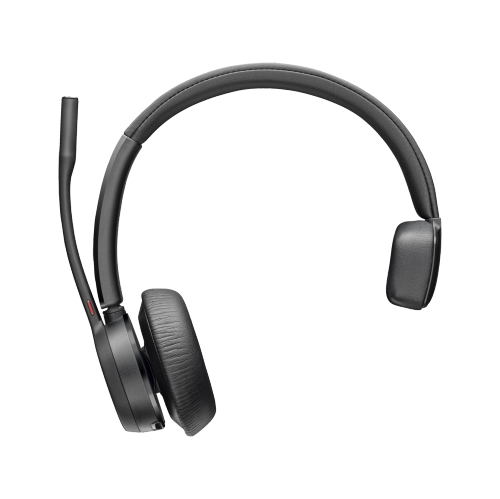
Reliable connections help mobile devices feel like a practical extension of a home office rather than a separate place to manage files and messages. Wi-Fi supports online meetings, shared documents, and cloud-based tools, but connection quality also depends on the home network, distance from the router, and competing activity. Cellular-capable devices can add another connection option when supported by a suitable service plan; cellular hardware and service requirements vary. Compatibility with an employer’s applications, account settings, and security requirements is especially important for anyone handling work information on a personal device. Some organizations require approved software or device management before email and files can be accessed. Built-in fingerprint readers or facial recognition, strong passcodes, and supported software updates can help protect access, while screen-lock settings are useful in a shared household. Storage needs depend on whether work stays mainly online or includes locally saved presentations, large image files, and downloaded documents. Offline access can be valuable for reviewing material without relying on a continuous connection, although changes may need to sync later. Battery life is another everyday consideration, particularly when the same device moves between a desk, a dining table, and a meeting away from home. Video calls, high screen brightness, and demanding applications generally use more power than reading text, so advertised battery figures may not reflect every workload. Charging compatibility matters just as much as battery capacity: a cable that fits a port does not necessarily support the device’s preferred charging speed or every data function. Docks and hubs can bring charging, a keyboard, and other connections together, but external display support and available features depend on the device, operating system, and accessory. For calls taken in a shared room, a compatible headset can make speech easier to hear and reduce the need to use speakerphone. A physical mute control is also helpful when conversations overlap or household activity interrupts a meeting. These details become noticeable during back-to-back calls, when dependable audio and a charged battery matter more than an extra feature that rarely gets used.
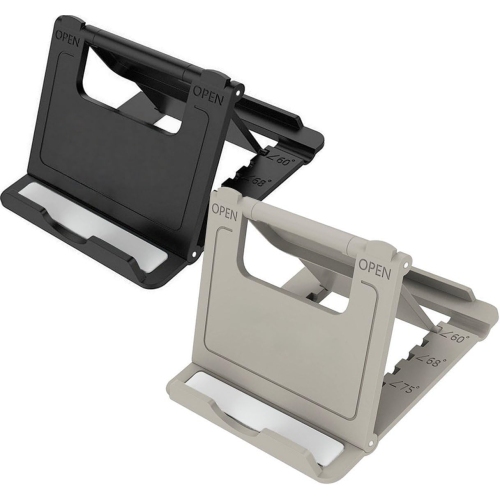
Materials, fit, and handling affect how well home office mobile devices stand up to daily movement. Metal housings can feel rigid and substantial, while plastic housings may offer a lighter feel; overall durability also depends on construction, hinges, ports, and the way a device is carried. Glass screens benefit from thoughtful placement, particularly on a busy table where keys, mugs, and charging cables compete for space. A fitted case can add grip and help protect edges, while a padded sleeve keeps a device separated from other belongings during transport. Case fit should match the exact device model and generation so that cameras, microphones, speakers, and charging ports remain unobstructed. Added protection can also increase weight and thickness, which matters for anyone holding a tablet through a long reading session. Keyboard cases and stands introduce another balance between portability and comfort. A stable base, useful viewing angles, and adequate room for typing make a difference when answering lengthy emails or editing a proposal. For handwritten notes and precise selections, a compatible stylus can be useful, although support, charging methods, and available functions vary. At a desk, raising the screen and using a separate keyboard can support a more comfortable working position than leaning over a device resting flat on the tabletop. Left- and right-handed users may also notice differences in button placement, cable routing, and available space for a mouse. Care is generally straightforward: follow the manufacturer’s cleaning directions, use a suitable soft cloth, and keep moisture away from openings. Cables are less likely to be strained when they have enough slack and are not trapped beneath furniture or pulled around sharp corners. A consistent place for charging and storing accessories helps keep a shared workspace organized without covering every surface. Whether the priority is staying reachable, reviewing documents, or moving comfortably between tasks, a well-matched mobile setup brings together the device, its software, and the accessories used every day.
Reliable connections help mobile devices feel like a practical extension of a home office rather than a separate place to manage files and messages. Wi-Fi supports online meetings, shared documents, and cloud-based tools, but connection quality also depends on the home network, distance from the router, and competing activity. Cellular-capable devices can add another connection option when supported by a suitable service plan; cellular hardware and service requirements vary. Compatibility with an employer’s applications, account settings, and security requirements is especially important for anyone handling work information on a personal device. Some organizations require approved software or device management before email and files can be accessed. Built-in fingerprint readers or facial recognition, strong passcodes, and supported software updates can help protect access, while screen-lock settings are useful in a shared household. Storage needs depend on whether work stays mainly online or includes locally saved presentations, large image files, and downloaded documents. Offline access can be valuable for reviewing material without relying on a continuous connection, although changes may need to sync later. Battery life is another everyday consideration, particularly when the same device moves between a desk, a dining table, and a meeting away from home. Video calls, high screen brightness, and demanding applications generally use more power than reading text, so advertised battery figures may not reflect every workload. Charging compatibility matters just as much as battery capacity: a cable that fits a port does not necessarily support the device’s preferred charging speed or every data function. Docks and hubs can bring charging, a keyboard, and other connections together, but external display support and available features depend on the device, operating system, and accessory. For calls taken in a shared room, a compatible headset can make speech easier to hear and reduce the need to use speakerphone. A physical mute control is also helpful when conversations overlap or household activity interrupts a meeting. These details become noticeable during back-to-back calls, when dependable audio and a charged battery matter more than an extra feature that rarely gets used.
Materials, fit, and handling affect how well home office mobile devices stand up to daily movement. Metal housings can feel rigid and substantial, while plastic housings may offer a lighter feel; overall durability also depends on construction, hinges, ports, and the way a device is carried. Glass screens benefit from thoughtful placement, particularly on a busy table where keys, mugs, and charging cables compete for space. A fitted case can add grip and help protect edges, while a padded sleeve keeps a device separated from other belongings during transport. Case fit should match the exact device model and generation so that cameras, microphones, speakers, and charging ports remain unobstructed. Added protection can also increase weight and thickness, which matters for anyone holding a tablet through a long reading session. Keyboard cases and stands introduce another balance between portability and comfort. A stable base, useful viewing angles, and adequate room for typing make a difference when answering lengthy emails or editing a proposal. For handwritten notes and precise selections, a compatible stylus can be useful, although support, charging methods, and available functions vary. At a desk, raising the screen and using a separate keyboard can support a more comfortable working position than leaning over a device resting flat on the tabletop. Left- and right-handed users may also notice differences in button placement, cable routing, and available space for a mouse. Care is generally straightforward: follow the manufacturer’s cleaning directions, use a suitable soft cloth, and keep moisture away from openings. Cables are less likely to be strained when they have enough slack and are not trapped beneath furniture or pulled around sharp corners. A consistent place for charging and storing accessories helps keep a shared workspace organized without covering every surface. Whether the priority is staying reachable, reviewing documents, or moving comfortably between tasks, a well-matched mobile setup brings together the device, its software, and the accessories used every day.
Top selling and popular products
-
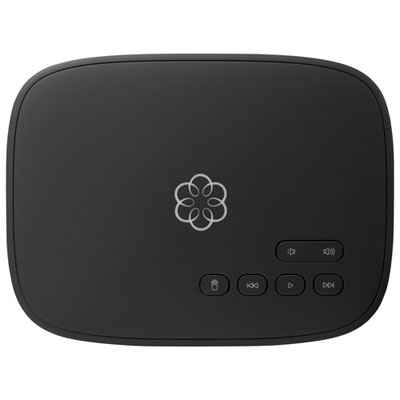 Your price for this item is $129.99
-
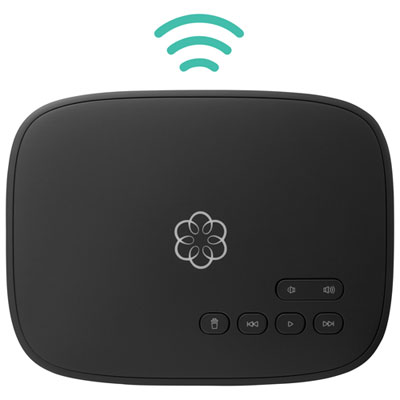 Your price for this item is $109.99
-
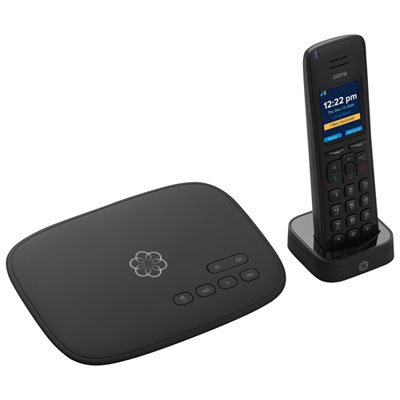 Your price for this item is $139.99
-
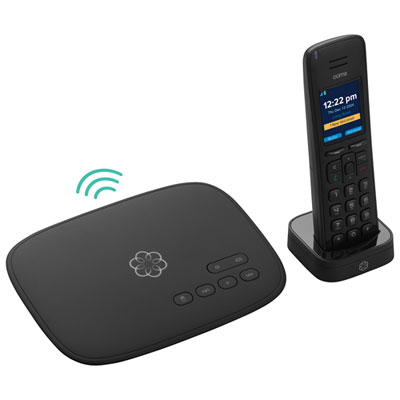 Your price for this item is $159.99
-
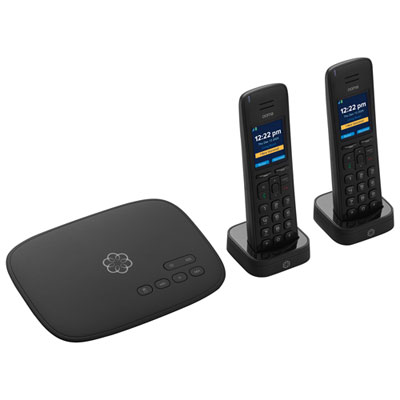 Your price for this item is $159.99
-
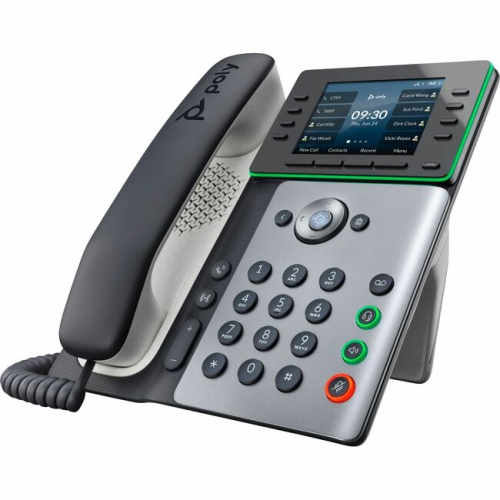 Your price for this item is $318.83
-
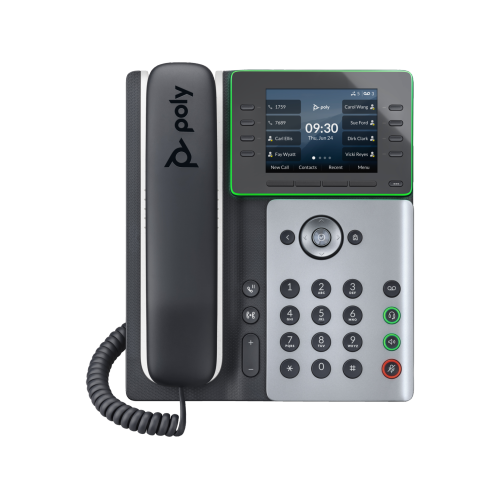 Your price for this item is $238.99
-
 Your price for this item is $59.99
Discover more categories related to Home Office Mobile Devices
Top Collections:
Pokemon Centers, Pokémon 30th Celebration Cards, Best Budget Office Chairs, Kindle Devices, Best Cameras for Sports Photography, Canon G7X Cameras, Best Black Friday Deals On Electronics, Best Laptops for Writers, iPhone 15 Apple, Jackery Power Stations
Some products may be subject to Environmental Handling Fees
(EHF) depending on your province.
Learn more about EHFs.