Home Office iPads
Home Office iPads offer a versatile solution for staying productive and connected while working from home. Whether you're managing emails, joining virtual meetings, or organizing your daily tasks, these tablets provide the flexibility and convenience needed for an efficient workspace. Explore a range of options designed to fit seamlessly into your home office setup, helping you tackle your workload with ease and stay on top of your professional goals.
Sort




How much of your work fits on an iPad
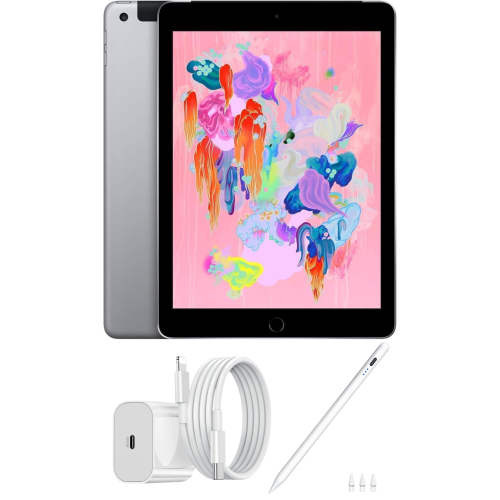
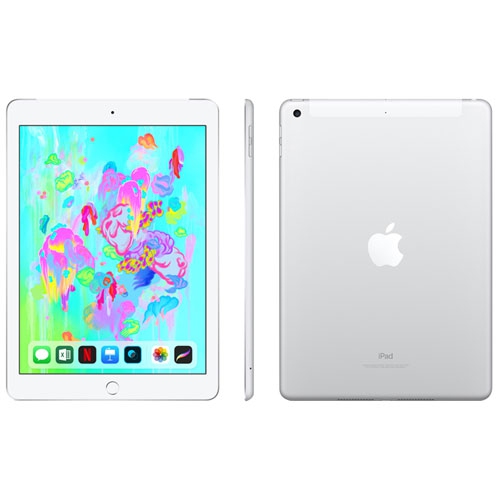
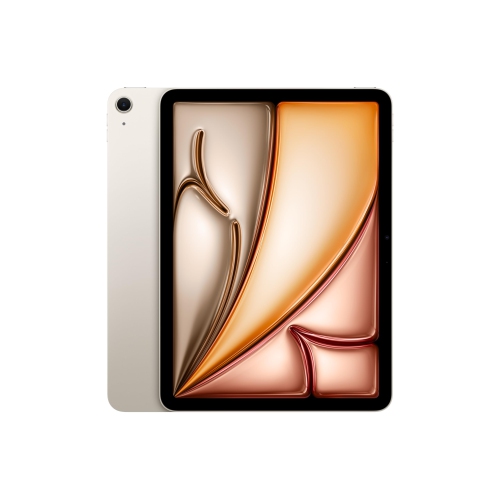
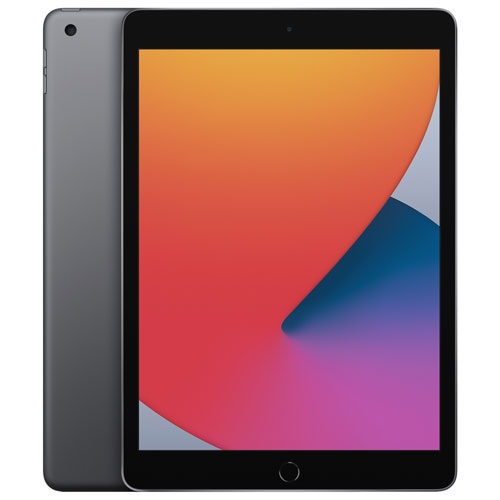
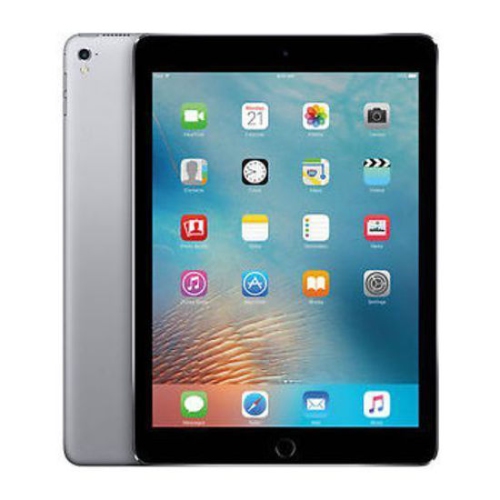
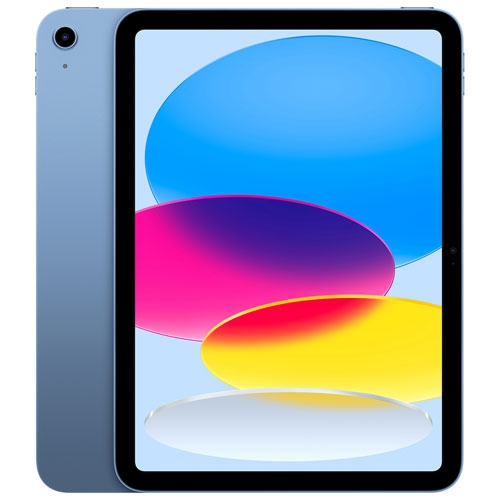
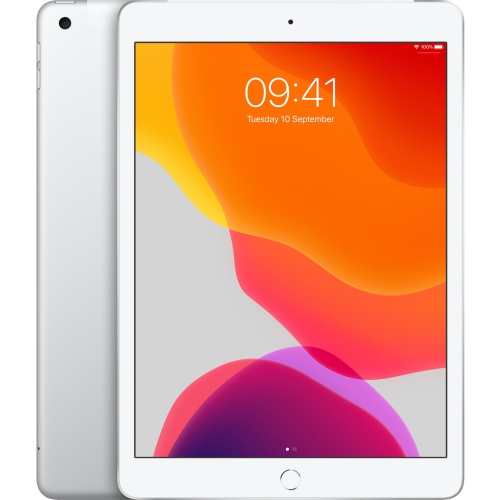
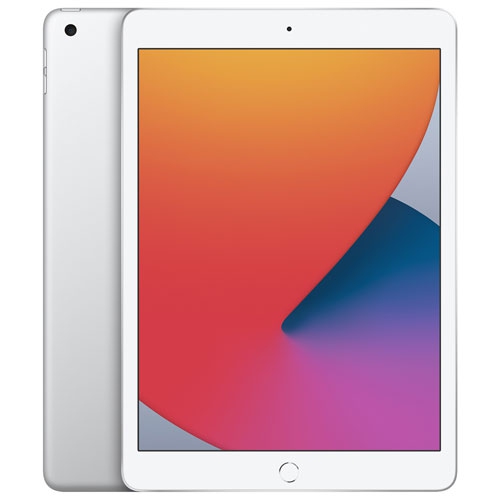
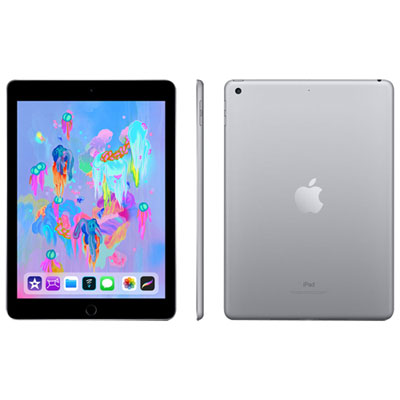
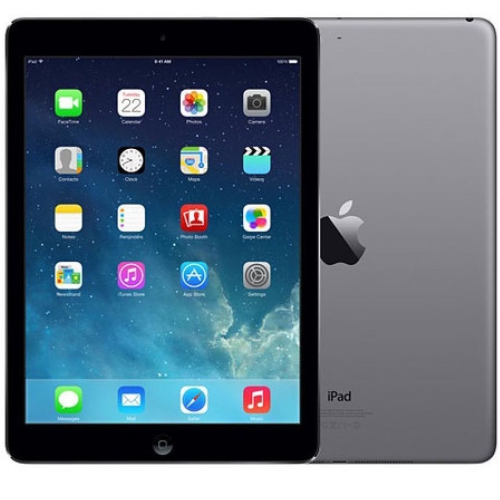
Home office iPads are versatile tablets for email, video meetings, document editing, note-taking, and other everyday work tasks. Paired with a compatible keyboard, pointing device, or stylus, an iPad can provide a flexible workspace without requiring a full desktop setup. Its usefulness depends on the apps a job requires, the complexity of the work, and how comfortably those tasks fit on a tablet screen. For someone managing appointments, reviewing proposals, answering client messages, or marking up documents, a tablet may handle a substantial part of the working day. For someone working with specialized desktop software, elaborate spreadsheets, or demanding production tools, it may be better suited to a supporting role alongside a computer. A touch display makes it easy to move between reading, handwritten notes, and visual feedback, while a keyboard helps with longer emails and written assignments. During a planning session, for example, a tablet can hold a meeting agenda, display a reference document, or capture a quick sketch that would be awkward to explain in text alone. Screen size influences how natural these activities feel. A more compact display is easier to carry between a desk and another room, while a larger display offers more space for documents, meeting controls, and supported multitasking features. Display brightness, text clarity, and adjustable text settings also matter when reading reports for extended periods. People who split their time between an office and home may appreciate a device that travels easily and returns to a familiar workspace with minimal setup. Students completing placements, independent professionals, and household members managing shared schedules can also find practical uses for this format. The strongest fit comes from matching the tablet to the actual work: reading and responding place different demands on a device than building presentations, editing media, or switching frequently between several active projects.
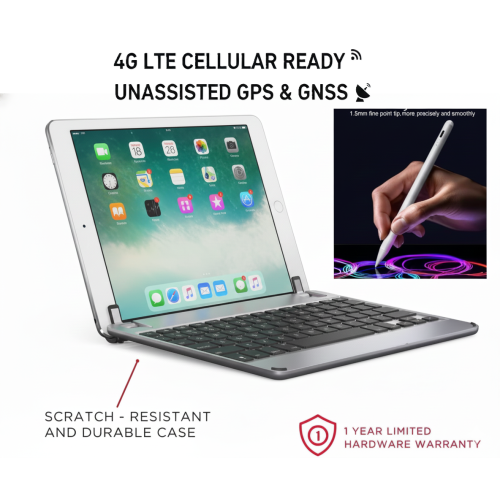
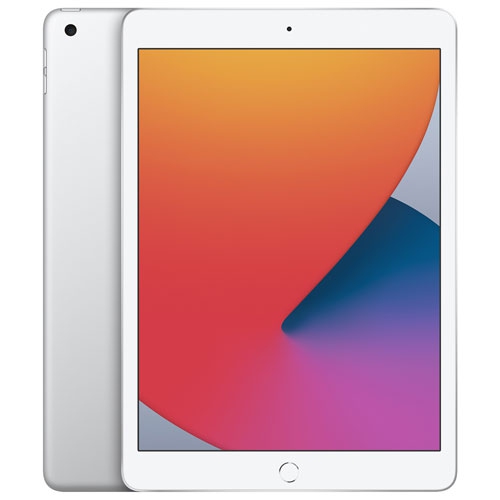
The physical setup has a considerable effect on how comfortable home office iPads are to use throughout the day. A slim metal enclosure and glass display can feel sturdy in the hand, but the screen, corners, and exposed edges still benefit from suitable protection. A fitted case can help protect against everyday scuffs, while a stable stand keeps the display at a useful angle for reading or video calls. Case compatibility is more specific than screen size alone: camera openings, button positions, charging ports, and accessory connections need to align with the particular tablet. A folding cover that works well for watching a presentation may not offer the same stability as a dedicated stand when tapping the screen or typing nearby. For longer writing sessions, a separate keyboard can leave more freedom to position the display at a comfortable height, with the keyboard closer to the edge of the desk. Keyboard layout, key spacing, and palm support influence comfort, especially when moving from a full-size computer keyboard. A compatible mouse or trackpad can make selecting text and navigating detailed documents less fiddly than repeated touch gestures. Stylus support is useful for handwritten notes, diagrams, signatures, and document annotation, although compatibility and supported features vary. These accessories also affect the total weight and desk space involved, so a lightweight tablet setup is not necessarily equally compact once everything is attached. A clear camera position and an unobstructed microphone help with meetings, while headphones can reduce distractions in a shared room. At a small desk, keeping charging cables away from the typing area leaves more room for a notebook or reference material. Routine care helps preserve the finish and display: a soft, lint-free cloth, gentle handling, and cleaning methods approved by the manufacturer are preferable to abrasive materials or liquid applied directly to the device. A case with a secure closure can also keep the screen separated from loose objects when the tablet moves between workspaces.
Storage, connections, and software compatibility determine how smoothly a home office iPad fits into an existing routine. Internal storage needs depend on whether work stays mainly in online services or includes large presentations, downloaded reference files, photographs, and video. Files kept on the device can be useful when an internet connection is interrupted, although offline access depends on the app and may need to be arranged in advance. Wi-Fi performance matters for video calls, shared documents, and file transfers, while cellular connectivity on supported devices can provide another connection option with a compatible mobile service plan. Battery life varies with screen brightness, video meetings, connected accessories, and the demands of individual apps; a convenient charging position can be more useful at a permanent desk than relying on a stated battery figure alone. Ports and wireless connections deserve attention when a workspace includes external storage, a display, or other peripherals. External display functions, multitasking options, and accessory support differ by device and software version, and a connector that fits physically does not guarantee every desired function. Workplace requirements are equally important. Some organizations require approved apps, managed accounts, secure network access, or device enrolment before work files can be opened. Passcodes, supported sign-in protections, software updates, and a reliable backup routine help keep business and personal information better protected. Shared household use also calls for care with notifications, saved passwords, and access to work accounts. For shoppers considering different tablet formats, Home Office Tablets offers a related category for comparing approaches to a portable workspace. A well-matched tablet setup brings the essentials within easy reach: a readable display for reviewing work, comfortable input for creating it, and dependable access to the files and conversations that keep the day moving. Whether serving as the main device for straightforward tasks or a companion to a computer, an iPad is most useful when its capabilities suit the work rather than requiring the work to be reshaped around the device.
The physical setup has a considerable effect on how comfortable home office iPads are to use throughout the day. A slim metal enclosure and glass display can feel sturdy in the hand, but the screen, corners, and exposed edges still benefit from suitable protection. A fitted case can help protect against everyday scuffs, while a stable stand keeps the display at a useful angle for reading or video calls. Case compatibility is more specific than screen size alone: camera openings, button positions, charging ports, and accessory connections need to align with the particular tablet. A folding cover that works well for watching a presentation may not offer the same stability as a dedicated stand when tapping the screen or typing nearby. For longer writing sessions, a separate keyboard can leave more freedom to position the display at a comfortable height, with the keyboard closer to the edge of the desk. Keyboard layout, key spacing, and palm support influence comfort, especially when moving from a full-size computer keyboard. A compatible mouse or trackpad can make selecting text and navigating detailed documents less fiddly than repeated touch gestures. Stylus support is useful for handwritten notes, diagrams, signatures, and document annotation, although compatibility and supported features vary. These accessories also affect the total weight and desk space involved, so a lightweight tablet setup is not necessarily equally compact once everything is attached. A clear camera position and an unobstructed microphone help with meetings, while headphones can reduce distractions in a shared room. At a small desk, keeping charging cables away from the typing area leaves more room for a notebook or reference material. Routine care helps preserve the finish and display: a soft, lint-free cloth, gentle handling, and cleaning methods approved by the manufacturer are preferable to abrasive materials or liquid applied directly to the device. A case with a secure closure can also keep the screen separated from loose objects when the tablet moves between workspaces.
Storage, connections, and software compatibility determine how smoothly a home office iPad fits into an existing routine. Internal storage needs depend on whether work stays mainly in online services or includes large presentations, downloaded reference files, photographs, and video. Files kept on the device can be useful when an internet connection is interrupted, although offline access depends on the app and may need to be arranged in advance. Wi-Fi performance matters for video calls, shared documents, and file transfers, while cellular connectivity on supported devices can provide another connection option with a compatible mobile service plan. Battery life varies with screen brightness, video meetings, connected accessories, and the demands of individual apps; a convenient charging position can be more useful at a permanent desk than relying on a stated battery figure alone. Ports and wireless connections deserve attention when a workspace includes external storage, a display, or other peripherals. External display functions, multitasking options, and accessory support differ by device and software version, and a connector that fits physically does not guarantee every desired function. Workplace requirements are equally important. Some organizations require approved apps, managed accounts, secure network access, or device enrolment before work files can be opened. Passcodes, supported sign-in protections, software updates, and a reliable backup routine help keep business and personal information better protected. Shared household use also calls for care with notifications, saved passwords, and access to work accounts. For shoppers considering different tablet formats, Home Office Tablets offers a related category for comparing approaches to a portable workspace. A well-matched tablet setup brings the essentials within easy reach: a readable display for reviewing work, comfortable input for creating it, and dependable access to the files and conversations that keep the day moving. Whether serving as the main device for straightforward tasks or a companion to a computer, an iPad is most useful when its capabilities suit the work rather than requiring the work to be reshaped around the device.
Top selling and popular products
-
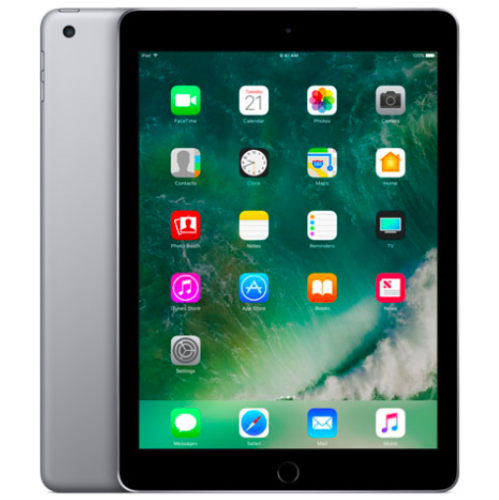 Your price for this item is $109.99
-
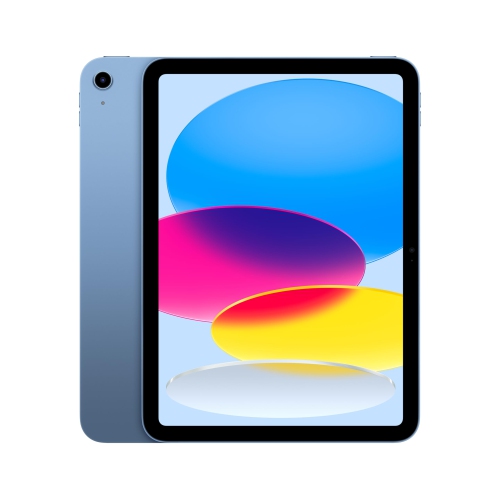 Your price for this item is $655.95
-
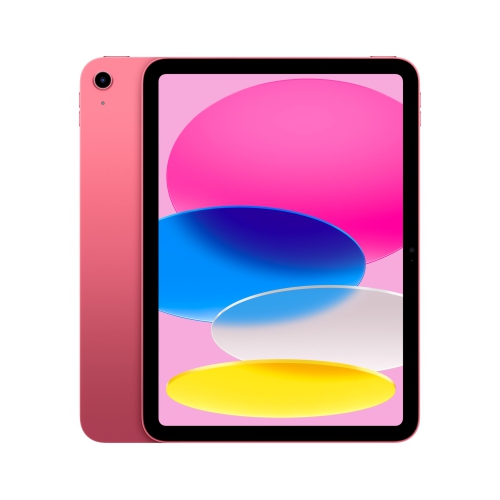 Your price for this item is $639
-
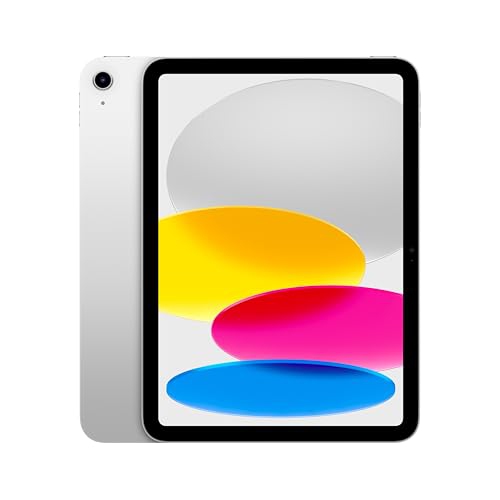 Your price for this item is $698.99
-
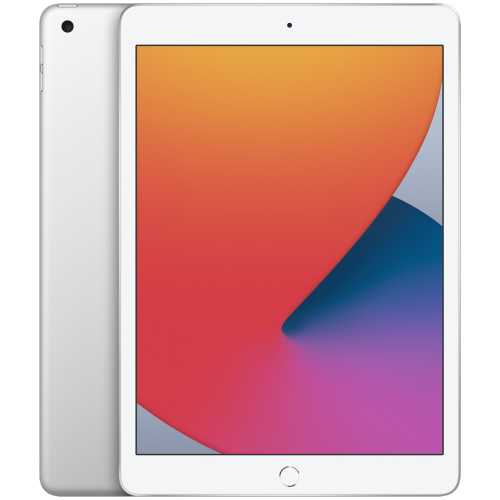 Your price for this item is $146.98
-
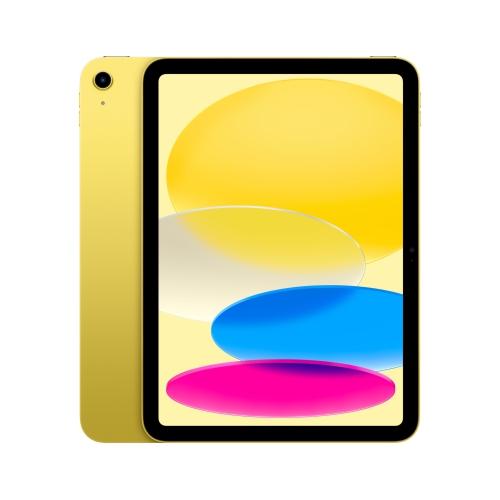 Your price for this item is $639.99
-
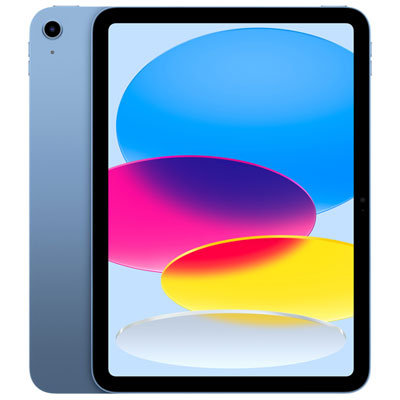 Your price for this item is $649.99
-
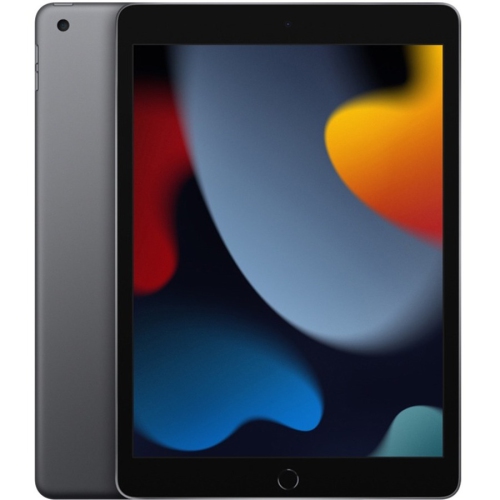 Your price for this item is $1000
Discover more categories related to Home Office iPads
Top Collections:
Pokemon Centers, Pokémon 30th Celebration Cards, Best Budget Office Chairs, Kindle Devices, Best Cameras for Sports Photography, Canon G7X Cameras, Best Black Friday Deals On Electronics, Best Laptops for Writers, iPhone 15 Apple, Jackery Power Stations
Some products may be subject to Environmental Handling Fees
(EHF) depending on your province.
Learn more about EHFs.