Lenovo Touchscreen Laptops
Discover the versatility and convenience of a Lenovo Touchscreen Laptop, designed to keep up with your dynamic lifestyle. Whether you're working, studying, or unwinding with your favorite entertainment, these laptops offer intuitive navigation and seamless interaction. With a range of models to choose from, finding the right Lenovo Touchscreen Laptop to match your needs is simple. Explore options that combine performance and style, making every task more engaging and efficient.
Sort
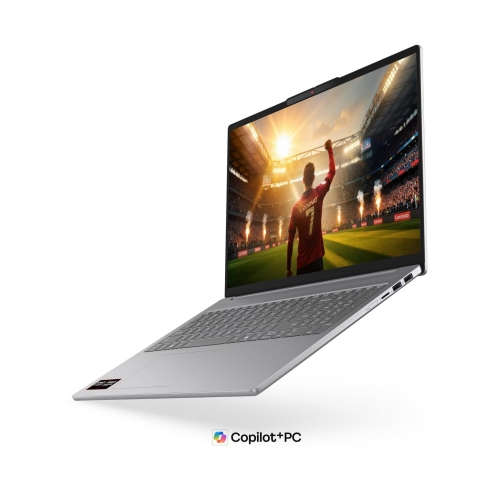
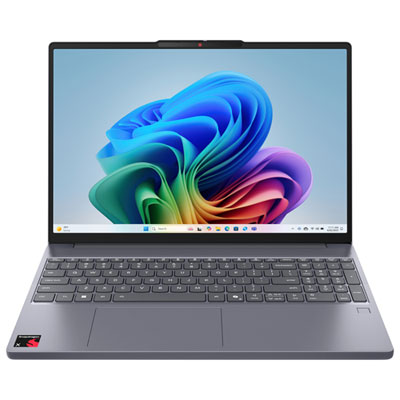

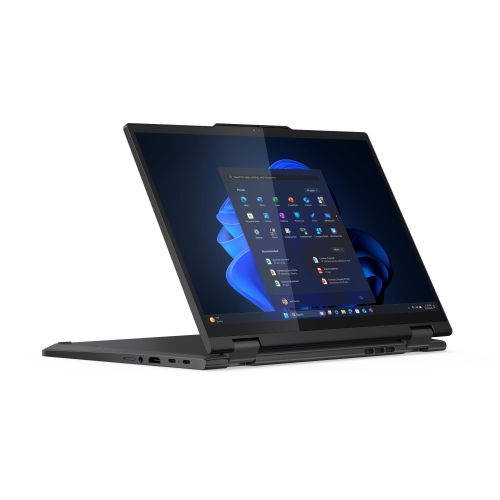
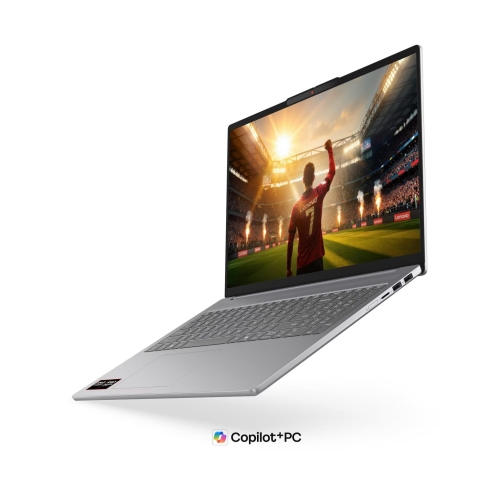
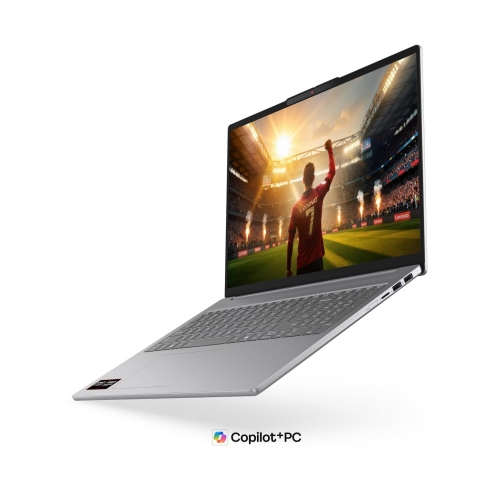
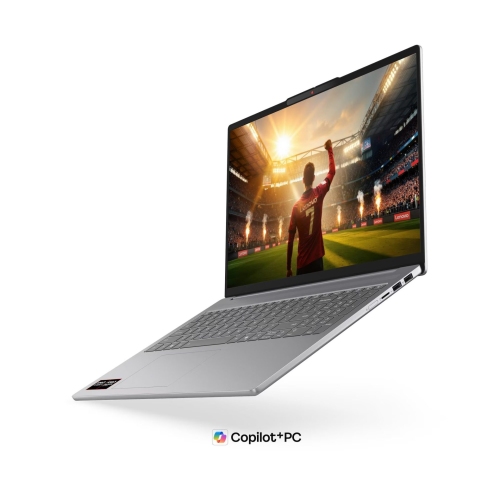
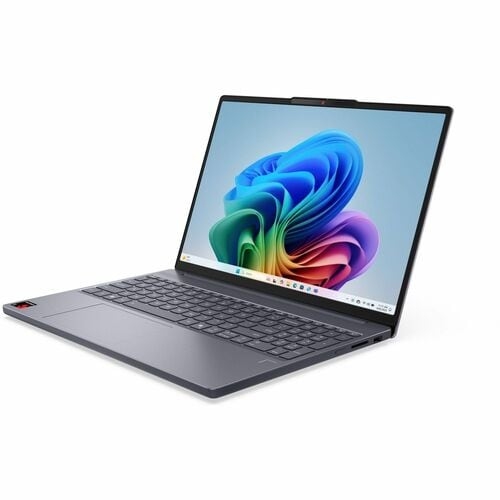
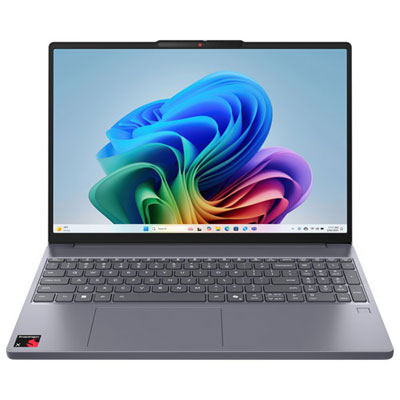
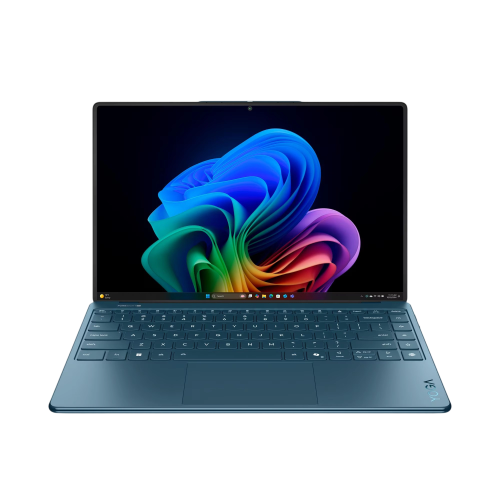
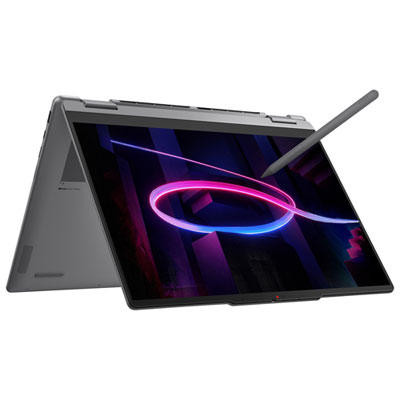
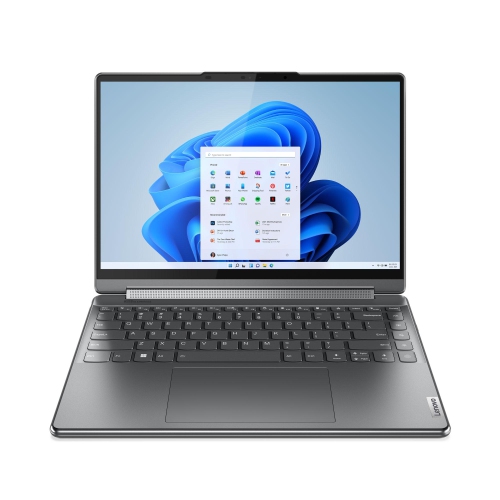
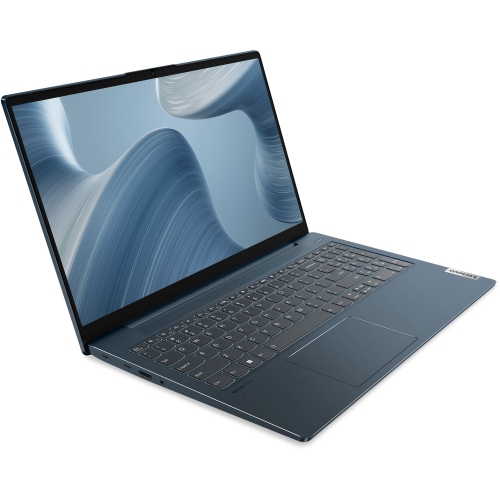
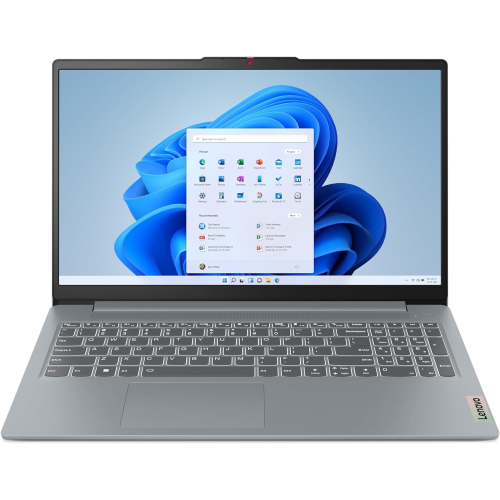
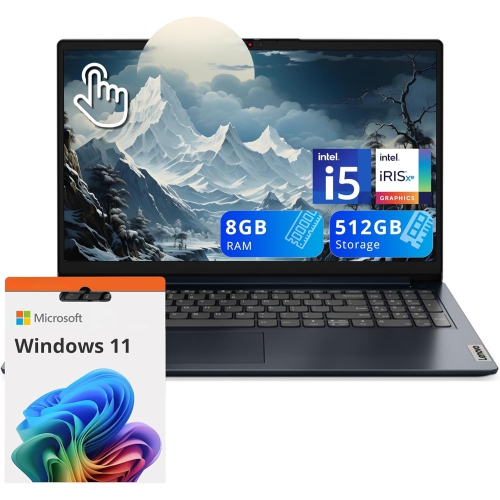
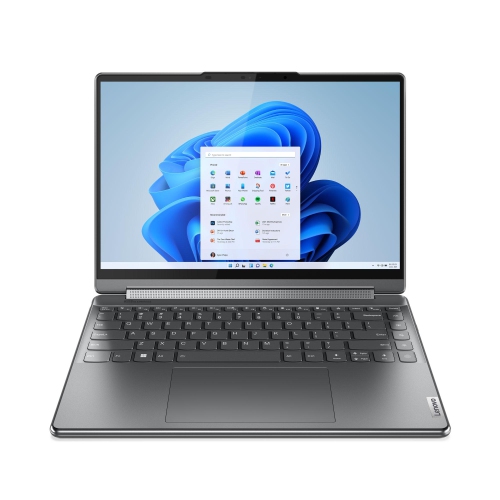

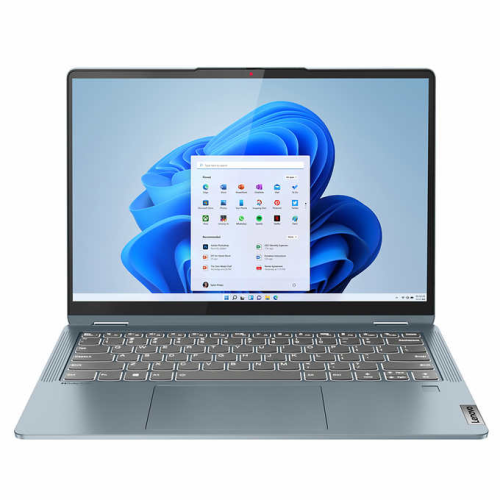
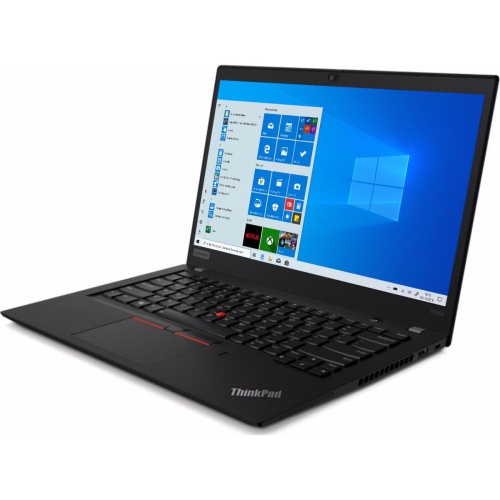
Touch and typing each have their place
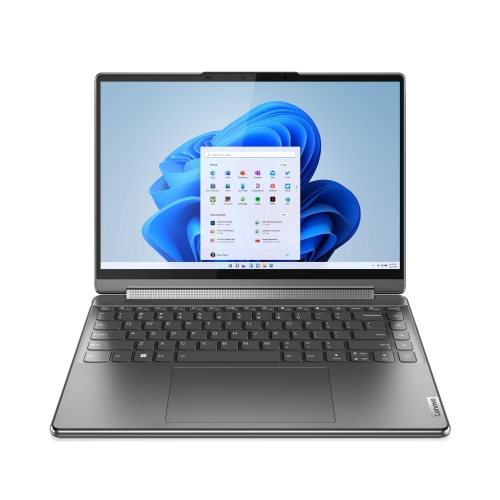
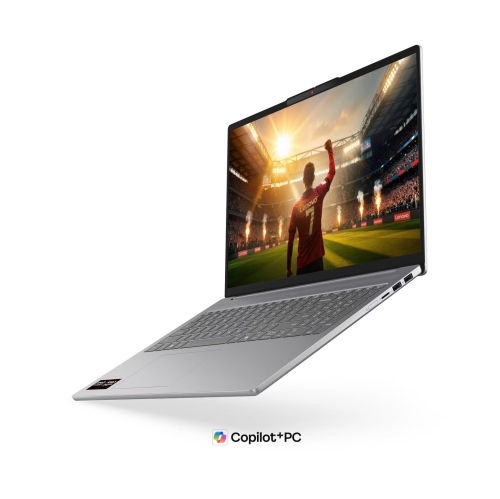
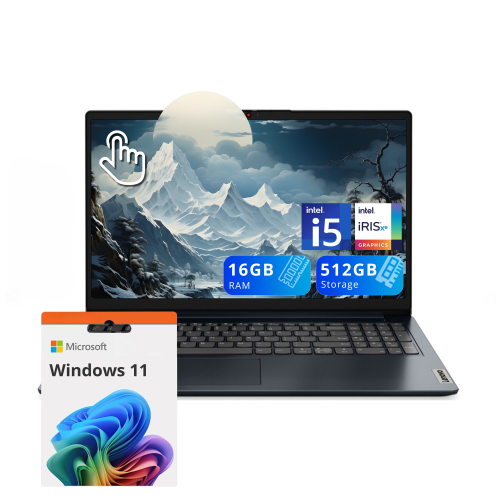
Touchscreen laptops combine the familiar keyboard and trackpad of a notebook with a display that responds directly to a finger, adding another way to navigate documents, browse photos, and interact with compatible apps. The category includes traditional clamshell laptops as well as 2-in-1 convertibles with hinges that let the screen fold back for different viewing positions. A standard touchscreen notebook suits someone who mainly types but appreciates tapping an on-screen control or scrolling through a long article. A convertible adds flexibility for reading at a kitchen counter, presenting slides across a table, or watching a video without the keyboard in front of the display. Touch capability and convertible construction are separate features, so a touchscreen does not necessarily mean the laptop folds into a tablet-style position. Pen support is another distinction: compatible models can make handwritten notes, diagrams, and annotations part of everyday work, but a touch-sensitive screen alone does not guarantee active pen compatibility, pressure sensitivity, or palm rejection. Those details matter for a student marking up lecture slides or a designer sketching changes over a floor plan. For everyday tasks, touch can be a convenient complement to the keyboard rather than a replacement for it. Typing a report, entering spreadsheet data, and making precise selections may still feel more comfortable with physical keys, a trackpad, or a mouse. The appeal is being able to move between those controls naturally, such as typing meeting notes and then enlarging a chart with a gesture where the software supports it. Students, home users, and professionals can each benefit from that versatility, although their preferred screen size, keyboard layout, and carrying weight may differ. For someone receiving a laptop as a gift, the most useful fit usually comes from matching familiar software, daily tasks, and preferred ways of working rather than choosing touch capability in isolation.
The display and internal hardware shape the experience just as much as the touchscreen itself. A larger screen provides more room for side-by-side documents, detailed spreadsheets, and comfortably spaced touch controls, while a smaller chassis can be easier to carry between classes or fit on a compact desk. Resolution affects how crisp text and images appear, and scaling settings influence whether menus remain comfortable to read and tap. Brightness and screen finish also deserve attention: reflections from a nearby window or overhead light can be distracting on a glossy display, while an anti-glare treatment may reduce reflections without eliminating them entirely. For photo editing and visual work, colour accuracy and colour coverage are separate considerations from touch responsiveness. A screen can feel smooth to use without necessarily meeting the needs of colour-critical projects. Processing power, memory, and storage should reflect the workload behind the gestures. Browsing, writing, and video calls place different demands on a laptop than editing high-resolution footage, working with large creative files, or running several demanding applications together. Sufficient memory helps keep multiple tasks responsive, while storage capacity determines how much room remains for applications, downloaded course materials, photos, and project files. The operating system also affects software compatibility; a browser-focused workflow is different from one that depends on specialized desktop applications. For remote work and study, microphone clarity, webcam quality, and speaker placement can be as noticeable as processor performance during a full day of calls. Wi-Fi capabilities depend on both the laptop and the network it connects to, and physical ports remain useful for monitors, external storage, and wired accessories. A USB-C connection does not automatically support every charging or display function, making its stated capabilities important. Battery life varies with screen brightness, applications, wireless activity, and power settings, so a demanding video-editing session will not resemble light document work. A balanced configuration supports the tasks that matter without treating the touchscreen as a substitute for capable everyday hardware.
Build quality and physical comfort become especially apparent when a touchscreen laptop is handled throughout the day. Metal and plastic chassis can both serve everyday use well; hinge construction, panel rigidity, and the way the lid opens are more useful durability considerations than material alone. Touching the display places light pressure on the screen, so a steady hinge helps when tapping controls during a call or scrolling through a recipe. On a convertible, the hinge also needs to hold the intended viewing position securely. Keyboard spacing, key travel, trackpad placement, and the shape of the palm rest affect comfort during longer writing sessions, even when touch is a frequent part of the workflow. Weight should be considered alongside the charger and any accessories that regularly go into a bag. A laptop that feels manageable on a desk may feel quite different when held in a folded position for extended reading. Frequent travellers can also explore Lenovo Travel Laptops when comparing portability with the screen space and performance needed away from home. A padded sleeve or properly fitted laptop compartment helps protect the lid from contact with keys, cables, and other objects, while avoiding pressure on the closed screen can reduce the risk of damage. Fingerprints are a normal part of touchscreen use, and gentle cleaning helps keep text and images clear. Manufacturer-recommended care generally involves powering down the device and using a soft, lint-free cloth, with any approved cleaning solution applied to the cloth rather than sprayed directly onto the display. Abrasive materials and excessive moisture can damage screen surfaces or reach openings around the chassis. Compatible pens should be stored securely, and worn pen tips replaced according to the maker’s directions. Keeping ventilation openings clear and leaving room around the laptop during demanding tasks also supports normal operation. These practical details help a touchscreen laptop remain comfortable to use for study, household organization, creative projects, and work.
Top selling and popular products
-
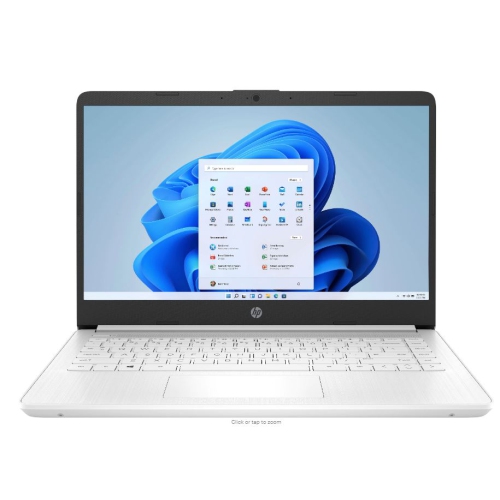 Your price for this item is $449
-
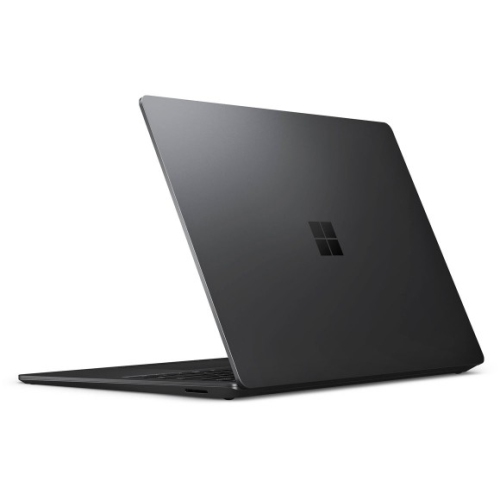 Your price for this item is $3099
-
 Your price for this item is $1800.68
-
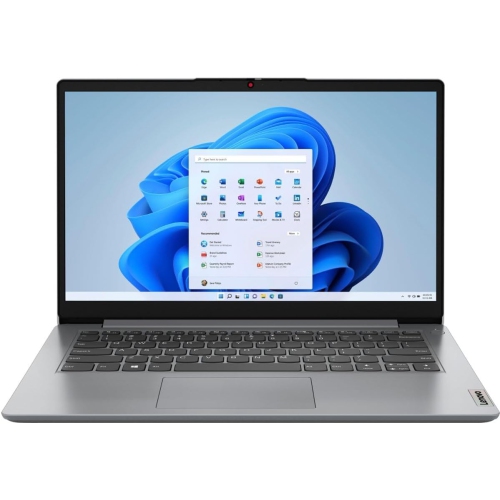 Your price for this item is $664.05
-
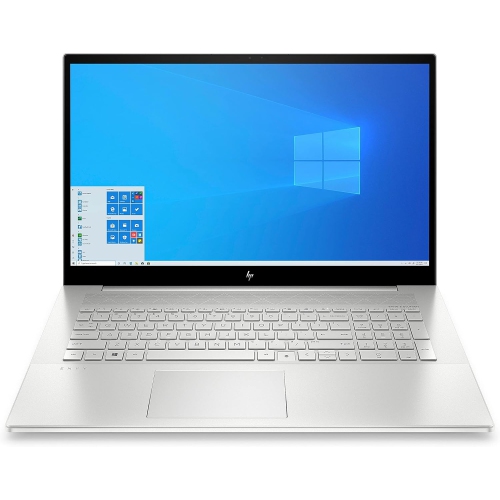 Your price for this item is $869.99
-
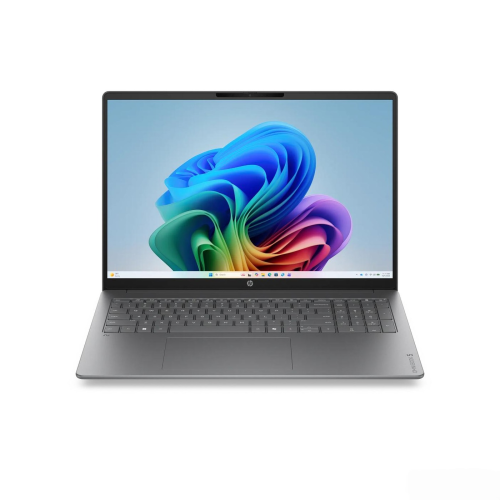 Your price for this item is $2960.48
-
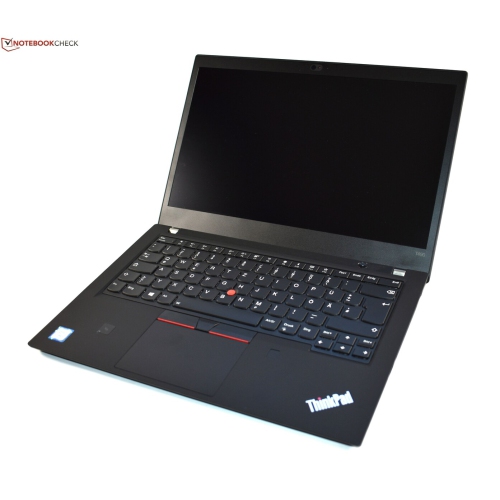 Your price for this item is $499.68
-
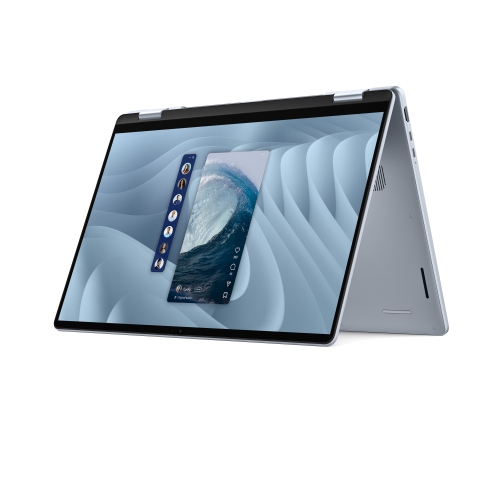 Your price for this item is $1951.79
Discover more categories related to Lenovo Touchscreen Laptops
Top Collections:
Best Black Friday Deals This Year, Best Black Friday Deals On Electronics, Kindle Devices, Pokemon Centers, Best Black Friday Deals On Apple Products, Best Cameras for Sports Photography, Dyson Airwrap, Pokémon 30th Celebration Cards, Apple iPhone 17 Pro, Canon G7X Cameras
Some products may be subject to Environmental Handling Fees
(EHF) depending on your province.
Learn more about EHFs.