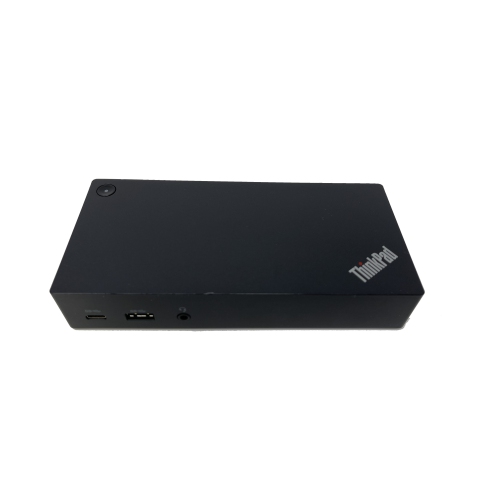
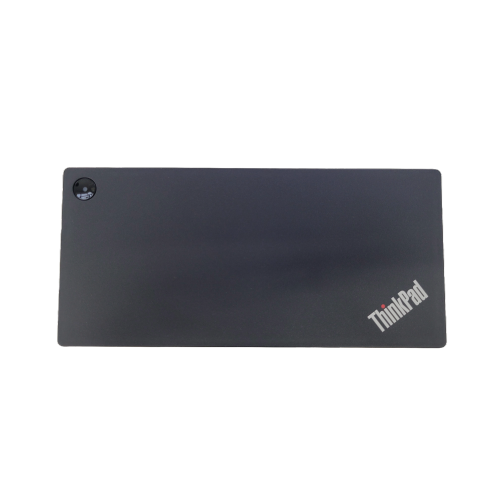
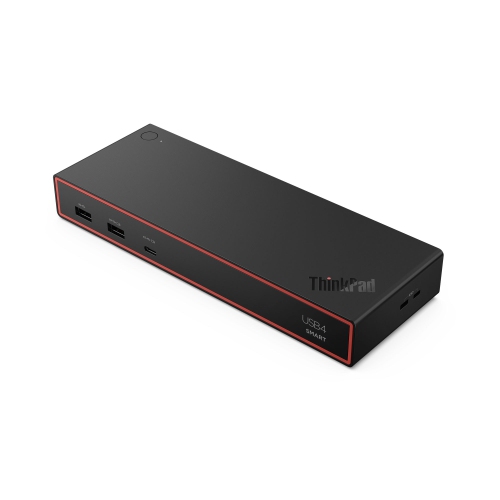
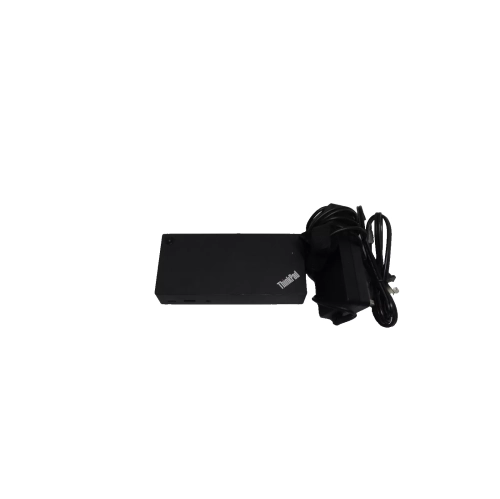
Thinkpad Docking Stations
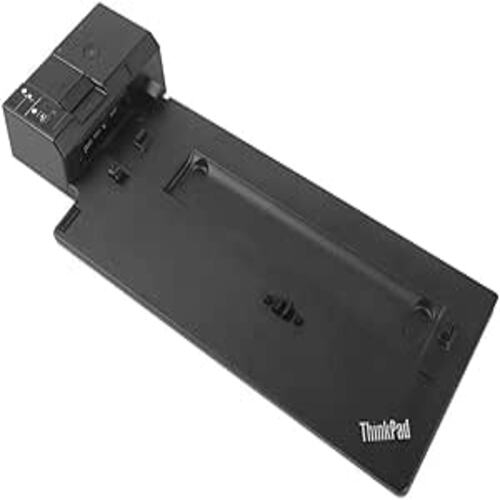
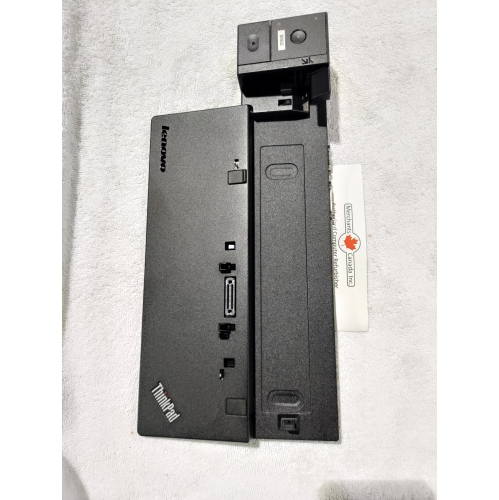
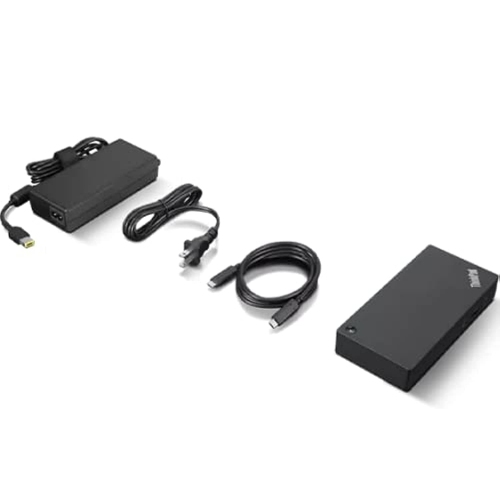
Elevate your workspace efficiency with a versatile docking station designed for seamless integration and enhanced productivity. Whether you're looking to expand connectivity, simplify device management, or create a clutter-free desk environment, a docking station offers the perfect solution. Tailored for professionals and tech enthusiasts alike, these stations provide a centralized hub for your devices, allowing you to connect monitors, peripherals, and accessories effortlessly. Experience the convenience of transforming your laptop into a powerful workstation with ease, making multitasking smoother and more efficient than ever before. Explore our selection to find the perfect docking station that meets your needs and complements your tech setup.




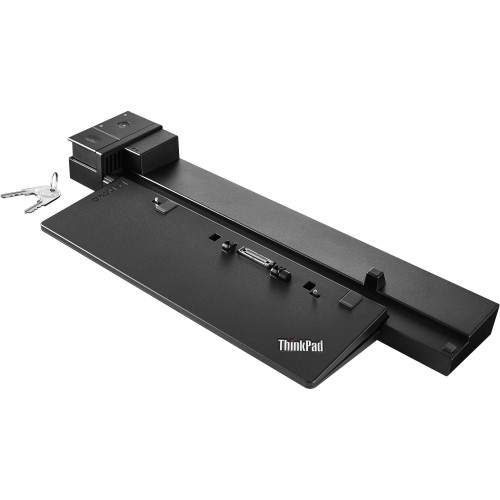
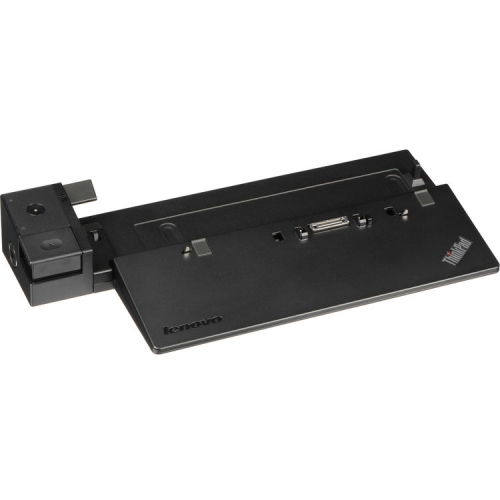
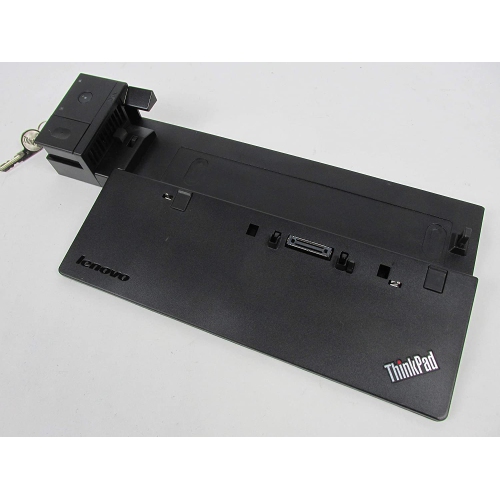

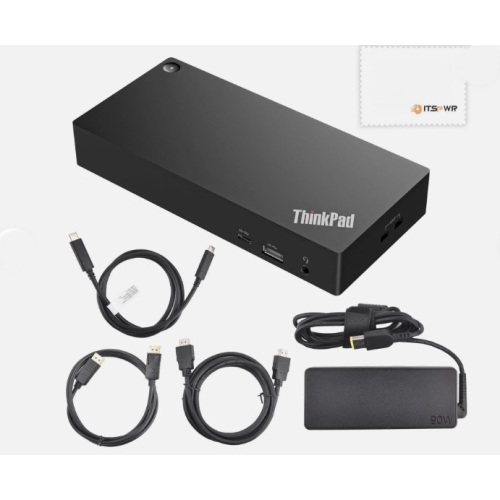
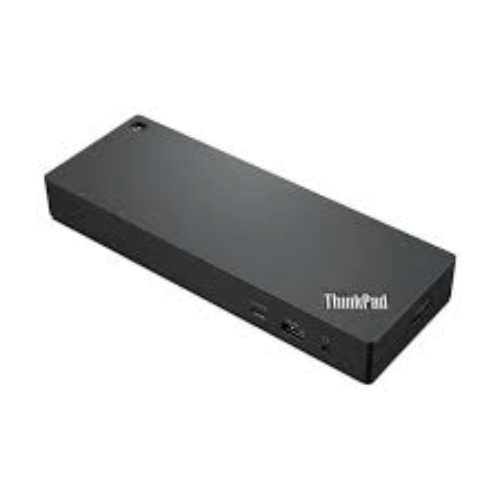
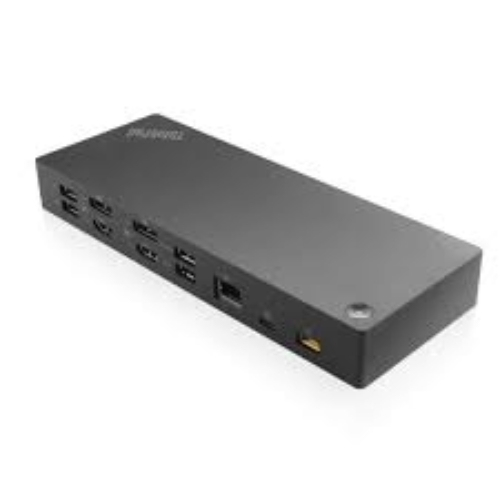
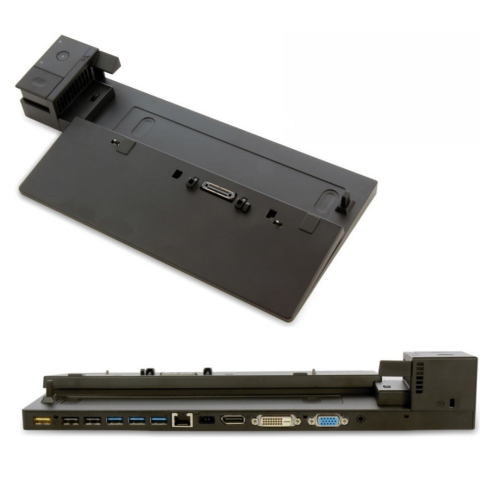

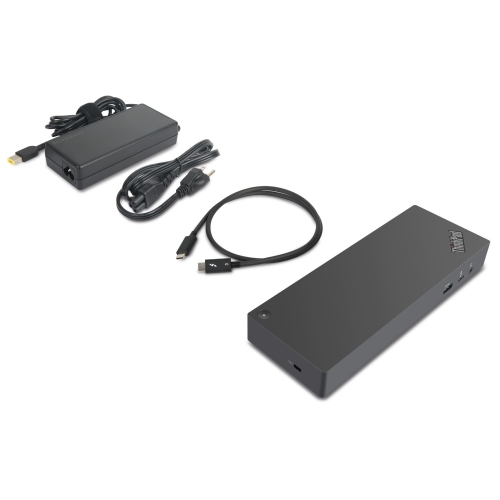








One-cable convenience depends on more than matching ports
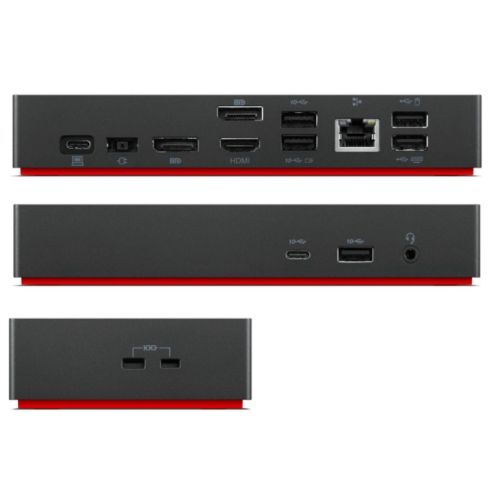
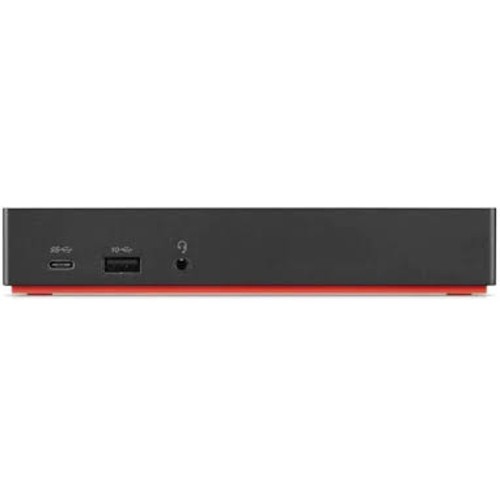
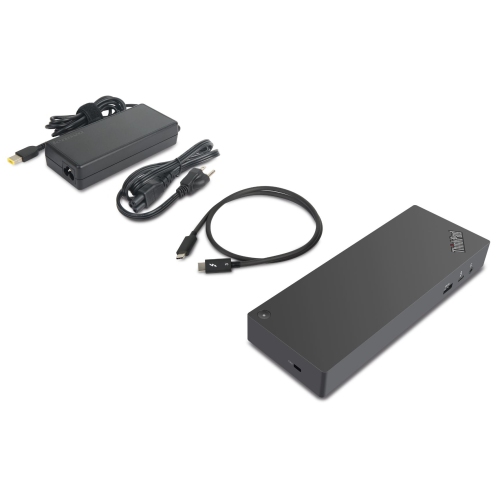
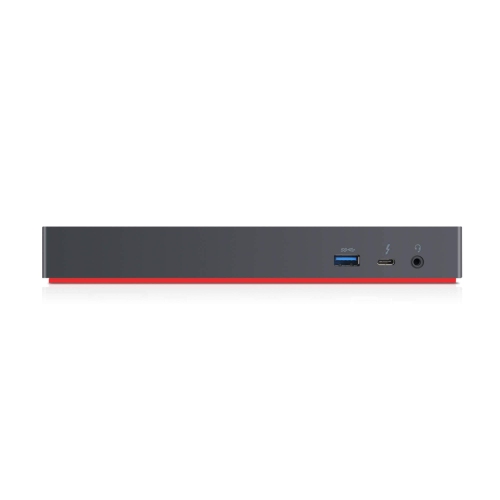
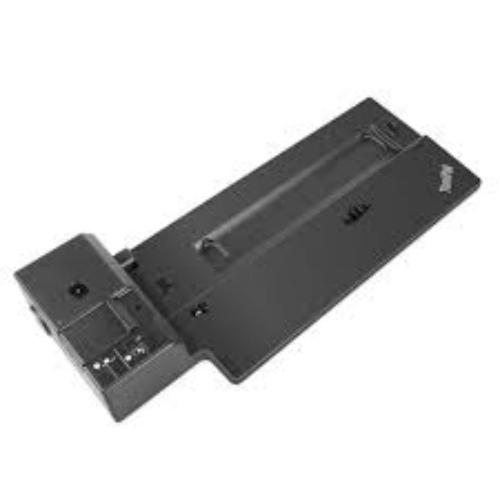
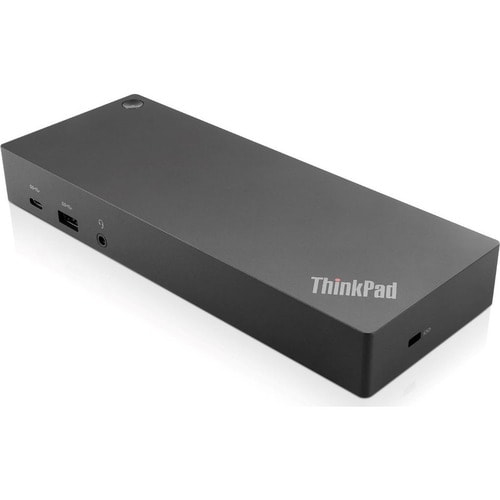
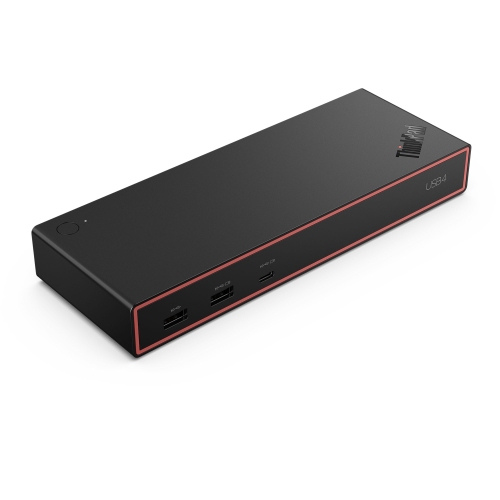
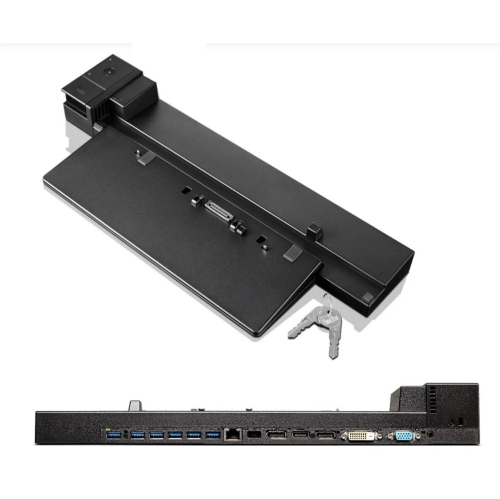
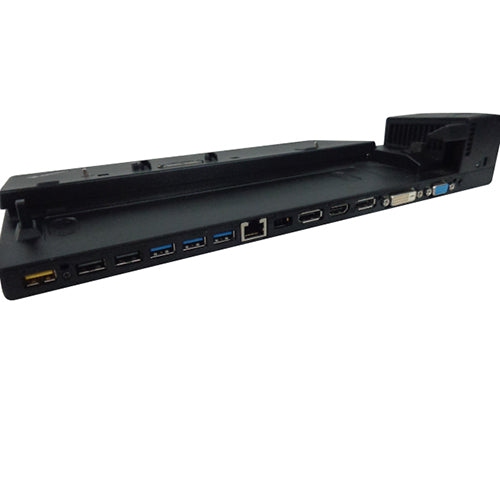
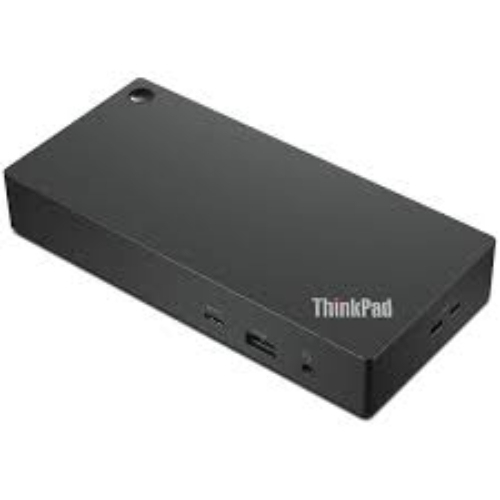
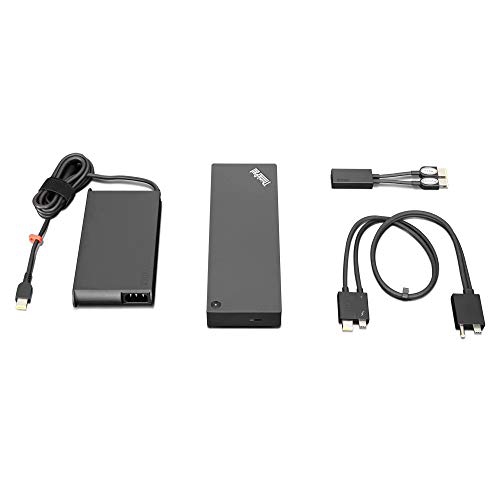
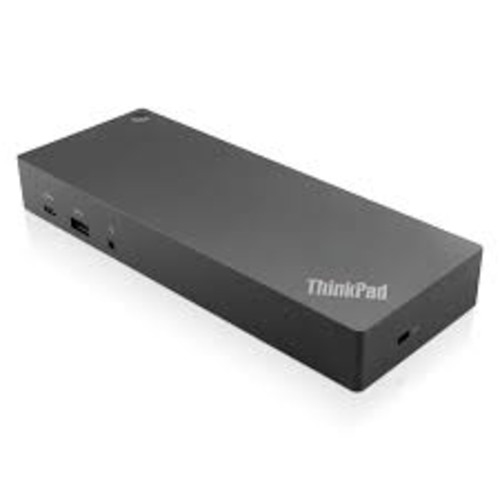
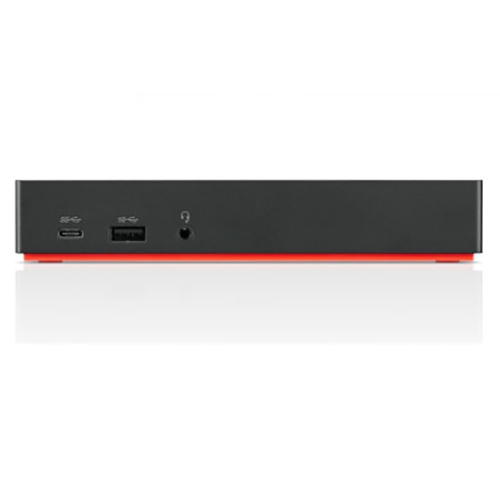
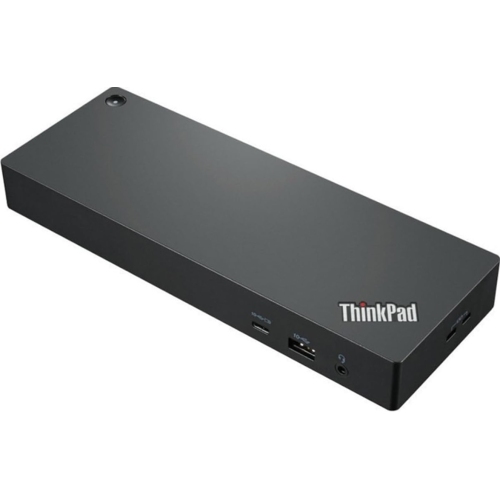
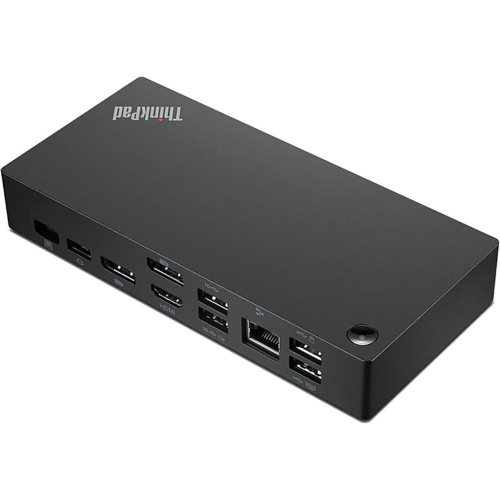
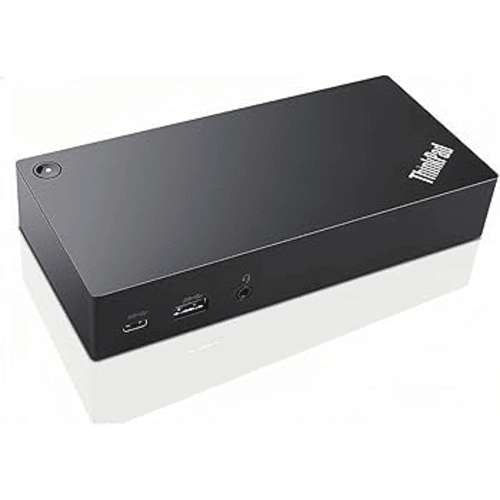
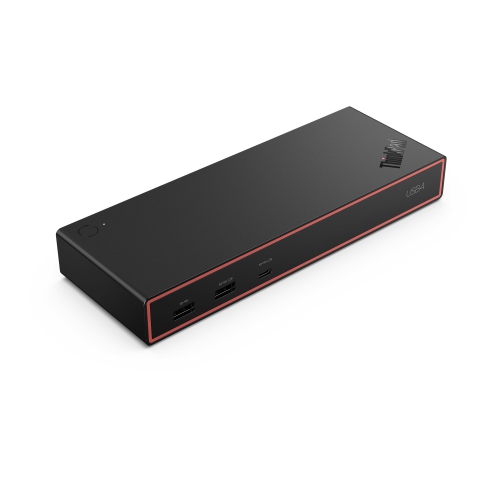
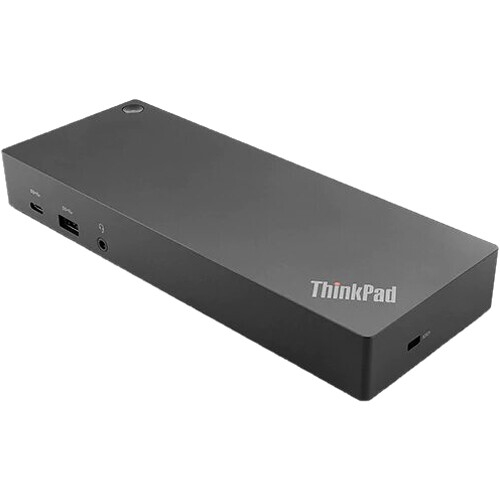
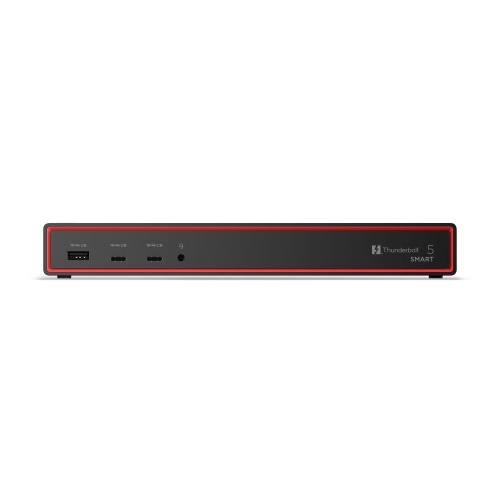
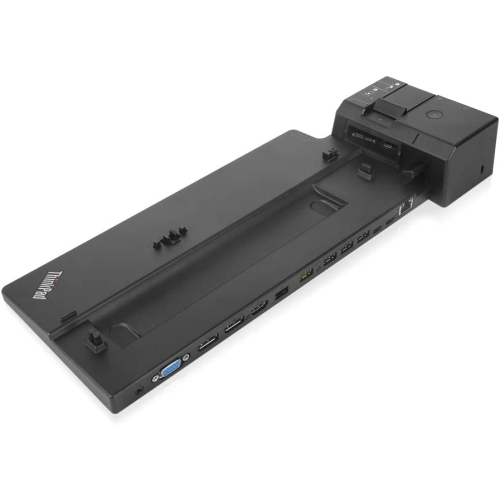
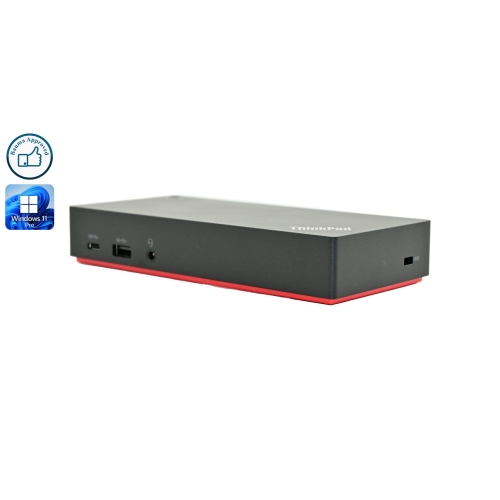
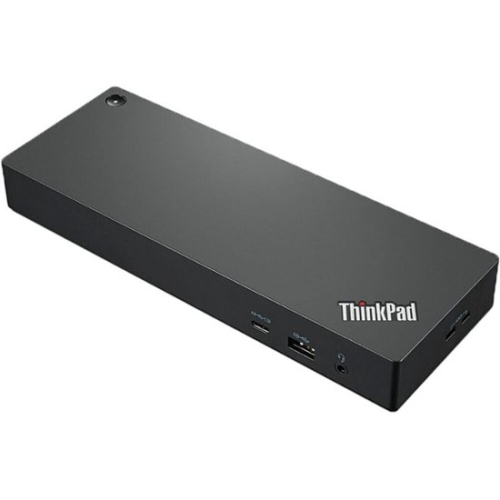
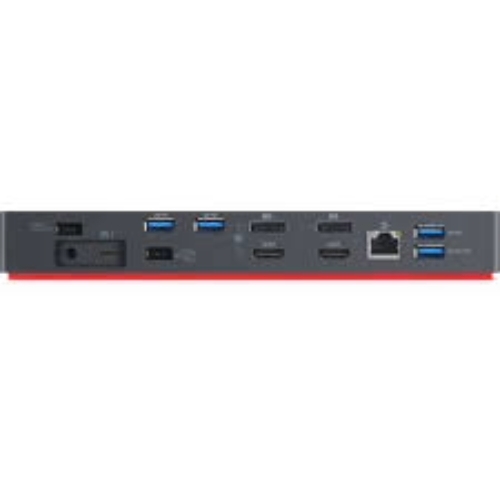
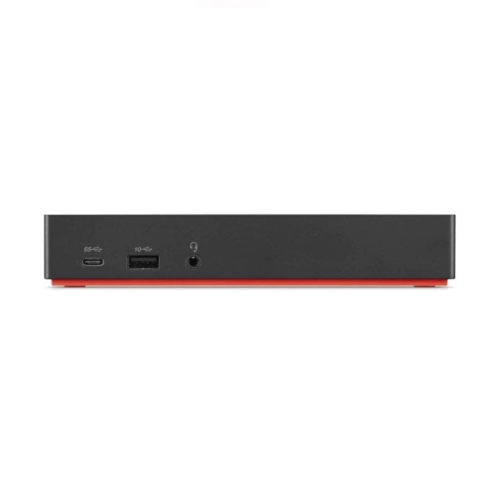
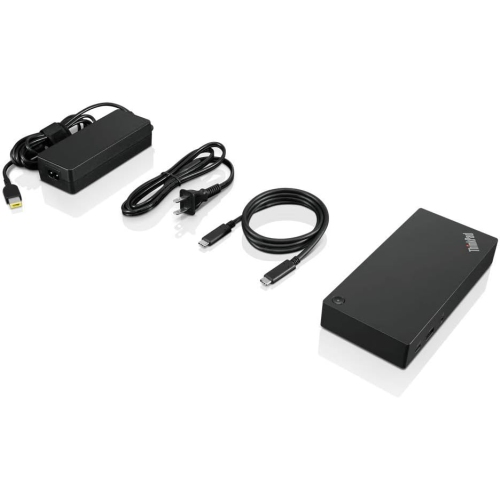
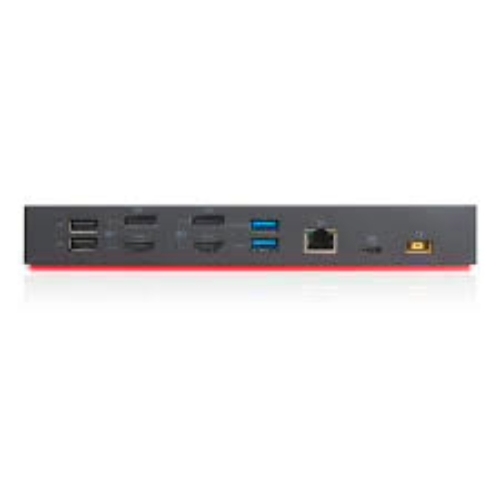
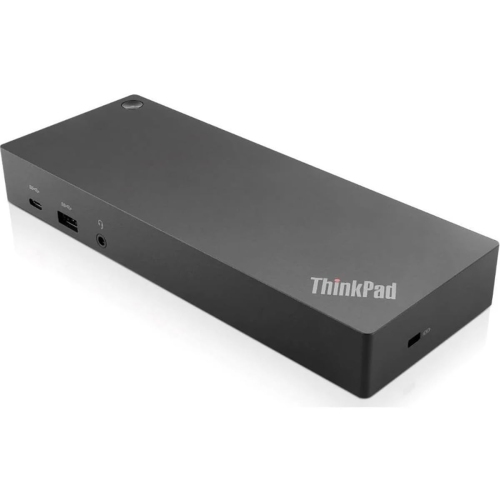
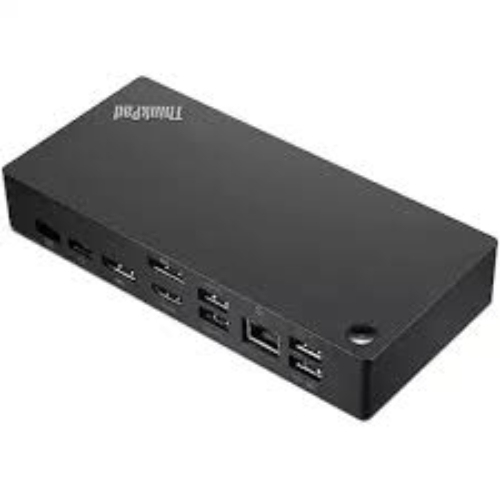
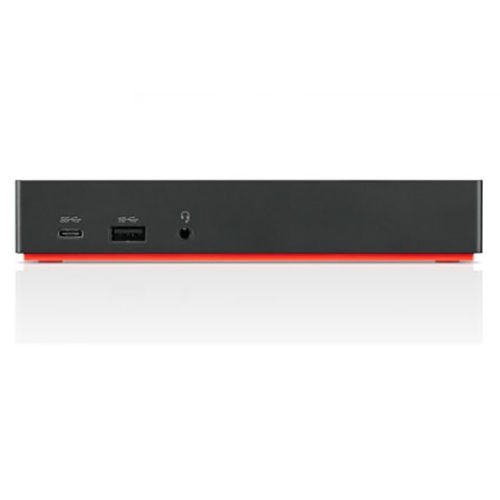
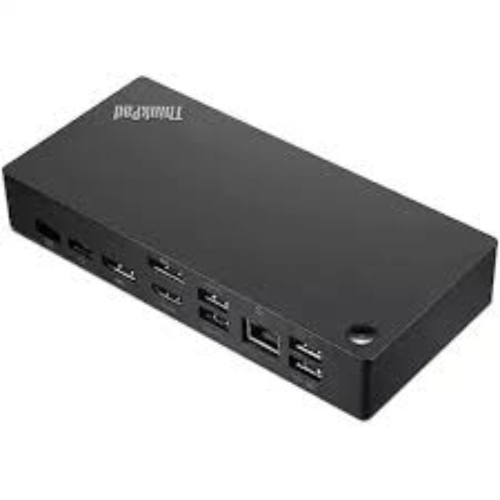
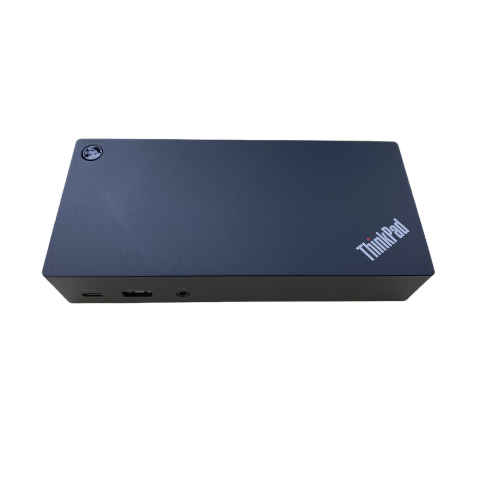
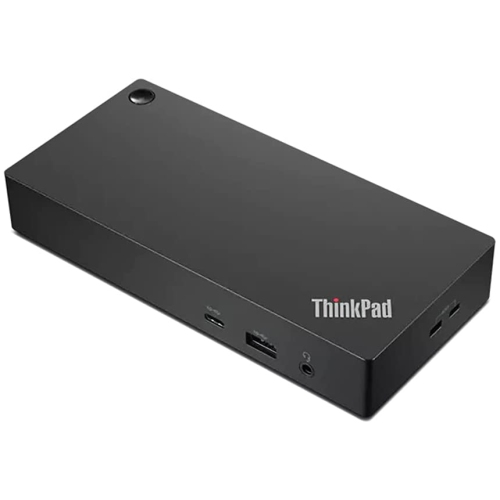
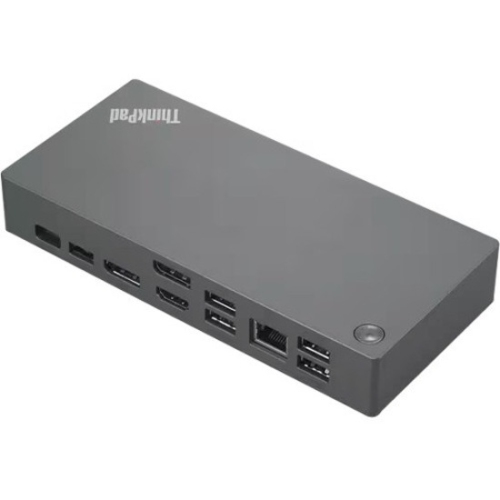
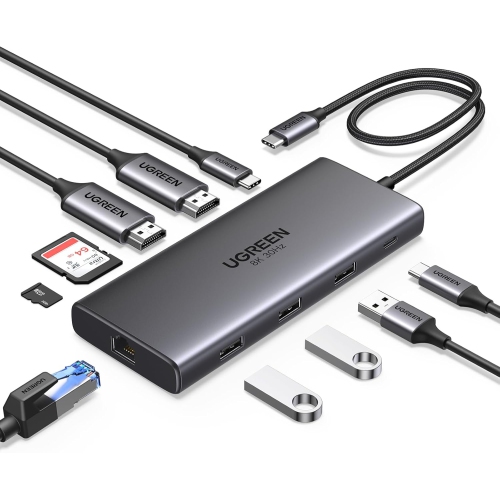
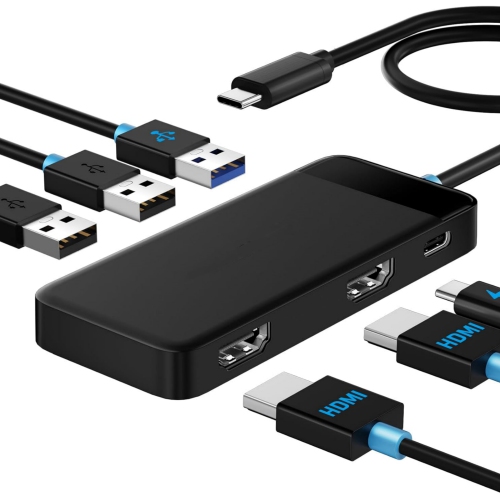
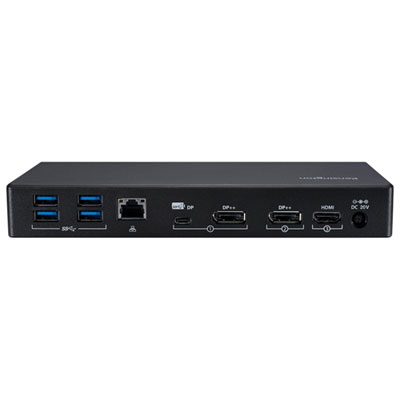
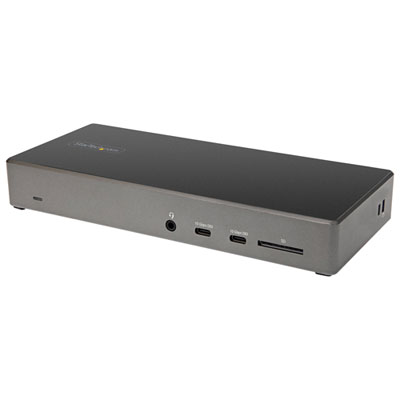
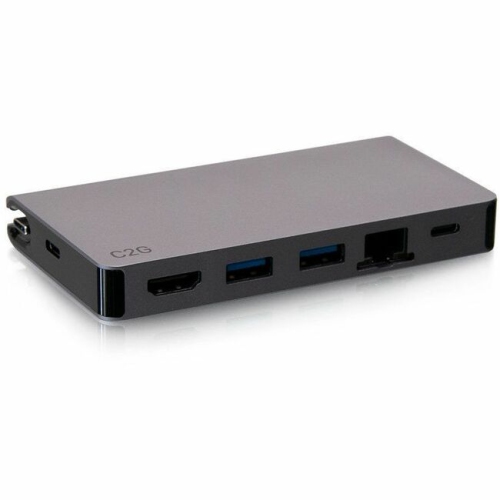
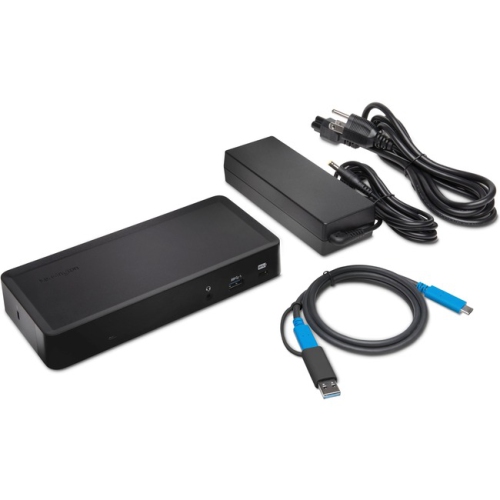
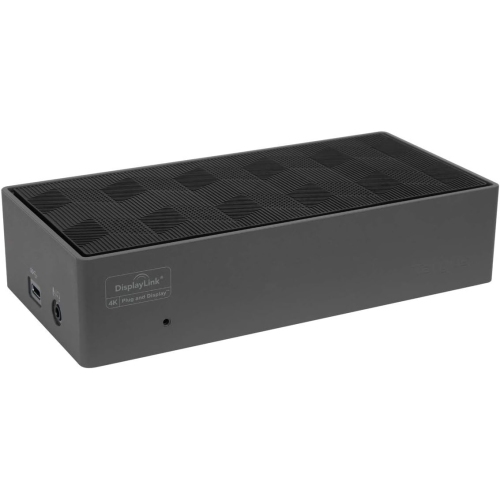
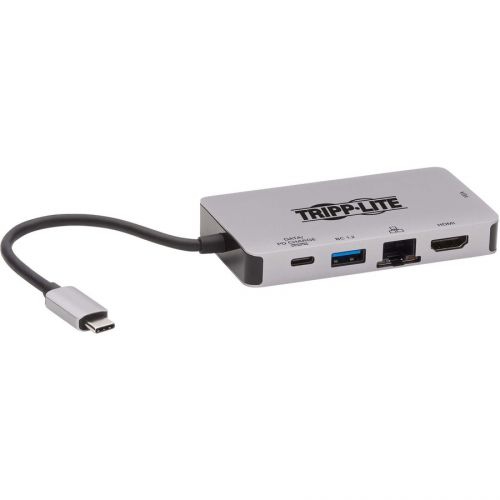
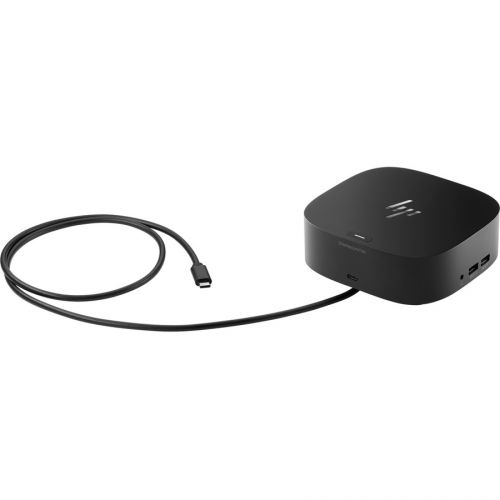
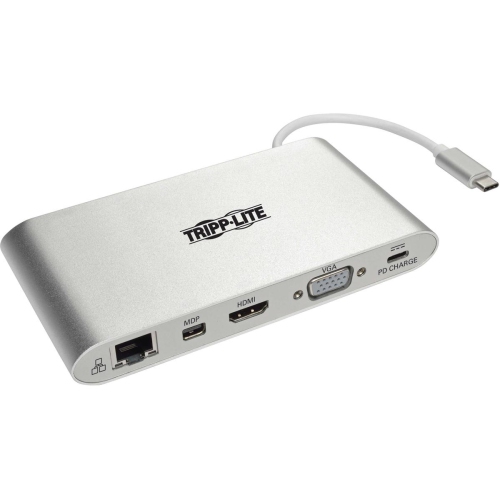
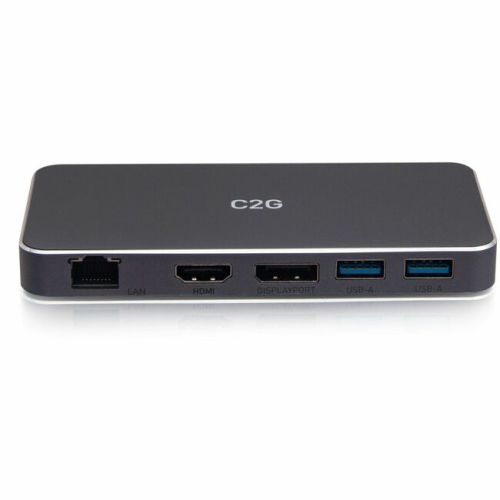
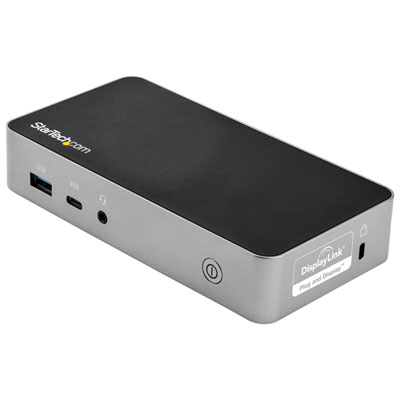
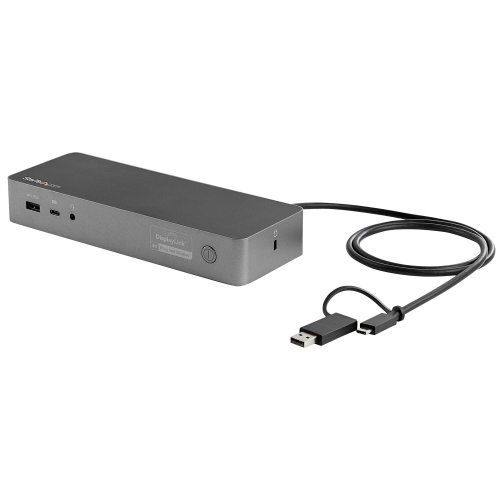
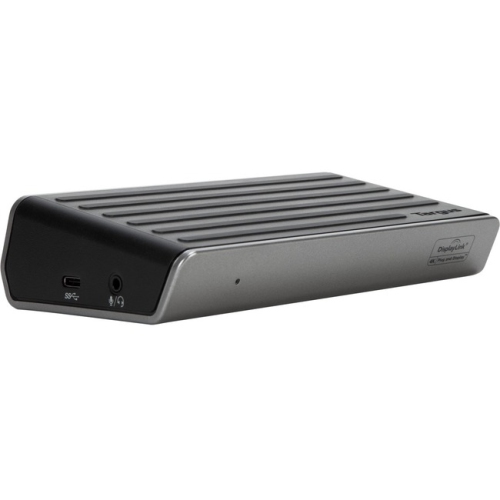
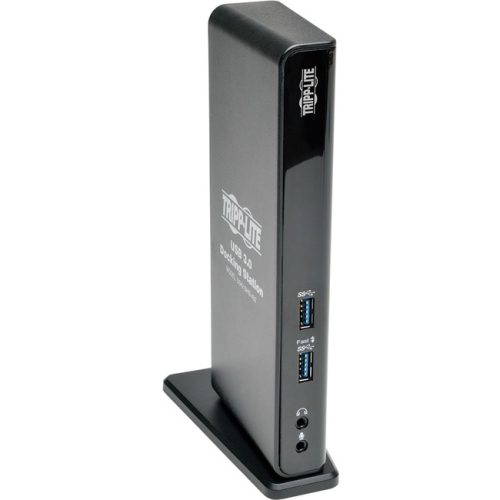
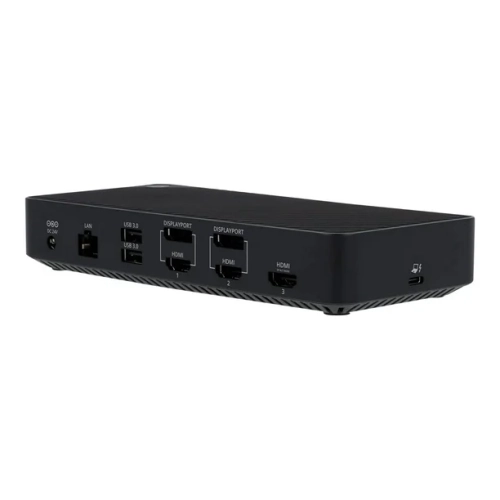
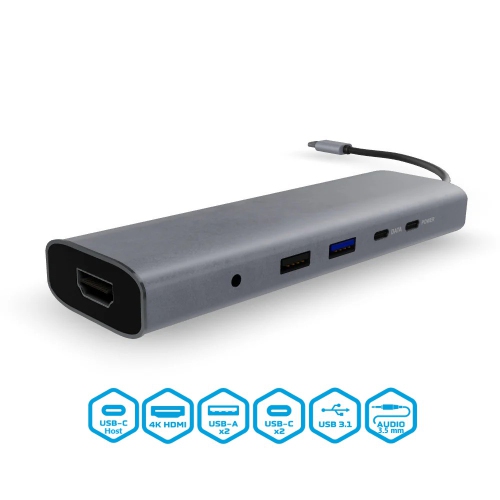
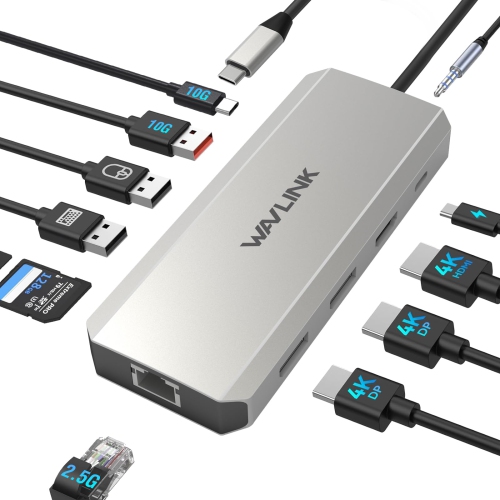
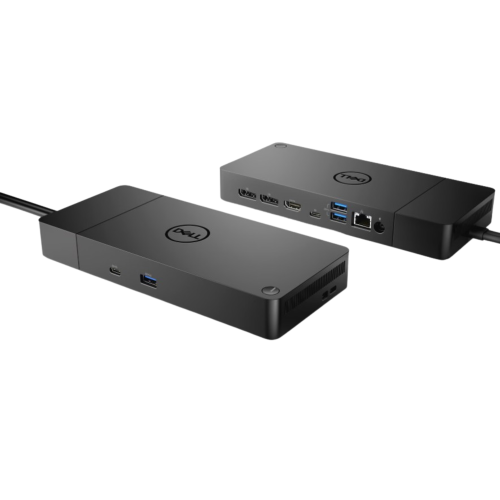
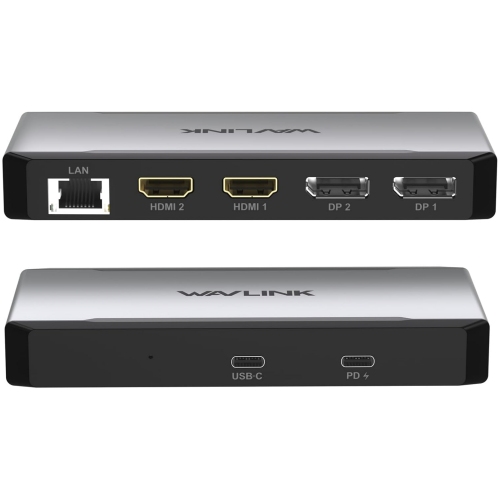
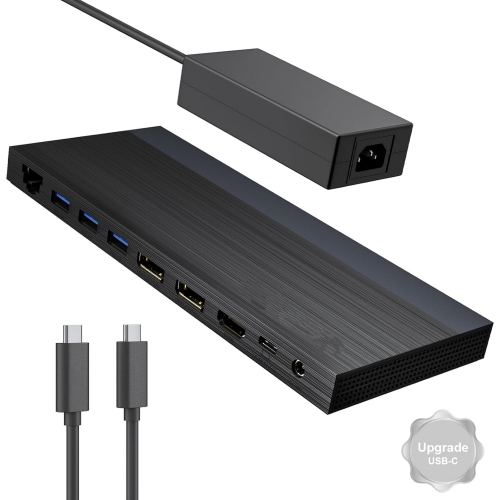
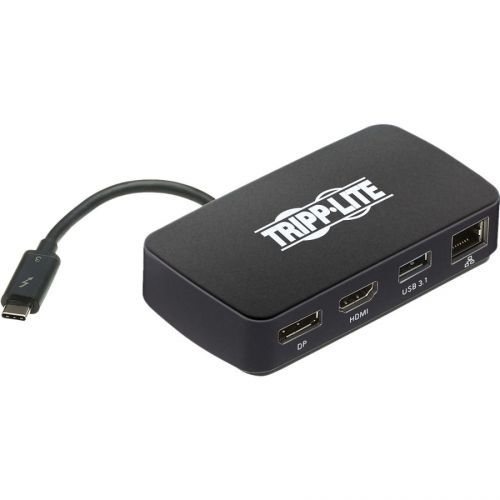
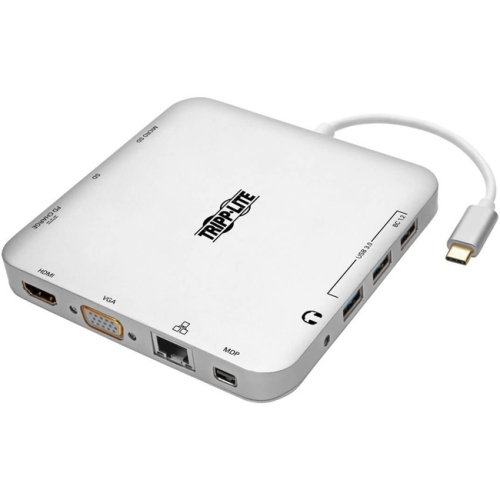
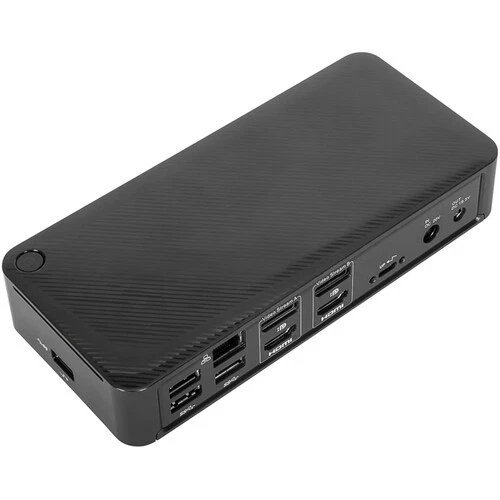
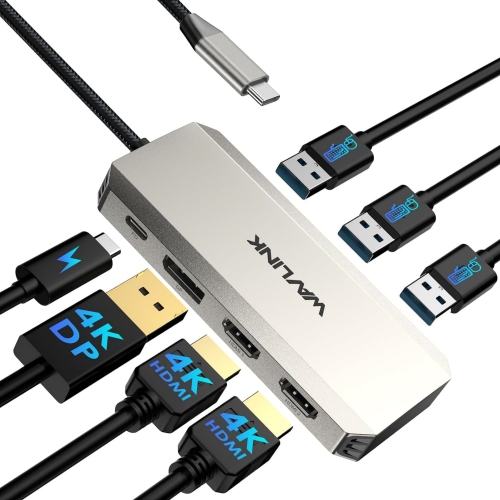
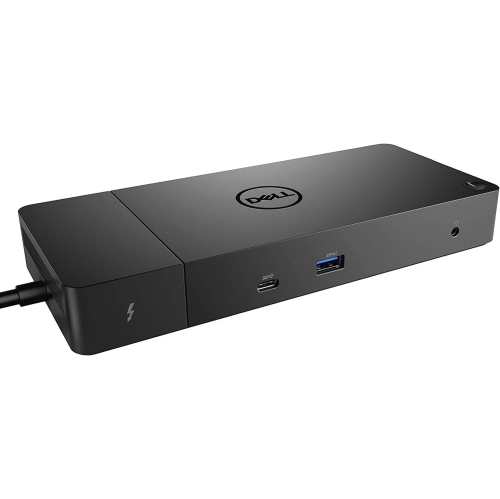
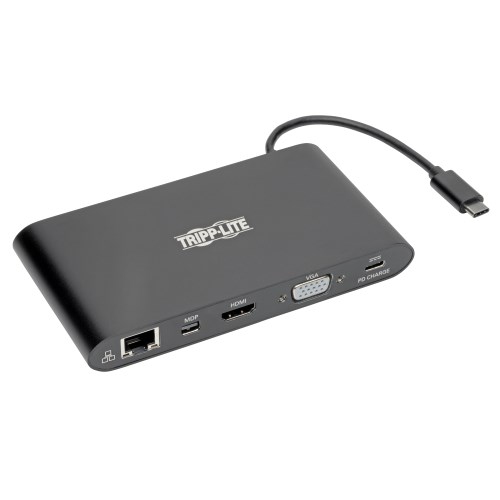
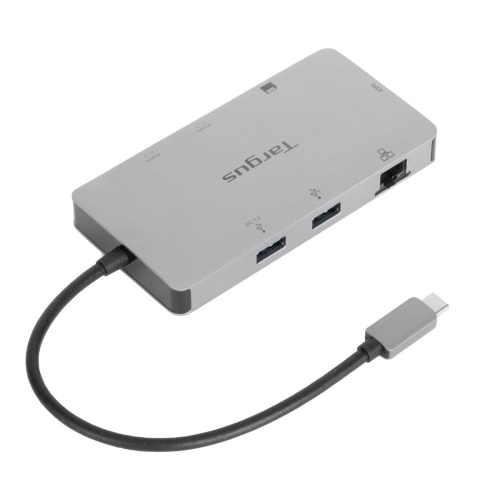
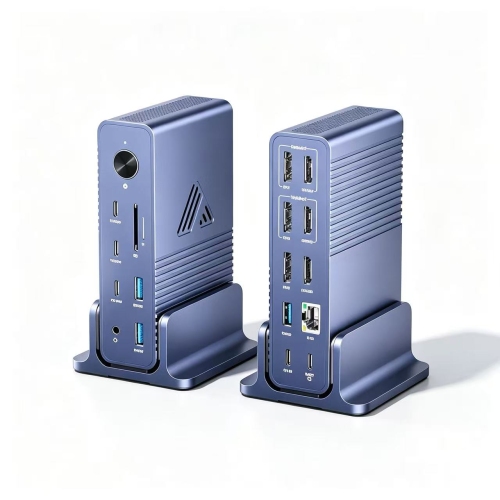
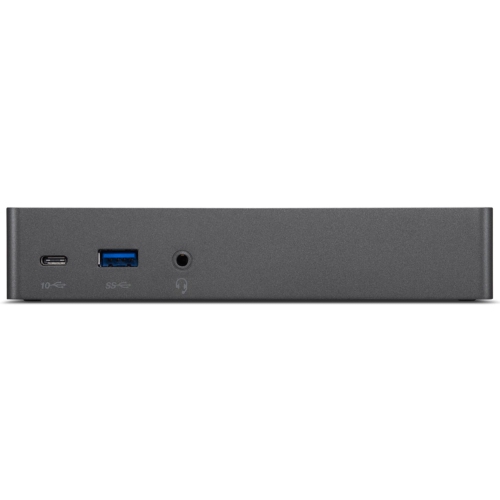
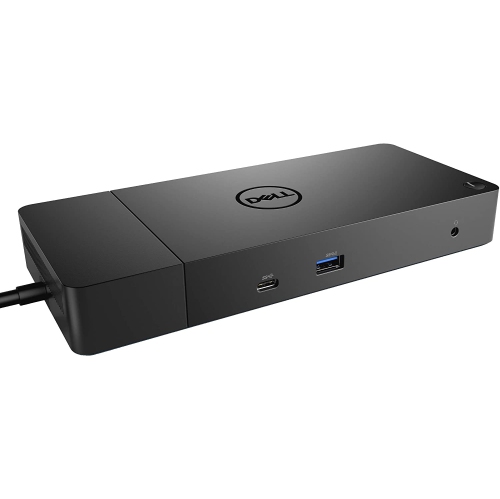
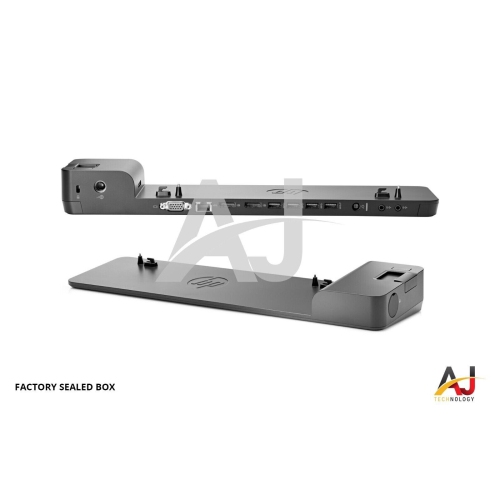
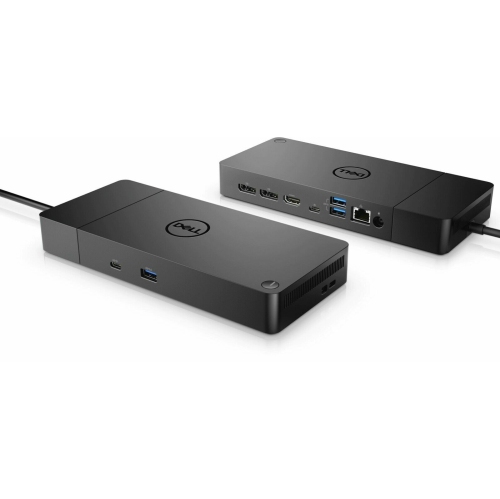
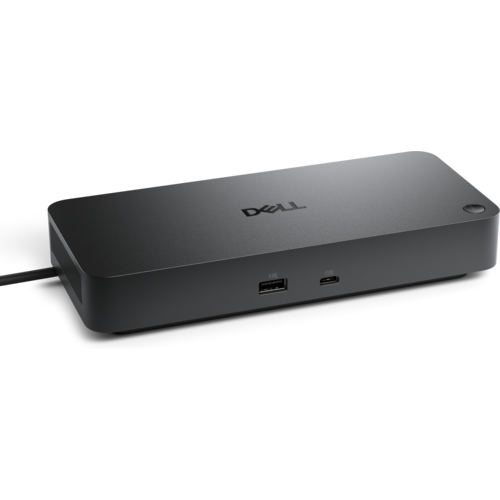
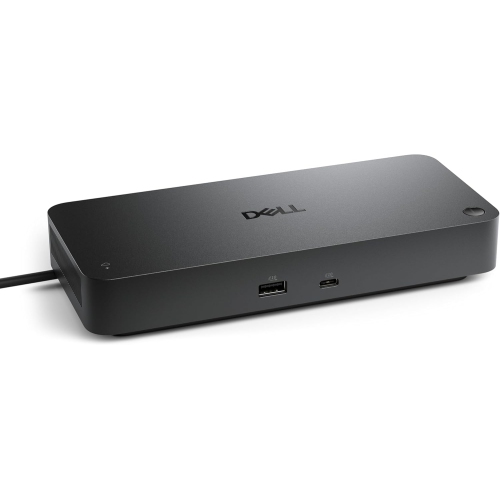
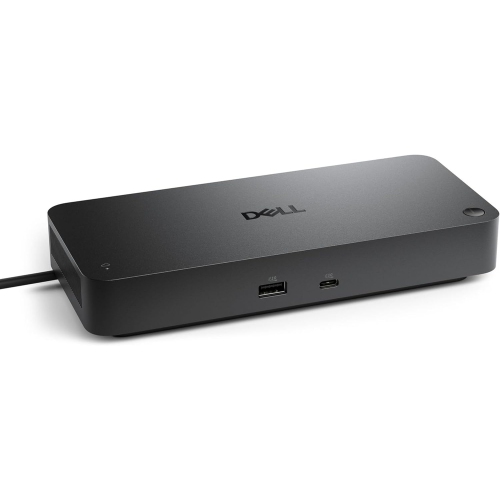
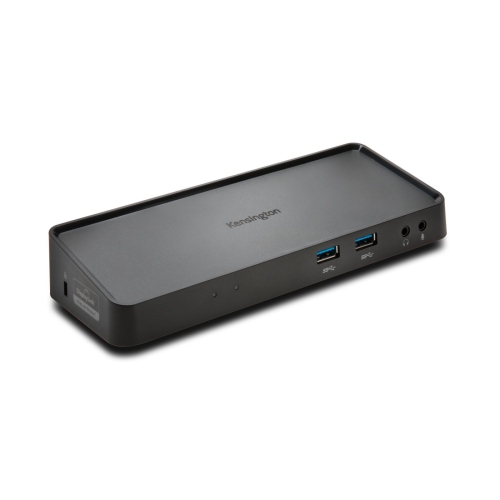
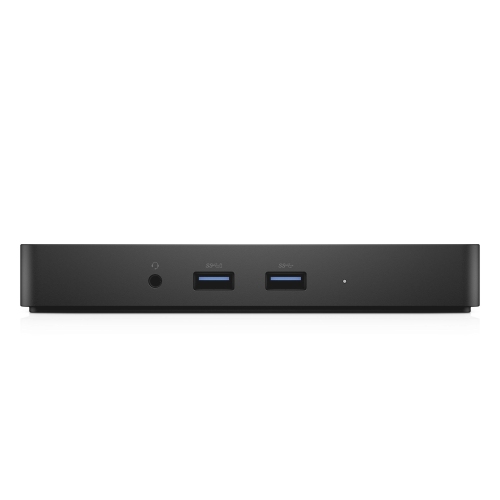
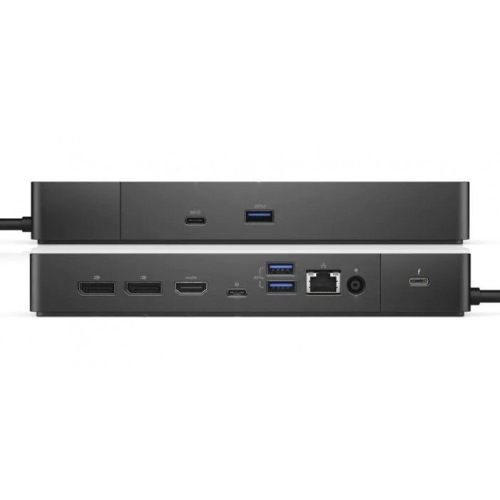
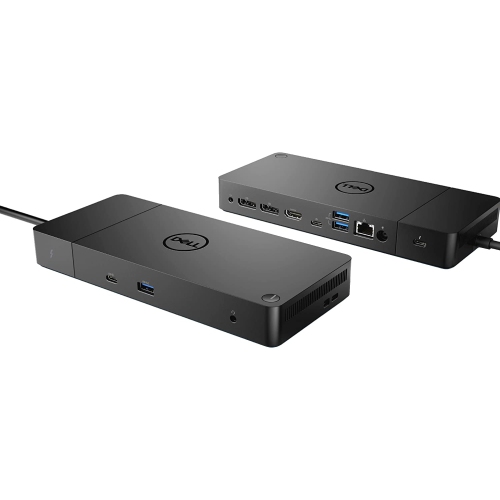
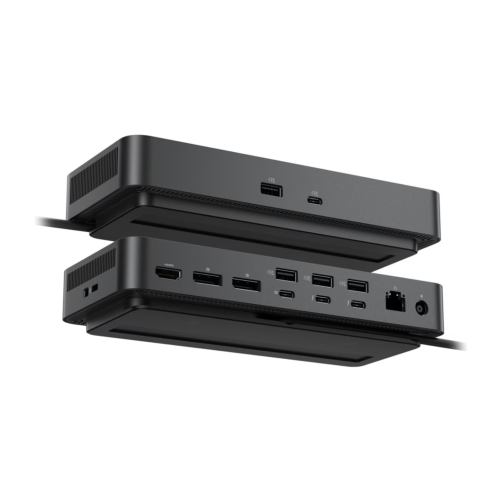
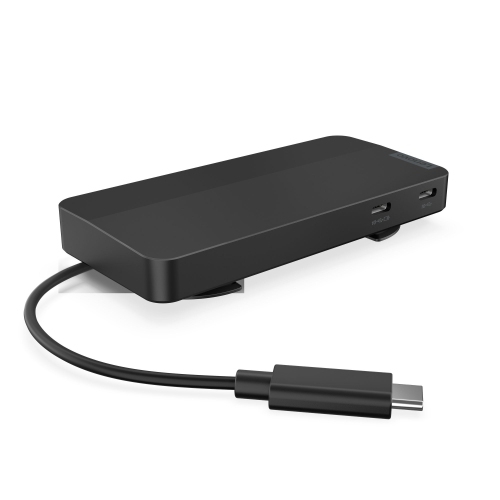
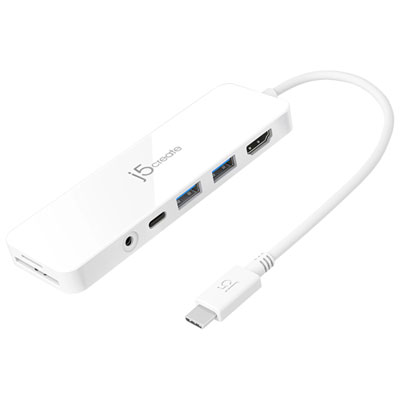
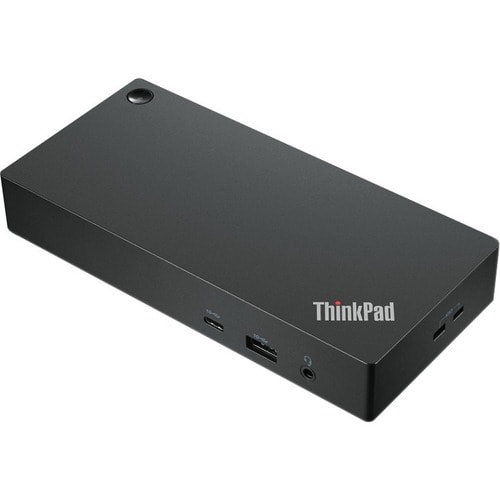
Display support shapes how a docking station fits into everyday work. A single external screen can make a compact desk feel less crowded, while two monitors allow a spreadsheet, video meeting, and reference document to remain visible without constant window switching. The useful specification is the supported combination of screen count, resolution, and refresh rate, rather than the number of video sockets alone. A dock with several HDMI or DisplayPort outputs may support different resolutions depending on how many displays are connected and which host connection is used. Support for one 4K screen does not automatically mean support for two 4K screens at 60Hz. The laptop’s graphics capabilities, operating system, cables, and monitor inputs also affect the result. A higher refresh rate can make scrolling and pointer movement feel smoother, while higher resolution provides more room for detailed drawings, large worksheets, or side-by-side documents. Some docks use driver-based graphics to add display connections, which can be useful with certain computers but may require software installation and workplace approval. Native video connections and driver-based options can also behave differently with protected video, demanding graphics applications, or latency-sensitive tasks. Beyond displays, port placement and connection types influence how comfortable the setup feels. Front-facing USB ports are convenient for a flash drive or headset receiver, while rear connections keep permanent cables out of the way. USB-A ports accommodate many existing peripherals, and USB-C ports may support different functions from one another, including data transfer or accessory charging. A wired Ethernet connection can provide a consistent network link where wireless reception is uneven. Features such as network-based startup, remote wake, and power-button control depend on support across the laptop, dock, firmware, and workplace configuration; they are not universal docking features. For shared desks, a clear understanding of these capabilities helps prevent a setup that works well with one computer but behaves differently with another.
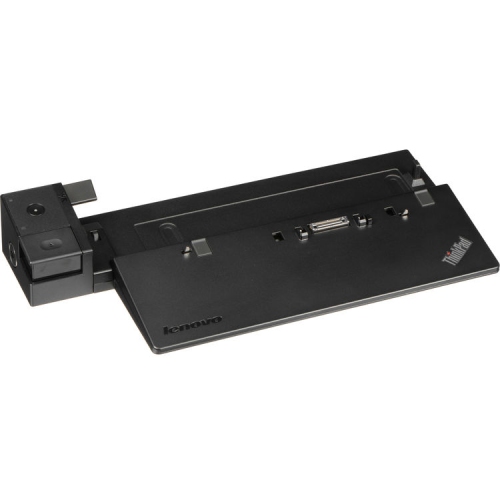
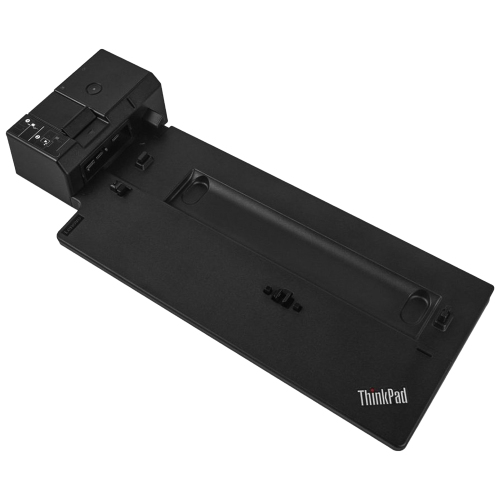
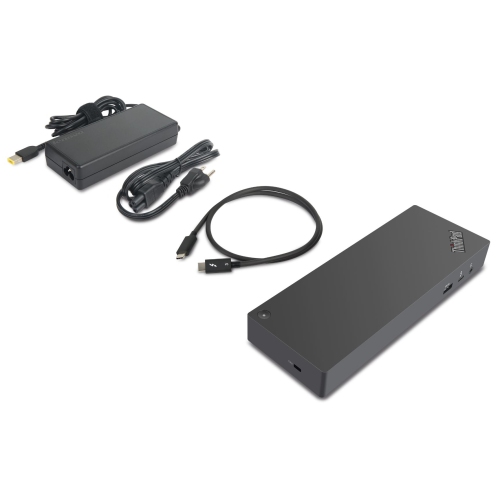
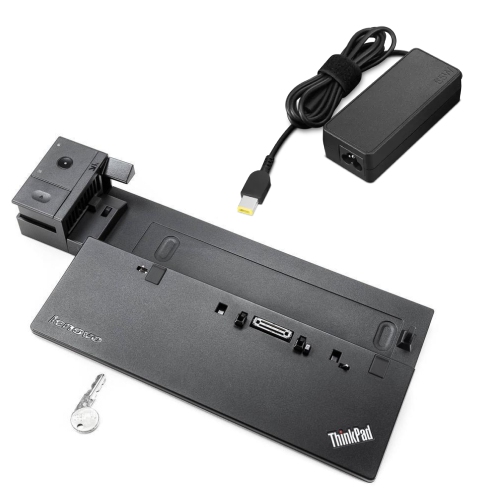
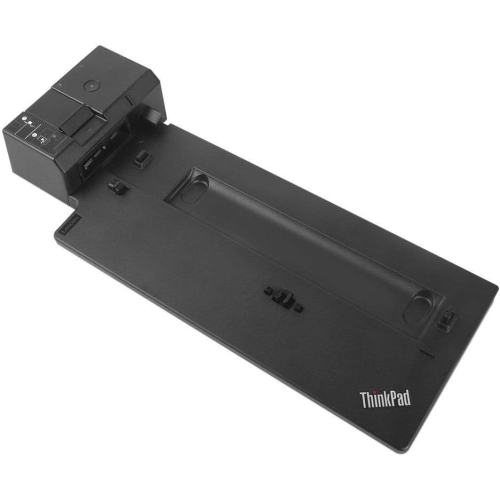
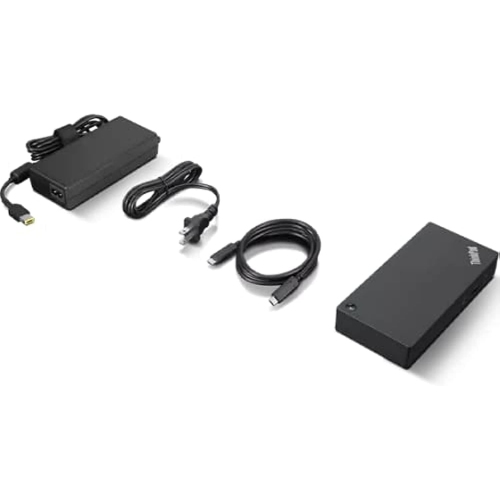
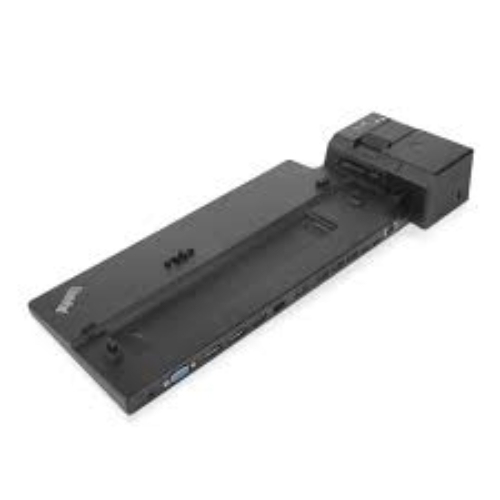
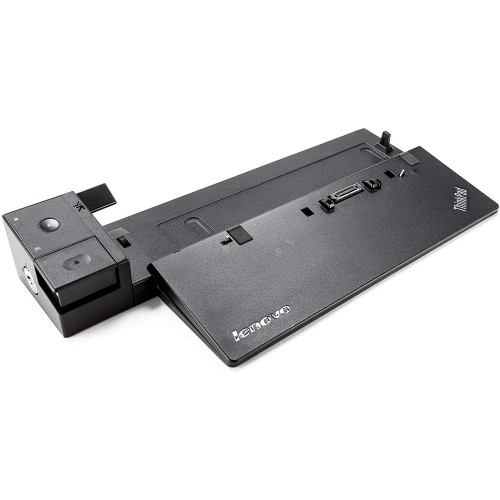
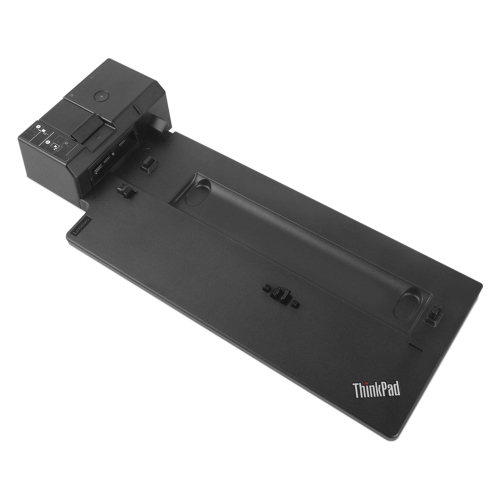
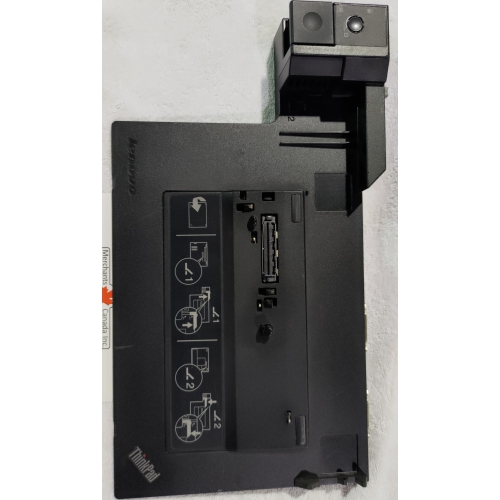
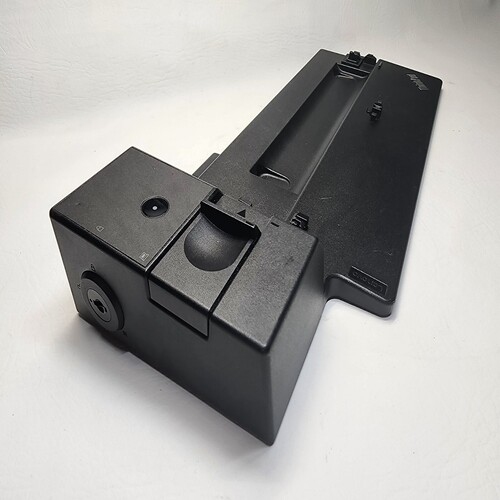
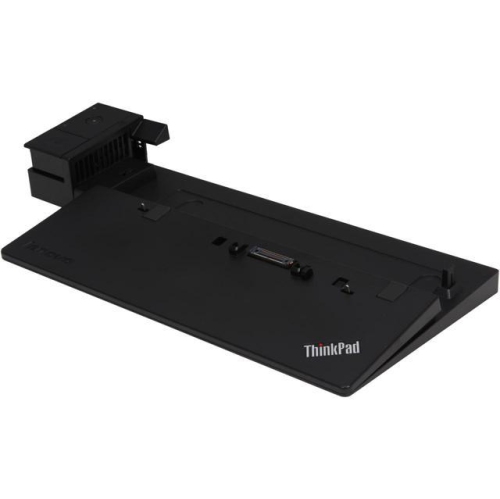
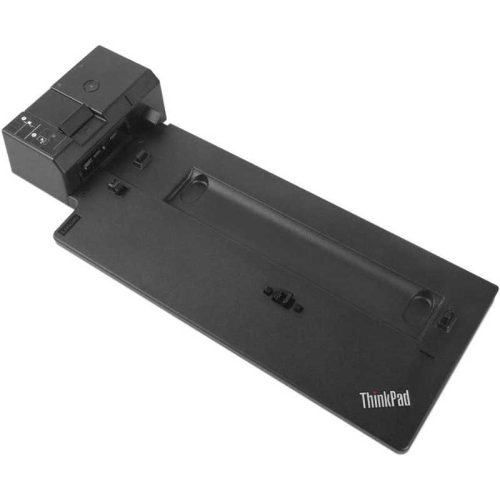
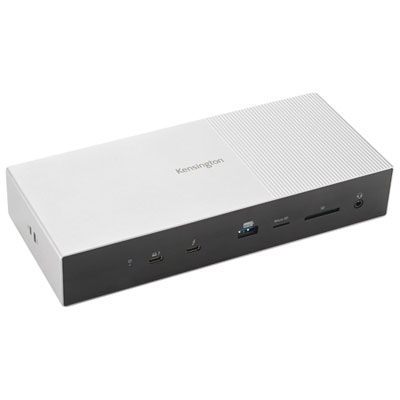
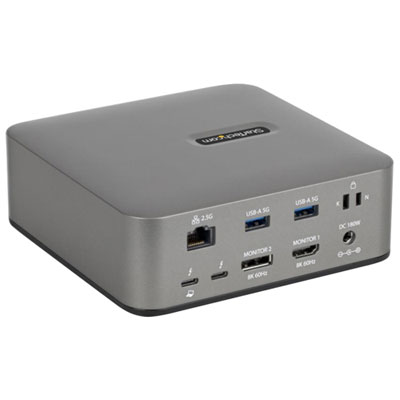
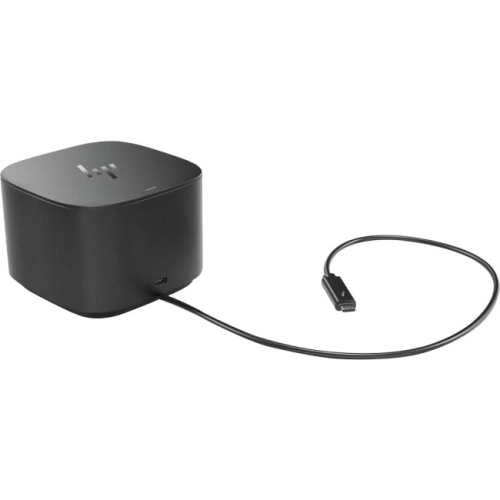
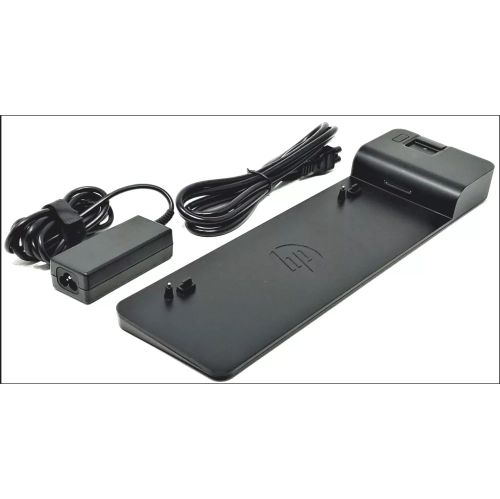
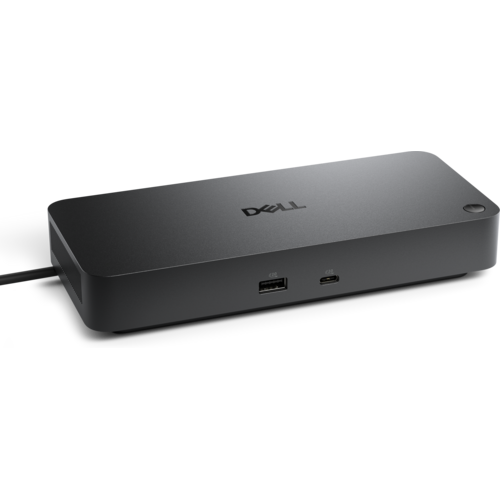
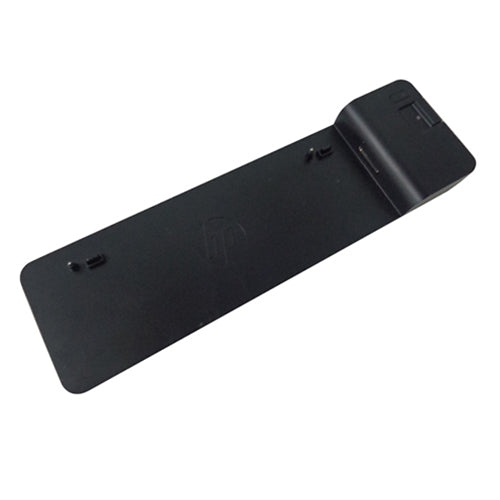
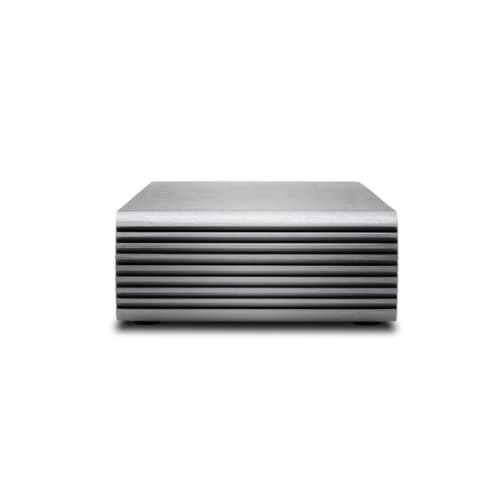
The physical design of a docking station matters most once the cables, monitor stands, and everyday desk essentials are in place. Compact housings suit smaller work surfaces, while larger desktop designs may provide more spacing between ports and room for a separate power connection. Metal and plastic housings are both common; material alone does not establish durability, cooling performance, or connection reliability. A stable base, well-supported sockets, and enough cable length to reach the laptop without pulling sideways on its port are practical details for repeated use. A slim notebook on a raised stand may need a different cable arrangement from a computer sitting flat beside a monitor. Ventilation openings should remain clear, and a dock should not be tucked beneath papers or enclosed in a drawer unless its design specifically allows that placement. For someone who carries a laptop between locations, leaving the dock, power adapter, and peripheral cables at the desk can make arrival and departure simpler. A student may value a compact connection point for a monitor and keyboard, while an analyst or designer may need greater display capacity and faster external storage connections. A dock intended as a gift is most useful when the recipient’s laptop model, charging needs, and monitor arrangement are already known. The Docking Stations for Lenovo Laptops collection offers a related way to explore options for a laptop-specific setup. Ongoing care is straightforward: disconnect power before cleaning, use a soft, dry cloth on the housing, and avoid liquids around ports. Supporting connectors during removal helps reduce strain on both the cable and laptop socket. Manufacturer-supported firmware and driver updates may address connection issues or improve compatibility, particularly after operating system changes. With the right electrical connection, display support, and physical fit, a docking station becomes a dependable part of a desk rather than another accessory that needs attention each time the laptop arrives.
Top selling and popular products
-
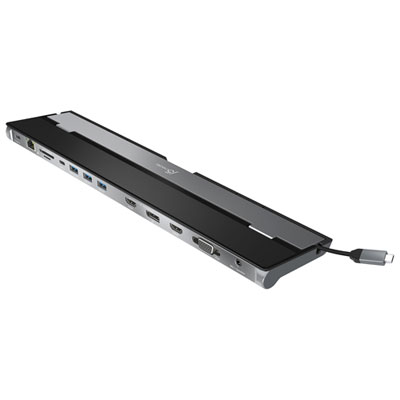 Your price for this item is $129.99
-
 Your price for this item is $59.99
-
 Your price for this item is $44.99
-
 Your price for this item is $59.99
-
 Your price for this item is $96.61
-
 Your price for this item is $179.99
-
 Your price for this item is $209.99
-
 Your price for this item is $59.99