ThinkPad Ultra Docking
ThinkPad Ultra Docking solutions make it easy to expand your workspace and boost productivity. Designed for seamless compatibility, these docking stations offer a convenient way to connect multiple devices and accessories with ease. Whether you’re setting up a home office or upgrading your professional setup, ThinkPad Ultra Docking provides the flexibility and connectivity you need to keep everything running smoothly. Explore a range of options to find the ideal fit for your work style and technology requirements.
Sort
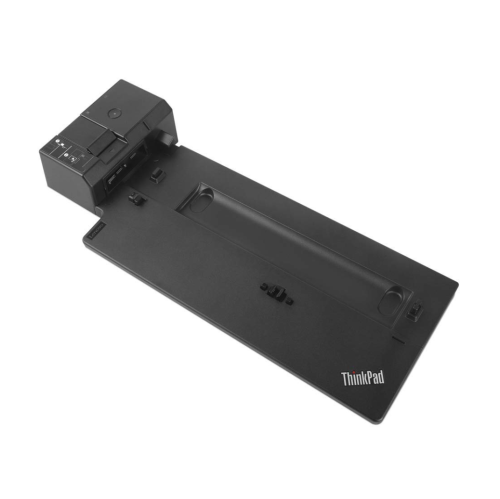
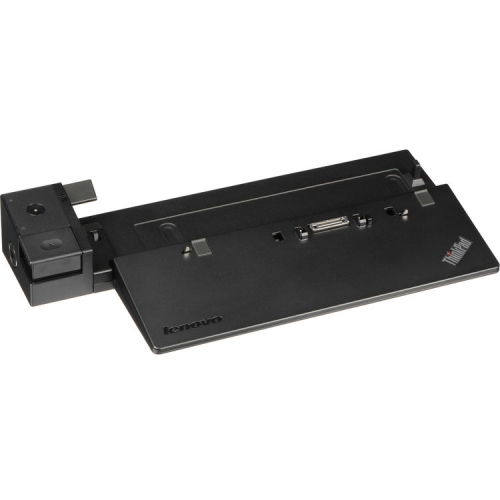


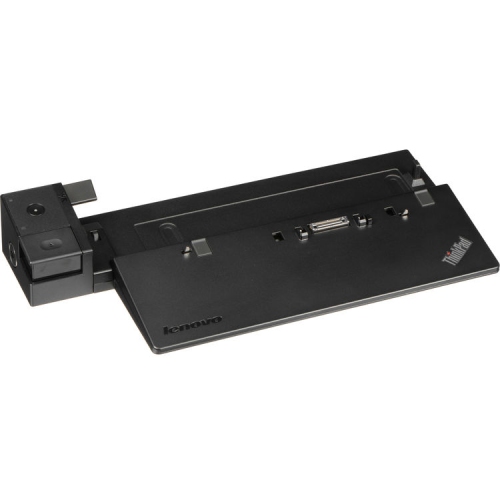
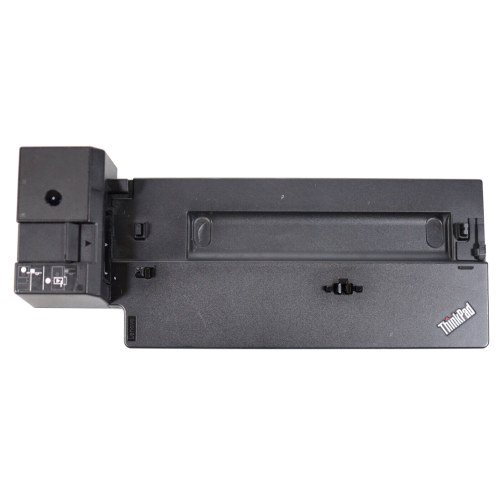
Why the right docking fit matters at your desk
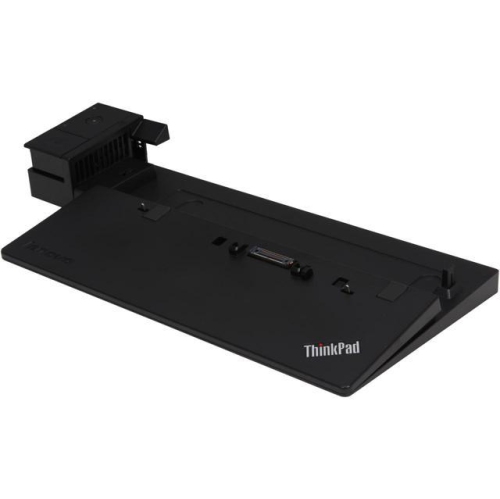
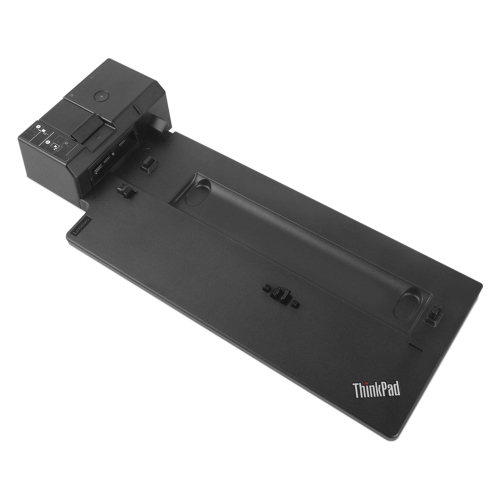
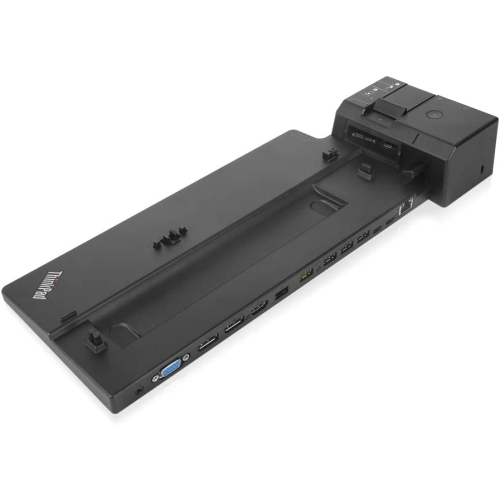
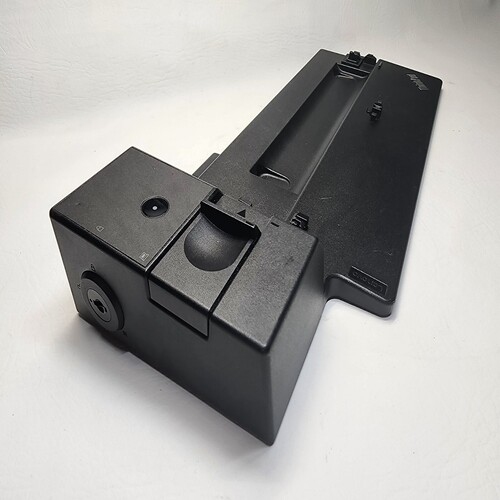
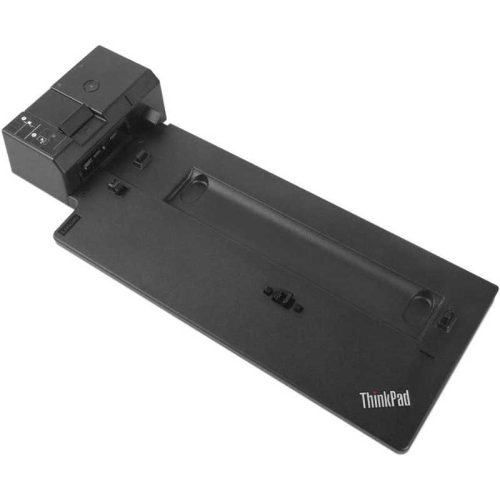
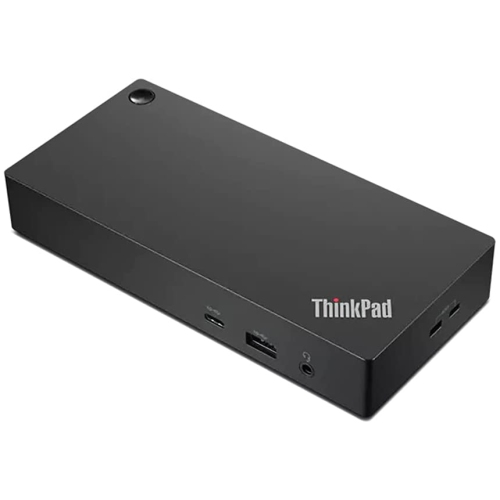
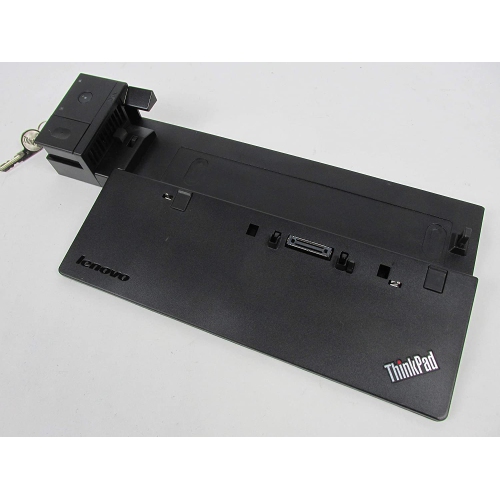
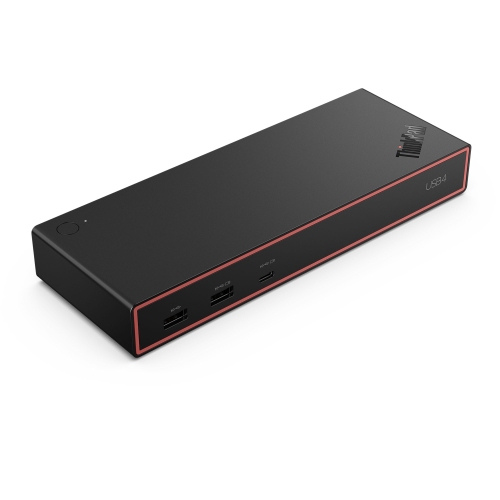
Mechanical laptop docking stations turn a compatible notebook into the centre of a desktop workspace, connecting everyday accessories through a single docking action. A monitor, keyboard, mouse, wired network connection, and other peripherals can remain attached at the desk while the notebook travels between meetings, classrooms, or home and office. Unlike a compact cable-connected hub, a mechanical dock uses an attachment system designed around the physical layout of supported laptops. Side-connecting docks engage with connections along the notebook’s edge, while older bottom-connecting designs mate with a dedicated connector underneath. These approaches are not interchangeable, and a similar-looking chassis does not establish compatibility. The exact notebook model, generation, connector position, and manufacturer’s compatibility information determine whether a dock will fit and function properly. Two laptops in the same family may require different docking arrangements, particularly when their chassis designs change between generations. Protective shells and other attachments can also interfere with the seating position or clearance around a mechanical connector. A supported notebook should sit securely without pressure on its ports or an awkward tilt across the base. Depending on the design, docking may also connect the laptop to external power, reducing the number of cables that need to be attached separately. The power adapter remains part of that compatibility check: its connector and rated output must meet the dock’s requirements and provide suitable power for the supported notebook. A power supply that fits physically is not necessarily suitable for the setup. Cable-connected USB docks offer a different approach and may support a broader range of computers, but their charging, display, and data capabilities still depend on the host connection. USB-C alone does not guarantee every function. Across the Lenovo Docking collection, the useful comparison is how the connection method, notebook support, power requirements, and port layout match the desk where the dock will be used.
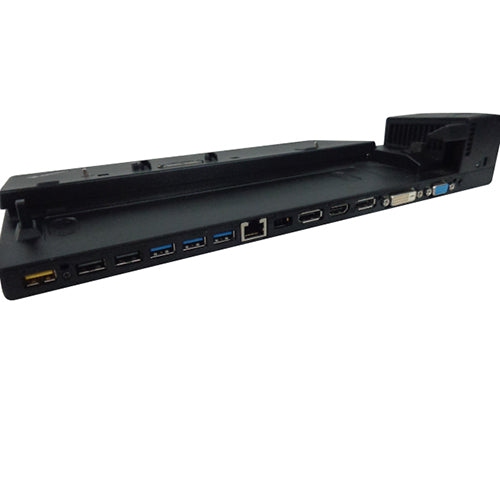
The practical value of a docking station comes from the connections it brings within reach. USB ports can accommodate a keyboard, mouse receiver, external drive, webcam, or headset, leaving the notebook’s own ports accessible for occasional accessories. Port shape and performance are separate considerations: a USB-C socket may support data, charging, video, or a particular combination of those functions, while USB-A connections can operate at different transfer speeds. An always-on charging feature, where supported, can supply power to an accessory under specified conditions, but it should not be assumed for every port. Display connections deserve equally close attention. DisplayPort, HDMI, and older VGA connections serve different monitor setups, and the presence of several video outputs does not mean every output can run simultaneously at its maximum resolution. The number of supported screens, their resolution, and their refresh rates depend on the notebook’s graphics capabilities, the dock, the connection path, and the cables or adapters in between. A pair of office monitors displaying spreadsheets and reference documents presents different demands from multiple 4K screens used for detailed visual work. Matching the full connection path helps avoid a setup that looks suitable on paper but cannot deliver the intended display arrangement. Gigabit Ethernet, when included, provides a wired network option for a desk with an accessible network cable. An audio connection may also keep speakers or a wired headset attached between work sessions. In managed workplaces, features such as network boot, remote wake, and the passing of the notebook’s network address through the dock can matter to IT teams, although support depends on the particular hardware and system configuration. A dock-mounted power button can make a compatible laptop easier to start without reaching around the desk, but closed-lid use also depends on the notebook’s settings and operating requirements. Port placement affects everyday comfort as well: rear connections keep permanent cables tucked away, while accessible front or side ports make temporary storage and accessories easier to attach. Enough space around each socket helps accommodate wider plugs without crowding neighbouring connections.
Build quality, fit, and care all influence how well a docking station handles repeated use. Housings commonly combine moulded plastic with metal components around connectors, mounting points, or locking mechanisms, although construction varies by design. A broad, stable base and non-slip contact points help keep a notebook steady during typing and docking. Mechanical guides and release controls should move as intended, with no need to force the computer into position or pull it free against a latch. Where a key lock or security attachment is provided, it can help restrict casual removal, but it does not replace the wider security measures needed for a shared office. Connector condition is particularly important on a dock that is attached and detached frequently. Bent contacts, debris, or damaged guides can interfere with alignment, while unsupported cable weight can put unnecessary strain on sockets. A flat desk surface, sensible cable routing, and enough clearance around the notebook’s vents support a more comfortable arrangement. Routine care is straightforward: with the equipment disconnected from power, a soft, dry cloth can remove dust from accessible surfaces without introducing moisture into connectors. Cleaning liquids should not be sprayed into ports, and debris should never be scraped out with metal objects. Before undocking, completed file transfers and properly ejected external storage help protect work saved on attached drives. For someone who carries a laptop between a private office and a shared desk, the appeal is a consistent setup waiting at each location. A student working on research can keep reference material on a larger screen while writing on another, while an administrator can leave a full-size keyboard, network cable, and headset connected throughout the working day. A well-matched dock supports these routines without requiring the workspace to be rebuilt each time the notebook returns. The most useful arrangement balances secure physical fit, sufficient power, suitable display support, and accessible connections with the actual equipment used at the desk.
Top selling and popular products
-
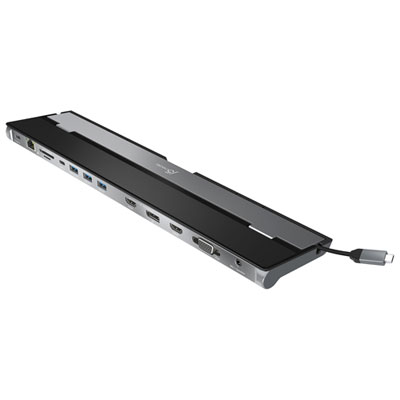 Your price for this item is $129.99
-
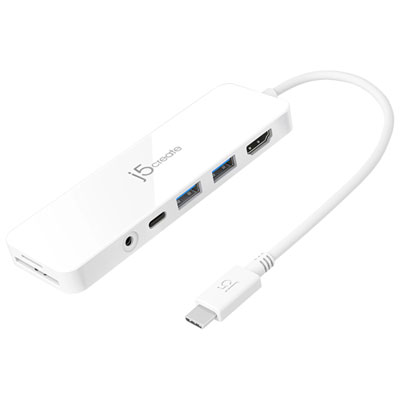 Your price for this item is $59.99
-
 Your price for this item is $44.99
-
 Your price for this item is $59.99
-
 Your price for this item is $96.61
-
 Your price for this item is $179.99
-
 Your price for this item is $209.99
-
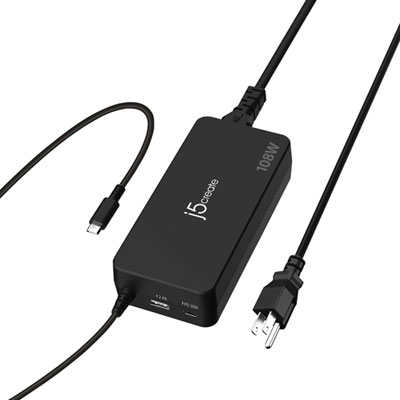 Your price for this item is $59.99
Discover more categories related to ThinkPad Ultra Docking
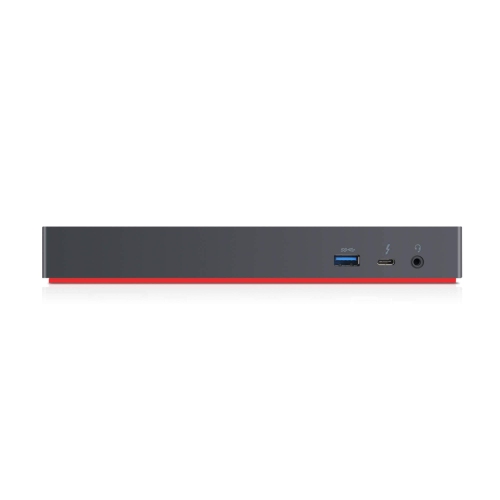
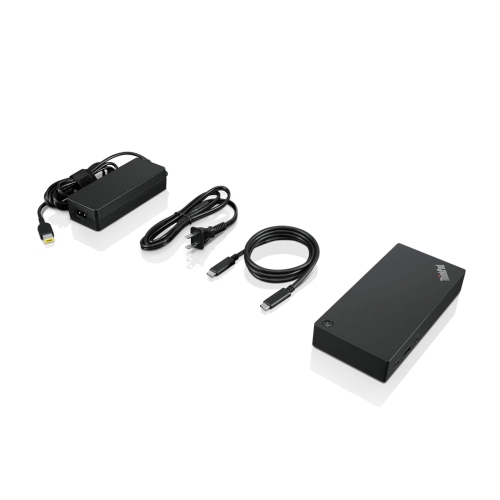
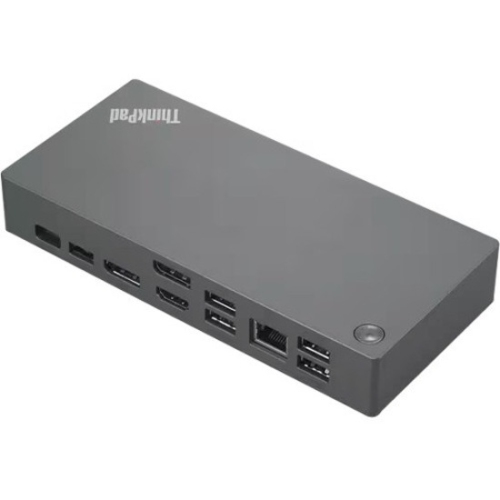
Top Collections:
Best Black Friday Deals This Year, Best Black Friday Deals On Electronics, Kindle Devices, Dyson Airwrap, Best Cameras for Sports Photography, Best Budget Office Chairs, Canon G7X Cameras, PS5 Pro Consoles, Best Black Friday Deals On Apple Products, XBOX One S Consoles
Some products may be subject to Environmental Handling Fees
(EHF) depending on your province.
Learn more about EHFs.