ThinkPad Universal USB C Dock
The ThinkPad Universal USB C Dock offers a convenient solution for expanding your workstation and streamlining connectivity. Perfect for professionals and home office setups alike, this versatile dock helps keep your workspace organized while supporting a range of devices. Enhance productivity and enjoy seamless integration with the ThinkPad Universal USB C Dock, designed to make multitasking easier and more efficient.
Sort
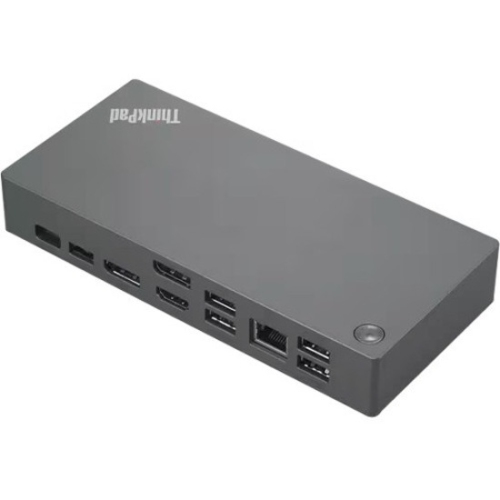
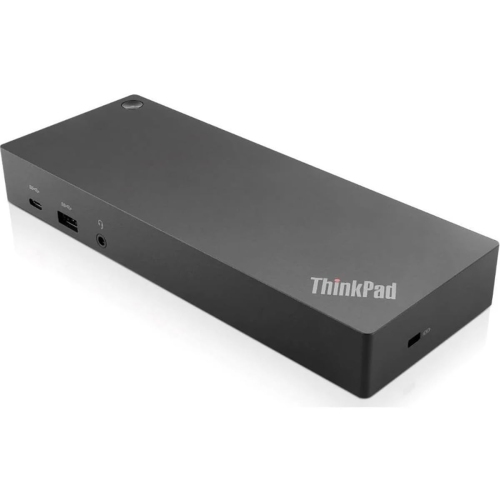
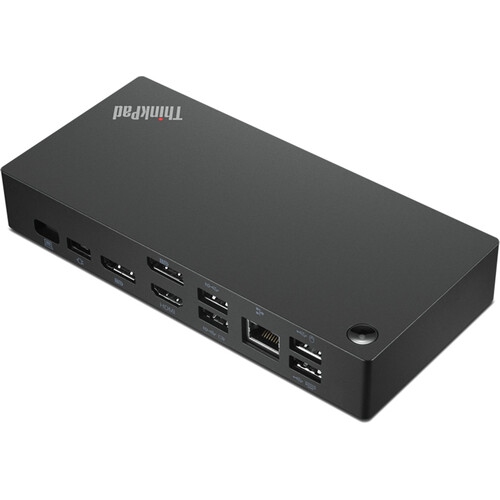
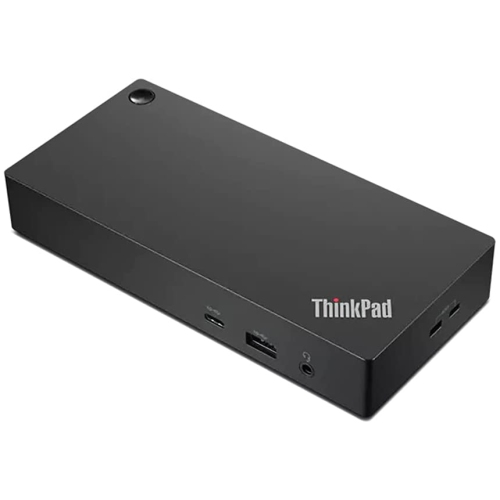
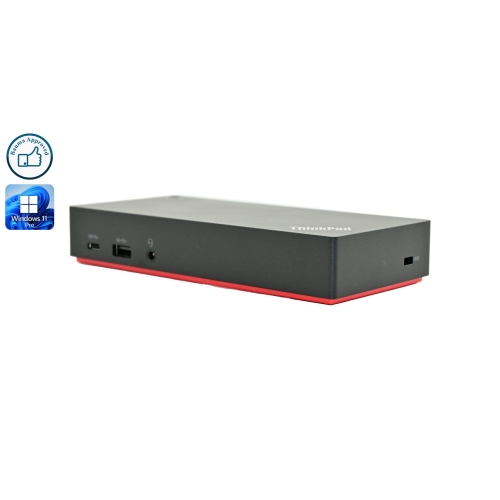
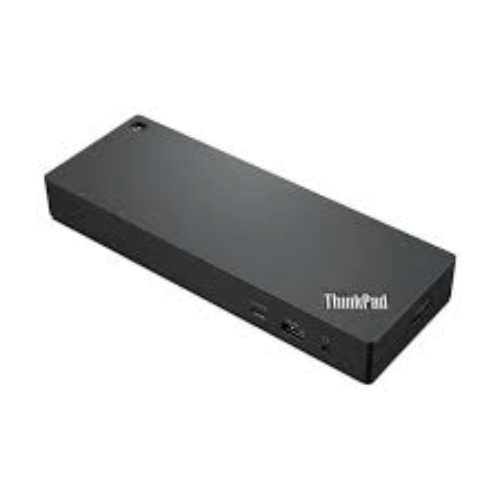
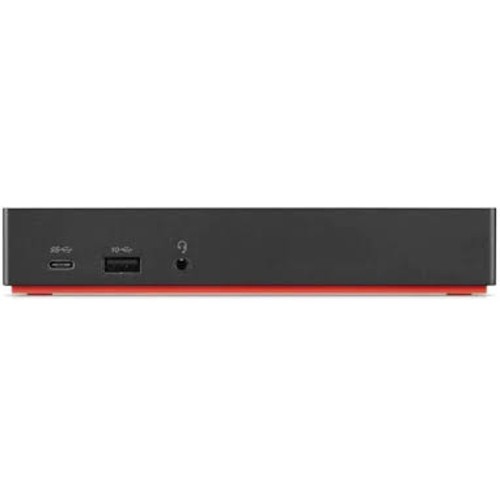
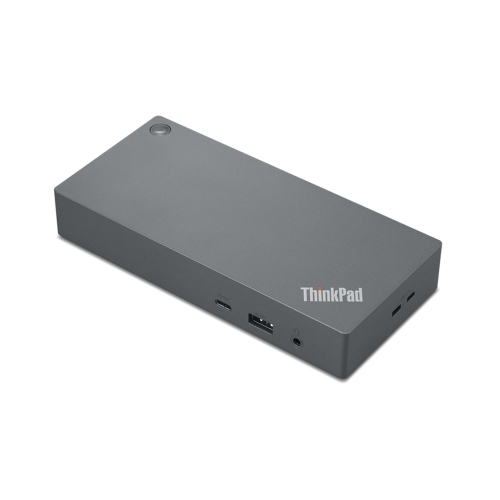
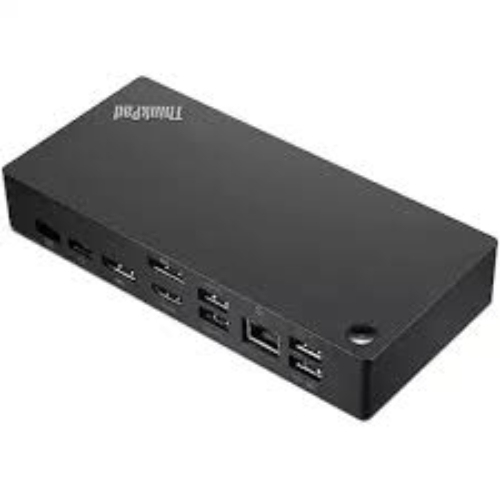
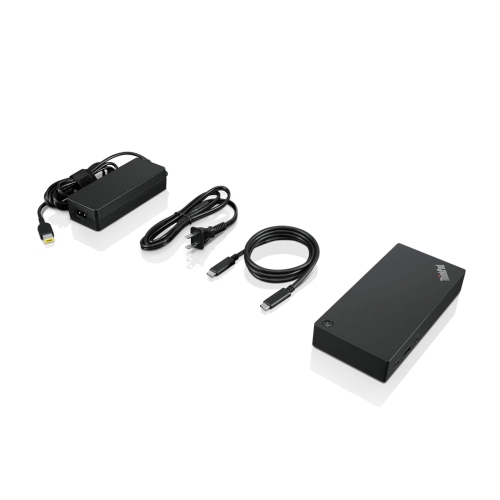
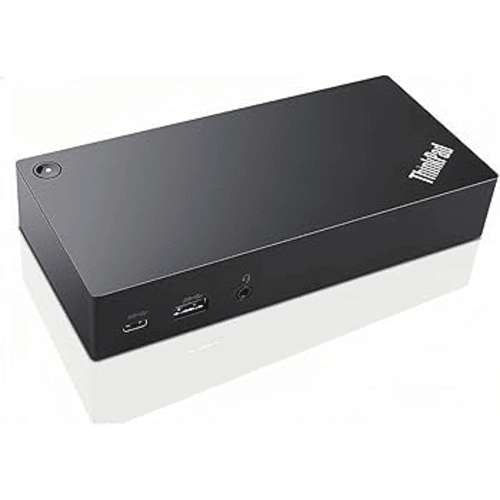
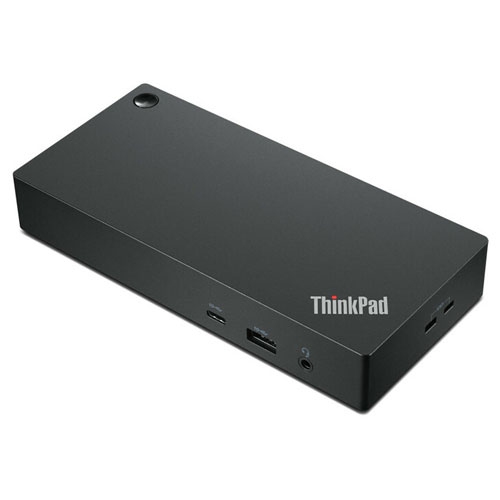
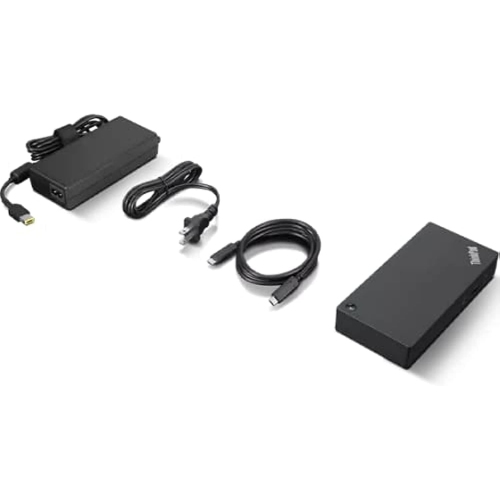
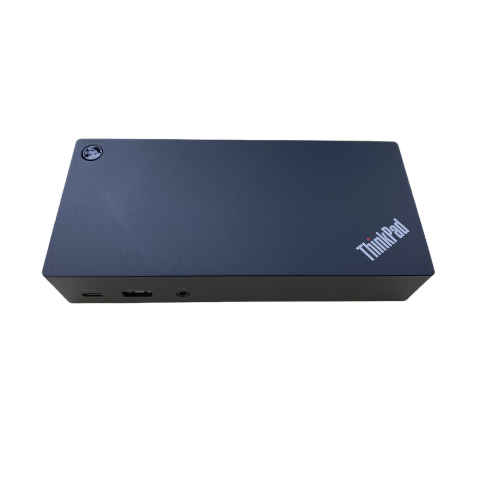
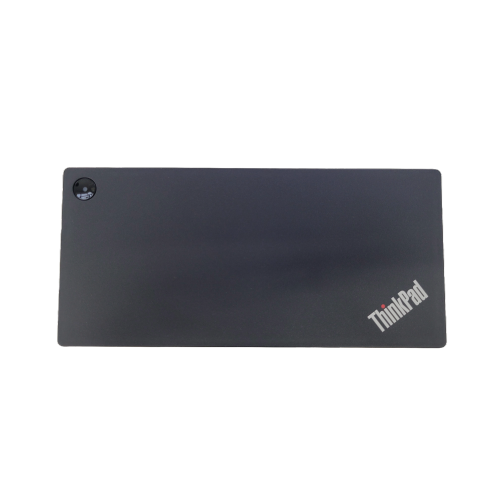
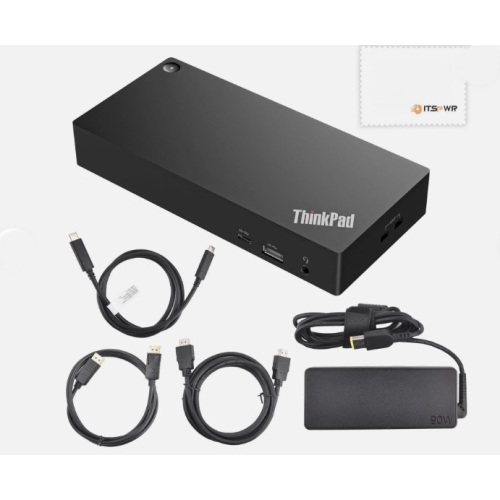
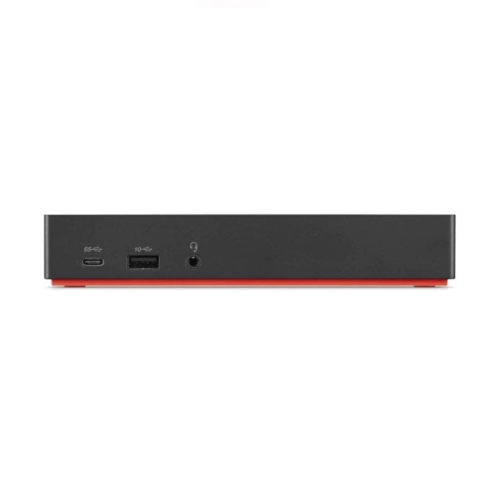
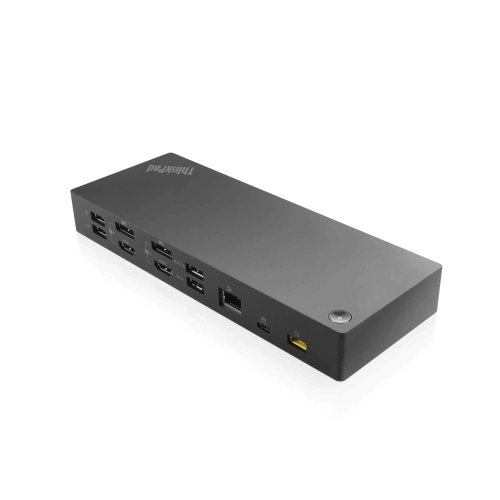
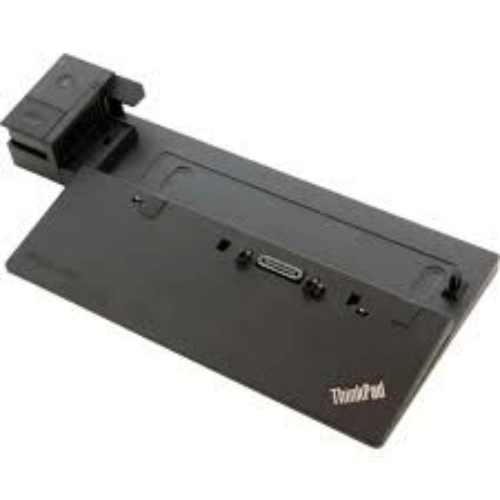
Your desktop setup stays ready when your laptop leaves
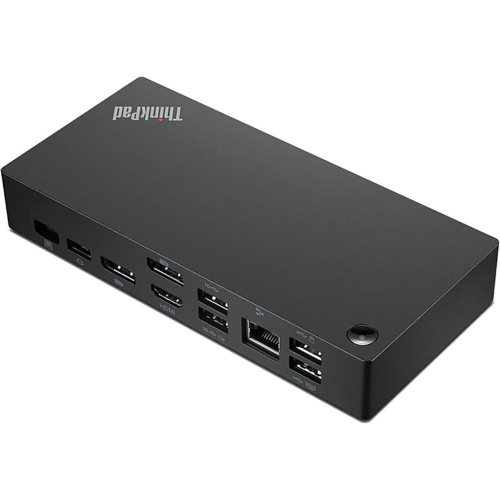
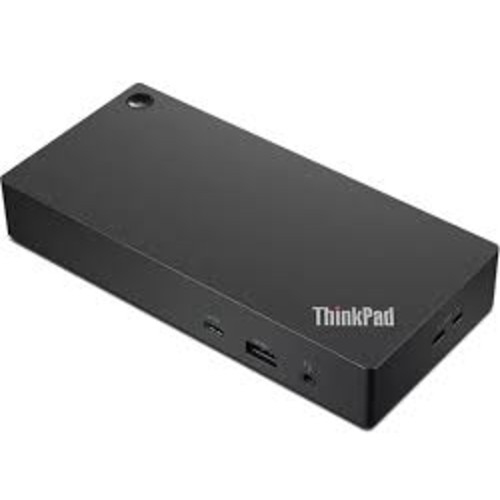
A universal USB-C dock connects a compatible laptop to desktop accessories through a single host cable, bringing display connections, USB peripherals, wired networking and, on supported configurations, laptop charging together in one place. It turns a portable computer into the centre of a more settled workspace without requiring every cable to be reconnected individually. A laptop can sit beside a full-size keyboard and mouse, with a larger monitor positioned at eye level and a wired headset ready for calls. At the end of the workday, disconnecting the host cable leaves those accessories arranged for the next session. This makes USB-C docking useful for home offices, shared desks, study spaces and workplaces where people move between meeting rooms and individual workstations. Typical connections include USB-A for familiar accessories, USB-C for compatible devices, HDMI or DisplayPort for monitors, Ethernet for a wired network and, on some docks, a headset jack. The number, speed and purpose of those ports vary, so the connection layout matters as much as the total count. A front-facing port is convenient for a removable drive, while connections at the back help keep monitor and network cables away from the typing area. For shoppers exploring the Lenovo ThinkPad Dock range, compatibility with the laptop and existing desk equipment is the foundation of a useful setup. A dock can suit an office professional working across spreadsheets and video calls, a student balancing research with written assignments, or someone who needs easier access to several accessories. As a practical gift, it makes the most sense when the recipient’s laptop connections, monitors and charging requirements are known. The benefit is not simply having more sockets; it is keeping the familiar desktop arrangement ready while preserving the laptop’s portability. A separate display can hold reference material while the laptop screen remains available for messages, and a connected keyboard provides a consistent typing position.
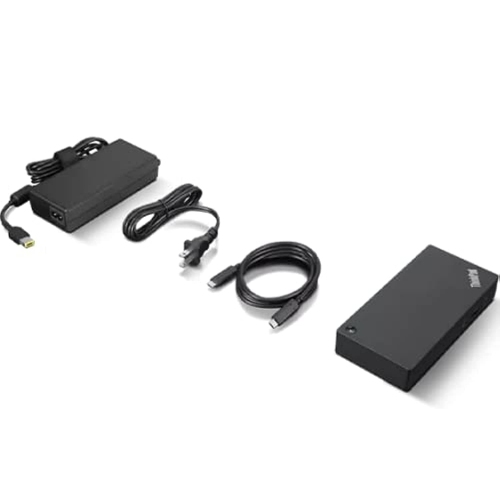
The word “universal” describes broad compatibility, not a guarantee that every USB-C laptop supports every docking feature. USB-C identifies the connector shape; the capabilities behind that connector determine whether it can carry video, transfer data and accept charging. Many docks use DisplayPort Alternate Mode to send a video signal through the laptop’s USB-C port, while other docking designs rely on different technologies and may require software. A data-only USB-C port does not automatically provide monitor output. Support also depends on the laptop’s operating system, graphics hardware and any workplace restrictions on installing drivers. Display specifications deserve particular attention because the number of monitor sockets does not, by itself, establish how many independent screens can run at a particular resolution and refresh rate. A dock may support one high-resolution display differently from two or three connected displays, and the laptop must support the intended arrangement as well. Extended desktop mode places different content on each screen, whereas mirroring repeats the same image; those behaviours can vary with the computer and operating system. For everyday office work, clear text and a comfortable screen layout may matter more than a very high refresh rate. Video editing, detailed design work and other demanding tasks can place greater demands on display bandwidth, and a dock does not replace the computer’s graphics capabilities. Charging is another separate specification. USB Power Delivery allows a compatible dock to supply power through the host cable, but the power reaching the laptop can be lower than the wattage printed on the dock’s power adapter because the dock and attached devices also consume power. A laptop requiring more power than the dock can deliver may charge slowly or draw from its battery during heavier work. Some high-performance computers still need their own charger. The host cable must also support the required data, video and power capabilities; a cable intended mainly for charging may not carry the signals needed for a full docking setup. In managed workplaces, features such as network boot, wake-on-LAN and network address pass-through depend on support across the dock, laptop and network configuration.
Physical design helps determine how comfortably a dock fits into daily use. A compact enclosure can sit beside a laptop stand or monitor base, but enough space is still needed for connector plugs and the natural bend of each cable. Rear-facing display and power connections can keep a desk tidy, while accessible front or side ports make temporary connections less awkward. A lightweight dock is easier to carry between locations; a more substantial desktop design may stay in position more readily when several cables are attached. Plastic and metal housings are both common, and durability depends on construction, connector quality and handling rather than the outer material alone. Repeated strain on the host connection can shorten its useful life, so a cable with a little slack is preferable to one stretched tightly across the desk. Pulling on the connector rather than the cable helps protect the connection when unplugging it. Ventilation openings need clear space, and the dock and power adapter belong on a stable surface rather than under papers or soft furnishings. Routine care is straightforward: disconnect power before cleaning, use a soft, dry cloth on the exterior and keep liquids away from the ports. A suitable replacement host cable or power adapter must match the dock’s documented requirements, rather than merely fitting the socket. Security slots and mounting options, where fitted, can be useful on shared desks or in offices with fixed workstation layouts. A wired network connection can also provide a consistent alternative where Wi-Fi reception is uneven, although actual performance still depends on the network and internet service. For someone who regularly joins calls, handles large documents or switches between focused work and collaboration, a well-matched docking setup reduces the small interruptions caused by rearranging cables. Its lasting value comes from dependable connections, sensible placement and enough capability for the equipment that will actually be used, without adding unnecessary complexity to the desk.
Top selling and popular products
-
 Your price for this item is $129.99
-
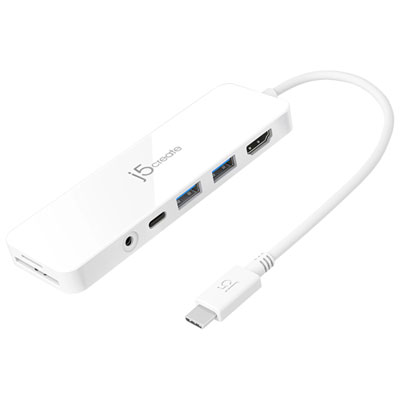 Your price for this item is $59.99
-
 Your price for this item is $44.99
-
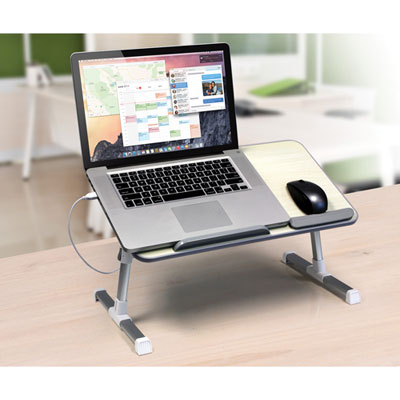 Your price for this item is $59.99
-
 Your price for this item is $96.61
-
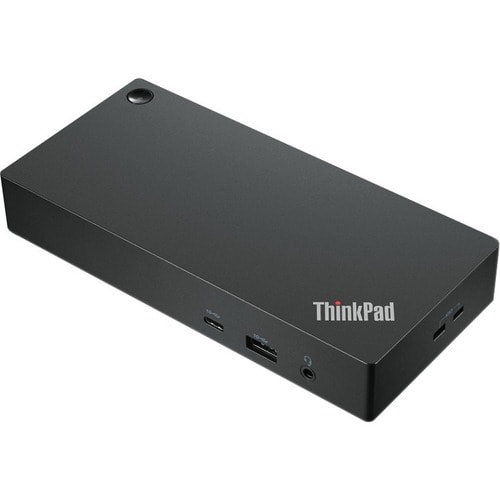 Your price for this item is $179.99
-
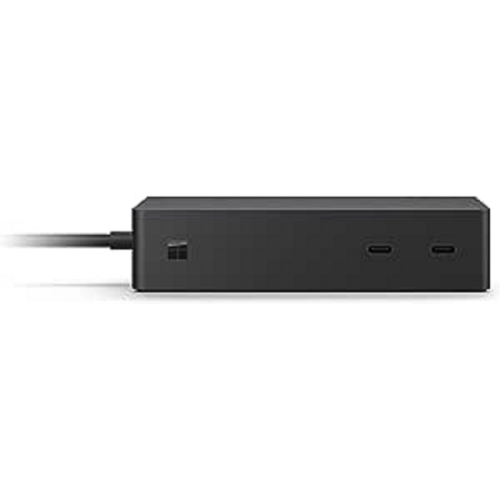 Your price for this item is $209.99
-
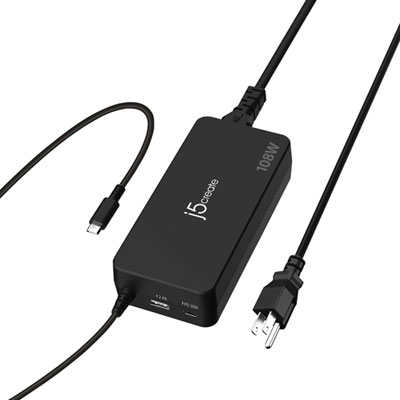 Your price for this item is $59.99
Discover more categories related to ThinkPad Universal USB C Dock
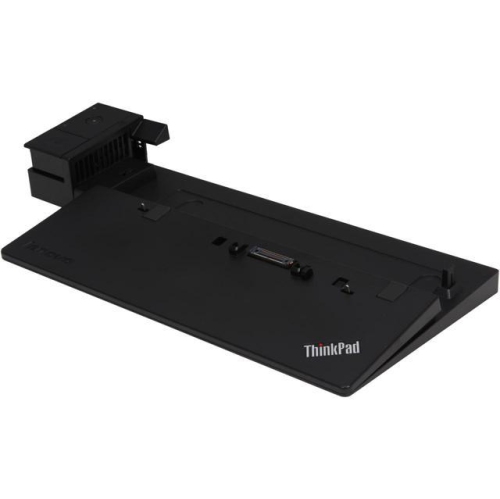
Top Collections:
Best Black Friday Deals This Year, Best Black Friday Deals On Electronics, Kindle Devices, Dyson Airwrap, Best Cameras for Sports Photography, Best Budget Office Chairs, Canon G7X Cameras, PS5 Pro Consoles, Best Black Friday Deals On Apple Products, XBOX One S Consoles
Some products may be subject to Environmental Handling Fees
(EHF) depending on your province.
Learn more about EHFs.