Trackpad on Keyboards
Trackpad on Keyboard solutions offer a seamless way to streamline your workspace and enhance productivity. Combining typing and navigation in one device, these innovative keyboards help you stay efficient whether you’re working, gaming, or browsing. Explore a wide range of Trackpad on Keyboard options designed to fit various setups and preferences, making it easier than ever to manage tasks with precision and comfort. Find the perfect addition to your home office or workstation and enjoy a clutter-free, intuitive experience.
Sort
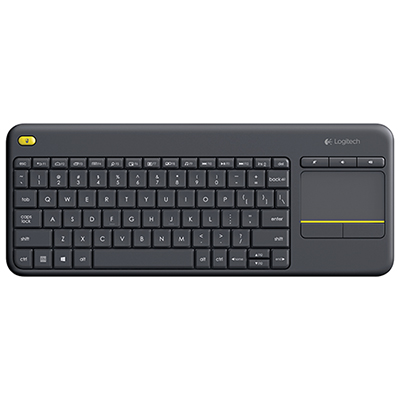
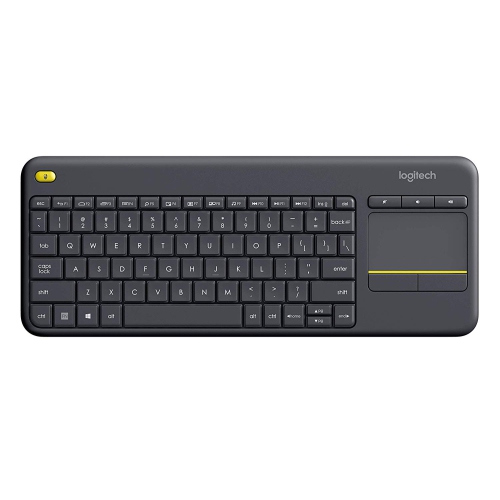
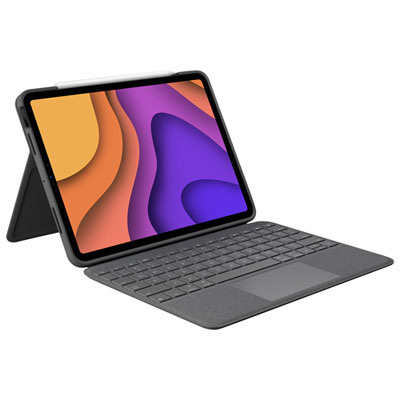
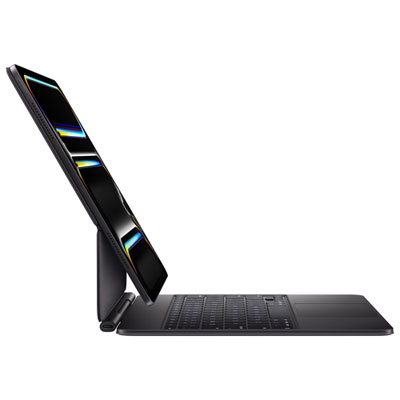
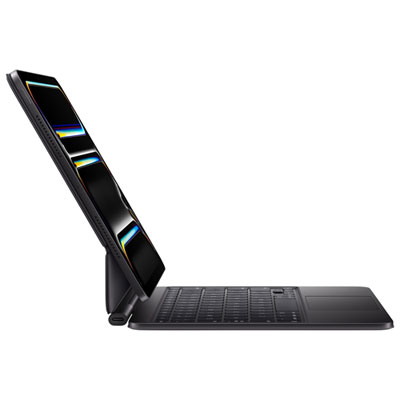
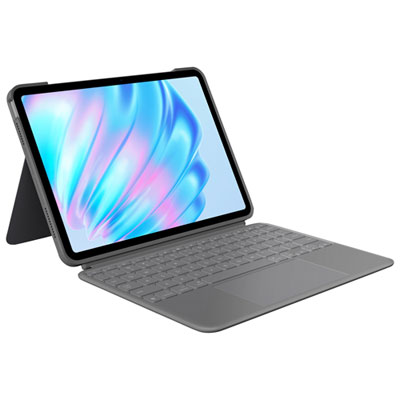
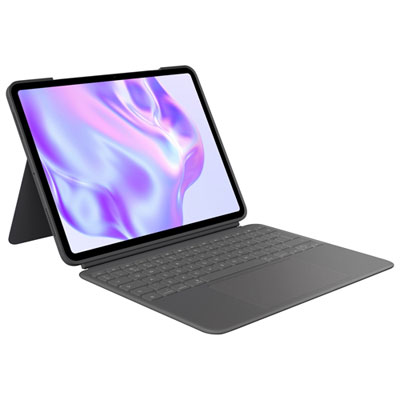
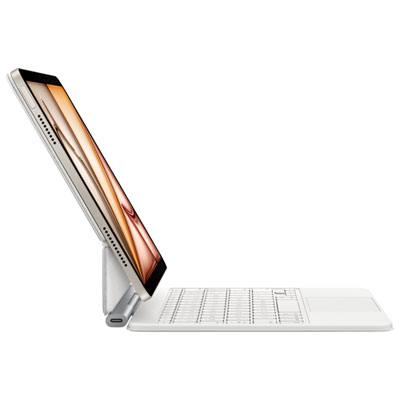
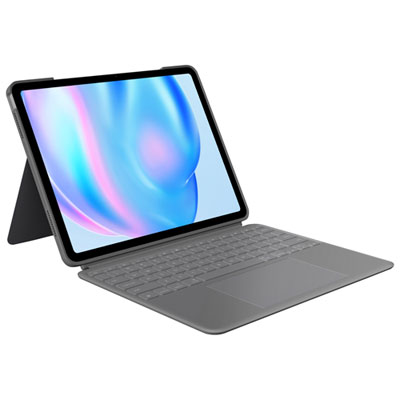
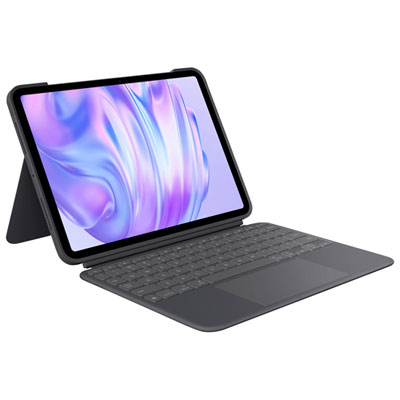
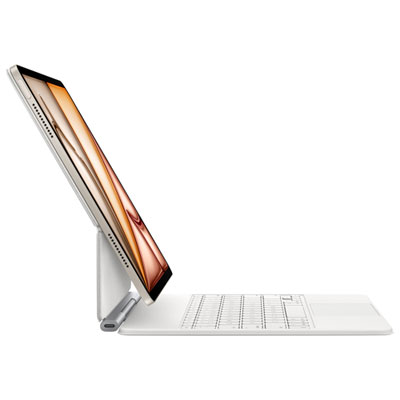
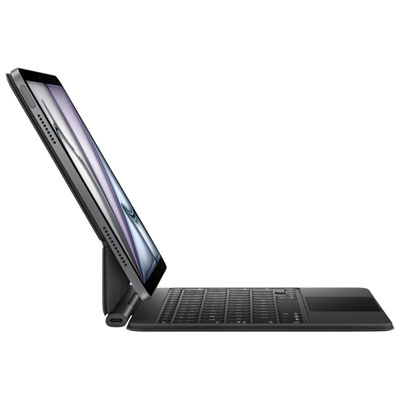
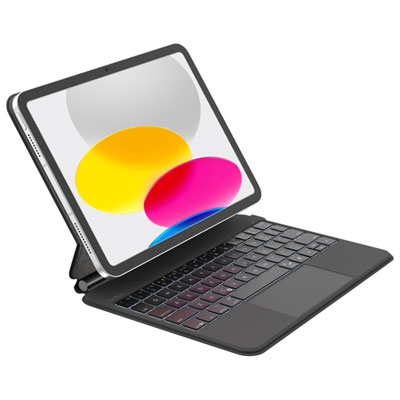
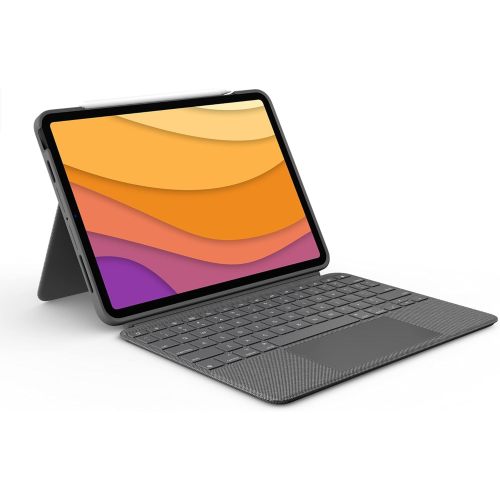
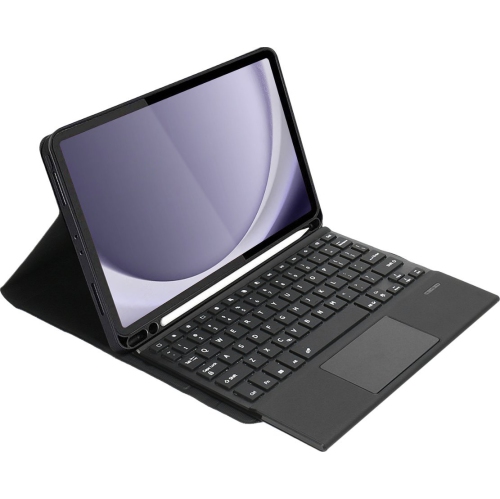
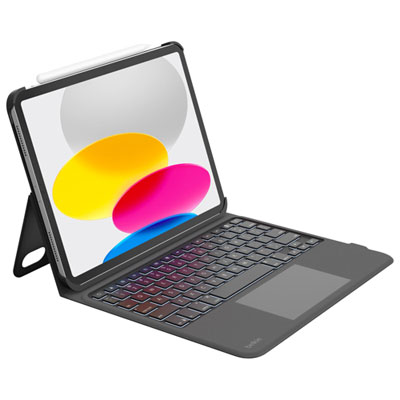
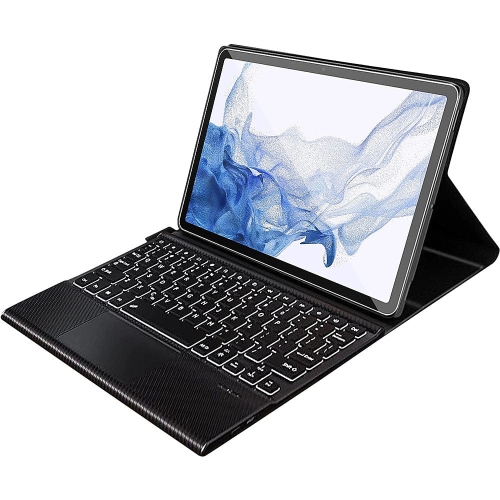
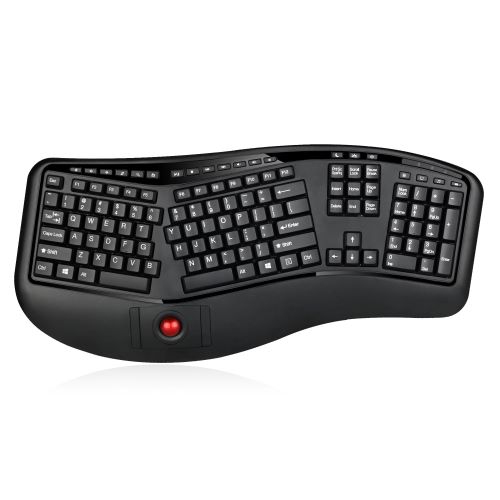

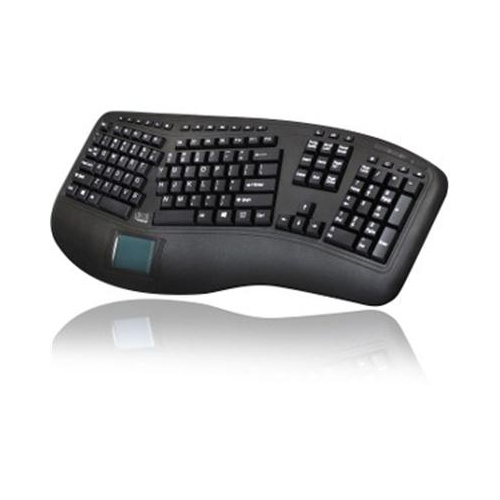
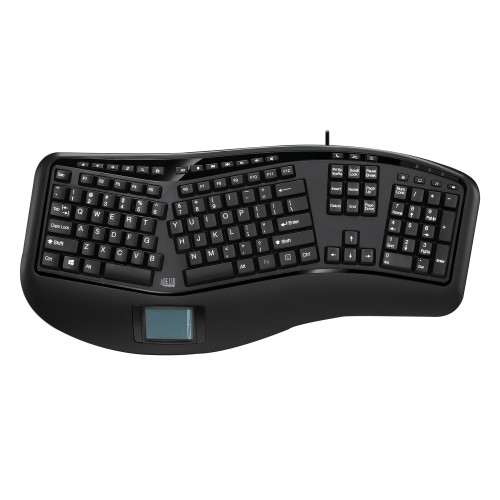
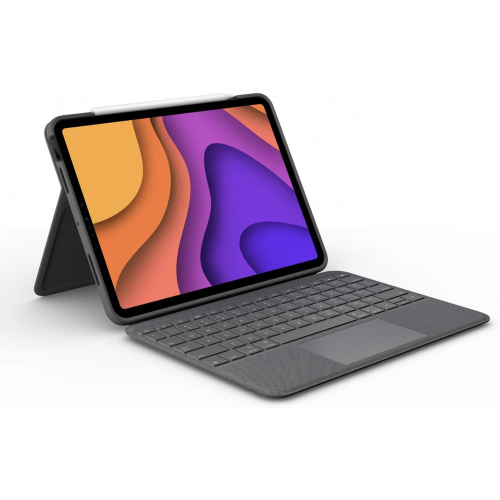
Typing and cursor control without a separate mouse
Keyboards with built-in trackpads bring typing and pointer control together in one device, allowing a finger to move the cursor without a separate mouse. Often described as keyboards with touchpads, they suit compact desks, living-room computers, compatible tablets, and other setups where there is little room for a mouse mat. The trackpad may sit to the right of the keys or below the space bar, with dedicated click buttons or a surface that responds to taps and presses. Some designs also support gestures such as two-finger scrolling or pinching to zoom, although the available controls depend on both the keyboard and the connected device. For someone searching for a film from the sofa, this combination can make entering a title and selecting a result feel more straightforward than navigating an on-screen alphabet with a remote. At a small desk, keeping the keys and pointer surface together can leave more space for a notebook, a mug, or a document stand. These keyboards also appeal to people who move between rooms or occasionally work away from their main workstation, since there is one less separate accessory to carry. A built-in trackpad is particularly useful for browsing, messaging, managing media, and light productivity, but it does not necessarily replace a mouse for every task. Detailed illustration, extensive spreadsheet work, and games that rely on fast, precise pointer movement may still feel better with a dedicated pointing device. The appeal is convenience: a single surface for entering text, opening menus, scrolling through a page, and making everyday selections. For shoppers comparing this accessory approach with a computer that already combines a keyboard and pointing surface, Touchpad Laptops offer a different way to keep those controls together. An external keyboard with a trackpad serves a distinct purpose, letting the controls sit apart from the screen. That separation can be useful when a compatible tablet rests on a stand or a computer connects to a larger display across the room.
Connection type and device compatibility shape how a keyboard with a trackpad fits into daily use. Bluetooth models can connect without occupying a USB port when the host device supports the required keyboard and pointer functions. Other wireless keyboards use a USB receiver, which needs a suitable port or a compatible adapter. Wired designs avoid keyboard battery charging but keep the typing position within reach of the cable. A wireless connection can be convenient beside a sofa or at a shared table, though its practical range varies with obstructions, interference, and the placement of the connected device. Compatibility deserves attention beyond whether a connection can be established. A television or streaming device may accept text entry while offering limited pointer support, and certain gestures, shortcuts, or function keys may behave differently across operating systems and apps. For tablet use, both typing support and trackpad support matter, along with any software requirements. Layout is equally important once the connection is settled. A trackpad beside the keys can make the keyboard wider, while one below the keys may increase its depth. Neither arrangement is automatically better; the comfortable fit depends on hand position, available space, and whether the keyboard will rest on a desk or across a lap. A larger touch surface generally leaves more room for scrolling and gestures, while a smaller one helps keep the overall footprint compact. Dedicated click buttons provide a clearly defined place to press, which some people prefer to tapping the pad itself. Palm rejection, when supported, can help limit accidental cursor movement while typing. Key spacing, arrow-key size, and the placement of navigation controls also affect everyday comfort. Someone composing lengthy emails may value a familiar, roomy layout more than the smallest possible frame. Someone mainly entering search terms may prefer a lighter design that slips into a drawer. Language layout matters, too, especially for people who regularly type in both English and French and need convenient access to accented characters.
Materials and construction help determine how these keyboards feel in the hand and hold up to regular handling. Plastic housings can keep weight manageable for carrying between a desk and a seating area, while metal panels or reinforced frames may provide a firmer feel; overall durability still depends on the design and assembly. A keyboard that stays flat and stable during typing is more pleasant to use than one that flexes or rocks under light pressure. Non-slip feet can help on a smooth tabletop, and a broad, balanced underside is useful when there is no desk beneath it. Key travel and resistance influence typing feel, while the trackpad surface should allow a finger to glide smoothly without requiring excessive pressure. Low-profile keys may suit people accustomed to laptop typing, although compact layouts can take time to learn. Portable use brings additional considerations, including exposed keys, receiver storage, and protection from pressure inside a bag. A sleeve or a separate compartment can help prevent scratches and keep loose objects away from the touch surface. For rechargeable designs, the charging connector and whether the keyboard can operate while charging affect convenience. Models with replaceable batteries involve a different routine, and an accessible power switch or automatic sleep function can help manage battery use. Care is usually simple: switch the keyboard off or disconnect it before cleaning, remove loose debris gently, and follow the manufacturer's instructions for wiping the keys and trackpad. Liquid should not be sprayed directly onto the device, and moisture should be kept away from openings. Clean, dry fingers also help maintain consistent touch response. As a practical gift, a keyboard with an integrated trackpad can suit a student with a narrow study area, a family member who uses a computer for living-room entertainment, or someone who prefers fewer accessories on a shared table. Matching the recipient's device, typing habits, and preferred layout matters more than choosing the most compact design. The right fit makes ordinary tasks feel less cumbersome, whether that means replying to a message from an armchair or moving comfortably through documents at a small workspace.
Connection type and device compatibility shape how a keyboard with a trackpad fits into daily use. Bluetooth models can connect without occupying a USB port when the host device supports the required keyboard and pointer functions. Other wireless keyboards use a USB receiver, which needs a suitable port or a compatible adapter. Wired designs avoid keyboard battery charging but keep the typing position within reach of the cable. A wireless connection can be convenient beside a sofa or at a shared table, though its practical range varies with obstructions, interference, and the placement of the connected device. Compatibility deserves attention beyond whether a connection can be established. A television or streaming device may accept text entry while offering limited pointer support, and certain gestures, shortcuts, or function keys may behave differently across operating systems and apps. For tablet use, both typing support and trackpad support matter, along with any software requirements. Layout is equally important once the connection is settled. A trackpad beside the keys can make the keyboard wider, while one below the keys may increase its depth. Neither arrangement is automatically better; the comfortable fit depends on hand position, available space, and whether the keyboard will rest on a desk or across a lap. A larger touch surface generally leaves more room for scrolling and gestures, while a smaller one helps keep the overall footprint compact. Dedicated click buttons provide a clearly defined place to press, which some people prefer to tapping the pad itself. Palm rejection, when supported, can help limit accidental cursor movement while typing. Key spacing, arrow-key size, and the placement of navigation controls also affect everyday comfort. Someone composing lengthy emails may value a familiar, roomy layout more than the smallest possible frame. Someone mainly entering search terms may prefer a lighter design that slips into a drawer. Language layout matters, too, especially for people who regularly type in both English and French and need convenient access to accented characters.
Materials and construction help determine how these keyboards feel in the hand and hold up to regular handling. Plastic housings can keep weight manageable for carrying between a desk and a seating area, while metal panels or reinforced frames may provide a firmer feel; overall durability still depends on the design and assembly. A keyboard that stays flat and stable during typing is more pleasant to use than one that flexes or rocks under light pressure. Non-slip feet can help on a smooth tabletop, and a broad, balanced underside is useful when there is no desk beneath it. Key travel and resistance influence typing feel, while the trackpad surface should allow a finger to glide smoothly without requiring excessive pressure. Low-profile keys may suit people accustomed to laptop typing, although compact layouts can take time to learn. Portable use brings additional considerations, including exposed keys, receiver storage, and protection from pressure inside a bag. A sleeve or a separate compartment can help prevent scratches and keep loose objects away from the touch surface. For rechargeable designs, the charging connector and whether the keyboard can operate while charging affect convenience. Models with replaceable batteries involve a different routine, and an accessible power switch or automatic sleep function can help manage battery use. Care is usually simple: switch the keyboard off or disconnect it before cleaning, remove loose debris gently, and follow the manufacturer's instructions for wiping the keys and trackpad. Liquid should not be sprayed directly onto the device, and moisture should be kept away from openings. Clean, dry fingers also help maintain consistent touch response. As a practical gift, a keyboard with an integrated trackpad can suit a student with a narrow study area, a family member who uses a computer for living-room entertainment, or someone who prefers fewer accessories on a shared table. Matching the recipient's device, typing habits, and preferred layout matters more than choosing the most compact design. The right fit makes ordinary tasks feel less cumbersome, whether that means replying to a message from an armchair or moving comfortably through documents at a small workspace.
Top selling and popular products
-
 Your price for this item is $89.99
 -
 Your price for this item is $149
 -
 Your price for this item is $79.99
 -
 Your price for this item is $218.97
 -
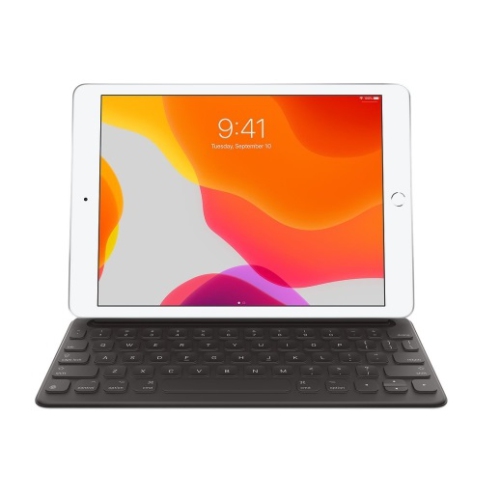 Your price for this item is $149
 -
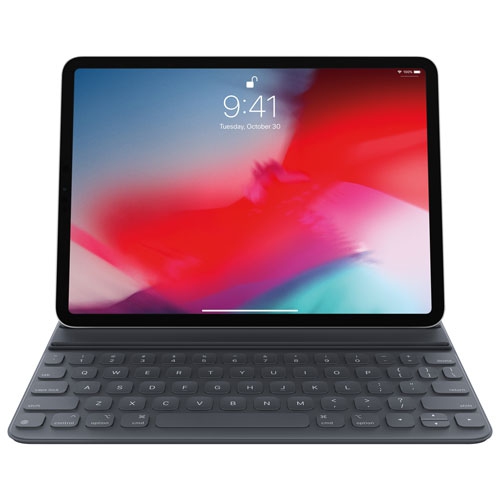 Your price for this item is $199
 -
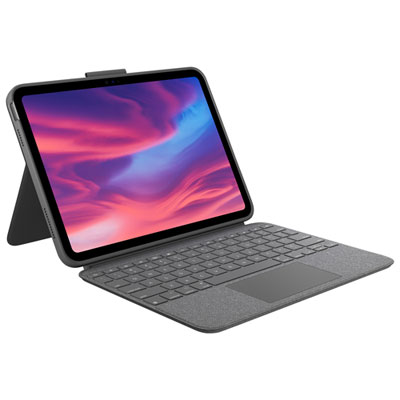 Your price for this item is $219.99
 -
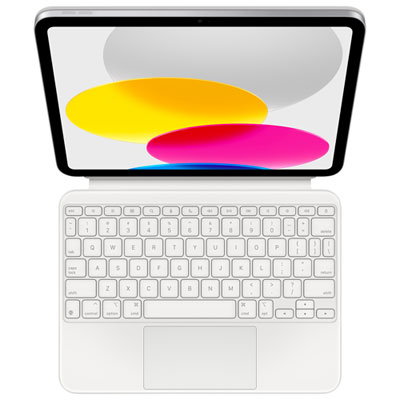 Your price for this item is $329.99
Discover more categories related to Trackpad on Keyboards
Top Collections:
Pokemon Centers, Kindle Devices, Best Budget Office Chairs, Apple iPhones 16, Best Laptops for Writers, iPhone 15 Apple, Canon G7X Cameras, Refurbished Apple Laptops, Alarm Clock, Motorola Razr Phones
Some products may be subject to Environmental Handling Fees
(EHF) depending on your province.
Learn more about EHFs.