Two Laptop Docking Stations
Enhance your productivity and streamline your work setup with our selection of laptop docking stations. Designed to provide seamless connectivity and convenience, these docking stations are the perfect solution for professionals, students, and anyone who requires a versatile workstation. Whether you need to connect multiple displays, transfer data at lightning-fast speeds, or simply declutter your desk space, our range of laptop docking stations offers a variety of features and options to suit your specific needs. Discover the power of enhanced connectivity and take your productivity to new heights with our collection of laptop docking stations.
Sort
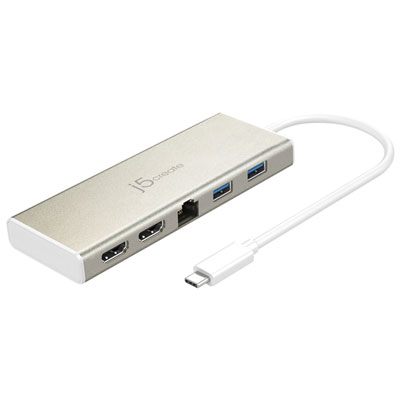
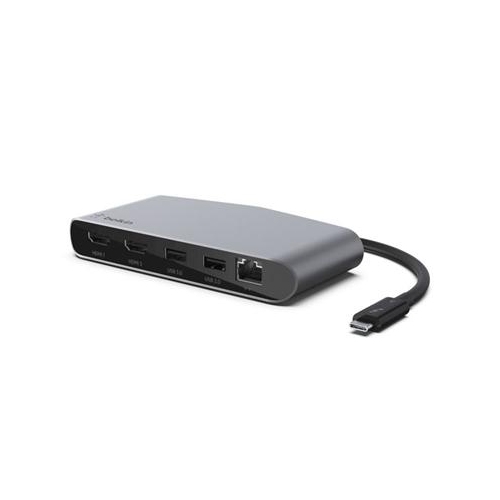

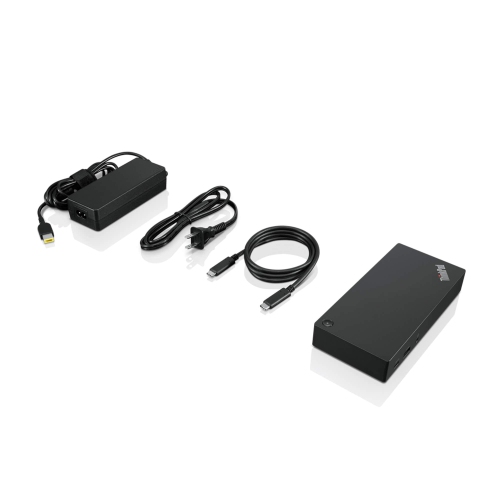
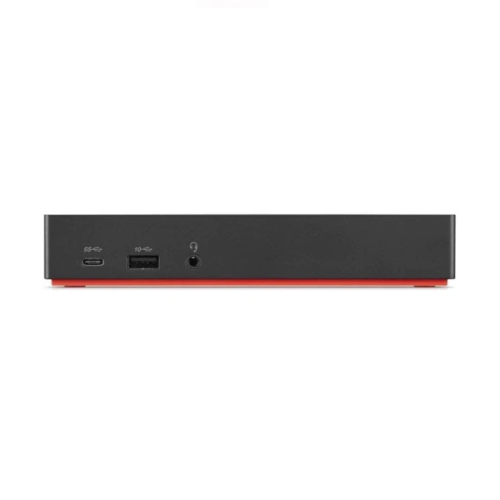
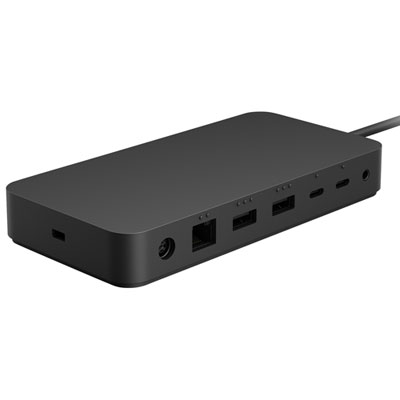
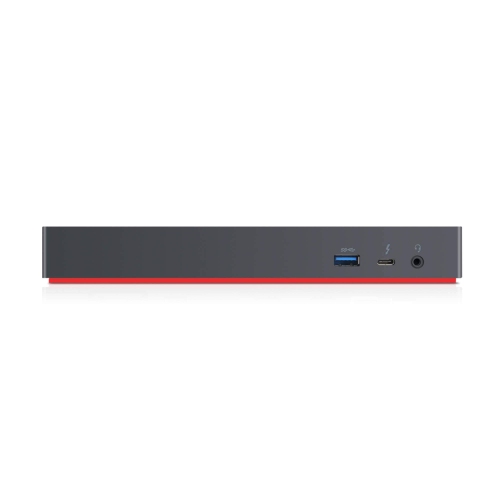
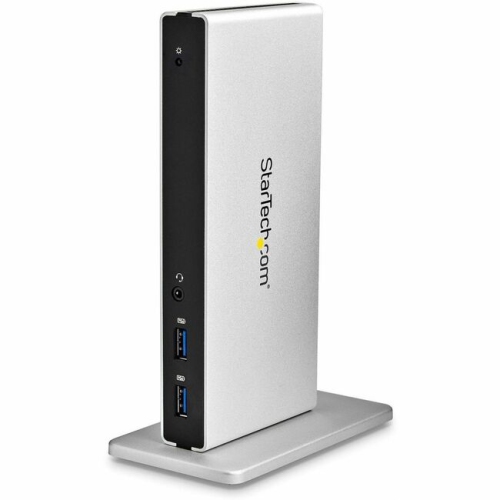
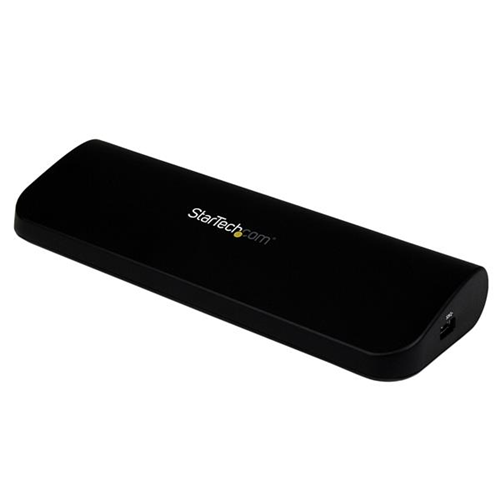
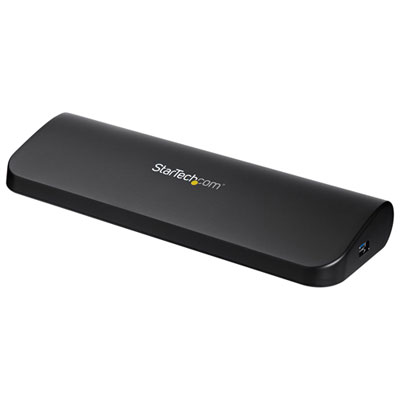
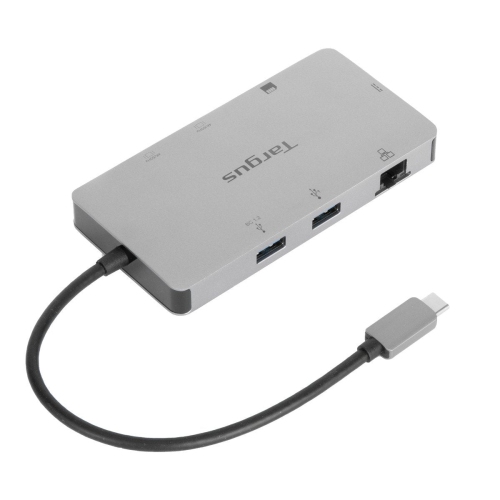
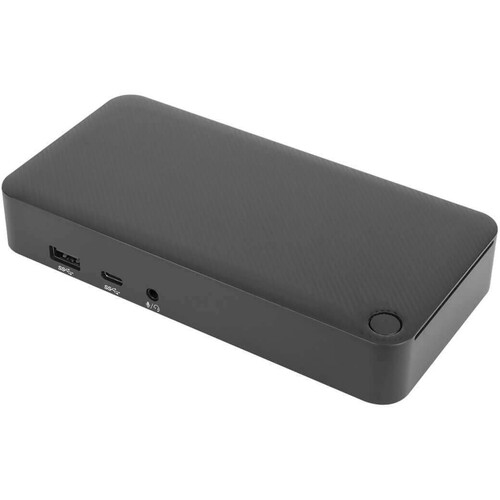
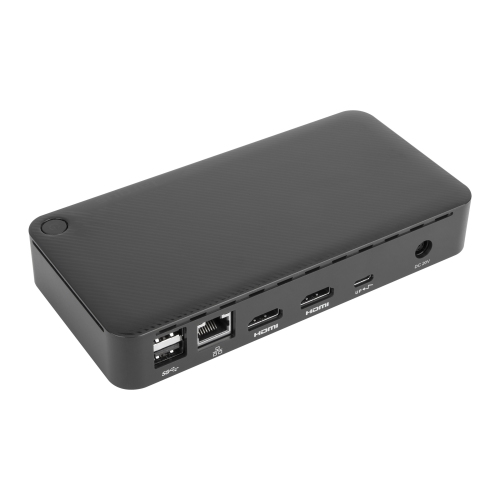
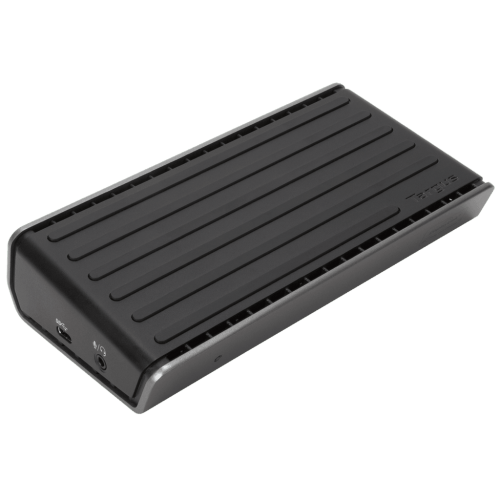
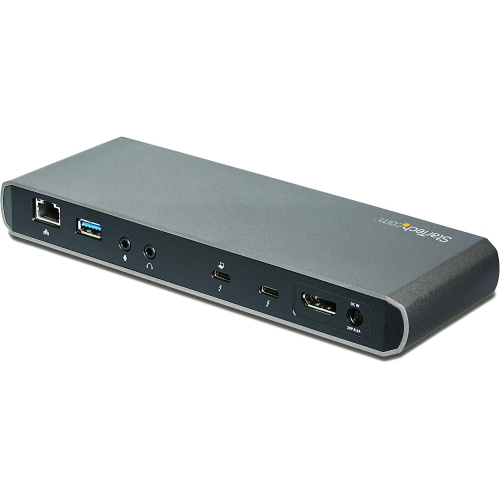
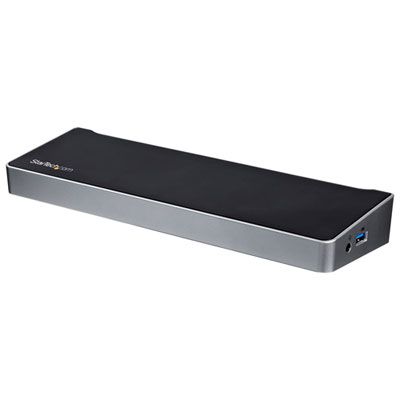
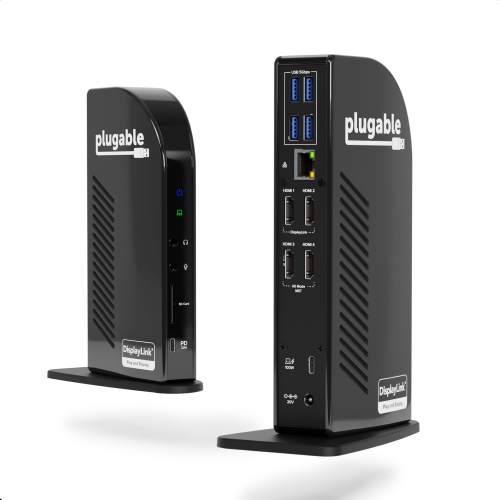
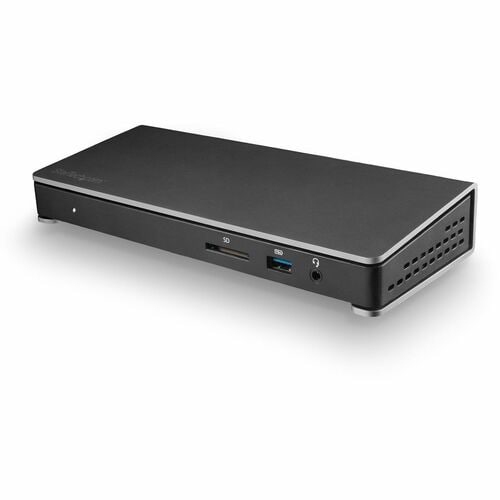
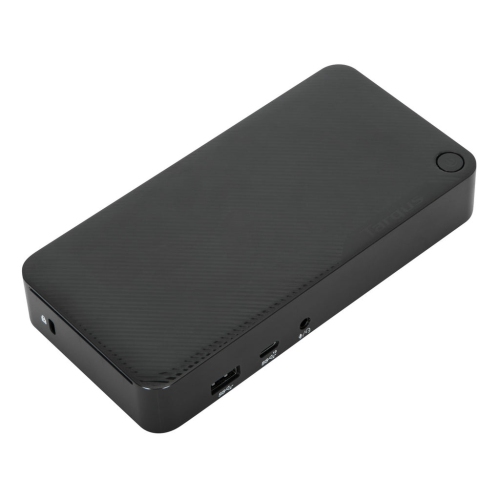
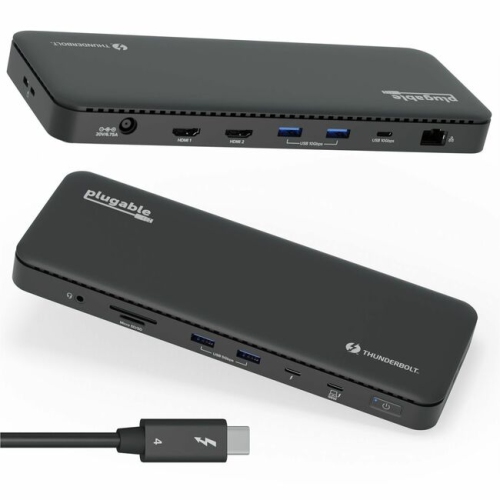
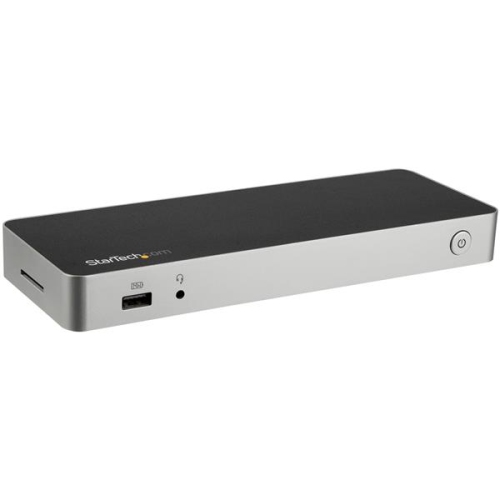
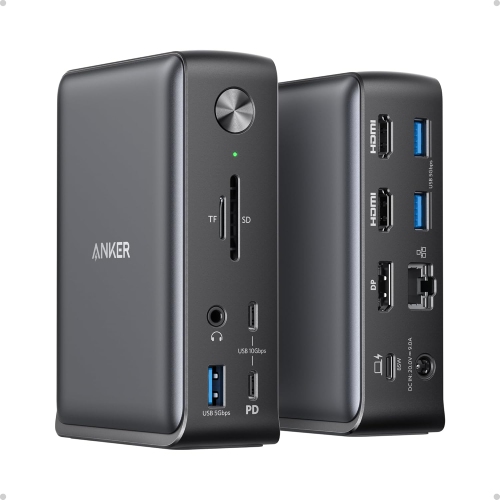
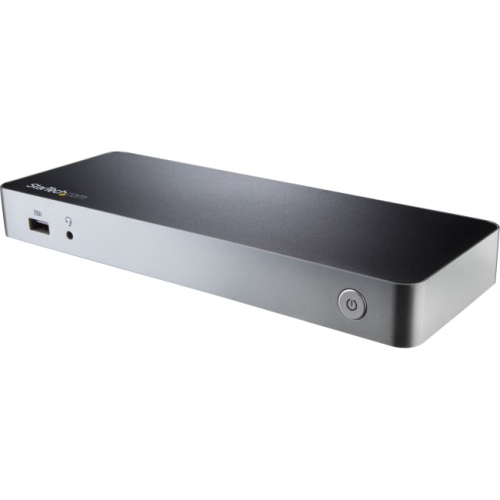
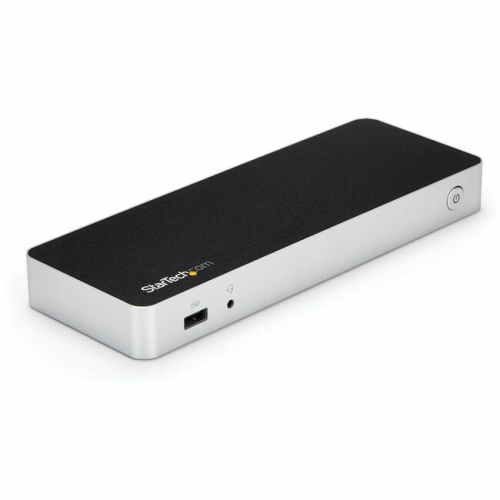
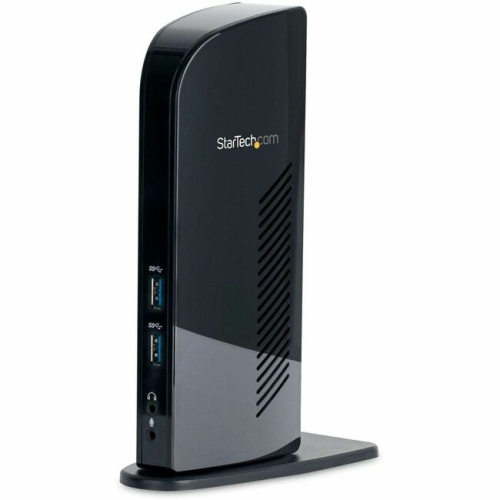
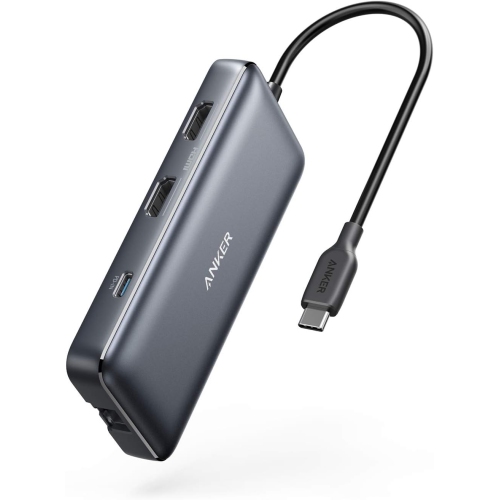
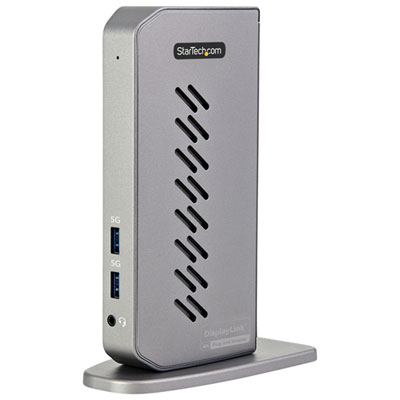
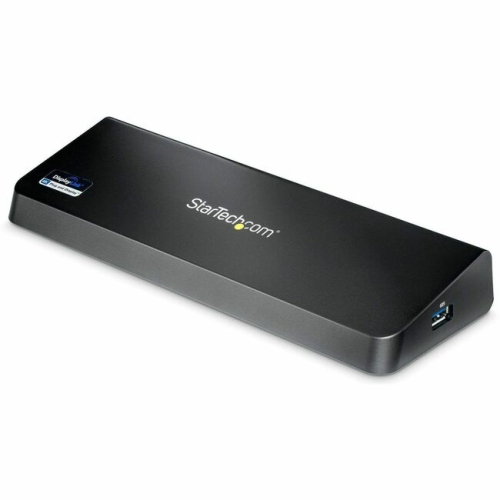
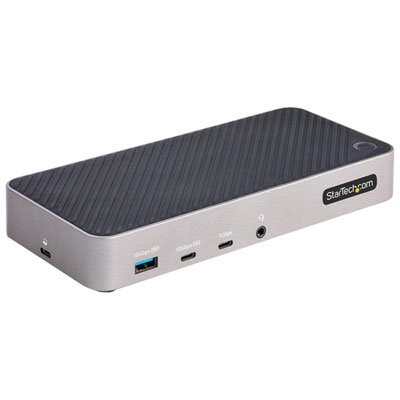
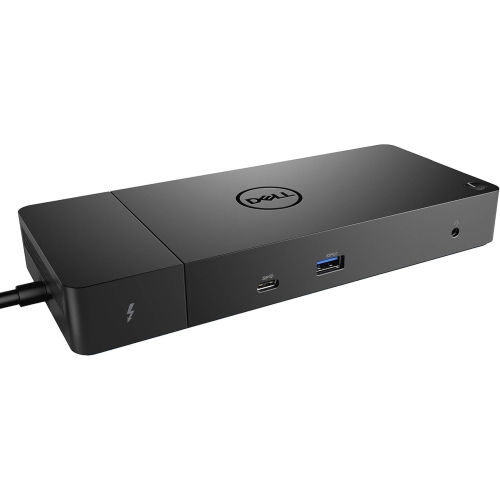
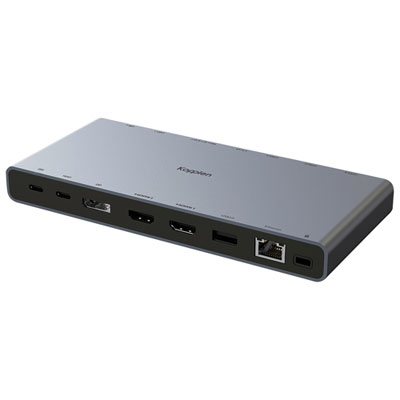
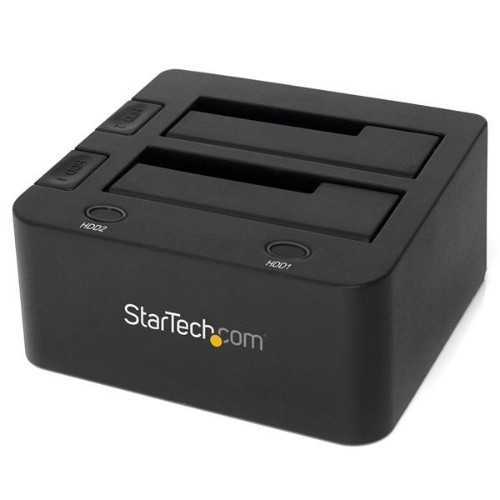
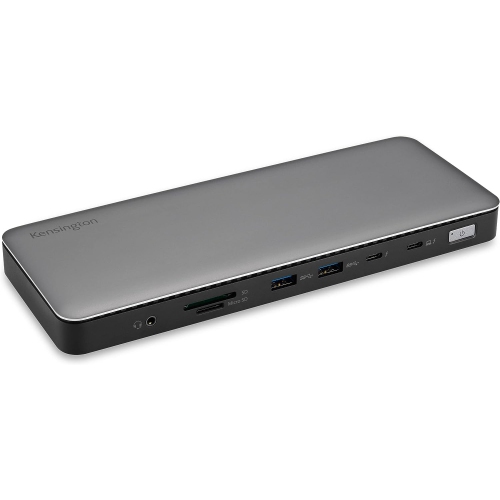
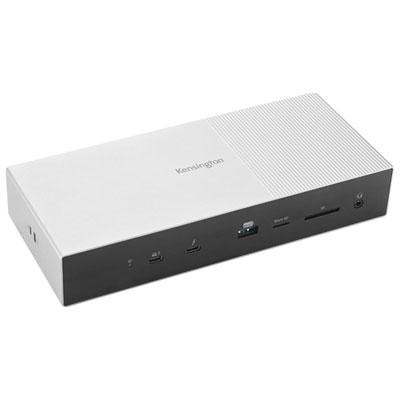
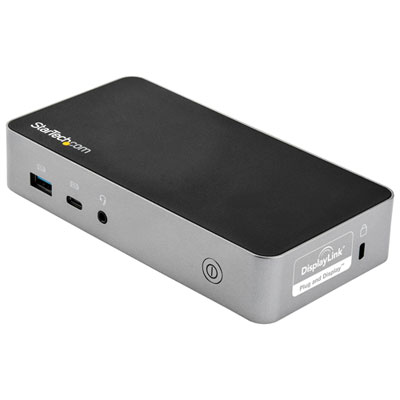

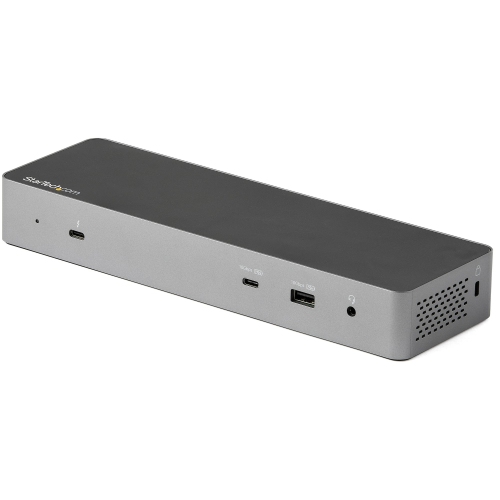
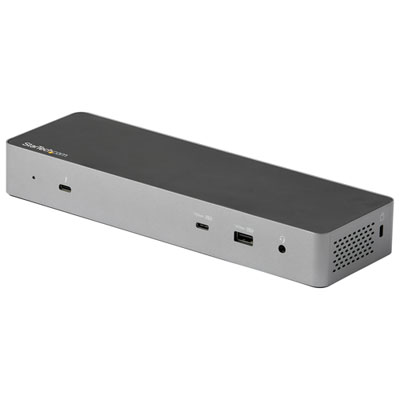
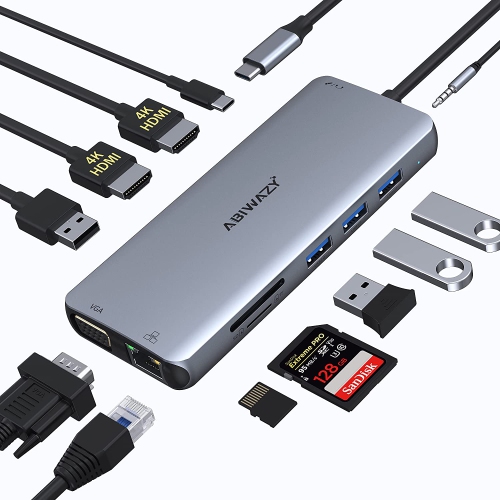
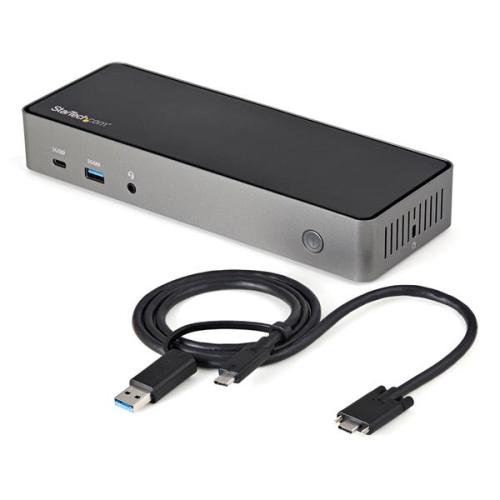
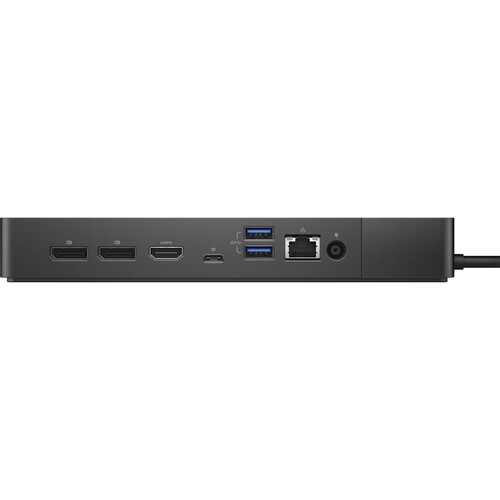

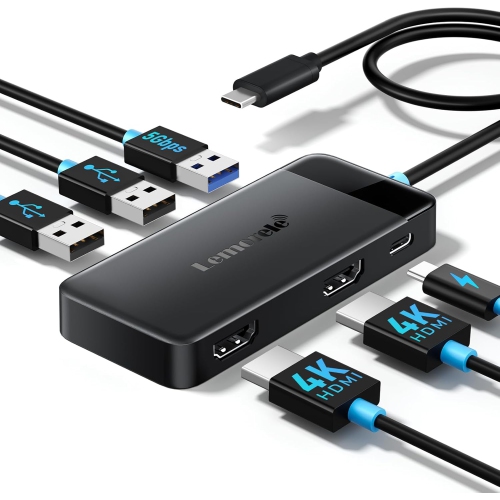
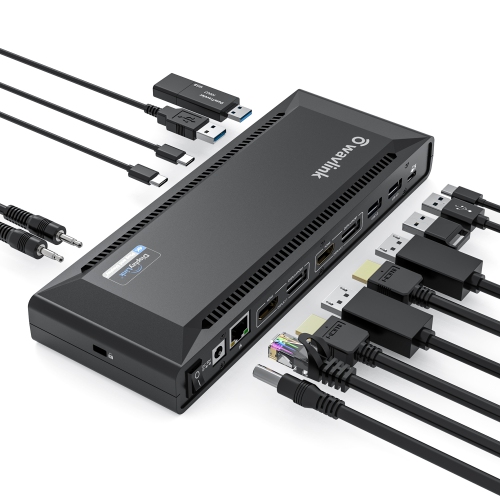
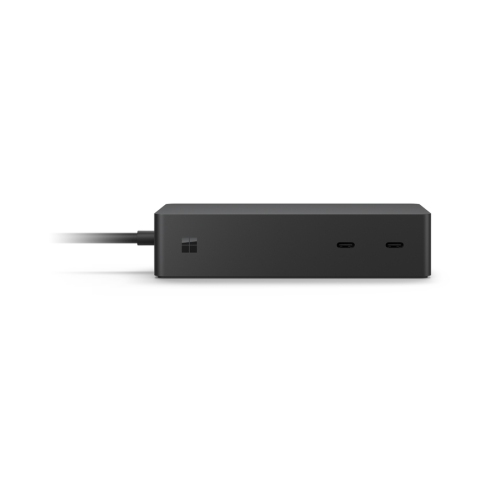
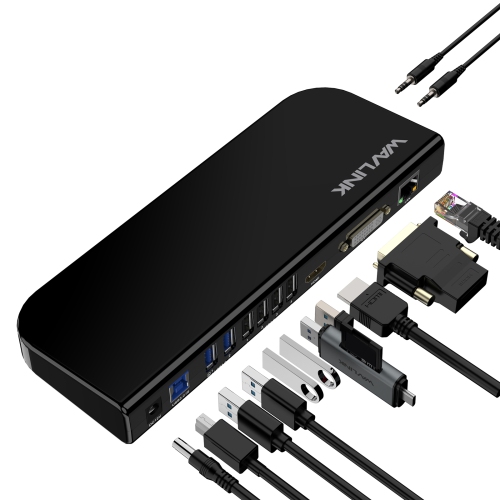
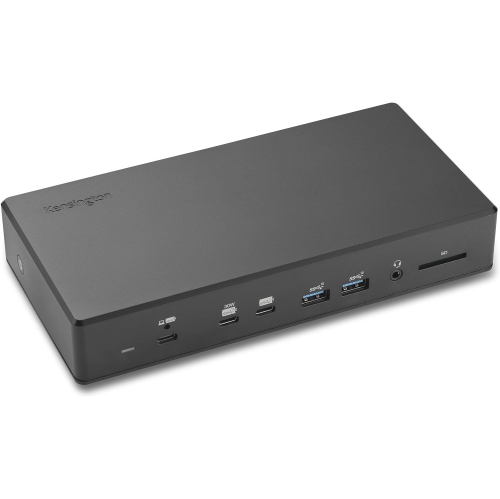
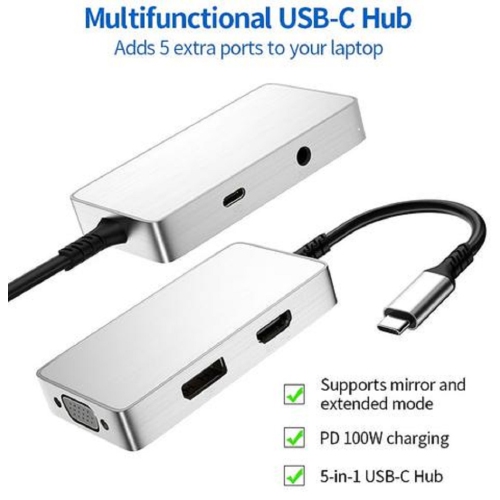
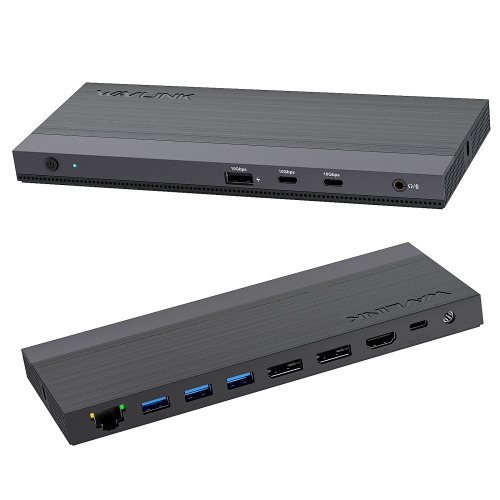
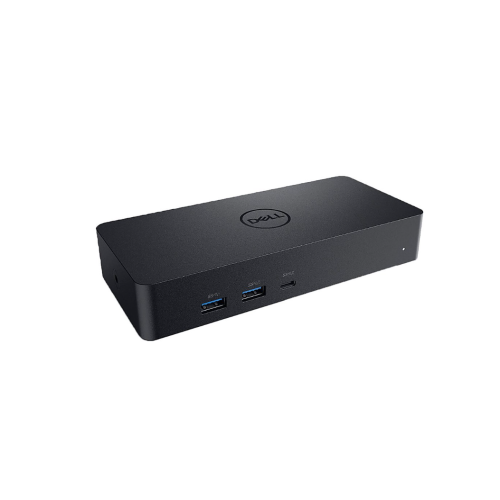
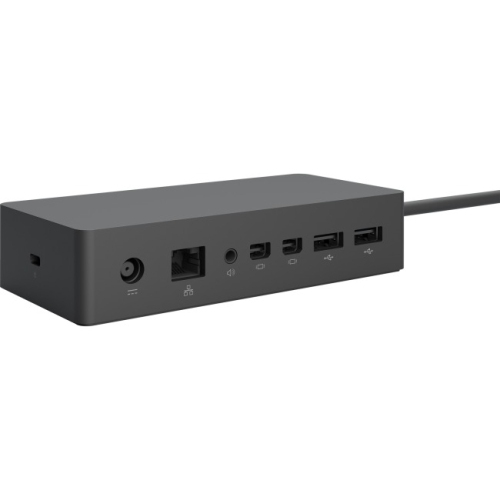
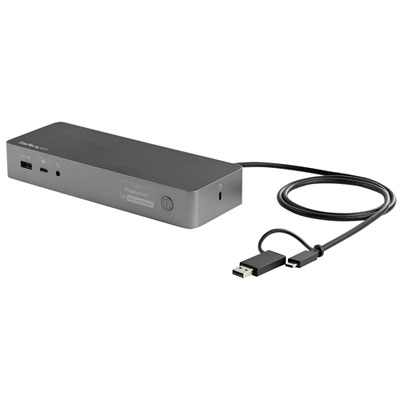
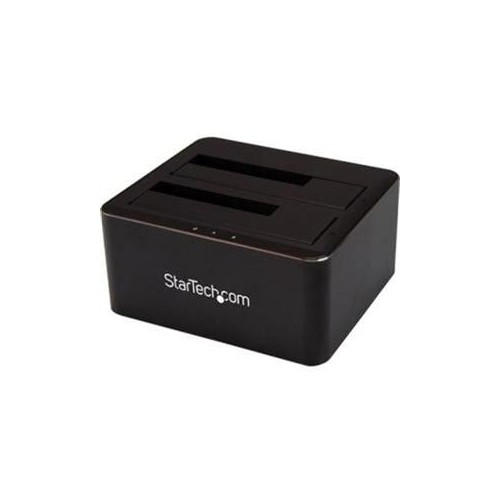
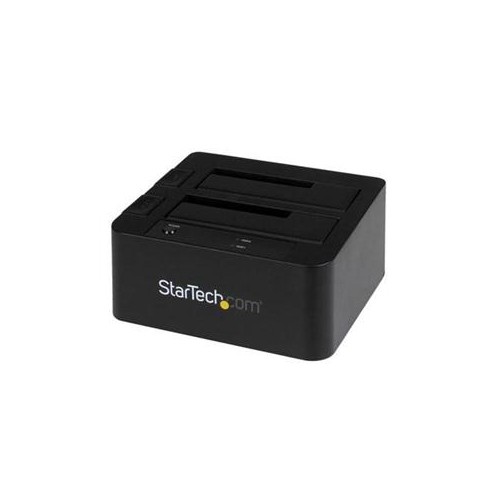
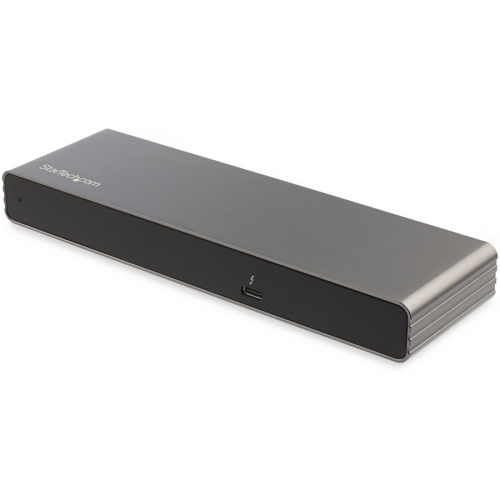
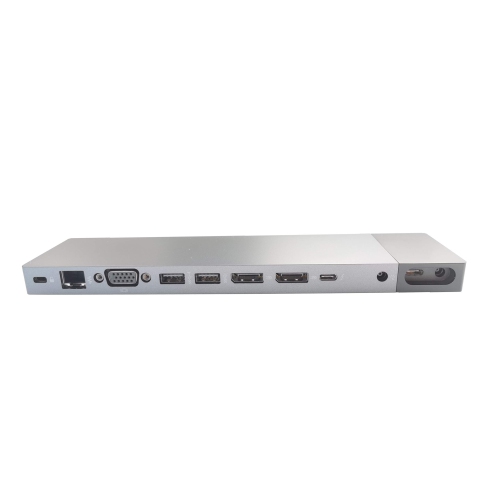
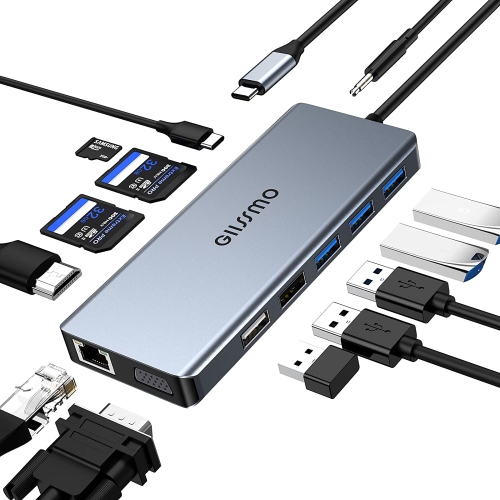
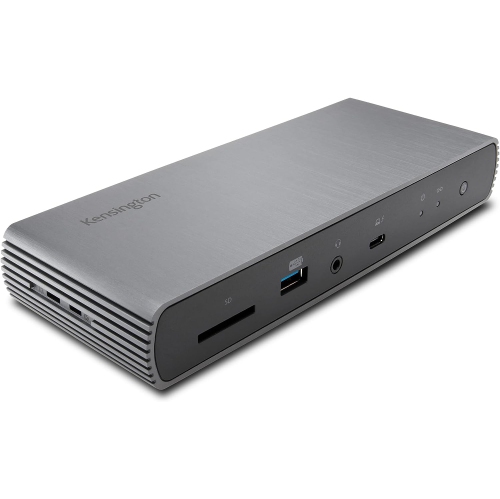
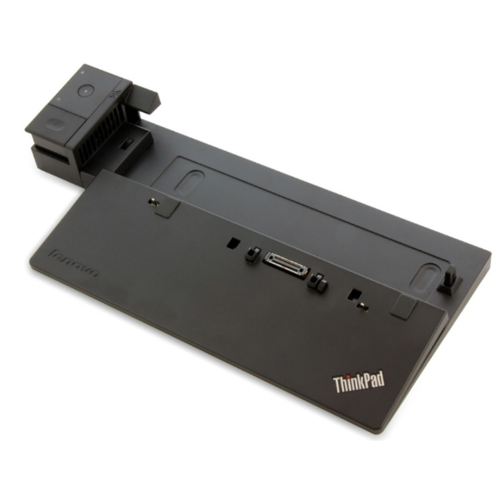
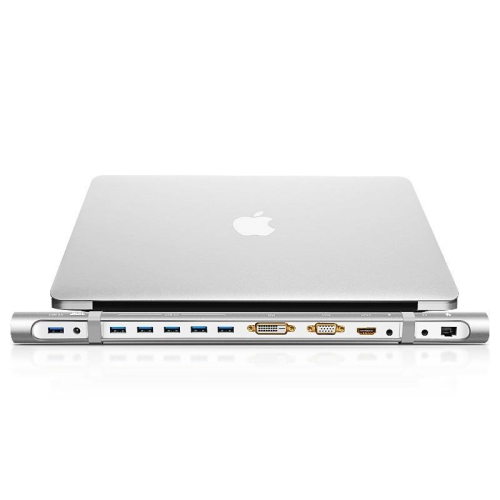
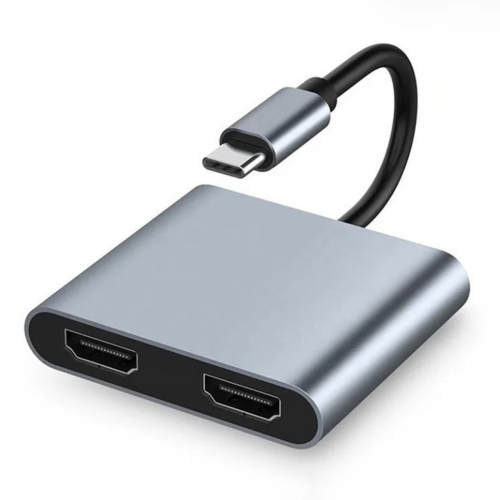

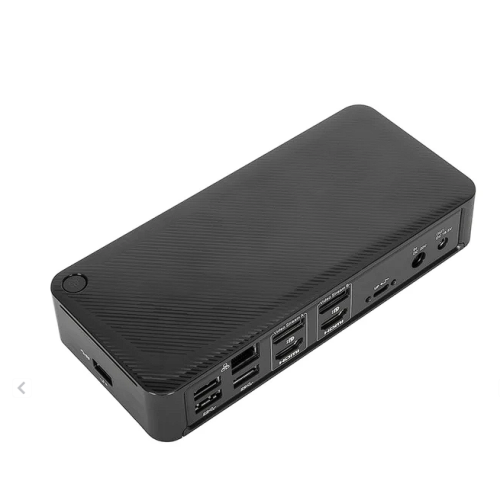
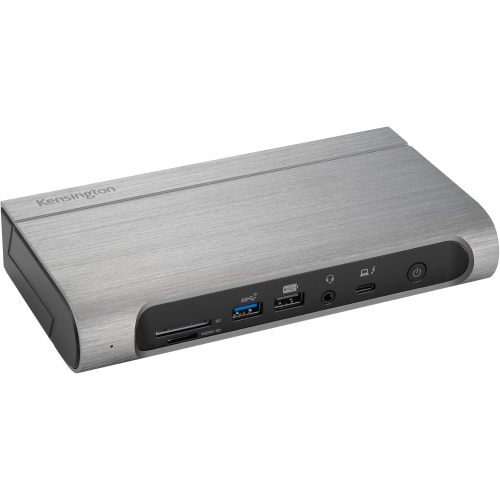
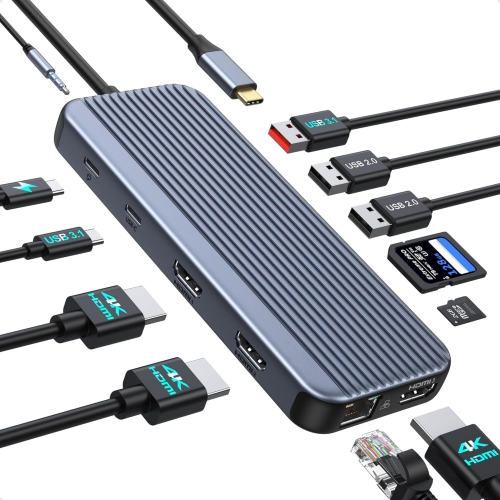
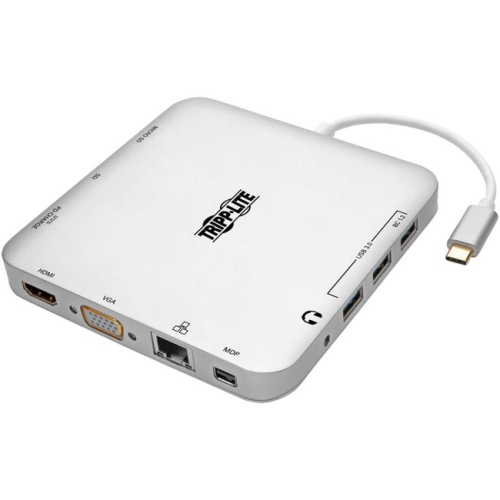

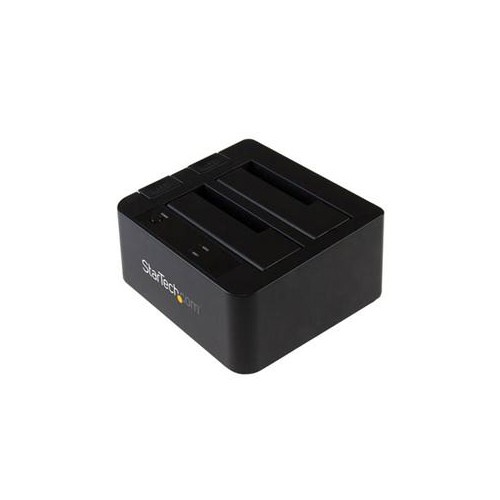
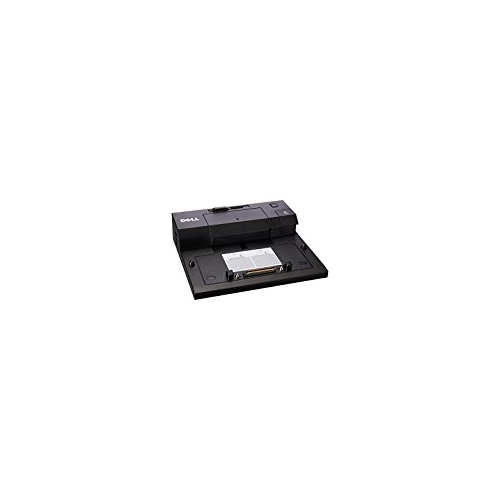
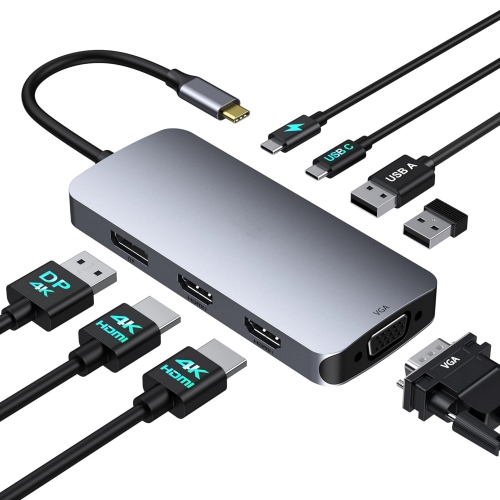
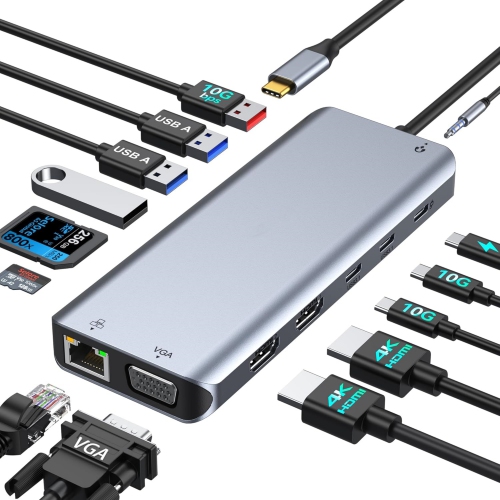
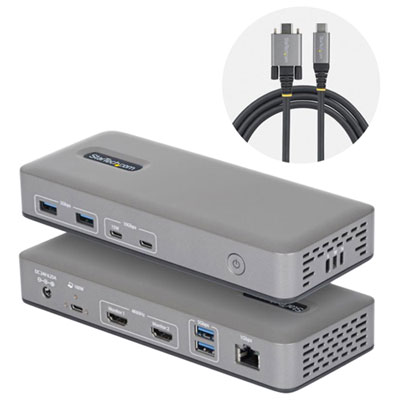
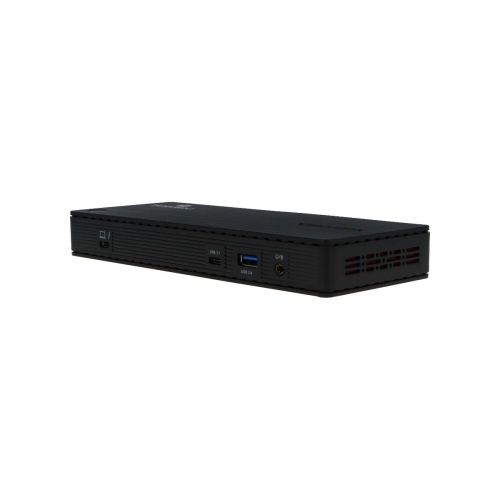
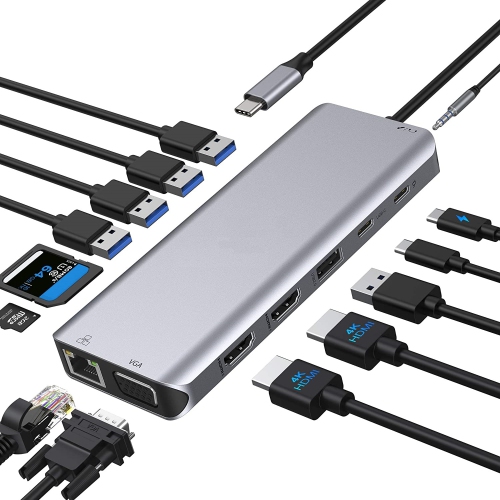
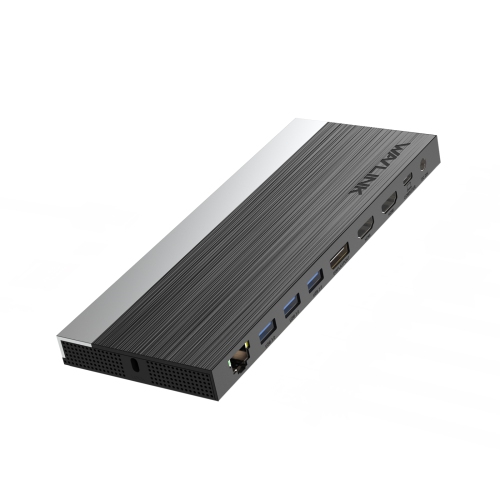
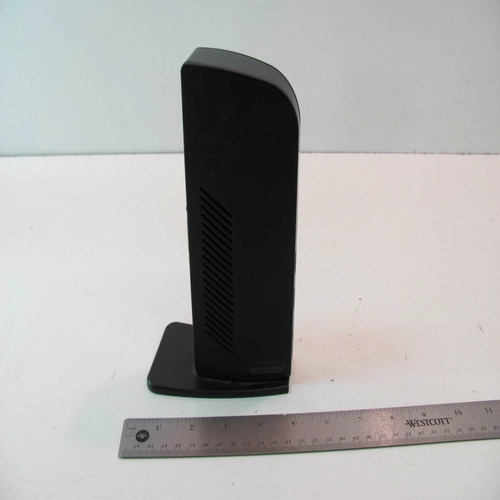
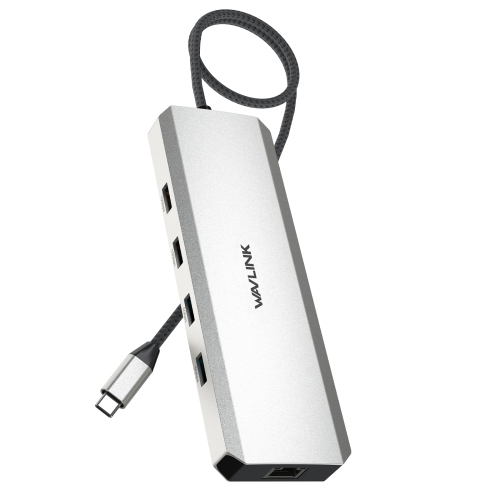
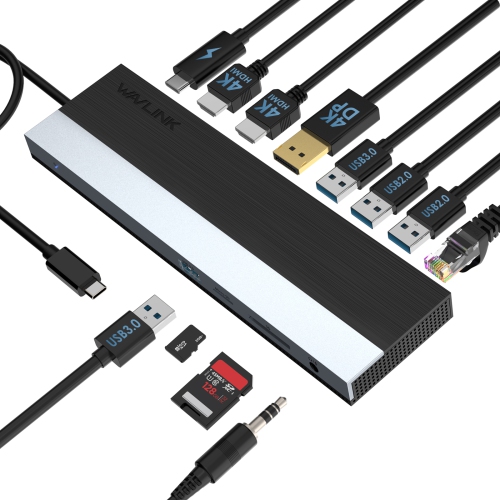
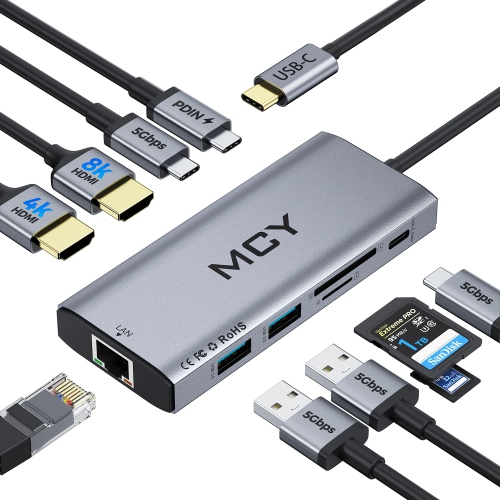
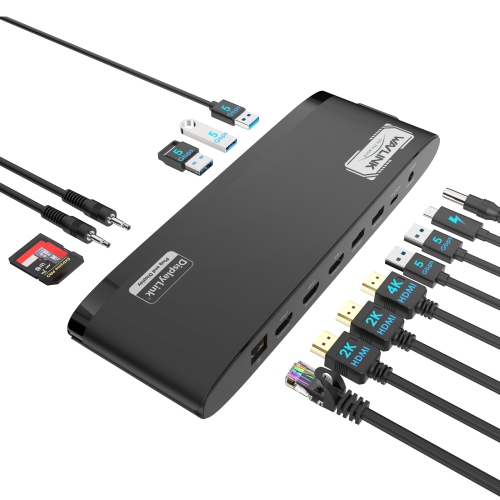
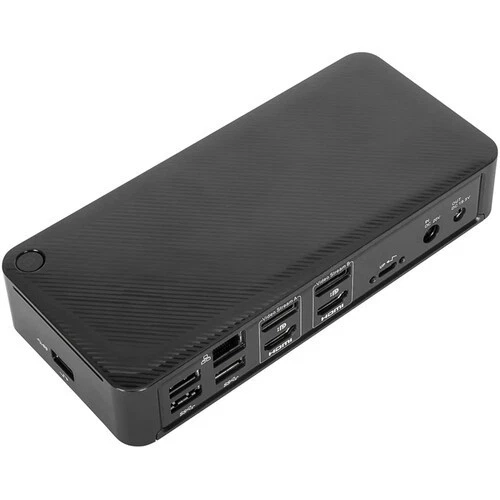
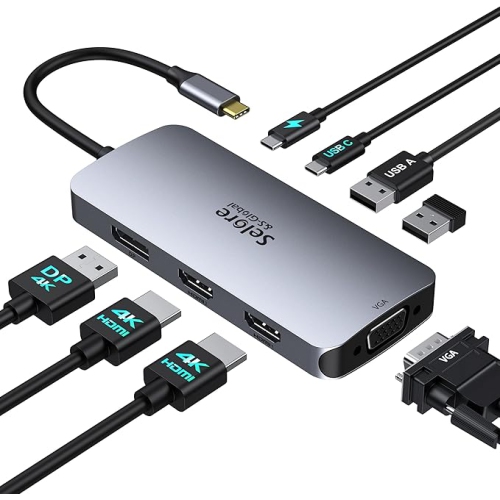
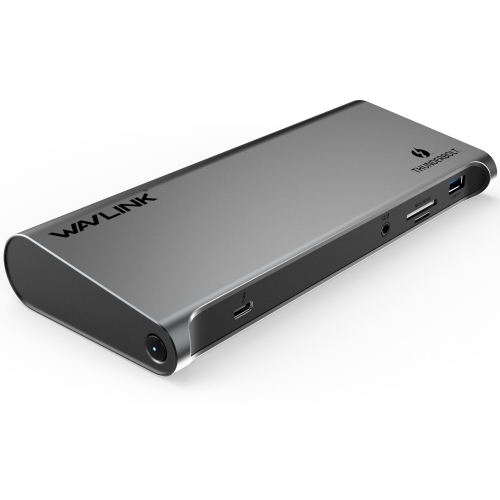
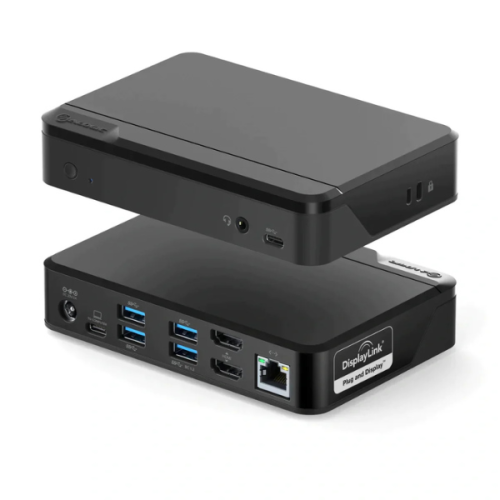
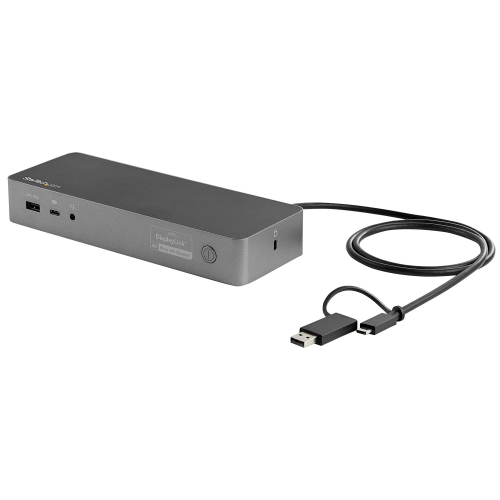
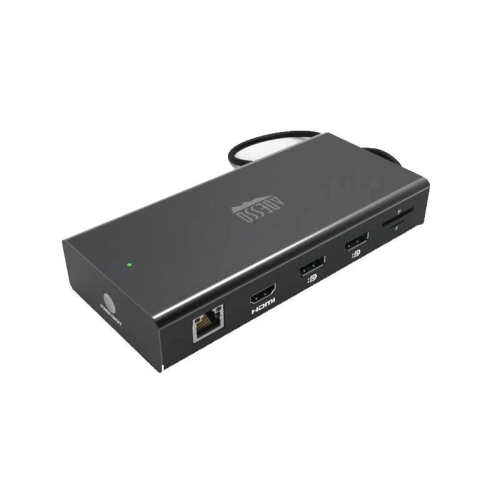
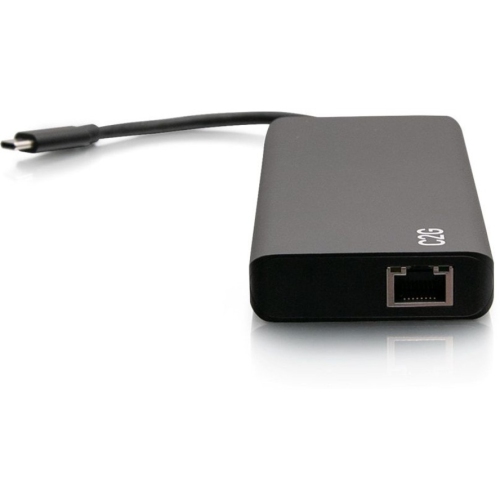
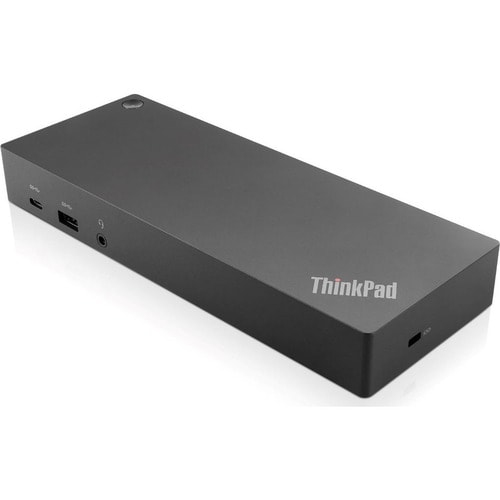
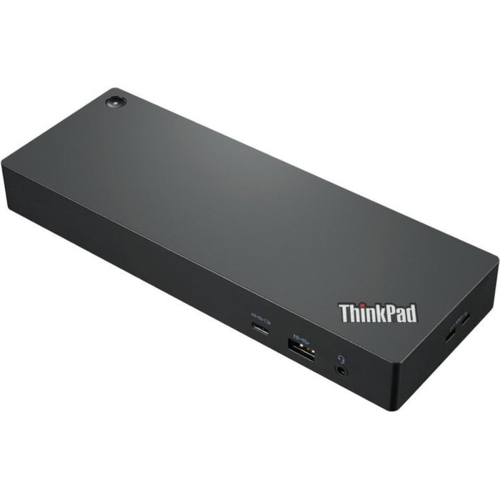
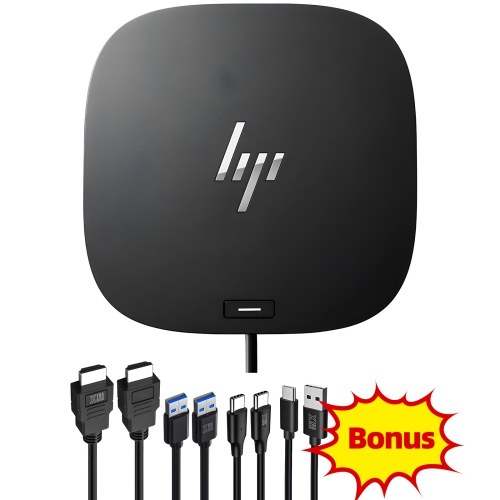
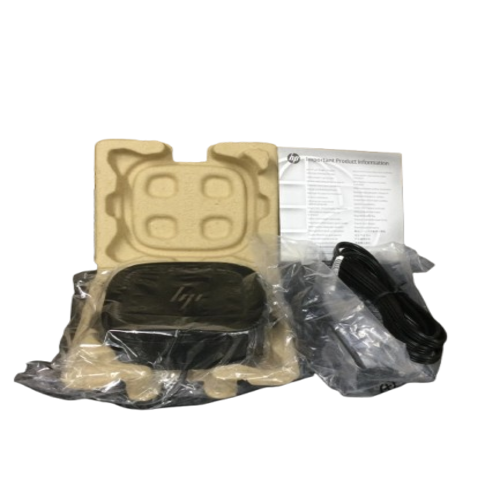
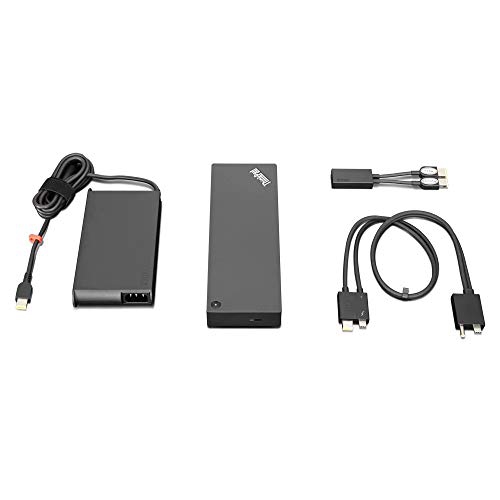
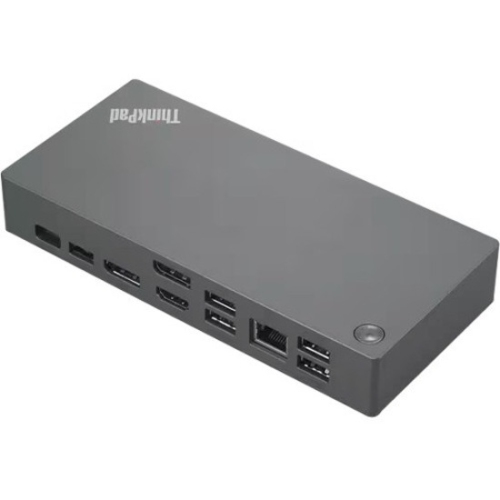
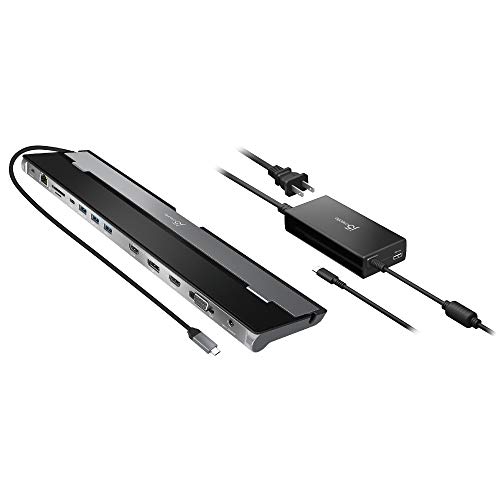
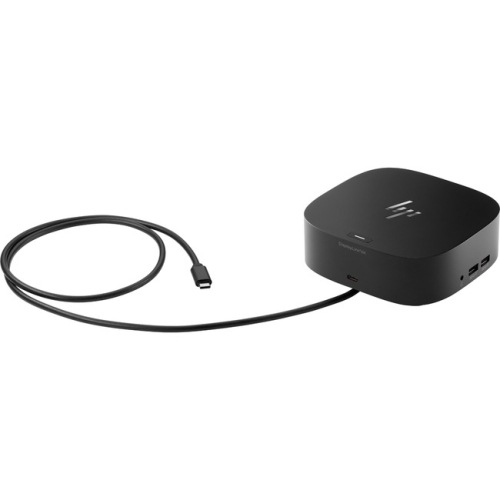
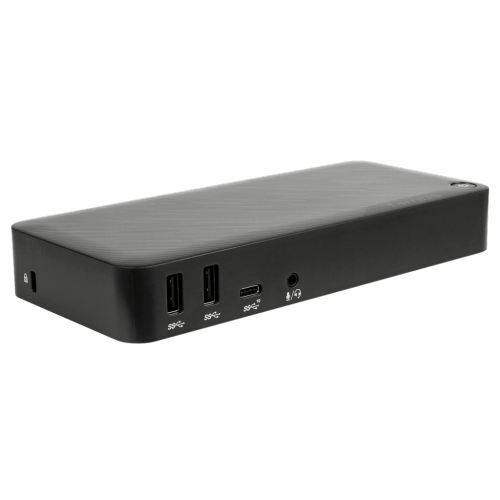
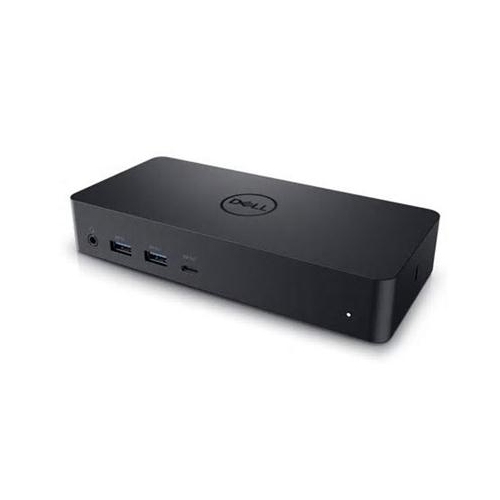
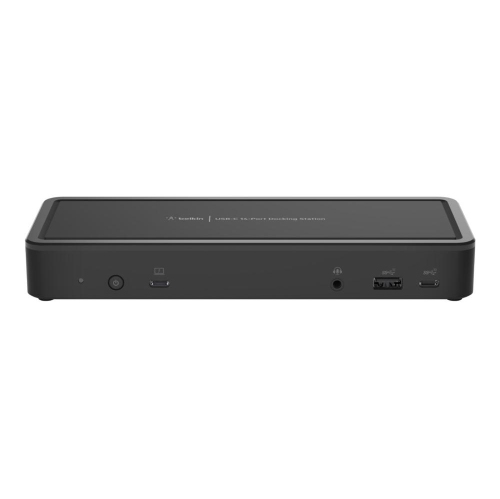
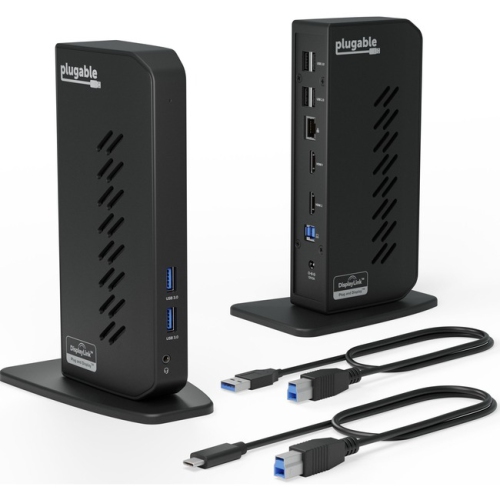
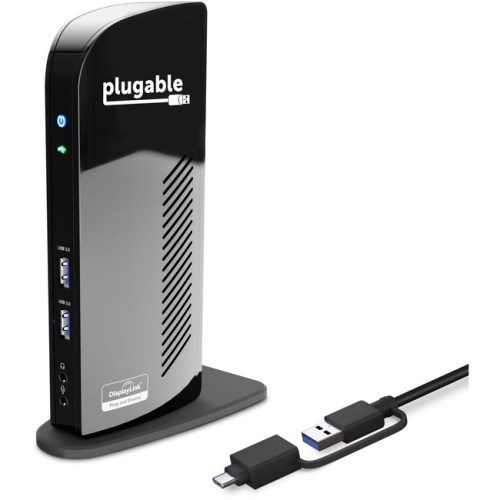
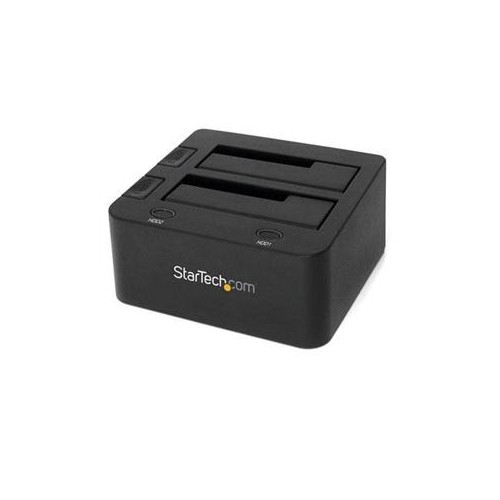
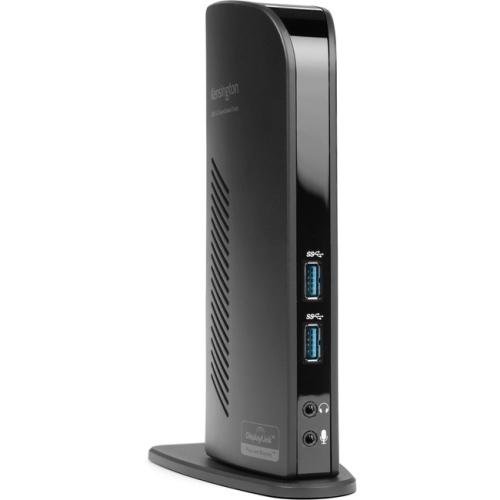
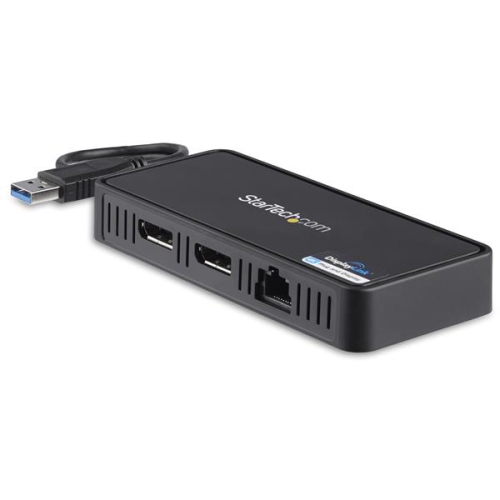
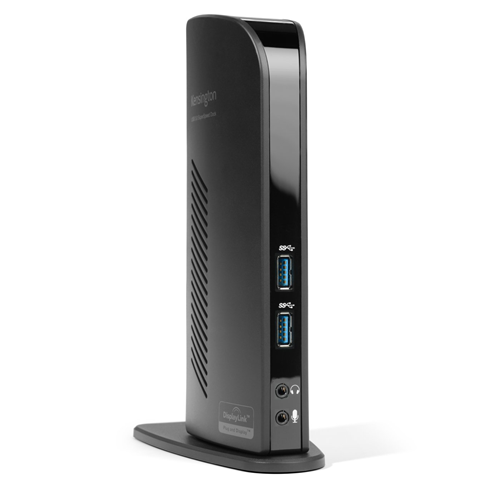
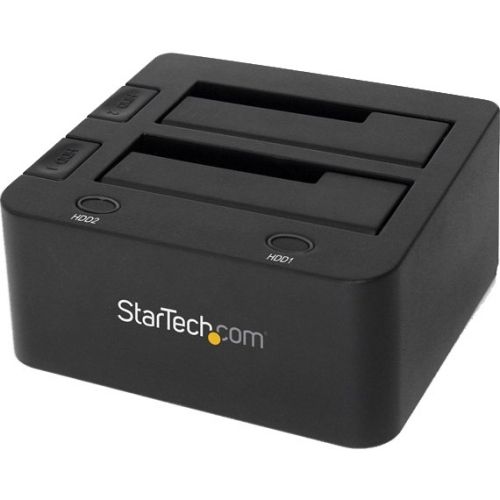
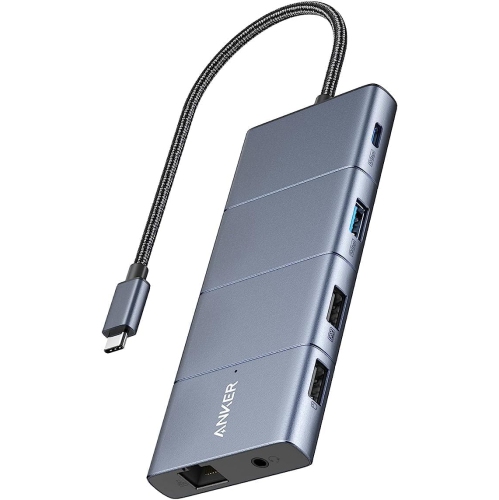
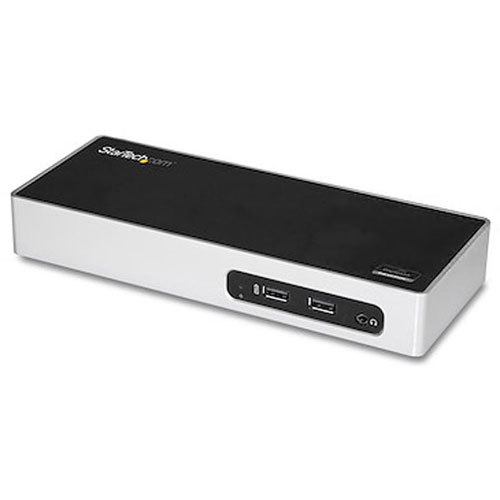
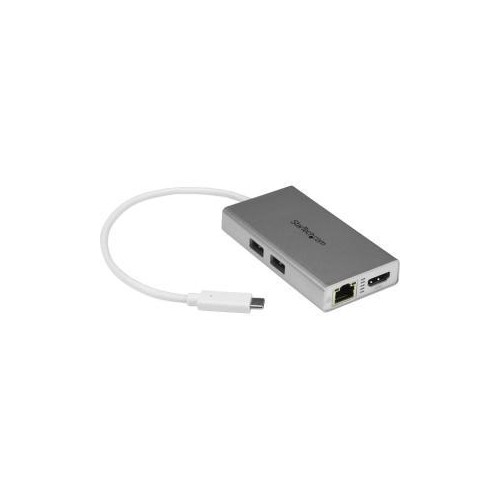
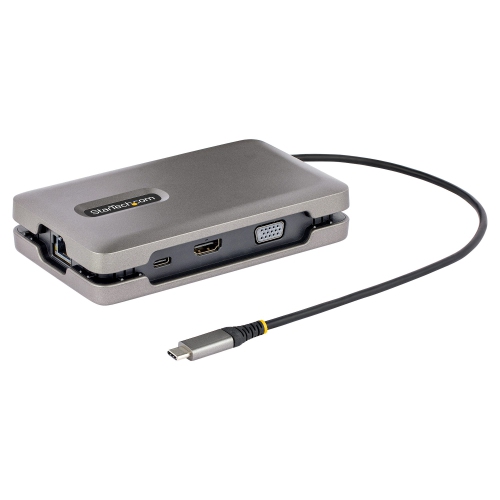
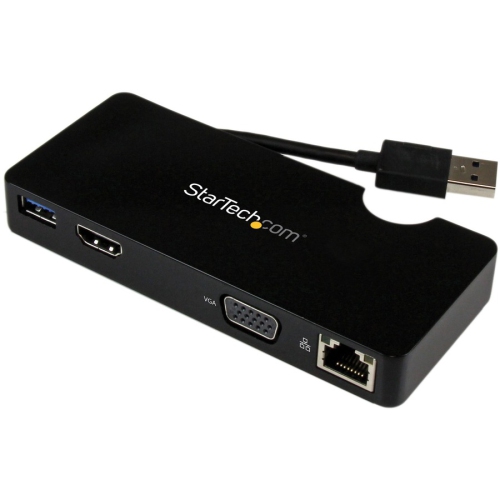

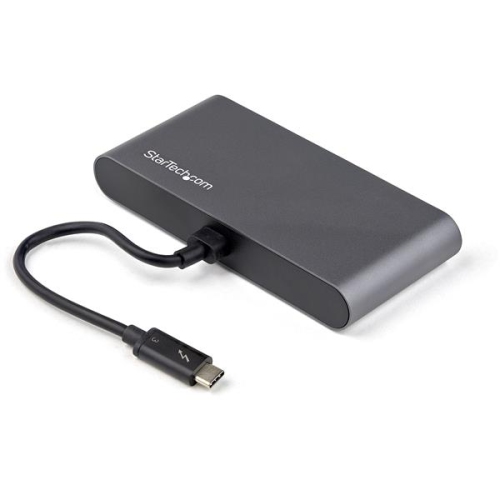
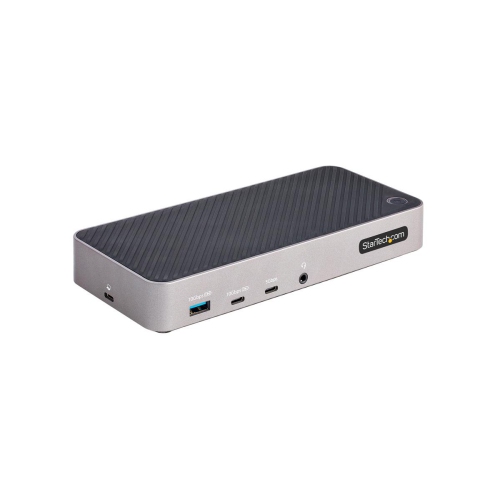
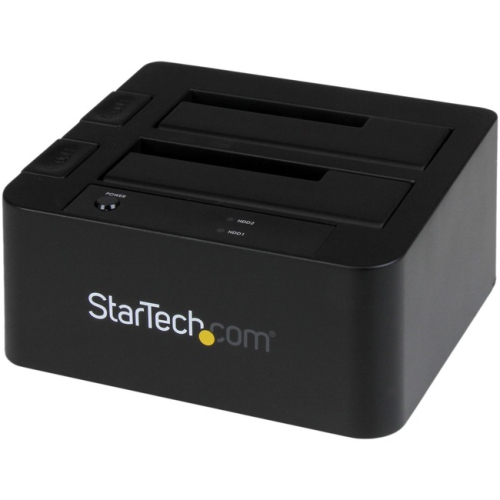
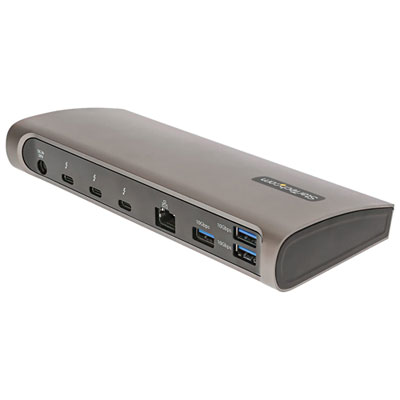
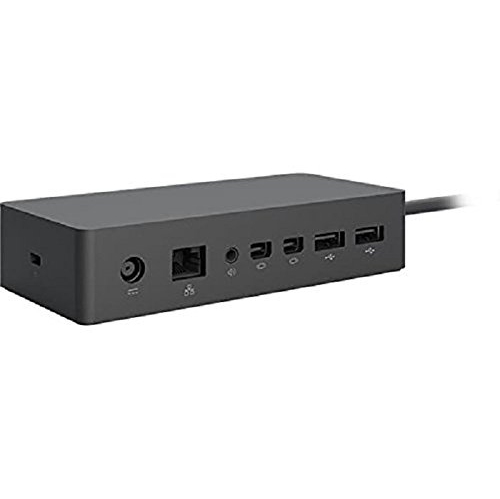
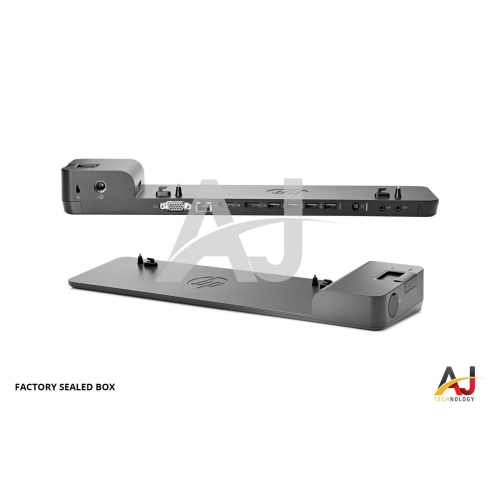
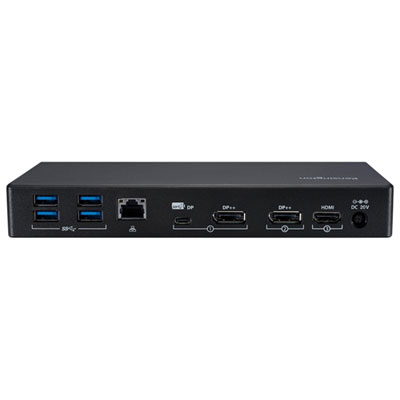
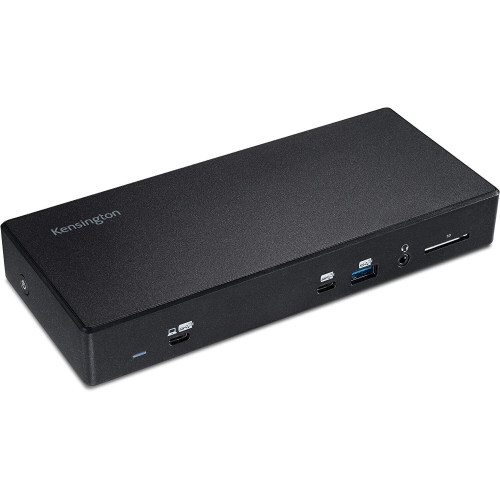
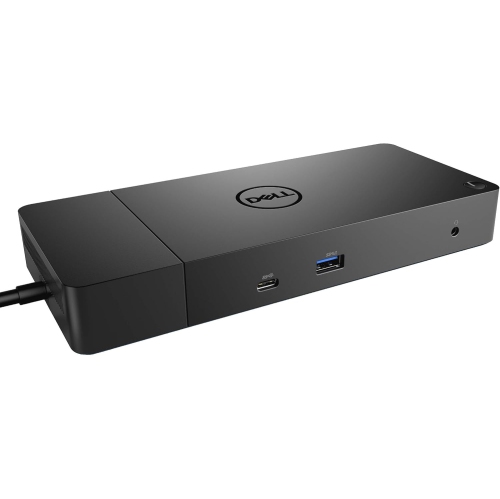
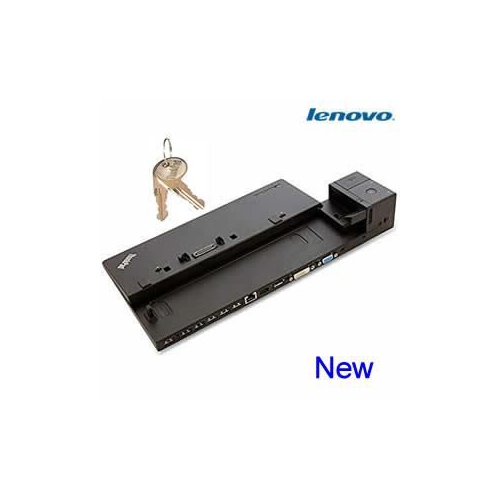
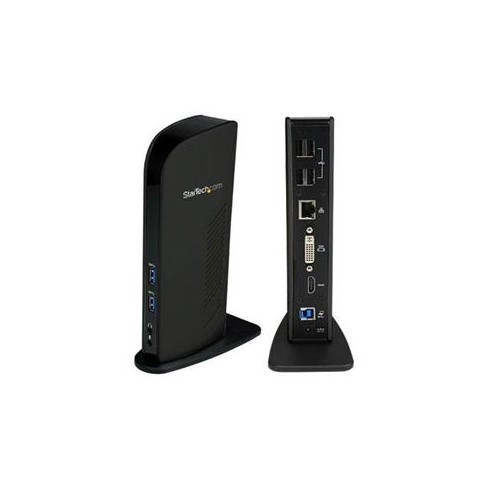
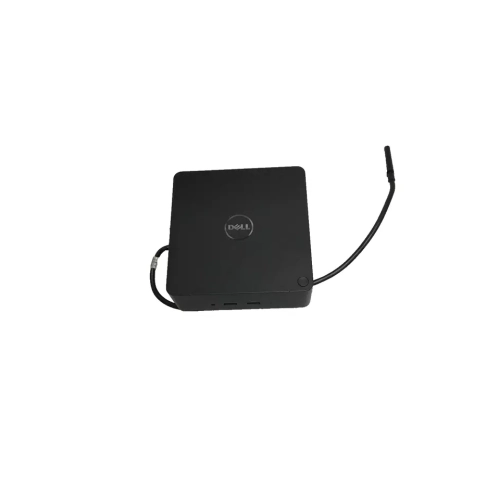
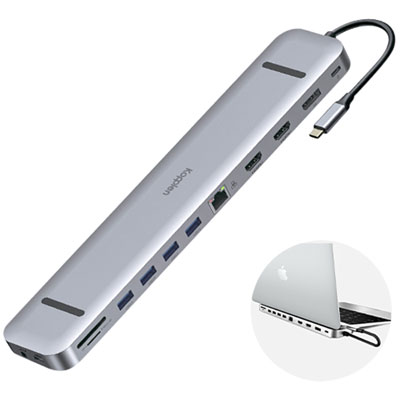
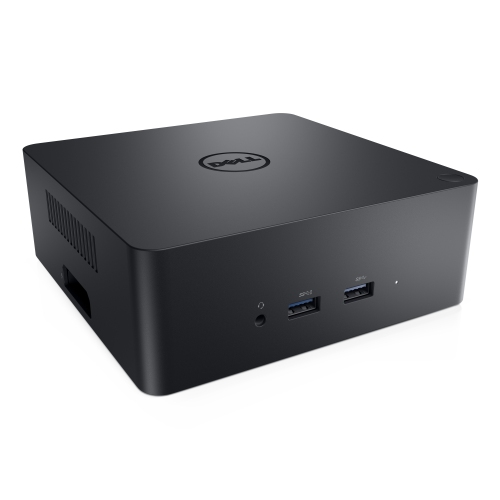
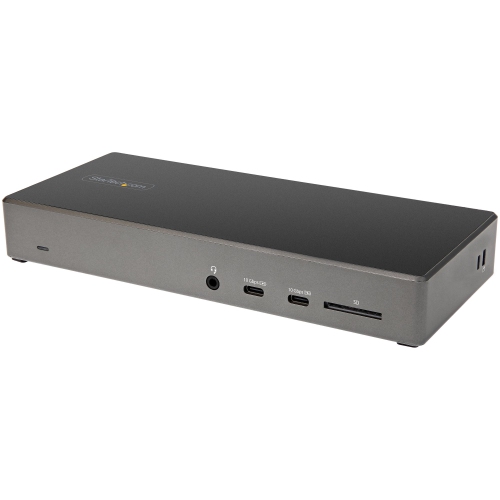
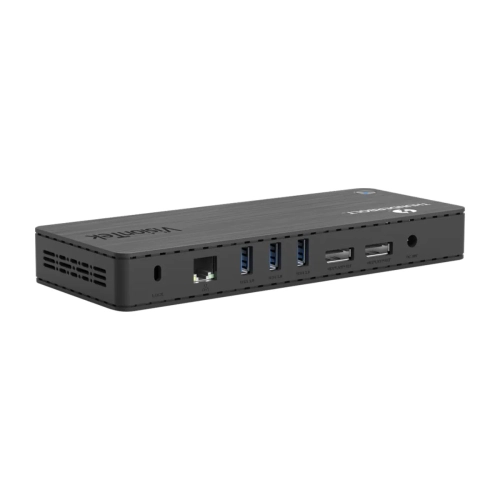
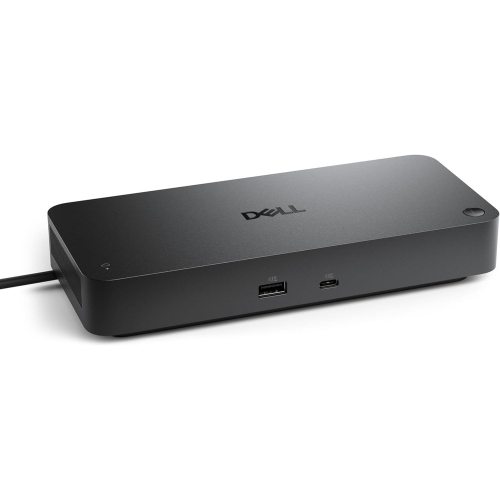
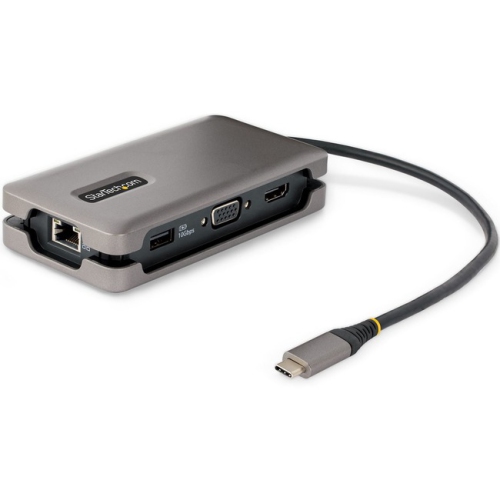
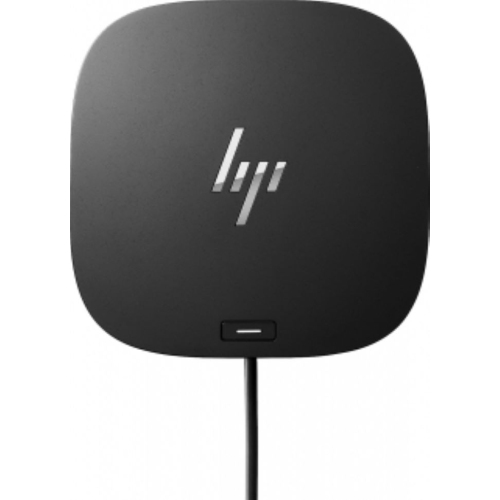
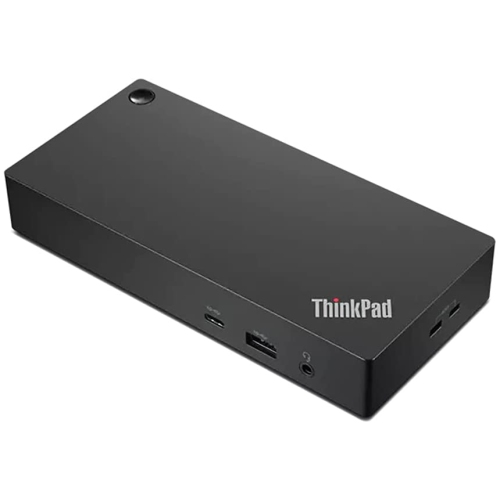
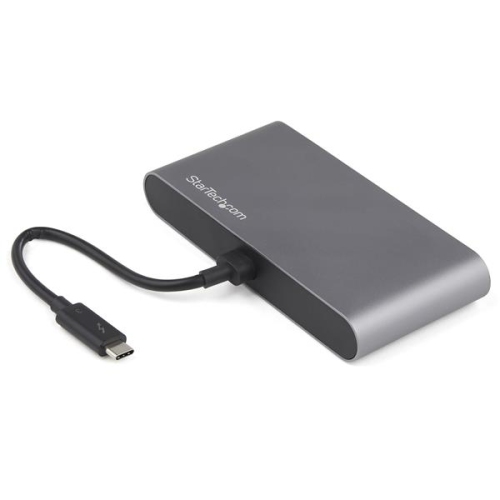
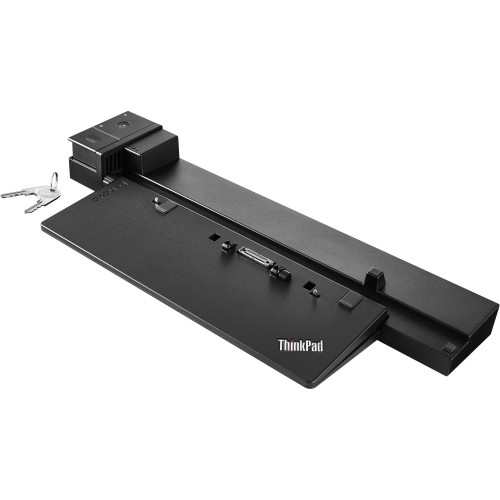
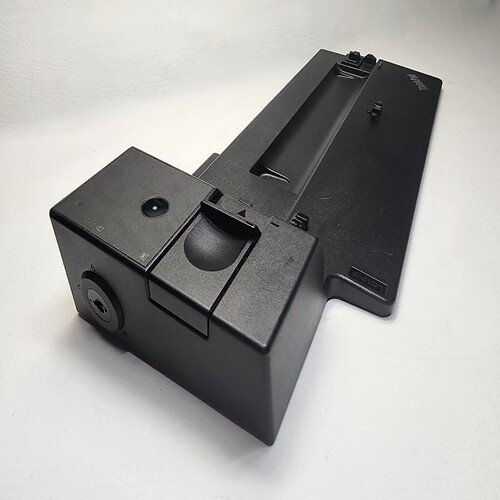
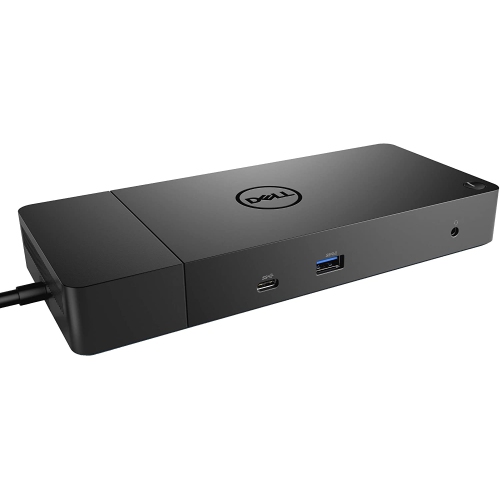
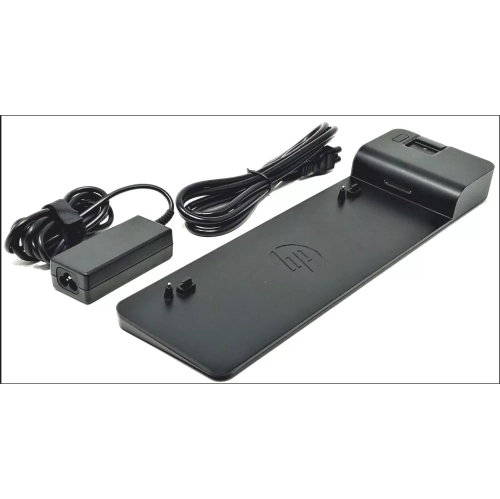
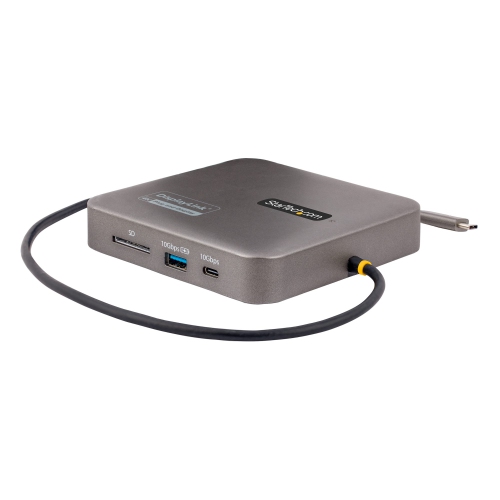
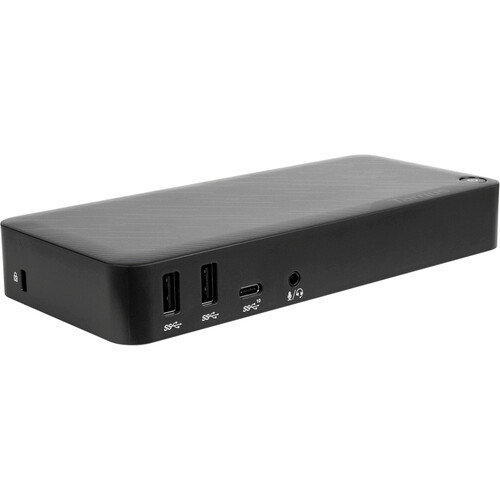
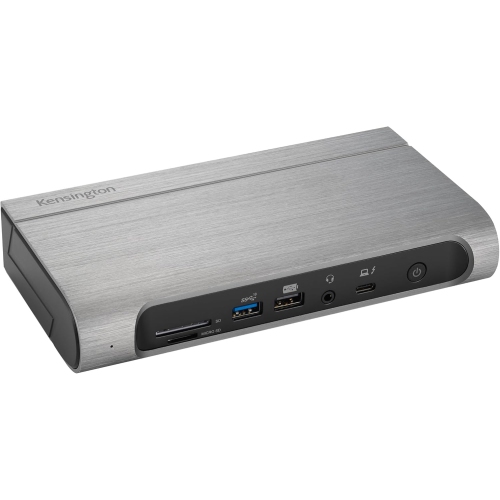
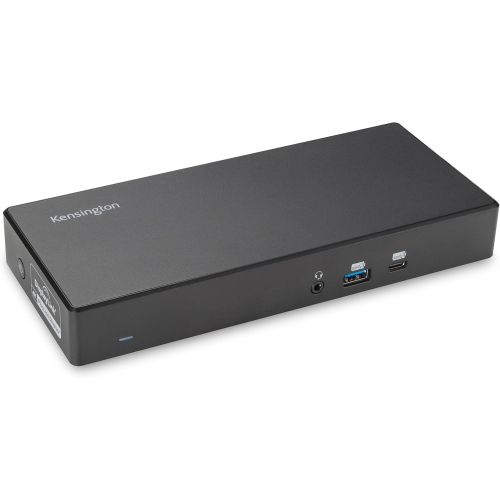
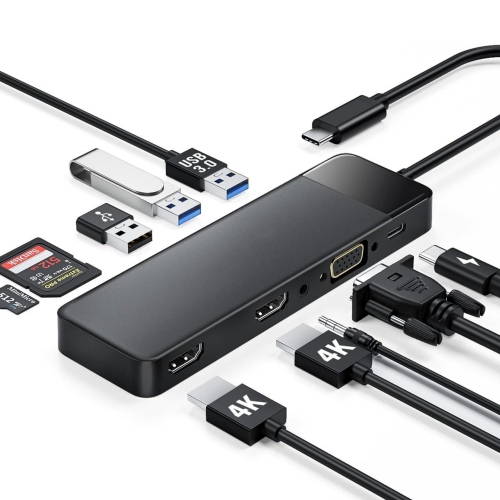
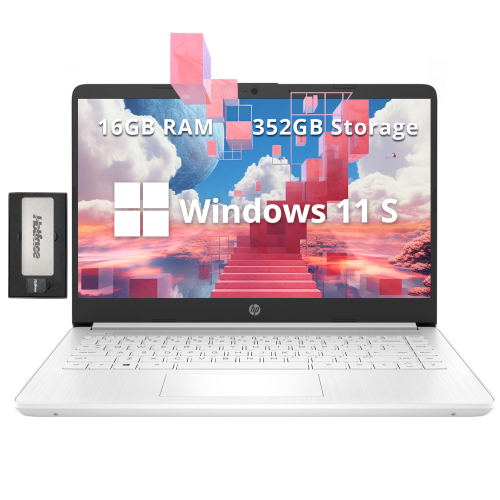
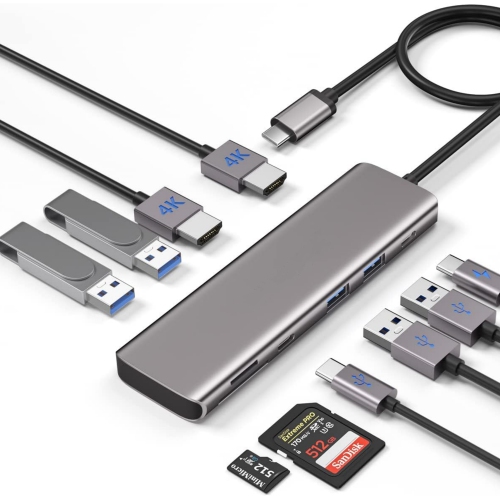
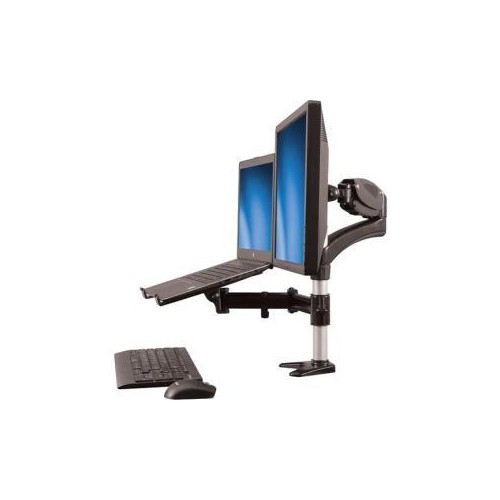
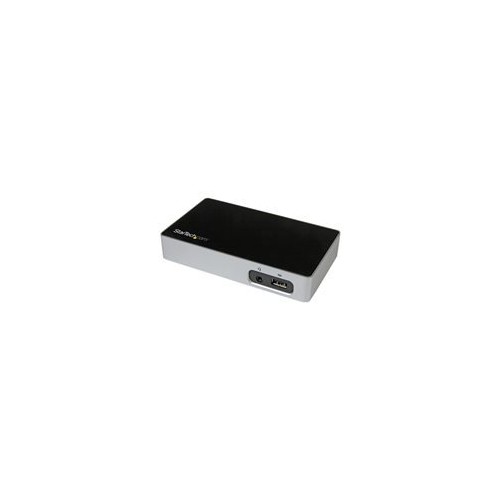
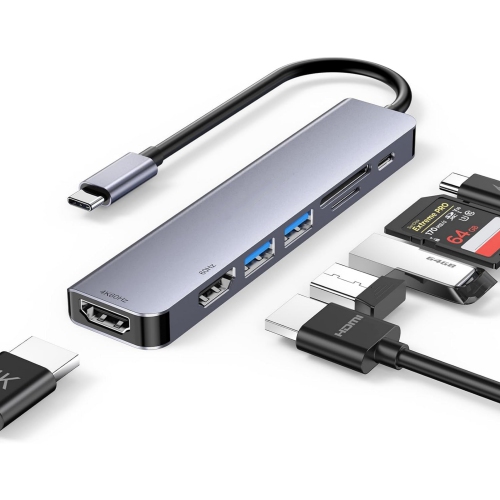

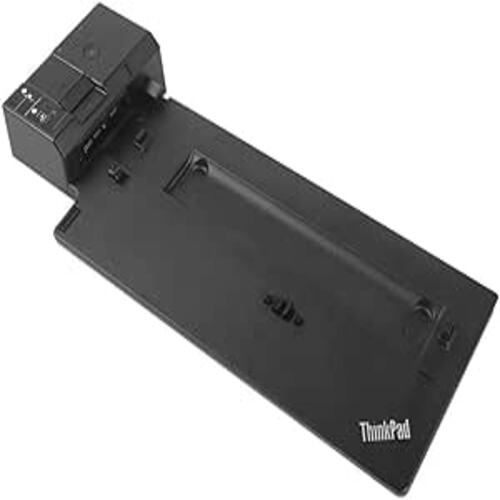
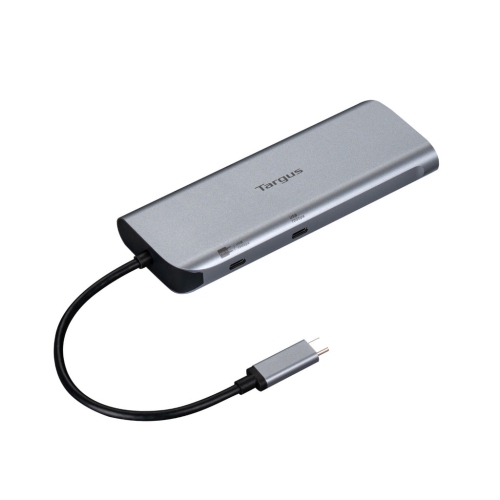
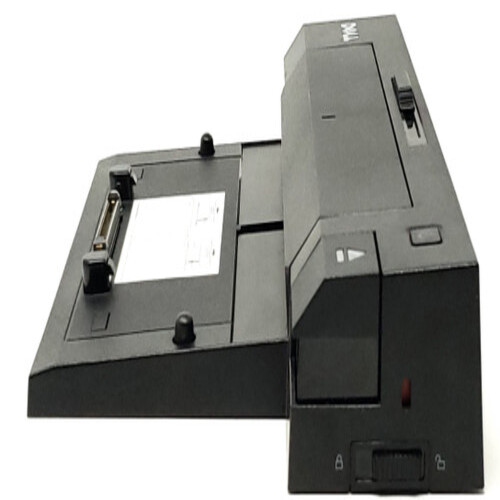
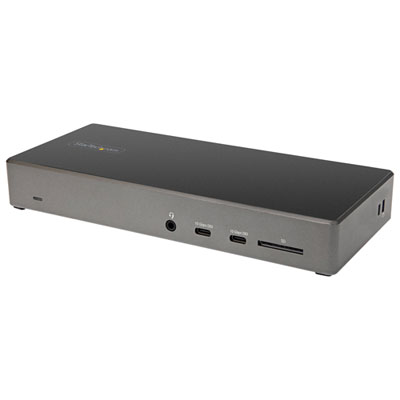
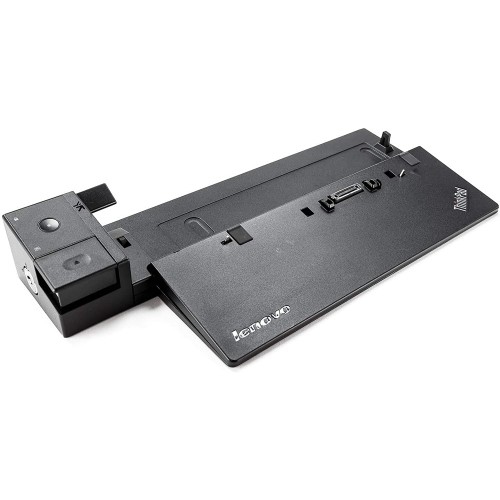
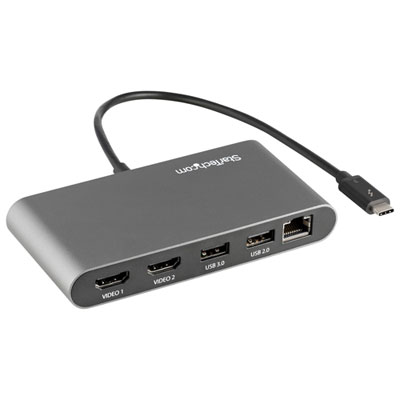

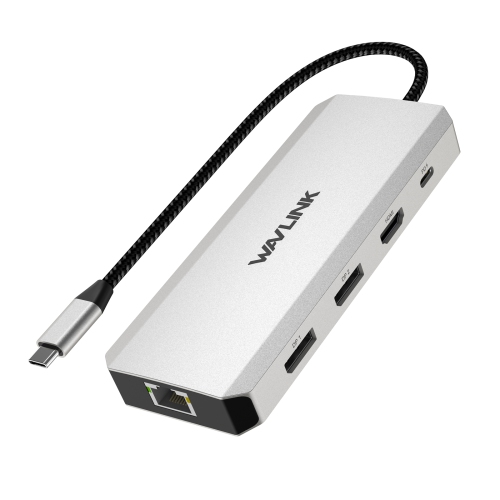

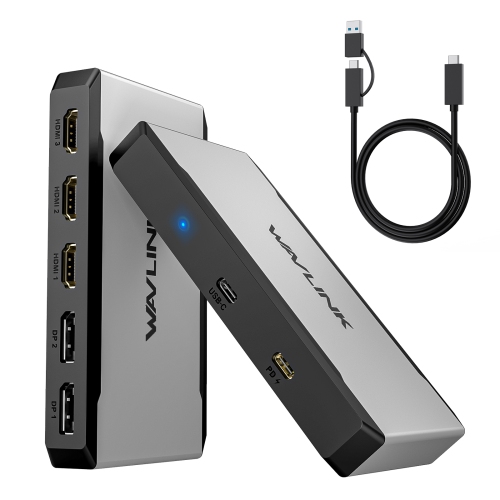
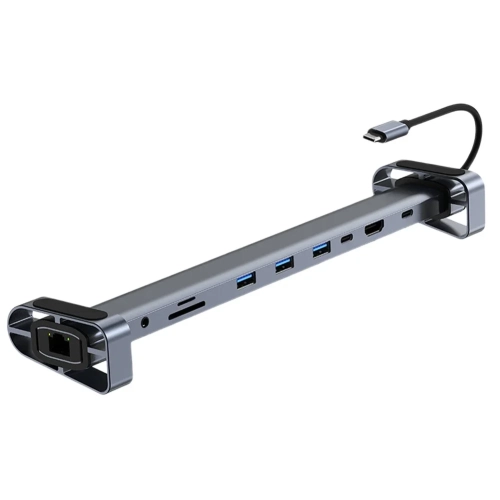
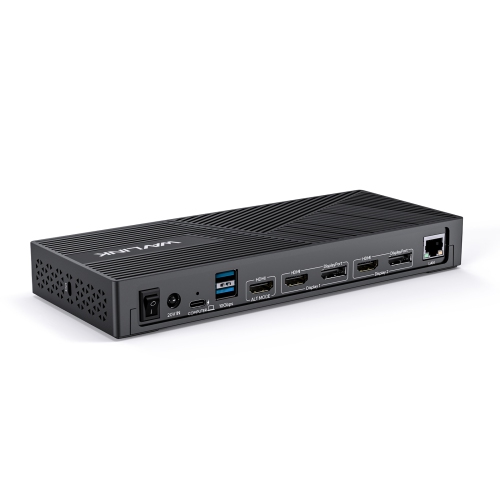
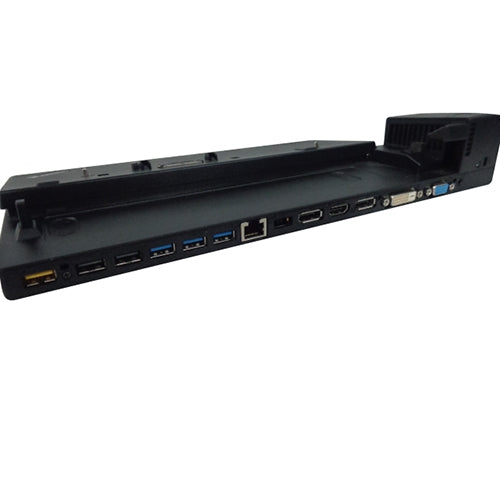
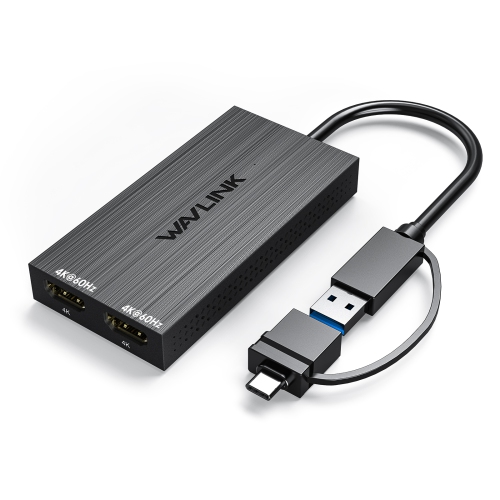
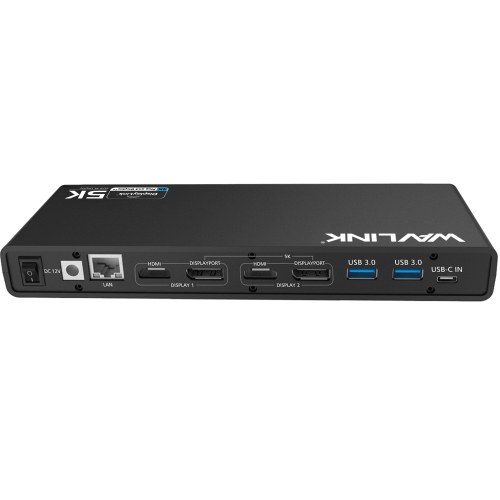
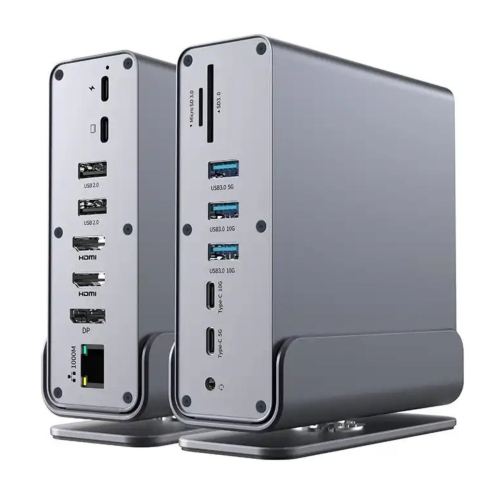
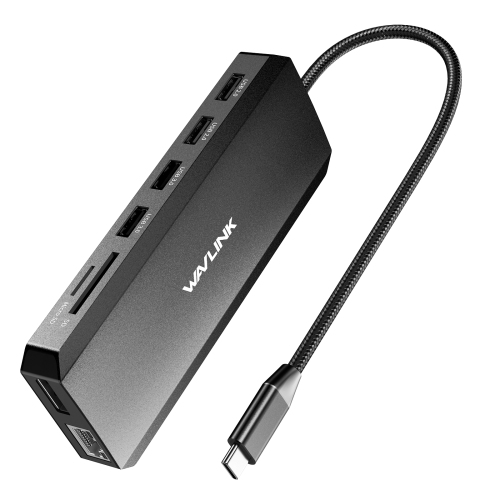

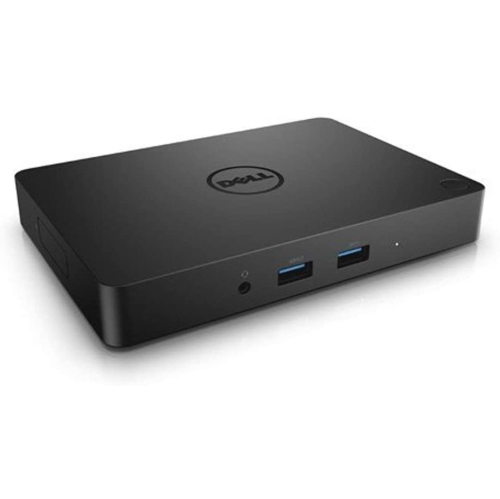
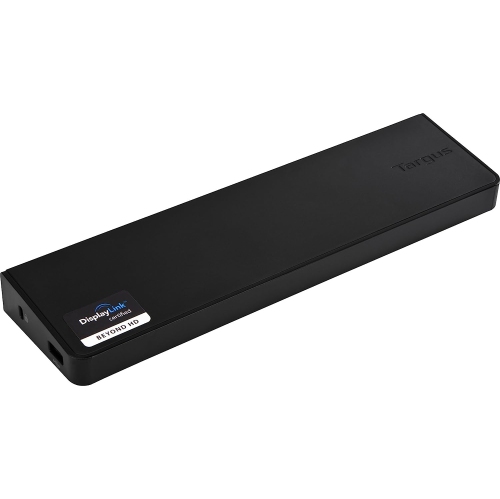
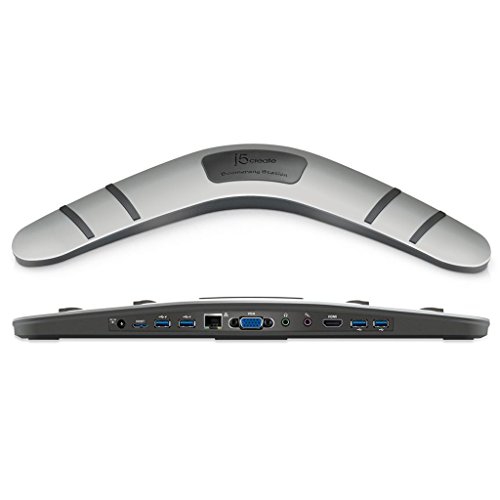

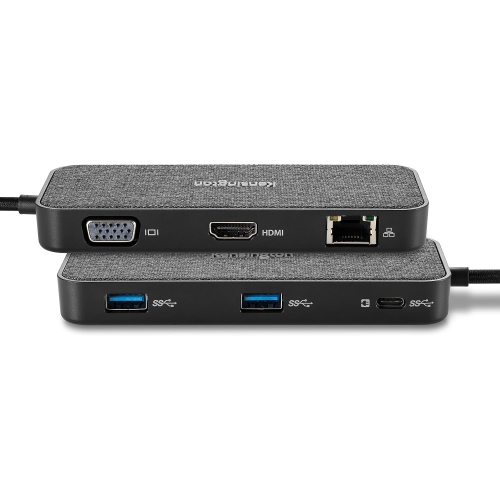
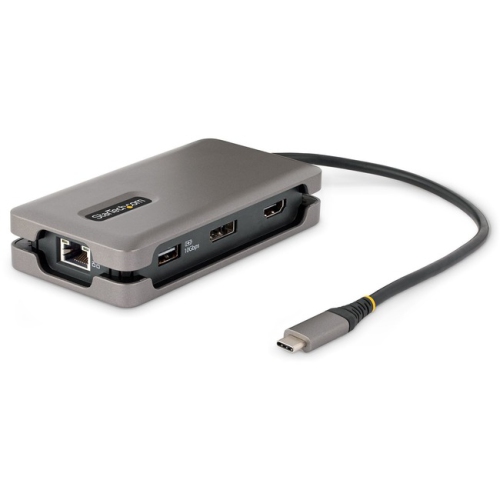
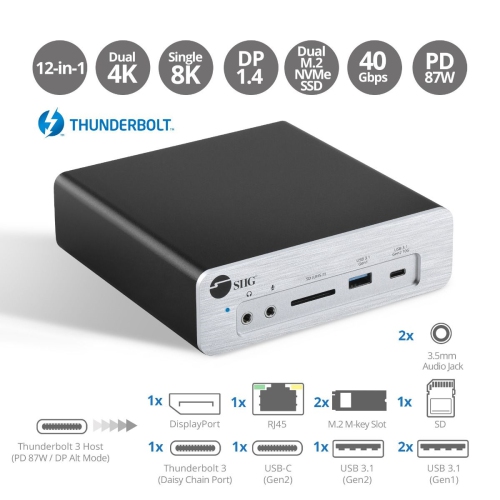
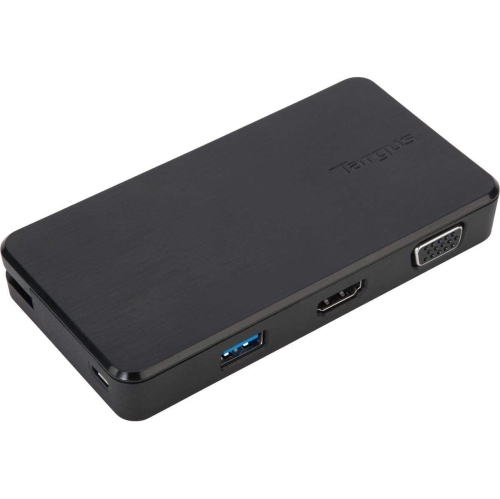
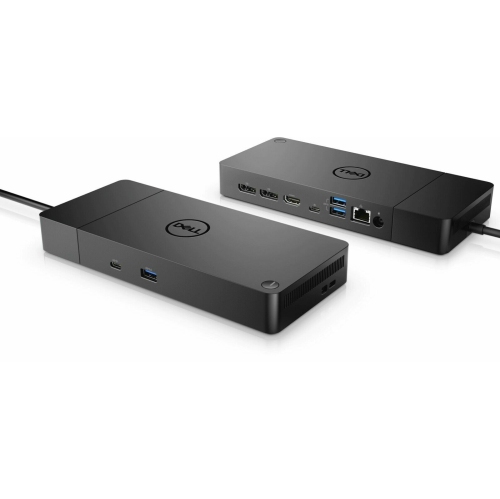
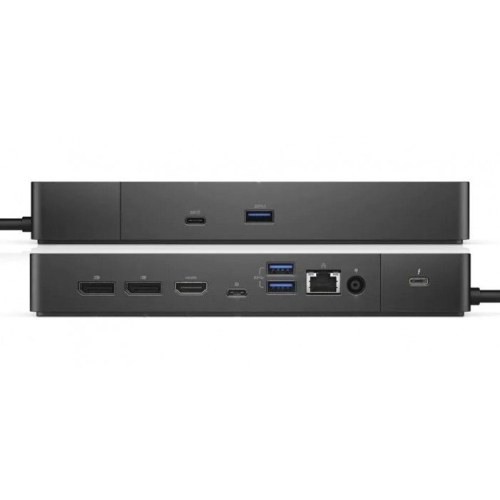
Simpler switching between two laptops and shared accessories
Two laptop docking stations are designed for people who move between two computers while keeping the rest of their workspace in place. Instead of disconnecting monitors, keyboards, mice, speakers, network cables, and other accessories every time you change laptops, a dual-laptop dock can bring those connections together and let you switch between systems using a button or a connected control. This setup is especially useful for a home office where a work laptop and a personal laptop share one desk, or for a flexible workspace where different users need access to the same display and accessories. A two laptop docking station can also suit students and professionals who alternate between a school computer and a personal computer, families with more than one laptop in a shared study area, and anyone who wants a cleaner desk with fewer cables running across the surface. The experience is simple in practice: one laptop can be used for a video meeting, spreadsheets, and email, while the other remains ready for personal projects, entertainment, or another account. With a compatible dock, pressing a switch can move the monitors and USB accessories from one computer to the other without requiring a full cable swap. Those looking for more general connection options can also explore Laptop Docks for docks designed for a single host device and a variety of everyday setups.
When choosing a two laptop docking station, start by checking the ports and display requirements on both computers. Many dual-laptop docks use USB-C connections, but USB-C does not guarantee the same capabilities on every laptop. Confirm that each computer supports video output through its USB-C port and check whether the dock requires a particular USB-C standard, Thunderbolt connection, driver, or power adapter. Next, consider how many monitors you want to use and the resolution and refresh rate you expect. A dock that supports dual 4K displays at 60Hz may be a strong fit for detailed office work, design tasks, research, and multitasking across large screens, while a simpler display configuration may be enough for documents, web browsing, and video calls. If smoother motion matters for gaming or creative work, look beyond maximum resolution and review the supported refresh rates as well. It is also important to understand how the dock handles extended and mirrored displays. Some Windows computers can extend the desktop across multiple monitors through a compatible connection, while some systems may mirror screens or require DisplayLink software for certain dual-display arrangements. Operating system compatibility should be checked before purchase, particularly when two computers use different platforms. Power delivery is another key consideration. Review how many watts the dock can send to each laptop, whether both computers can charge at the same time, and whether a separate power supply is needed. A high-performance laptop used for demanding applications may need more power than a lightweight computer used for email and browsing. When the dock provides power to only the active laptop, the second computer may charge slowly or remain connected without charging, so the specifications should match the way you plan to work.
Features that improve switching and everyday convenience can make a noticeable difference over time. KVM functionality allows one keyboard, one mouse, and one set of displays to be shared between two computers, helping reduce the clutter that builds up when every device has its own accessories. Some docks include EDID emulation, which helps maintain the monitor connection while switching so that open windows and desktop icons are less likely to shift or rearrange. This can be particularly helpful when moving from a work call to a personal task several times throughout the day. Look for the USB ports you actually use, such as USB-A for older accessories and USB-C for newer storage devices, phones, or peripherals. Ethernet can provide a wired network connection when dependable performance matters, while audio connections can simplify the use of headphones, microphones, or speakers. Memory card readers may be useful for photography and content projects, and additional video outputs can make it easier to build a multi-monitor arrangement. Physical size also matters: a compact dock can fit neatly beside a laptop stand, while a larger model may offer more ports and easier access from the front or rear. Cable length, placement of the switching button, heat management, and the inclusion of the required power adapter are small details that can affect how comfortable the setup feels. Two laptop docking stations can be a thoughtful gift for someone starting a hybrid job, setting up a new study area, or replacing a crowded desk with a more practical workstation. They are also useful for a household preparing for the cooler months, when more work, study, and entertainment may happen indoors. Before adding one to a workspace, compare the dock’s video outputs, power delivery, operating system support, charging behaviour, and switching method with the exact laptops and monitors you already own.
When choosing a two laptop docking station, start by checking the ports and display requirements on both computers. Many dual-laptop docks use USB-C connections, but USB-C does not guarantee the same capabilities on every laptop. Confirm that each computer supports video output through its USB-C port and check whether the dock requires a particular USB-C standard, Thunderbolt connection, driver, or power adapter. Next, consider how many monitors you want to use and the resolution and refresh rate you expect. A dock that supports dual 4K displays at 60Hz may be a strong fit for detailed office work, design tasks, research, and multitasking across large screens, while a simpler display configuration may be enough for documents, web browsing, and video calls. If smoother motion matters for gaming or creative work, look beyond maximum resolution and review the supported refresh rates as well. It is also important to understand how the dock handles extended and mirrored displays. Some Windows computers can extend the desktop across multiple monitors through a compatible connection, while some systems may mirror screens or require DisplayLink software for certain dual-display arrangements. Operating system compatibility should be checked before purchase, particularly when two computers use different platforms. Power delivery is another key consideration. Review how many watts the dock can send to each laptop, whether both computers can charge at the same time, and whether a separate power supply is needed. A high-performance laptop used for demanding applications may need more power than a lightweight computer used for email and browsing. When the dock provides power to only the active laptop, the second computer may charge slowly or remain connected without charging, so the specifications should match the way you plan to work.
Features that improve switching and everyday convenience can make a noticeable difference over time. KVM functionality allows one keyboard, one mouse, and one set of displays to be shared between two computers, helping reduce the clutter that builds up when every device has its own accessories. Some docks include EDID emulation, which helps maintain the monitor connection while switching so that open windows and desktop icons are less likely to shift or rearrange. This can be particularly helpful when moving from a work call to a personal task several times throughout the day. Look for the USB ports you actually use, such as USB-A for older accessories and USB-C for newer storage devices, phones, or peripherals. Ethernet can provide a wired network connection when dependable performance matters, while audio connections can simplify the use of headphones, microphones, or speakers. Memory card readers may be useful for photography and content projects, and additional video outputs can make it easier to build a multi-monitor arrangement. Physical size also matters: a compact dock can fit neatly beside a laptop stand, while a larger model may offer more ports and easier access from the front or rear. Cable length, placement of the switching button, heat management, and the inclusion of the required power adapter are small details that can affect how comfortable the setup feels. Two laptop docking stations can be a thoughtful gift for someone starting a hybrid job, setting up a new study area, or replacing a crowded desk with a more practical workstation. They are also useful for a household preparing for the cooler months, when more work, study, and entertainment may happen indoors. Before adding one to a workspace, compare the dock’s video outputs, power delivery, operating system support, charging behaviour, and switching method with the exact laptops and monitors you already own.
Top selling and popular products
-
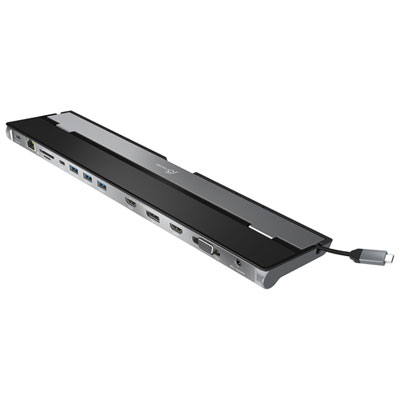 Your price for this item is $149.99
 -
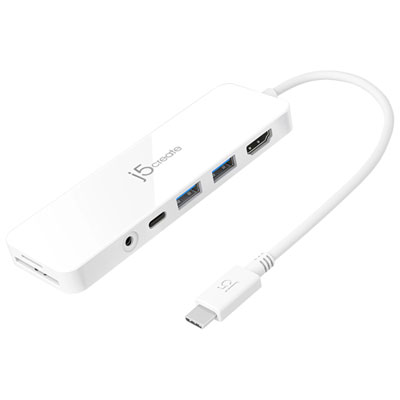 Your price for this item is $69.99
 -
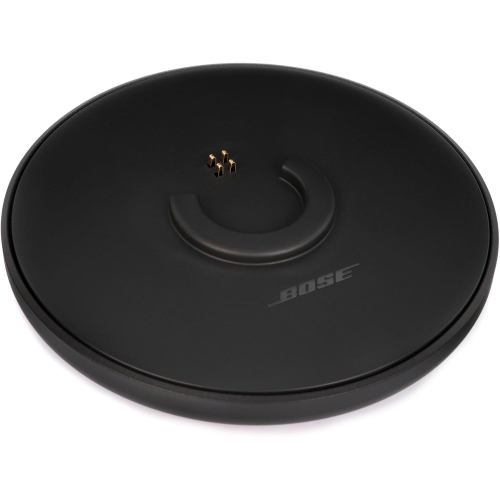 Your price for this item is $35
 -
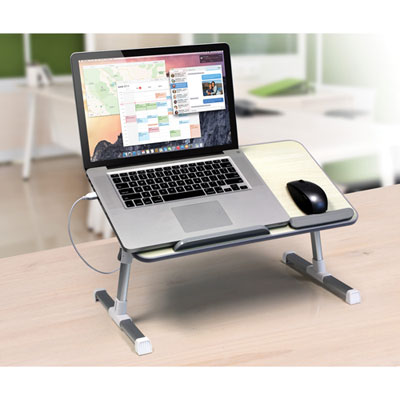 Your price for this item is $59.99
 -
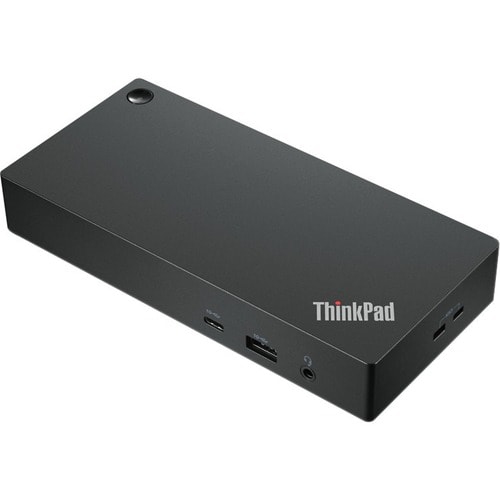 Your price for this item is $179.99
 -
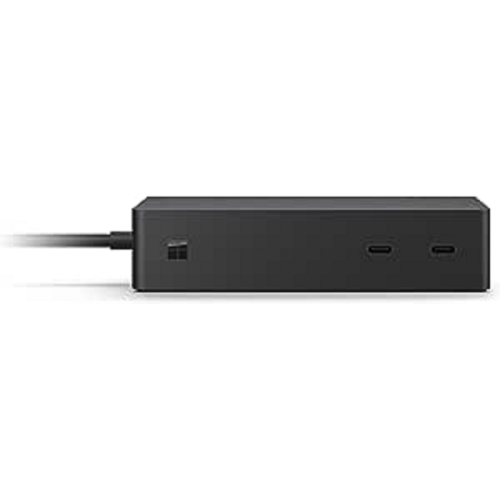 Your price for this item is $209.99
 -
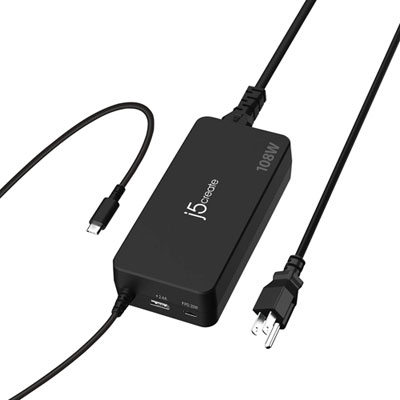 Your price for this item is $89.99
 -
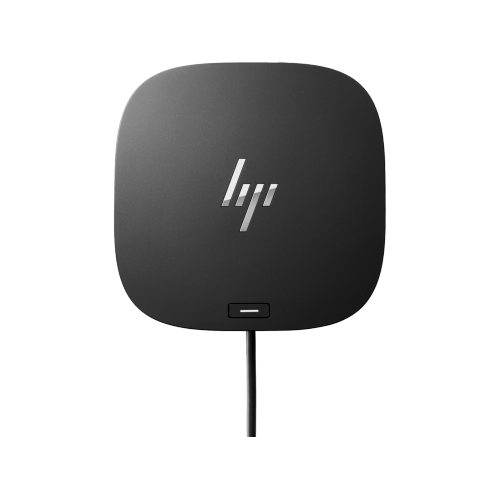 Your price for this item is $154.99
Discover more categories related to Two Laptop Docking Stations

Top Collections:
Pokemon Centers, Kindle Devices, Best Budget Office Chairs, Apple iPhones 16, Best Laptops for Writers, iPhone 15 Apple, Canon G7X Cameras, Refurbished Apple Laptops, Alarm Clock, Motorola Razr Phones
Some products may be subject to Environmental Handling Fees
(EHF) depending on your province.
Learn more about EHFs.