Work From Home Tools for Productivity
Work from home tools for productivity are essential for creating an efficient and comfortable workspace. Whether you're setting up a dedicated home office or optimizing your current setup, the right equipment can make a significant difference in your daily routine. Explore a wide range of solutions designed to help you stay focused, organized, and connected while working remotely. Discover options that cater to various needs and preferences, making it easier to achieve your professional goals from the comfort of home.
Sort





Why your daily tasks should shape your setup
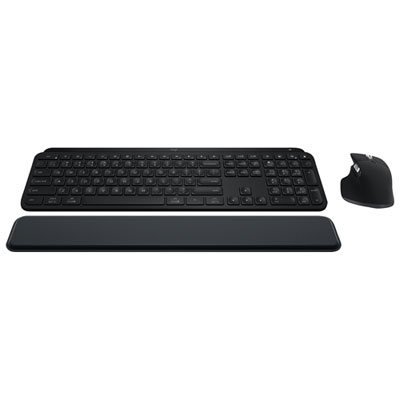
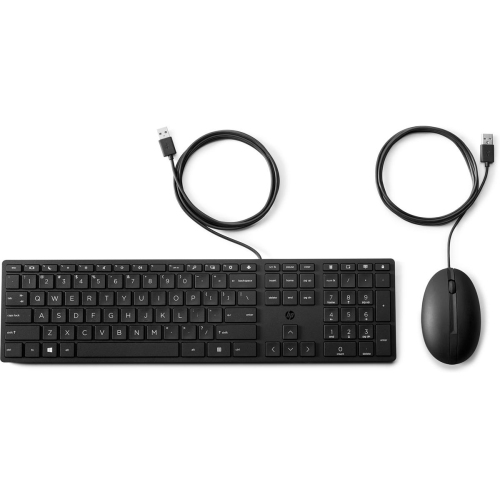
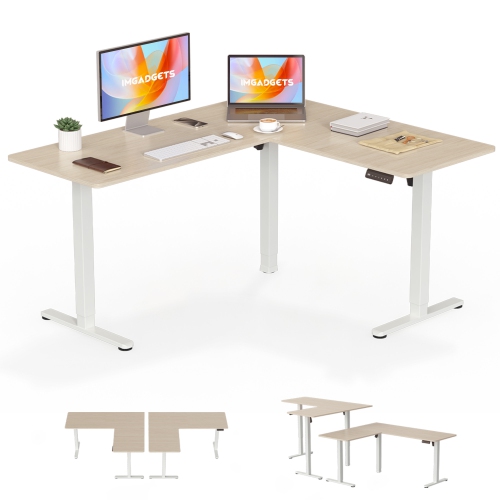
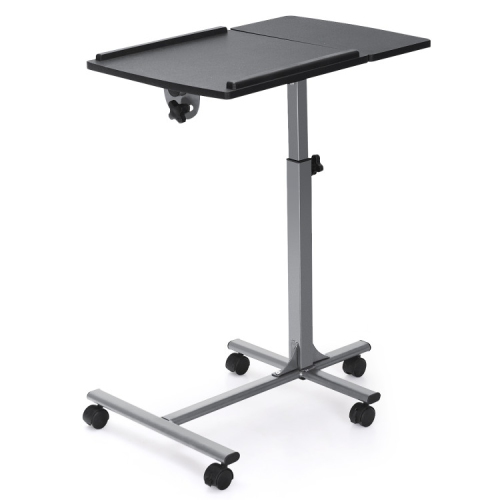
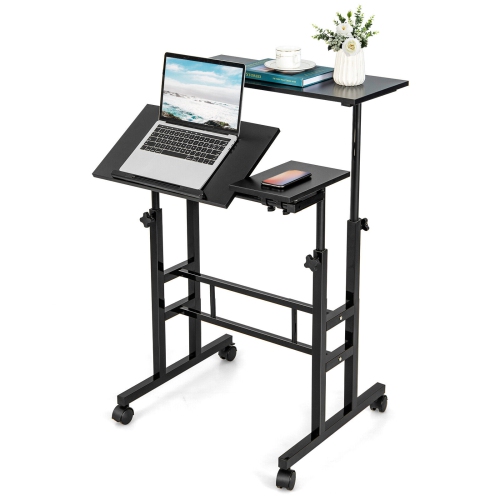
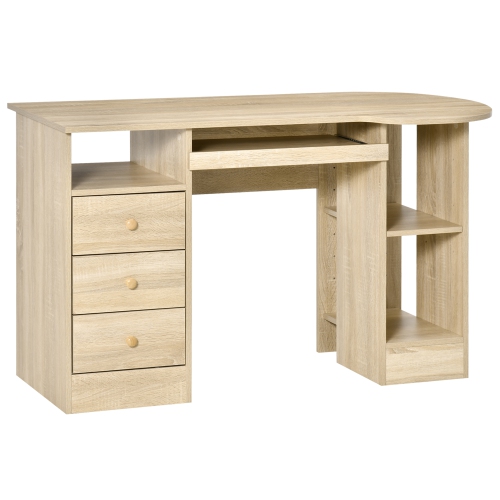
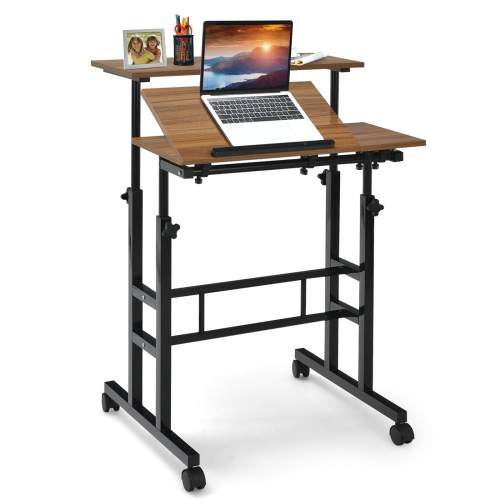
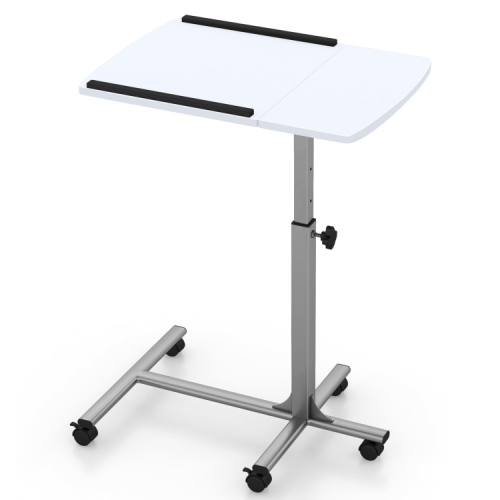
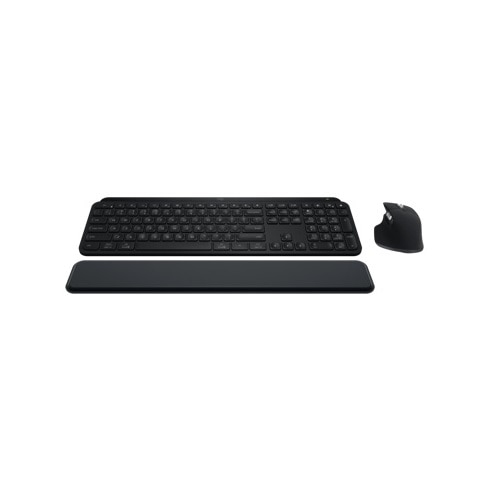
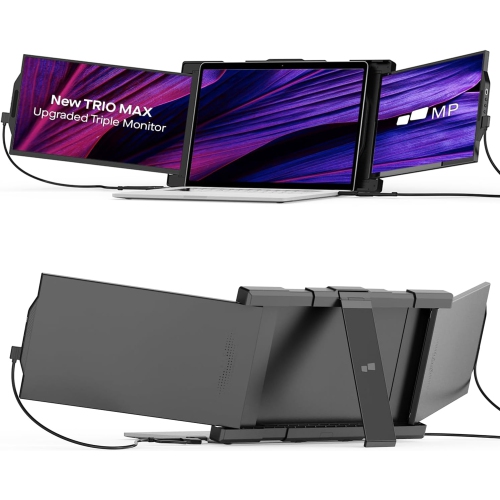
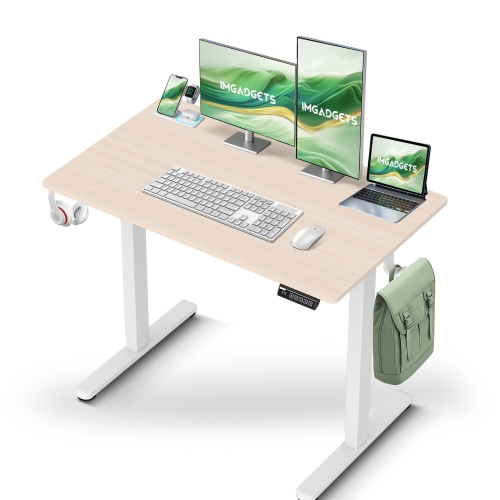
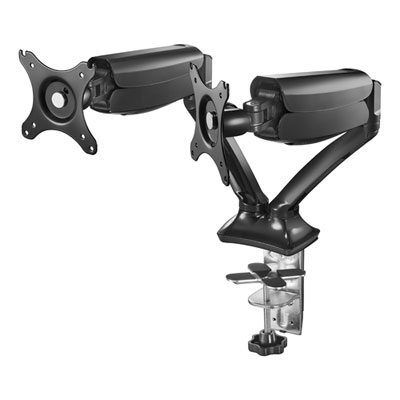
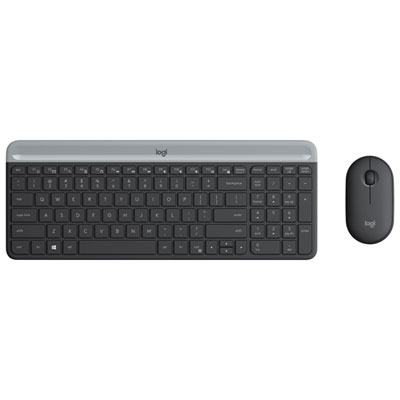
Work from home tools for productivity include computing equipment, workspace furniture, communication accessories, and software that help people organize tasks, collaborate, and concentrate. The most useful combinations reflect the work taking place: a freelancer moving between client projects has different needs from someone handling customer calls or comparing large spreadsheets. For everyday document work, a responsive computer with enough memory for several open applications can make switching between email, research, and meetings feel more fluid. Design, editing, and data-heavy tasks may call for greater processing power, more storage, or a display suited to detailed visual work. Screen size and resolution affect how much information stays visible at once, while adjustable positioning helps fit the display to the person and the work surface. A second screen can keep reference material beside a working document, reducing repeated window switching. In a compact room, a monitor arm or laptop stand can free up desktop space, provided its mounting requirements and weight limits match the furniture and equipment. Keyboards and mice also deserve attention because their size, shape, key feel, and button placement influence comfort across repeated daily use. A compact keyboard leaves more room for mouse movement, while a full-size layout may suit frequent number entry. Furniture ties these tools together. A desk needs sufficient depth for a comfortable viewing distance, clearance for the legs, and space for the equipment used most often. An adjustable chair allows seat height, back support, and arm positioning to better match the user. Breathable mesh, upholstered fabric, and cushioned finishes each have a different feel and different care requirements. Metal frames and sturdy wood or composite surfaces can support frequent use, although stability depends on construction, assembly, and load limits as much as material. In a shared living area, furniture proportions and cable routing matter just as much as appearance: a clear work surface is easier to use when it does not also serve as a landing place for every charger and loose document.
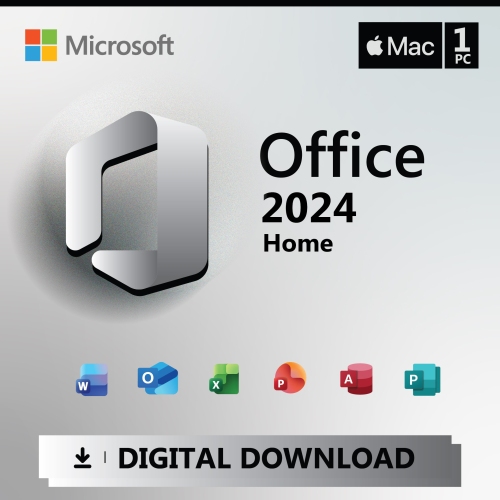
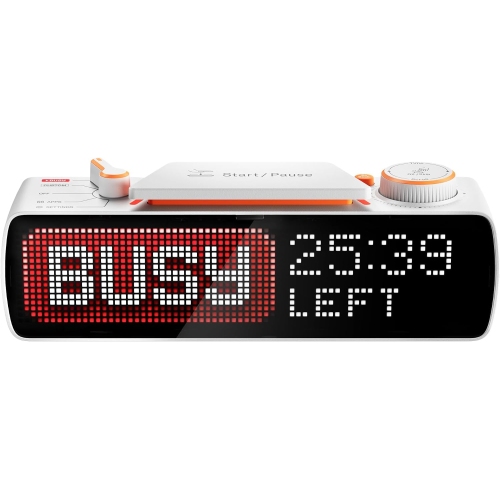
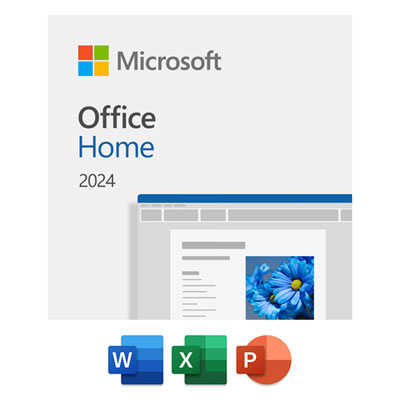
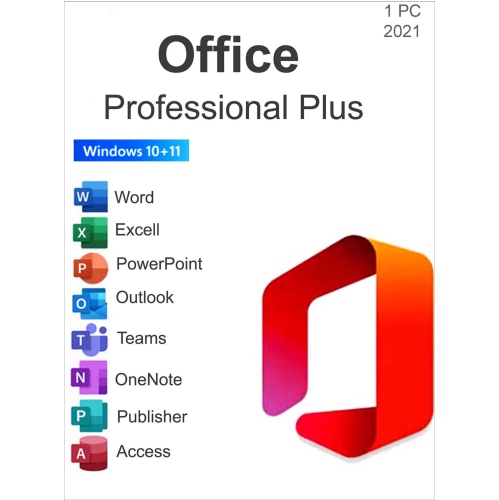
Digital productivity tools provide the structure behind that physical setup. Task management software keeps assignments, deadlines, and next steps visible, with simple lists suited to personal reminders and visual boards suited to work that moves through several stages. For a consultant managing multiple clients, separating projects while maintaining a single view of upcoming deadlines can reduce the chance of an overlooked handoff. Shared workspaces bring project notes, reference files, and decisions together so that colleagues do not have to search through scattered messages to find the latest information. Document, spreadsheet, and presentation applications with shared editing let several people contribute to the same file, while version history helps clarify what changed. Cloud storage makes files accessible across approved devices, but account permissions, storage limits, and workplace requirements still shape how it is used. Team messaging supports quick questions and ongoing discussions; threaded conversations and clearly named channels help keep those exchanges connected to the relevant project. Video meeting software adds screen sharing and face-to-face discussion when a written explanation is not enough. Calendar and scheduling tools make another part of the workflow visible by showing commitments, meeting times, and protected periods for concentrated work. Time zone settings are particularly useful for teams working across Canada or with colleagues abroad. Focus timers and notification controls can support uninterrupted work intervals, while digital notes provide a place to capture ideas without leaving them scattered across scraps of paper. Meeting transcription and summary features may help with follow-up, subject to participant consent, workplace policies, and a review for accuracy. Password management tools and multifactor authentication support safer access to work accounts without relying on repeated passwords. Compatibility matters throughout this digital stack: software needs to work with the operating system, employer-approved services, and collaboration habits already in place. A smaller group of well-connected tools can be easier to maintain than several overlapping applications, especially when tasks, files, and conversations have clear places to live.
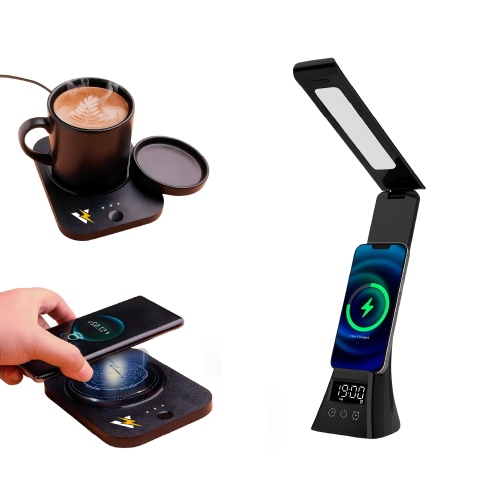
Communication and concentration also depend on the practical details surrounding the screen. A headset with a well-positioned microphone can make speech easier to follow during calls, while cushioned ear pads, manageable weight, and adjustable fit matter for longer conversations. Noise-cancelling listening features and microphone noise reduction serve different purposes: one can reduce distractions for the wearer, while the other is designed to limit unwanted sound reaching the call. A webcam positioned near eye level supports a natural conversation angle, and a desk lamp with adjustable brightness can illuminate paperwork without leaving the screen covered in glare. Reliable connectivity keeps these tools working together. Wi-Fi coverage depends on distance, layout, interference, and the network equipment in use; a wired connection may suit a fixed workstation when consistent performance is important. Docking stations and hubs can simplify the connection between a computer, display, storage, and accessories, although port shape alone does not confirm support for charging, video, or a particular data speed. Matching those capabilities helps prevent an otherwise tidy setup from becoming a tangle of adapters. Power bars, cable organizers, and accessible charging points keep everyday connections within reach without letting cords obstruct chair movement. Equipment care supports dependable use over time: clear ventilation openings, manufacturer-approved cleaning methods, and careful handling of connectors all matter. Removable covers, replaceable ear cushions, and serviceable components can make frequently handled accessories easier to maintain. For someone starting a remote role, an accessory chosen around their existing equipment and available space can be a thoughtful gift; fit preferences and workplace compatibility are worth knowing first. Browsing Productivity Essentials for Working From Home can help bring these connected needs into view. Whether the workspace occupies a dedicated room or one end of a shared desk, the goal is the same: equipment that fits the user, software that keeps work organized, and a layout that makes everyday tasks easier to carry through from the first message to the final file.
Top selling and popular products
-
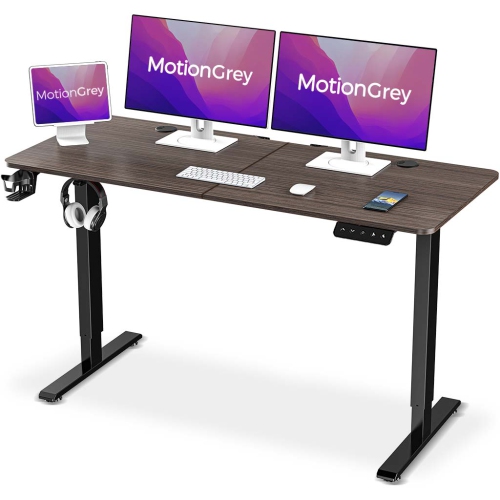 Your price for this item is $133.96
-
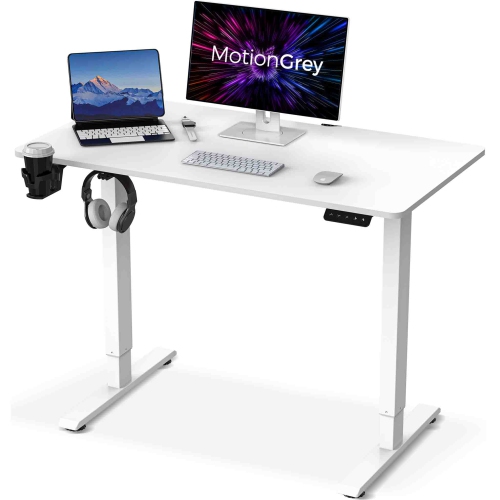 Your price for this item is $122.92
-
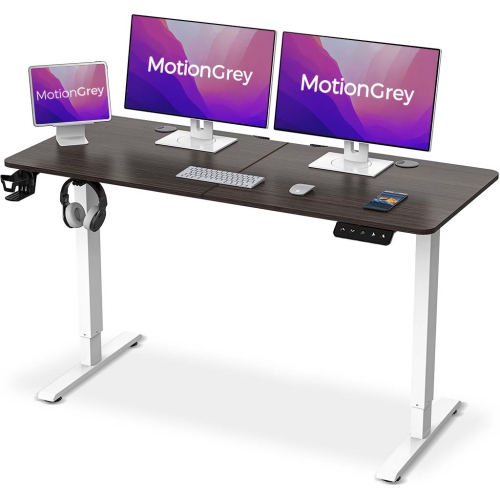 Your price for this item is $132.99
-
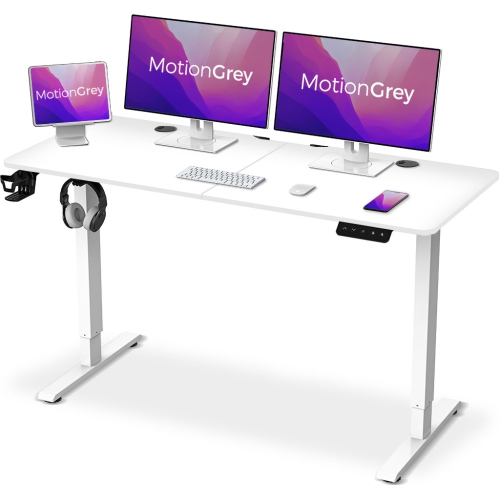 Your price for this item is $149.99
-
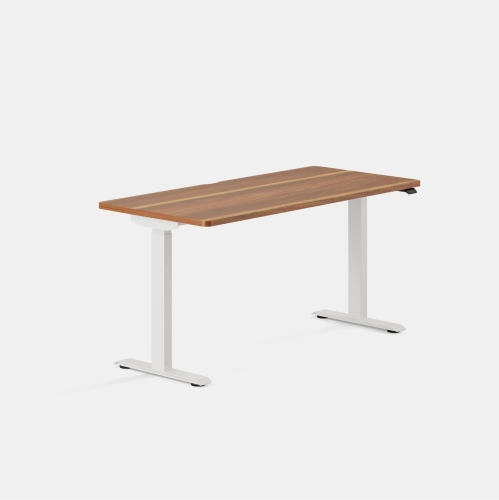 Your price for this item is $679.2
-
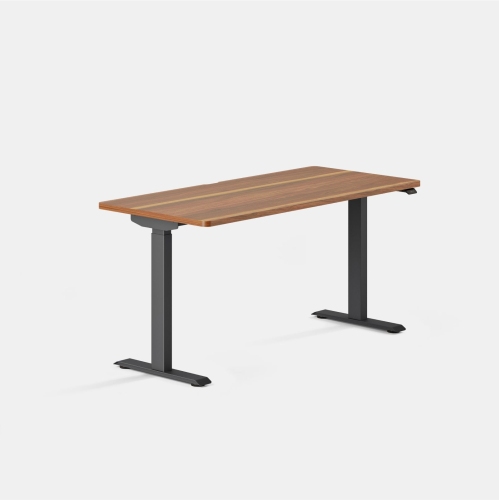 Your price for this item is $679.2
-
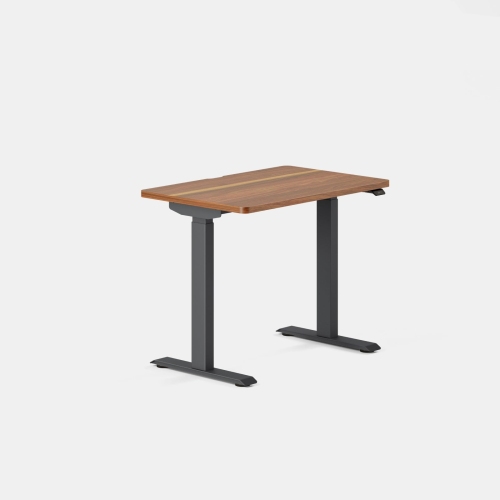 Your price for this item is $519.2
-
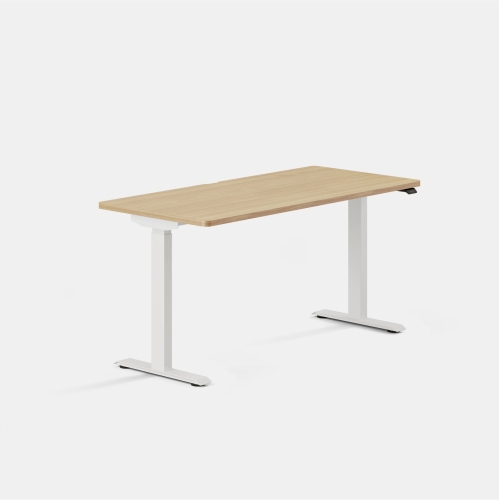 Your price for this item is $679.2
Discover more categories related to Work From Home Tools for Productivity
Top Collections:
Best Black Friday Deals This Year, Best Black Friday Deals On Electronics, Kindle Devices, Dyson Airwrap, Best Cameras for Sports Photography, Best Budget Office Chairs, Canon G7X Cameras, PS5 Pro Consoles, Best Black Friday Deals On Apple Products, XBOX One S Consoles
Some products may be subject to Environmental Handling Fees
(EHF) depending on your province.
Learn more about EHFs.