USB Computer Cameras
Looking to enhance your video conferencing or live streaming setup? USB computer cameras are the perfect solution for crystal-clear image quality and seamless connectivity. Whether you're working from home, attending virtual meetings, or simply catching up with friends and family online, a USB computer camera is an essential accessory for your desktop or laptop. With easy plug-and-play functionality, adjustable features, and high-definition resolution, these cameras offer convenience and performance in one compact package. Explore our wide selection of USB computer cameras to find the perfect match for your needs.
Sort






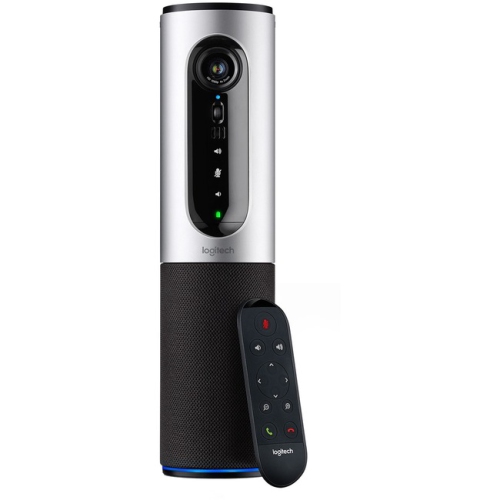
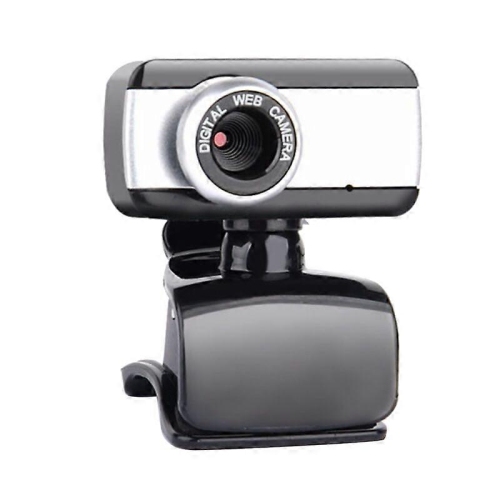
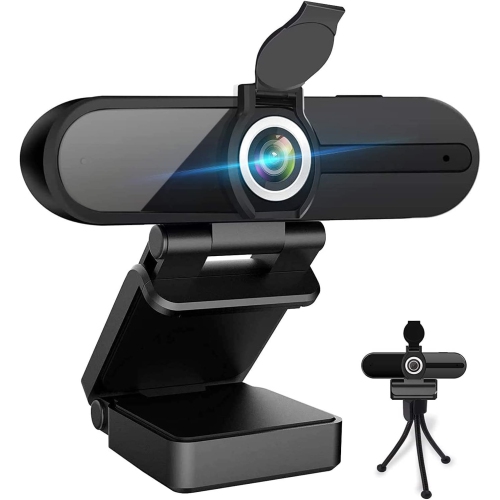
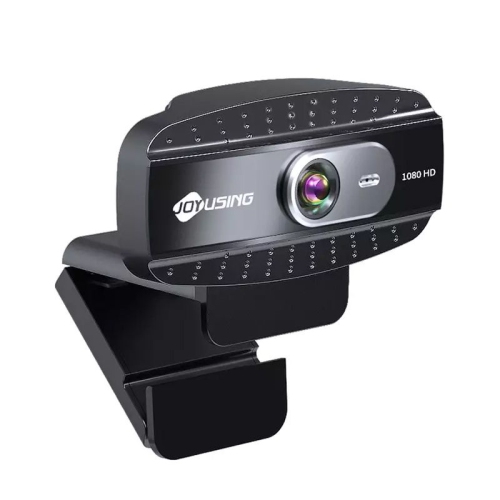


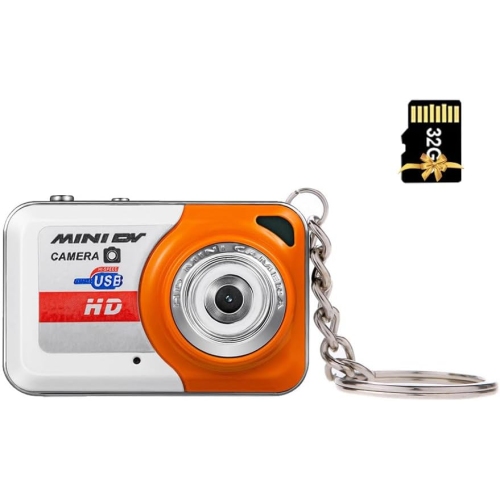
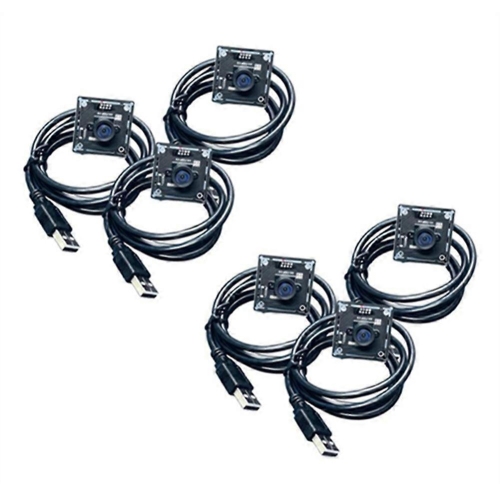
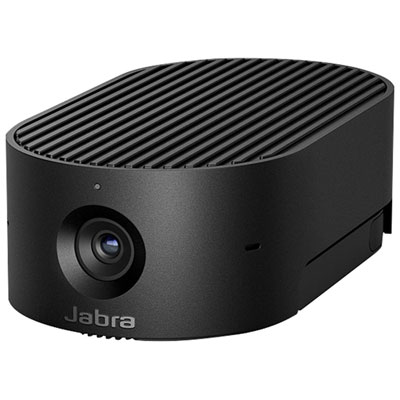
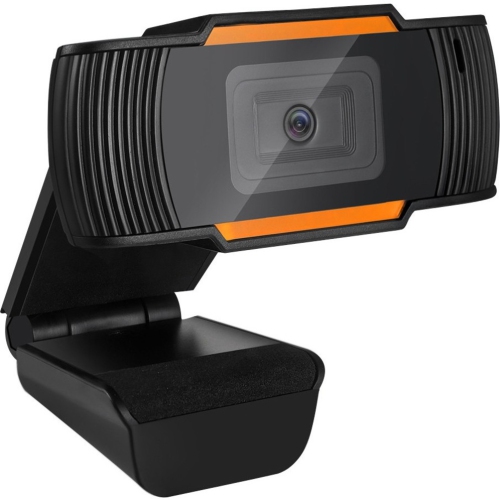
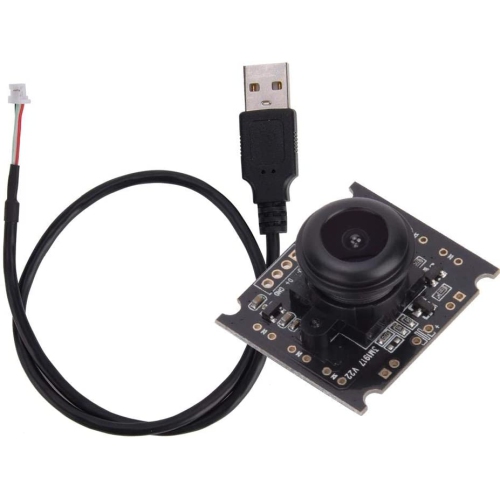
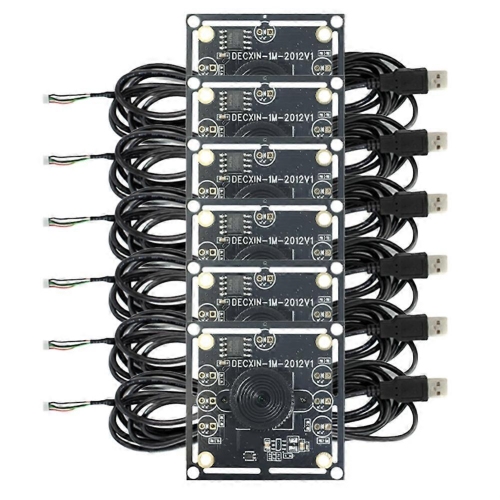
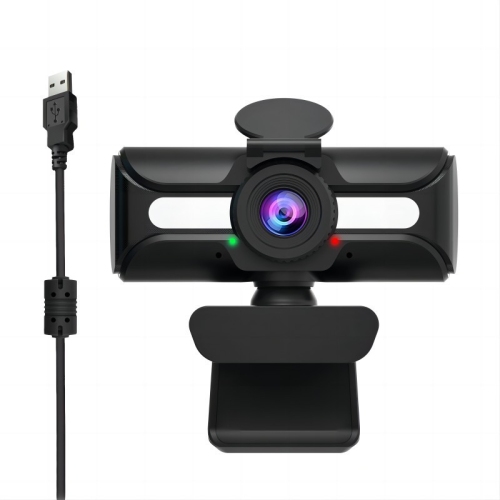
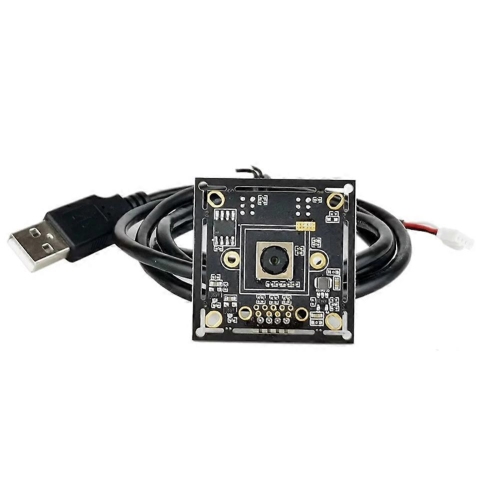

Clearer webcam video takes more than higher resolution
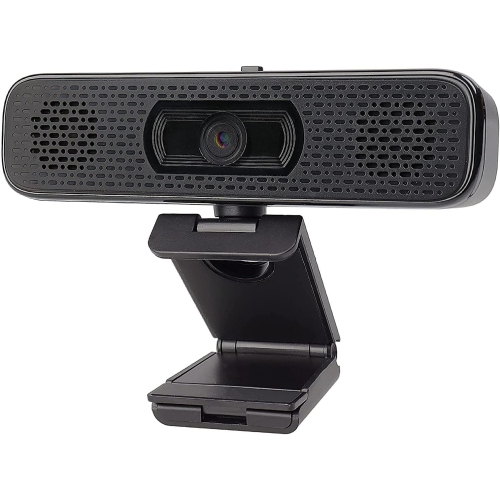
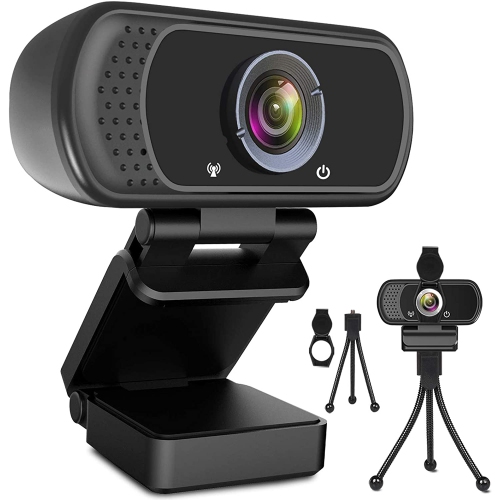
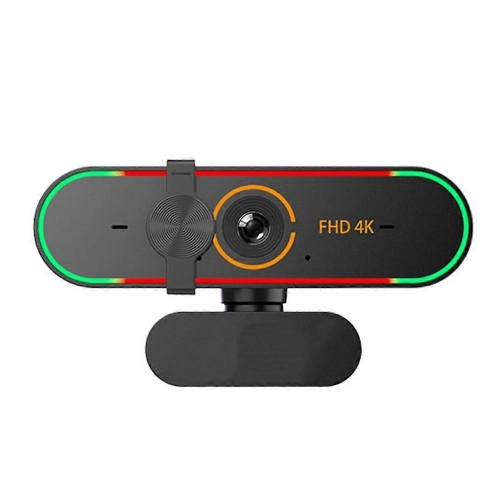
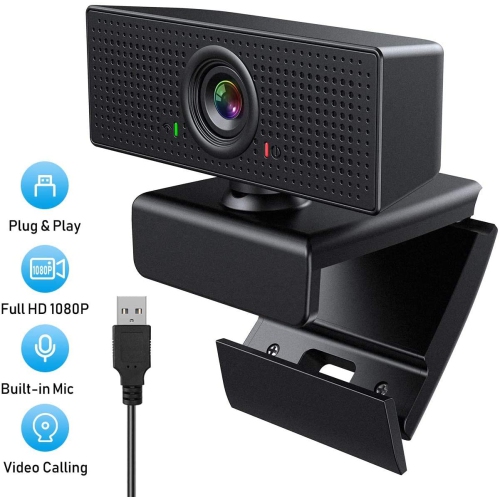
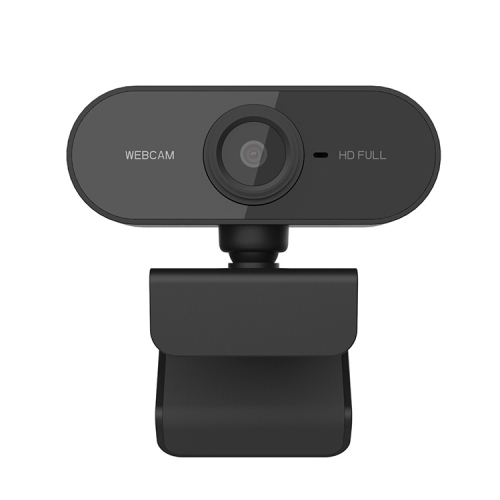
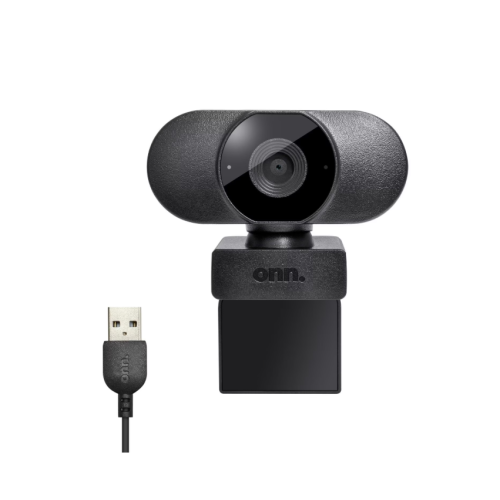
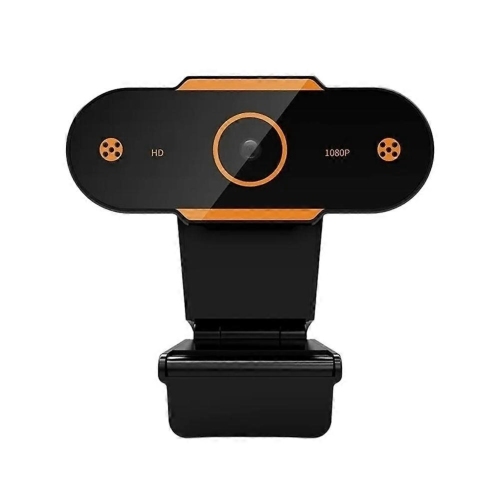
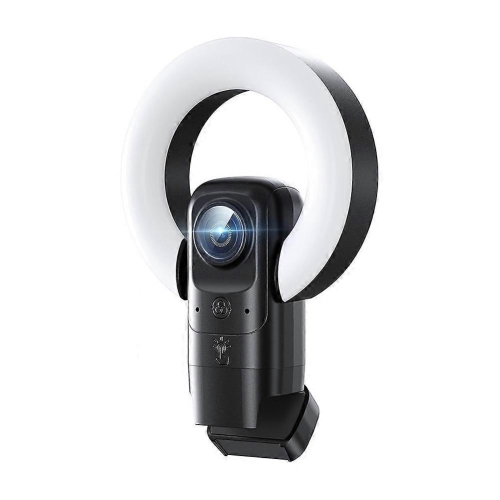
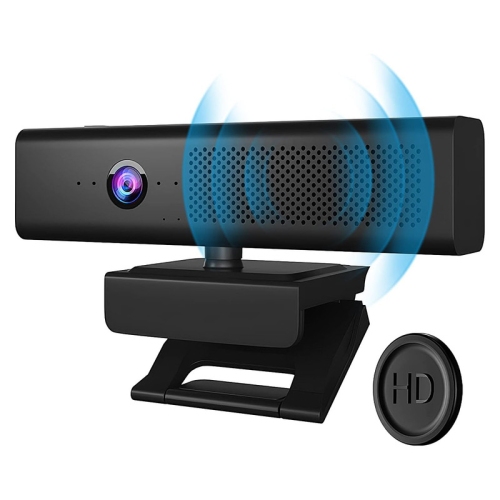
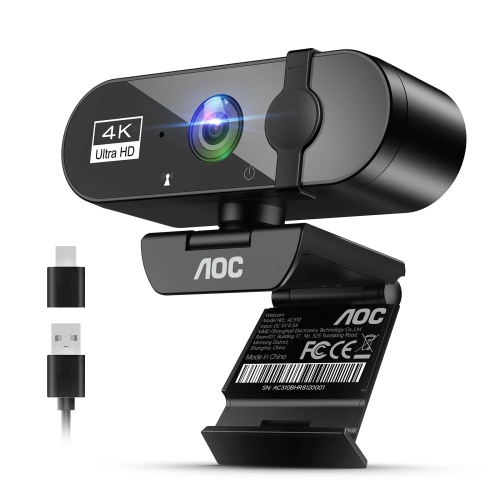
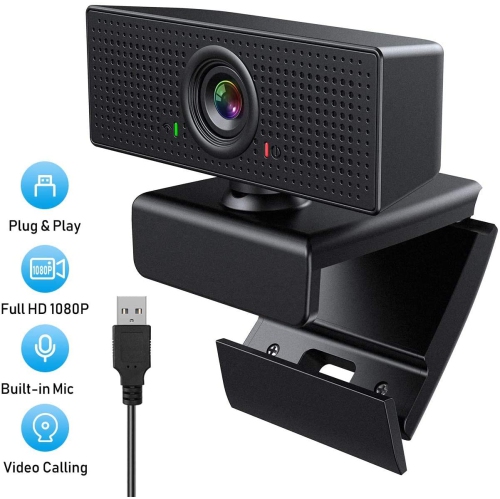
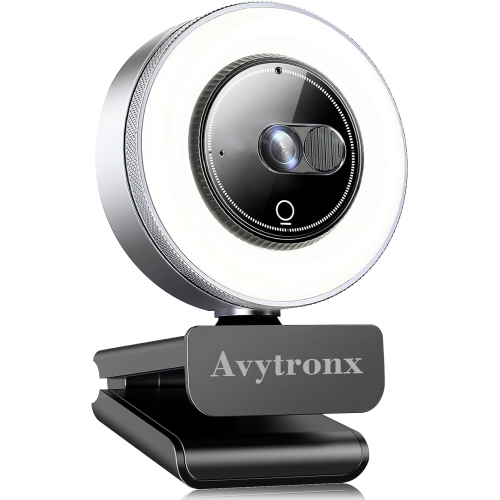
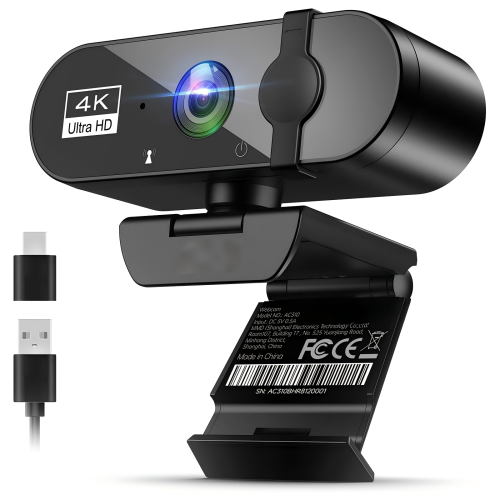
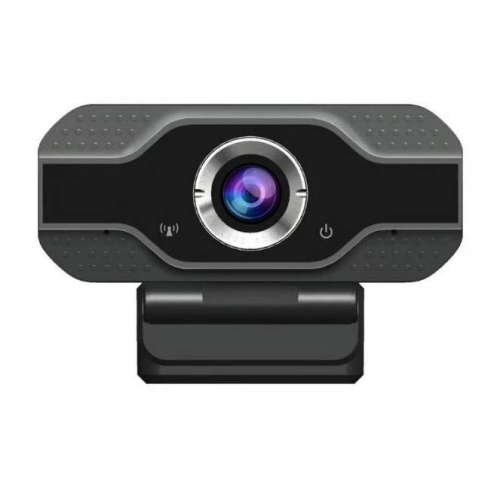
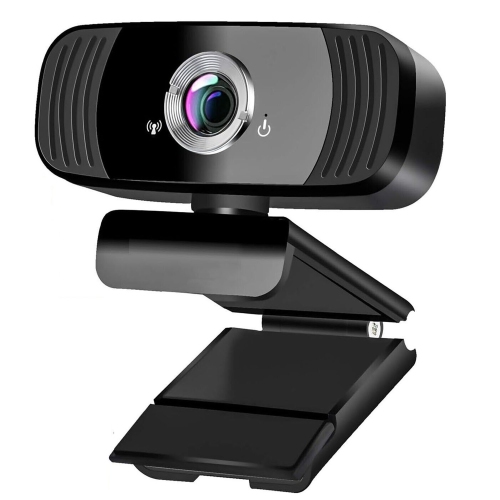
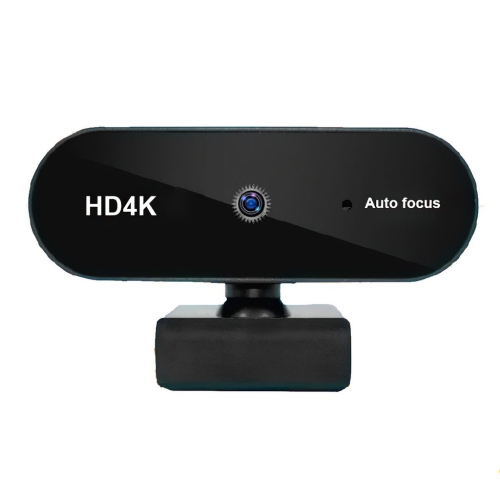
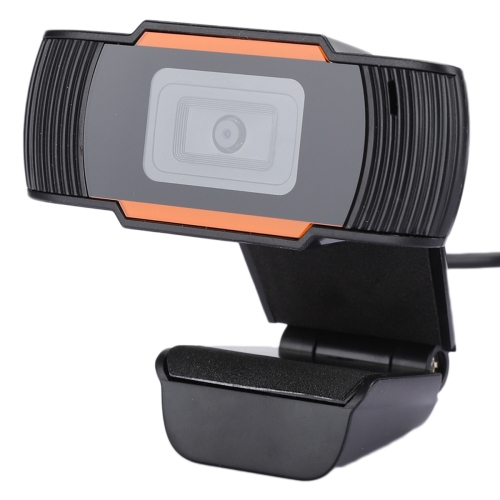
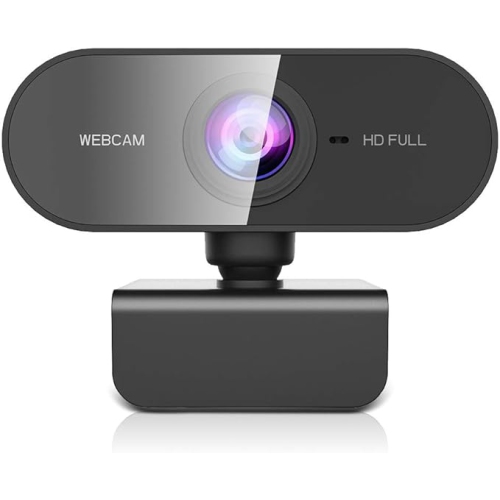
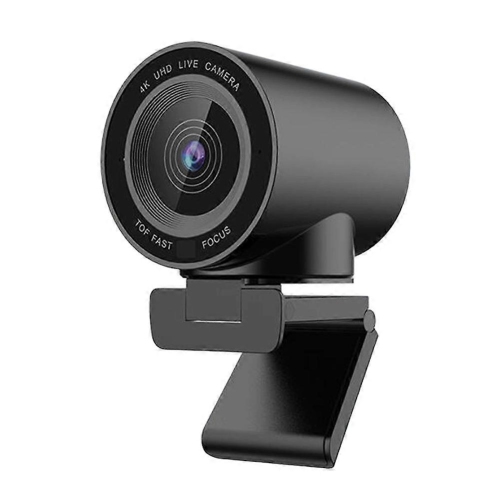
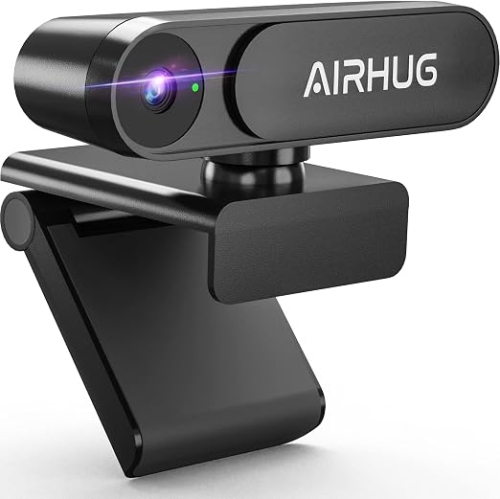
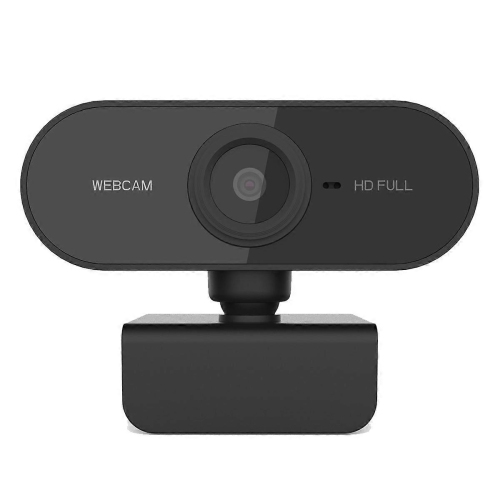
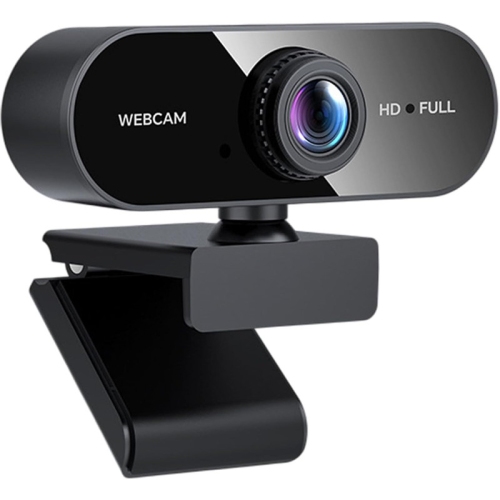
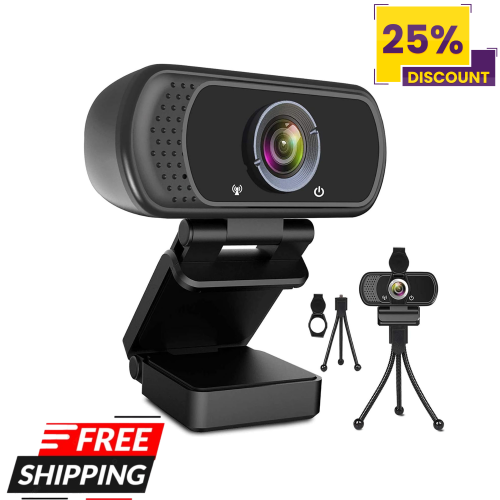
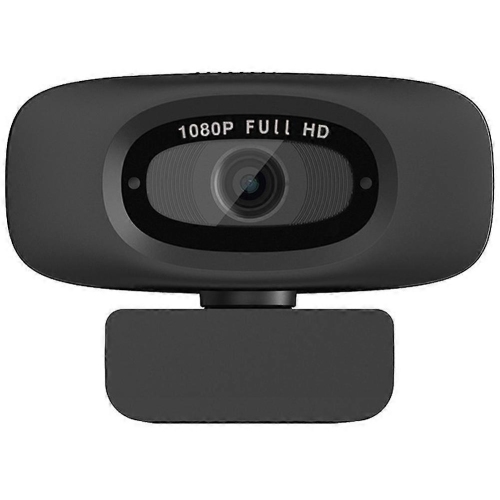
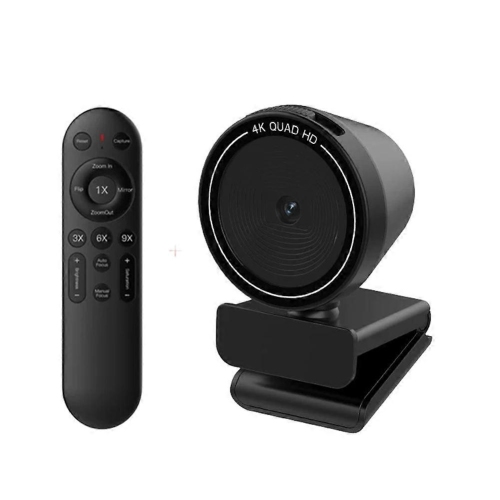
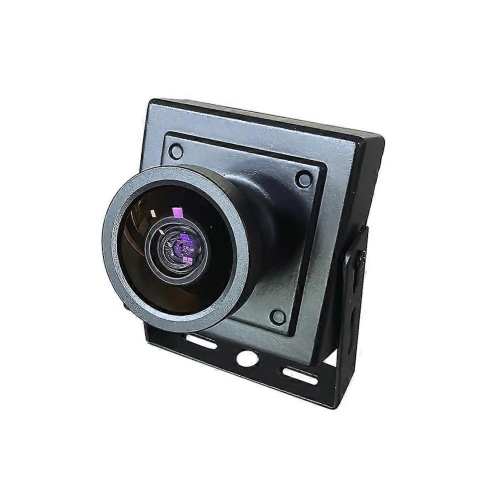
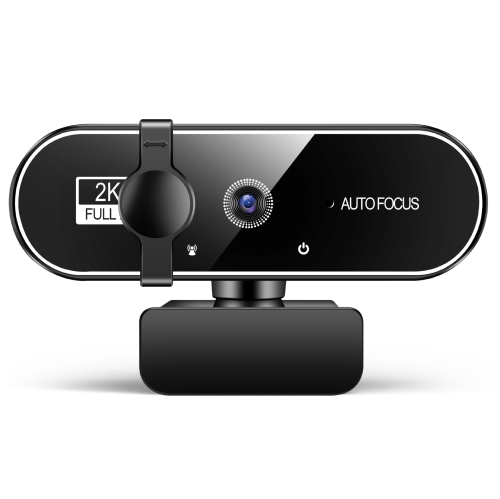
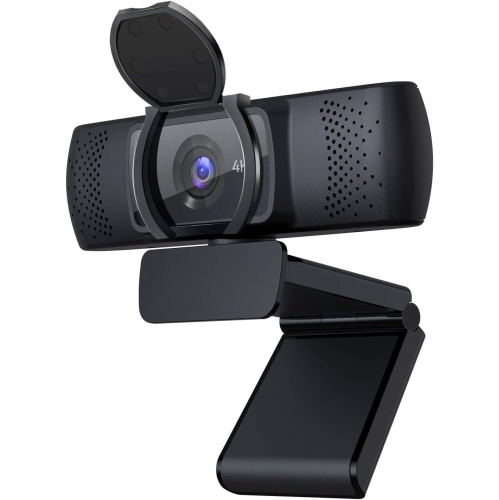
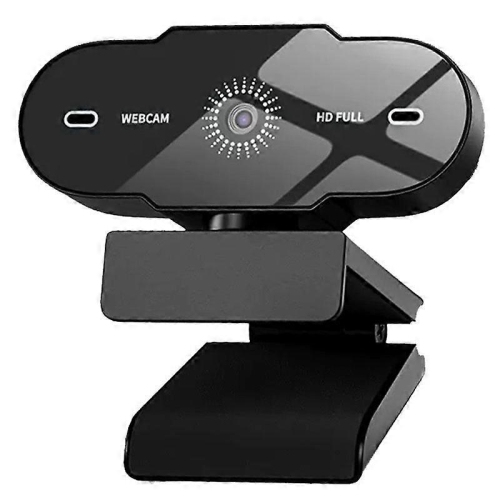
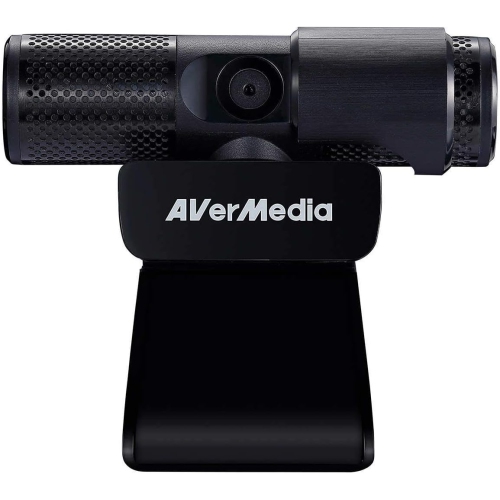
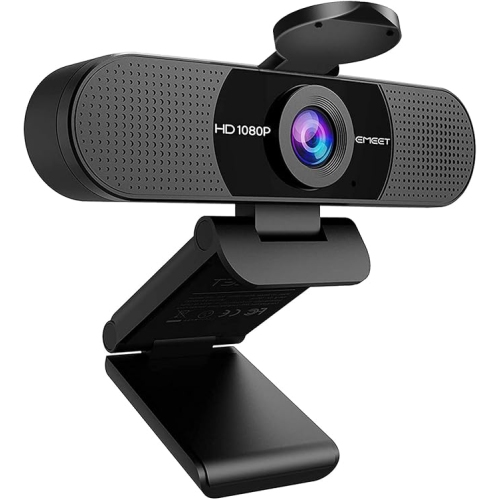
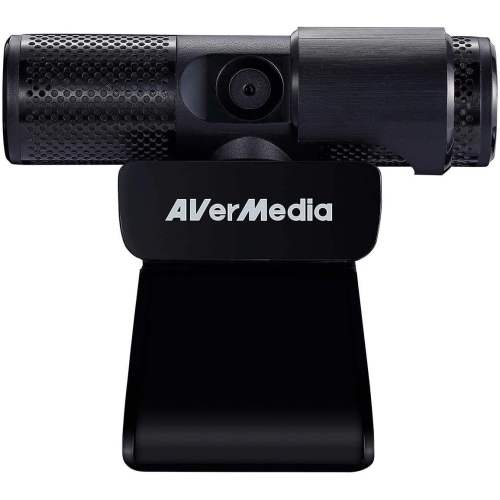
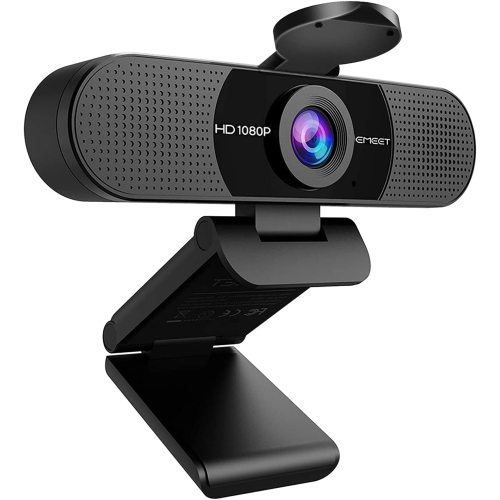
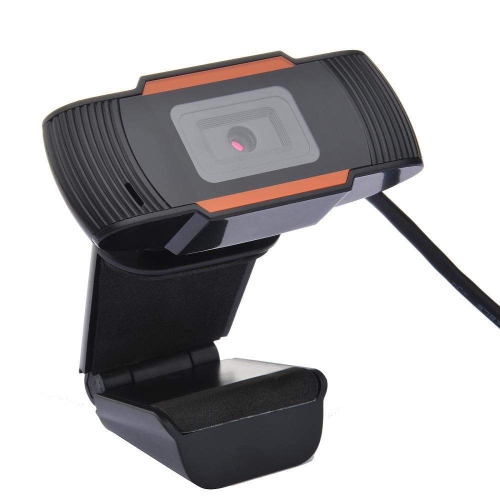
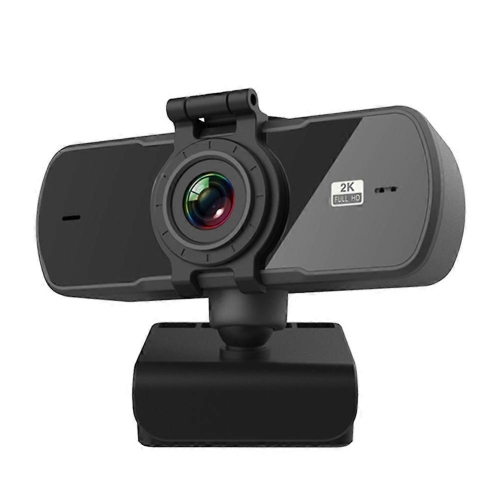
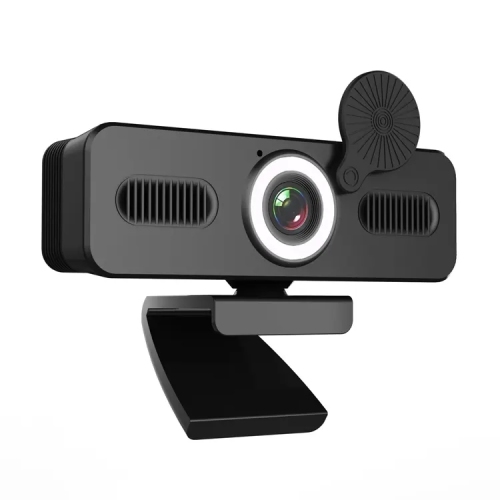
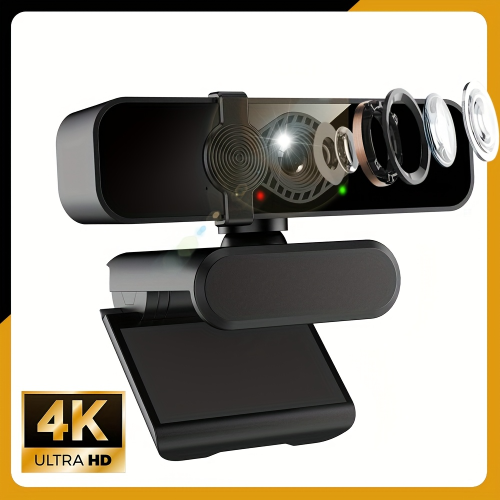
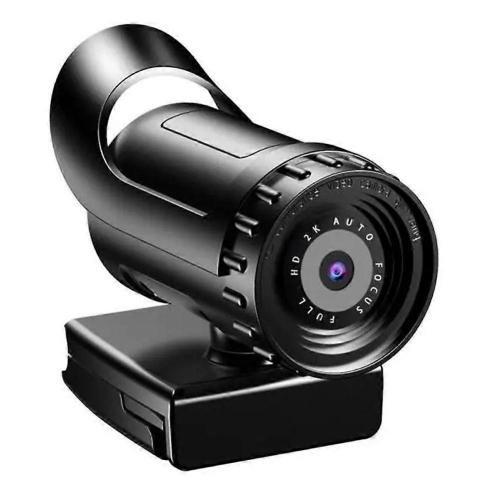
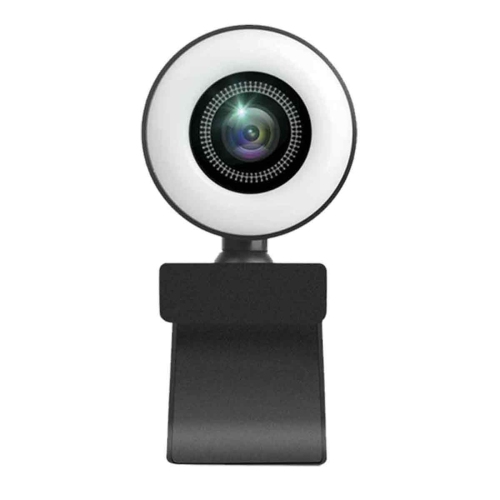
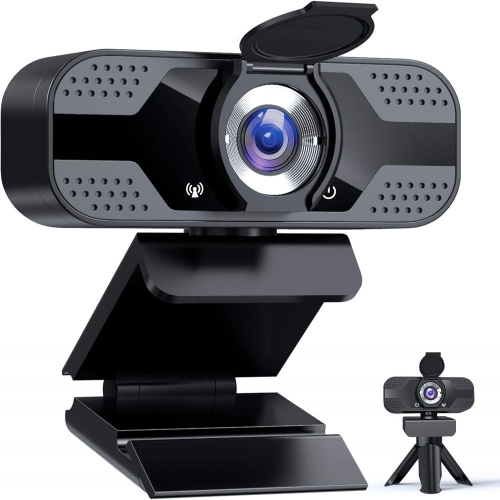
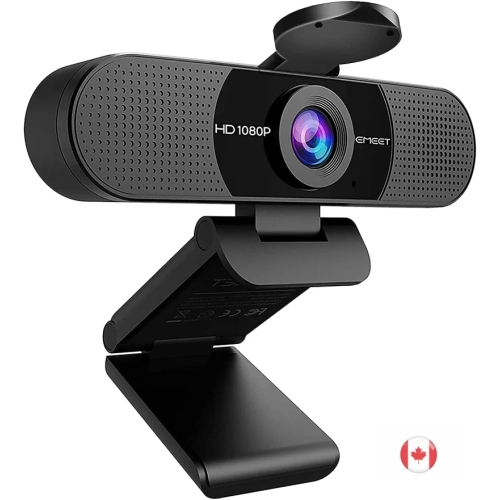
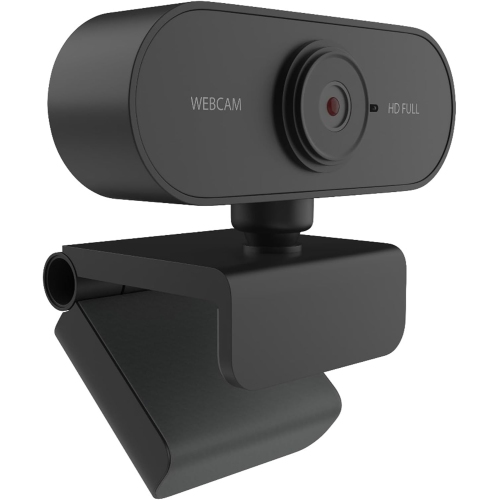
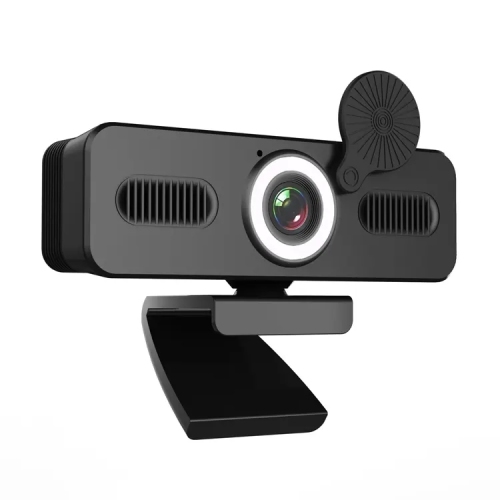
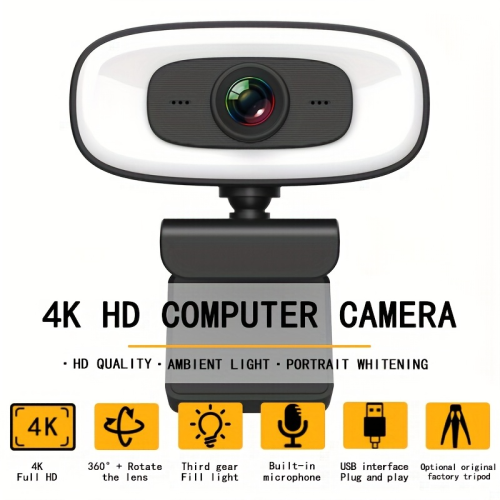
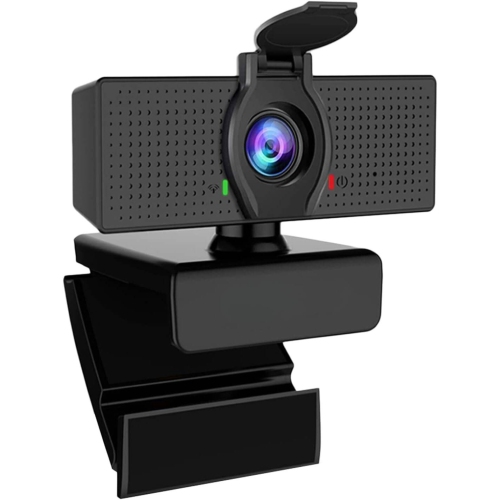
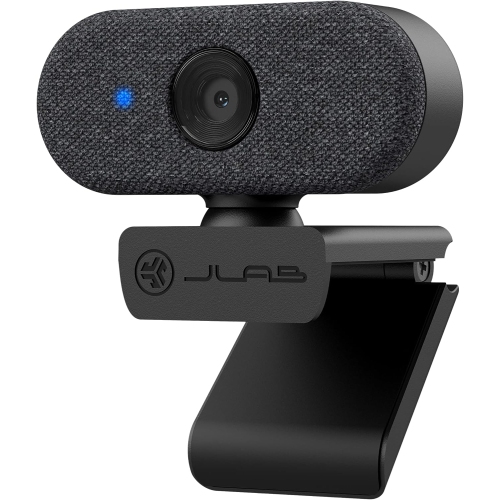
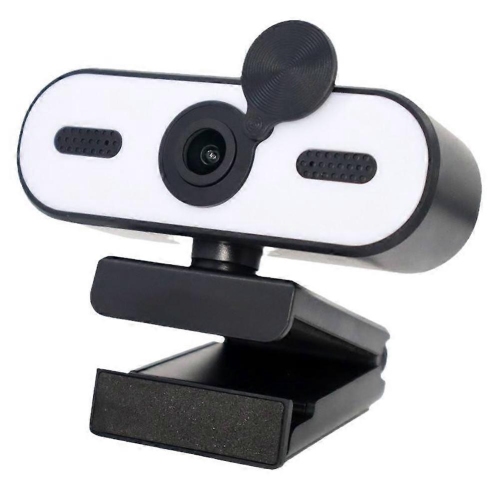
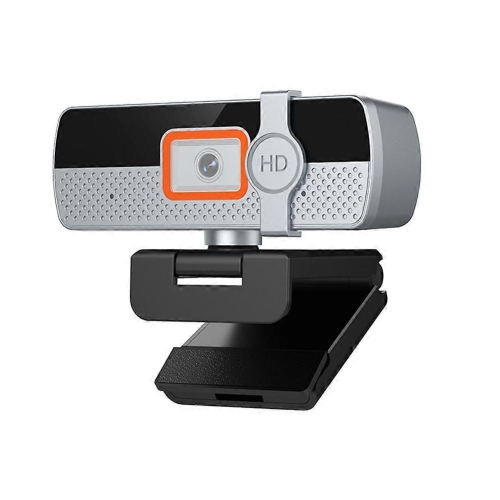
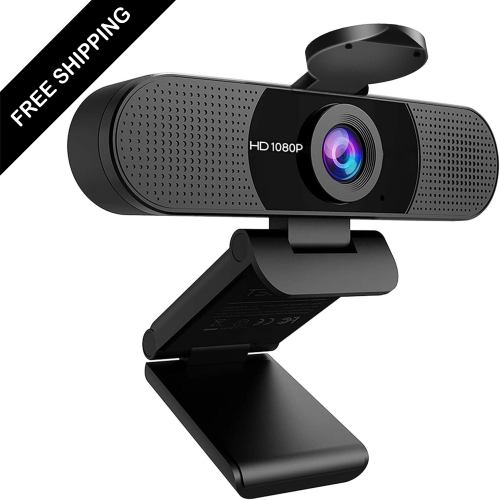
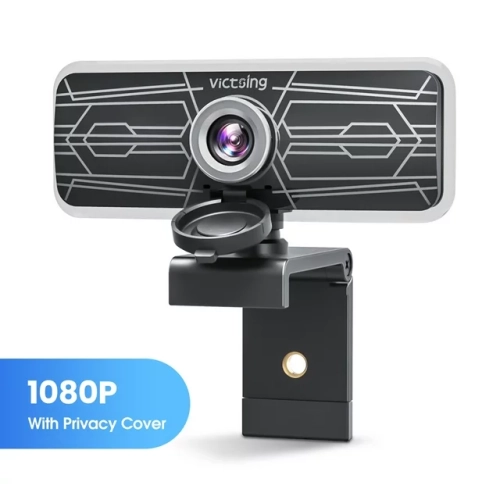
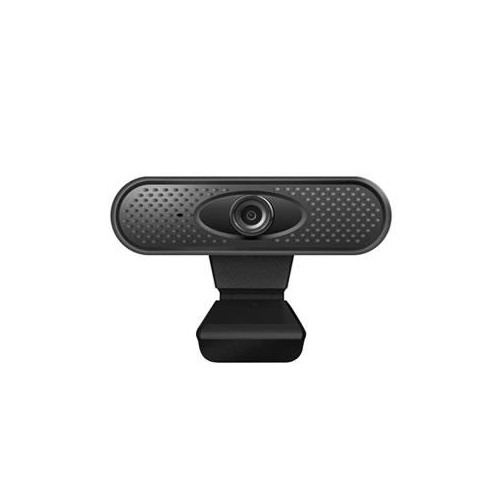
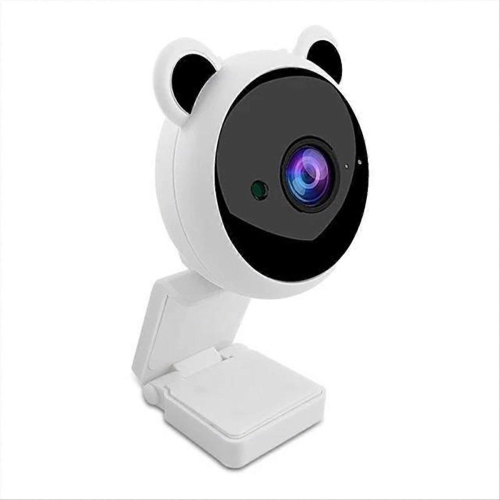
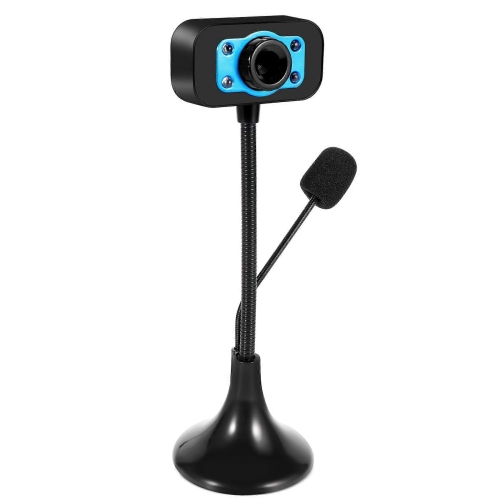
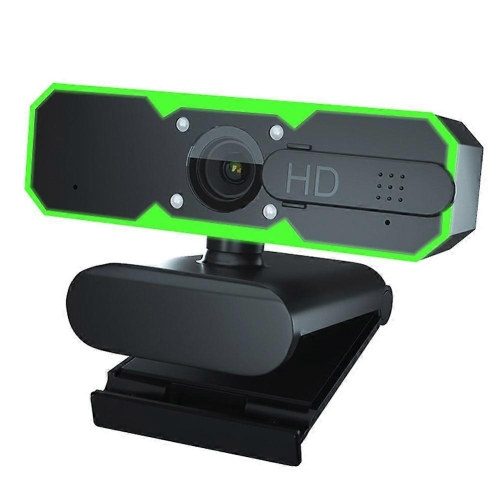
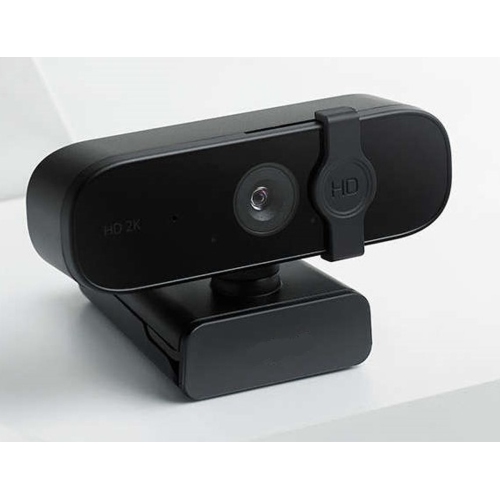
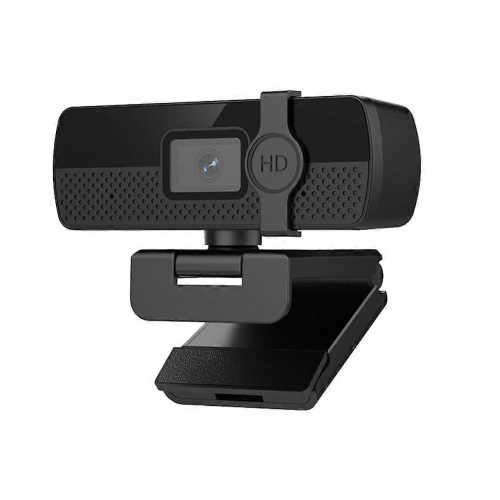
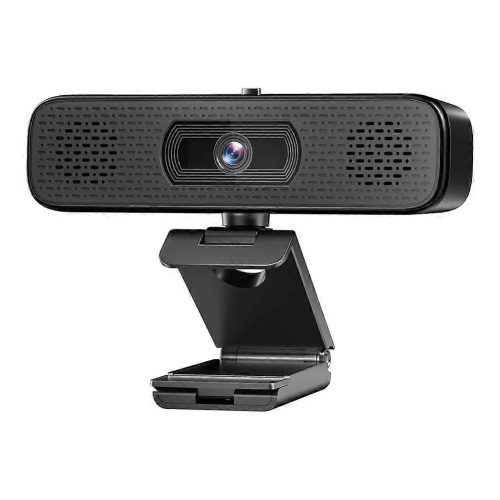
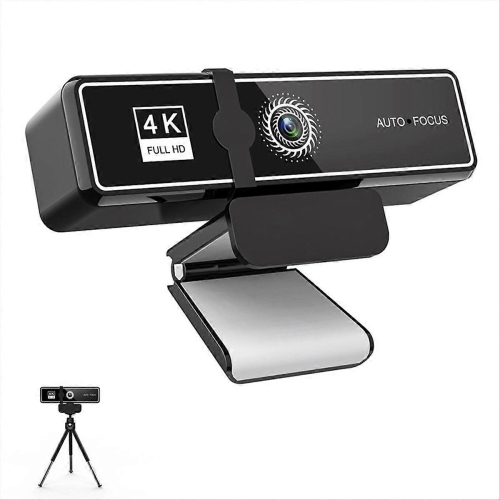
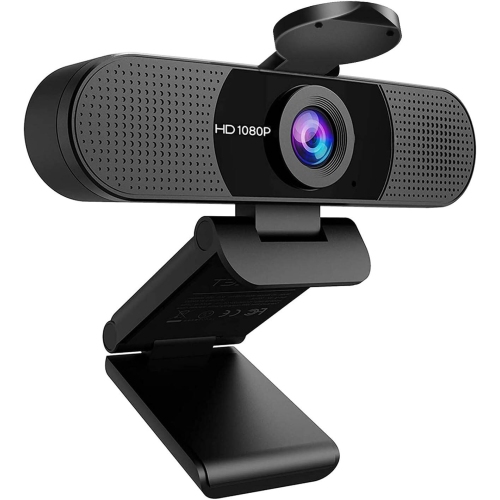
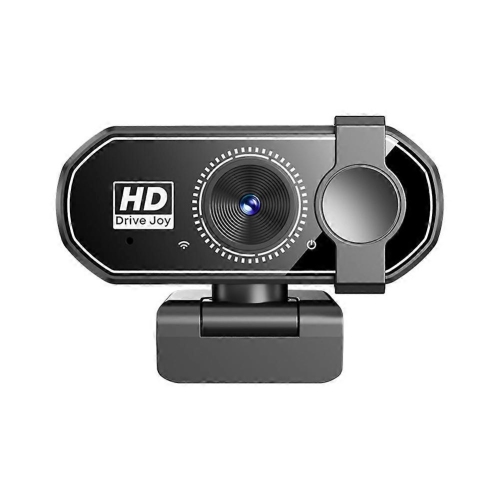
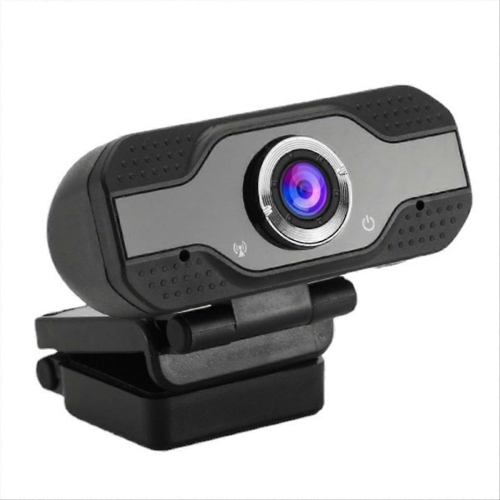
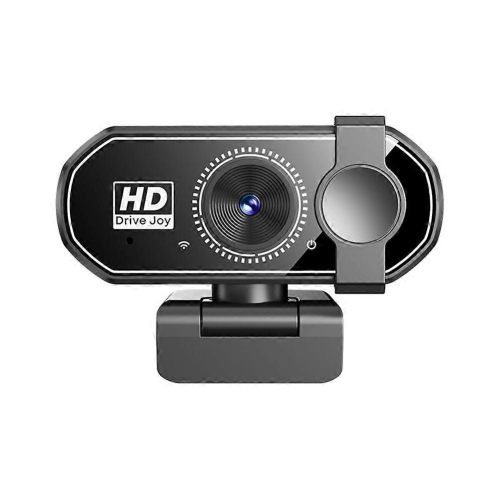
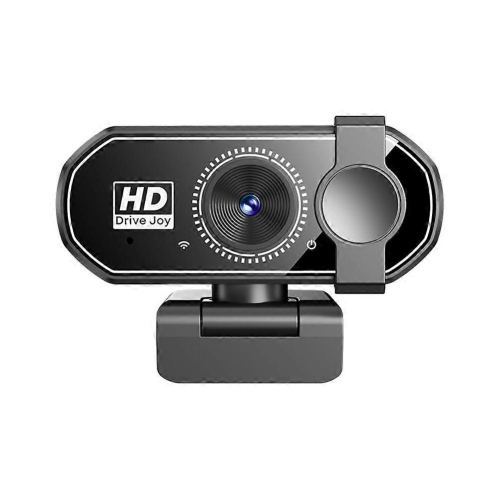
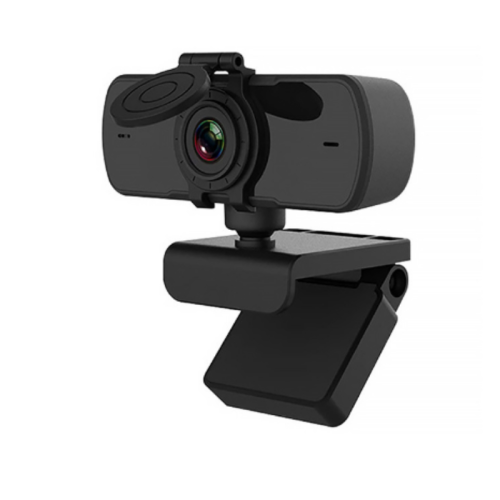
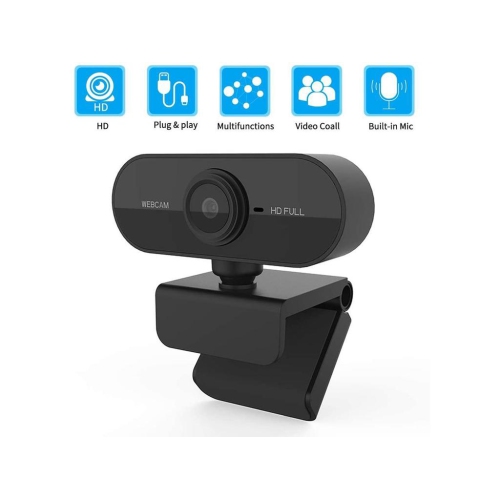
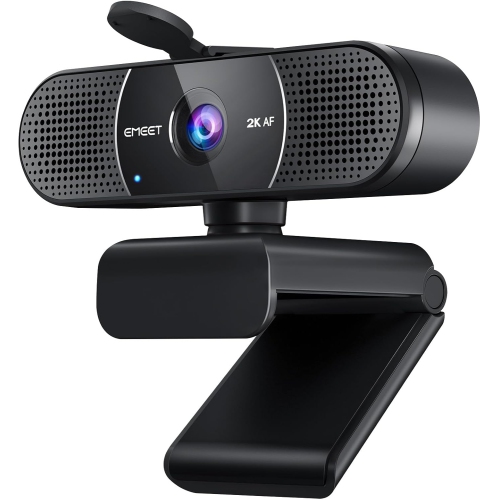
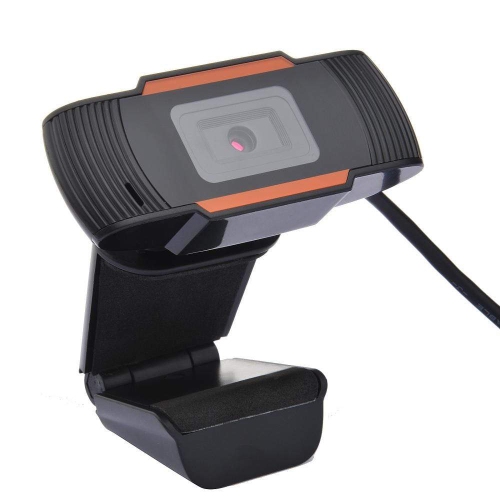
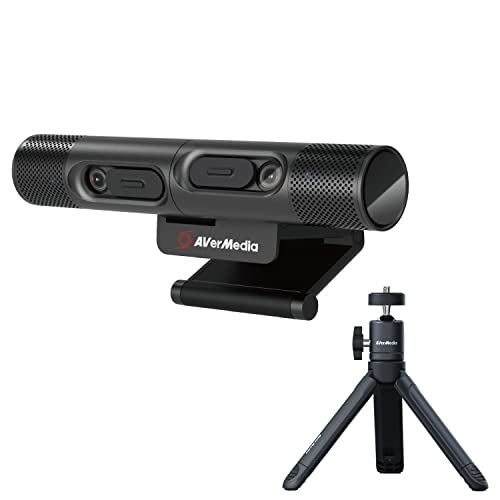
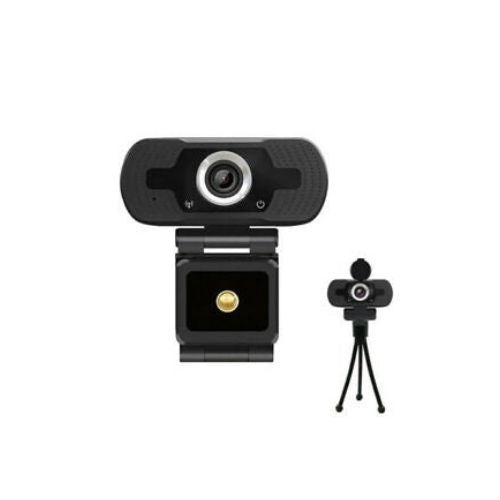
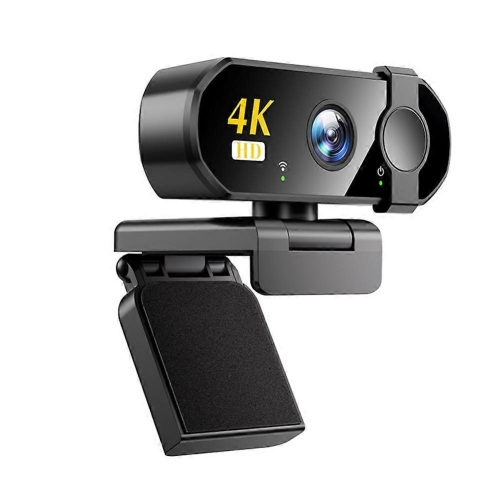
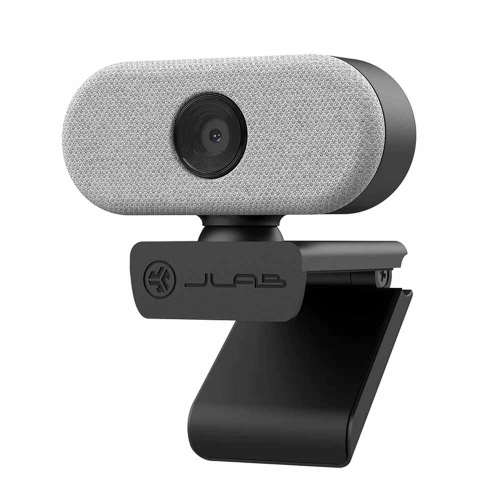
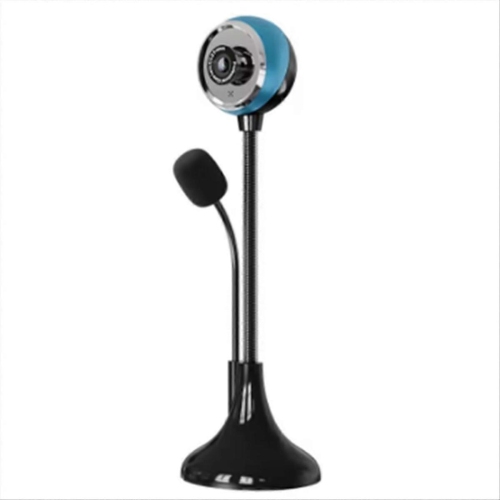
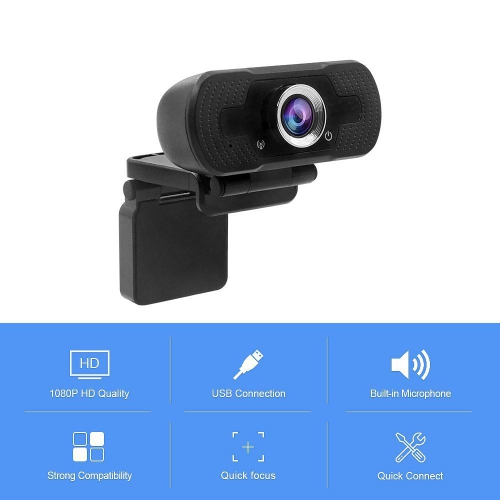
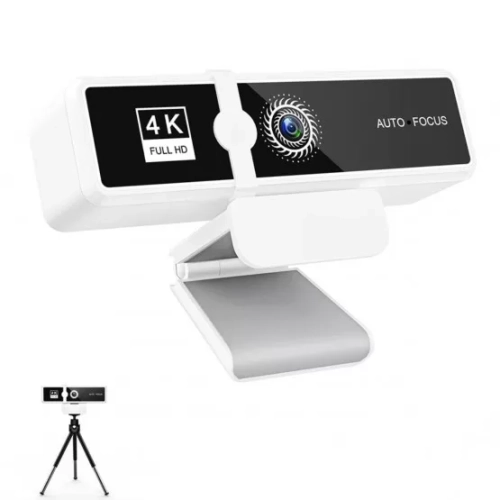
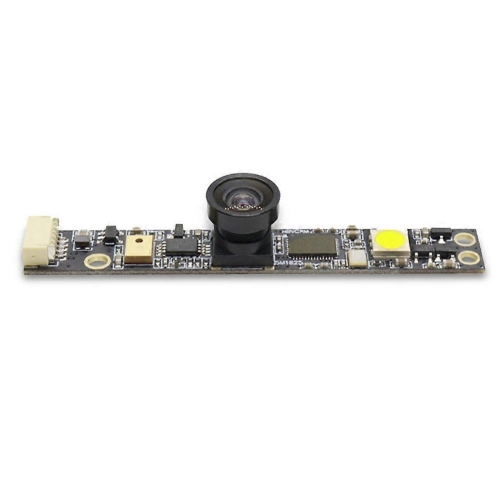
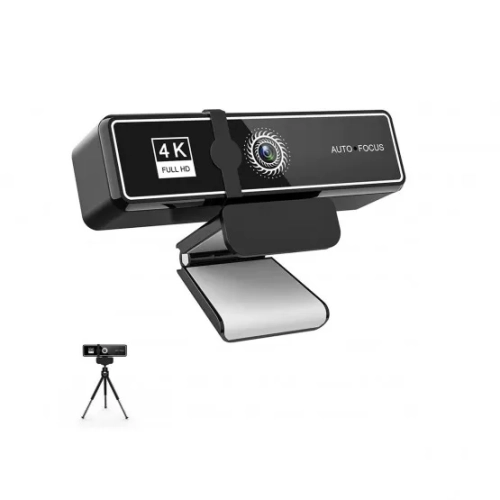
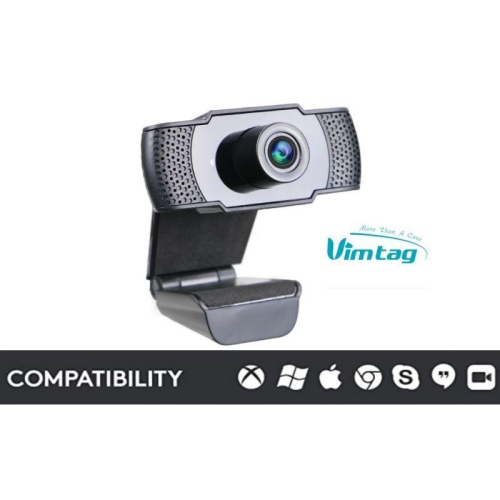
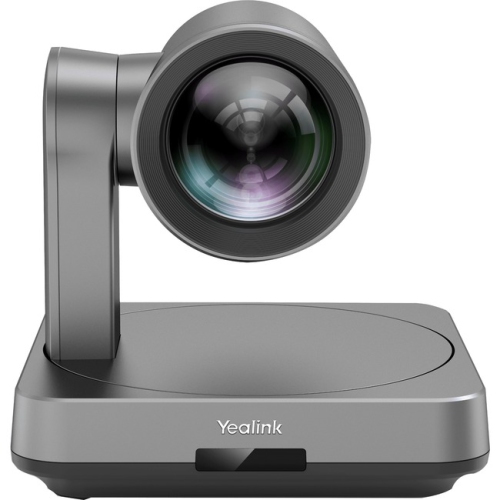
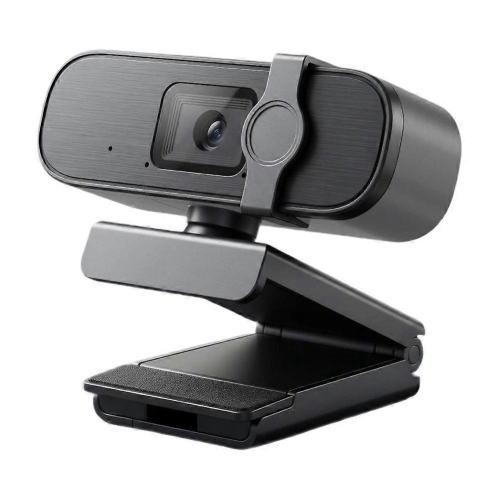
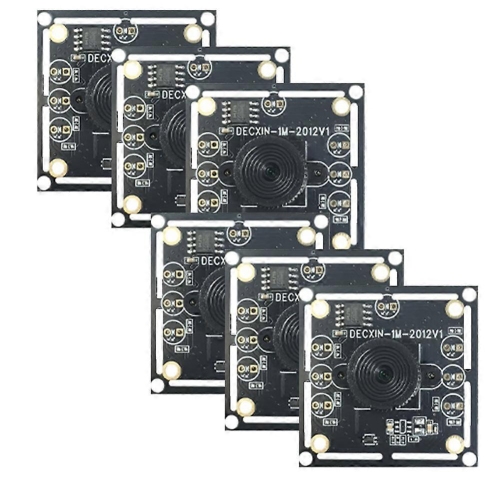
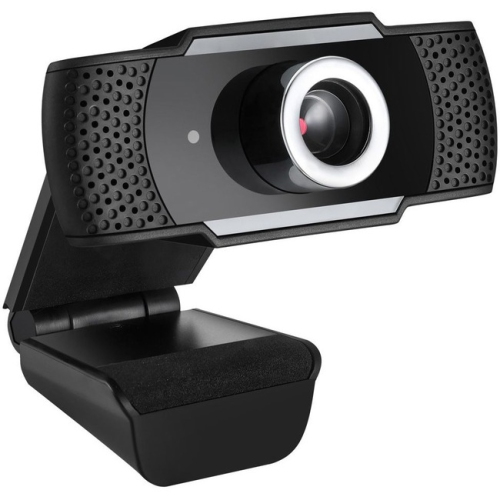
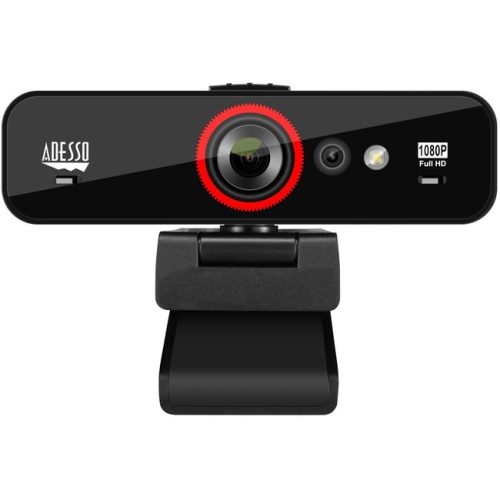
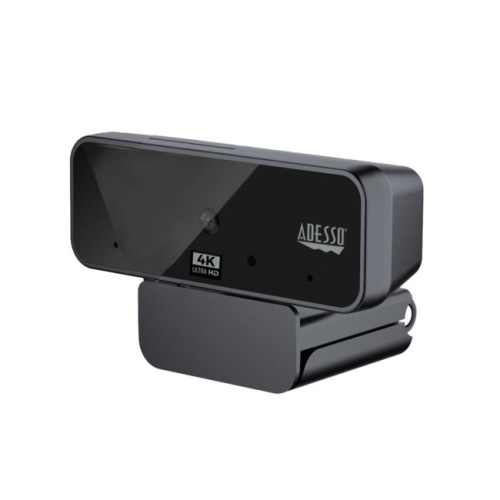
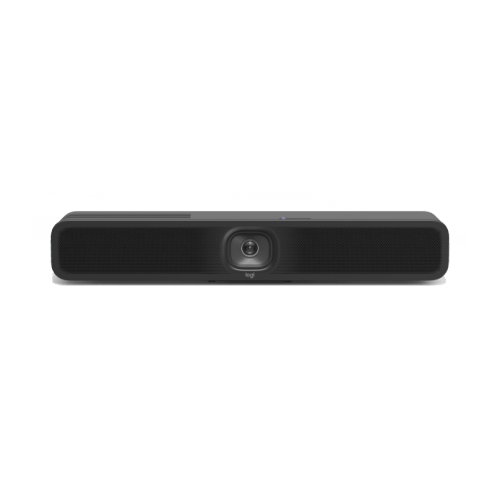
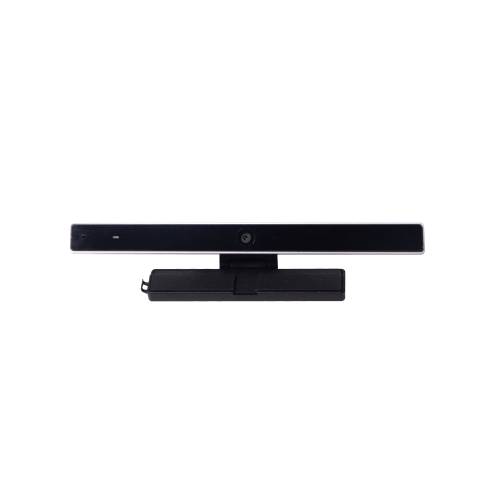
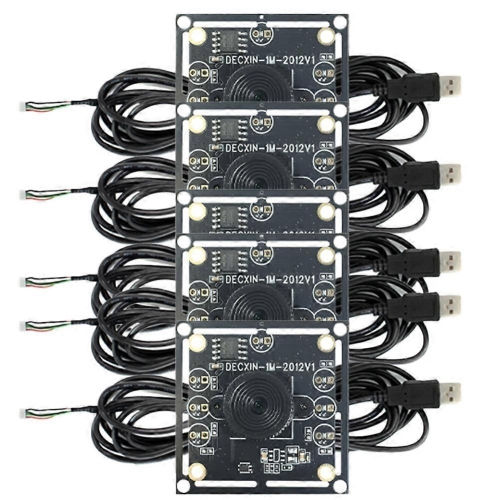
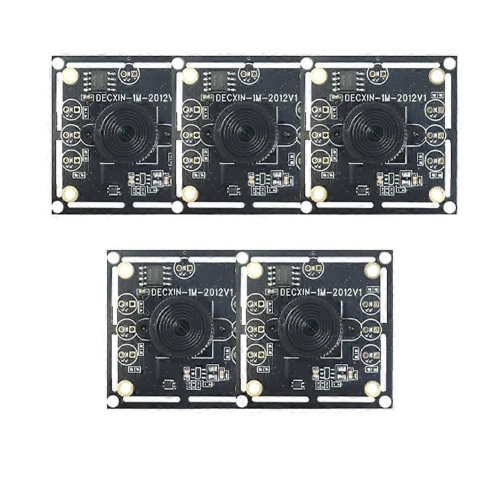
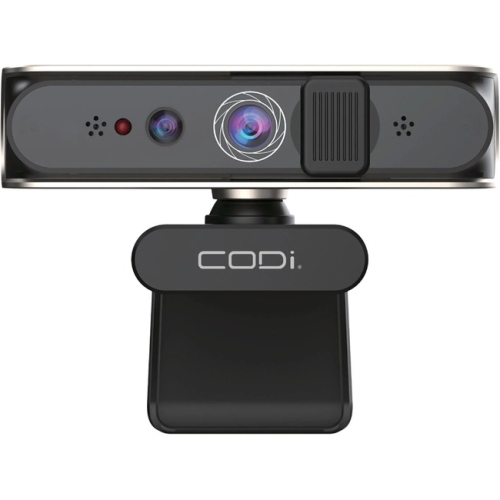
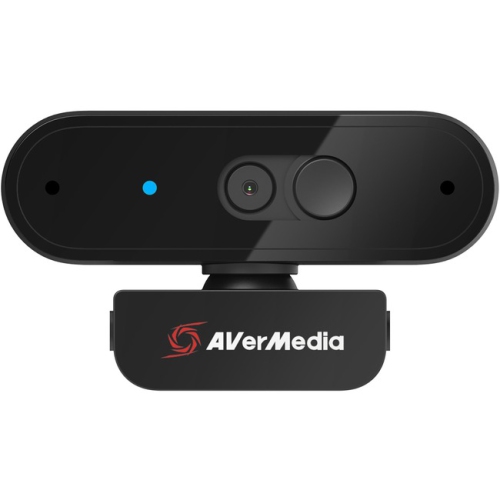
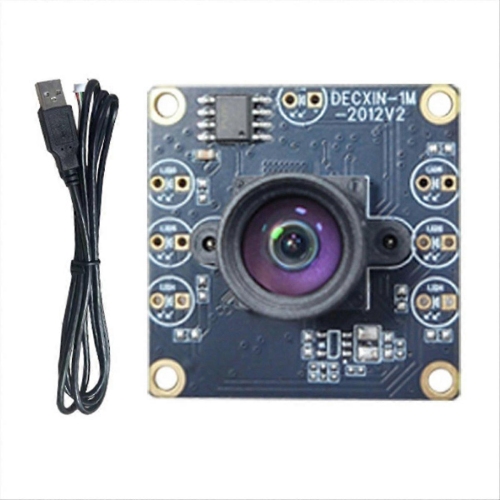
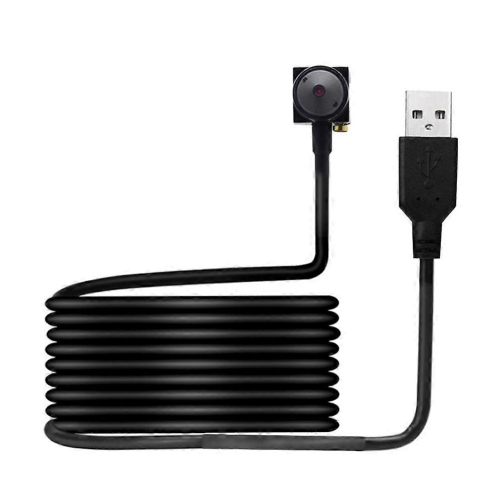
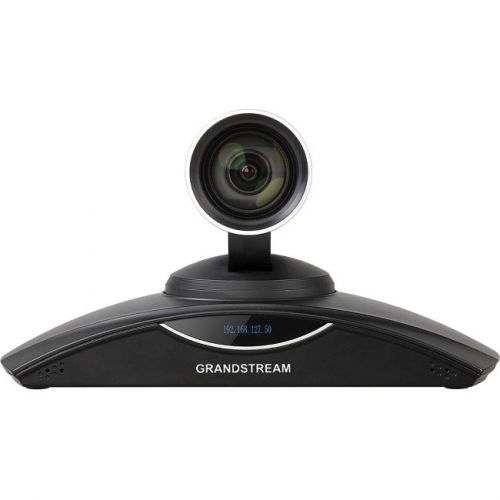
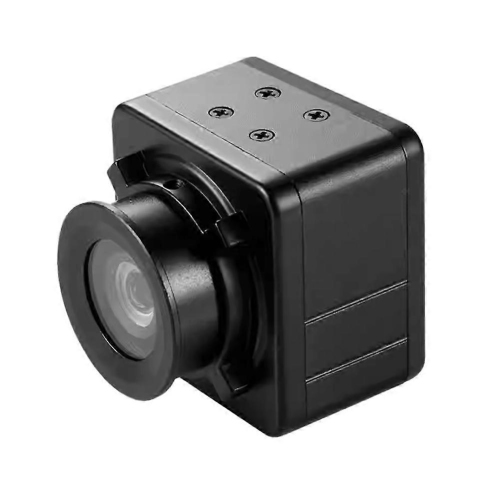
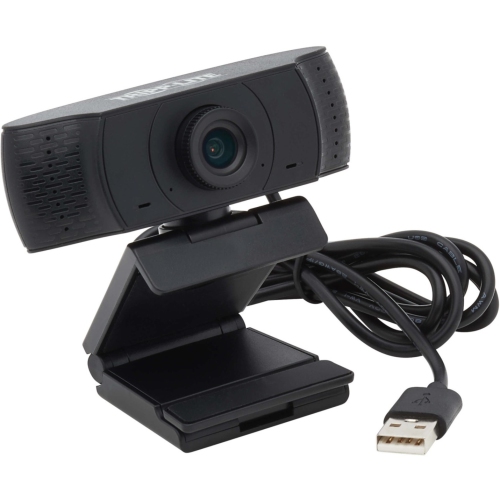
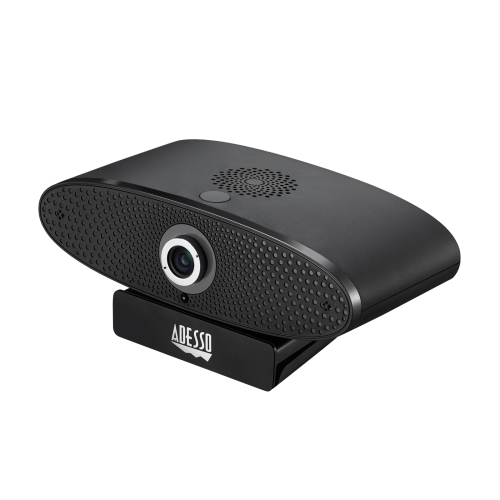
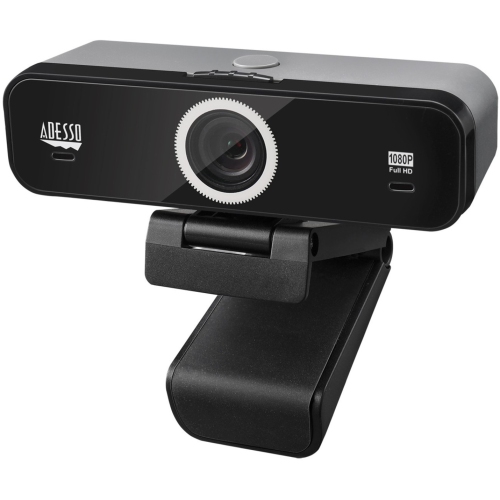
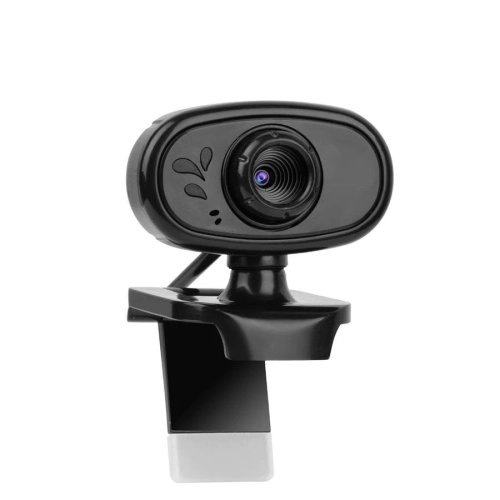
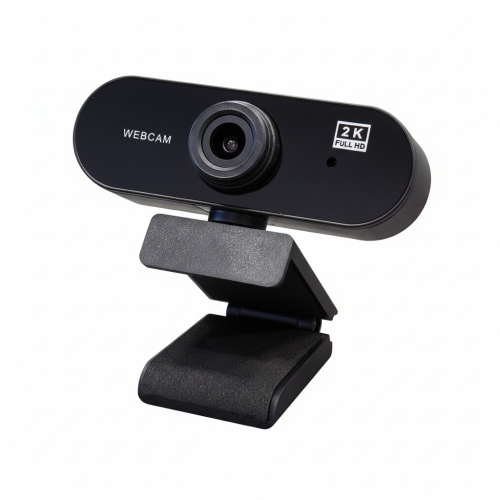
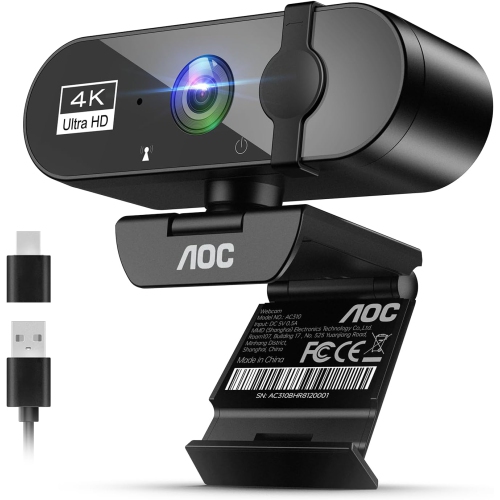
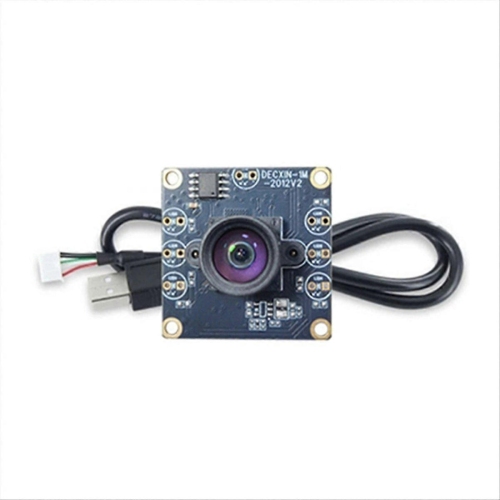
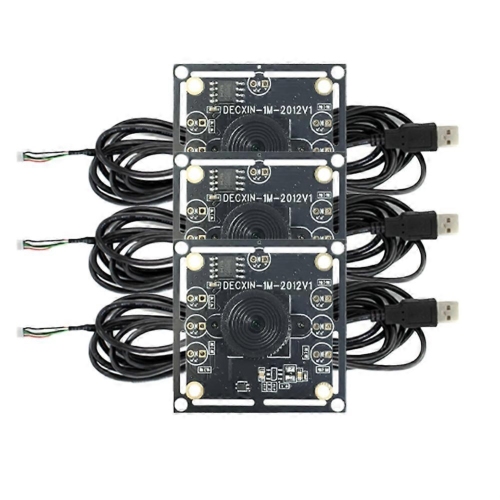
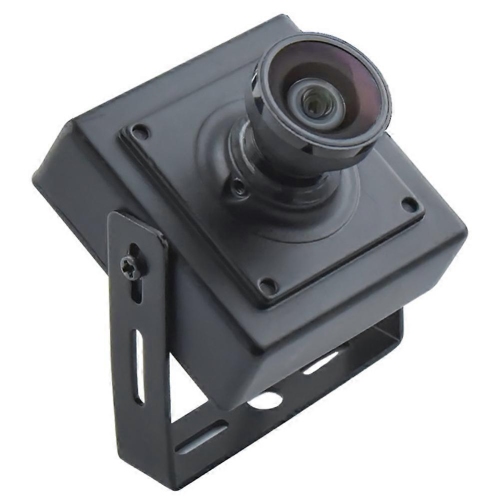
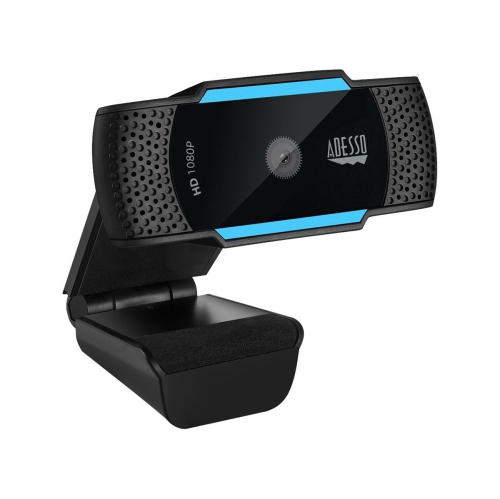
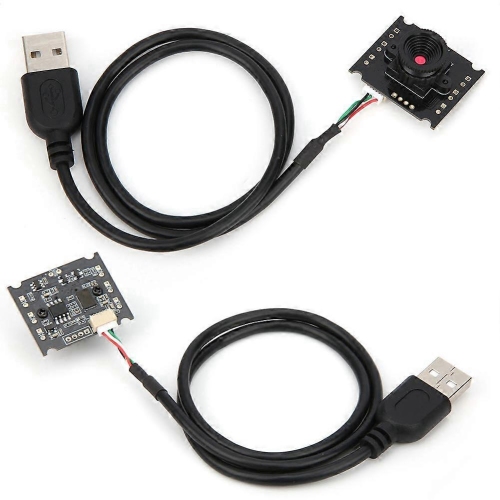
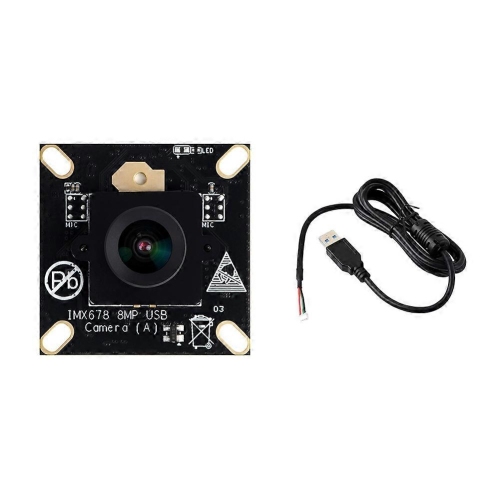
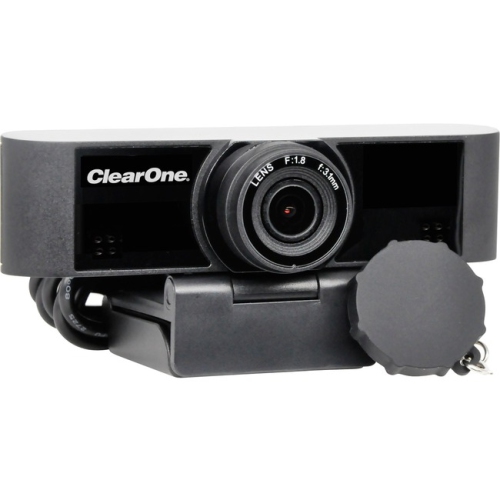
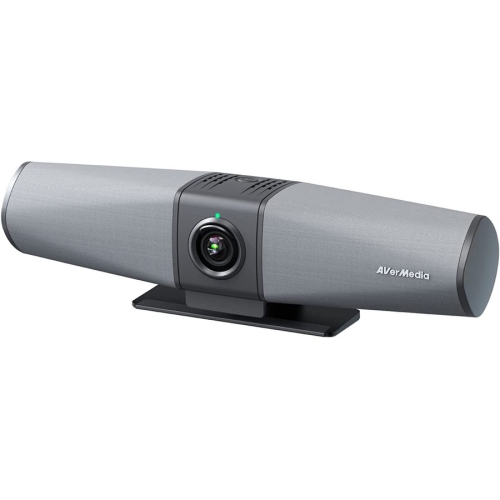
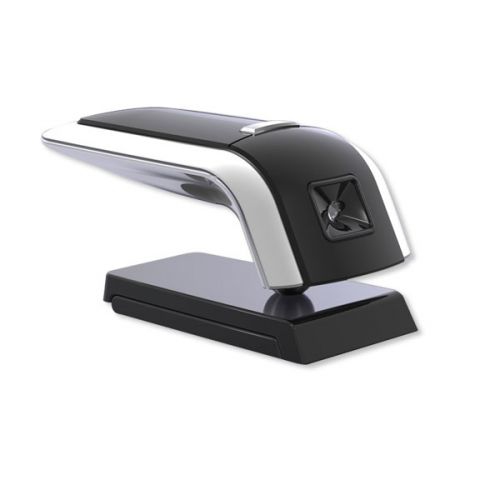
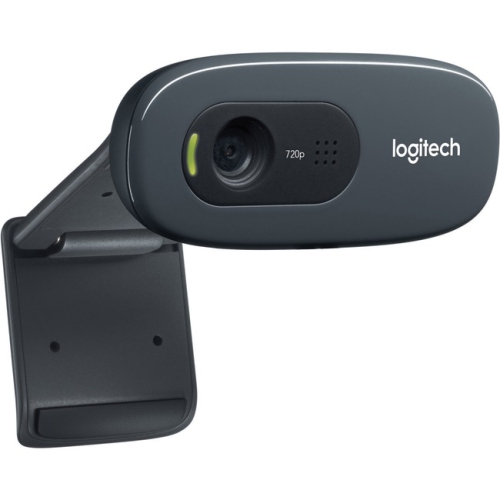
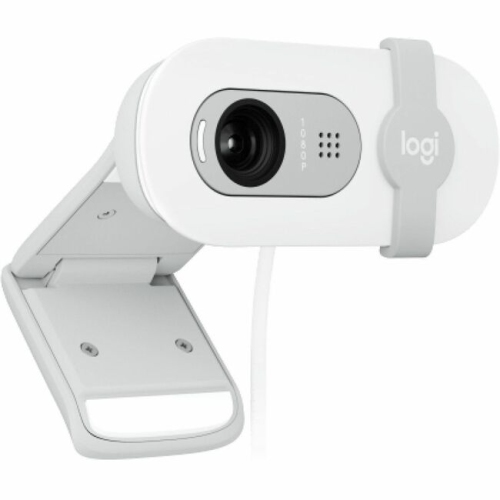
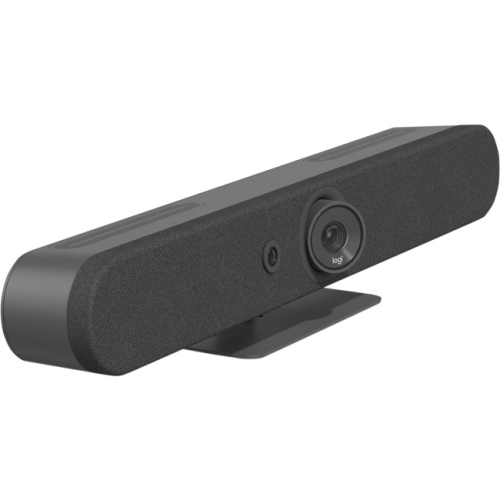
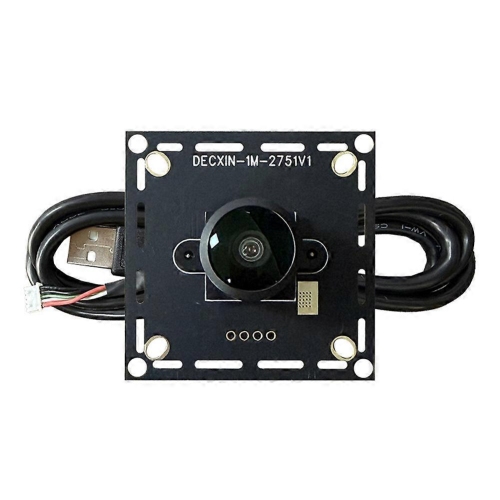
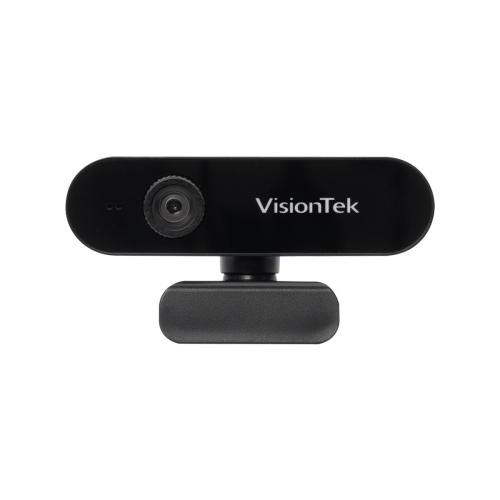
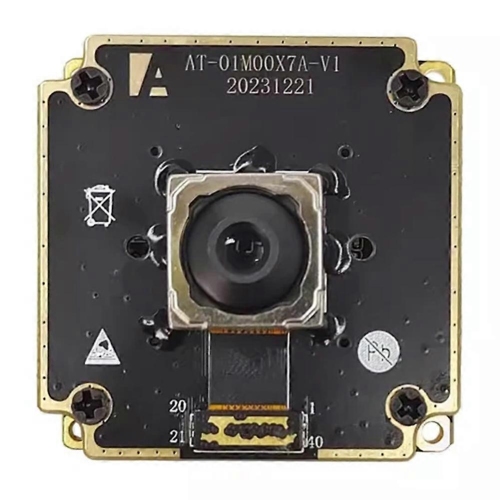
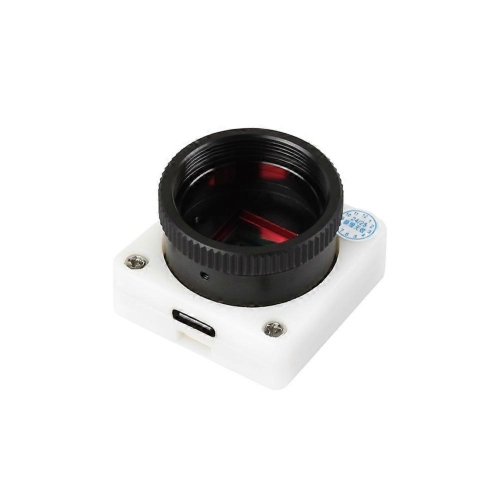
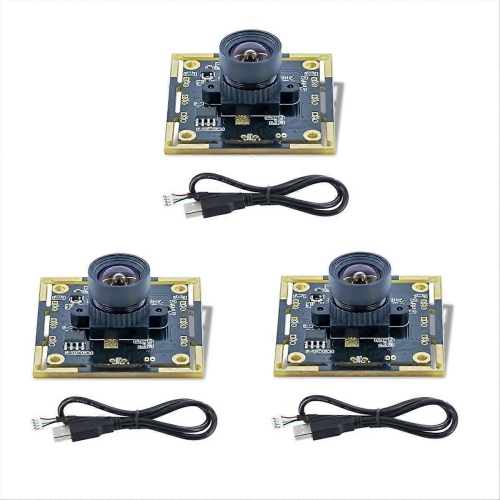
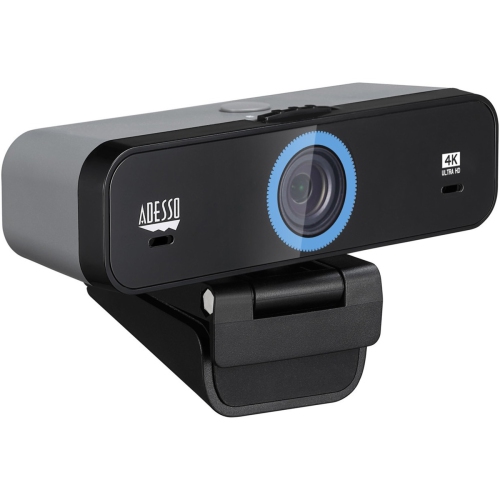
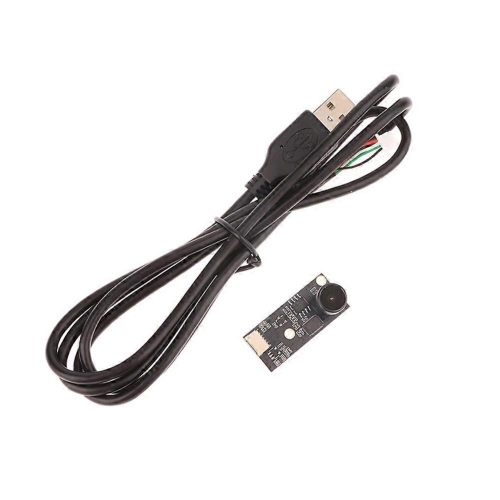
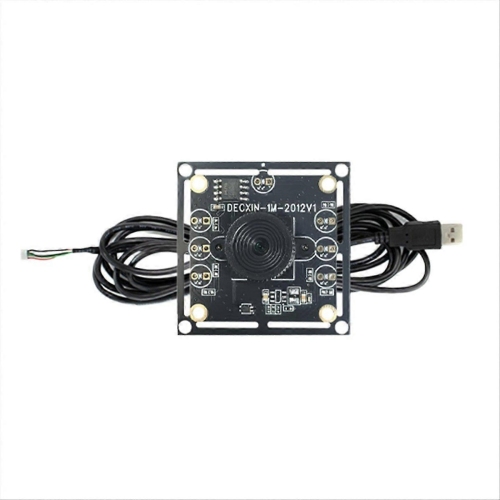
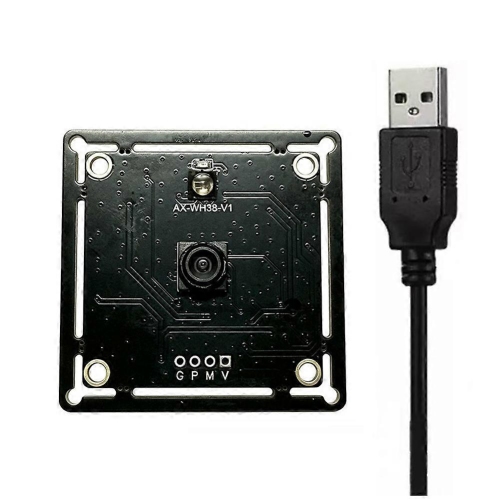
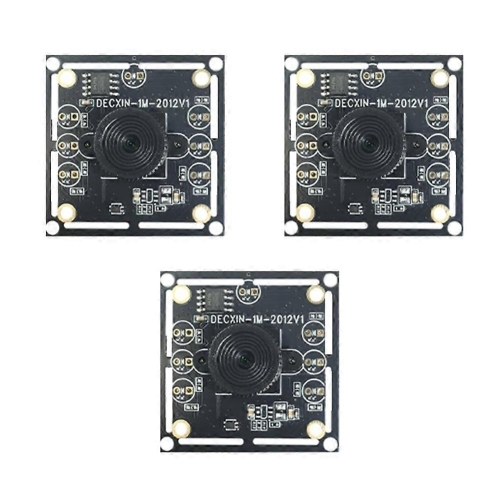
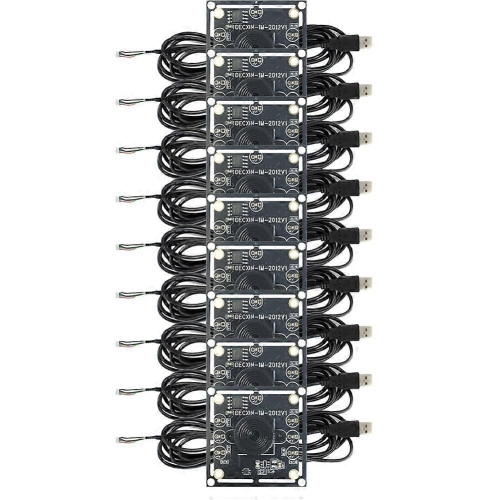
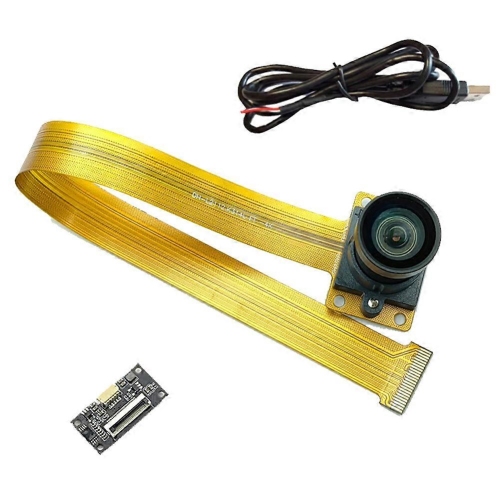
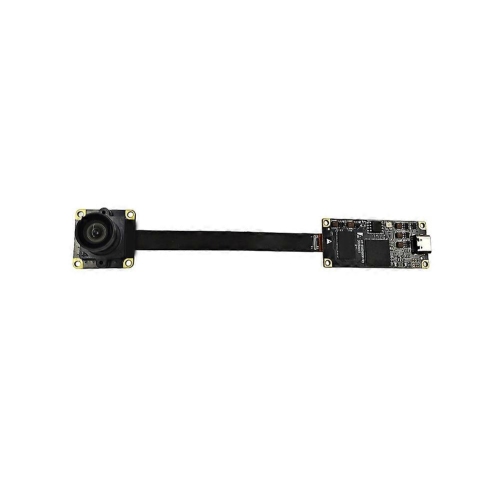
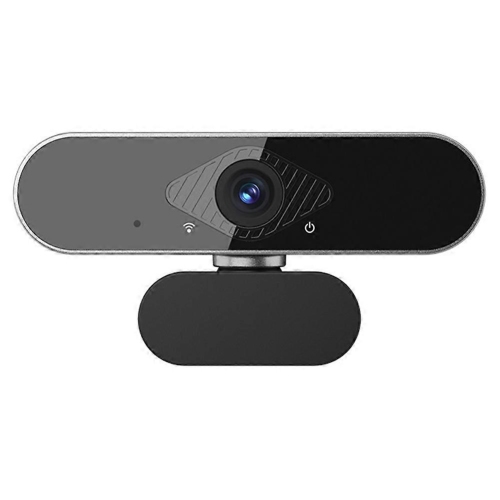
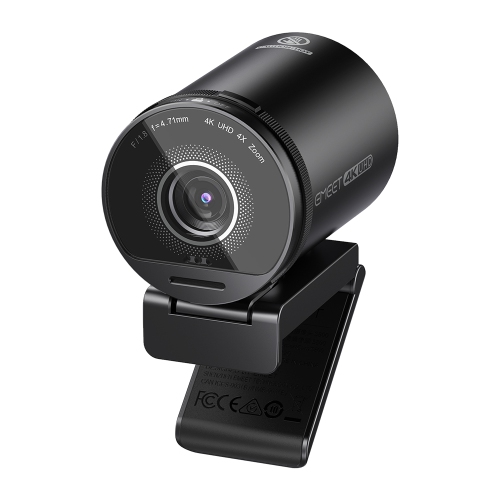
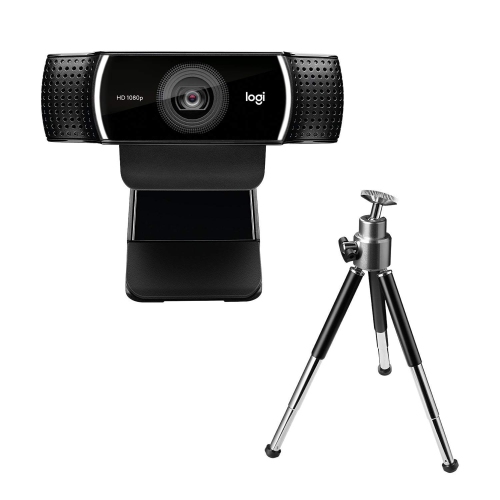
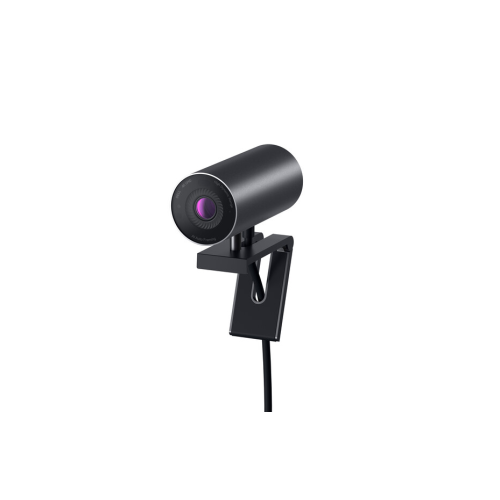
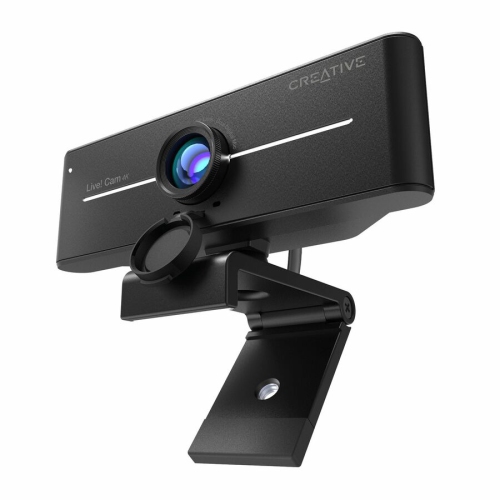
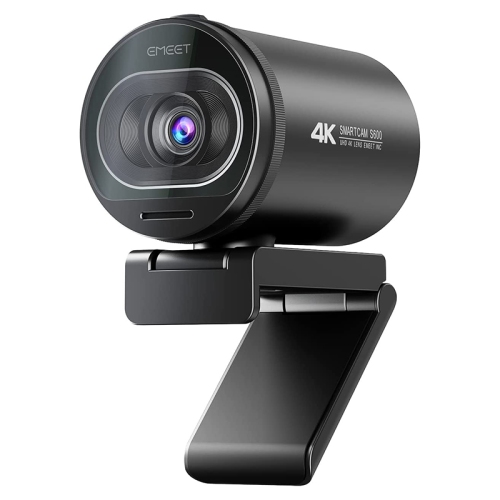
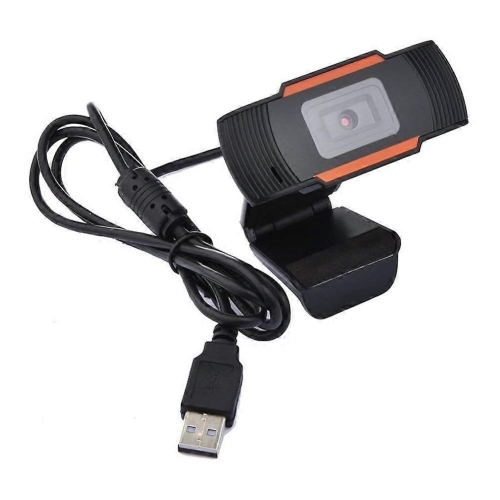
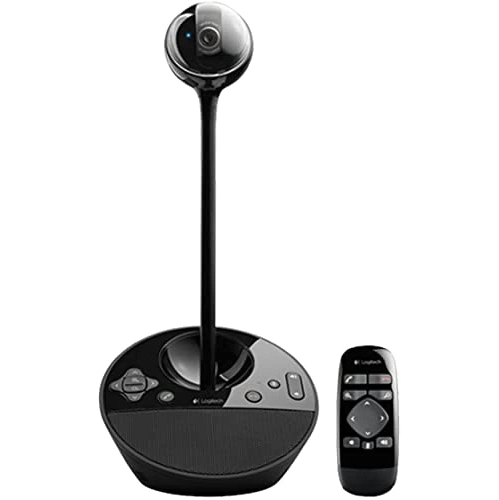
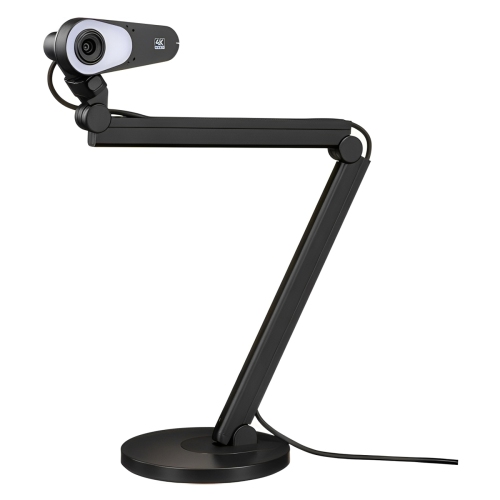
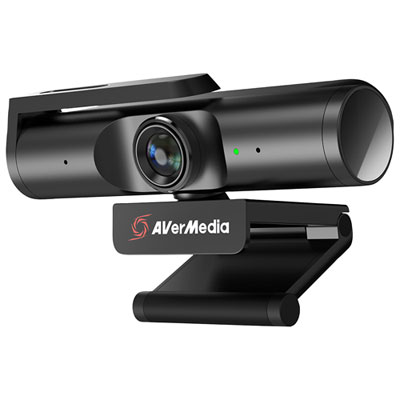
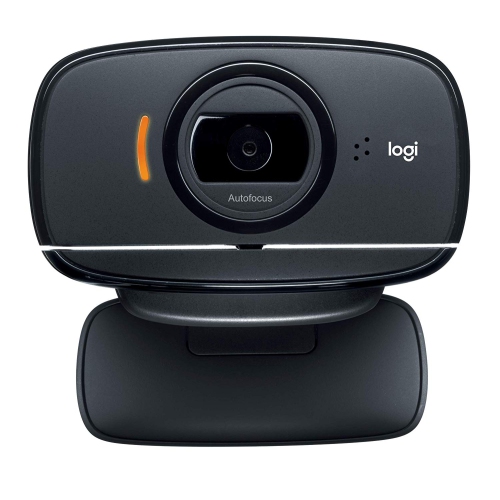
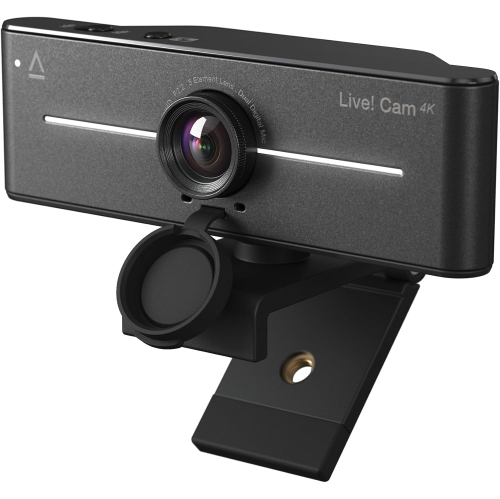
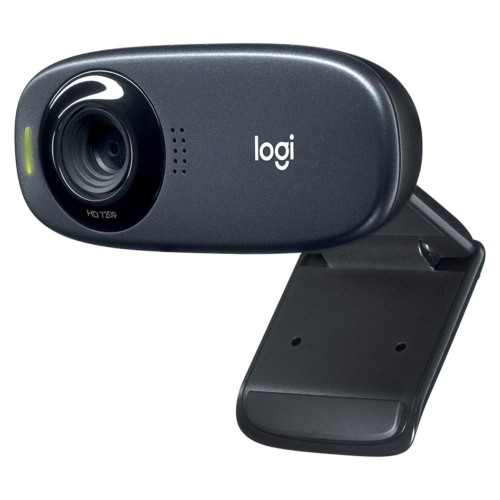
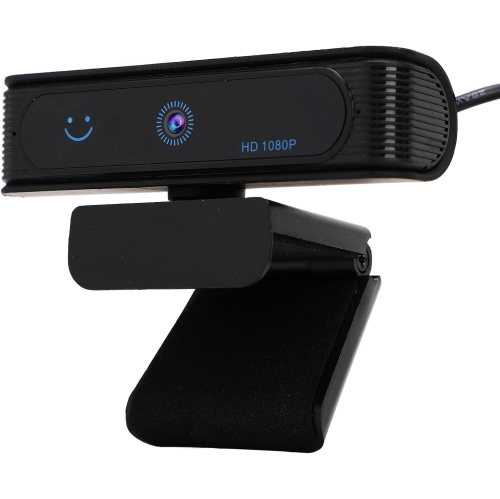
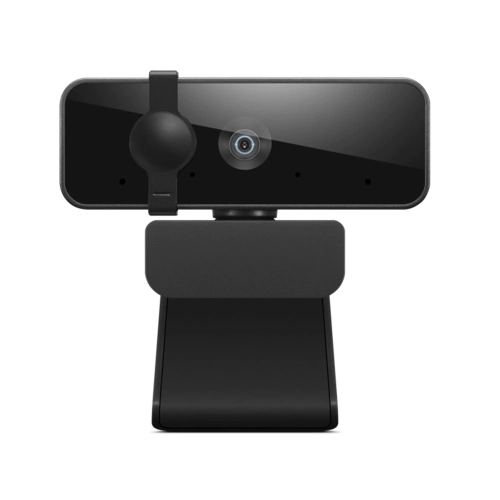
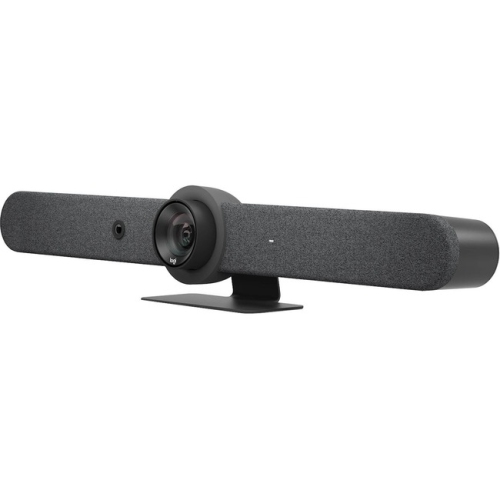
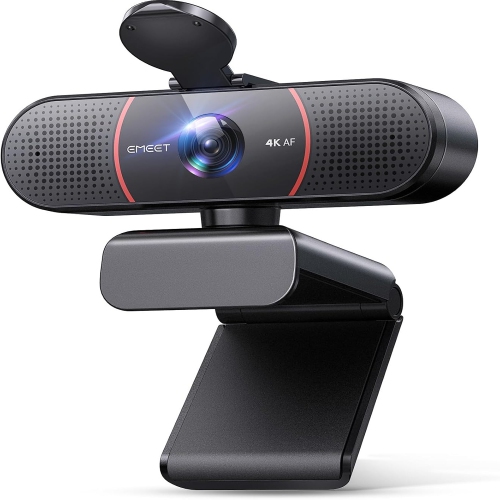
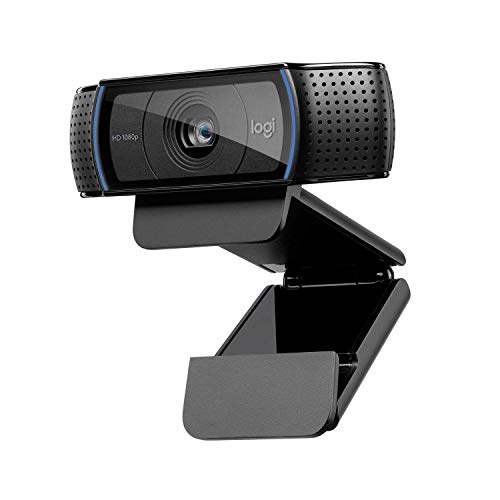
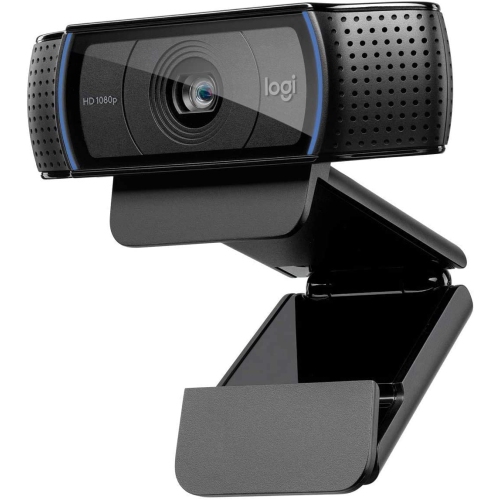
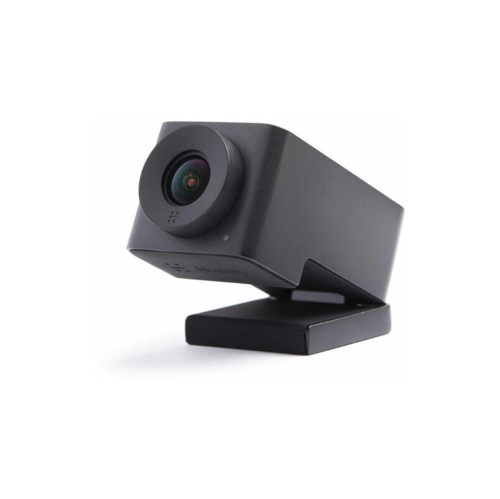
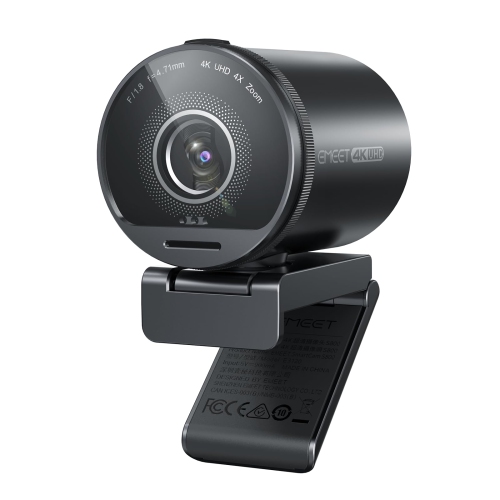
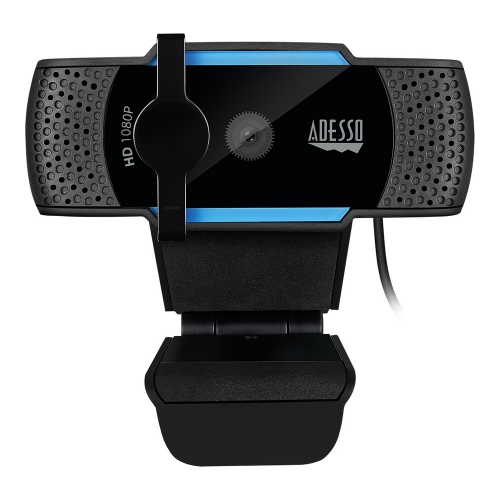
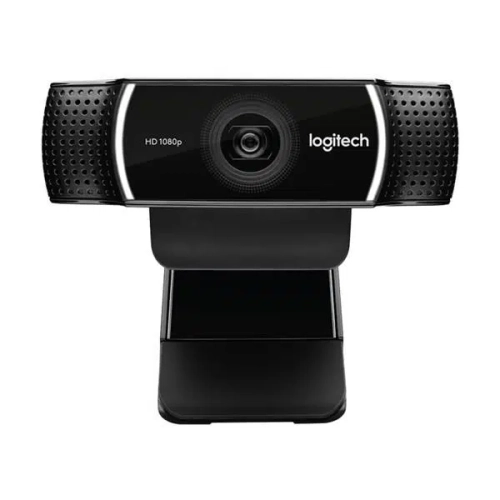
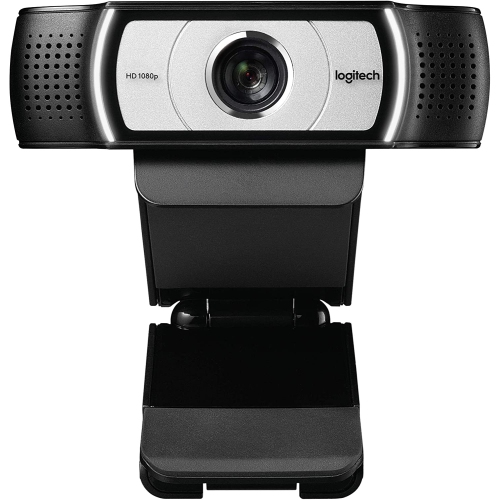
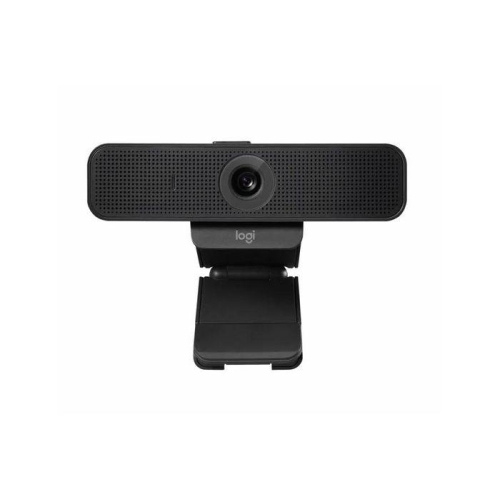
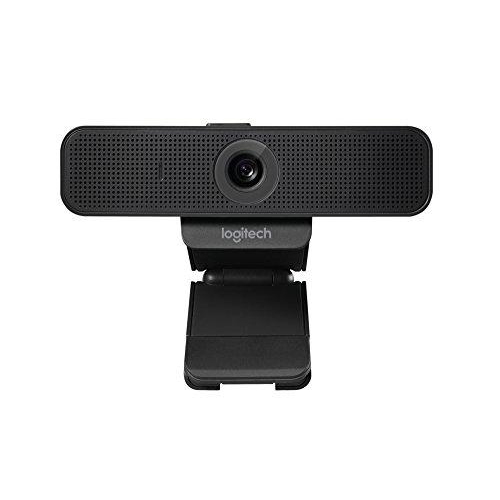
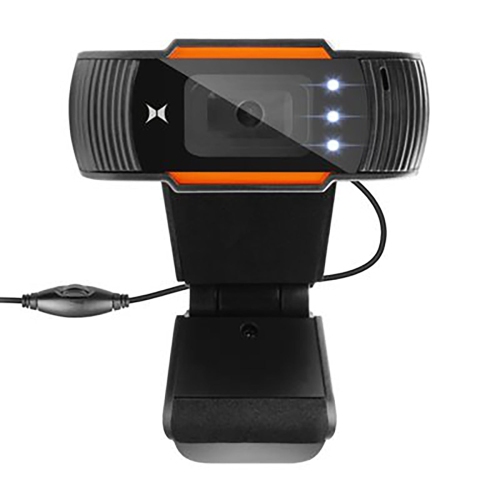
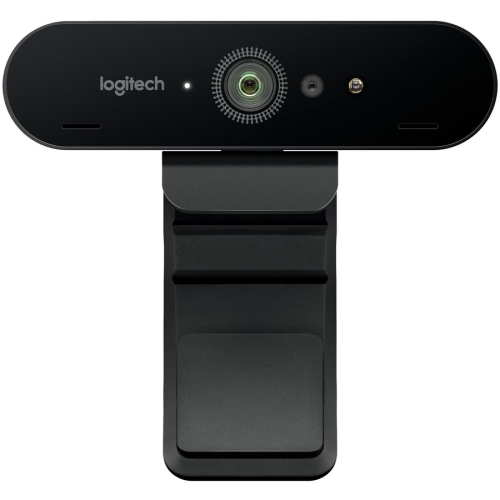
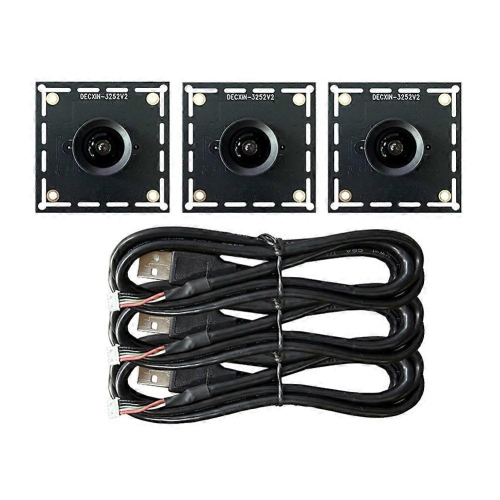
USB computer cameras are external webcams that connect to a desktop or laptop through a USB port, adding video for meetings, online classes, livestreams, and calls with family or friends. Unlike a camera built into a laptop lid, a separate webcam can be positioned above a larger monitor, moved between workstations, or mounted on a stand for a different angle. That flexibility is useful for a home office, a shared household computer, or a desktop setup without an integrated camera. Resolution is one of the main differences between webcams: 720p supports basic video calls, 1080p provides more detail for everyday meetings, and 4K can offer additional detail or room to crop when supported by the camera and software. Higher resolution alone does not guarantee a better picture. Lens quality, sensor performance, lighting, and the video platform’s own limits all affect what the other person sees. A well-lit 1080p image may look clearer than a higher-resolution image captured in a dim room. Frame rate also matters, particularly when demonstrating an object, teaching a movement, or presenting on camera. Video at 30 frames per second is common for conversation, while 60 frames per second can make motion look smoother on supported settings and platforms. Some webcams offer their highest frame rate only at a lower resolution, so the resolution and frame rate need to be considered together. For someone who spends much of the day in virtual meetings, a camera positioned near eye level can create a more natural face-to-face view than a laptop camera angled upward from a desk. For a student attending remote lessons or a grandparent joining a family call, straightforward controls and a stable mount may matter more than advanced image settings. USB webcams can also make practical gifts for people starting a home office or sharing creative projects online, provided the connection and software requirements suit the recipient’s computer.
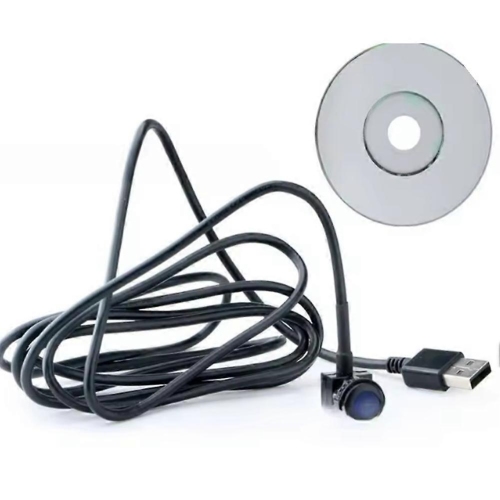
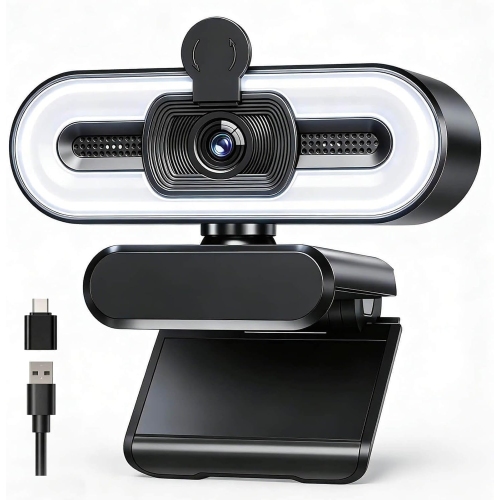
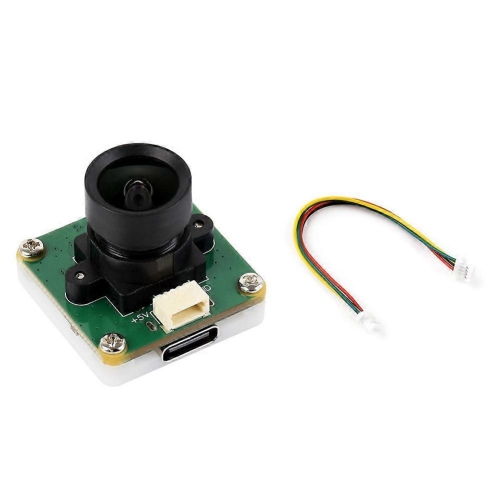
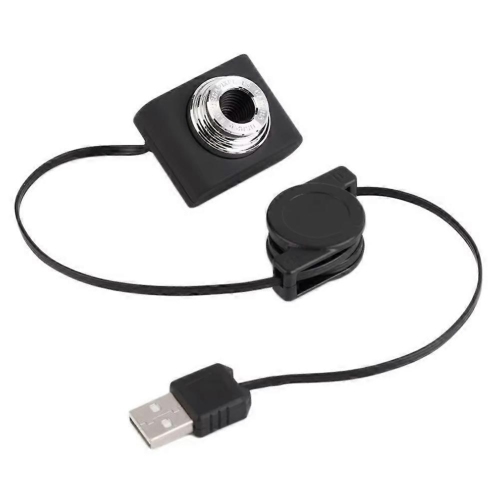
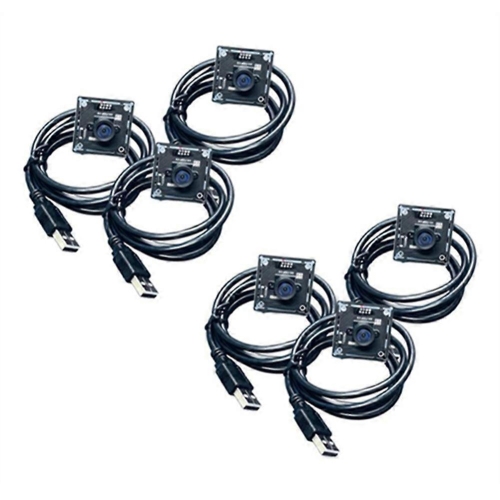
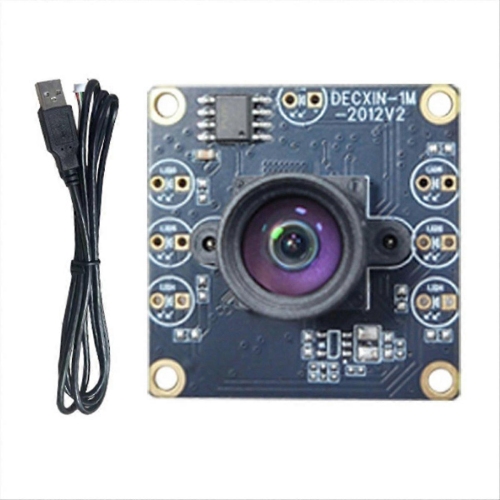
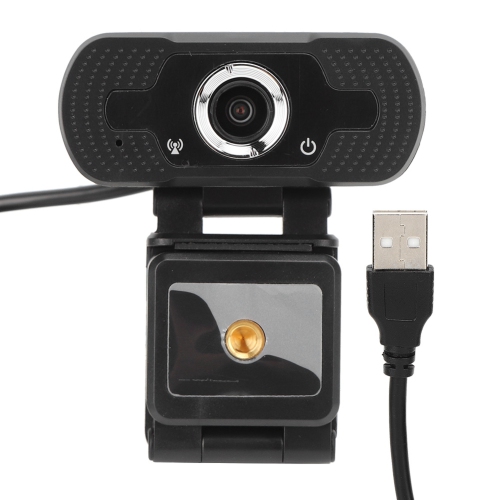
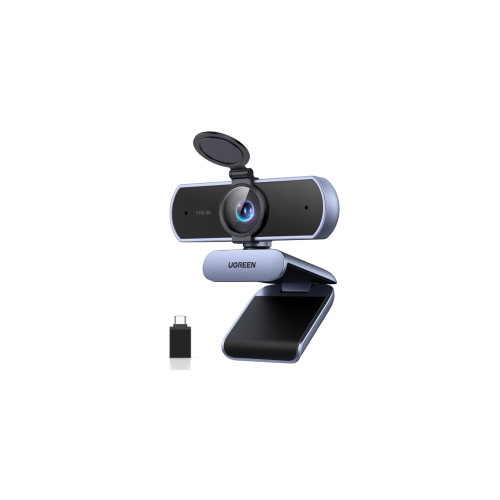
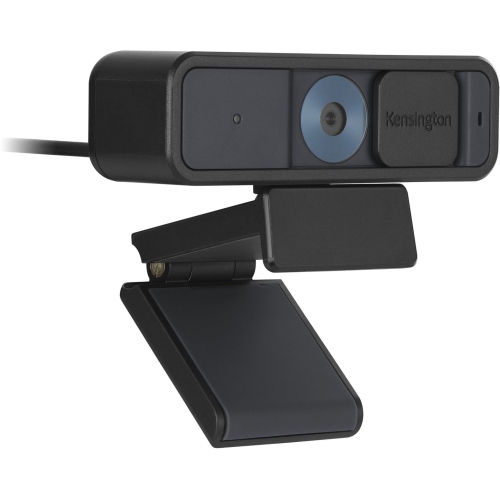
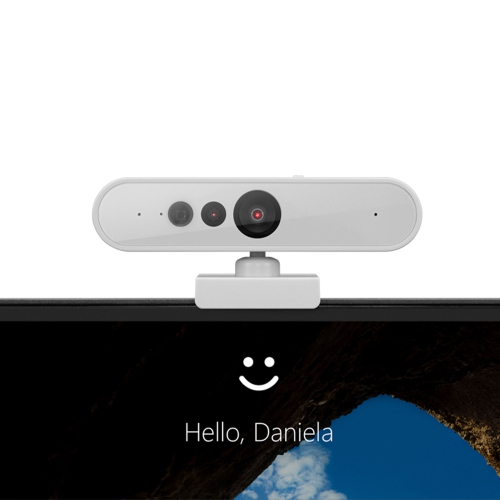
Connection type, mounting design, and physical fit determine how comfortably a USB camera becomes part of a desk setup. USB-A and USB-C describe different connector shapes, and the camera’s plug needs to match an available port or a suitable adapter. Computers with compact, oval USB-C ports may be a natural match for USB C Webcams, though connector shape by itself does not establish video quality or transfer speed. Many USB computer cameras support plug-and-play operation for basic video, while features such as adjustable framing, manual exposure, or firmware updates may require compatible software. Operating system support is especially important on older computers or workplace devices where installing software is restricted. Cable length deserves attention as well: a desktop tower beneath a desk requires a different reach from a laptop sitting directly below the camera. A cable routed with a little slack is less likely to pull the webcam out of position when a monitor moves. Hubs and adapters must support the camera’s connection requirements, particularly for higher-resolution video, and a direct computer connection can help isolate connection problems. Most webcams have lightweight plastic housings, while some include metal components in their stands, hinges, or bodies. A heavier housing is not automatically more durable; a secure hinge, well-supported cable connection, and stable base are useful details for everyday handling. Monitor clips need to suit the screen’s thickness and shape without pressing against the display surface or covering important controls. A narrow laptop bezel may leave less room for a bulky mount than a desktop monitor. Adjustable tilt and swivel make it easier to centre a face without rearranging the whole workstation, while a compatible tripod mount can support overhead demonstrations or an off-screen position. For shared desks, a camera that folds neatly and has an easily managed cable is simpler to move and store. A detachable cable, where included, can make packing more convenient, but any replacement must meet the camera’s data and power requirements.
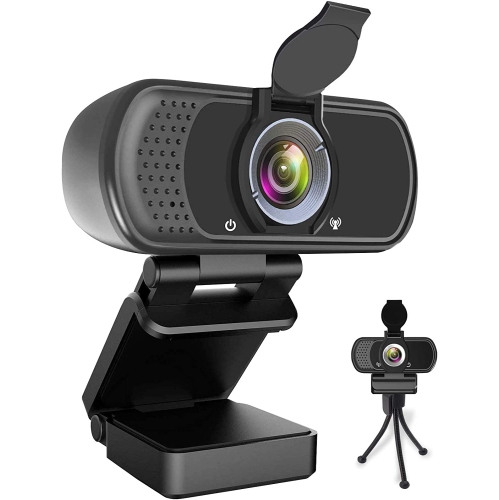
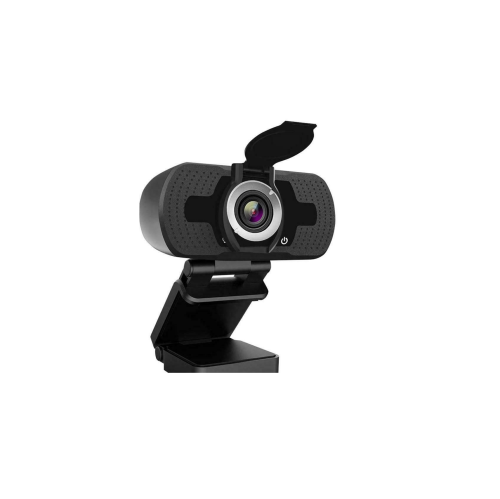
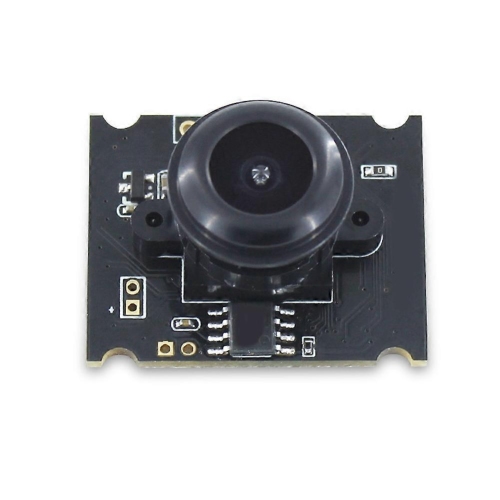
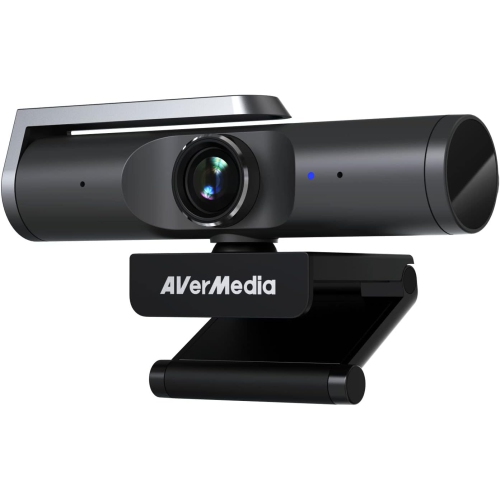
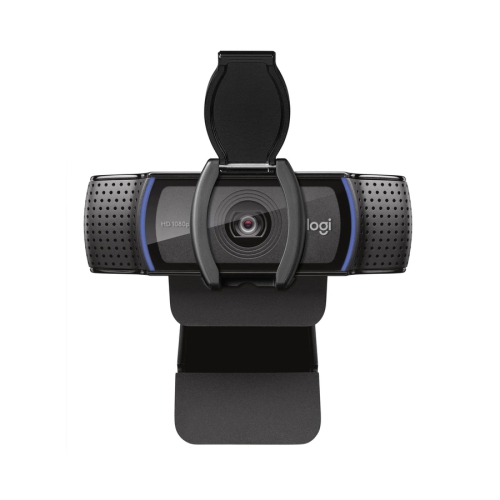
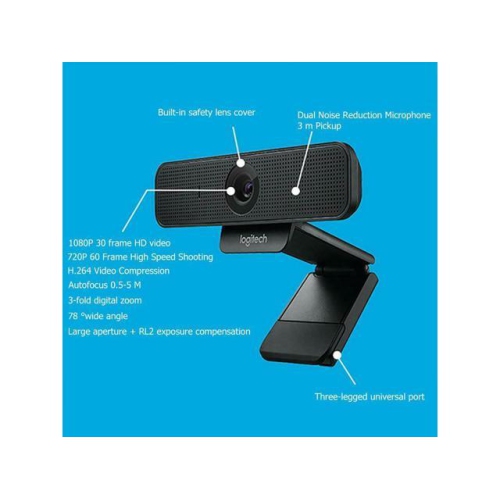
Image controls, microphone design, and privacy features shape the experience once a webcam is connected. Autofocus can help keep a face or an object sharp as its distance from the lens changes, making it useful for showing a craft detail or holding up a document during a call. Fixed-focus cameras generally work within a set distance range and can suit a seated position that stays consistent. Field of view describes how much of the scene fits into the image: a narrower view can frame one person with less of the room visible, while a wider view can accommodate two people at a desk or a larger presentation area. Very wide framing may also make nearby faces appear stretched toward the edges. Automatic light correction adjusts the image as lighting changes, but a soft light in front of the user usually produces more flattering results than a bright window behind them. Built-in microphones are convenient for casual calls, although keyboard taps, nearby conversations, and room echo can still be audible. Noise-reduction features may lessen some unwanted sounds; they do not replace a quiet space or a microphone positioned close to the speaker. A headset or separate microphone can provide more consistent voice pickup for frequent presenters, tutors, and streamers. Physical privacy shutters offer a visible way to cover the lens between calls, but covering the lens does not necessarily mute the microphone. Camera and microphone permissions remain separate settings on many computers and applications. Routine care is simple: disconnect the camera before cleaning, gently remove dust from the lens with a clean lens-safe cloth, and avoid spraying liquid directly onto the housing or USB connector. Keeping the cable free from sharp bends and storing the camera in a protective pouch during travel can help protect the mount and lens. For daily use, the most suitable combination is often clear video at a supported resolution, dependable sound, a comfortable viewing angle, and controls that are easy to manage without interrupting a conversation.
Connection type, mounting design, and physical fit determine how comfortably a USB camera becomes part of a desk setup. USB-A and USB-C describe different connector shapes, and the camera’s plug needs to match an available port or a suitable adapter. Computers with compact, oval USB-C ports may be a natural match for USB C Webcams, though connector shape by itself does not establish video quality or transfer speed. Many USB computer cameras support plug-and-play operation for basic video, while features such as adjustable framing, manual exposure, or firmware updates may require compatible software. Operating system support is especially important on older computers or workplace devices where installing software is restricted. Cable length deserves attention as well: a desktop tower beneath a desk requires a different reach from a laptop sitting directly below the camera. A cable routed with a little slack is less likely to pull the webcam out of position when a monitor moves. Hubs and adapters must support the camera’s connection requirements, particularly for higher-resolution video, and a direct computer connection can help isolate connection problems. Most webcams have lightweight plastic housings, while some include metal components in their stands, hinges, or bodies. A heavier housing is not automatically more durable; a secure hinge, well-supported cable connection, and stable base are useful details for everyday handling. Monitor clips need to suit the screen’s thickness and shape without pressing against the display surface or covering important controls. A narrow laptop bezel may leave less room for a bulky mount than a desktop monitor. Adjustable tilt and swivel make it easier to centre a face without rearranging the whole workstation, while a compatible tripod mount can support overhead demonstrations or an off-screen position. For shared desks, a camera that folds neatly and has an easily managed cable is simpler to move and store. A detachable cable, where included, can make packing more convenient, but any replacement must meet the camera’s data and power requirements.
Image controls, microphone design, and privacy features shape the experience once a webcam is connected. Autofocus can help keep a face or an object sharp as its distance from the lens changes, making it useful for showing a craft detail or holding up a document during a call. Fixed-focus cameras generally work within a set distance range and can suit a seated position that stays consistent. Field of view describes how much of the scene fits into the image: a narrower view can frame one person with less of the room visible, while a wider view can accommodate two people at a desk or a larger presentation area. Very wide framing may also make nearby faces appear stretched toward the edges. Automatic light correction adjusts the image as lighting changes, but a soft light in front of the user usually produces more flattering results than a bright window behind them. Built-in microphones are convenient for casual calls, although keyboard taps, nearby conversations, and room echo can still be audible. Noise-reduction features may lessen some unwanted sounds; they do not replace a quiet space or a microphone positioned close to the speaker. A headset or separate microphone can provide more consistent voice pickup for frequent presenters, tutors, and streamers. Physical privacy shutters offer a visible way to cover the lens between calls, but covering the lens does not necessarily mute the microphone. Camera and microphone permissions remain separate settings on many computers and applications. Routine care is simple: disconnect the camera before cleaning, gently remove dust from the lens with a clean lens-safe cloth, and avoid spraying liquid directly onto the housing or USB connector. Keeping the cable free from sharp bends and storing the camera in a protective pouch during travel can help protect the mount and lens. For daily use, the most suitable combination is often clear video at a supported resolution, dependable sound, a comfortable viewing angle, and controls that are easy to manage without interrupting a conversation.
Top selling and popular products
-
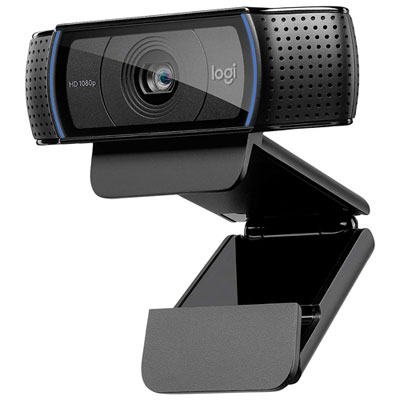 Your price for this item is $79.99
 -
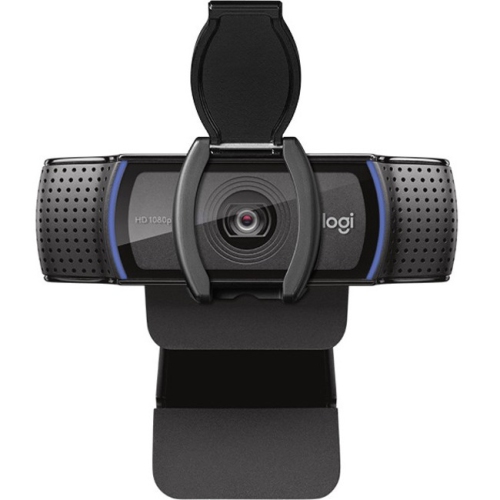 Your price for this item is $123.44
 -
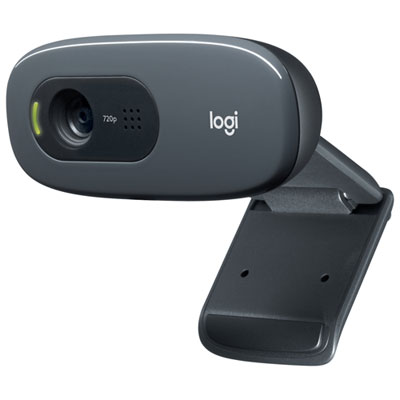 Your price for this item is $27.98
 -
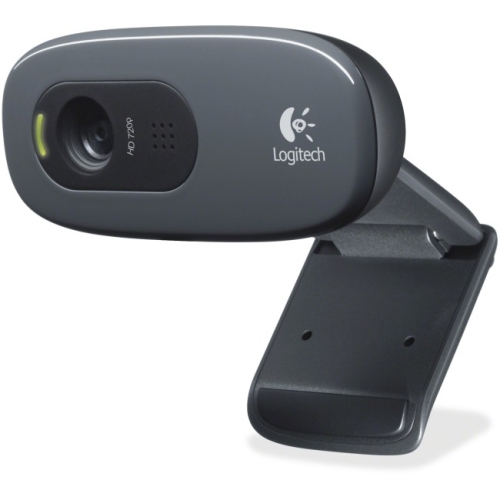 Your price for this item is $48.49
 -
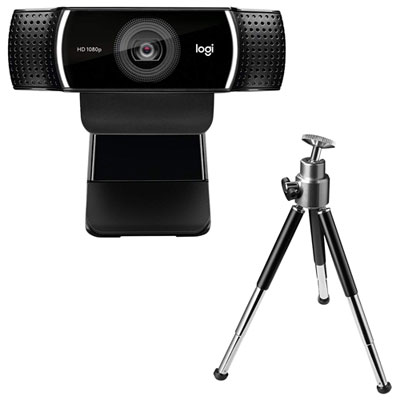 Your price for this item is $149.99
 -
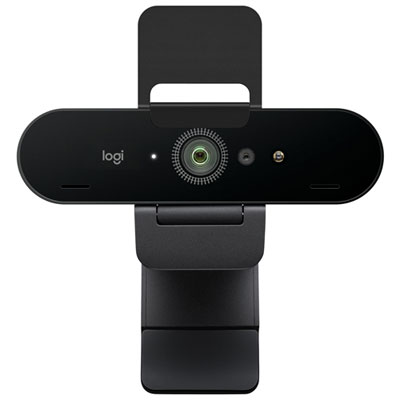 Your price for this item is $249.99
 -
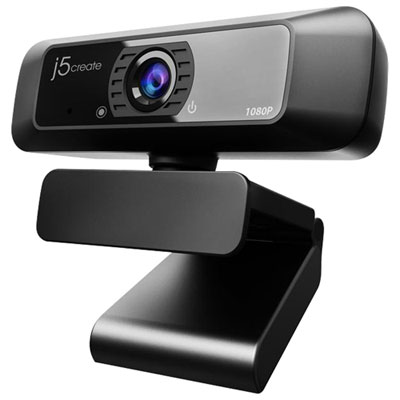 Your price for this item is $49.99
 -
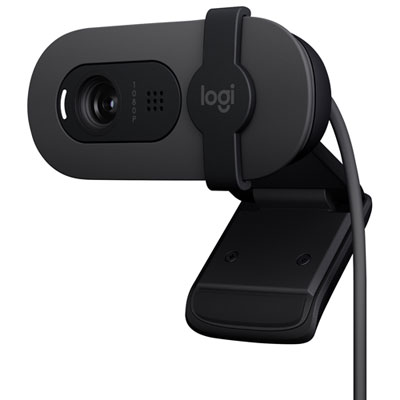 Your price for this item is $34.99
Discover more categories related to USB Computer Cameras
Top Collections:
Pokemon Centers, Best Cameras for Sports Photography, Kindle Devices, Samsung Galaxy Phones, Canon G7X Cameras, Pokémon 30th Celebration Cards, Refurbished Apple Laptops, iPhone 15 Apple, Laptops for Students, Budget Smartphones
Some products may be subject to Environmental Handling Fees
(EHF) depending on your province.
Learn more about EHFs.