Computer Mice for Carpal Tunnel
Carpal tunnel syndrome is a wrist injury that can result from repetitive motion. If you're a computer user, you may be at risk for developing carpal tunnel syndrome if you use a mouse for long periods. A mouse can cause your hand to move in ways that put extra pressure on your median nerve, which runs through your wrist. To help prevent carpal tunnel syndrome, some people recommend using an ergonomic mouse. Ergonomic mice are designed to reduce the stress on your hand and wrist by providing a more natural posture and grip. Here are some of our favorites.
Sort
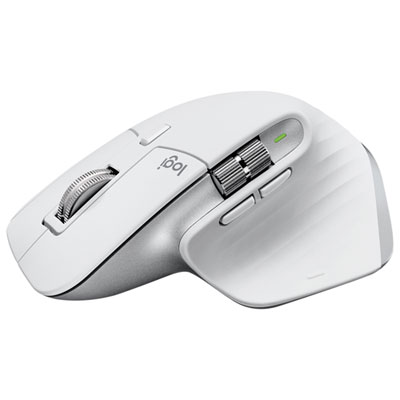
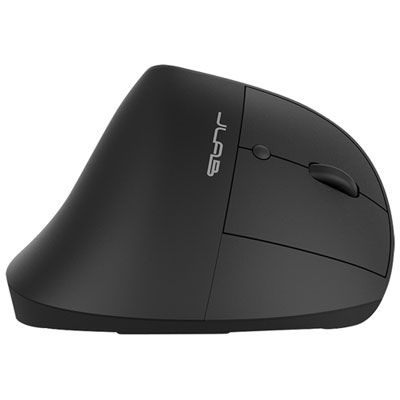
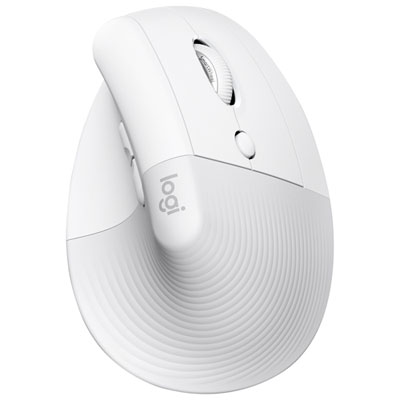
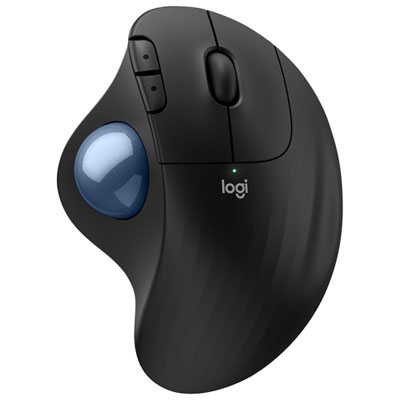
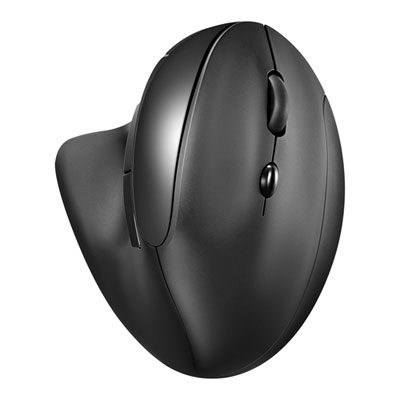
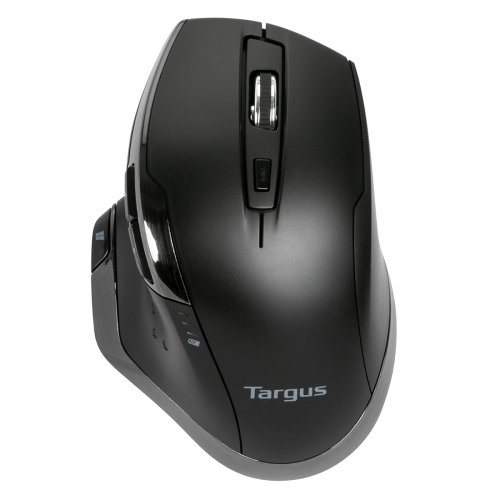
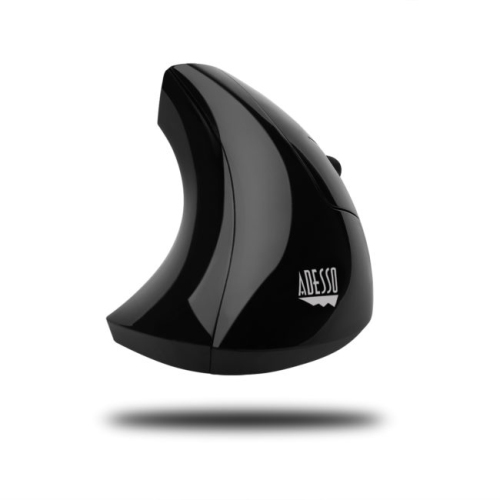
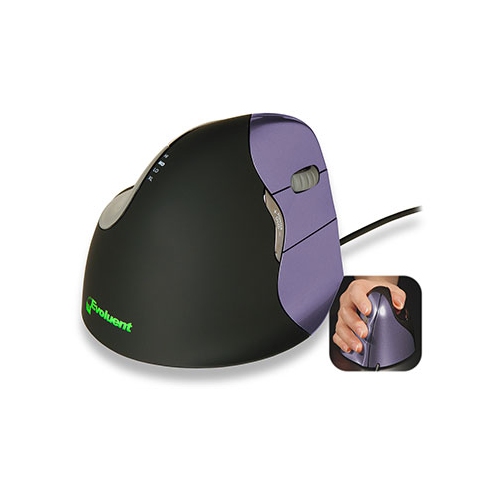

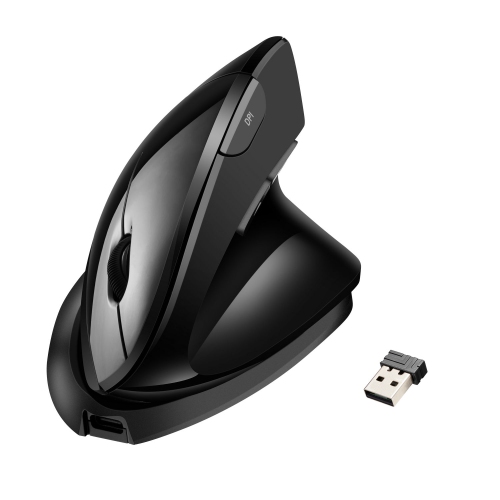
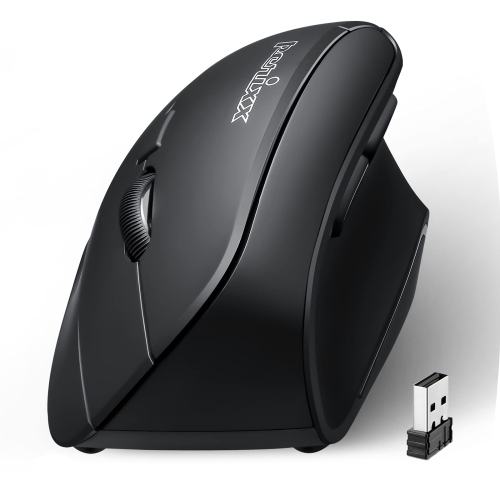
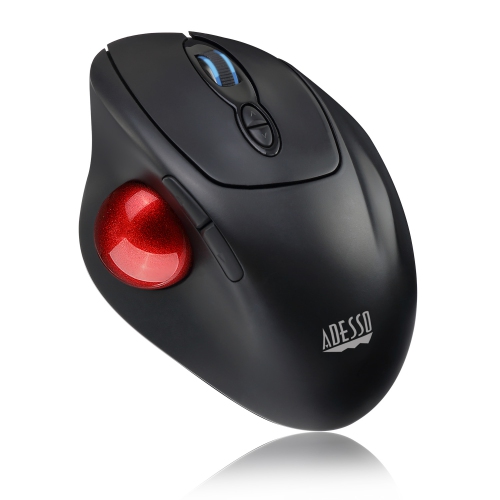
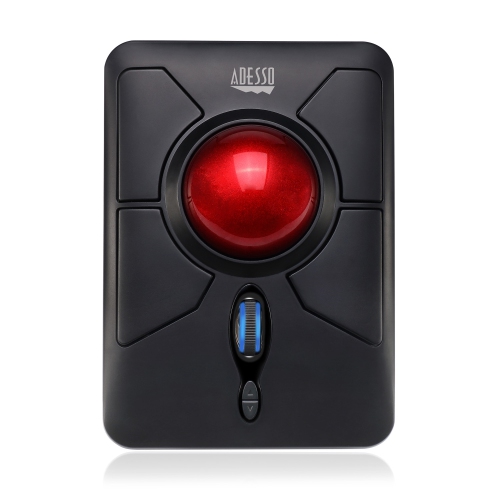
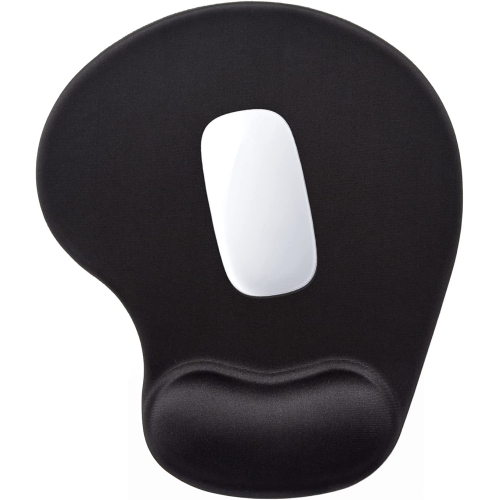
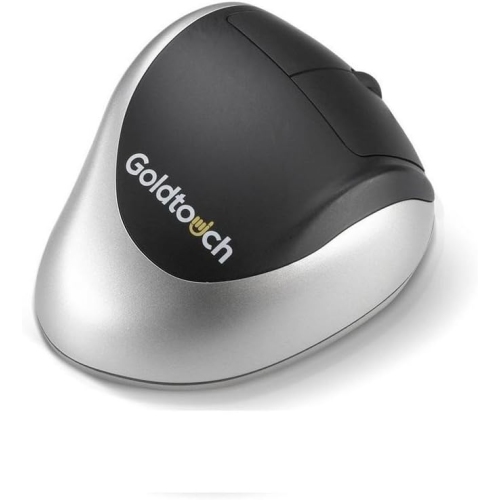
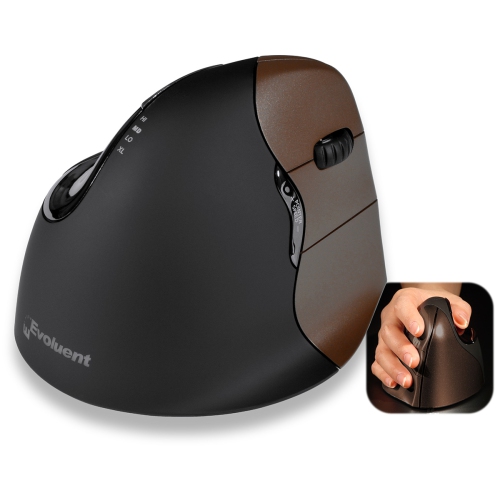
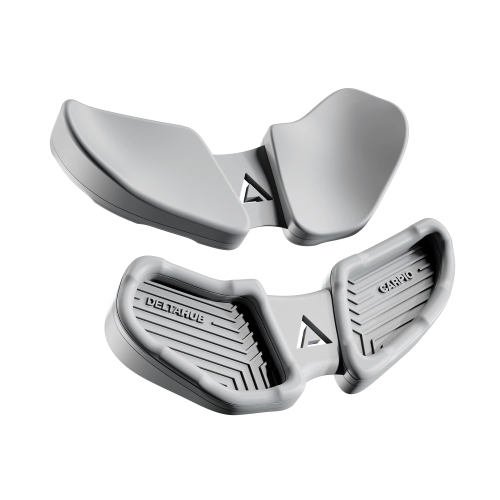
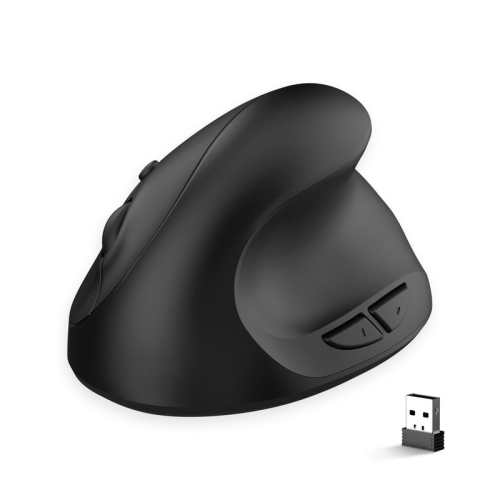
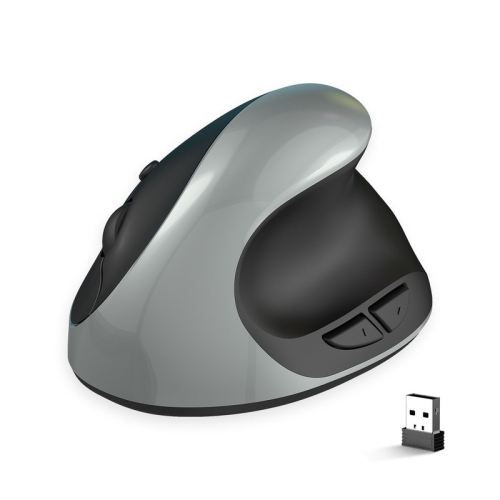
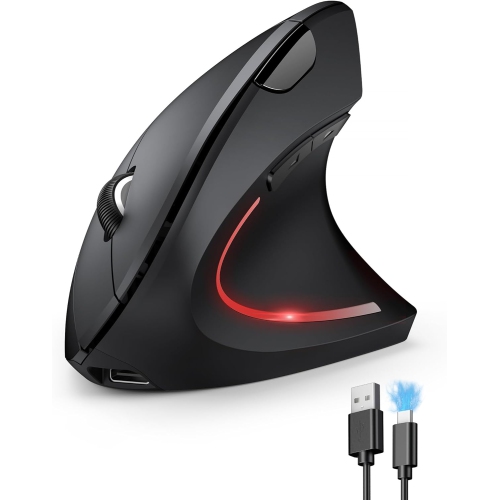
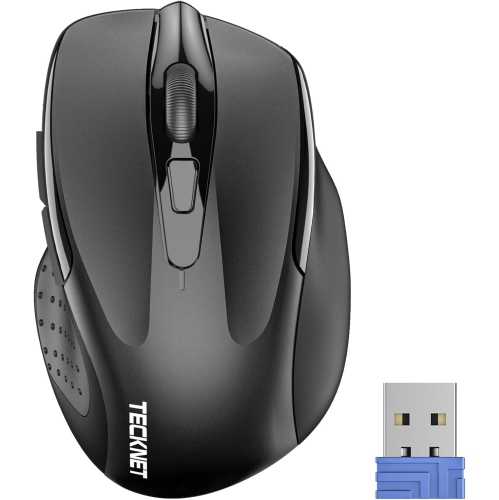
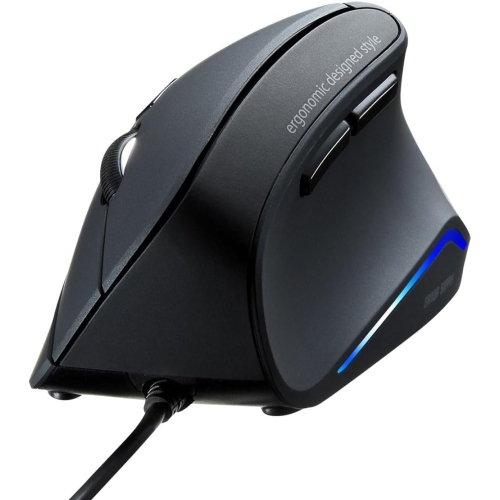
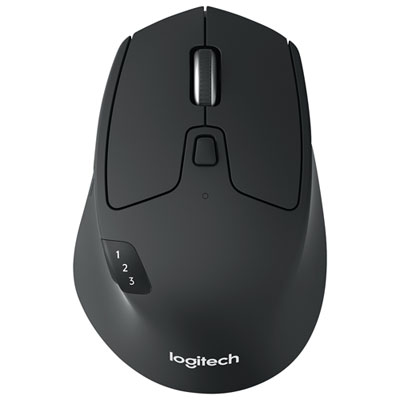
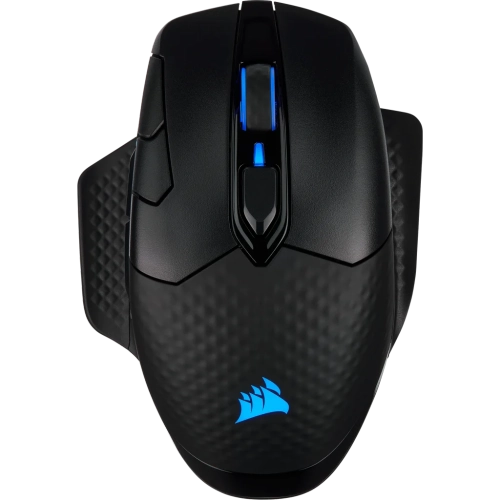
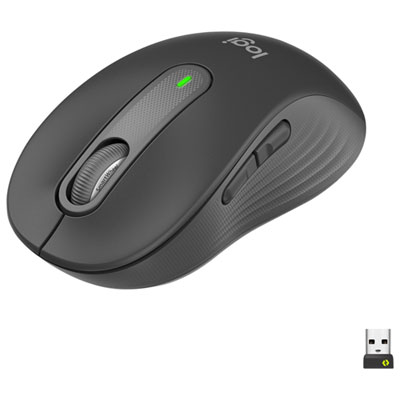
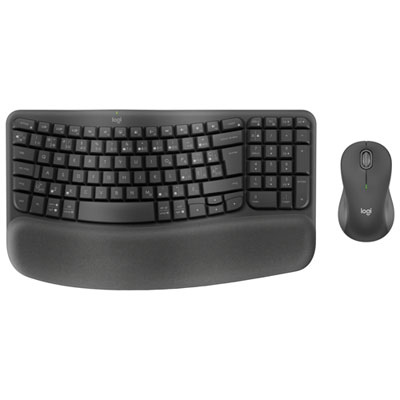
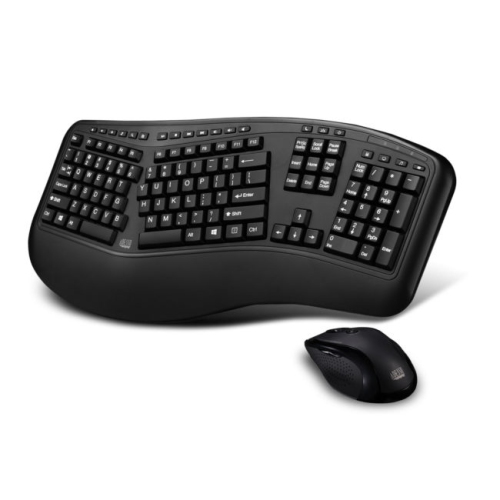
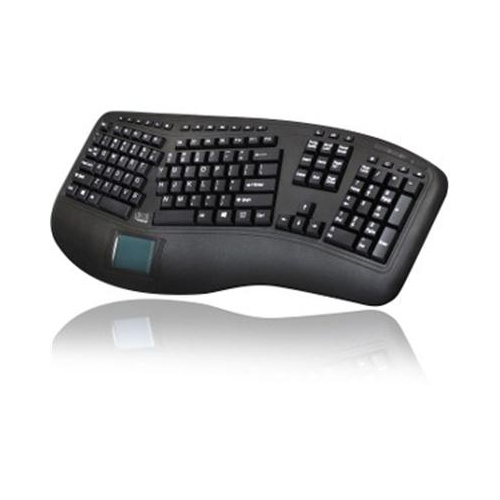
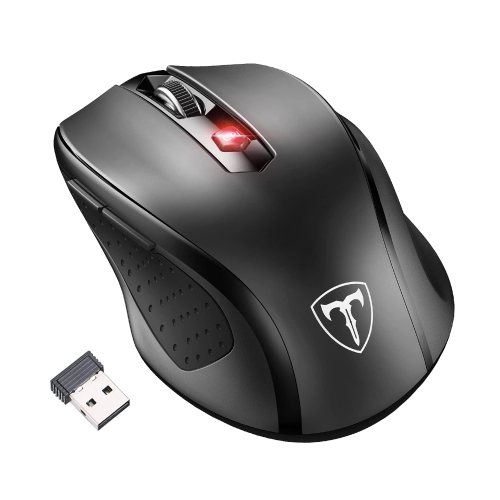

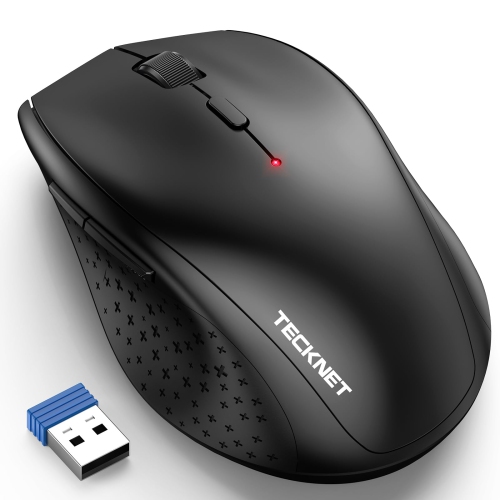
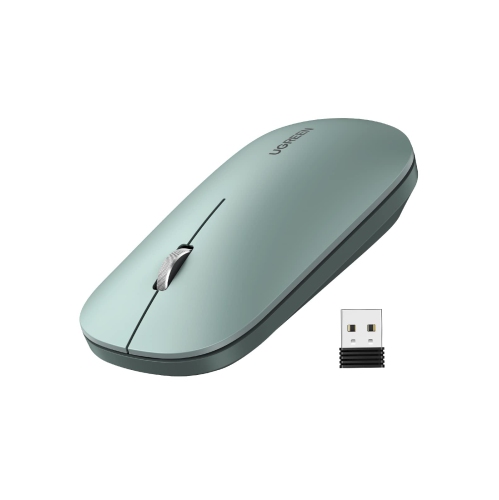
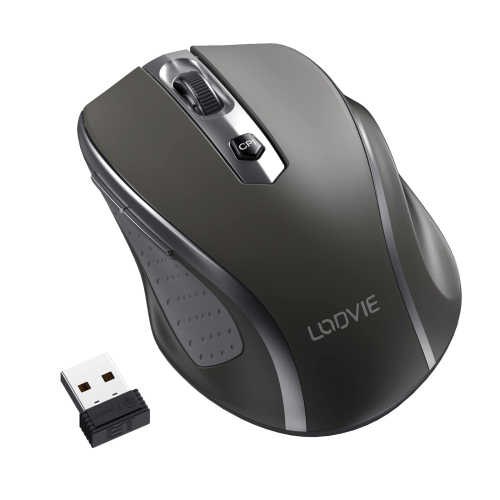
How mouse shape changes hand position and movement
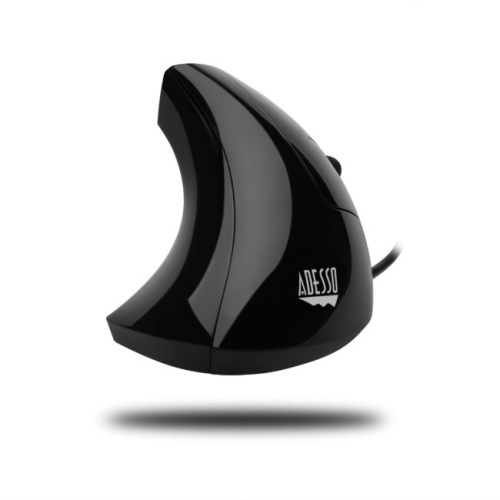
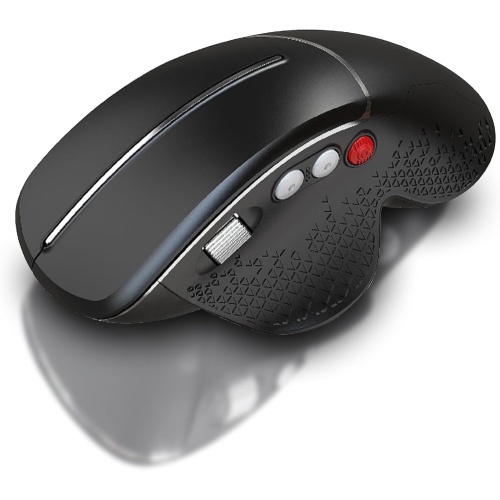
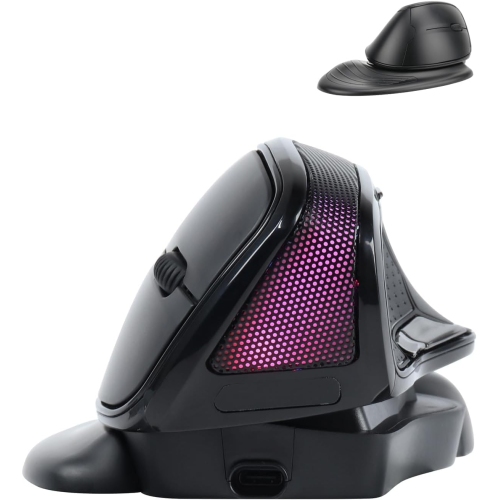
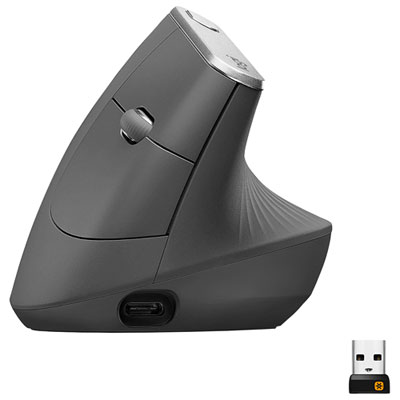
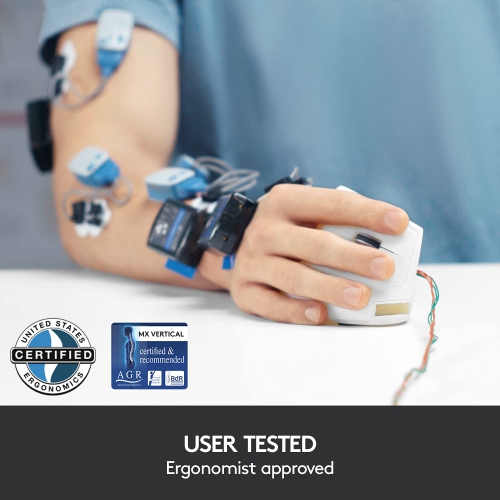
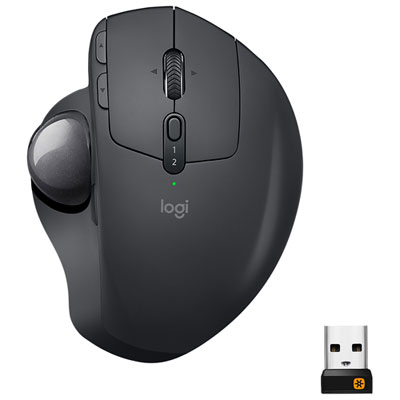
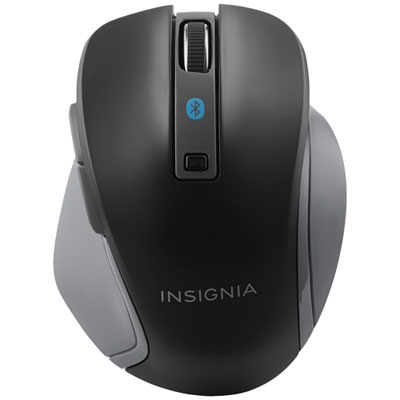
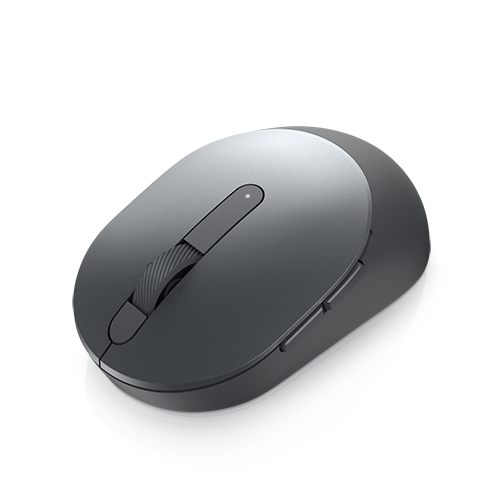
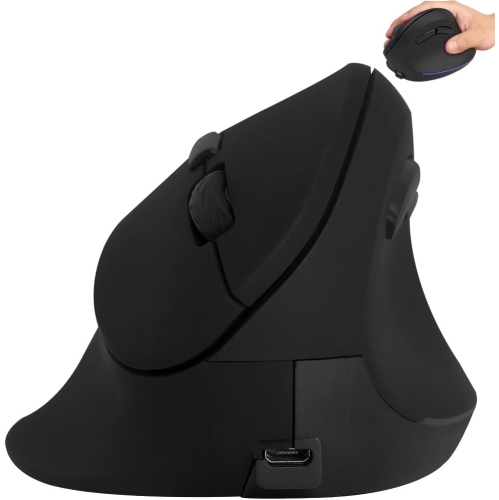
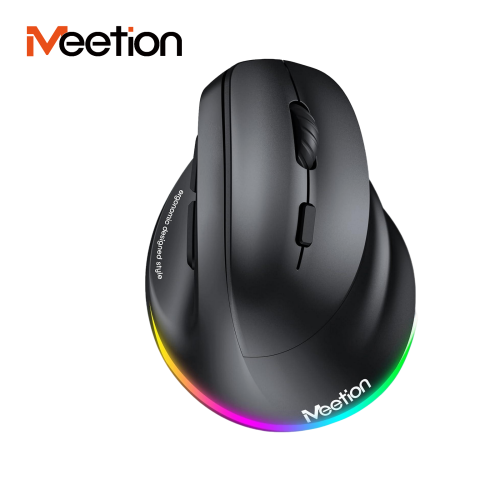
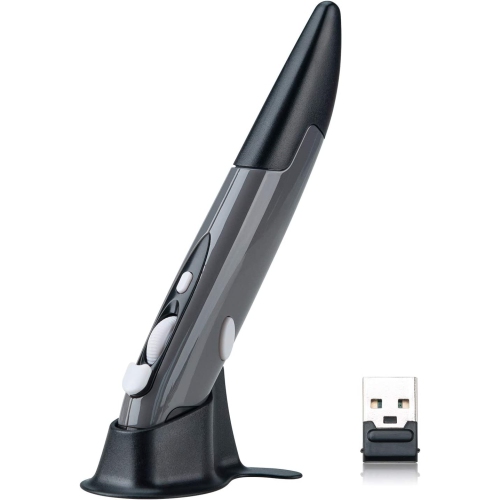
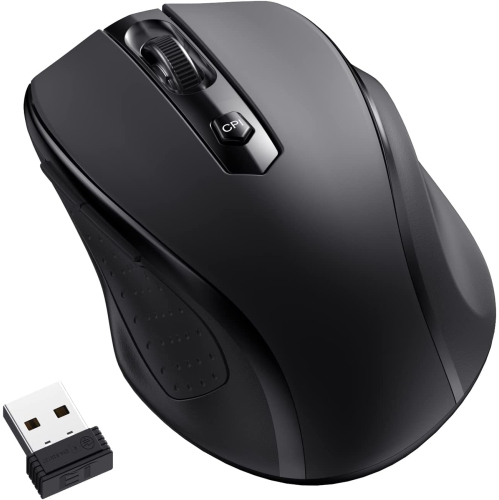
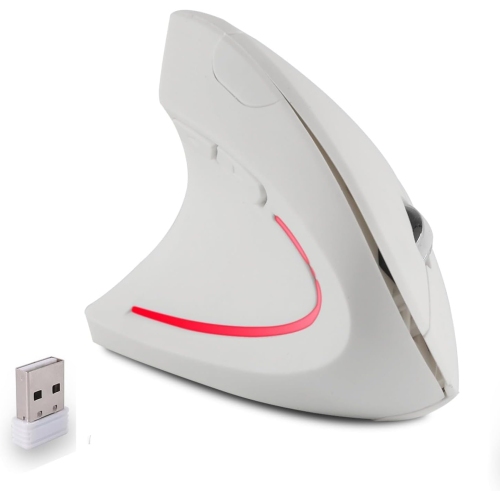
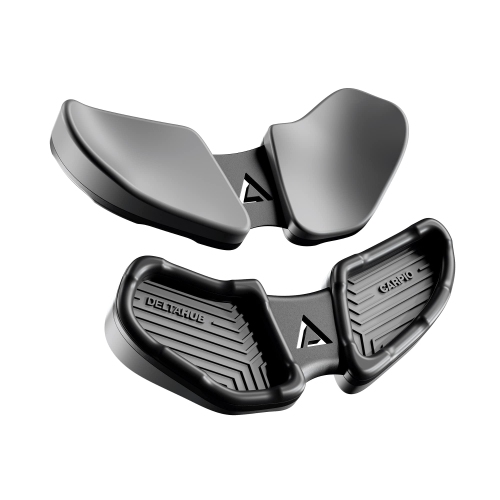
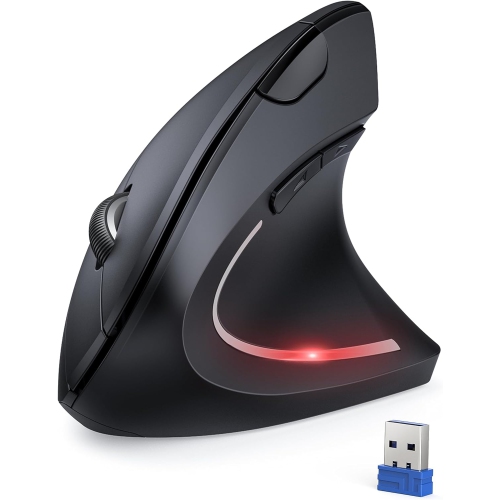
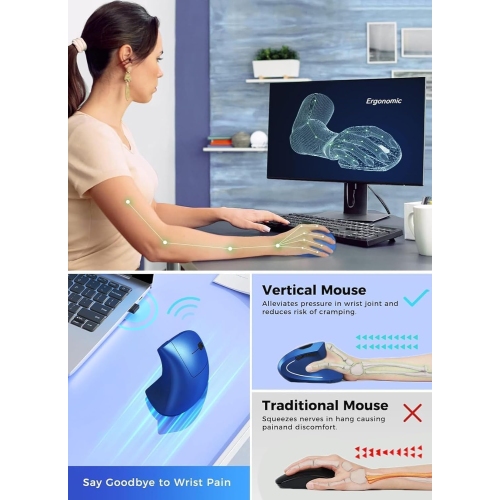
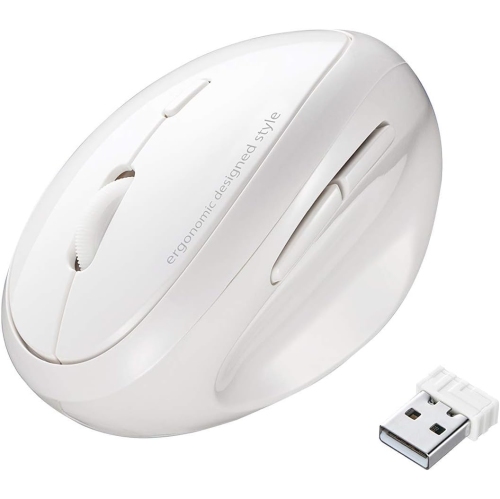
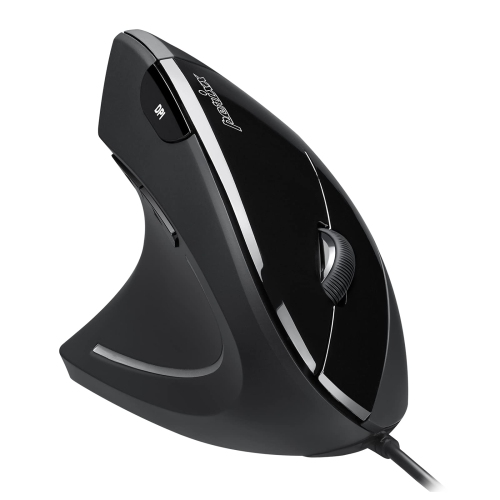
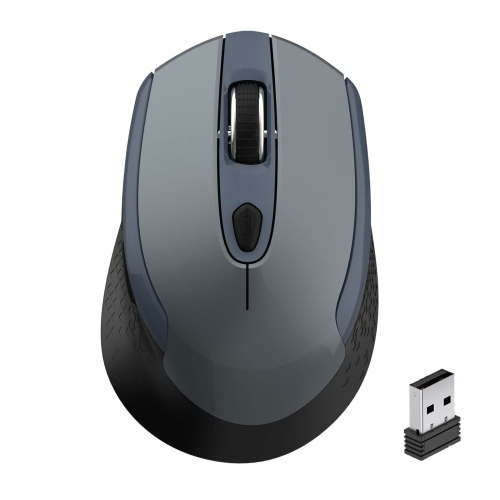
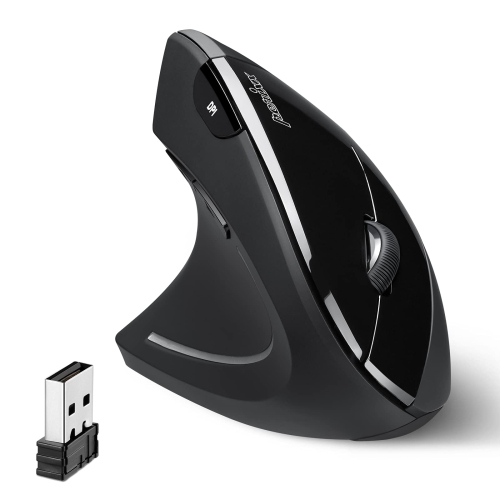
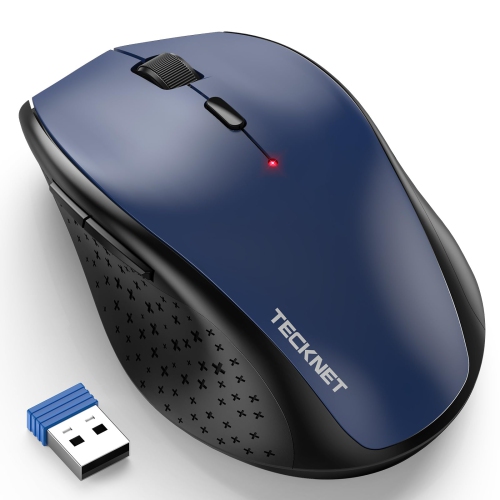
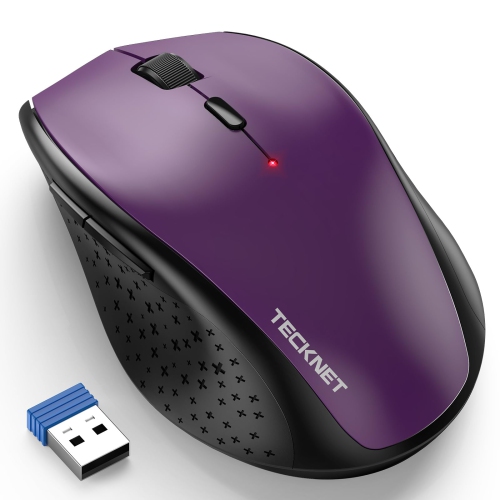
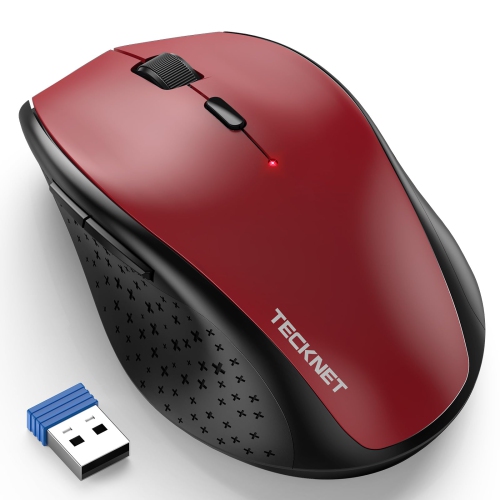
Computer mice for carpal tunnel are often ergonomic mice designed to support a more comfortable hand position and offer alternatives to the movements used with a conventional mouse. The main options include vertical mice, sculpted ergonomic mice and trackball mice, each with a different approach to grip and cursor control. A vertical mouse places the hand in a handshake-like position, reducing how far the forearm turns palm-down during use. A sculpted mouse may feel closer to a familiar desktop mouse while providing more support beneath the palm and along the thumb. A trackball moves the pointer through a rotating ball rather than by sliding the entire device across the desk, which can reduce arm travel. These differences matter when an ordinary workday involves hours of selecting spreadsheet cells, adjusting presentation slides or moving between browser tabs. No mouse is a proven cure for carpal tunnel syndrome, and an ergonomic label alone does not guarantee relief. Carpal tunnel syndrome involves compression of the median nerve at the wrist; a suitable mouse may help make computer use more comfortable, but it does not replace assessment or treatment for persistent tingling, numbness, pain or weakness. For shopping purposes, the most useful starting points are hand size, preferred grip, handedness and the amount of movement your work requires. A mouse should let your fingers reach the main buttons without stretching and give your thumb somewhere comfortable to settle without a tight pinch. Larger hands may benefit from a fuller body, while smaller hands often need a shorter reach to the buttons and scroll wheel. Left-handed users should check the shape carefully, since many sculpted and vertical designs are made specifically for the right hand. The aim is a relaxed hold that suits your hand, rather than a particular angle or an oversized design chosen simply because it looks supportive. Whether the mouse is for a home office, a campus workspace or a shared family computer, that everyday fit is central to its usefulness.
Vertical and trackball mice can be especially appealing to people who find the repeated movements of a traditional mouse uncomfortable, but they feel quite different in practice. With a vertical mouse, the hand and arm still move the device across the work surface; the change is primarily in how the hand rests and grips. A moderate tilt may feel familiar sooner, while a more upright shape creates a greater change from the usual palm-down position. Neither is automatically better for every person. Button placement, balance and the force needed to click can be just as important as the tilt itself. Light, easy-to-reach buttons may suit someone who spends the day approving documents or working through a busy inbox, while a smooth scroll wheel can make long pages less laborious to navigate. Thumb rests and textured surfaces can help some users hold the mouse without squeezing, provided the shape matches their hand. Trackballs offer another option, particularly on a compact desk where there is little room to sweep a mouse from side to side. Thumb-operated models leave cursor movement mainly to the thumb, while finger-operated designs use one or more fingers to roll the ball. That distinction deserves attention if a particular finger or thumb is already uncomfortable: reducing wrist movement can shift more activity elsewhere rather than remove it. Adjustable pointer sensitivity, often described through DPI settings on optical mice, is another useful purchase consideration. Higher sensitivity allows the cursor to travel farther with less physical mouse movement, which can be helpful across a wide display or a multi-monitor setup. Too much sensitivity, however, can make small targets difficult to select and lead to repeated corrections. Accessible sensitivity controls let users find a balance between reach and precision. Programmable buttons may also reduce repeated trips to menus by putting frequently used actions within easy reach, although their value depends on software compatibility and whether the buttons can be pressed without an awkward stretch.
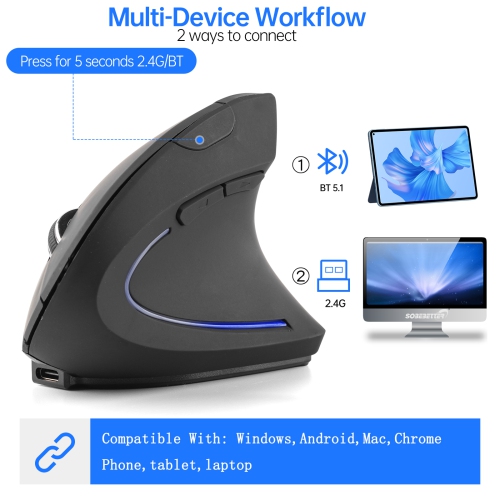
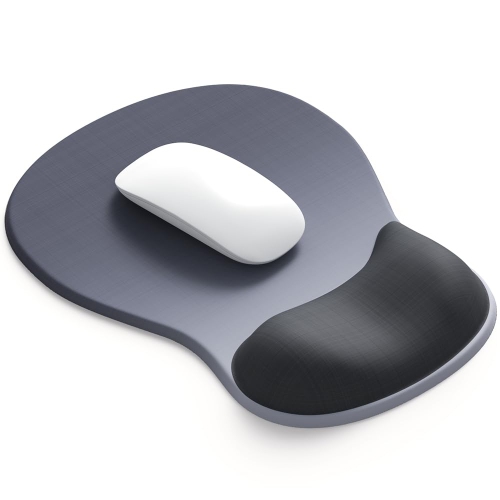
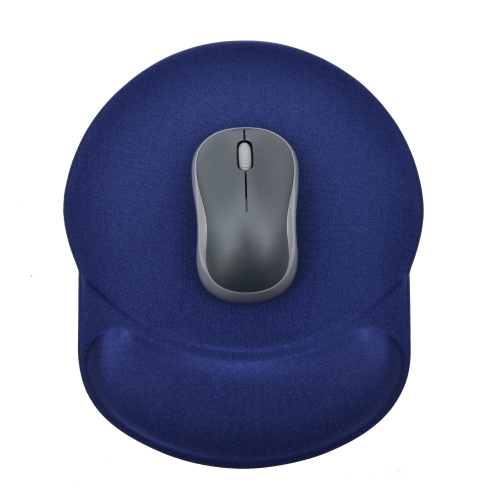
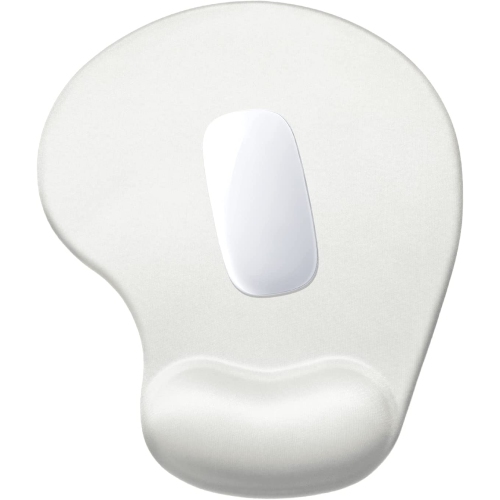
Connection type and desk layout help determine whether an ergonomic mouse will fit comfortably into daily life. A wired mouse offers a straightforward connection without batteries to charge or replace, but the cable needs enough slack that it does not tug during movement. Wireless models remove that cable from the work surface and can be easier to position beside a laptop or keyboard. Bluetooth connectivity can leave a USB port free, while models that use a USB receiver require a compatible port or adapter. Checking operating-system support is worthwhile, especially when custom button assignments or other settings depend on companion software. Battery type, charging method, weight and portability also affect convenience. Someone carrying a laptop between classes or workplaces may value a lighter device, though a compact travel shape should still provide enough room for their hand. For a permanent workstation, a larger body may be practical if it offers a better fit. The surrounding setup matters, too: even a well-shaped mouse can feel awkward when it sits far beyond the keyboard or on a surface that leaves the wrist bent upward. Keeping it within easy reach and at a comfortable working height can support a more relaxed posture. Avoiding firm pressure directly beneath the wrist during active mouse use is also important; a hard desk edge or poorly positioned rest can create an uncomfortable contact point. Complementary options such as Ergonomic Keyboards for Carpal Tunnel may help create a workspace that better suits both typing and pointing, particularly when keyboard width affects how far the mouse sits from the body. These mice can make thoughtful gifts for students, remote workers or relatives who spend plenty of time at a computer, but personal fit makes the recipient’s preferences and the return policy worth considering. A new shape may take some adjustment, especially for precise tasks, yet persistent discomfort should not be treated as something to push through. The most useful choice is one that combines a comfortable fit, manageable controls and reliable connectivity with room for regular breaks and changes of position throughout the day.
Vertical and trackball mice can be especially appealing to people who find the repeated movements of a traditional mouse uncomfortable, but they feel quite different in practice. With a vertical mouse, the hand and arm still move the device across the work surface; the change is primarily in how the hand rests and grips. A moderate tilt may feel familiar sooner, while a more upright shape creates a greater change from the usual palm-down position. Neither is automatically better for every person. Button placement, balance and the force needed to click can be just as important as the tilt itself. Light, easy-to-reach buttons may suit someone who spends the day approving documents or working through a busy inbox, while a smooth scroll wheel can make long pages less laborious to navigate. Thumb rests and textured surfaces can help some users hold the mouse without squeezing, provided the shape matches their hand. Trackballs offer another option, particularly on a compact desk where there is little room to sweep a mouse from side to side. Thumb-operated models leave cursor movement mainly to the thumb, while finger-operated designs use one or more fingers to roll the ball. That distinction deserves attention if a particular finger or thumb is already uncomfortable: reducing wrist movement can shift more activity elsewhere rather than remove it. Adjustable pointer sensitivity, often described through DPI settings on optical mice, is another useful purchase consideration. Higher sensitivity allows the cursor to travel farther with less physical mouse movement, which can be helpful across a wide display or a multi-monitor setup. Too much sensitivity, however, can make small targets difficult to select and lead to repeated corrections. Accessible sensitivity controls let users find a balance between reach and precision. Programmable buttons may also reduce repeated trips to menus by putting frequently used actions within easy reach, although their value depends on software compatibility and whether the buttons can be pressed without an awkward stretch.
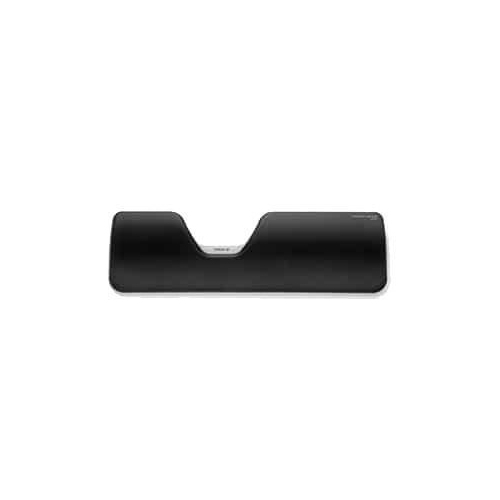
Connection type and desk layout help determine whether an ergonomic mouse will fit comfortably into daily life. A wired mouse offers a straightforward connection without batteries to charge or replace, but the cable needs enough slack that it does not tug during movement. Wireless models remove that cable from the work surface and can be easier to position beside a laptop or keyboard. Bluetooth connectivity can leave a USB port free, while models that use a USB receiver require a compatible port or adapter. Checking operating-system support is worthwhile, especially when custom button assignments or other settings depend on companion software. Battery type, charging method, weight and portability also affect convenience. Someone carrying a laptop between classes or workplaces may value a lighter device, though a compact travel shape should still provide enough room for their hand. For a permanent workstation, a larger body may be practical if it offers a better fit. The surrounding setup matters, too: even a well-shaped mouse can feel awkward when it sits far beyond the keyboard or on a surface that leaves the wrist bent upward. Keeping it within easy reach and at a comfortable working height can support a more relaxed posture. Avoiding firm pressure directly beneath the wrist during active mouse use is also important; a hard desk edge or poorly positioned rest can create an uncomfortable contact point. Complementary options such as Ergonomic Keyboards for Carpal Tunnel may help create a workspace that better suits both typing and pointing, particularly when keyboard width affects how far the mouse sits from the body. These mice can make thoughtful gifts for students, remote workers or relatives who spend plenty of time at a computer, but personal fit makes the recipient’s preferences and the return policy worth considering. A new shape may take some adjustment, especially for precise tasks, yet persistent discomfort should not be treated as something to push through. The most useful choice is one that combines a comfortable fit, manageable controls and reliable connectivity with room for regular breaks and changes of position throughout the day.
Top selling and popular products
-
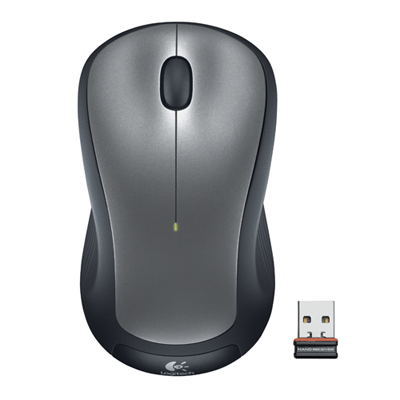 Your price for this item is $29.99
 -
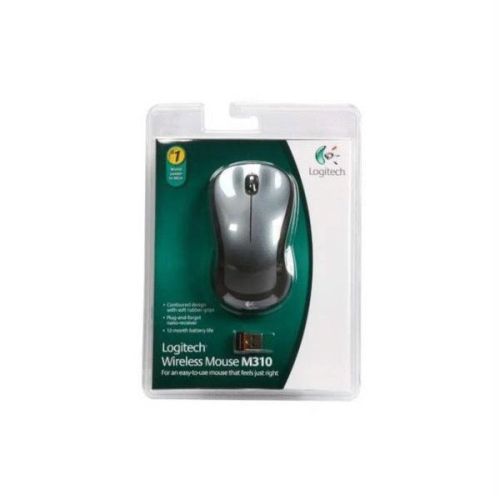 Your price for this item is $50.44
 -
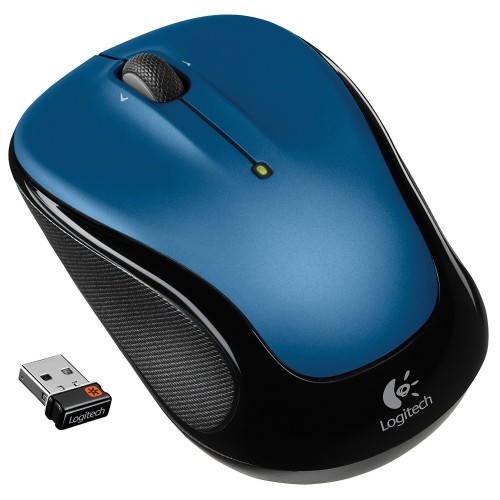 Your price for this item is $39.99
 -
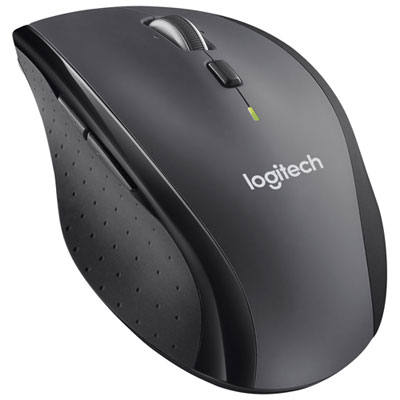 Your price for this item is $49.99
 -
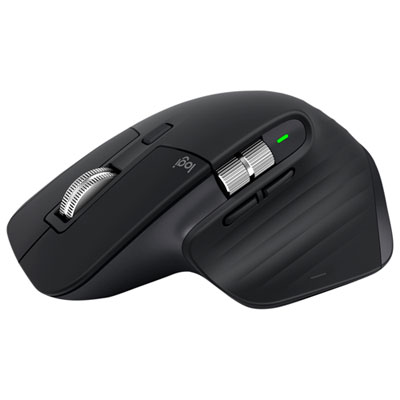 Your price for this item is $159.95
 -
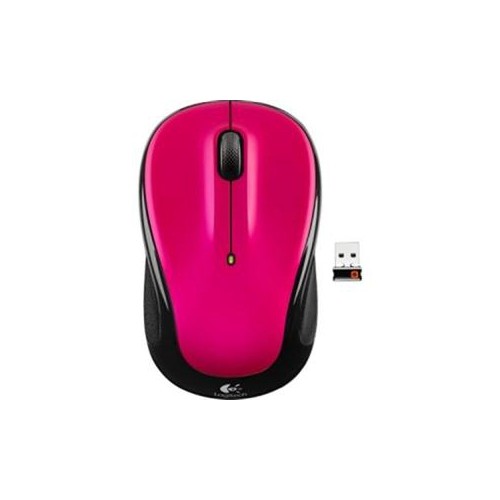 Your price for this item is $44.68
 -
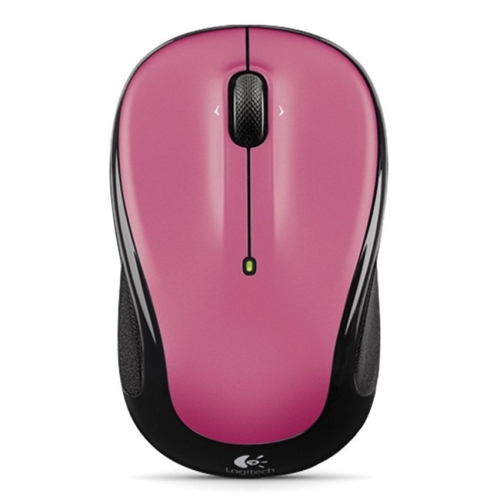 Your price for this item is $44.68
 -
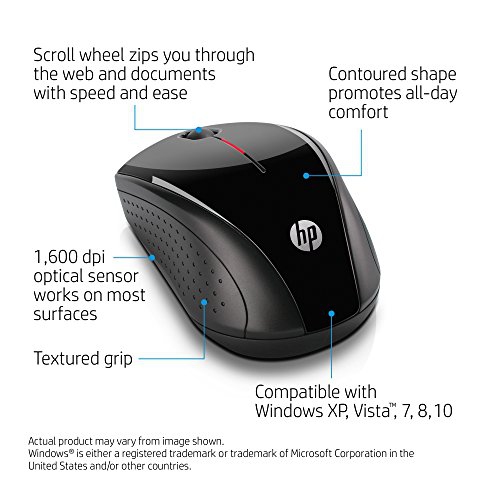 Your price for this item is $31
Discover more categories related to Computer Mice for Carpal Tunnel
Top Collections:
Pokemon Centers, Budget 4K TVs, Best Budget Office Chairs, Kindle Devices, Canon G7X Cameras, Apple iPhones 16, iPhone 15 Apple, Laptops for Business Work, Xiaomi Phones, Flip Phones
Some products may be subject to Environmental Handling Fees
(EHF) depending on your province.
Learn more about EHFs.