Ergonomic Keyboards for Carpal Tunnel
Ergonomic Keyboards for Carpal Tunnel are designed to help provide a more comfortable typing experience, making them a popular choice for those who spend long hours at the computer. With thoughtfully crafted layouts and user-friendly designs, these keyboards aim to reduce strain on your wrists and hands. Explore a wide selection of Ergonomic Keyboards for Carpal Tunnel to find the perfect fit for your workspace and support your productivity throughout the day.
Sort
Why keyboard comfort depends on more than shape
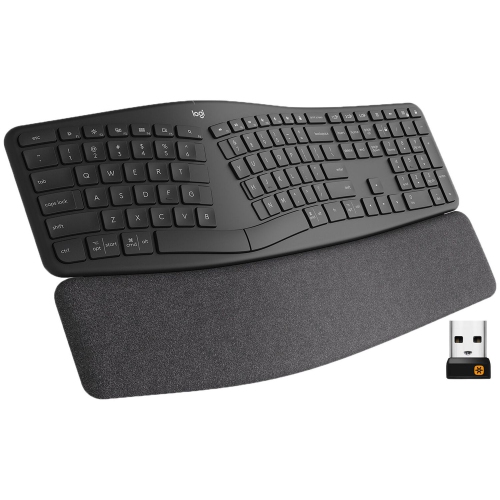
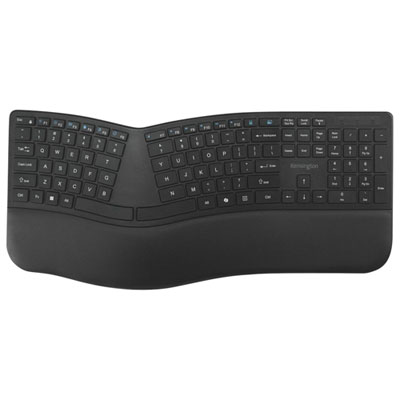
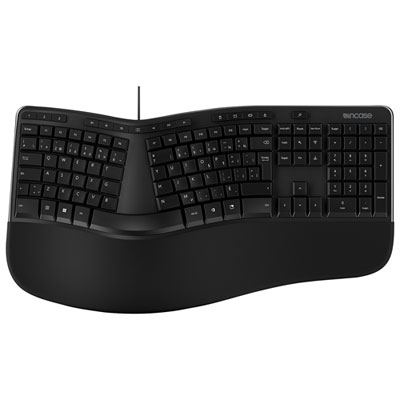
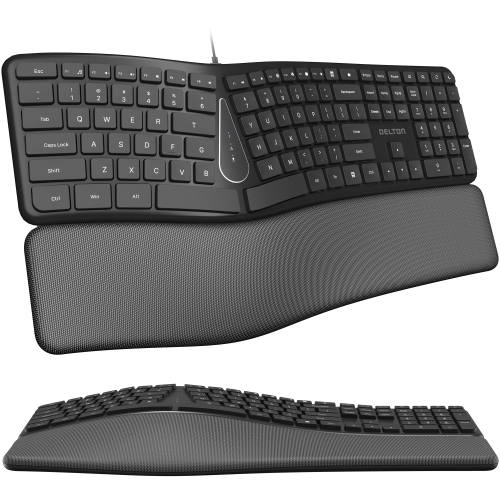
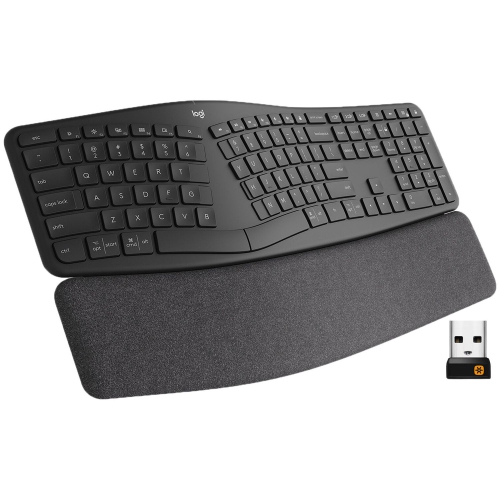
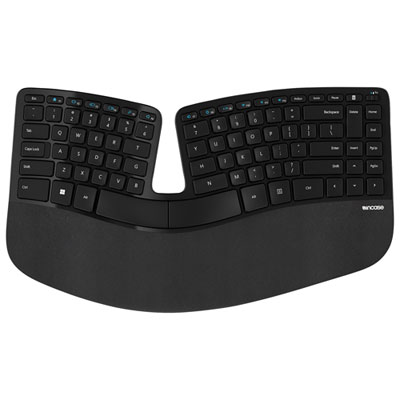
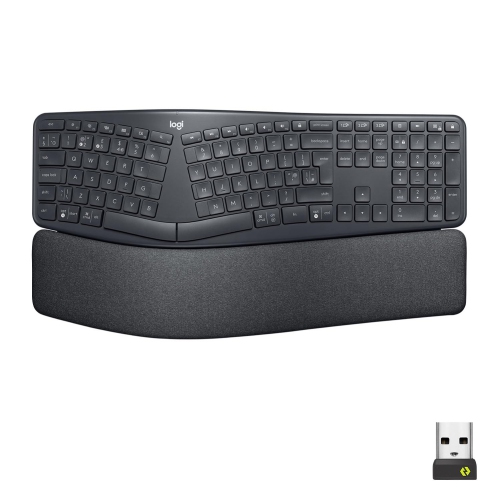
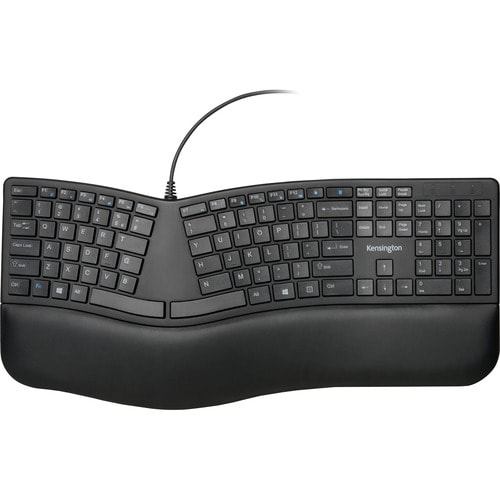
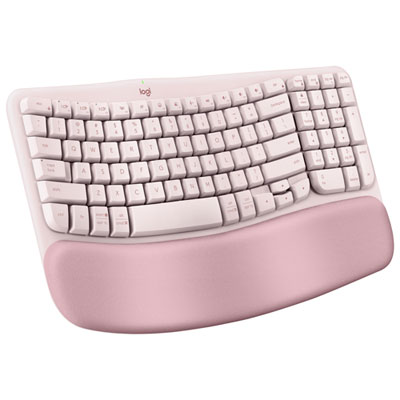
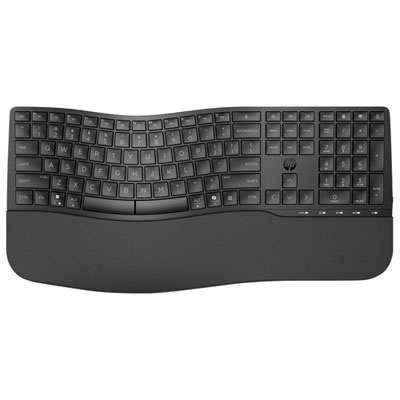
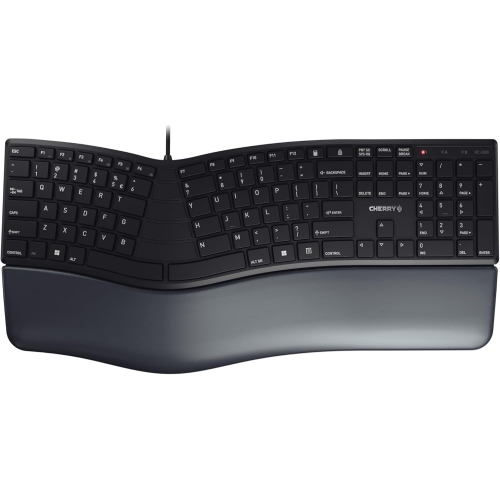
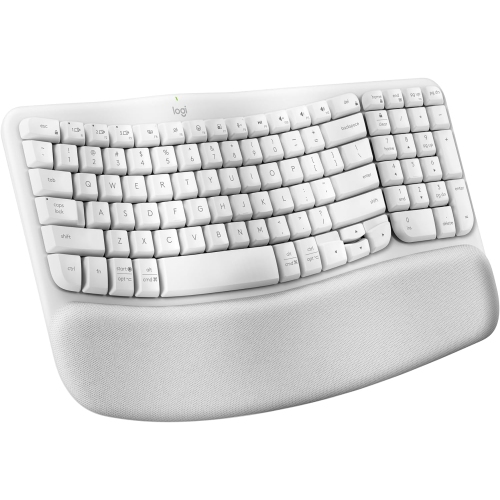
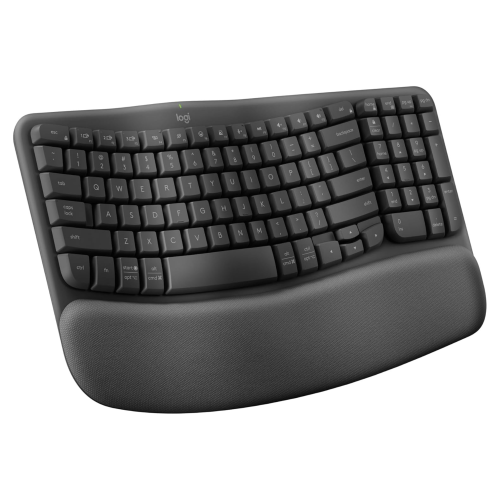
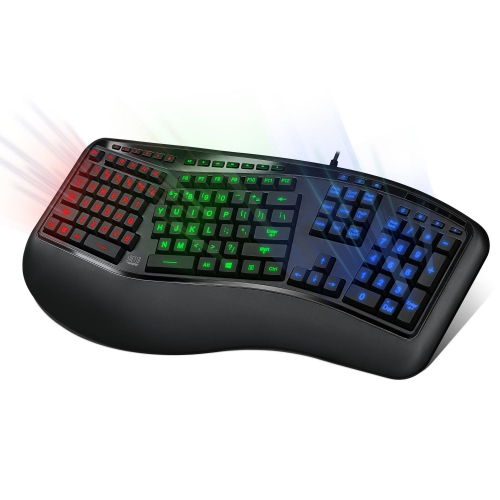
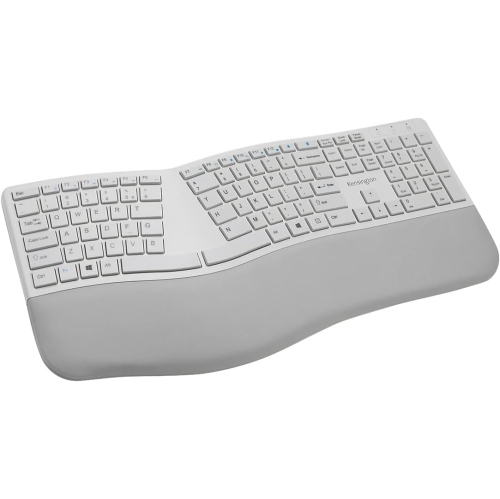
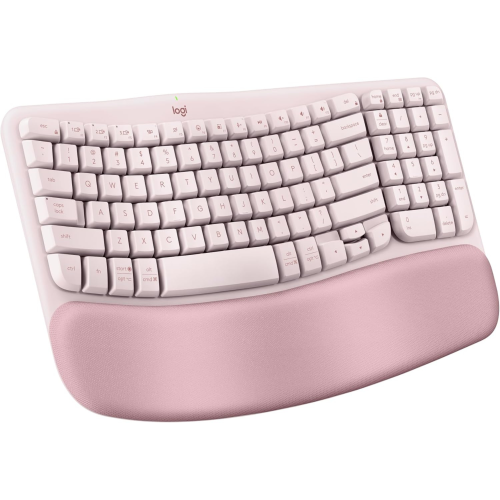
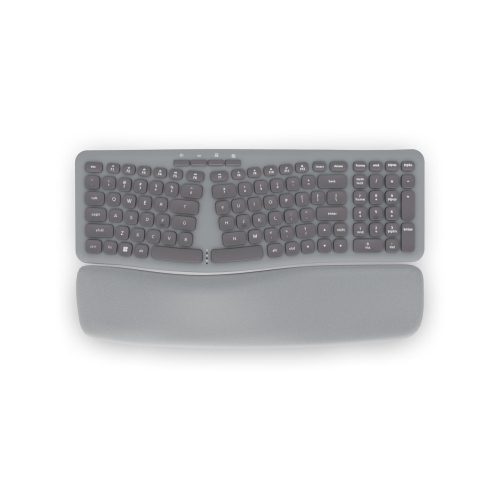
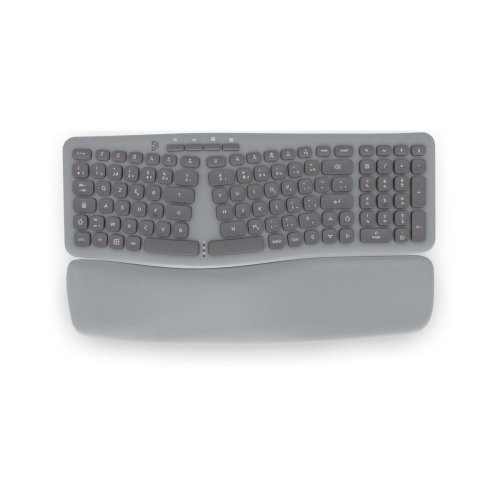
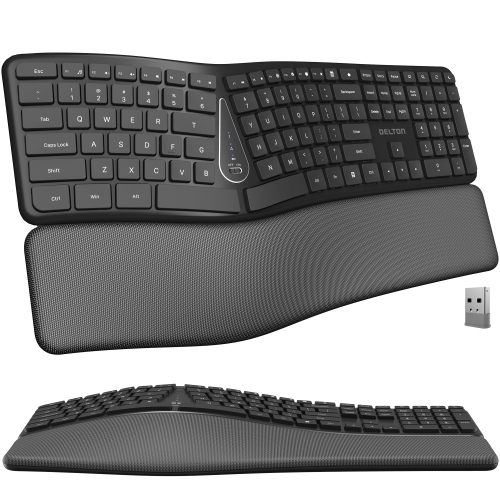
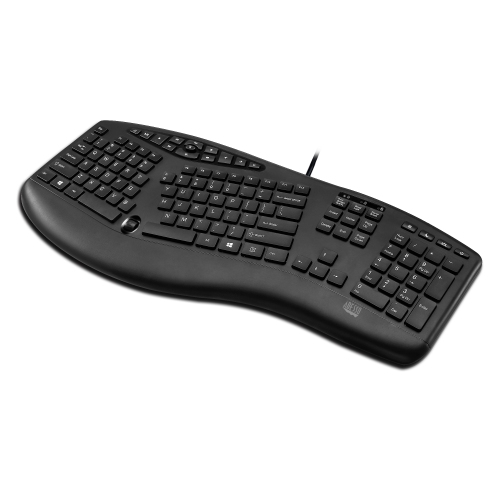
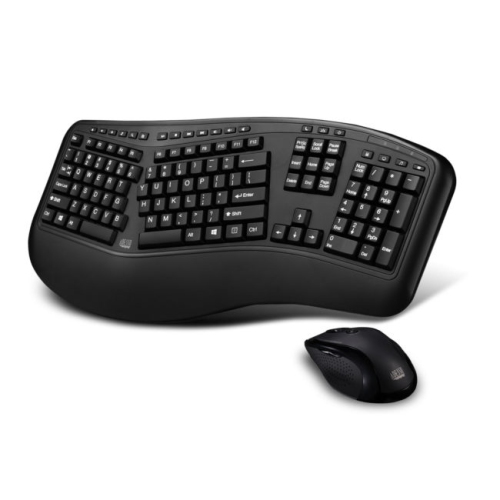
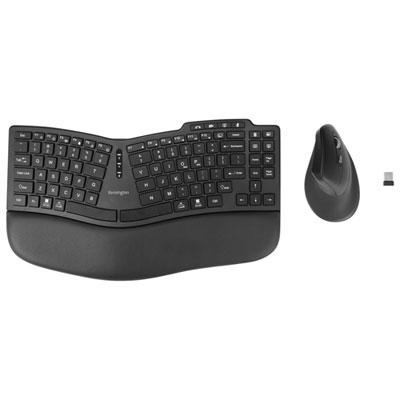
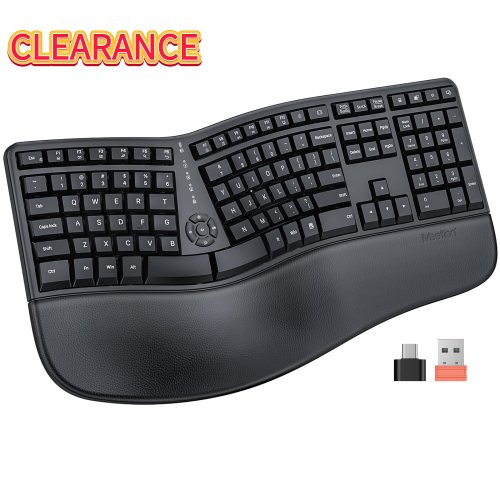
Ergonomic keyboards for carpal tunnel are designed to support a more neutral wrist position during typing, helping limit the awkward bending that can make desk work uncomfortable. A neutral position keeps the hands roughly in line with the forearms rather than bent upward, downward, or sideways. Carpal tunnel syndrome involves compression of the median nerve at the wrist, and symptoms can include tingling, numbness, pain, or hand weakness. An ergonomic keyboard may make a comfortable typing posture easier to maintain, but it is not a treatment or a guarantee of symptom relief. The practical benefit comes from how the keyboard fits the person using it and the desk around it. Split layouts angle the left and right key groups separately, allowing the hands to approach the keys without drawing the wrists outward. Some have a fixed separation, while others use two independent halves that can be positioned to suit shoulder width. Tented designs raise the inner edges of the key sections, reducing how far the forearms need to rotate into a palms-down position. Curved key rows and gently sculpted surfaces offer another approach, bringing frequently used keys closer to the fingers. These features serve different purposes, so a pronounced curve or a wider split is not automatically better for every person. A keyboard that sits too high can still leave the wrists bent, regardless of its shape. A suitable desk or keyboard tray helps keep the shoulders relaxed, the elbows comfortably near the body, and the keys within easy reach. Negative tilt, where the far edge sits lower than the edge nearest the user, may help maintain straighter wrists when the rest of the workstation supports that position. Palm supports can provide a place to pause between typing sessions, but firm pressure against the underside of the wrists is best avoided. Persistent numbness, worsening pain, or weakness warrants assessment by a qualified healthcare professional rather than relying on a keyboard change alone.
Across Carpal Tunnel Keyboards, differences in layout, key feel, and everyday controls can be as important as the overall shape. A full-size layout provides a dedicated number pad for spreadsheets, bookkeeping, and repeated numerical entry, while a compact layout leaves more room to bring a mouse closer to the body. That shorter reach can be useful on a narrow desk or for someone who switches constantly between typing and pointing. A separate number pad offers flexibility when numerical work is occasional, although it also adds another component to position. Familiar key placement matters for people who type without looking: changes to the space bar, arrow keys, or shortcut combinations can take practice, especially when moving from a conventional keyboard to separated halves. Key action also affects the experience. Some users prefer a light press with a clear tactile response; others favour a quiet, low-profile action for shared offices or frequent calls. Switch labels alone do not establish comfort, since actuation force, key travel, spacing, and individual typing habits all contribute. Pressing harder than necessary can add effort even on a keyboard with a light action. Distinct key legends, readable contrast, and well-spaced controls can make everyday use easier without requiring repeated glances or awkward reaches. Wired connections offer a straightforward setup without battery charging, while wireless connections allow more freedom to position the keyboard or clear the desk. Bluetooth and USB receiver connections have different device requirements, and compatibility with the computer, operating system, and available ports matters. Rechargeable and replaceable-battery designs also have different maintenance needs. For someone working between a laptop and a desktop, device-switching controls may simplify the routine, provided the supported connections suit both computers. Programmable shortcuts can reduce repeated key combinations in writing, coding, or administrative work, but their usefulness depends on software support and a layout that remains comfortable throughout the task.
Materials and construction influence how an ergonomic keyboard feels after months of regular use. Moulded plastic housings can keep weight manageable, while reinforced frames or metal backplates may provide a firmer feel under the hands. Stable feet, secure adjustment mechanisms, and a base that stays put are especially important with split or tented designs: a carefully positioned keyboard is less useful if its halves slide apart during a long document or if its angle changes under normal typing pressure. Palm supports vary from firm, smooth surfaces to foam cushioning with fabric or wipeable coverings. Softer padding is not necessarily more supportive, and the right height depends on the keyboard profile and the user's hand position. Removable supports can make cleaning easier, while textured surfaces and seams may need more attention where dust and skin oils collect. Routine care generally involves switching off or disconnecting the keyboard, removing loose debris gently, and wiping accessible surfaces according to the manufacturer's directions. Liquid should not be sprayed directly into the keys, and keycaps or fabric covers should only be removed or washed when the design permits it. For a shared workspace, easy-to-clean surfaces and straightforward adjustment can be useful; for travel between desks, weight, cable management, and protection for separate keyboard halves become more relevant. People who spend substantial time entering text, studying, processing forms, or navigating software may value these details as much as the initial feel. As a gift, an ergonomic keyboard is most thoughtful when the recipient's preferred layout, computer connections, and workspace dimensions are known, since fit is personal. A gradual transition can help someone become familiar with new key positions without making every task feel slower at once. Comfortable typing also depends on task variety, regular pauses, and a mouse and monitor positioned to avoid unnecessary reaching. The strongest everyday fit is a keyboard that supports relaxed movement and works naturally with the person's routine, rather than one that demands a rigid posture.
Top selling and popular products
-
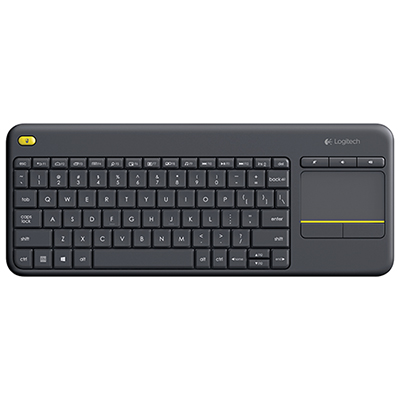 Your price for this item is $29.99
-
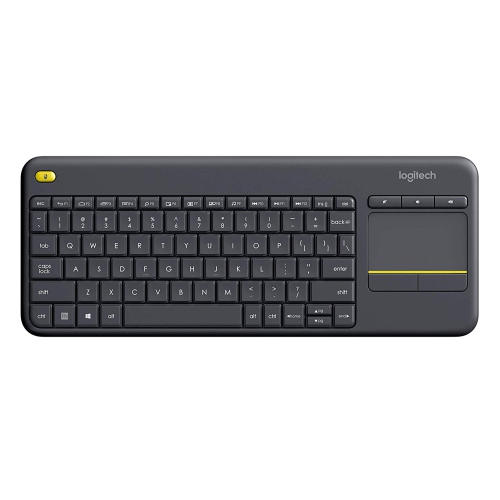 Your price for this item is $49.72
-
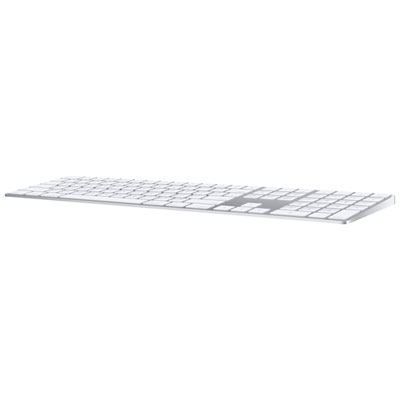 Your price for this item is $159
-
 Your price for this item is $219.99
-
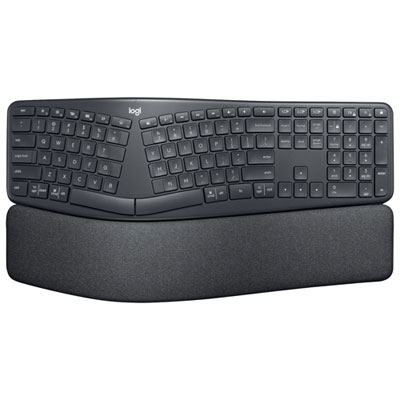 Your price for this item is $169.99
-
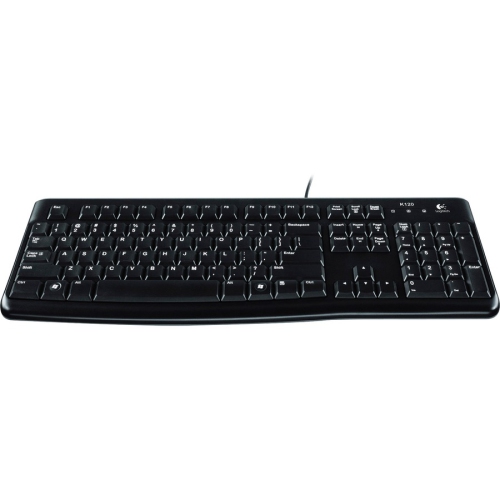 Your price for this item is $44.69
-
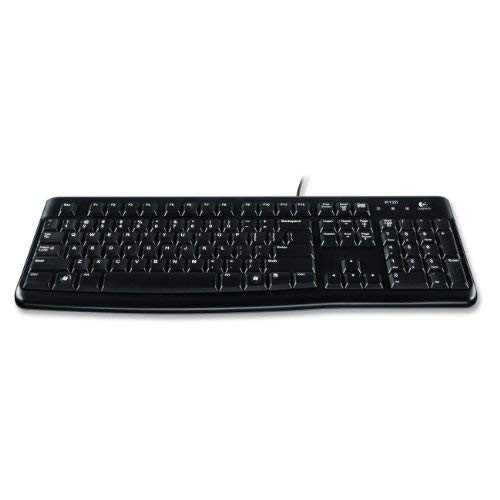 Your price for this item is $29.99
-
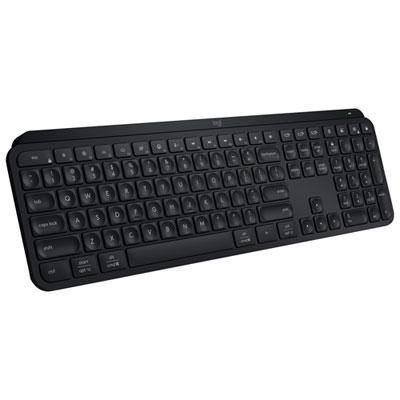 Your price for this item is $129.99
Discover more categories related to Ergonomic Keyboards for Carpal Tunnel
Top Collections:
Best Black Friday Deals This Year, Best Black Friday Deals On Electronics, Kindle Devices, Dyson Airwrap, Best Cameras for Sports Photography, Best Budget Office Chairs, Canon G7X Cameras, PS5 Pro Consoles, Best Black Friday Deals On Apple Products, XBOX One S Consoles
Some products may be subject to Environmental Handling Fees
(EHF) depending on your province.
Learn more about EHFs.