Office Tools
Create a productive and efficient workspace with our wide selection of office tools. From essential supplies to innovative gadgets, we have everything you need to stay organized, focused, and on top of your game. Whether you're setting up a home office or revamping your corporate workspace, our collection offers a variety of options to suit your unique needs and preferences. Discover high-quality office tools that will elevate your productivity and help you tackle tasks with ease. With Best Buy Canada, transforming your work environment has never been easier.
Sort






























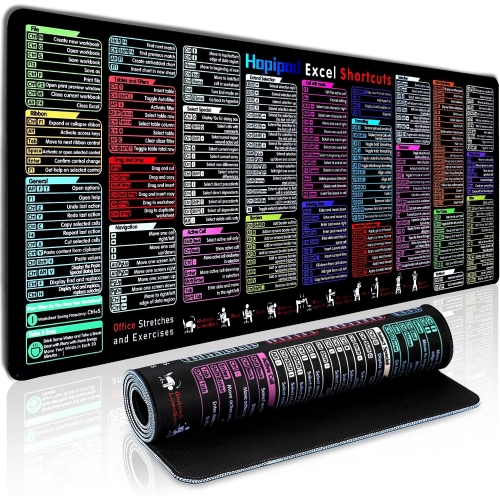




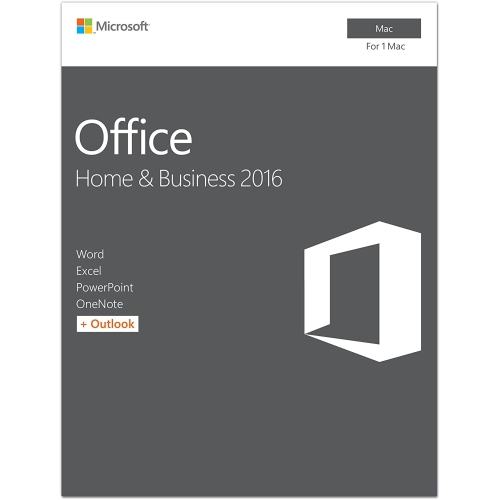
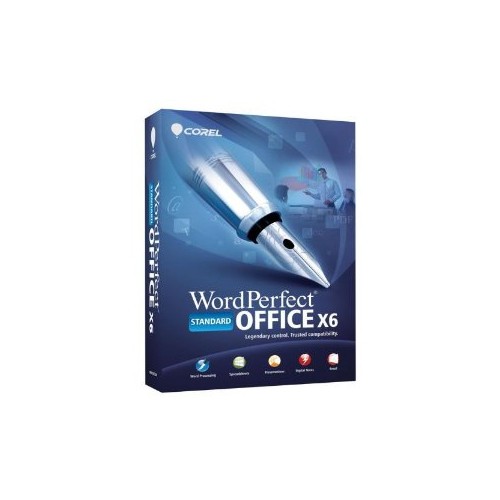
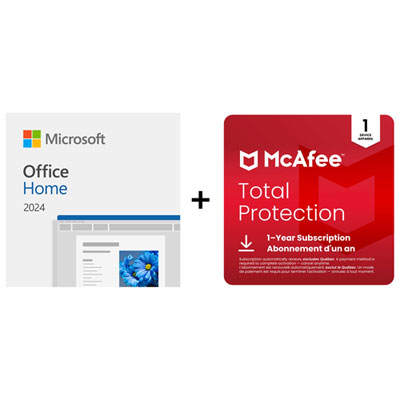








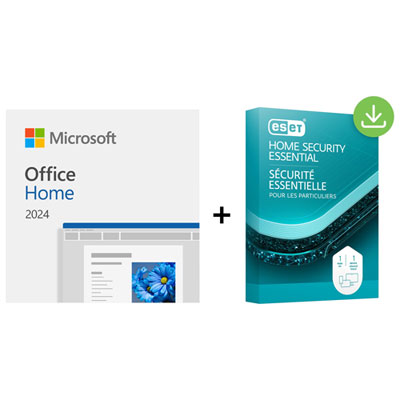

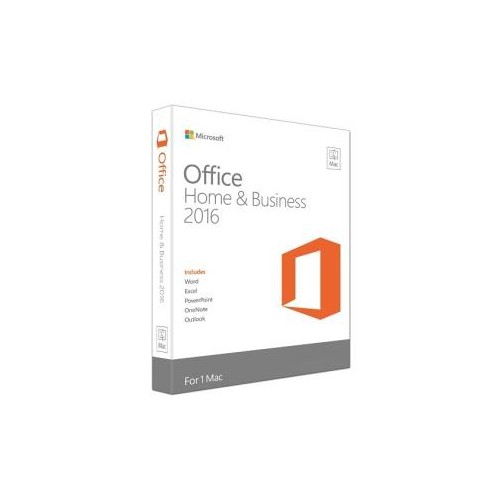
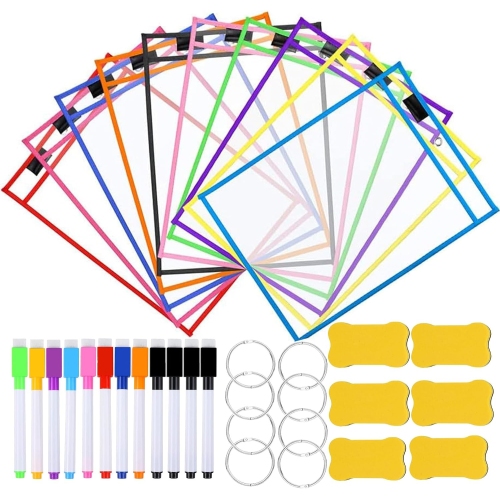
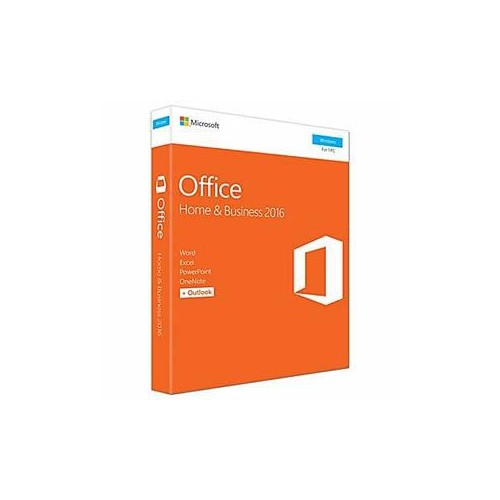






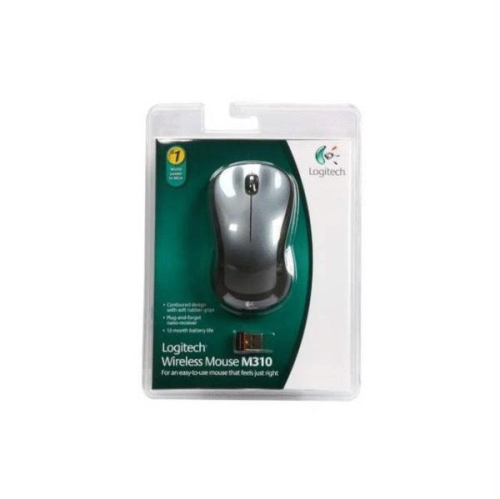

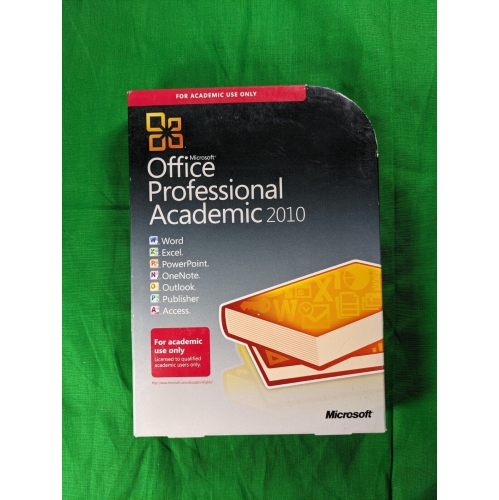

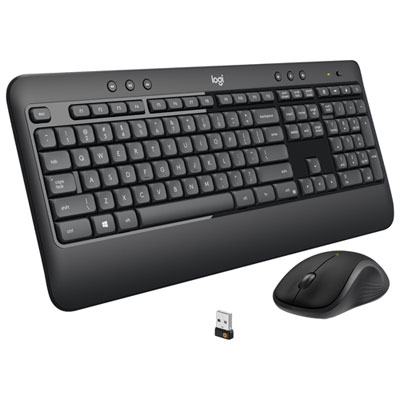




















Productivity software that fits your work and devices
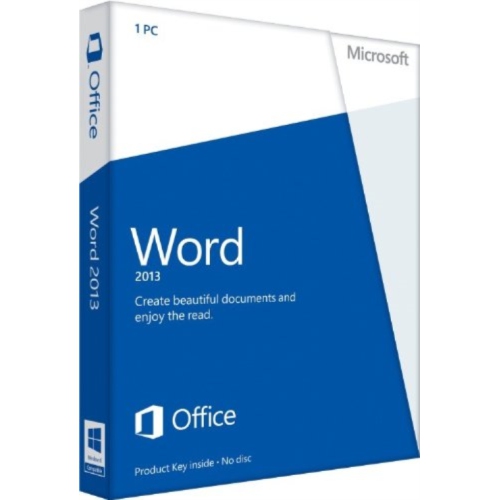
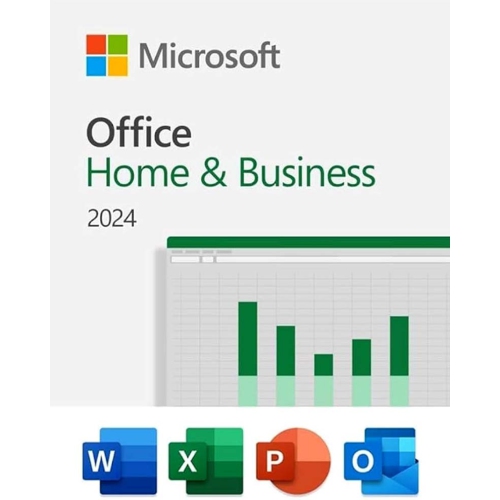
Office tools are software programs and supporting resources used to create documents, manage information, communicate, and keep everyday work organized. Office productivity suites typically bring several related functions together, including word processing, spreadsheets, presentations, email, and calendars. A document editor supports tasks such as preparing correspondence, formatting reports, and adding comments to a draft. Spreadsheet software helps organize figures, apply formulas, compare results, and turn data into charts, while presentation software arranges text and visuals into slides for meetings, lessons, or proposals. These functions serve different purposes, even when they are included in the same suite. A student preparing an assignment may need clear formatting and dependable file sharing; a small business owner may spend more time tracking expenses, scheduling appointments, and maintaining customer records. Cloud-based tools can make shared files accessible across compatible devices, while locally installed programs may support working without a continuous internet connection, depending on their requirements. Collaboration features can include shared editing, comments, assigned tasks, and a history of changes, helping several people contribute without passing separate copies back and forth. Beyond general productivity suites, project and practice management platforms can connect documents with deadlines, client information, and recurring workflows. Their usefulness depends on the work being done: a task board helps show who is responsible for a deadline, while a practice management platform may bring appointments, client communication, and administrative records into one place. Installation and deployment utilities have a different role. They help administrators configure, install, or manage software across computers rather than replace the programs used to write, calculate, or present. Understanding these distinctions makes the term office tools more useful: it covers both everyday productivity software and the systems that support its use. For a freelancer, a household managing paperwork, or a team coordinating a project, the right combination follows the actual tasks rather than the number of features on a specification sheet.
Compatibility matters as much as the feature list, particularly when work moves between people, devices, and organizations. An office suite needs to suit the computer’s operating system, available storage, and hardware requirements, as well as the file formats expected by colleagues or clients. Opening a document successfully does not always mean every detail will appear exactly as intended. Fonts, page breaks, charts, spreadsheet formulas, and advanced formatting can behave differently between programs, so dependable file exchange is especially important for contracts, financial worksheets, and presentation decks. Exporting a finished document to a fixed-layout format can help preserve its appearance, while keeping an editable original allows later changes. Browser access, desktop installation, and mobile apps also offer different working experiences. A phone can be convenient for checking a comment or confirming an appointment, but a larger display and full keyboard are generally better suited to detailed editing or a wide spreadsheet. Touch, keyboard navigation, screen reader support, captions, and adjustable text settings can affect how comfortably someone uses the software throughout the day. Licence terms deserve attention too, including the number of permitted users or devices, whether commercial use is allowed, and how access is maintained. Shared work introduces another set of considerations. Clear permissions help separate people who can view a file from those who can change it, and version history can make it easier to trace revisions or restore an earlier draft where that feature is supported. Cloud storage, synchronization, and backup are related but not interchangeable: a synchronized deletion may affect more than one device, so important files benefit from a separate backup plan. Account protection, multifactor authentication where supported, and careful handling of shared links are useful habits for both home and business use. When sensitive information is involved, storage location, access controls, and the provider’s privacy terms should suit the organization’s requirements. Tools that fit these practical needs can reduce repeated formatting, misplaced files, and interruptions without adding unnecessary complexity to a straightforward task.
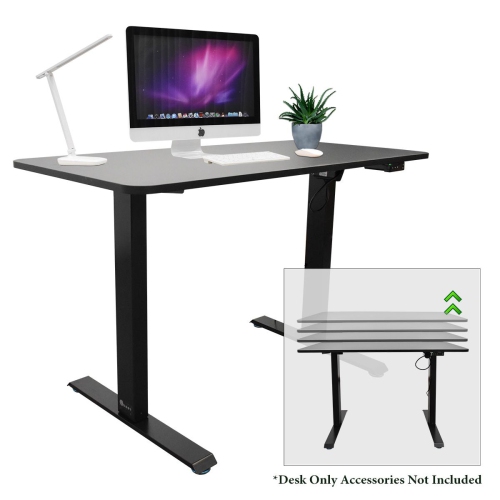
Day-to-day reliability also depends on how office tools are maintained and how naturally they fit into established routines. Software updates can address security issues, improve compatibility, and correct faults, though changes may need to be tested before a team relies on them for essential work. Consistent file names, a clear folder structure, and a manageable set of templates make information easier to find long after a project is finished. A useful template might keep headings and spacing consistent across reports, while a shared calendar can give appointments and deadlines a visible home. Automation is most helpful when the underlying process is clear: a repeated calculation or reminder can save effort, but its settings and results still need occasional checking. For people moving between a home office and a shared workplace, dependable access and an orderly handover between devices can matter more than an extensive collection of advanced functions. Pairing digital office tools with a thoughtfully arranged workspace is part of creating complete Office Solutions for different ways of working. Physical fit matters here, from enough work surface for paperwork to a screen position that leaves room for comfortable keyboard and mouse use. Supporting desk accessories benefit from stable construction, appropriate dimensions, and surfaces that tolerate routine handling. Metal, wood-based materials, and moulded plastics differ in weight, finish, and cleaning needs; care should follow the manufacturer’s directions rather than a single method applied to every surface. Keeping liquids away from electronics and leaving ventilation openings clear are simple precautions that support dependable use. The result should suit the person doing the work, whether that means reviewing a long document, coordinating appointments, studying, or handling household administration. A practical setup lets a draft become a finished report, keeps the supporting figures close at hand, and gives the next task a clear place to begin.
Top selling and popular products
-
 Your price for this item is $199.99
-
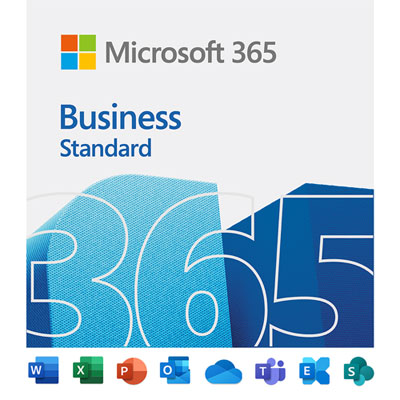 Your price for this item is $189.99
-
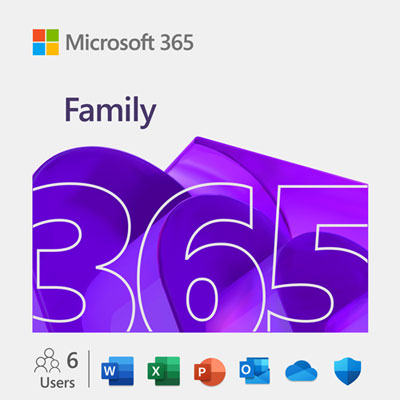 Your price for this item is $144.99
-
 Your price for this item is $49.98
-
 Your price for this item is $49.99
-
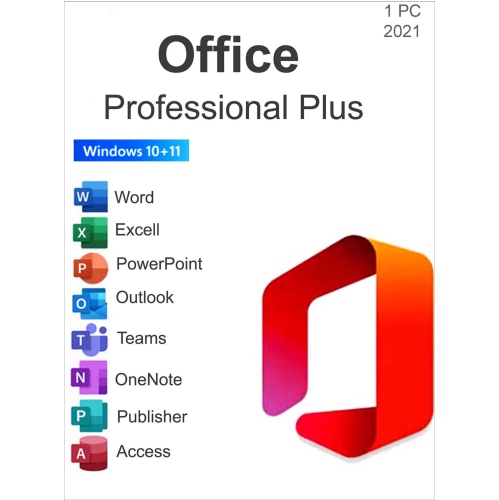 Your price for this item is $47.99
-
 Your price for this item is $334.99
-
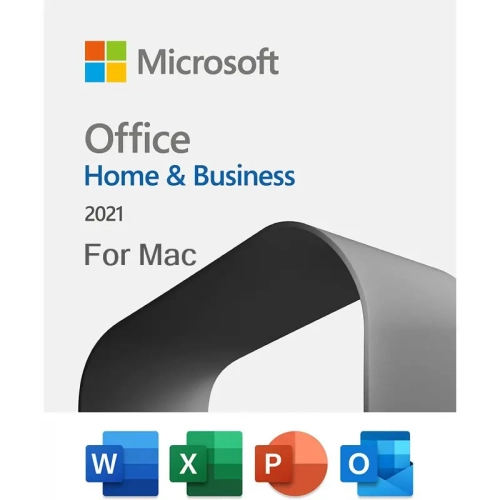 Your price for this item is $149.99
Discover more categories related to Office Tools

Top Collections:
Best Black Friday Deals This Year, Best Black Friday Deals On Electronics, Kindle Devices, Pokemon Centers, Best Black Friday Deals On Apple Products, Best Cameras for Sports Photography, Dyson Airwrap, Pokémon 30th Celebration Cards, Apple iPhone 17 Pro, Canon G7X Cameras
Some products may be subject to Environmental Handling Fees
(EHF) depending on your province.
Learn more about EHFs.