Tablets for Photoshop
Tablets for Photoshop offer digital artists, photographers, and creative professionals the flexibility and precision needed for detailed image editing and design projects. Whether you’re retouching photos, creating illustrations, or working on complex compositions, these tablets provide a smooth and responsive experience to help bring your vision to life. Explore a wide selection of Tablets for Photoshop to find the right fit for your workflow and creative needs.
Sort
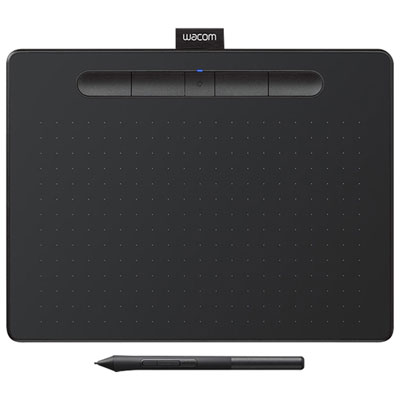

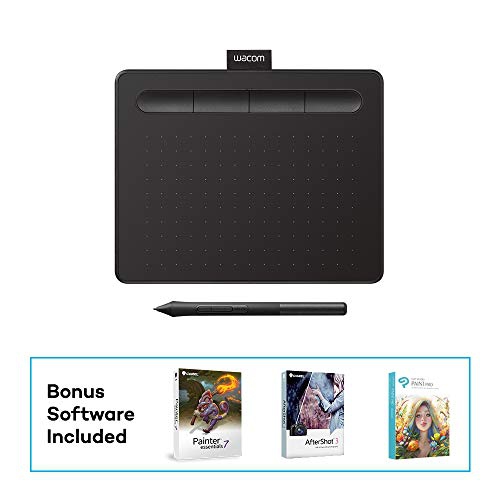
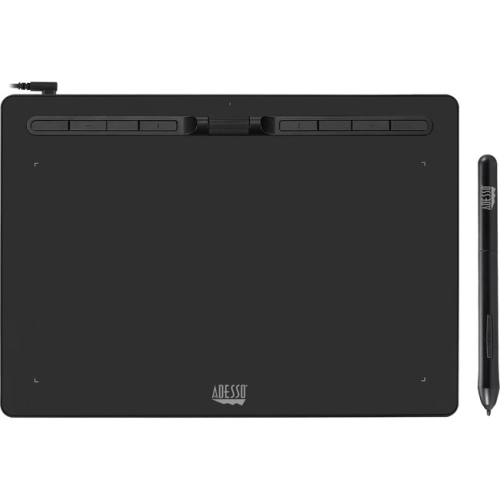
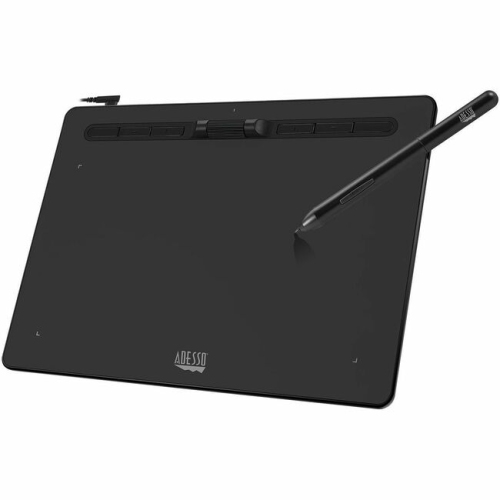


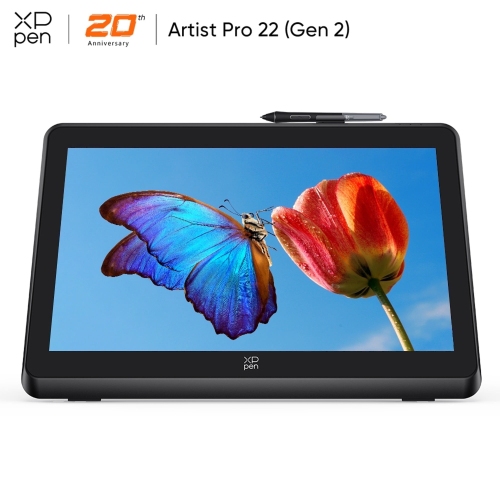
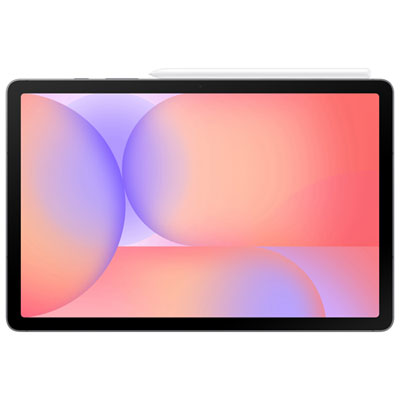
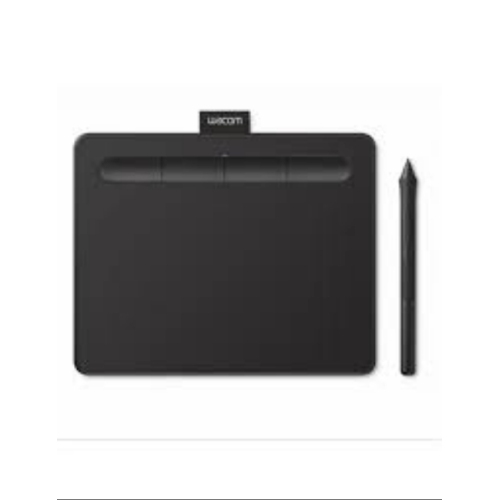

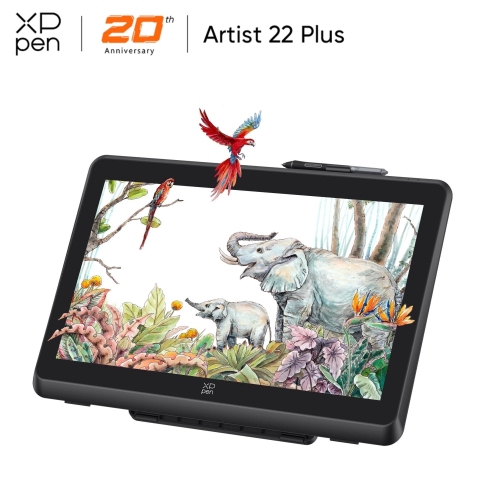



Three ways tablets can support your editing workflow
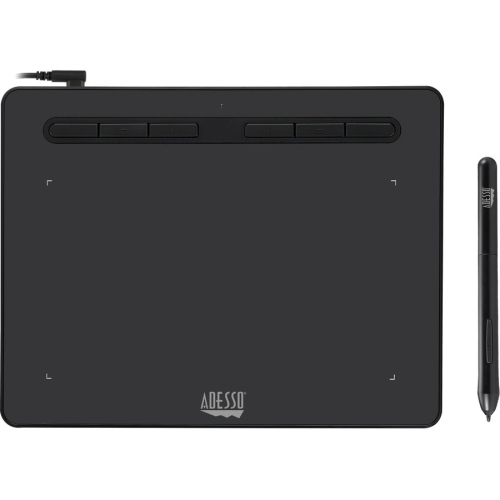
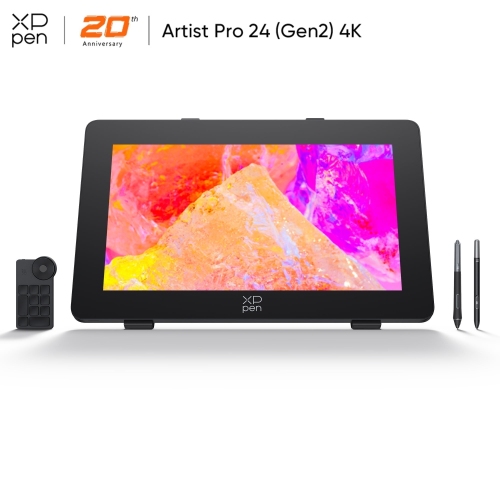
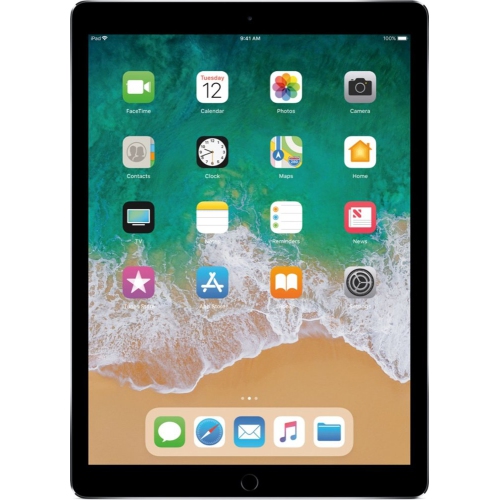
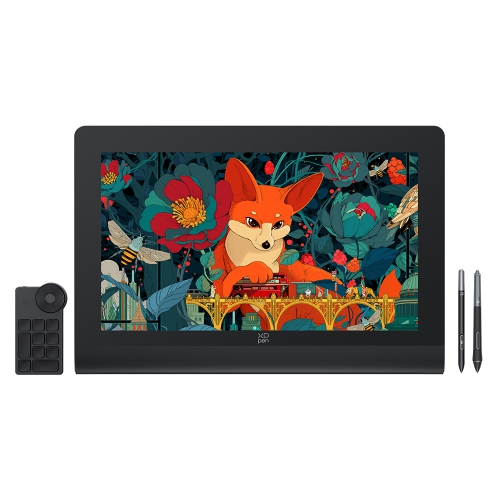
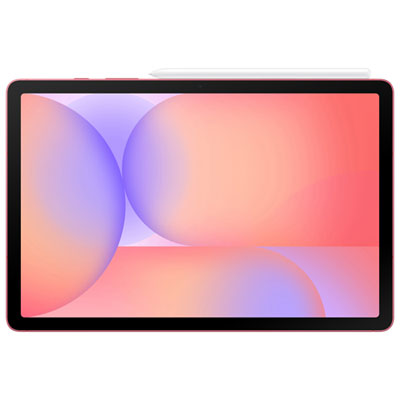
Tablets for Photoshop can support photo editing and digital artwork in three main ways: through a compatible native tablet app, by running the desktop application on a tablet with a supported desktop operating system, or by connecting to a computer through compatible remote-access or pen-display software. These approaches offer different experiences, so the operating system and app compatibility matter as much as the tablet’s screen size. A native tablet app puts touch controls and supported pen tools directly on the device, making it convenient to adjust a portrait, refine a selection, or build a layered composition away from a desktop. Its features may differ from those of the desktop application, particularly for plug-ins, automation, advanced editing tools, and certain file workflows. A tablet capable of running the desktop version must also meet that application’s hardware requirements; attaching a keyboard to a mobile tablet does not give it desktop software compatibility. With a remote connection, the computer runs the application while the tablet provides access to the workspace. Image quality, responsiveness, and pen behaviour then depend on the connection, software, and accessory support. A standalone tablet also differs from a graphics tablet or pen display: many drawing peripherals need a separate computer and cannot run editing software independently. For someone touching up travel photographs at a café, a self-contained device may be the most practical fit. For a photographer moving between a studio workstation and client meetings, compatibility with existing files and editing tools may matter more. Layered documents are especially important when a project moves between devices, since editable text, masks, effects, and other elements may not behave identically in every app version. File compatibility is more useful than a simple promise that a device can open an image: it determines whether the next editing session begins with an intact composition or a flattened copy. The most suitable tablet is one that supports the actual tasks involved, whether that means light retouching, detailed illustration, or working through a large set of photographs.
Screen quality and pen support shape how comfortable those tasks feel. A larger display leaves more room for an image alongside layers and tool panels, while a smaller tablet is easier to hold during quick edits or carry between locations. Screen resolution affects how clearly fine details appear, but resolution alone does not establish colour accuracy. Colour gamut, display settings, brightness consistency, and supported colour-management tools also influence how an image looks. A vivid screen can make a photograph look appealing without showing tones accurately enough for careful editing. For work intended for print, a colour-managed workflow and suitable proofing remain important rather than relying on the tablet display alone. Reflections also affect visibility: glossy glass can show distracting highlights, while a compatible matte screen protector may reduce glare and add resistance beneath a pen tip, sometimes at the expense of perceived sharpness. Pen compatibility deserves equally close attention. An active pen with supported pressure sensitivity can make brush strokes feel more controlled, but pressure response, tilt, shortcut buttons, and palm rejection depend on the combination of tablet, pen, app, and drivers where applicable. A basic capacitive stylus generally acts more like a fingertip and is not a substitute for pressure-sensitive input. When removing stray hairs from a portrait or painting along the edge of a mask, a precise pen can make small movements easier than touch alone. Its weight, grip shape, and tip feel also matter over a longer session. A stable stand keeps the display at a useful angle, while a keyboard or compatible shortcut controller can reduce repeated trips through on-screen menus. There is considerable overlap with Tablets for Digital Artists, particularly for people who combine photographic elements with painted textures, lettering, or illustration. The distinction is often the workflow rather than the device category: retouching emphasizes accurate selections and subtle tonal changes, while expressive drawing may place greater emphasis on brush response and the feel of the pen against the screen.
Performance, storage, and everyday construction determine how well a tablet fits into a longer editing routine. Large layered files, high-resolution photographs, and complex effects place greater demands on memory and processing power than simple cropping or brightness adjustments. Enough working memory helps when switching between documents and tools, while sufficient free storage leaves room for source images, project files, exports, and the application’s temporary data. Desktop workflows may also rely on scratch-disk space, depending on the software configuration. Cloud storage can help move projects between devices, but it does not replace keeping a separate backup of important originals and finished work. Access to external storage depends on the tablet’s ports, operating system, and app support; a connector’s shape alone does not guarantee every transfer or display function. Battery life also varies with screen brightness, file complexity, and connected accessories. A lightweight tablet can be appealing for handheld use, although a protective case, keyboard, and stand all add to the weight carried in a bag. Glass displays and metal or plastic housings each need sensible handling, particularly around exposed corners and charging ports. A fitted case with a secure pen holder helps protect the device in transit and keeps a small but essential accessory from getting misplaced. Cleaning with a soft, lint-free cloth according to the manufacturer’s directions helps maintain screen clarity, and replacing a worn pen tip can prevent rough contact with the display. For students building a portfolio, hobby photographers organizing family images, and designers developing concepts, the value lies in having a comfortable workspace that suits the task. As a gift, a tablet for creative work is most useful when it matches the recipient’s software setup, preferred screen size, and existing accessories. Compatibility and handling comfort are more meaningful than a specification taken in isolation, especially for someone who already has an established editing routine. A well-matched tablet can become a practical place to review, refine, and develop images, from a quick adjustment to a carefully finished composition.
Screen quality and pen support shape how comfortable those tasks feel. A larger display leaves more room for an image alongside layers and tool panels, while a smaller tablet is easier to hold during quick edits or carry between locations. Screen resolution affects how clearly fine details appear, but resolution alone does not establish colour accuracy. Colour gamut, display settings, brightness consistency, and supported colour-management tools also influence how an image looks. A vivid screen can make a photograph look appealing without showing tones accurately enough for careful editing. For work intended for print, a colour-managed workflow and suitable proofing remain important rather than relying on the tablet display alone. Reflections also affect visibility: glossy glass can show distracting highlights, while a compatible matte screen protector may reduce glare and add resistance beneath a pen tip, sometimes at the expense of perceived sharpness. Pen compatibility deserves equally close attention. An active pen with supported pressure sensitivity can make brush strokes feel more controlled, but pressure response, tilt, shortcut buttons, and palm rejection depend on the combination of tablet, pen, app, and drivers where applicable. A basic capacitive stylus generally acts more like a fingertip and is not a substitute for pressure-sensitive input. When removing stray hairs from a portrait or painting along the edge of a mask, a precise pen can make small movements easier than touch alone. Its weight, grip shape, and tip feel also matter over a longer session. A stable stand keeps the display at a useful angle, while a keyboard or compatible shortcut controller can reduce repeated trips through on-screen menus. There is considerable overlap with Tablets for Digital Artists, particularly for people who combine photographic elements with painted textures, lettering, or illustration. The distinction is often the workflow rather than the device category: retouching emphasizes accurate selections and subtle tonal changes, while expressive drawing may place greater emphasis on brush response and the feel of the pen against the screen.
Performance, storage, and everyday construction determine how well a tablet fits into a longer editing routine. Large layered files, high-resolution photographs, and complex effects place greater demands on memory and processing power than simple cropping or brightness adjustments. Enough working memory helps when switching between documents and tools, while sufficient free storage leaves room for source images, project files, exports, and the application’s temporary data. Desktop workflows may also rely on scratch-disk space, depending on the software configuration. Cloud storage can help move projects between devices, but it does not replace keeping a separate backup of important originals and finished work. Access to external storage depends on the tablet’s ports, operating system, and app support; a connector’s shape alone does not guarantee every transfer or display function. Battery life also varies with screen brightness, file complexity, and connected accessories. A lightweight tablet can be appealing for handheld use, although a protective case, keyboard, and stand all add to the weight carried in a bag. Glass displays and metal or plastic housings each need sensible handling, particularly around exposed corners and charging ports. A fitted case with a secure pen holder helps protect the device in transit and keeps a small but essential accessory from getting misplaced. Cleaning with a soft, lint-free cloth according to the manufacturer’s directions helps maintain screen clarity, and replacing a worn pen tip can prevent rough contact with the display. For students building a portfolio, hobby photographers organizing family images, and designers developing concepts, the value lies in having a comfortable workspace that suits the task. As a gift, a tablet for creative work is most useful when it matches the recipient’s software setup, preferred screen size, and existing accessories. Compatibility and handling comfort are more meaningful than a specification taken in isolation, especially for someone who already has an established editing routine. A well-matched tablet can become a practical place to review, refine, and develop images, from a quick adjustment to a carefully finished composition.
Top selling and popular products
-
 Your price for this item is $89.99
-
 Your price for this item is $114.98
-
 Your price for this item is $319.99
-
 Your price for this item is $699.99
-
 Your price for this item is $2023.68
-
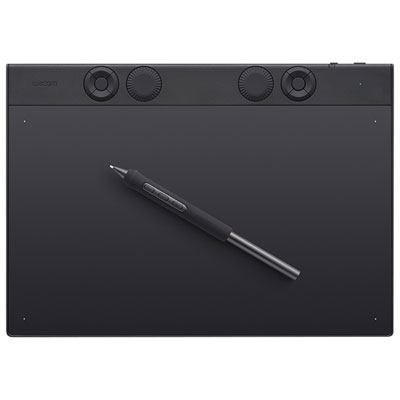 Your price for this item is $549.99
-
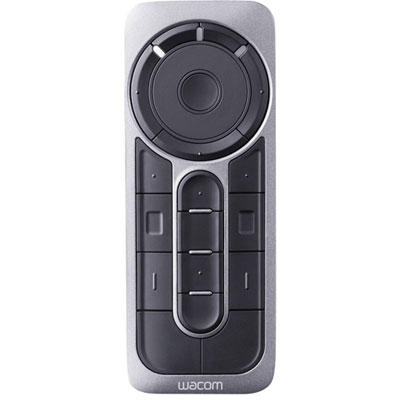 Your price for this item is $139.99
-
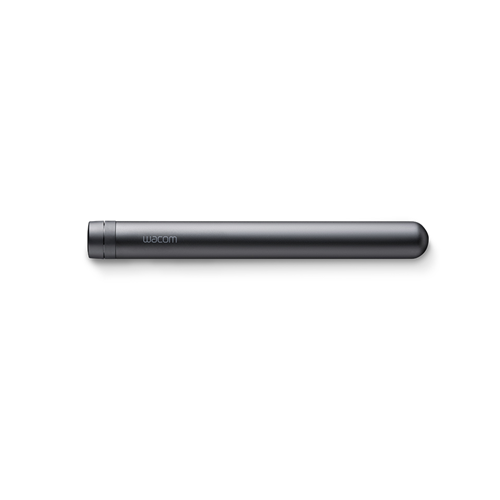 Your price for this item is $120
Discover more categories related to Tablets for Photoshop

Top Collections:
Pokemon Centers, Pokémon 30th Celebration Cards, Best Budget Office Chairs, Kindle Devices, Best Cameras for Sports Photography, Canon G7X Cameras, Best Black Friday Deals On Electronics, Best Laptops for Writers, iPhone 15 Apple, Jackery Power Stations
Some products may be subject to Environmental Handling Fees
(EHF) depending on your province.
Learn more about EHFs.