USB A Port
Explore a wide selection of USB A port solutions designed to keep your devices connected and powered. Whether you need reliable options for charging, data transfer, or expanding connectivity, you’ll find versatile choices that fit seamlessly into your home, office, or on-the-go setup. Discover the convenience and compatibility that USB A port accessories bring to your everyday tech needs.
Sort
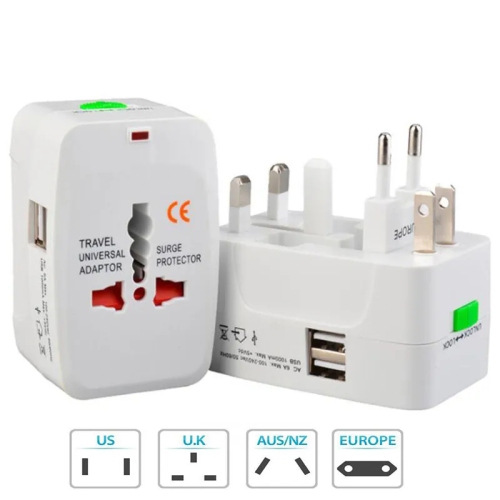
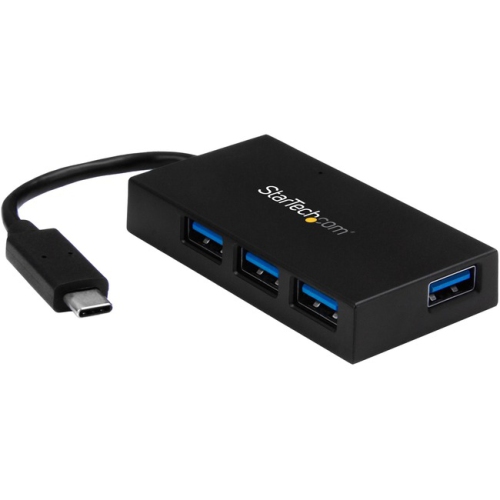
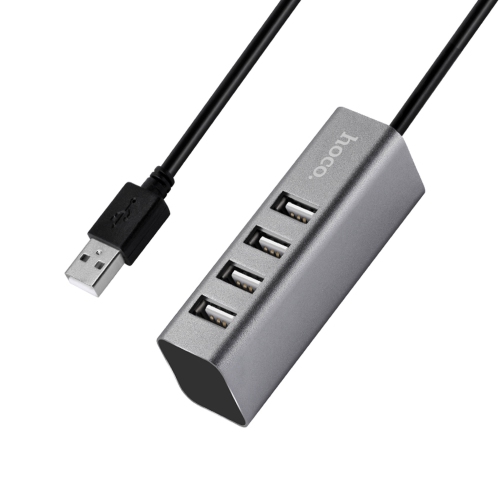
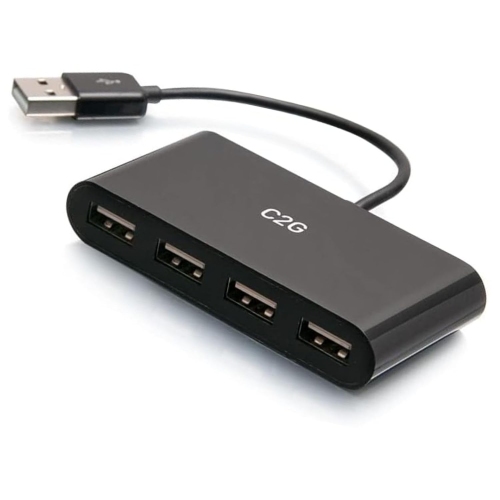

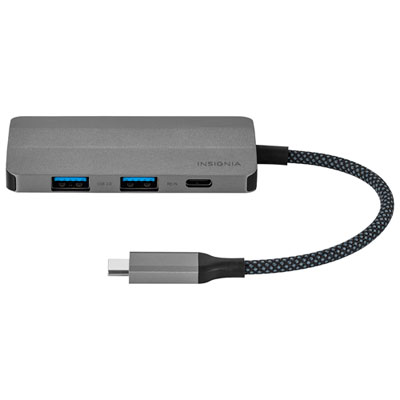
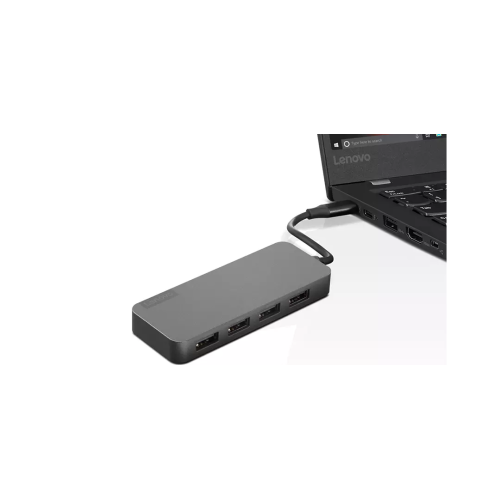
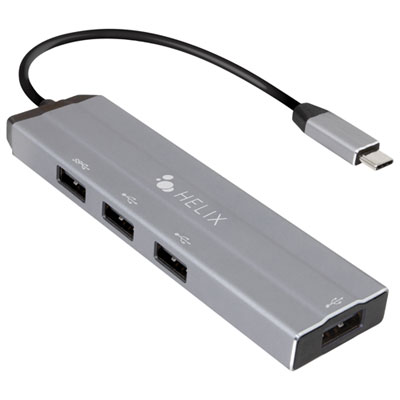

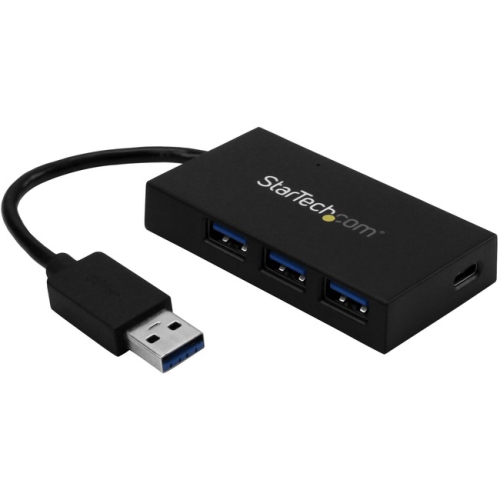
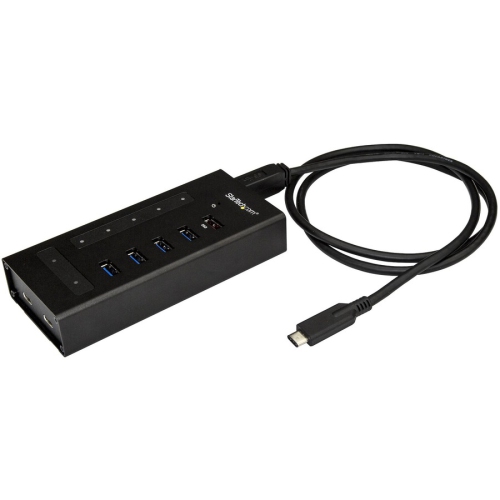
Why familiar USB connections can perform so differently
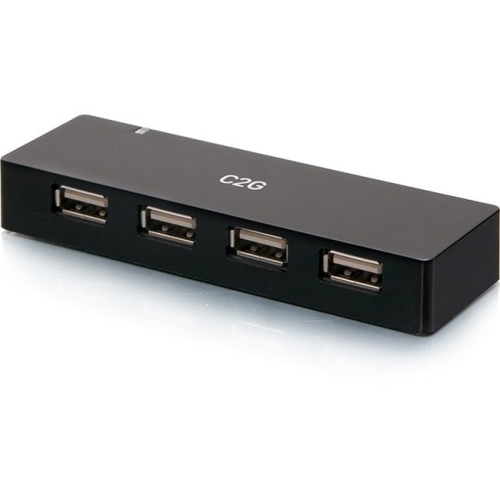
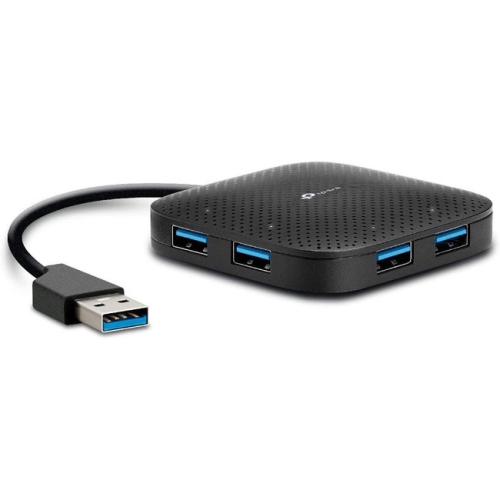
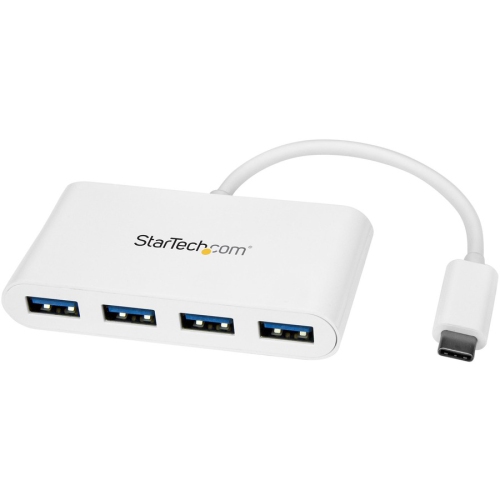
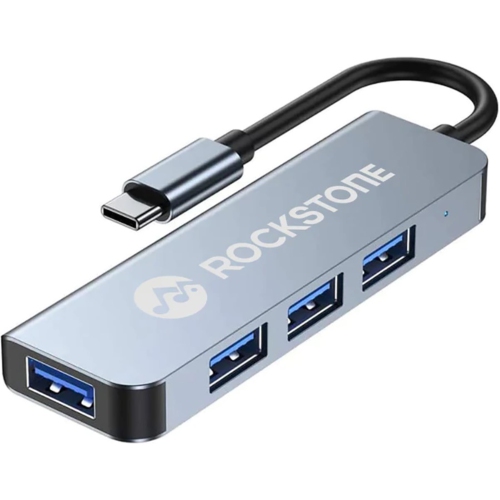
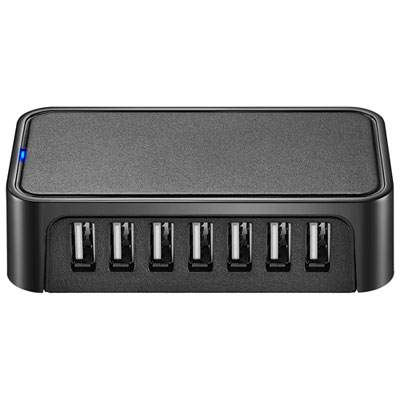
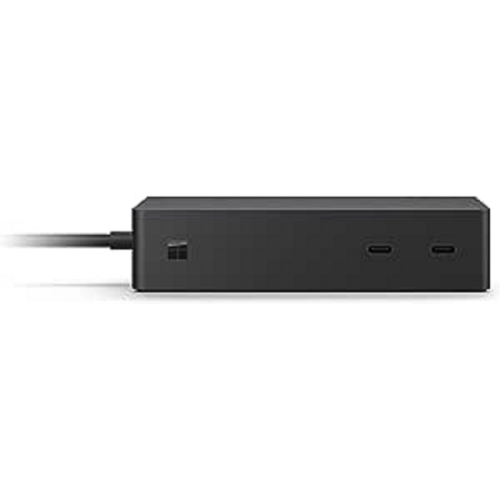
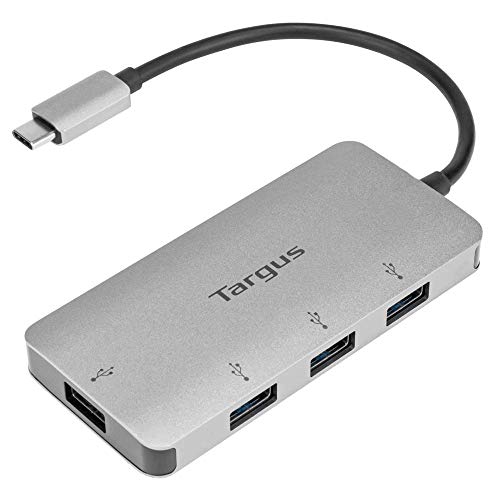
A USB-A port is the familiar flat, rectangular socket used to connect many everyday computer accessories. It commonly appears on desktop computers, laptops, docking stations, game consoles, and charging equipment. Inside the opening, a plastic tongue holds the electrical contacts, and a standard USB-A plug fits in only one orientation. That physical shape identifies the connector, but it does not tell the whole story about transfer speed, charging capability, or compatibility. On a computer, a USB-A port typically provides a connection for both data and power; on a wall charger, the same shape may provide power without any data connection. Products with USB-A connections support a wide range of tasks, from typing and moving a cursor to transferring photos, connecting a printer, or powering a small accessory. A wired keyboard and mouse can keep a home office straightforward, while a flash drive or external storage device gives files a portable home. For a laptop with fewer sockets than the desk requires, a USB hub adds connection points without making each accessory a separate cable-swapping exercise. Docking stations can bring several types of connections together, although their functions depend on the dock, its connection to the computer, and the computer’s capabilities. The distinction between a USB-A plug and a USB-A port matters when choosing an adapter: the plug inserts into a socket, while the port accepts another cable or accessory. A laptop with only USB-C sockets generally needs a compatible USB-C-to-USB-A adapter, hub, or dock to accommodate USB-A accessories. For setups that use the smaller, reversible connector, USB-C ports offer a related connection option. Matching the host connection to the computer and the accessory connections to the equipment already on the desk helps keep the setup useful, whether it belongs to a student, someone working from home, or a household sharing a computer.
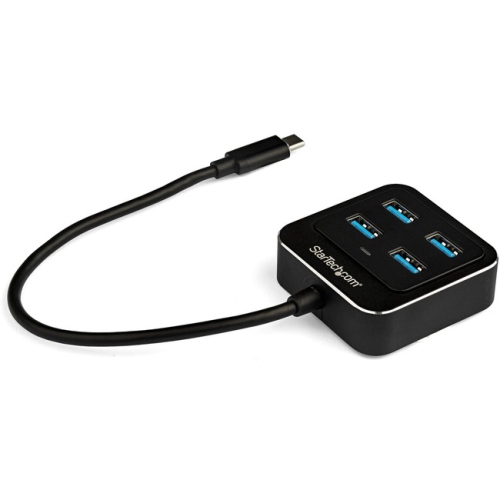
USB-A connections can look alike while supporting substantially different performance. USB 2.0 has a maximum signalling rate of 480 Mbps, which is generally sufficient for keyboards, mice, and many other low-bandwidth accessories. USB 3.2 Gen 1 supports up to 5 Gbps and is also commonly described in specifications using its earlier USB 3.0 or USB 3.1 Gen 1 names. USB 3.2 Gen 2 can support up to 10 Gbps through USB-A when the connected equipment and cable support that capability. These figures are theoretical signalling rates rather than guaranteed file-transfer speeds. Actual performance depends on the computer, accessory, cable, file sizes, and any hub between them. A fast external drive connected through a slower port still works in many compatible setups, but its transfer rate is limited by the slower connection. This matters more when copying a large video folder than when connecting a mouse. Port colour can provide a clue, but it is not a dependable substitute for the specifications. Blue inserts are often associated with USB 3.x connections, while black or white inserts commonly appear on USB 2.0 connections; manufacturers do not apply these colours consistently. Red or yellow may identify special charging functions, but the colour alone does not establish power output or confirm that charging continues while a computer is asleep or shut down. Charging capability is separate from data speed, and a USB-A socket should not be assumed to provide the same charging performance as a dedicated charger. With hubs, the number of ports also differs from the amount of bandwidth or power available. Several connected storage devices share the hub’s upstream connection, and a hub powered only by the computer has a limited power budget. A hub with its own power supply can be better suited to multiple accessories with higher power requirements, provided its specifications support them. Compatibility details also matter for docking stations: video outputs may require particular software or drivers, and the presence of USB-A sockets alone does not establish display support.
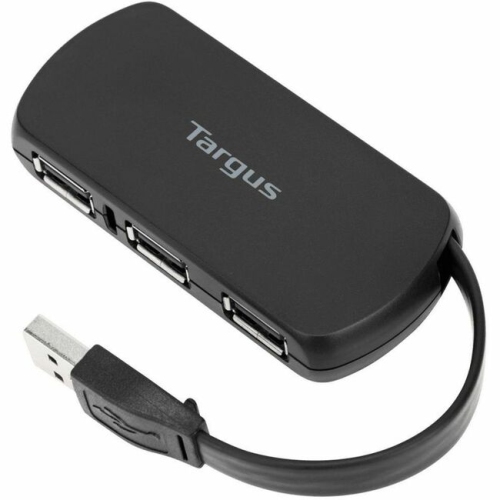
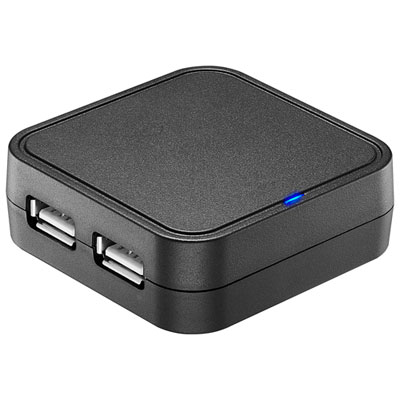
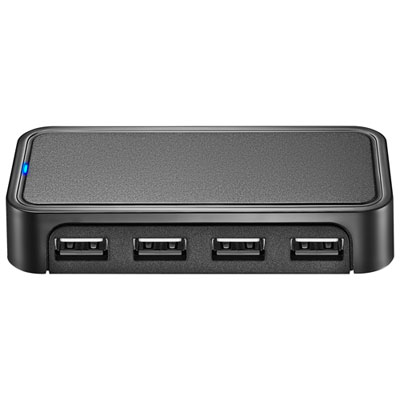
The physical design of USB-A accessories makes a noticeable difference in daily use. Hub and adapter housings are commonly made from plastic or metal, with trade-offs in weight, rigidity, and how they feel in a bag or on a desk. A compact adapter suits a laptop sleeve, while a hub with a longer lead can place its sockets within reach without crowding the side of a computer. Closely spaced ports may be awkward when a wide flash drive sits beside another connector, so socket spacing can matter as much as the total port count. A short, rigid adapter can also put leverage on a laptop’s socket if a heavy cable hangs from it; a flexible lead can reduce that strain. For cables, reinforced junctions and well-fitted connector housings help protect the points that bend most often. Braided outer coverings can resist everyday abrasion, but they do not by themselves guarantee faster transfers, higher charging power, or a longer service life. Length is another practical consideration: a cable should reach comfortably without pulling against the port, yet avoid leaving unnecessary loops across a workspace. A printer on a nearby shelf, a hub beside a monitor, and a portable drive carried between rooms each call for a different balance of reach and portability. Connector fit should feel secure without requiring force. Because USB-A plugs are not reversible, checking the orientation before insertion helps avoid damage to the internal tongue or contacts. Removing a cable by its connector rather than pulling the lead protects the cable’s junction, and supporting heavier accessories helps prevent stress on the socket. Care is generally simple: keeping connections dry, preventing debris from entering open ports, and following the manufacturer’s cleaning directions help maintain reliable contact. For portable storage, safely ejecting the device before disconnecting it helps protect files that may still be writing. The most useful USB-A accessory is one that fits both the connection requirements and the routine around it, whether that means leaving a reliable workstation connected or carrying a small hub between study spaces.
Top selling and popular products
-
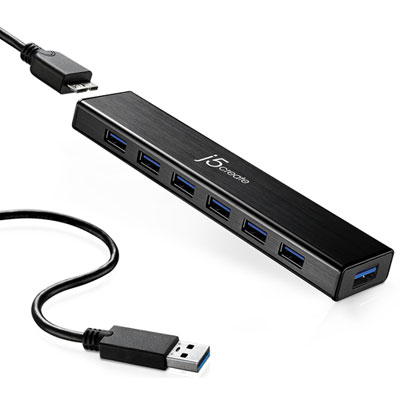 Your price for this item is $49.99
-
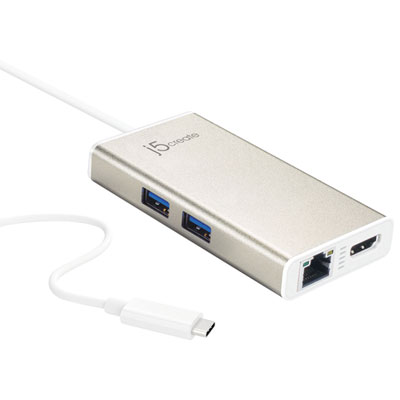 Your price for this item is $65.99
-
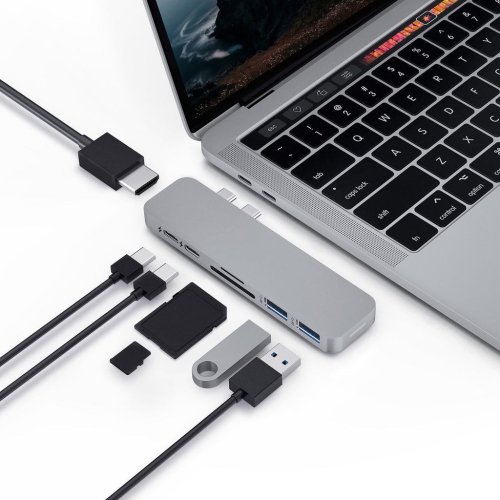 Your price for this item is $19.98
-
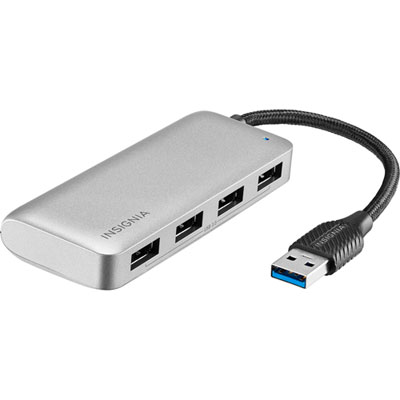 Your price for this item is $29.99
-
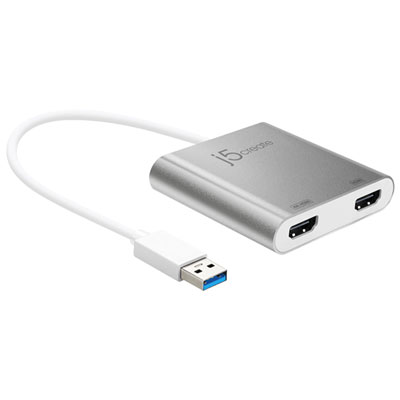 Your price for this item is $99.99
-
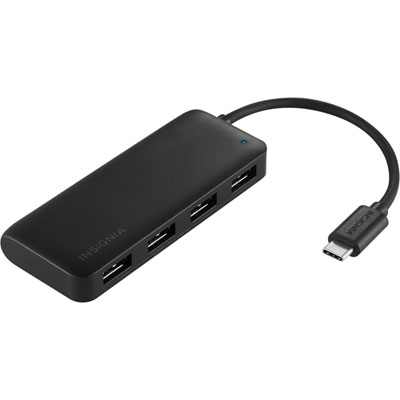 Your price for this item is $19.99
-
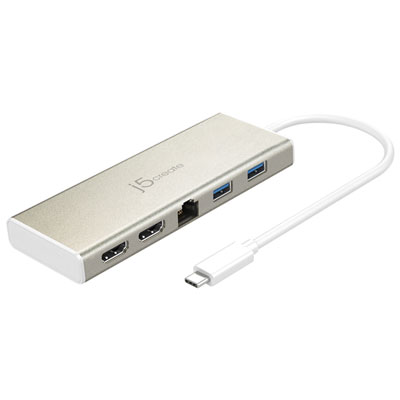 Your price for this item is $104.99
-
 Your price for this item is $39.99
Discover more categories related to USB A Port

Top Collections:
Best Black Friday Deals This Year, Best Black Friday Deals On Electronics, Kindle Devices, Pokemon Centers, Best Black Friday Deals On Apple Products, Best Cameras for Sports Photography, Dyson Airwrap, Pokémon 30th Celebration Cards, Apple iPhone 17 Pro, Canon G7X Cameras
Some products may be subject to Environmental Handling Fees
(EHF) depending on your province.
Learn more about EHFs.