MacBook Air HDMIs
Discover a wide selection of MacBook Air HDMI solutions designed to help you connect your device seamlessly to external displays, monitors, and projectors. Whether you're setting up a home office, enjoying entertainment on a bigger screen, or delivering presentations, you'll find the right accessories to enhance your MacBook Air experience. Explore adapters, cables, and more that make it easy to expand your connectivity options with MacBook Air HDMI products.
Sort
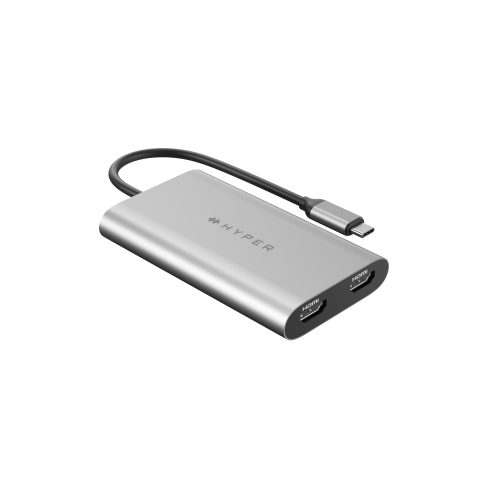
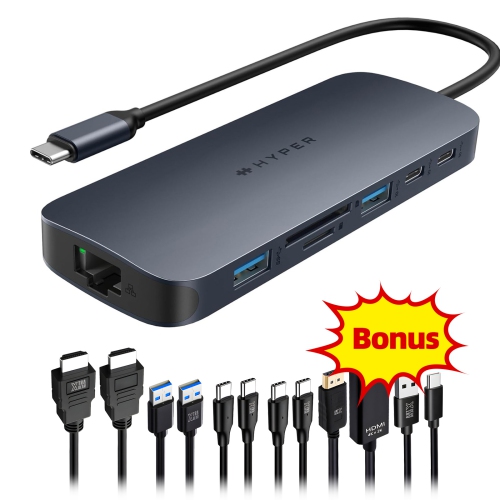
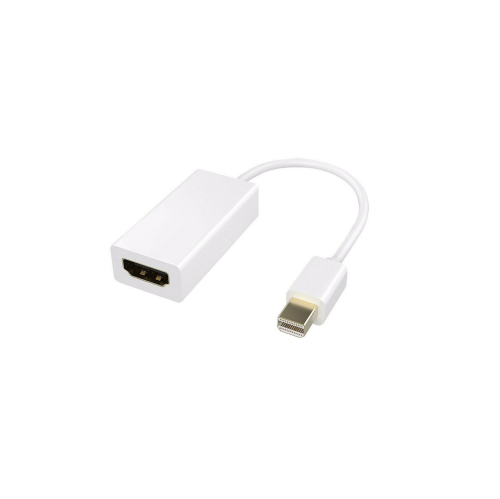
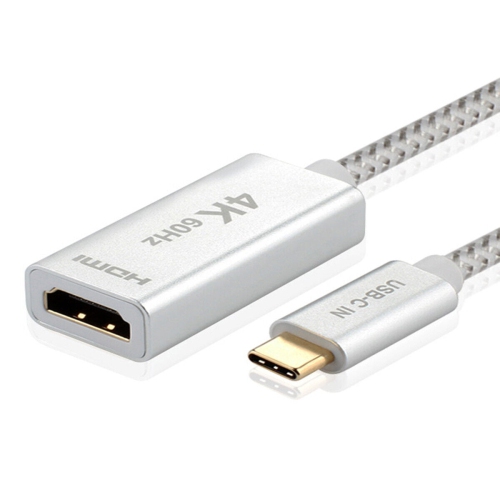
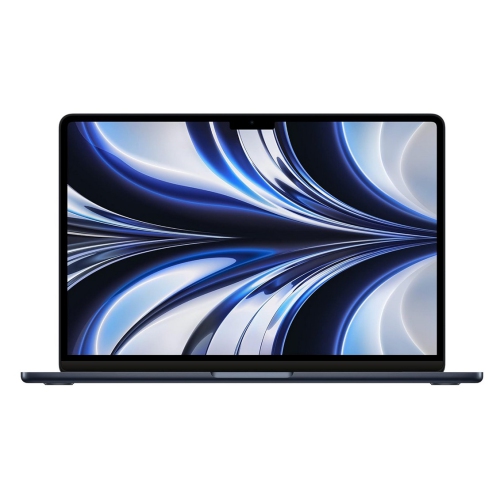
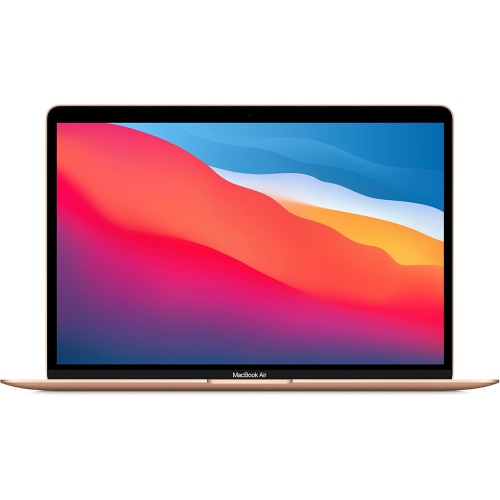
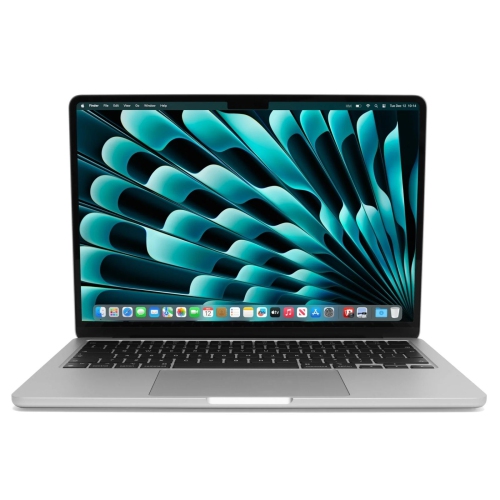
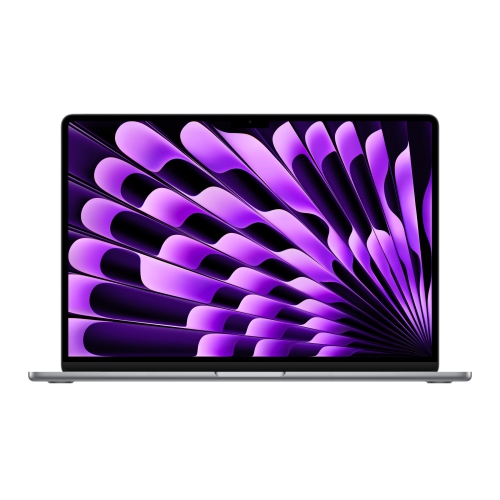
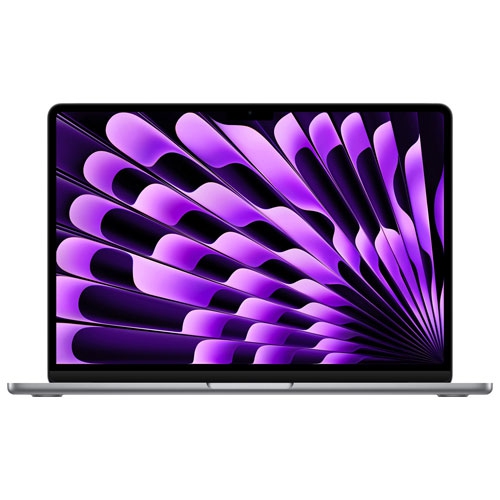
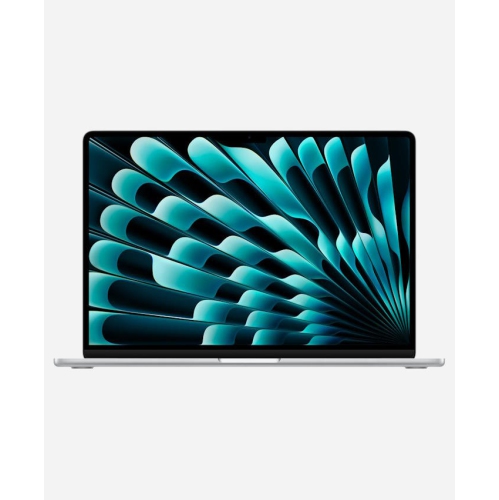
Bigger screens start with the right HDMI connection
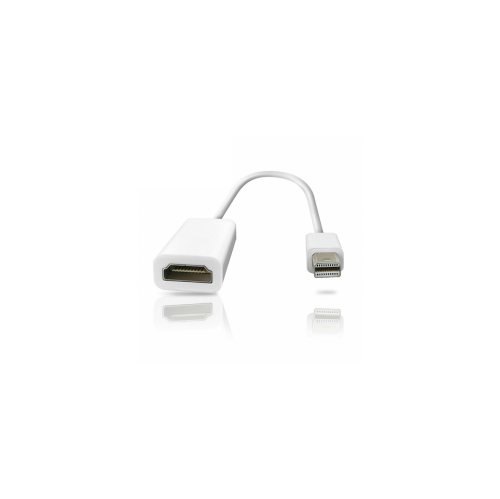
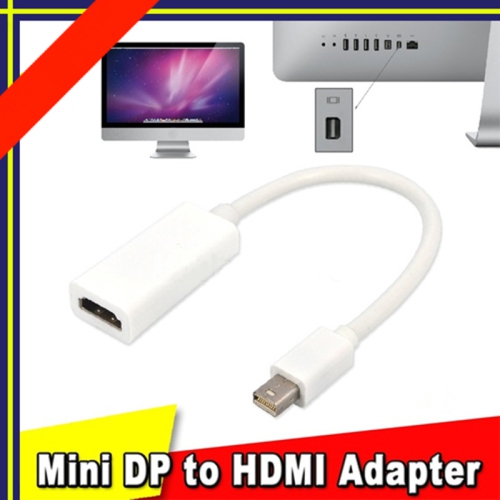
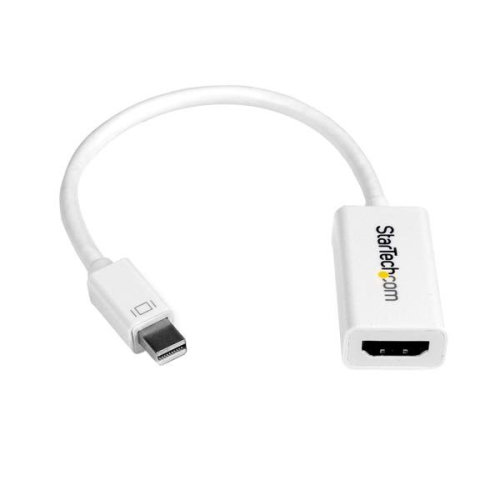
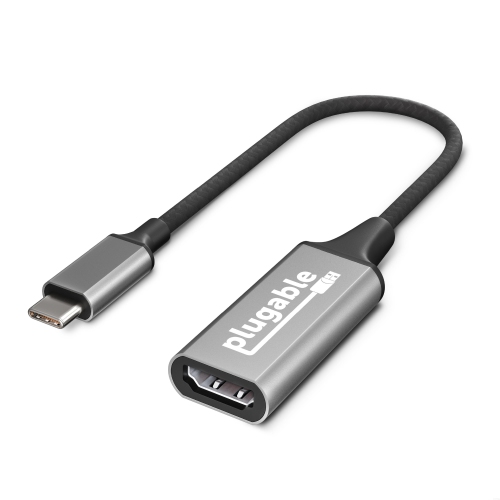
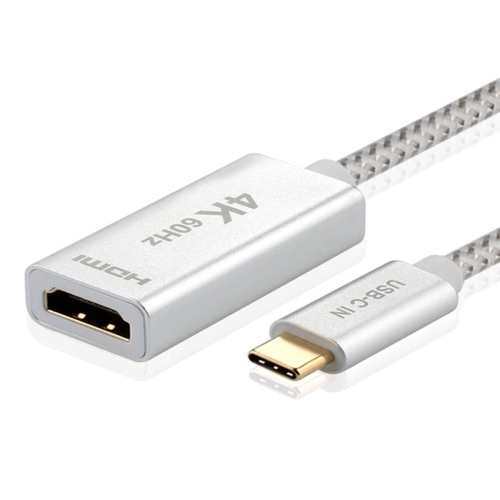
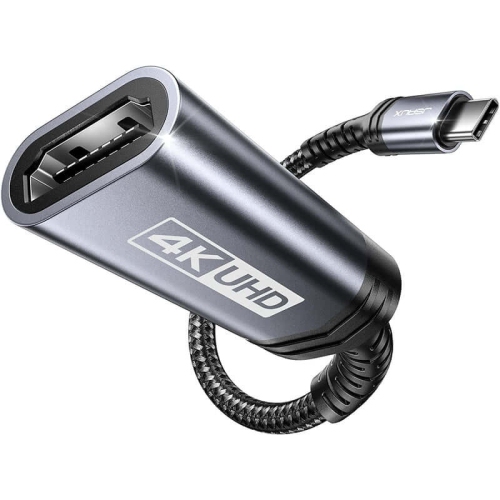
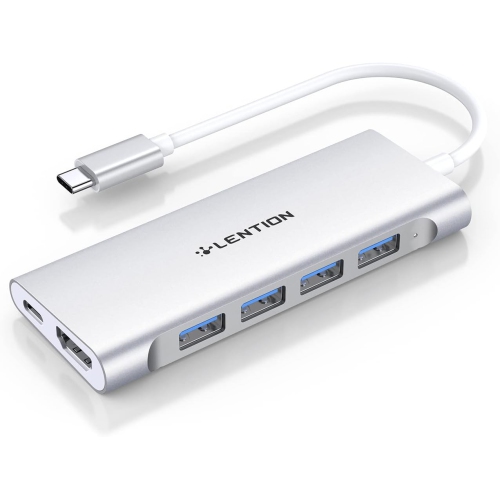
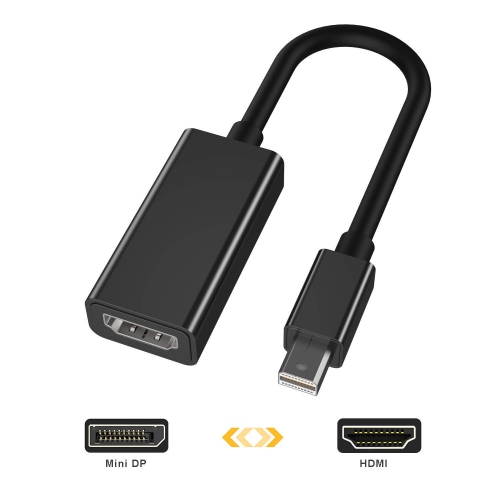
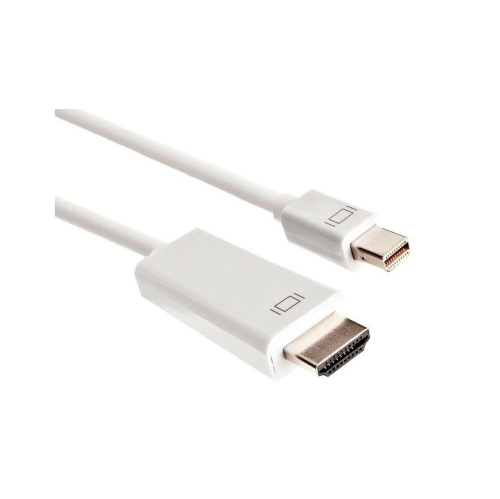
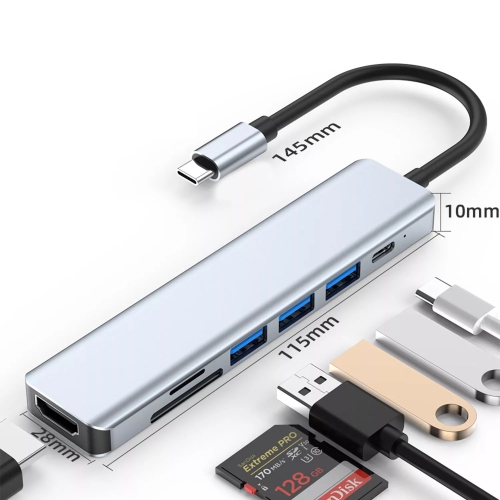
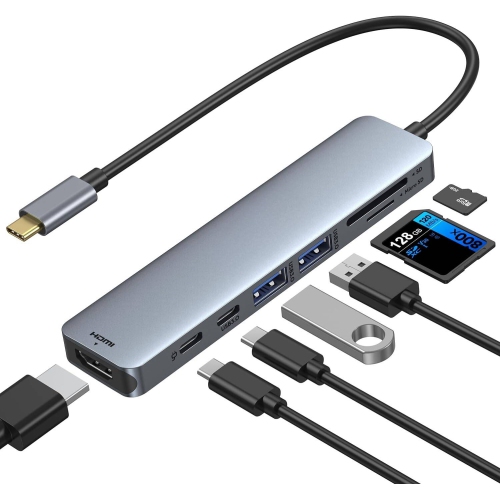
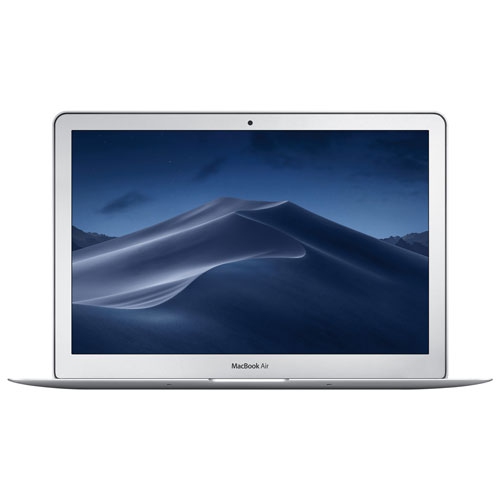
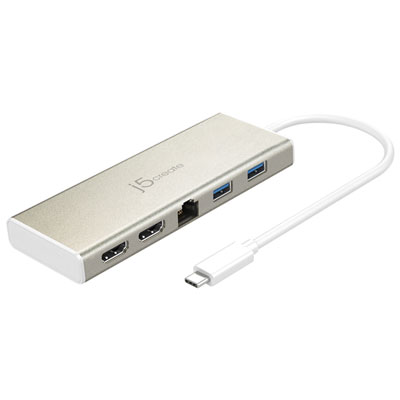
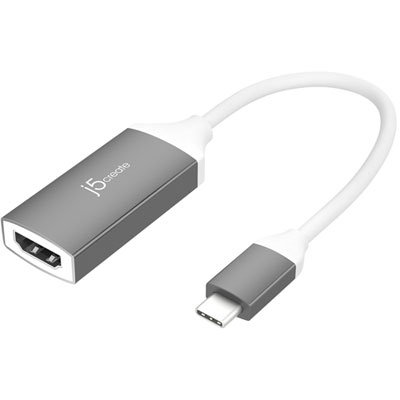
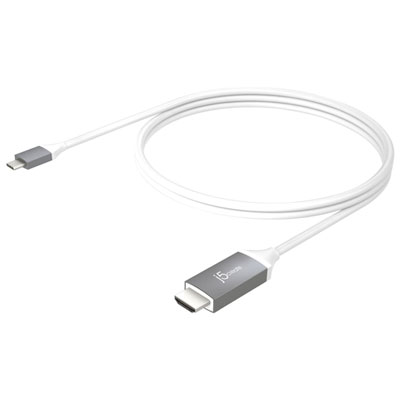
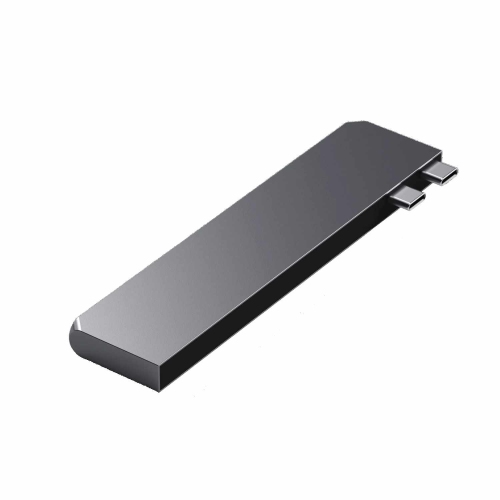
MacBook Air HDMI accessories connect a laptop to the larger screen of a monitor, TV, or projector, making them useful for everything from spreadsheet work to presentations and movie viewing. MacBook Air laptops do not have a built-in HDMI port, so connecting to an HDMI display requires a compatible adapter, cable, or dock. For models equipped with USB-C or Thunderbolt ports that use the USB-C connector, the usual options are a USB-C to HDMI adapter, a USB-C to HDMI cable, or a multiport hub with an HDMI output. A compact adapter provides an HDMI socket for a separate HDMI cable, which suits meeting rooms and desks where a cable is already in place. A direct USB-C to HDMI cable combines both connections in one length, keeping a straightforward laptop-to-monitor setup tidy. A hub adds other connections alongside HDMI, such as USB ports, memory card slots, or a charging input, depending on its design. Older MacBook Air models with Thunderbolt or Mini DisplayPort connections require an adapter matched to that port rather than a USB-C accessory. The laptop’s model and port type therefore matter more than the general appearance of the connector. With a compatible connection, a display can mirror the laptop screen so an audience sees the same content, or extend the desktop so different windows occupy each screen. That distinction makes HDMI accessories useful to students comparing notes with reference material, professionals keeping a video call beside a document, and anyone who prefers a larger view for everyday tasks. The display’s selected HDMI input and the laptop’s display settings determine where the picture appears and how the screens work together. Most USB-C to HDMI connections are directional, with the USB-C end intended for the laptop and the HDMI end intended for the display; they are not interchangeable with HDMI capture accessories used to bring video into a computer.
Picture quality depends on the capabilities of the entire connection, not simply whether an accessory has an HDMI socket. The laptop, adapter or hub, HDMI cable, and display all need to support the intended resolution and refresh rate. An accessory rated for 4K at 30 Hz is different from one rated for 4K at 60 Hz: both can carry a detailed image, but the higher refresh rate generally gives scrolling, pointer movement, and supported video a smoother appearance. For a desk used throughout the day, that difference can be noticeable even when the main tasks are email, documents, and browsing. A presentation on an older projector may instead depend on support for that projector’s native resolution. Specifications also matter for colour-sensitive work, high dynamic range video, and high-refresh-rate gaming, since support for one feature does not guarantee support for the others. HDMI can carry audio along with video, allowing sound to play through a compatible TV, monitor, or connected audio system rather than the laptop speakers. The receiving display needs suitable audio capabilities, and the selected sound output in macOS affects where audio plays. Protected streaming content may also require compatible copy-protection support throughout the connection. For workstations with more than one external screen, the MacBook Air model’s external-display limits are particularly important. Two HDMI sockets on a hub do not automatically provide two independent extended desktops, and some multi-display docks depend on additional software. Supported screen arrangements, resolutions, and any lid-position requirements vary by laptop model and accessory. These details make a single-monitor adapter a different purchase from a dock intended for a larger workstation. A screen used mainly for slides across a meeting table has different demands from a desktop display showing fine text for hours, while a living-room TV may place greater emphasis on supported video formats and sound. Matching the accessory’s stated capabilities to that intended use helps avoid unnecessary compromises.
Construction, cable length, and port placement affect how comfortable an HDMI setup is to use day after day. A short adapter with a flexible lead can reduce leverage on the laptop’s port compared with a bulky connector projecting directly from its side, especially on a crowded desk. A longer cable provides more freedom to position a display, but excess length can become tangled beneath a work surface or caught when a laptop is moved. For higher-resolution connections, the cable’s rating at the required length matters as much as reach. Moulded strain relief helps protect the point where the cable meets the plug, while braided coverings can offer resistance to abrasion during frequent packing and unpacking. Flexible jackets may be easier to route around a monitor stand, and metal housings can provide a sturdy feel while helping dissipate heat. Materials alone do not establish performance, so supported video specifications remain essential. Connector size deserves attention too: a wide housing may crowd an adjacent port or fit poorly beside a laptop case. Multiport hubs introduce further considerations, including whether their layout leaves room for larger USB plugs and whether their charging input supports sufficient power delivery for the intended laptop setup. A hub’s advertised pass-through rating is not always the amount delivered to the computer, because the hub itself can use some of that power. Other MacBook Air Connectors can complement an HDMI setup when a desk also needs wired peripherals, storage, or network access. For portable use, a compact adapter can slip into an accessory pouch beside a presentation remote; for a fixed workspace, a hub can keep several cables together between laptop sessions. Either can be a practical gift for a student, presenter, or home-office user when their laptop ports and display requirements are known. Routine care is straightforward: hold the connector rather than tugging the cable, avoid sharp bends near the ends, keep plugs dry and free of debris, and disconnect accessories before packing the laptop tightly into a bag. Leaving some slack between the computer and display also helps prevent accidental strain when either is repositioned.
Top selling and popular products
-
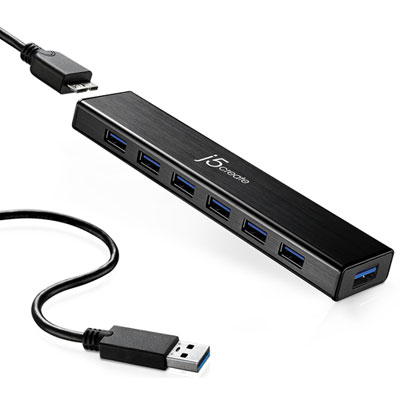 Your price for this item is $49.99
-
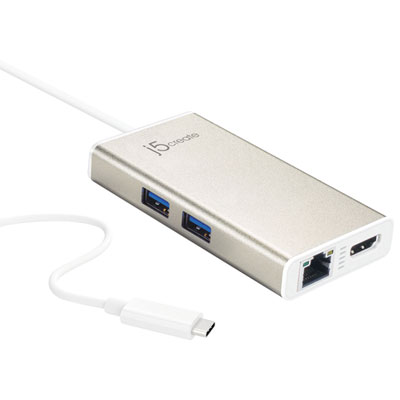 Your price for this item is $65.99
-
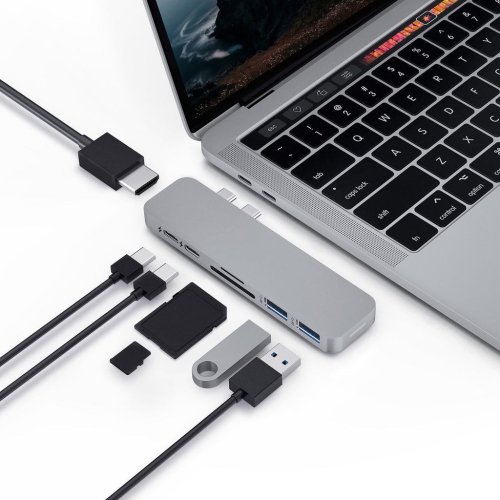 Your price for this item is $19.98
-
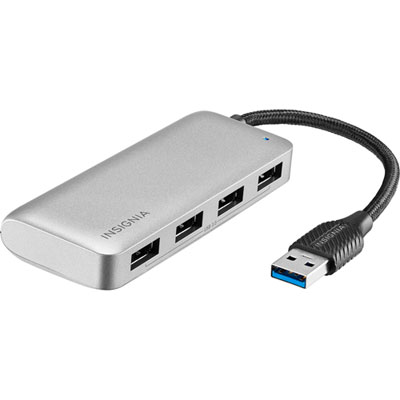 Your price for this item is $29.99
-
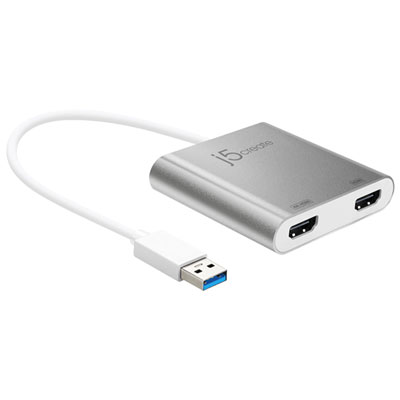 Your price for this item is $99.99
-
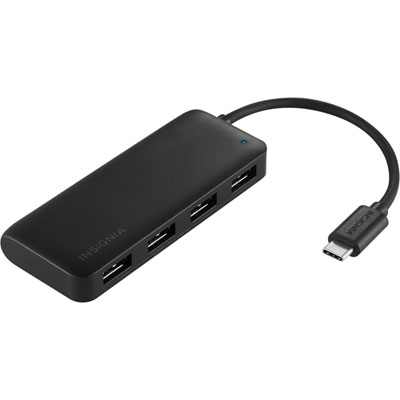 Your price for this item is $19.99
-
 Your price for this item is $104.99
-
 Your price for this item is $39.99
Discover more categories related to MacBook Air HDMIs
Top Collections:
Best Black Friday Deals This Year, Best Black Friday Deals On Electronics, Kindle Devices, Pokemon Centers, Best Black Friday Deals On Apple Products, Best Cameras for Sports Photography, Dyson Airwrap, Pokémon 30th Celebration Cards, Apple iPhone 17 Pro, Canon G7X Cameras
Some products may be subject to Environmental Handling Fees
(EHF) depending on your province.
Learn more about EHFs.