Monitor Docking Stations
A monitor docking station is the perfect solution for creating a streamlined and efficient workspace, whether at home or in the office. With a monitor docking station, you can easily connect multiple devices and peripherals, helping to keep your desk organized and your workflow smooth. Explore a wide variety of options designed to support your productivity needs and enhance your setup. Find the ideal monitor docking station to simplify connections and boost your daily performance.
Sort
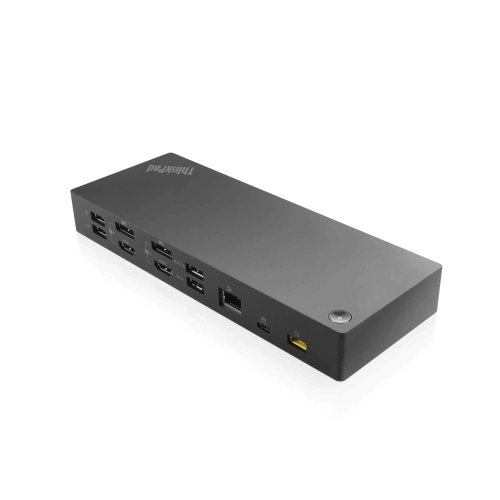
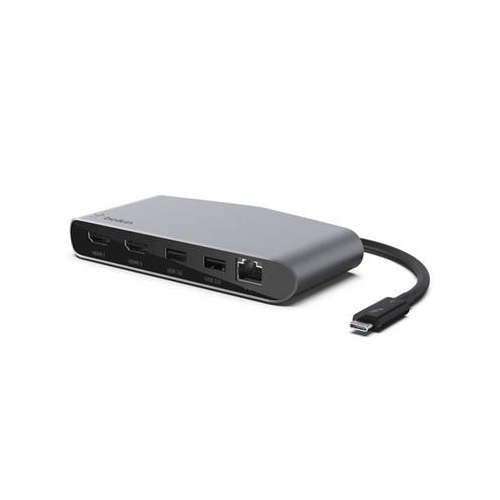


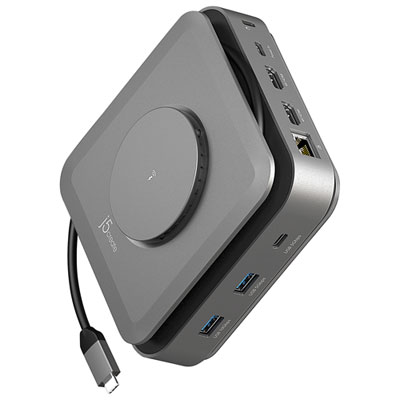

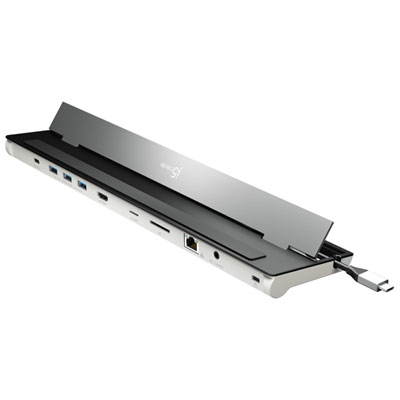

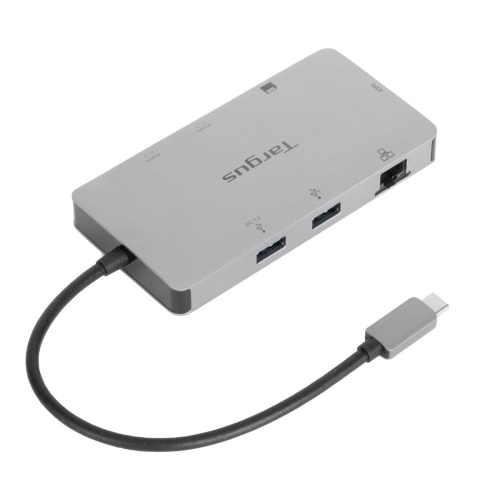
Fewer cables to reconnect when your laptop returns
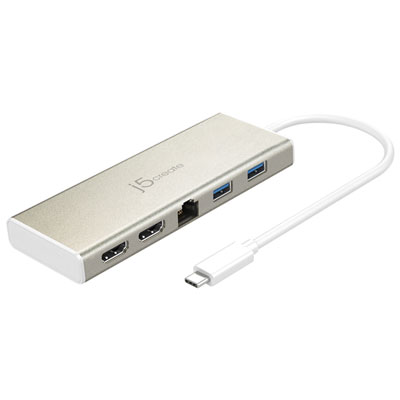
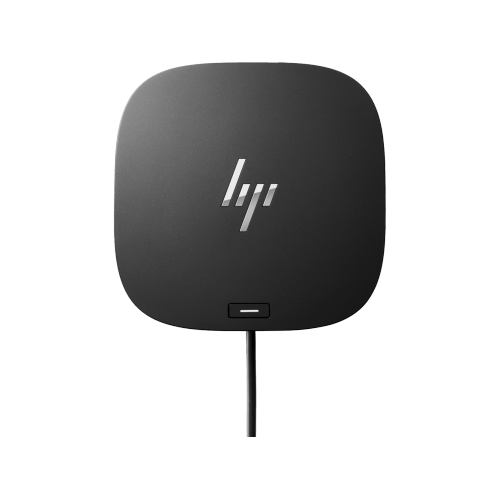
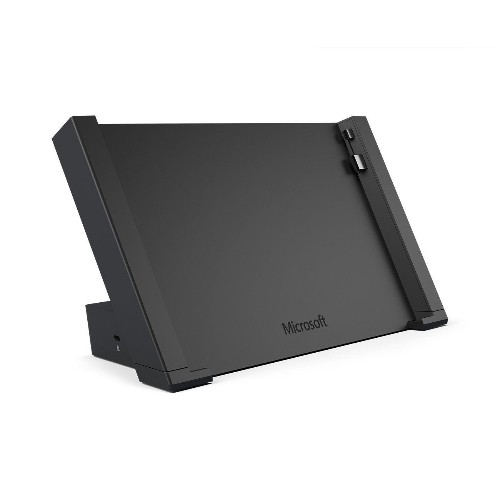
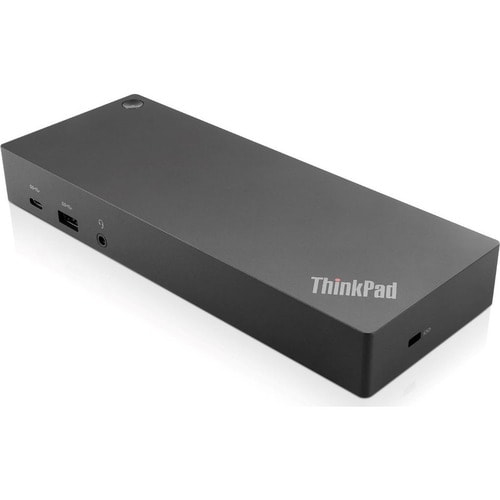
Monitor docking stations bring a laptop, external displays and everyday accessories together at a single connection point, making a portable computer easier to use at a dedicated desktop. Instead of reconnecting a keyboard, mouse, monitor cable and network cable individually, a compatible dock can keep those connections in place while the laptop moves between rooms or workplaces. That arrangement suits a home office, a shared workstation or a study space where a larger screen makes spreadsheets, research and video calls easier to manage. A single external monitor can provide room for a document beside a browser window, while a dual-monitor setup can keep reference material visible without constantly switching between applications. The right configuration depends on the work being done rather than simply the number of ports on the dock. Someone writing reports may value reliable display connections and convenient USB ports, while a photographer may also want a memory card reader and enough bandwidth for transferring large files. A wired Ethernet connection can be useful where a network cable is accessible, although connection speed still depends on the dock, network equipment and internet service. Audio connections may provide a convenient place for compatible headphones or desktop speakers. Some docks sit flat beneath a monitor stand, while others stand upright beside the computer to leave more work surface clear. Compact designs are easier to carry between locations; larger desktop designs often accommodate a broader range of connections and a separate power adapter. A docking station connects equipment but does not necessarily support or raise a monitor, so its role is different from that of a monitor arm or riser. It also differs from a monitor with docking features built into the display itself. Understanding that distinction helps keep the focus on the accessory that connects an existing computer, screen and peripherals into a practical setup.
Compatibility is central to how a monitor docking station performs, particularly when one cable is expected to carry video, data and power. USB-C describes a connector shape, not a guarantee that every connected device supports the same functions. A laptop needs the appropriate video capability through its port for a dock that relies on DisplayPort Alternate Mode, and USB4 or Thunderbolt docks have their own connection requirements. Some USB-based video docks use software drivers instead, which can affect suitability for a managed work computer where software installation requires permission. Operating system support matters as well, since the same dock may offer different display arrangements on different computers. A dock with two video outputs does not automatically guarantee two independent extended desktops on every laptop; some combinations may mirror the same image or support fewer displays than expected. Resolution and refresh rate also need to be considered together. A connection that handles one high-resolution screen at a particular refresh rate may support different settings when another display is added. Video traffic, storage transfers and other connected devices can share bandwidth, depending on the dock’s design and connection standard. For text-heavy work, a stable image at the monitor’s native resolution is often more valuable than capabilities intended for high-refresh-rate gaming. HDMI and DisplayPort outputs should match the displays or be paired with suitable adapters, since extra adapters can introduce their own limits. Charging is another separate specification. A dock that supports USB Power Delivery may supply power to a compatible laptop, but its maximum output needs to meet that computer’s requirements. The wattage of the dock’s power adapter is not always the wattage delivered to the laptop, because the dock and attached accessories also require power. More demanding computers may still need their original charger. Docks connected through USB-A generally do not charge the laptop through that connection. The included host cable matters too: a charging-only cable cannot replace a cable designed to carry the required video and data signals.
Physical design becomes more noticeable once a dock is part of a daily routine. Aluminium housings can offer a solid feel and help dissipate heat, while durable plastic housings can keep a portable design lighter. Neither material alone determines reliability; connector quality, cable strain relief and stable placement also matter. A dock with enough spacing between ports is easier to use when a wide USB flash drive sits beside a mouse receiver or a thicker display cable. Front-facing connections suit accessories that are attached frequently, while rear-facing ports can keep permanent cables directed away from the keyboard and writing area. The length and position of the host cable affect whether the laptop can sit comfortably on a stand without pulling against its connection. Rubber feet or a stable vertical base can help prevent movement when cables are attached, and a compatible security slot may be useful at a shared desk. Adequate ventilation remains important, especially when the dock powers a laptop and several accessories at once; it should not be buried under papers or placed where its openings are blocked. For routine care, power can be disconnected before wiping the housing with a soft, dry cloth, following the manufacturer’s instructions and keeping liquids away from ports. Cables last better when they are unplugged by the connector rather than pulled by the cord, and a travelling dock benefits from a separate pouch that protects its connectors from loose objects. These practical details are relevant whether exploring Targus Docking Stations or considering a different docking setup. For someone who regularly moves a laptop between meetings and focused desktop work, a well-matched dock can reduce the small interruptions involved in settling back in. The most useful arrangement leaves frequently used accessories connected, gives each display the connection it needs and keeps the work surface comfortable without adding unnecessary cables or complexity.
Top selling and popular products
-
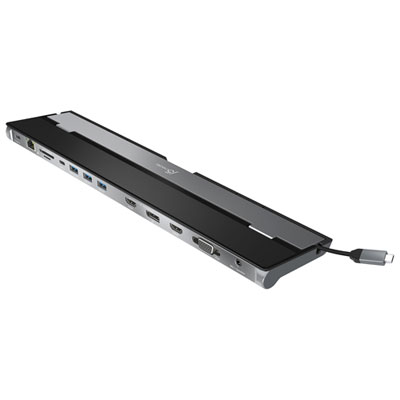 Your price for this item is $129.99
-
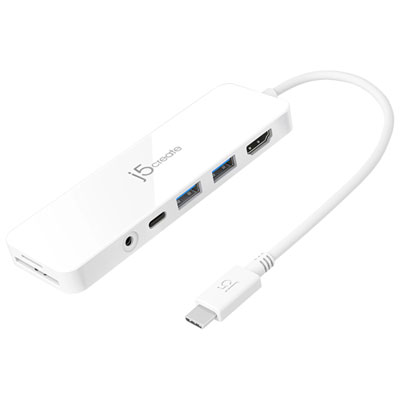 Your price for this item is $59.99
-
 Your price for this item is $44.99
-
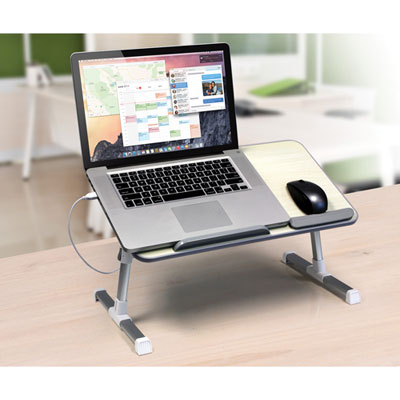 Your price for this item is $59.99
-
 Your price for this item is $96.61
-
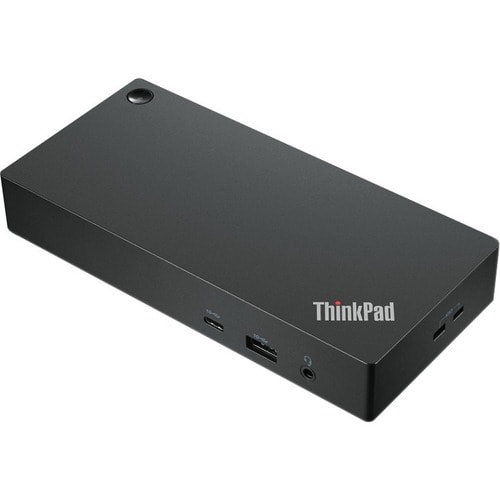 Your price for this item is $179.99
-
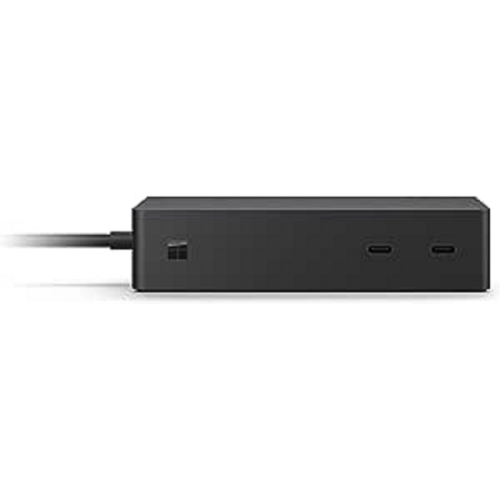 Your price for this item is $209.99
-
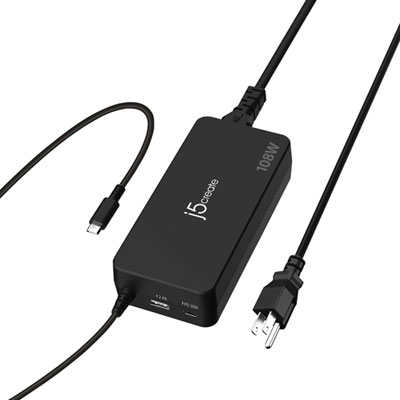 Your price for this item is $59.99
Discover more categories related to Monitor Docking Stations
Top Collections:
Best Black Friday Deals This Year, Best Black Friday Deals On Electronics, Kindle Devices, Dyson Airwrap, Best Cameras for Sports Photography, Best Budget Office Chairs, Canon G7X Cameras, PS5 Pro Consoles, Best Black Friday Deals On Apple Products, XBOX One S Consoles
Some products may be subject to Environmental Handling Fees
(EHF) depending on your province.
Learn more about EHFs.