Targus Docking Stations
Targus Docking Stations offer a convenient way to enhance your workspace and streamline device connectivity. Perfect for both home offices and professional settings, these docking stations help you organize your technology and maximize productivity. With a variety of options designed to support different needs, Targus Docking Stations make it easy to connect multiple devices and accessories for a seamless computing experience. Explore the selection to find the right solution for your setup.
Sort
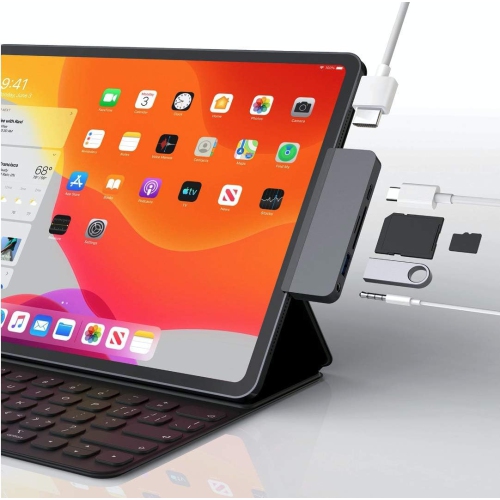
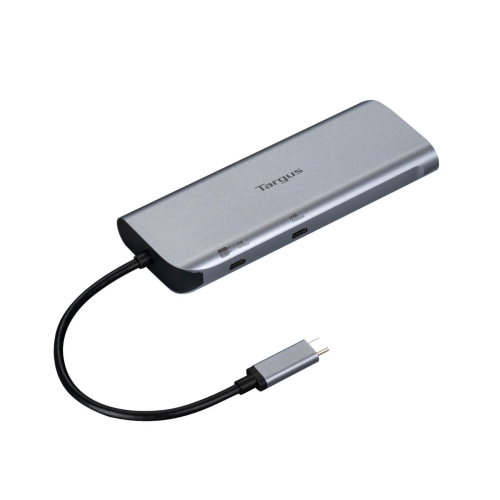
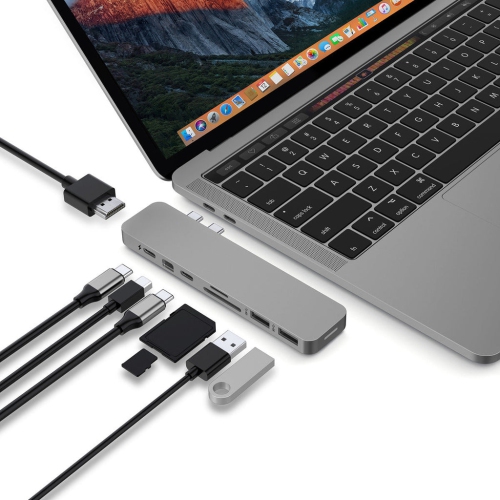
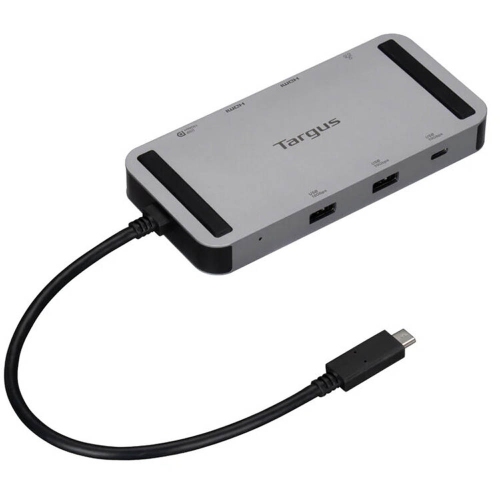

A smoother transition from laptop to full workstation
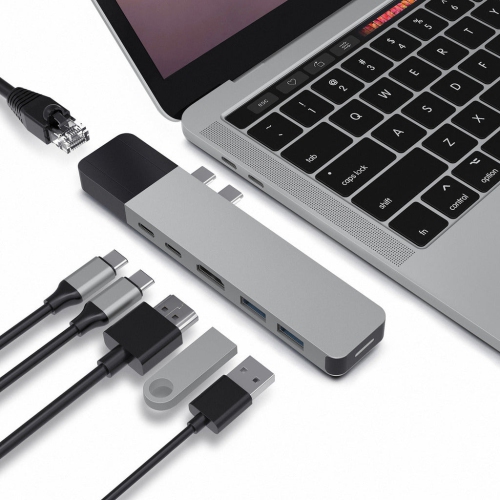
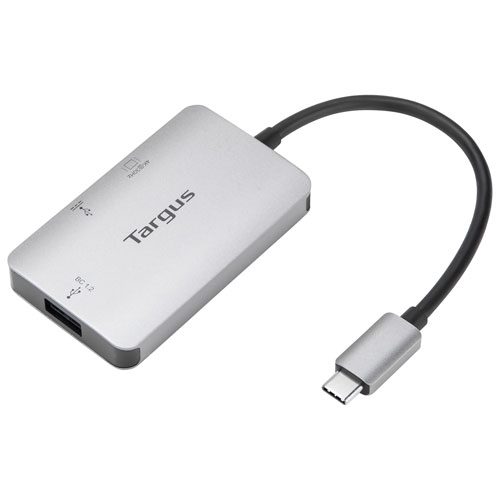
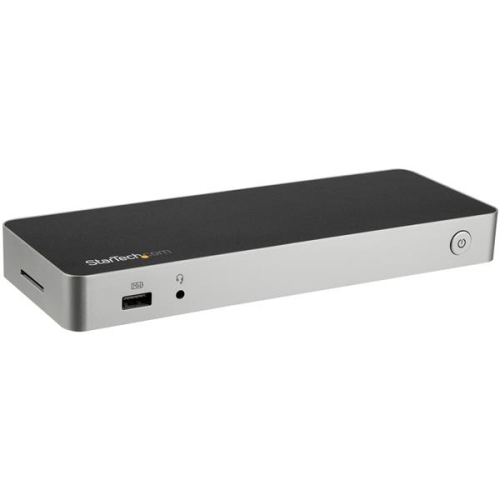
Docking stations expand a compatible laptop’s connections, making it easier to use external monitors, a keyboard, a mouse, wired networking and other accessories from one central connection. They suit workstations where a laptop moves between a bag and a desktop, as well as shared spaces where different users connect throughout the day. Compact travel docks emphasize portability, while larger desktop designs typically provide more connections and may use a dedicated power adapter. Depending on the model and computer, display support can range from a single external monitor to dual, triple or quad-screen arrangements. HDMI and DisplayPort connections are common considerations for modern monitors, while a VGA connection can be useful with older presentation equipment. The practical benefit is a more settled workspace: a spreadsheet stays open on one screen, reference documents sit on another, and the laptop remains accessible for messages or a video meeting. USB-A ports accommodate many existing keyboards, mice and storage devices, while USB-C ports may support newer accessories, data transfer or charging, depending on their specifications. Ethernet provides a wired network connection where a network cable is accessible, and an audio connection can keep a compatible headset or speakers attached to the workstation. Memory card slots are useful for people who regularly move photos or footage from a camera. The most suitable mix of connections depends on what stays on the work surface and what travels with the computer. Someone who connects one monitor and a mouse has different needs from a designer using several displays, external storage and a drawing tablet. Port placement matters in daily use, too: a front-facing connection is convenient for a frequently removed drive, while rear connections can keep monitor and network cables out of the way. For students, remote workers and households sharing a work area, a dock can reduce repeated cable handling and make the transition from portable computer to full workstation more straightforward.
Compatibility involves more than matching the shape of a connector. A USB-C socket can support different combinations of data, video and power, so the laptop’s port specifications need to match the dock’s requirements. Some docks rely on DisplayPort Alternate Mode, while others use USB graphics technology that may require software installation and operating system permissions. USB4 and Thunderbolt connections also have their own capabilities, and a dock designed around one connection type may offer reduced functionality, or no functionality, through another. Display performance depends on the entire chain: the computer, dock, cable and monitor all influence the resolution and refresh rate that can be achieved. A dock described as supporting 4K does not necessarily deliver that resolution to every connected display at the same refresh rate. Likewise, several video sockets do not guarantee that every operating system will support the same number of independent extended desktops. These distinctions matter for anyone who needs separate applications across multiple screens rather than the same image repeated on each monitor. Laptop charging deserves similar attention. Some docking stations supply power through the host connection, while others expand connectivity without charging the computer. Pass-through designs use a compatible charger connected to the dock’s power-input port, and part of that incoming power may be reserved for the dock and attached accessories. A laptop with higher power requirements may therefore need its original charger even when connected to a dock. Charging ports for accessories are also distinct from the connection intended to power the laptop. For a workstation with fast external storage, a webcam and several displays, connection bandwidth becomes another consideration because those devices may share the link back to the computer. Managed workplace computers can introduce additional requirements for drivers, security approval and network access. Looking at the exact laptop model, operating system, monitor specifications and power requirements gives a clearer picture of compatibility than relying on a connector name alone.
Physical design makes a noticeable difference once a dock becomes part of a daily routine. A compact housing slips more easily into a laptop bag, while a larger unit can provide more space between ports for wide plugs and thicker cables. Metal housings can offer a rigid feel, and moulded plastic designs can help keep carrying weight down; overall durability also depends on connector construction, cable reinforcement and how the dock is handled. A short attached host cable keeps a travel setup simple but limits placement, whereas a detachable cable can offer more flexibility when the computer sits on a stand. Either arrangement works best when the cable reaches comfortably without pulling against the laptop’s port. On a busy work surface, a stable base and thoughtfully routed cables help keep the dock from shifting whenever an accessory is unplugged. Some desktop designs support mounting behind a monitor or beneath a desk, provided the mounting hardware and clearances are compatible. That can free up room for a notebook, keyboard or drawing area without leaving connections difficult to reach. Normal operation may produce warmth, so the housing should remain uncovered and positioned according to the manufacturer’s directions. Routine care generally involves disconnecting the dock from the computer and power source before wiping the exterior with a soft, dry cloth, without allowing moisture into the ports. When travelling, keeping plugs protected and avoiding tight bends at cable ends helps reduce unnecessary strain. A docking station can also be a practical gift for a student or someone setting up a home office, particularly when their laptop connections and monitor needs are already known. Related categories such as Thinkpad Docking Stations offer another way to browse, although the exact computer specifications remain important. The strongest fit is a dock that supports the equipment used every day, sits comfortably within the workspace and makes connecting the laptop feel routine rather than fiddly.
Top selling and popular products
-
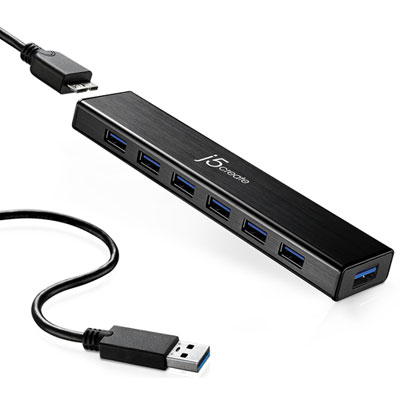 Your price for this item is $39.99
-
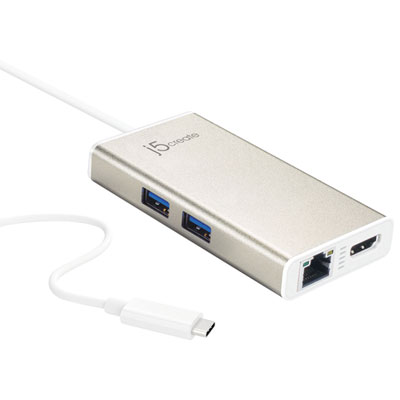 Your price for this item is $59.99
-
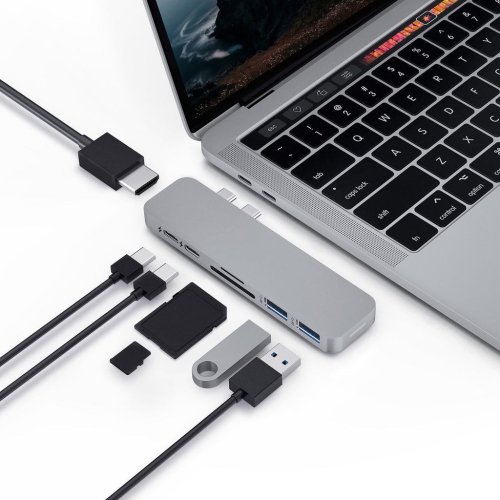 Your price for this item is $19.98
-
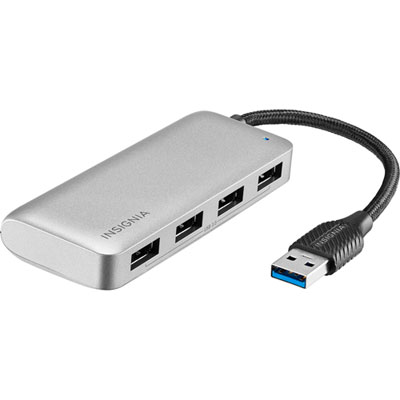 Your price for this item is $29.99
-
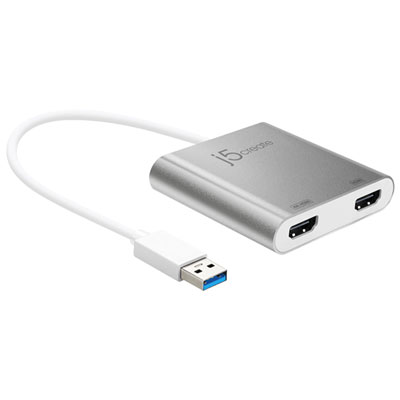 Your price for this item is $79.99
-
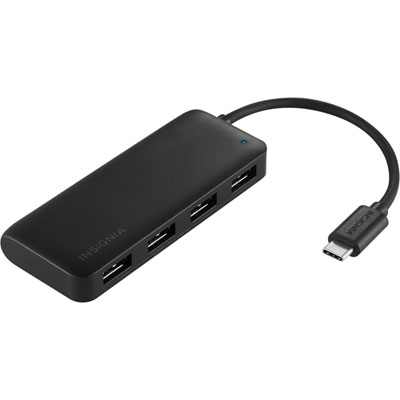 Your price for this item is $19.99
-
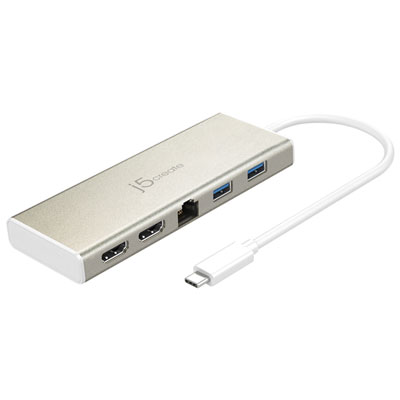 Your price for this item is $89.99
-
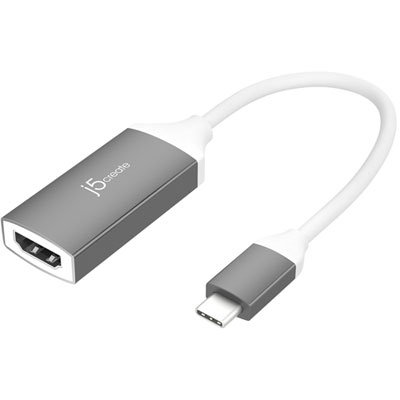 Your price for this item is $29.99
Discover more categories related to Targus Docking Stations
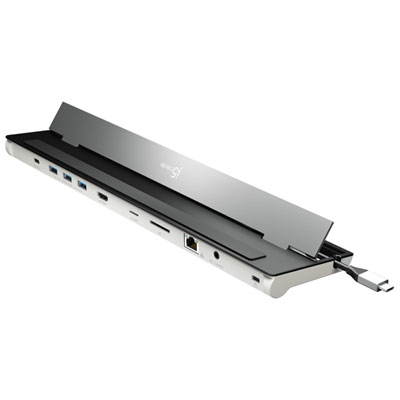
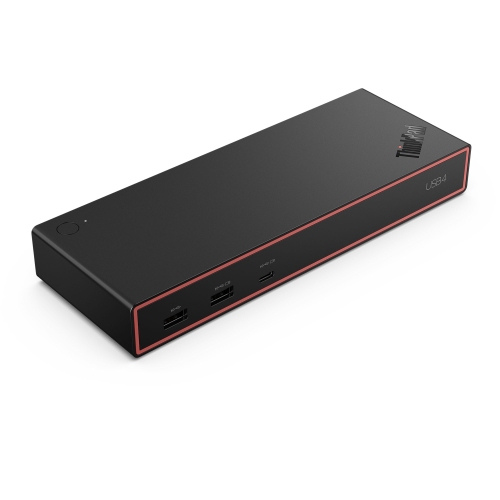
Top Collections:
Best Black Friday Deals This Year, Best Black Friday Deals On Electronics, Kindle Devices, Dyson Airwrap, Best Cameras for Sports Photography, Best Budget Office Chairs, Canon G7X Cameras, PS5 Pro Consoles, Best Black Friday Deals On Apple Products, XBOX One S Consoles
Some products may be subject to Environmental Handling Fees
(EHF) depending on your province.
Learn more about EHFs.